Free AI Layer Decomposition: Turn One Image into Reusable Layers
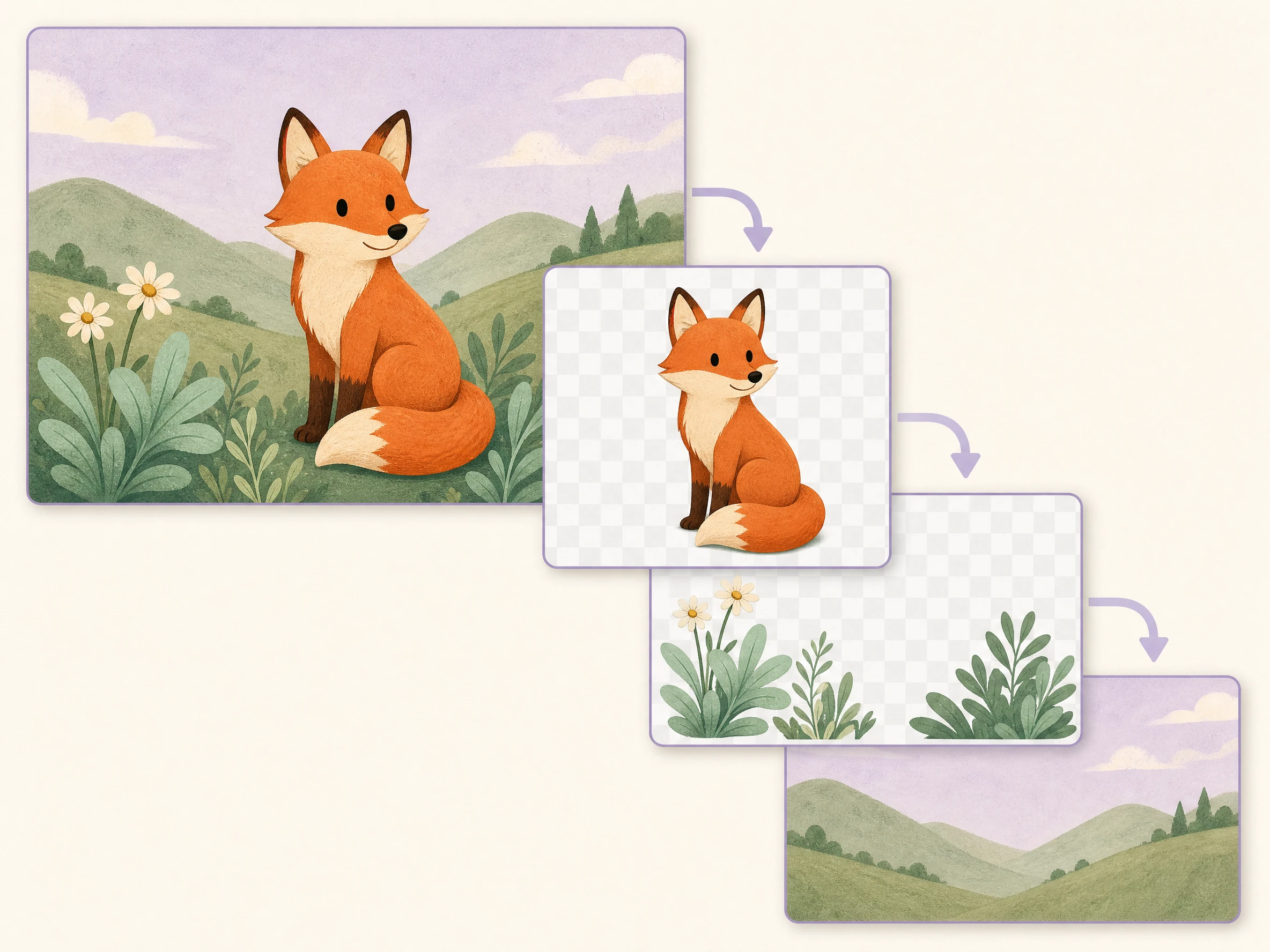
Extract the elements you need from an image and reuse them in your next design. Face AI uses Seedream 5.5 to split a flat photo, product visual, or illustration into separate PNG layers. Preview the pieces, download the ones you need, and build your next composition without tracing every object by hand.

Trusted by 12,000,000+ users worldwide. Separate your image, review the results, and keep creating with Face AI.
How to Split an Image into Layers with AI
One source image, three steps. No prompt writing or manual selection required.
Upload a flat image
Choose one JPG, PNG, or WebP up to 20 MB with clear subjects and readable edges.
Choose your layer settings and split
Set a maximum of 2–100 outputs, choose 1K, 1.5K, or 2K resolution, and start layer decomposition.
Preview and download your layers
Open each result to inspect the details, then download one PNG or use Download All for the complete set.
AI Image to Layers for Products, Posters, and Character Art
Start with a visual you already have. Separate the useful parts, then arrange them in your preferred editor.
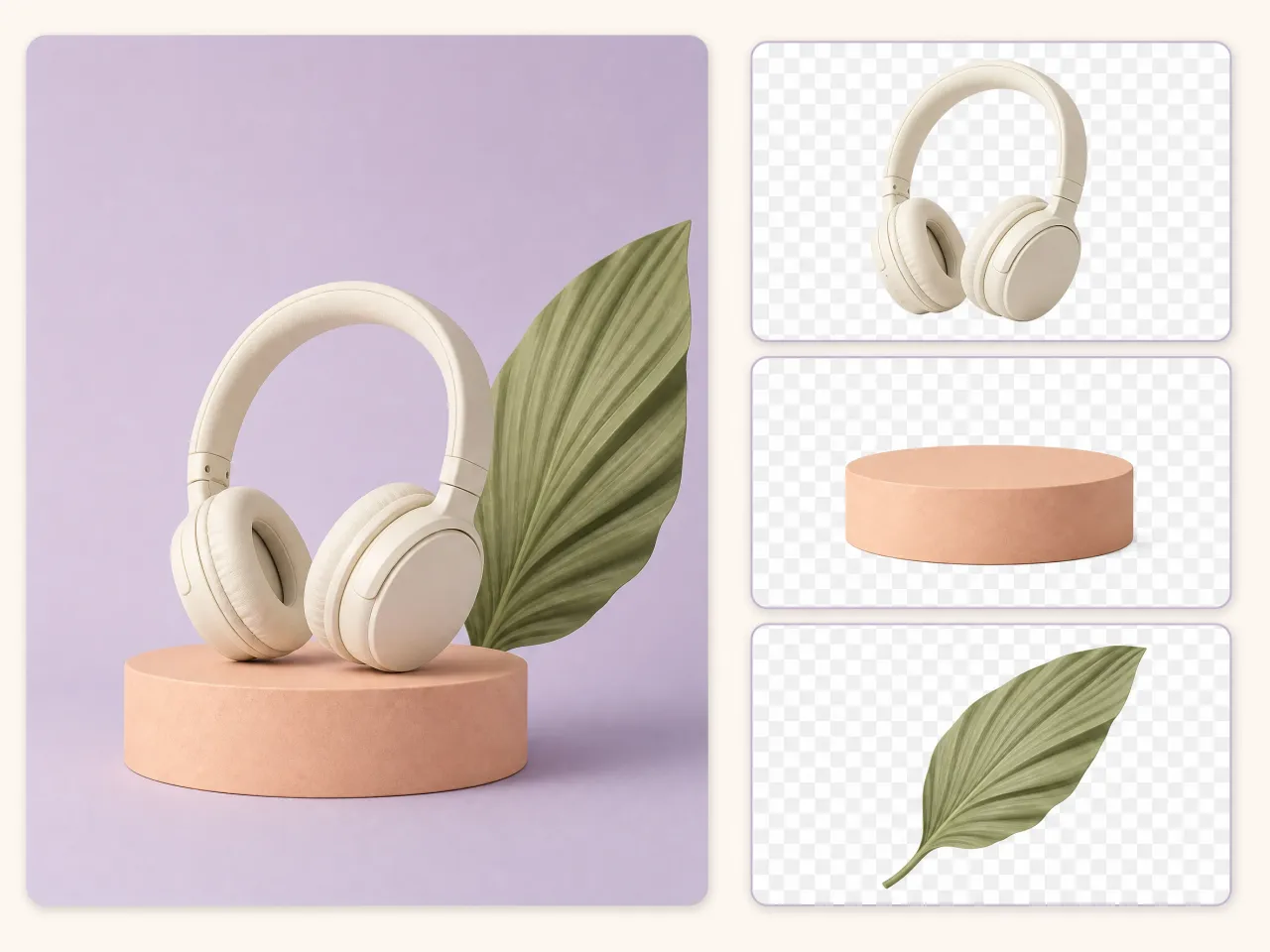
Reuse products in your next campaign
E-commerce teams can upload a finished product visual and separate reusable product and scene assets. Download the PNGs, then compose a new marketplace banner or seasonal ad without cutting every item out again.
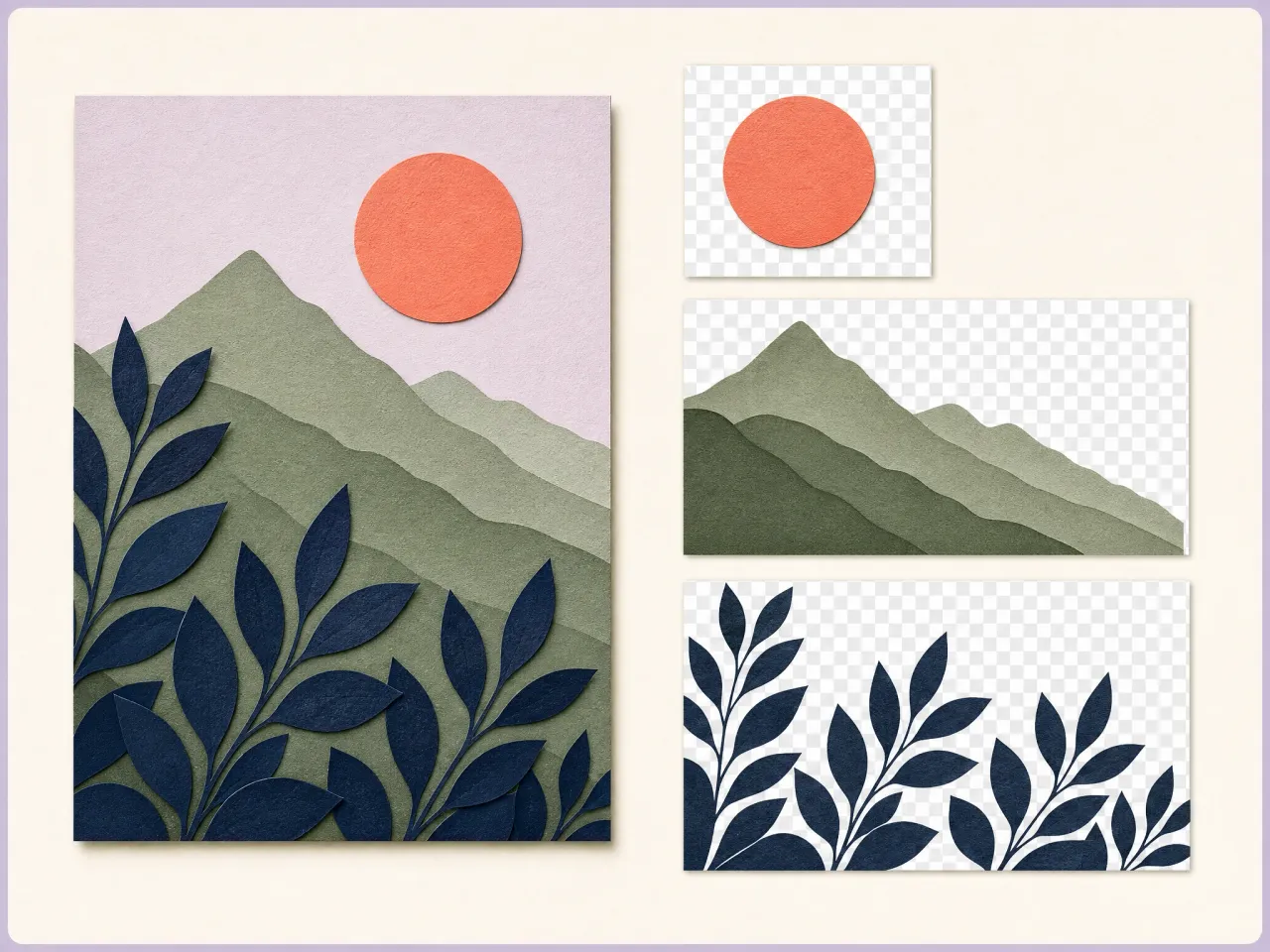
Rework a flattened poster layout
Designers can start from a poster export when the layered source file is missing. Split the artwork into image assets, move the useful pieces into a new layout, and add fresh copy in an editor for the next event or promotion.
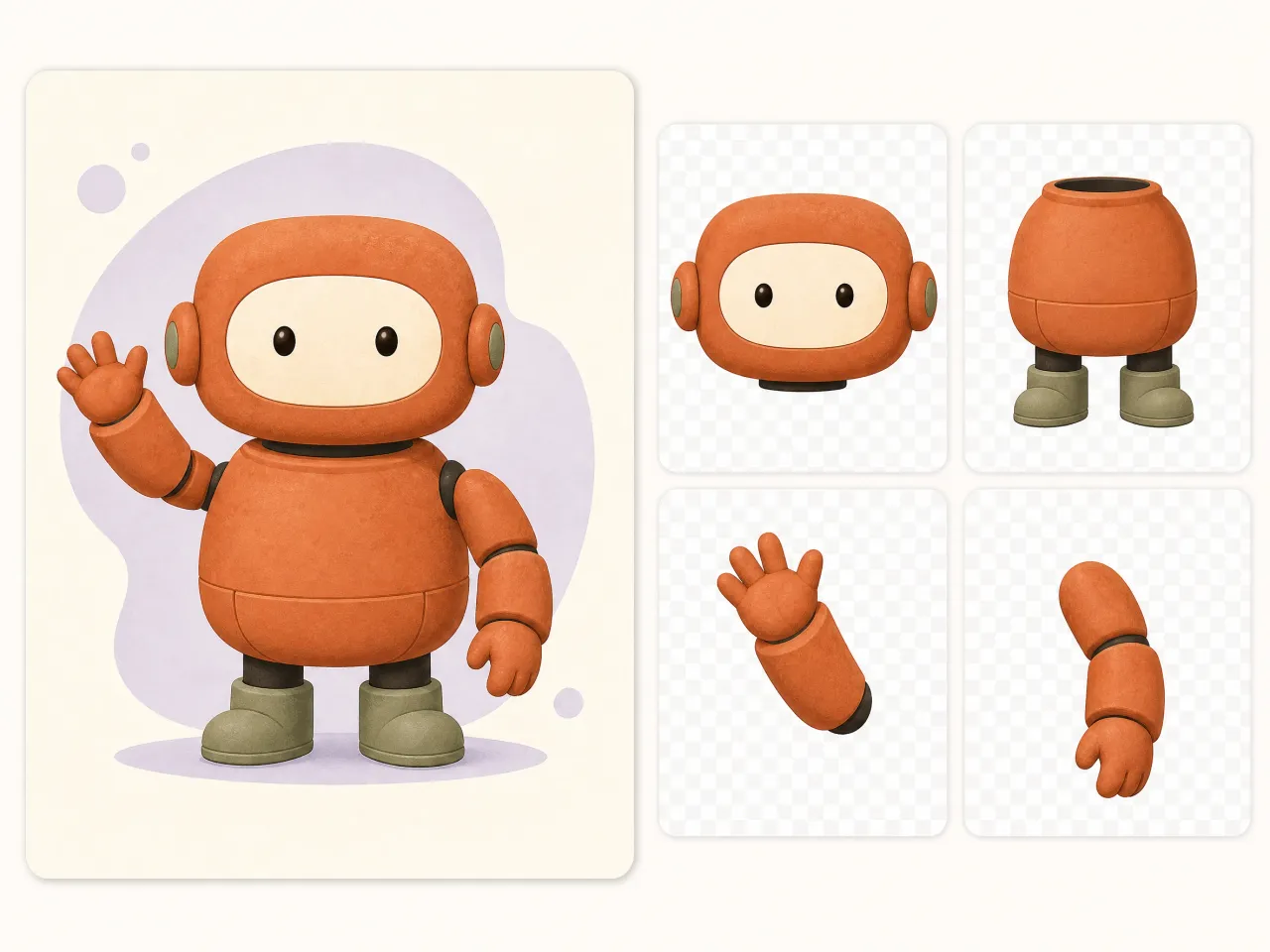
Prepare character assets for motion
Illustrators and motion designers can upload a mascot or character image, review the separated PNGs, and bring useful parts into an animation editor. Check overlaps and hidden areas before rigging or adding movement.
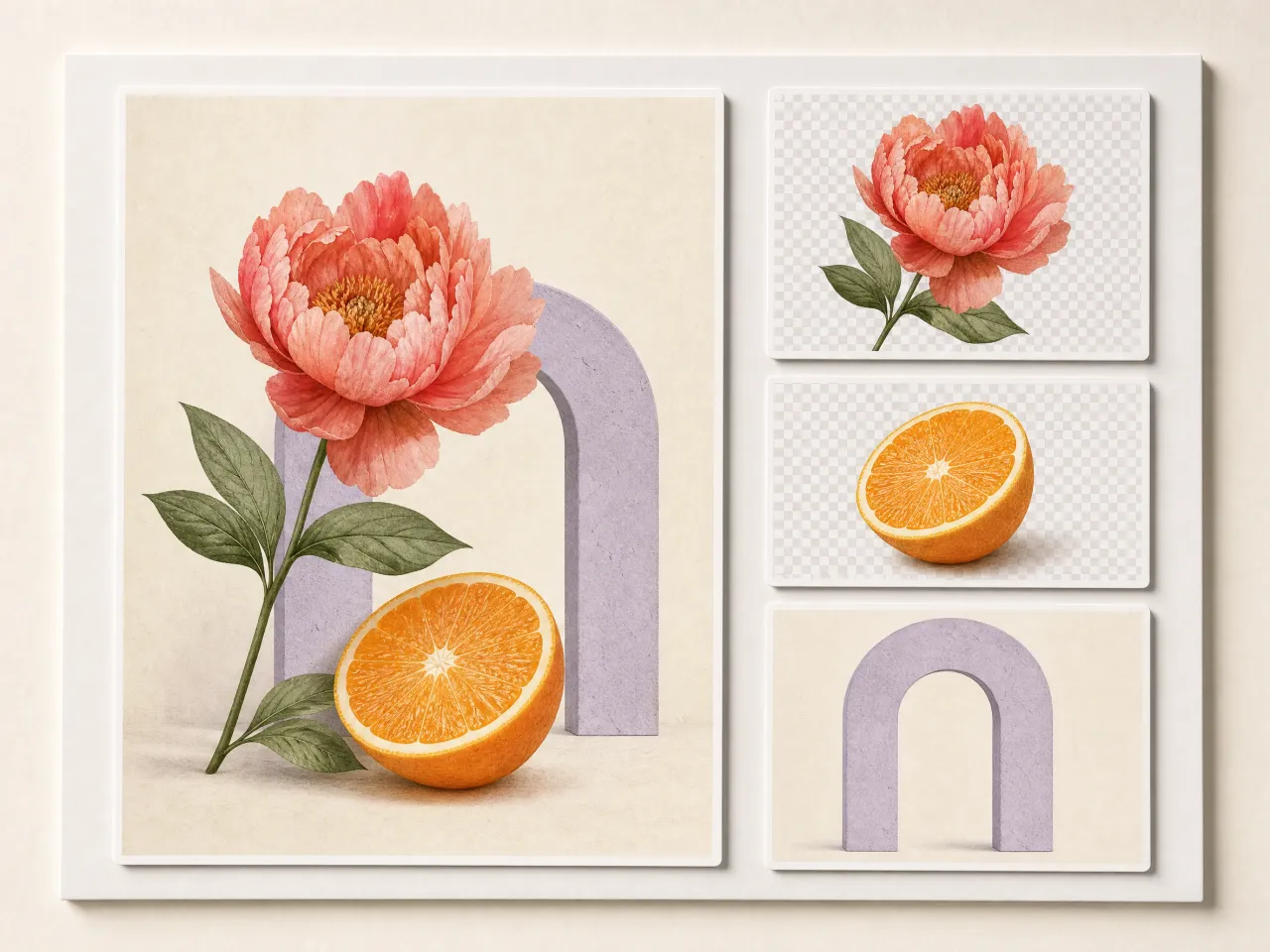
Hand off approved artwork as reusable pieces
Creative teams can upload an approved campaign visual, separate its major elements, and download the full result set for a designer. Keep the original alongside the PNGs so the next person can compare the pieces before rebuilding the composition.
Turn a Flat Picture into Separate Image Layers
Layer decomposition uses AI to separate a flattened image into meaningful visual parts. Seedream image layer decomposition creates a new set of PNG assets from the visible image, so you can work with the pieces in another design tool. It gives an exported picture a new editing starting point.
Separate objects from a busy composition
Create individual image assets from subjects, products, props, and other recognizable parts. Review what AI separates before deciding which pieces belong in the next design.
Build with foreground and background assets
Use separated scene elements as material for a new composition. Layer decomposition goes beyond a single foreground cutout by looking for multiple useful regions in the source.
Take PNG layers into your editor
Download separate raster images for use in Photoshop, Photopea, Figma, or another tool that imports PNG. Arrange, resize, and finish the assets there.
Why Use Face AI for Free Image Layer Decomposition?
Skip the blank layer stack and start with the picture you already want to use.
Free online, no software installation
Open the image layer separator in your browser and upload your picture. There is no plugin to configure before you can start separating assets.
Let the image guide the split
You do not need to describe every object or write a decomposition prompt. Upload the source, choose a layer limit, and let Seedream handle the first separation pass.
Keep the pieces you actually need
A full result grid makes it easier to compare the generated layers. Preview individual images, download a single useful asset, or collect the complete set for your next design.
Better Image-to-Layers Results Start with a Clear Source
A larger layer limit does not automatically mean a better result. Choose settings around the assets you need.
Give each subject room to read
Choose a sharp image with distinct shapes. Tiny objects, heavy blur, and closely overlapping subjects make individual parts harder to separate.
Begin with the main elements
Use a small maximum when you want a few broad pieces. Increase the limit for a more detailed composition; the returned number still depends on the image.
Check edges before the final export
Inspect hair, fine outlines, and object overlaps in the preview. Finish any problem areas in your editor, especially when preparing a client asset or animation.
AI Layer Decomposition vs. Background Removal and Manual Masking
Choose the workflow based on what you need to take out of the image.
| Criteria | Face AIOurs Face AI image to layers | Background removal / manual editing |
|---|---|---|
| Main goal | Separate several useful image assets from one flat picture. | Isolate one foreground subject, or select each element manually. |
| Starting point | One JPG, PNG, or WebP; no prompt required. | A source image plus a cutout selection or editing project. |
| Layer selection | AI interprets the image within your chosen output limit. | A background remover targets the foreground; manual tools give direct selection control. |
| Download format | Separate PNG images with individual and full-set downloads. | Usually one cutout; manual editors can also save their own layered project formats. |
| Next creative step | Import useful layers into your editor and build a new composition. | Place a single cutout, or continue editing the masks and project layers. |
| What to review | AI can return fewer layers than the maximum; edges and overlaps may need cleanup. | A cutout may miss other assets; manual masking depends on your selections. |
Main goal
Separate several useful image assets from one flat picture.
Isolate one foreground subject, or select each element manually.
Starting point
One JPG, PNG, or WebP; no prompt required.
A source image plus a cutout selection or editing project.
Layer selection
AI interprets the image within your chosen output limit.
A background remover targets the foreground; manual tools give direct selection control.
Download format
Separate PNG images with individual and full-set downloads.
Usually one cutout; manual editors can also save their own layered project formats.
Next creative step
Import useful layers into your editor and build a new composition.
Place a single cutout, or continue editing the masks and project layers.
What to review
AI can return fewer layers than the maximum; edges and overlaps may need cleanup.
A cutout may miss other assets; manual masking depends on your selections.
Make More of the Images You Already Have
From a product banner to a client revision, reusable pieces make the next creative step easier.
"A product image should give me assets I can reuse. Separate PNGs make the next layout easier."

Mei Chen
E-commerce Director
"I need the product on its own before making another marketplace banner. That is where image layers help."

Yuki Tanaka
Head of Marketplace Operations
"One finished visual can become the starting point for several new product layouts."

Soyeon Kim
VP of Online Retail
"Separating the artwork first gives our team a clearer place to start a campaign revision."

Wenjing Li
Chief Marketing Officer
"Previewing each PNG matters. I want to check the edge before putting it in a customer-facing graphic."

Hana Yamamoto
Customer Experience Director
"The useful part is taking one element into the next creative instead of rebuilding the whole image."

Jieun Park
Growth Marketing Lead
"A product image should give me assets I can reuse. Separate PNGs make the next layout easier."
Mei Chen
E-commerce Director
"I need the product on its own before making another marketplace banner. That is where image layers help."
Yuki Tanaka
Head of Marketplace Operations
"One finished visual can become the starting point for several new product layouts."
Soyeon Kim
VP of Online Retail
"Separating the artwork first gives our team a clearer place to start a campaign revision."
Wenjing Li
Chief Marketing Officer
"Previewing each PNG matters. I want to check the edge before putting it in a customer-facing graphic."
Hana Yamamoto
Customer Experience Director
"The useful part is taking one element into the next creative instead of rebuilding the whole image."
Jieun Park
Growth Marketing Lead
"Download the pieces, bring them into the editor, and keep the composition moving."

Lingling Zhao
Digital Commerce Manager
"A product image should give me assets I can reuse. Separate PNGs make the next layout easier."
Mei Chen
E-commerce Director
"I need the product on its own before making another marketplace banner. That is where image layers help."
Yuki Tanaka
Head of Marketplace Operations
"One finished visual can become the starting point for several new product layouts."
Soyeon Kim
VP of Online Retail
"Separating the artwork first gives our team a clearer place to start a campaign revision."
Wenjing Li
Chief Marketing Officer
"Previewing each PNG matters. I want to check the edge before putting it in a customer-facing graphic."
Hana Yamamoto
Customer Experience Director
"The useful part is taking one element into the next creative instead of rebuilding the whole image."
Jieun Park
Growth Marketing Lead
"Download the pieces, bring them into the editor, and keep the composition moving."
Lingling Zhao
Digital Commerce Manager
"Manual masking is the slow part of turning one ad into several layouts. A first pass at separate assets gives me something practical to review before the design work starts."

Mika Suzuki
Performance Marketing Director
"I worried that choosing more layers would just give me more files to sort. Starting with a small layer limit keeps the first review focused on the elements I actually need."

Xiaofang Wang
Senior Marketing Strategist
"A flattened client file should not stop the conversation. I want to separate the main visual, inspect the PNGs, and decide what we can reuse before asking for a full redesign."

James Whitfield
Creative Director
"I was concerned about treating every generated edge as final. The preview step gives me a chance to check overlaps and keep manual cleanup in the workflow when the image needs it."

Lars Andersson
Art Director
"For a campaign handoff, I want the source visual and the extracted assets together. The team can see what came from the original idea and what still needs to be composed in the editor."

Marco Rossi
Head of Strategy
"A client may approve the illustration but ask for a different layout. Starting with the approved flat image and separating reusable parts keeps that revision focused. I still want the designer to review the output before delivery, especially small details and overlapping objects. Having separate PNGs makes the handoff much easier to explain."

Pierre Dubois
Account Director
"The starting image matters as much as the tool. A clear subject and readable shapes give the design team a better basis for layer separation. I would rather begin with a few useful pieces, inspect them at full size, and build the next composition deliberately than ask for every tiny detail at once. The layers are a starting point for creative work."

Hans Müller
Chief Creative Officer
"Manual masking is the slow part of turning one ad into several layouts. A first pass at separate assets gives me something practical to review before the design work starts."
Mika Suzuki
Performance Marketing Director
"I worried that choosing more layers would just give me more files to sort. Starting with a small layer limit keeps the first review focused on the elements I actually need."
Xiaofang Wang
Senior Marketing Strategist
"A flattened client file should not stop the conversation. I want to separate the main visual, inspect the PNGs, and decide what we can reuse before asking for a full redesign."
James Whitfield
Creative Director
"I was concerned about treating every generated edge as final. The preview step gives me a chance to check overlaps and keep manual cleanup in the workflow when the image needs it."
Lars Andersson
Art Director
"For a campaign handoff, I want the source visual and the extracted assets together. The team can see what came from the original idea and what still needs to be composed in the editor."
Marco Rossi
Head of Strategy
"A client may approve the illustration but ask for a different layout. Starting with the approved flat image and separating reusable parts keeps that revision focused. I still want the designer to review the output before delivery, especially small details and overlapping objects. Having separate PNGs makes the handoff much easier to explain."
Pierre Dubois
Account Director
"The starting image matters as much as the tool. A clear subject and readable shapes give the design team a better basis for layer separation. I would rather begin with a few useful pieces, inspect them at full size, and build the next composition deliberately than ask for every tiny detail at once. The layers are a starting point for creative work."
Hans Müller
Chief Creative Officer
Keep Creating Before and After Layer Separation
Create a source image, clean up an asset, or take a finished composition into motion.

AI Image Generator
Need a source image? Create a product scene or illustration, then bring the result here to separate its useful parts.
AI Image Editor
Refine a downloaded asset or revise your source image before another split when the first separation needs a clearer starting point.
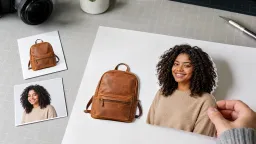
Background Remover
Only need one subject on a transparent background? Take the shorter cutout workflow instead of separating a whole composition.
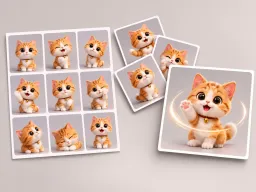
GPT Images GIF Generator
Once you have prepared the subject or composed a new image, turn the finished visual into a short looping GIF.

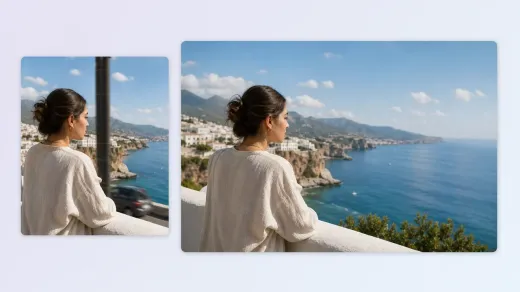
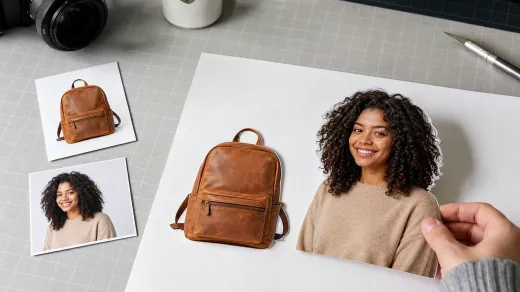
AI Layer Decomposition and Image to Layers FAQ
What to upload, how the split works, and how to use your downloaded PNG assets.
AI layer decomposition separates a flat image into meaningful visual parts, such as subjects, objects, and background regions. Each result becomes a separate image asset you can inspect and reuse in a new composition.
It is an image-separation workflow powered by Seedream 5.5 on Face AI. Upload one image, choose a maximum output count and resolution, and generate PNG layers without writing a prompt.
Upload a JPG, PNG, or WebP, choose your layer settings, and select Split image into layers. When the task finishes, preview the result grid and download individual PNGs or the full set.
You can upload one JPG, PNG, or WebP image up to 20 MB. Clear photos, product graphics, posters, and illustrations are useful starting points; crowded scenes and blurred edges are harder to separate.
You can set a maximum from 2 to 100, with 2 selected by default. The actual number depends on the image, so choosing 10 does not guarantee 10 separate outputs.
Choose 1K, 1.5K, or 2K; the default is 1K. This setting controls the generated output tier and does not guarantee that every source detail will be preserved.
Yes. Download the generated PNG images and import them into Photoshop, Figma, Photopea, or another PNG-compatible editor. This page provides separate images rather than a layered PSD project.
The results are raster PNG images, not editable text objects. Use the separated artwork as a starting point and add or replace copy with a text tool in your editor.
No. AI creates a new separation from the visible picture; it does not recover the original Photoshop project, layer names, or hidden source pixels. Review the generated assets before using them in a final design.
Yes. Start with Face AI's free online image-to-layers workflow: upload your picture, choose the layer settings, and separate it in your browser. No image-editing software installation is needed.
A background remover focuses on isolating a foreground subject. An image layer separator looks for multiple useful elements within the composition, giving you more pieces to rearrange or reuse.
Yes, you can import useful PNG assets into an animation or game-art workflow. Inspect overlaps and edges first, and prepare any missing parts or rigging in your animation editor.
Moving a layer can reveal edges or overlapping areas that were hard to judge in the source composition. Compare the PNG with your original and clean up those areas in an editor before final delivery.
Check the rights to your source image and the applicable Face AI terms before commercial use. Separating an image does not give you new rights to someone else's artwork, trademarks, or likeness.
The uploaded image is sent to the generation service so Seedream can create the separated results. Review Face AI's privacy policy before uploading sensitive or confidential material.
Try Free AI Image to Layers with Seedream
Upload your image, let AI separate the useful parts, and download PNG layers for your next design.