

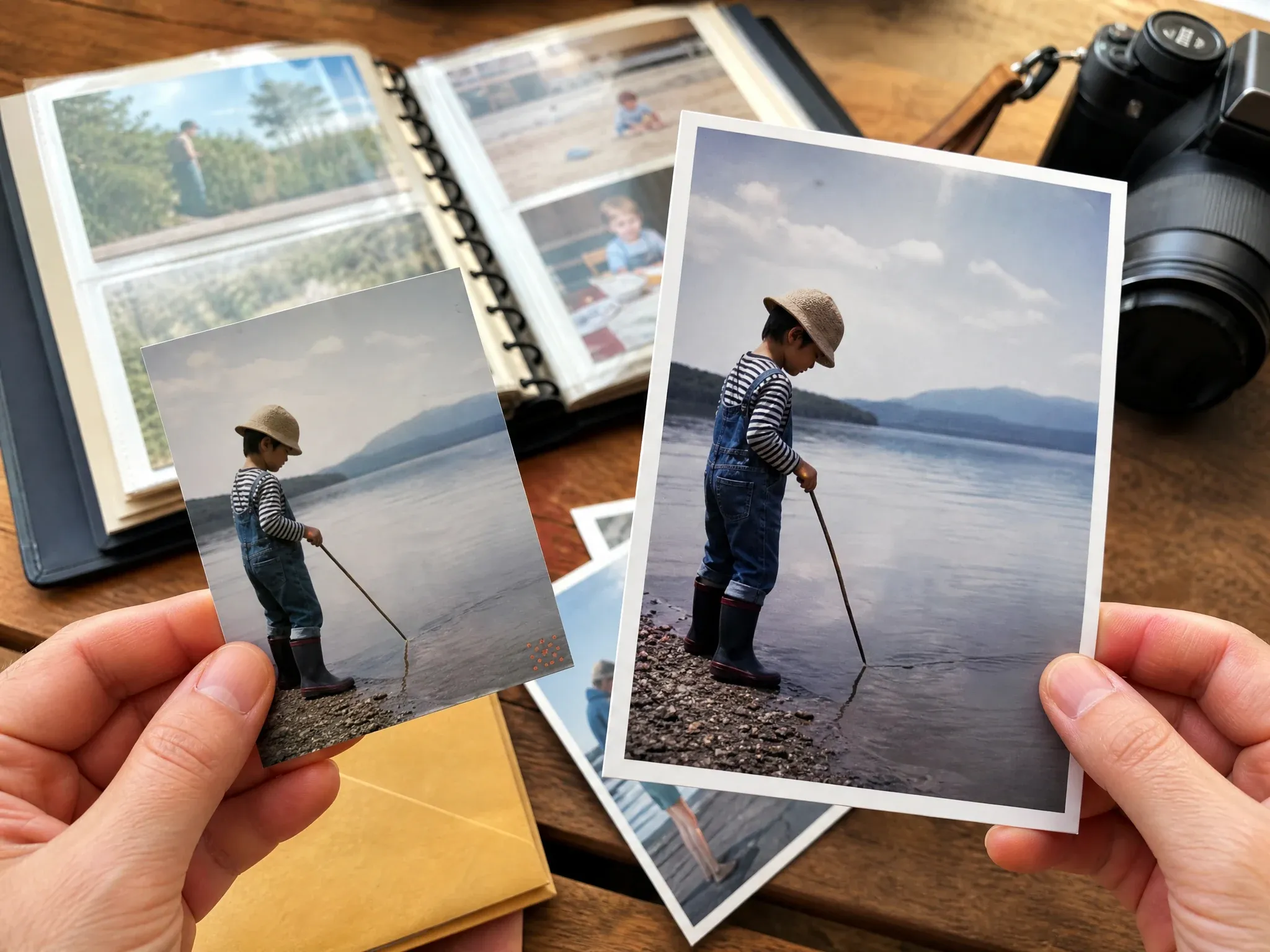
Remove Watermarks from Images with AI
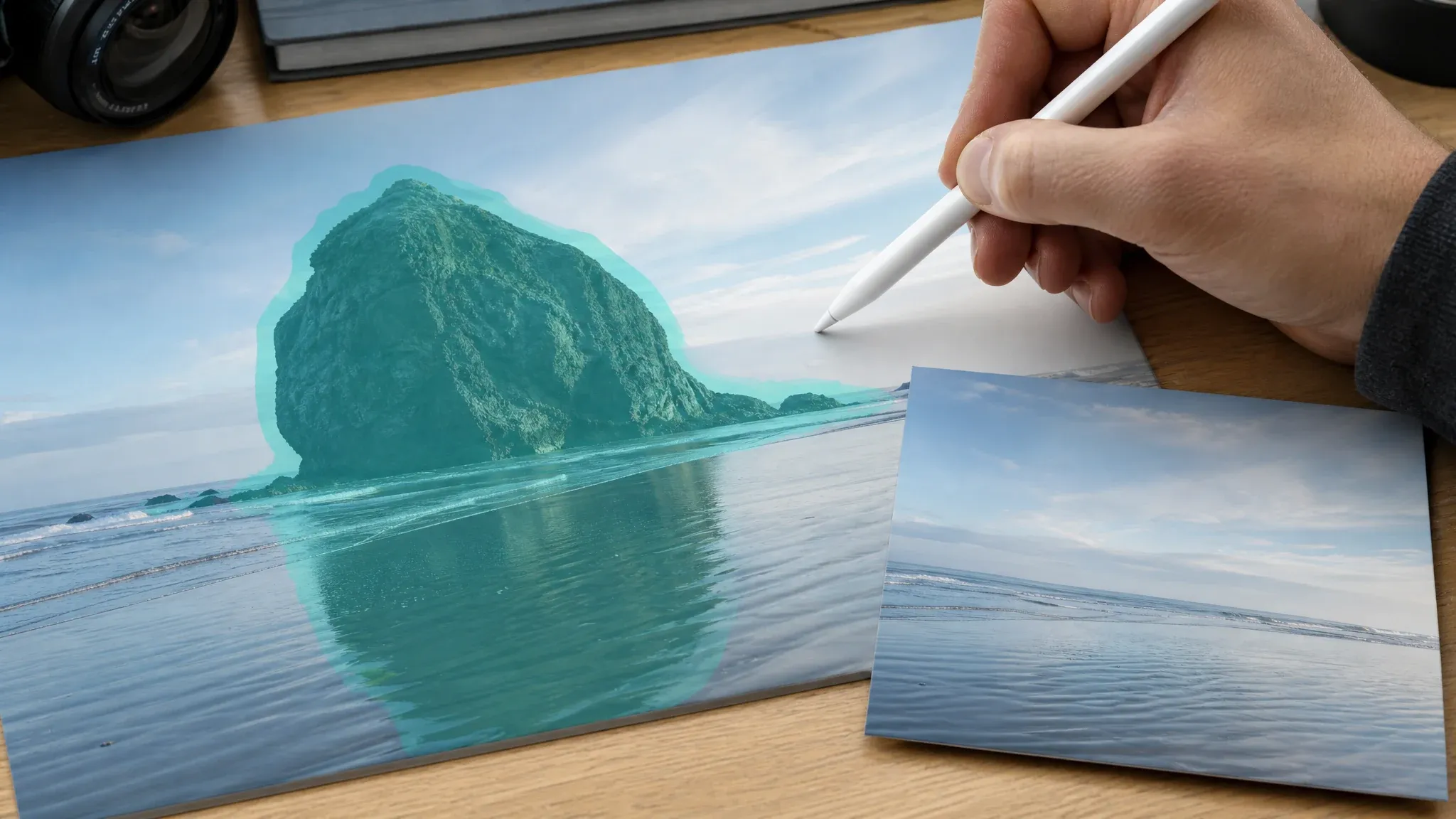
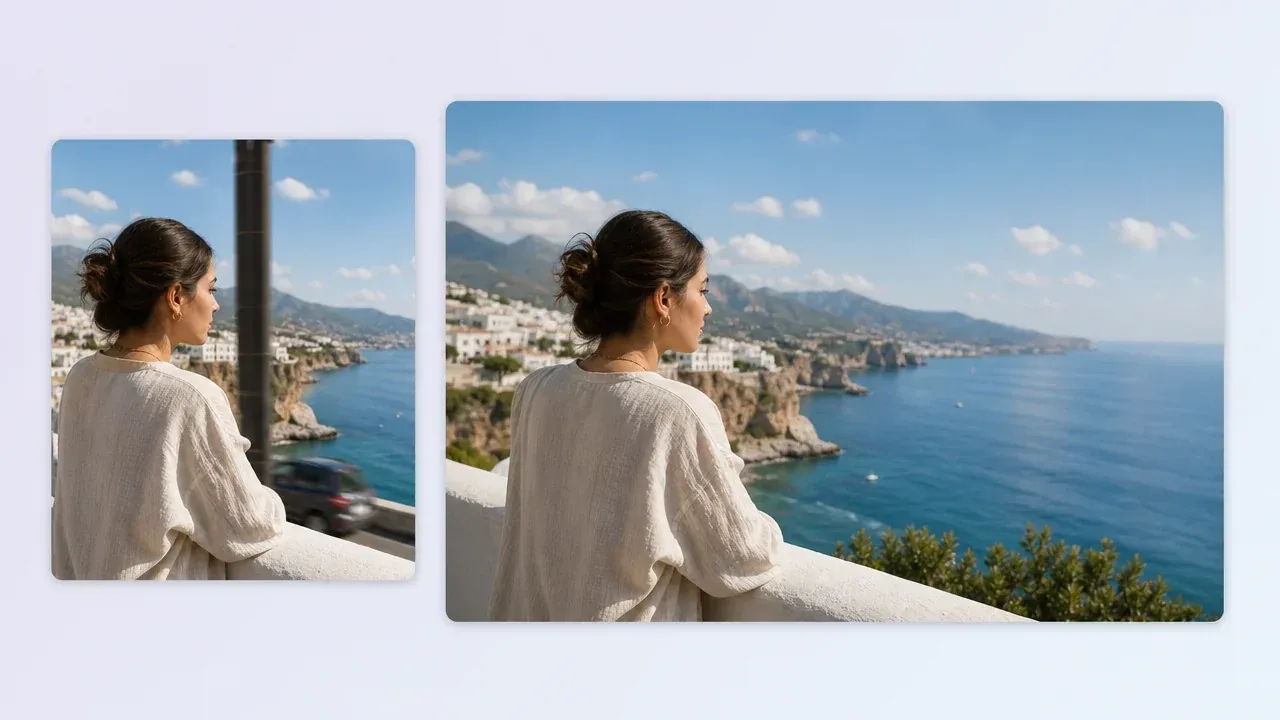
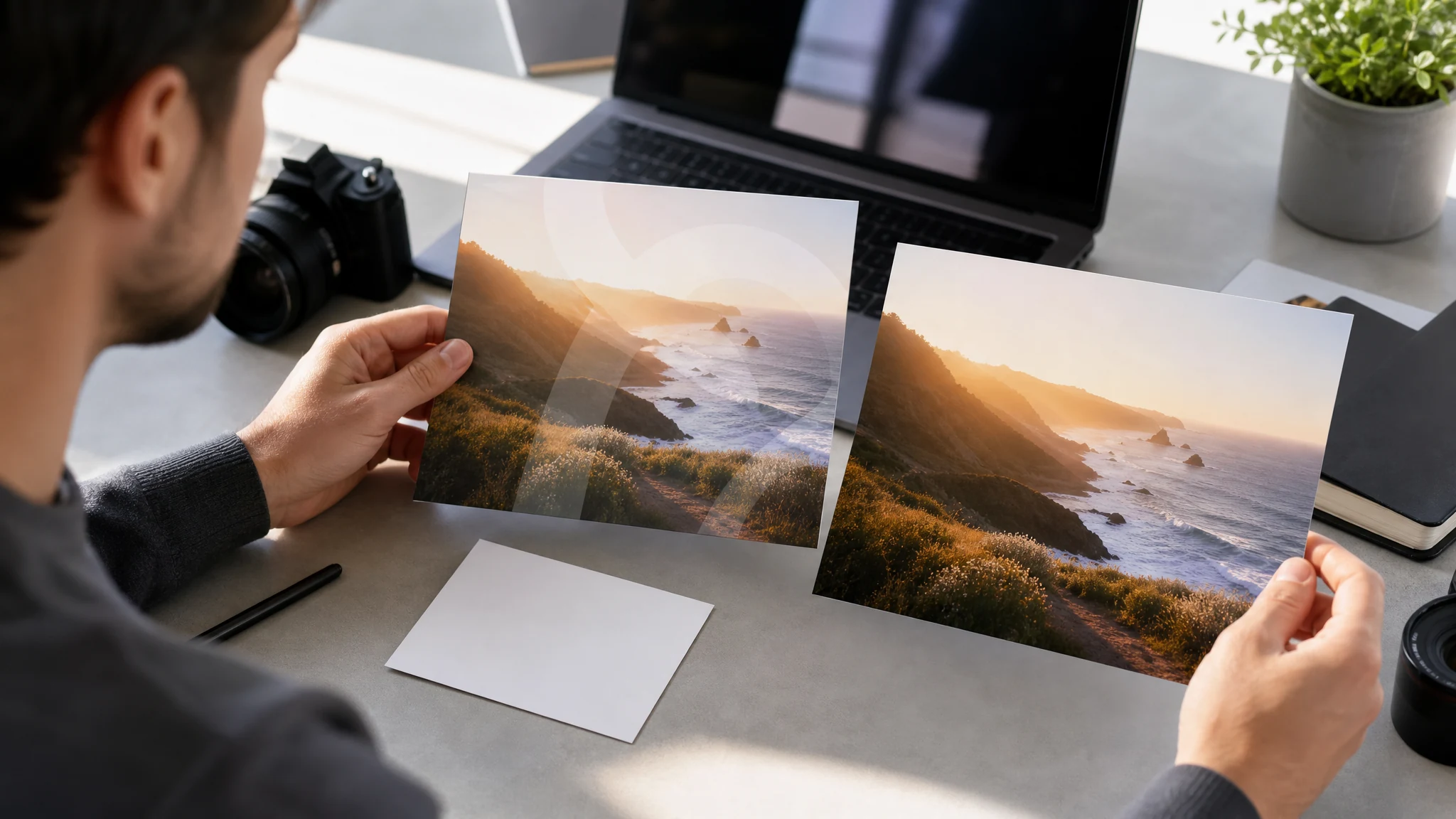
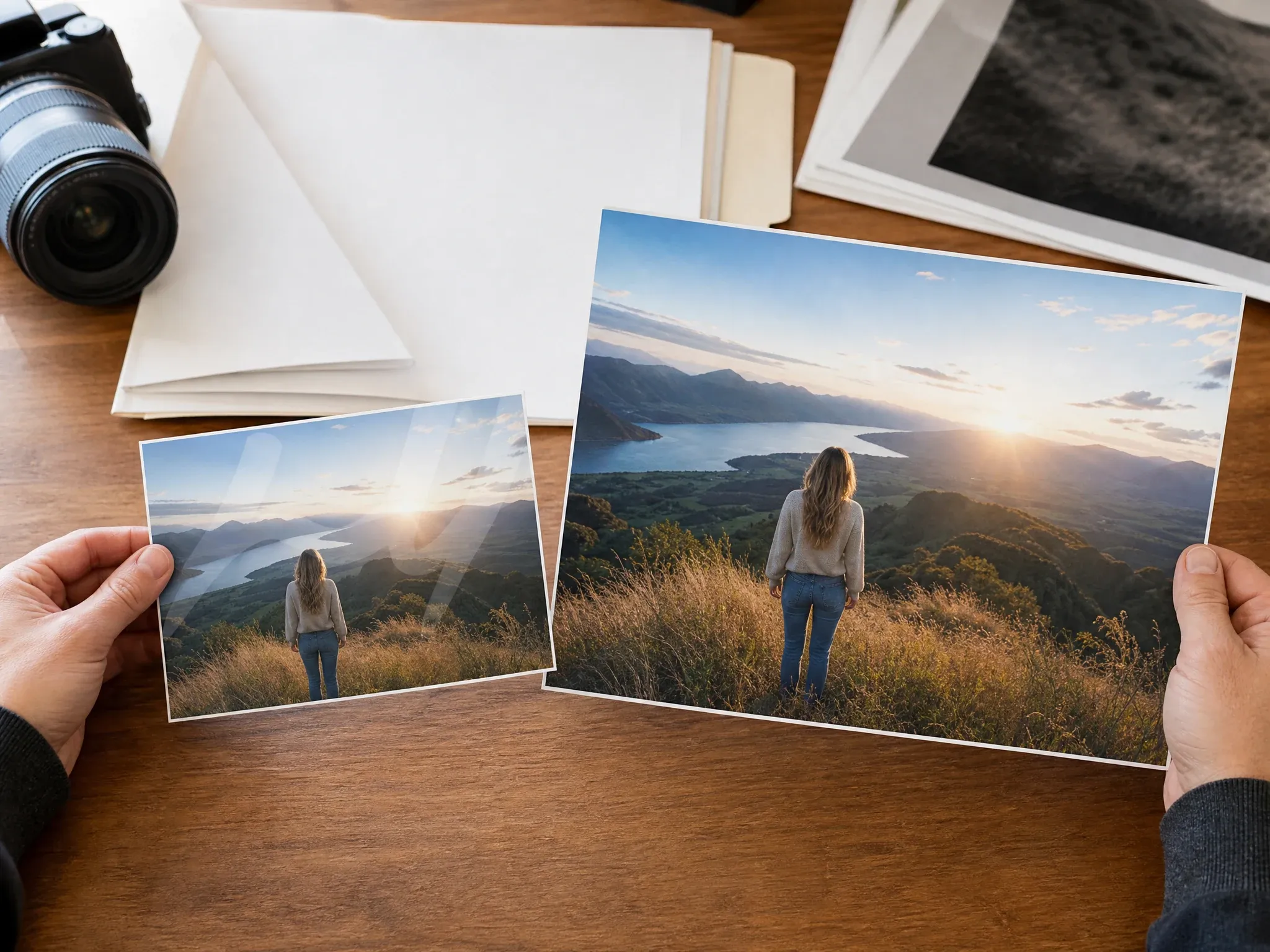
Upload one image you own or have permission to edit, let FaceAI remove visible watermarks, date stamps, logos, or proof marks, then inspect the rebuilt area before downloading. This page provides automatic image cleanup for still images; it does not grant usage rights or remove watermarks from video.

Trusted by 12,000,000+ users worldwide.
How to Remove a Watermark from an Image in 3 Steps
Keep the workflow simple and responsible: confirm you can edit the image, generate the cleaned copy, then inspect the rebuilt pixels before use.
Upload and confirm permission
Choose one JPG, PNG, or WebP image, then confirm you own it or have explicit permission to modify it.
Generate cleanup
Start the watermark-removal cleanup and keep the page open while FaceAI creates a cleaned image.
Review and download
Inspect edges, textures, faces, product detail, and rights-sensitive context before downloading or sharing the result.
What Can You Clean with an AI Watermark Remover?
Use FaceAI for allowed image cleanup where the mark is visible and the surrounding image gives the model enough context to rebuild naturally.

Licensed proof marks
Clean a proof or review image after you have permission to use the asset without the visible mark.

Product draft overlays
Remove test labels, internal proof marks, or small overlays from product visuals you control.

Social reuse copies
Create a cleaner review copy for owned creator visuals, campaign drafts, or social thumbnails.

Date and timestamp cleanup
Remove camera date stamps or small corner marks from personal photos when the surrounding pixels are readable.
What Is an AI Watermark Remover?
An AI watermark remover detects or targets visible marks in an image and reconstructs the area behind them using surrounding texture, color, lighting, and perspective.
Automatic image cleanup
Cleanup is automatic for one uploaded image. Use AI Object Remover when you need to brush a specific area manually.
Best-effort reconstruction
Small marks on simple backgrounds usually work better than large overlays across faces, product labels, hands, or fine texture.
Permission still matters
Removing a mark does not grant usage rights. Only process images you own, licensed, generated, or have permission to modify.
Why Use FaceAI for Watermark Removal?
FaceAI keeps the workflow focused on one permitted image, clear review steps, and practical next actions when automatic cleanup is not enough.
Focused cleanup history
Watermark-removal results stay easy to recognize later, with clear labels for recent cleaned images and downloads.
Simple image workflow
Upload one image, generate, review, download, or share. No mode maze when the job is automatic image cleanup.
Clear expectations
The page explains that cleanup is best effort, works on one still image at a time, and still requires permission and a final quality review.
Connected next steps
Move to Object Remover, Image Editor, Photo Enhancer, or Background Remover when the image needs a different kind of cleanup.
How to Get Better Watermark Removal Results
Source quality and permission shape the outcome. Use clean inputs, avoid rights-sensitive misuse, and inspect every result before publishing.
Confirm you can edit it
Use owned, licensed, purchased, generated, or permission-cleared images. Do not use this to bypass rights, attribution, or private information.
Prefer smaller marks
Corner logos, date stamps, proof overlays, and isolated marks are safer than marks covering faces, products, or detailed patterns.
Review rebuilt pixels
Zoom into edges, repeated textures, hands, faces, product labels, and reflections before using the cleaned file.
Use another tool when needed
If the image needs a manual target, use AI Object Remover; if it needs broader edits, use AI Image Editor.
FaceAI Watermark Remover vs. Object Removal and Manual Editing
Pick the workflow that matches the real problem. Watermark removal is automatic image cleanup; object removal and manual editing solve different cases.
| Criteria | Face AIOurs FaceAI watermark-removal workflow | Other cleanup workflows |
|---|---|---|
| Target | Upload one image and remove visible proof marks, watermarks, date stamps, logos, or overlays you are allowed to edit. | Object removers let users brush a specific area; manual editors offer clone tools, layers, feathering, and exact retouch control. |
| Best use | Allowed cleanup for owned drafts, licensed proof images, personal date stamps, and simple corner marks. | Manual retouching is better for high-stakes brand imagery, large overlays, faces, product labels, or complex texture. |
| Controls | Source upload, required rights confirmation, automatic cleanup, Original/Result comparison, retry, history, share, and download. | Advanced tools may offer manual brush controls, batch processing, video cleanup, or automated production workflows. |
| Expectation | Best-effort AI reconstruction with explicit rights and quality review boundaries. | Some pages imply no-blur, full-resolution, or legal-safe removal that still needs human review and permission. |
| Next step | Use Object Remover for a manual target, Image Editor for broader edits, or Photo Enhancer for a separate clarity pass. | One-shot cleanup pages can hide whether the result needs another review pass. |
Target
Upload one image and remove visible proof marks, watermarks, date stamps, logos, or overlays you are allowed to edit.
Object removers let users brush a specific area; manual editors offer clone tools, layers, feathering, and exact retouch control.
Best use
Allowed cleanup for owned drafts, licensed proof images, personal date stamps, and simple corner marks.
Manual retouching is better for high-stakes brand imagery, large overlays, faces, product labels, or complex texture.
Controls
Source upload, required rights confirmation, automatic cleanup, Original/Result comparison, retry, history, share, and download.
Advanced tools may offer manual brush controls, batch processing, video cleanup, or automated production workflows.
Expectation
Best-effort AI reconstruction with explicit rights and quality review boundaries.
Some pages imply no-blur, full-resolution, or legal-safe removal that still needs human review and permission.
Next step
Use Object Remover for a manual target, Image Editor for broader edits, or Photo Enhancer for a separate clarity pass.
One-shot cleanup pages can hide whether the result needs another review pass.
How People Use FaceAI Watermark Remover
These comments focus on responsible image cleanup: confirm rights, generate a clean copy, inspect the rebuilt area, then download or continue editing.
What Should You Try Before or After Watermark Removal?
Choose the adjacent FaceAI tool that matches the next real problem: manual cleanup, broader editing, enhancement, or background removal.

AI Object Remover
Use brush-mask object removal when you need to target one visible object, sign, sticker, or clutter area manually.

AI Image Editor
Move to the broader editor when the image needs relighting, background changes, or a different creative edit after cleanup.

AI Photo Enhancer
Enhance the cleaned image when the watermark removal result is useful but needs sharper detail or better clarity.

Background Remover
Remove the whole background when the real goal is a cutout, not in-scene watermark or date-stamp cleanup.
AI Watermark Remover FAQ
Direct answers about permitted use, image formats, current controls, result quality, video support, downloads, and next steps.
Upload one permitted image, confirm you own it or have explicit permission to modify it, and start the cleanup. FaceAI processes the source image and returns a cleaned image that you can compare with the original and retry if needed.
No. This page uses automatic image cleanup. Use AI Object Remover when you need to brush a specific area manually.
Use JPG, PNG, or WebP images. Cleaner sources with visible surrounding pixels usually produce better rebuilt areas.
It depends on your rights to the image. Use this tool only for images you own, licensed, generated, purchased, or have permission to modify. The tool does not grant legal clearance.
No. Watermark removal is best effort. Large marks, faces, product labels, complex patterns, and repeated overlays may still show artifacts.
No. This page handles one still image at a time. Use a dedicated video or batch-editing workflow for those jobs.
Yes. Once the result appears, compare it with the retained original, retry if the reconstruction needs another pass, then use the download or share action. Keep the original if you may need to prove rights later.
Try a clearer source, crop around the relevant image area, or use AI Object Remover for manual area targeting. Complex retouching may still need a manual editor.
Yes. Watermark Remover is automatic cleanup for visible marks in one image. Object Remover is mask-first cleanup where you paint the exact area to remove.
Upload One Permitted Image and Remove the Watermark
Generate a cleaned review copy, inspect the rebuilt area, then download or share only when you have the right to use the result.