
Starting point
Ours
Upload one source image, choose transparent PNG or white background, then generate a cutout result.
Other options
Prompt-only editors can miss the real subject because they are not built around upload-first cutout work.
Remove the background from product photos, portraits, logos, objects, pets, and social images. Upload one image, let AI cut out the subject, then download a transparent PNG or clean white-background result. Free online. No sign-up to start. No watermark on downloads.
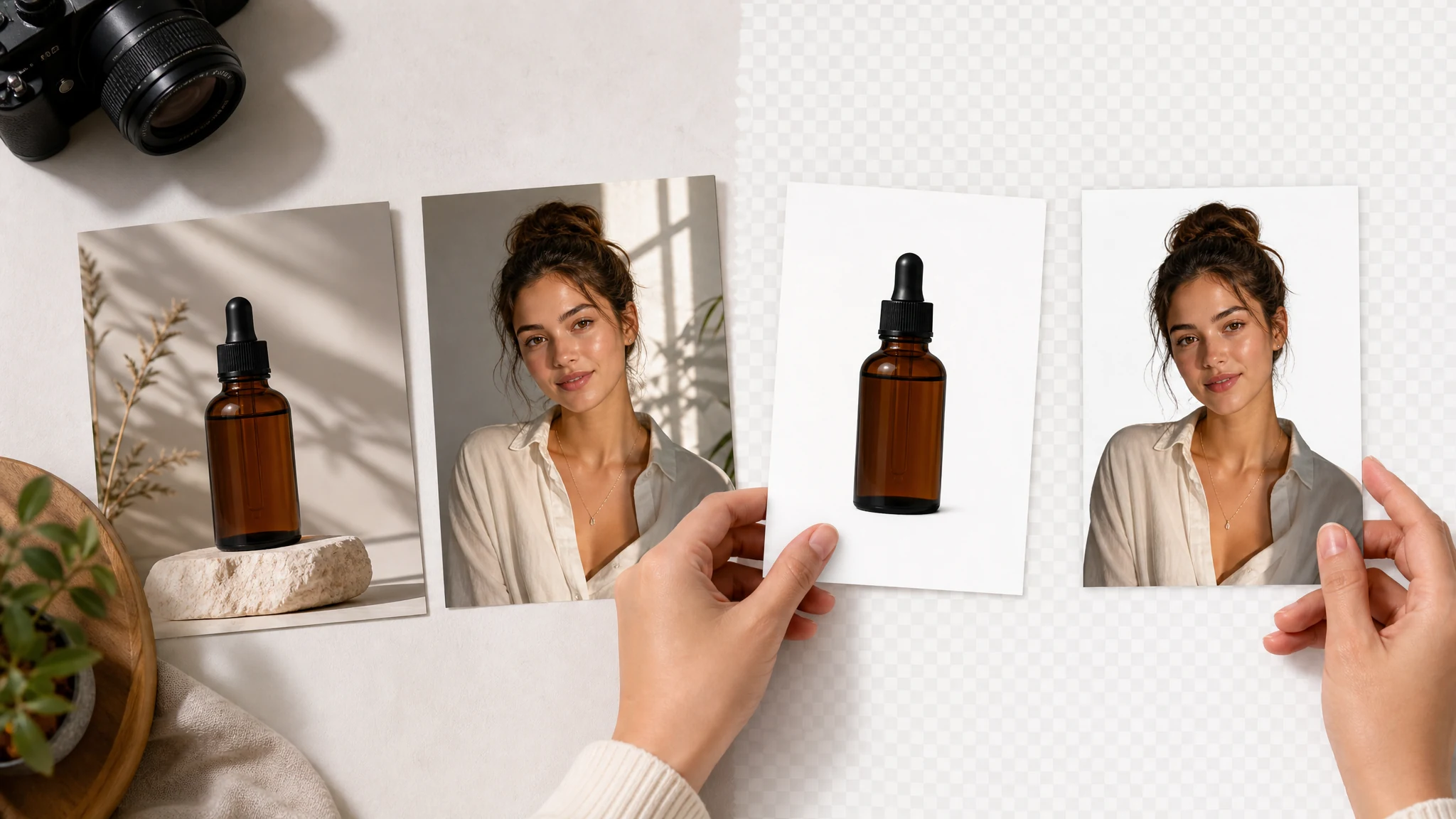
Trusted by 12,000,000+ users worldwide.
The workflow is intentionally short: upload the image, pick transparent or white output, then download the cutout and keep editing only if needed.
Use one product photo, portrait, logo, pet, vehicle, or object image with a clear subject and enough space around the crop.
Pick transparent PNG for layered design work or white background for product listings, profile drafts, and marketplace images.
Save the result, compare history, or send the cutout to background changer, image editor, image-to-image, or upscaler.
Use the background remover for ecommerce product photos, Amazon and Shopify listings, portraits, profile images, logos, stickers, thumbnails, and social graphics.
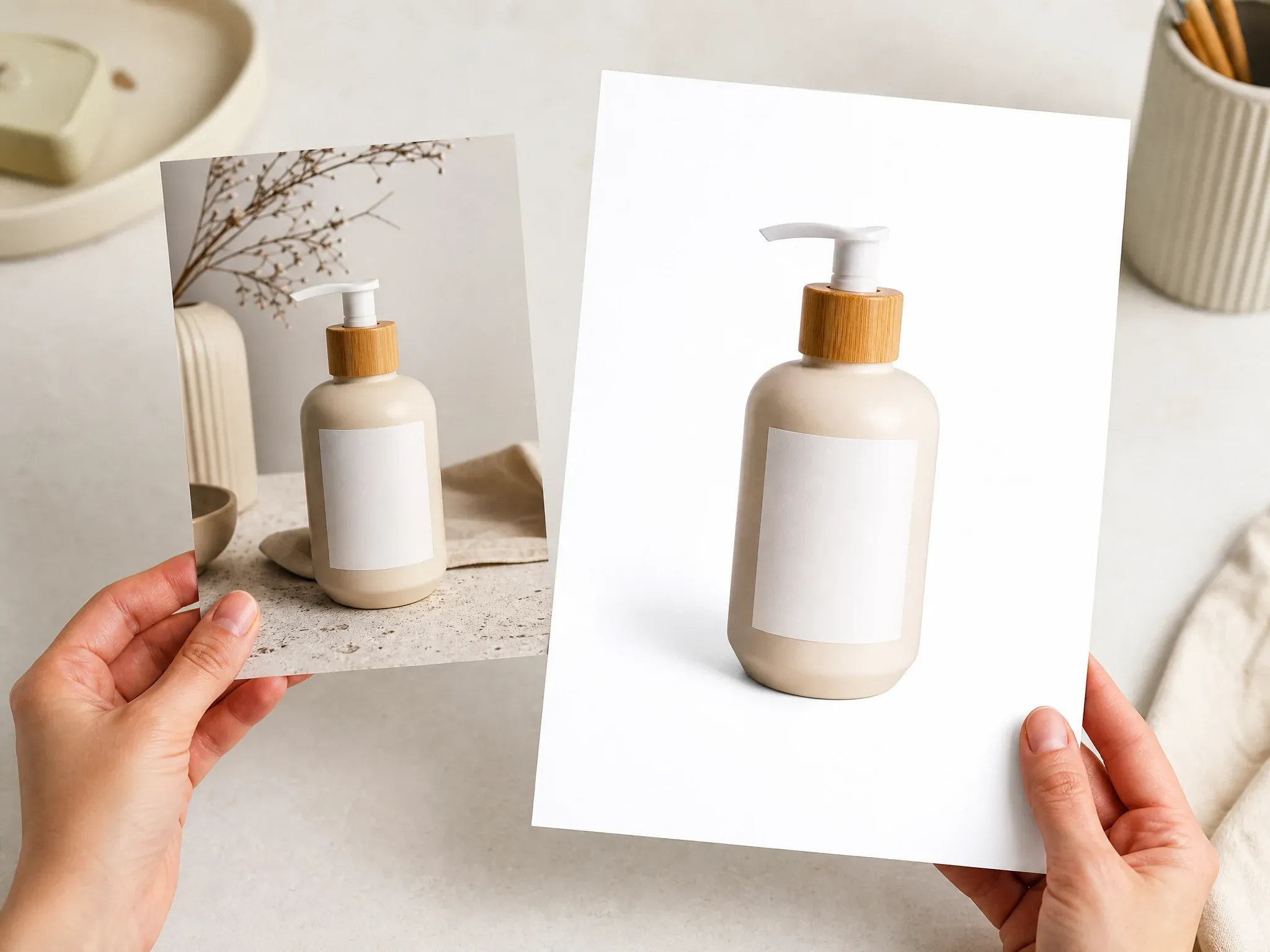
Remove busy tables, shelves, room clutter, or mismatched product backgrounds, then export a transparent PNG or white-background product shot.
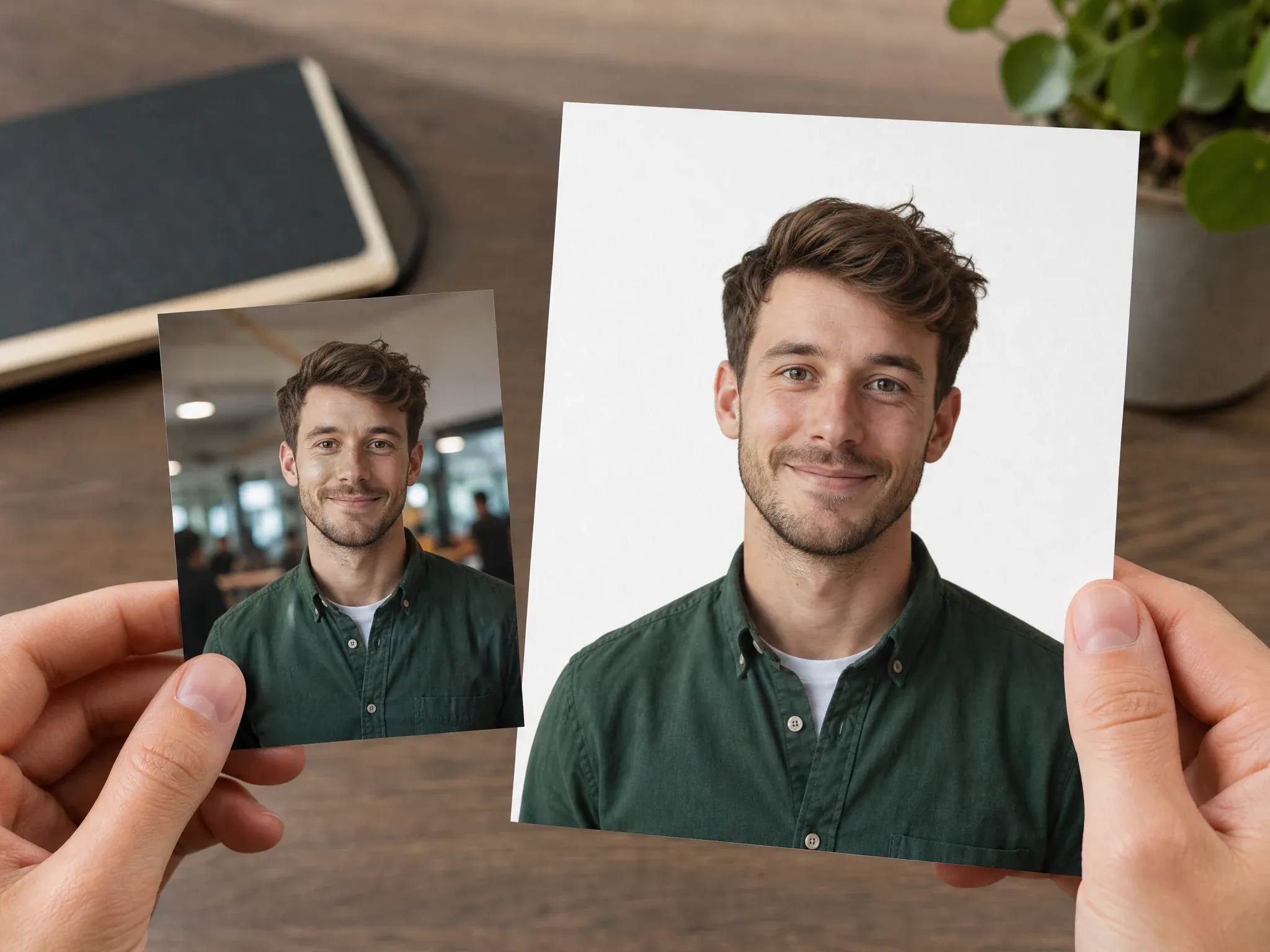
Cut out a person from a cluttered room before placing the portrait into a cleaner profile, LinkedIn, team, or creator layout.
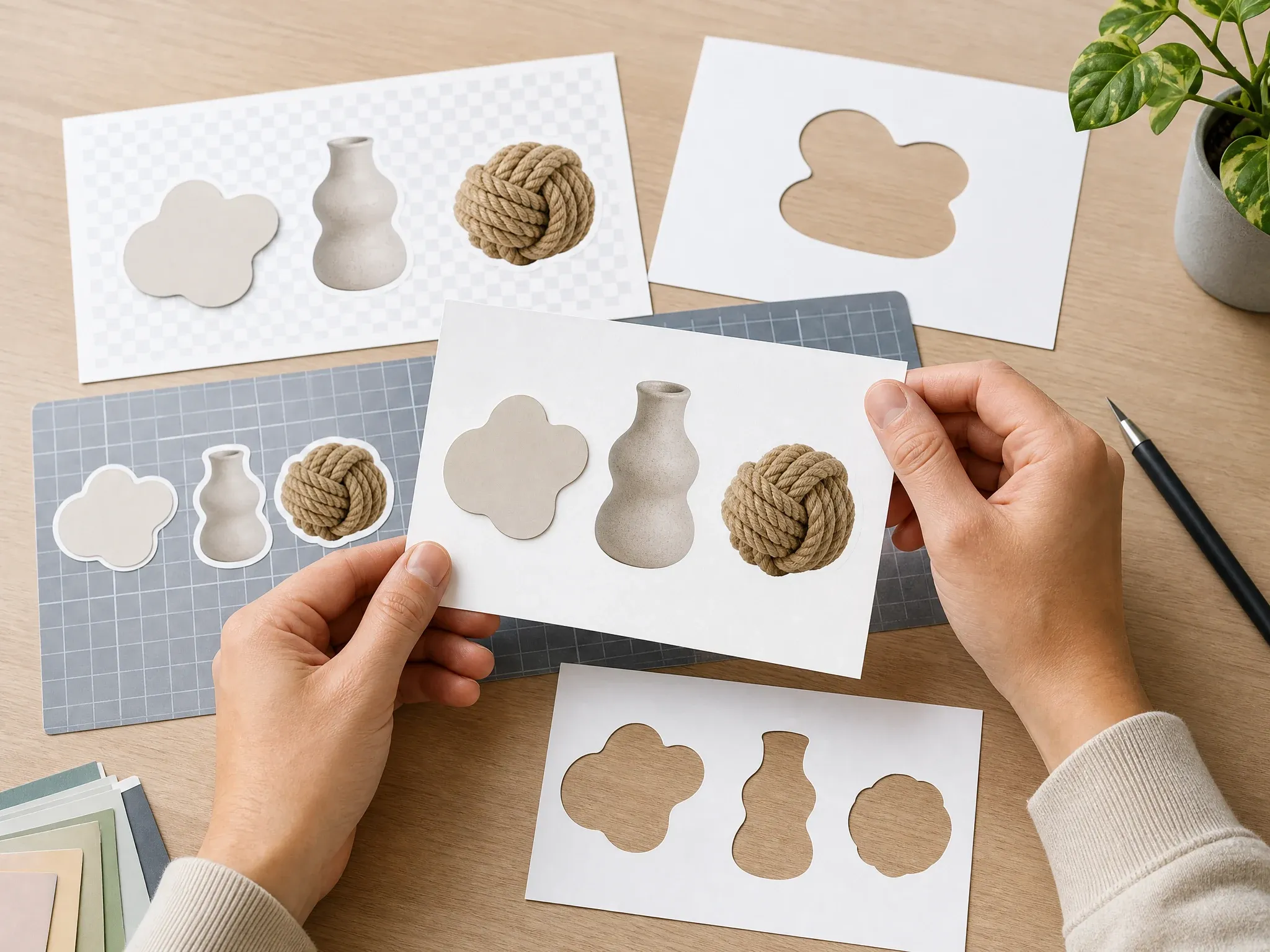
Turn a logo, object, prop, handmade item, pet, or graphic into a transparent PNG for presentations, mockups, sticker-style posts, or design layers.
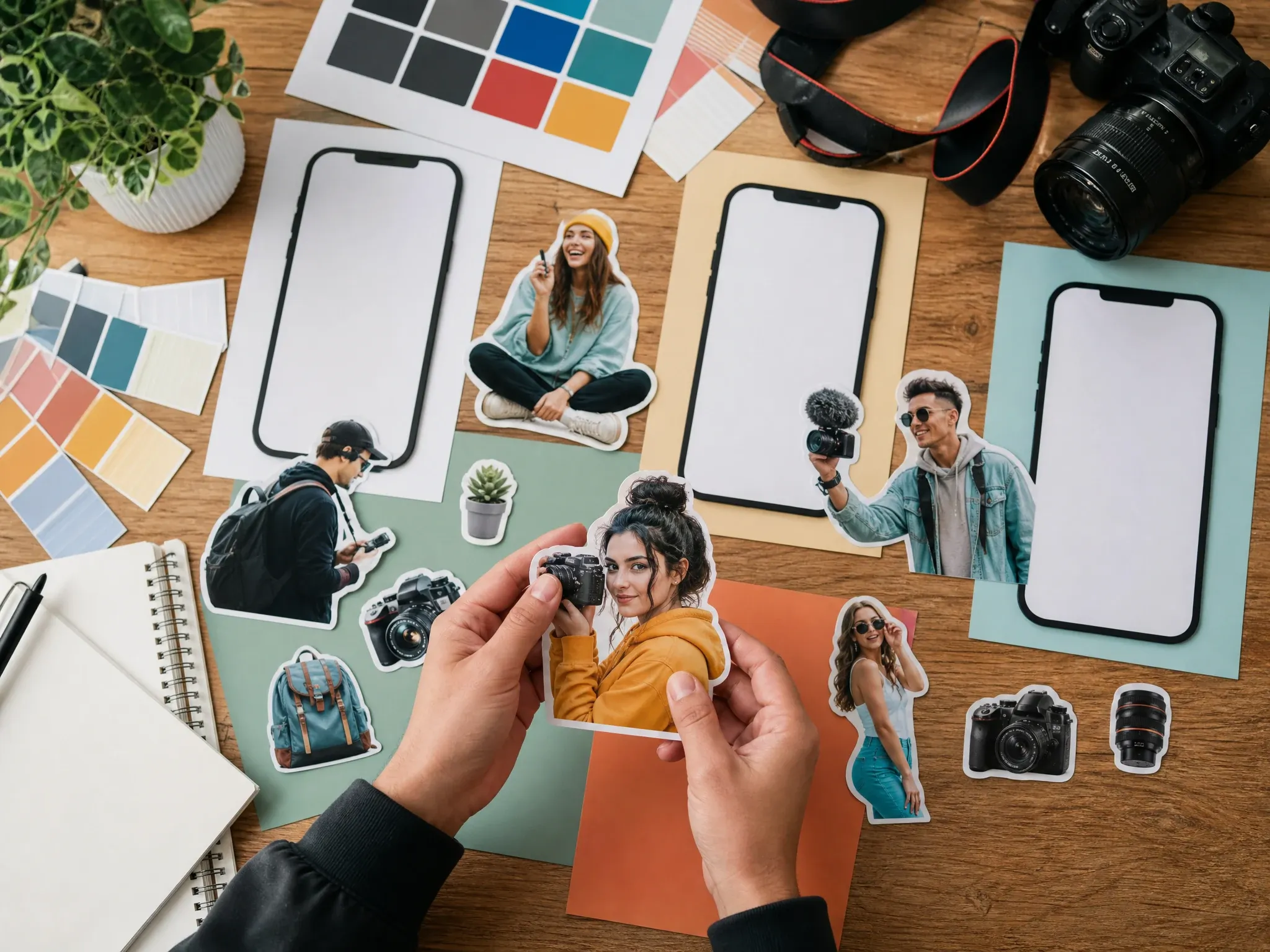
Make the subject of a reel cover, YouTube thumbnail, story graphic, meme, or campaign image easier to place in a new composition.
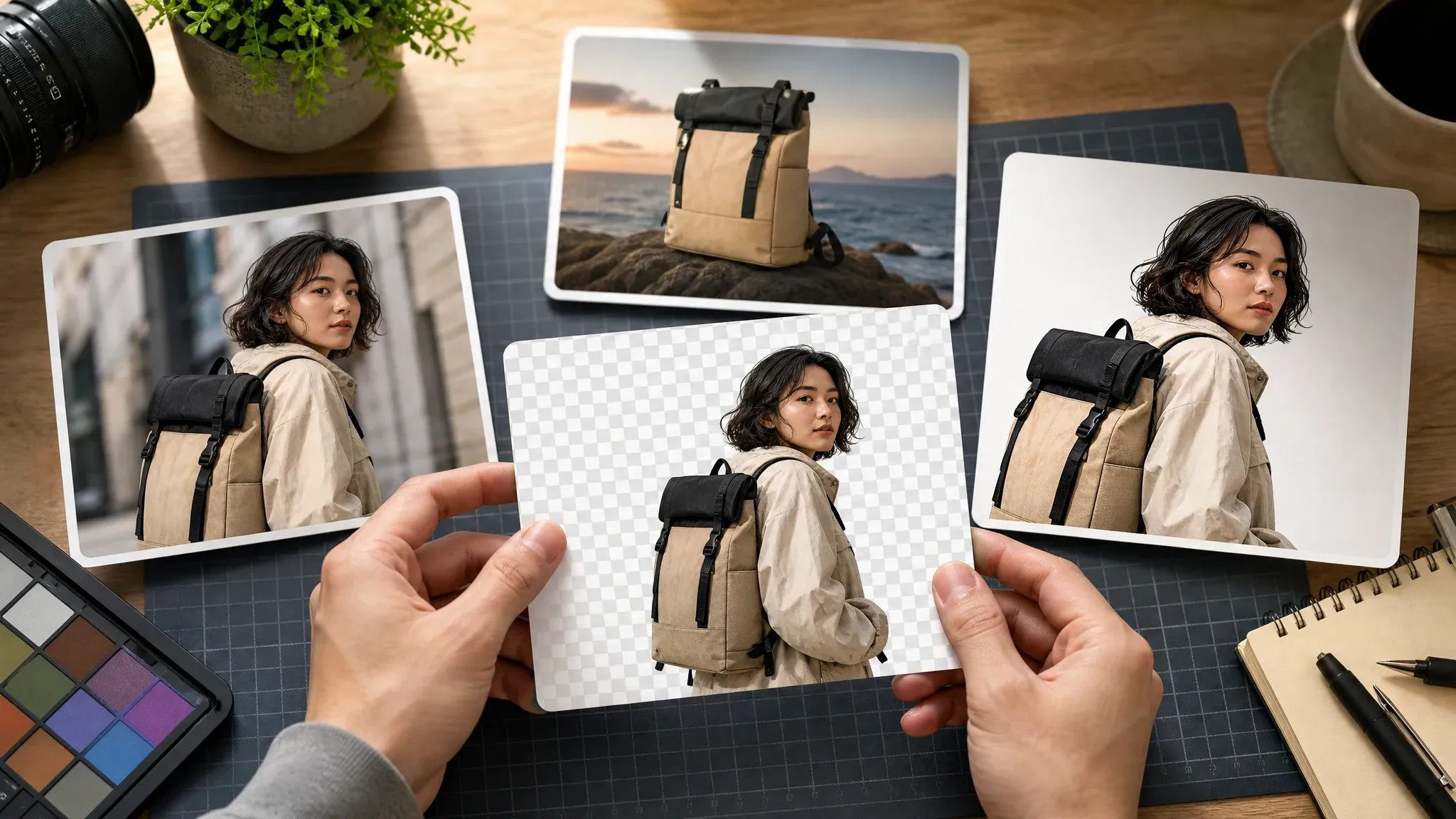
Cut out the subject first, then choose whether to add a new AI background, edit small edge issues, or upscale the final image.
An AI background remover detects the main subject in an uploaded image and removes the surrounding background. The result is useful when you need a transparent PNG cutout, a white-background product draft, or a clean subject layer for another design.
Start with a real image so the result can preserve the product, face, object, pet, logo, or subject you actually want to use.
Use transparent PNG for layered design work, or choose white background when a product or profile image needs a cleaner base.
Background remover creates a cutout. Background changer is the next step when you want a new studio, color, lifestyle, or prompt-based scene.
FaceAI keeps the job direct: upload one image, remove the background online, download without a watermark, and continue with the right image tool only when the cutout needs a next step.
Start in the browser with no app install and no sign-up to begin. Quota feedback, history, share, and download stay in the same workspace.
Transparent PNG and white-background modes cover the two jobs people search for most: design cutouts and cleaner product or profile drafts.
Once the result is ready, use the workbench download control and keep the cutout for listings, profile updates, mockups, thumbnails, or social posts.
Move the keeper to background changer, image editor, image-to-image, profile picture generator, or upscaler instead of restarting from scratch.
Background removal works best when the subject is easy to separate from the background. Give the tool a clear image, then inspect the edge before publishing.
Sharp product corners, visible shoulders, clean object shapes, and contrast between subject and background usually produce stronger cutouts.
Very small logos, low-resolution screenshots, motion blur, harsh shadows, and cropped-off objects make the subject boundary harder to read.
Hair, fur, glass, transparent packaging, veils, reflective products, and bicycle spokes can need another try or a quick editor pass.
Transparent PNG is better for design layers. White background is better when the image is heading into ecommerce, catalog, or profile use.
Use the workflow that matches the job. A background remover is for clean cutouts; a background changer is for building a new scene behind the subject.
| Criteria | Face AIOurs FaceAI background remover workflow | Other options |
|---|---|---|
| Starting point | Upload one source image, choose transparent PNG or white background, then generate a cutout result. | Prompt-only editors can miss the real subject because they are not built around upload-first cutout work. |
| Best use | Product photos, ecommerce listings, Amazon and Shopify drafts, profile photos, logos, objects, stickers, thumbnails, and social graphics. | Design apps are better for full layouts, typography, brand templates, and manual multi-layer composition. |
| Output | Transparent PNG for design layers and clean white background for product or profile drafts. | Some tools only return a preview, push app installs, add watermarks, or make the download step hard to judge. |
| Friction | Free online workflow with no sign-up to start, browser history, share, and no-watermark download controls. | Manual masking can be more precise, but it takes skill and time when you only need a usable cutout. |
| Follow-up | Send the keeper to background changer, image editor, image-to-image, profile picture generator, or upscaler for the next job. | Single-purpose tools often stop at the cutout and leave cleanup or scene replacement to another workflow. |
| Honest limit | This page removes still-image backgrounds. It does not claim video background removal, batch processing, API access, manual brush masking, or fault-free complex-edge handling. | Some pages overpromise edge accuracy, privacy, premium export quality, or broad automation without proving the flow. |
Upload one source image, choose transparent PNG or white background, then generate a cutout result.
Prompt-only editors can miss the real subject because they are not built around upload-first cutout work.
Product photos, ecommerce listings, Amazon and Shopify drafts, profile photos, logos, objects, stickers, thumbnails, and social graphics.
Design apps are better for full layouts, typography, brand templates, and manual multi-layer composition.
Transparent PNG for design layers and clean white background for product or profile drafts.
Some tools only return a preview, push app installs, add watermarks, or make the download step hard to judge.
Free online workflow with no sign-up to start, browser history, share, and no-watermark download controls.
Manual masking can be more precise, but it takes skill and time when you only need a usable cutout.
Send the keeper to background changer, image editor, image-to-image, profile picture generator, or upscaler for the next job.
Single-purpose tools often stop at the cutout and leave cleanup or scene replacement to another workflow.
This page removes still-image backgrounds. It does not claim video background removal, batch processing, API access, manual brush masking, or fault-free complex-edge handling.
Some pages overpromise edge accuracy, privacy, premium export quality, or broad automation without proving the flow.
These comments focus on the real loop: upload a source image, remove the background, inspect the edge, then download or continue editing.
"I used it on product photos that had messy shelves behind them. Transparent PNG first, white background second, then the listing image was much easier to finish."

Priya Sharma
Product Marketing Manager
"For ads, the useful part is speed of decision. I can cut out a product, test it on a clean layout, and send only the keeper into the editor."

Ananya Iyer
Content Marketing Lead
"Portrait cutouts are practical when a client has a good face photo with a bad room behind it. I still check hair edges before using the download."

Vikram Singh
Performance Marketing Director
"White-background output saves a step for store photos. I upload one product image, choose the plain output, and keep the transparent version for banners."

Rahul Gupta
VP of Demand Generation
"No-watermark downloads matter for quick campaign drafts. The cutout becomes a sticker, thumbnail subject, or story graphic without opening a design app first."

Deepika Reddy
Marketing Director
"Clear subject edges make the biggest difference. Glass, fur, and flyaway hair need review, but simple product and portrait shots are useful right away."

Meera Nair
Customer Marketing Manager
"I used it on product photos that had messy shelves behind them. Transparent PNG first, white background second, then the listing image was much easier to finish."
Priya Sharma
Product Marketing Manager
"For ads, the useful part is speed of decision. I can cut out a product, test it on a clean layout, and send only the keeper into the editor."
Ananya Iyer
Content Marketing Lead
"Portrait cutouts are practical when a client has a good face photo with a bad room behind it. I still check hair edges before using the download."
Vikram Singh
Performance Marketing Director
"White-background output saves a step for store photos. I upload one product image, choose the plain output, and keep the transparent version for banners."
Rahul Gupta
VP of Demand Generation
"No-watermark downloads matter for quick campaign drafts. The cutout becomes a sticker, thumbnail subject, or story graphic without opening a design app first."
Deepika Reddy
Marketing Director
"Clear subject edges make the biggest difference. Glass, fur, and flyaway hair need review, but simple product and portrait shots are useful right away."
Meera Nair
Customer Marketing Manager
"I like that background remover is separate from background changer. Cutout first when I need a transparent PNG, scene replacement later when I want a new setting."

Sanjay Kumar
Chief Marketing Officer
"I used it on product photos that had messy shelves behind them. Transparent PNG first, white background second, then the listing image was much easier to finish."
Priya Sharma
Product Marketing Manager
"For ads, the useful part is speed of decision. I can cut out a product, test it on a clean layout, and send only the keeper into the editor."
Ananya Iyer
Content Marketing Lead
"Portrait cutouts are practical when a client has a good face photo with a bad room behind it. I still check hair edges before using the download."
Vikram Singh
Performance Marketing Director
"White-background output saves a step for store photos. I upload one product image, choose the plain output, and keep the transparent version for banners."
Rahul Gupta
VP of Demand Generation
"No-watermark downloads matter for quick campaign drafts. The cutout becomes a sticker, thumbnail subject, or story graphic without opening a design app first."
Deepika Reddy
Marketing Director
"Clear subject edges make the biggest difference. Glass, fur, and flyaway hair need review, but simple product and portrait shots are useful right away."
Meera Nair
Customer Marketing Manager
"I like that background remover is separate from background changer. Cutout first when I need a transparent PNG, scene replacement later when I want a new setting."
Sanjay Kumar
Chief Marketing Officer
"The workflow is simple enough for non-design teammates: upload the photo, remove the background, download the PNG, move on."

Kavitha Rao
Demand Gen Manager
"For thumbnails, I cut out the person first and place the result in a brighter composition later. It keeps the page focused on one job."

Mai Nguyen
Growth Marketing Lead
"It is not a retouching suite, and that is fine. It gives the team clean cutouts for layout tests before we spend time on final catalog polish."

Somchai Phan
Head of Acquisition
"My handmade product photos looked more consistent after removing the kitchen-table background. I used the white result for the shop and the PNG for social posts."

Maria Santos
Conversion Optimization Manager
"I used it to clean a profile photo before sending the result to a headshot page. The background remover handled the cutout; the profile tool handled the polish."

Arief Wijaya
Growth Product Manager
"Logo and object cutouts are handy for presentations. I avoid tiny screenshots, but sharp source images export cleanly enough for quick mockups."

Phuong Le
Retention Marketing Lead
"The copy is honest about hard edges without hiding the offer. Free online background remover, transparent PNG, no sign-up to start. That is what users came for."

Tanit Chaiyasit
User Acquisition Director
"The workflow is simple enough for non-design teammates: upload the photo, remove the background, download the PNG, move on."
Kavitha Rao
Demand Gen Manager
"For thumbnails, I cut out the person first and place the result in a brighter composition later. It keeps the page focused on one job."
Mai Nguyen
Growth Marketing Lead
"It is not a retouching suite, and that is fine. It gives the team clean cutouts for layout tests before we spend time on final catalog polish."
Somchai Phan
Head of Acquisition
"My handmade product photos looked more consistent after removing the kitchen-table background. I used the white result for the shop and the PNG for social posts."
Maria Santos
Conversion Optimization Manager
"I used it to clean a profile photo before sending the result to a headshot page. The background remover handled the cutout; the profile tool handled the polish."
Arief Wijaya
Growth Product Manager
"Logo and object cutouts are handy for presentations. I avoid tiny screenshots, but sharp source images export cleanly enough for quick mockups."
Phuong Le
Retention Marketing Lead
"The copy is honest about hard edges without hiding the offer. Free online background remover, transparent PNG, no sign-up to start. That is what users came for."
Tanit Chaiyasit
User Acquisition Director
Choose the next FaceAI tool based on the blocker: new background, small cleanup, sharper export, profile polish, or broader source-guided variants.

Use this after making a cutout when you want a new studio, color, lifestyle, office, or social background behind the subject.
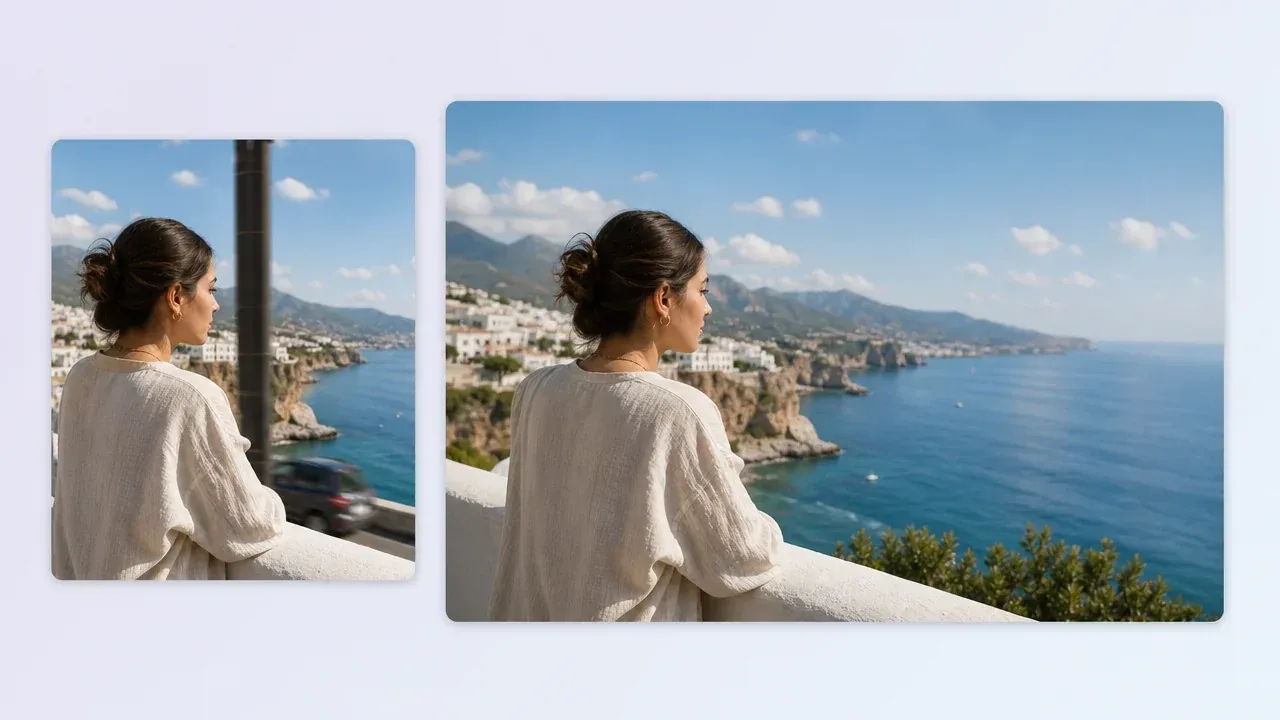
Clean up a keeper after background removal: edge halos, small distractions, product corners, or tiny cutout artifacts.
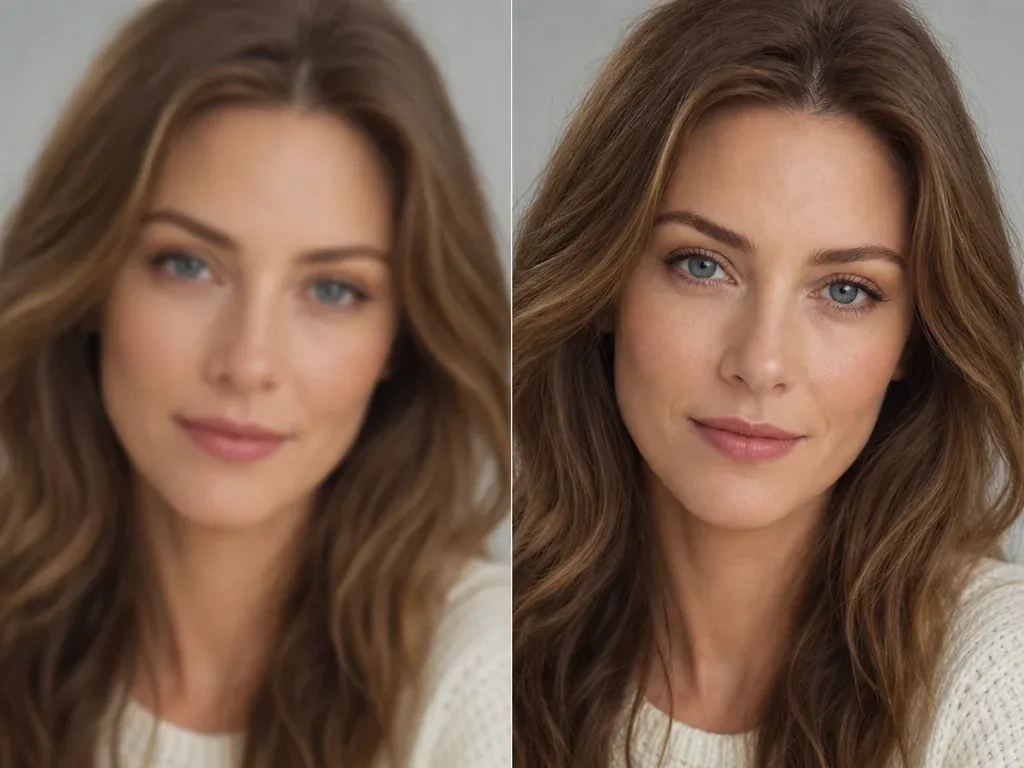
Sharpen the final cutout before using it in a product listing, profile page, pitch deck, ad draft, or social post.
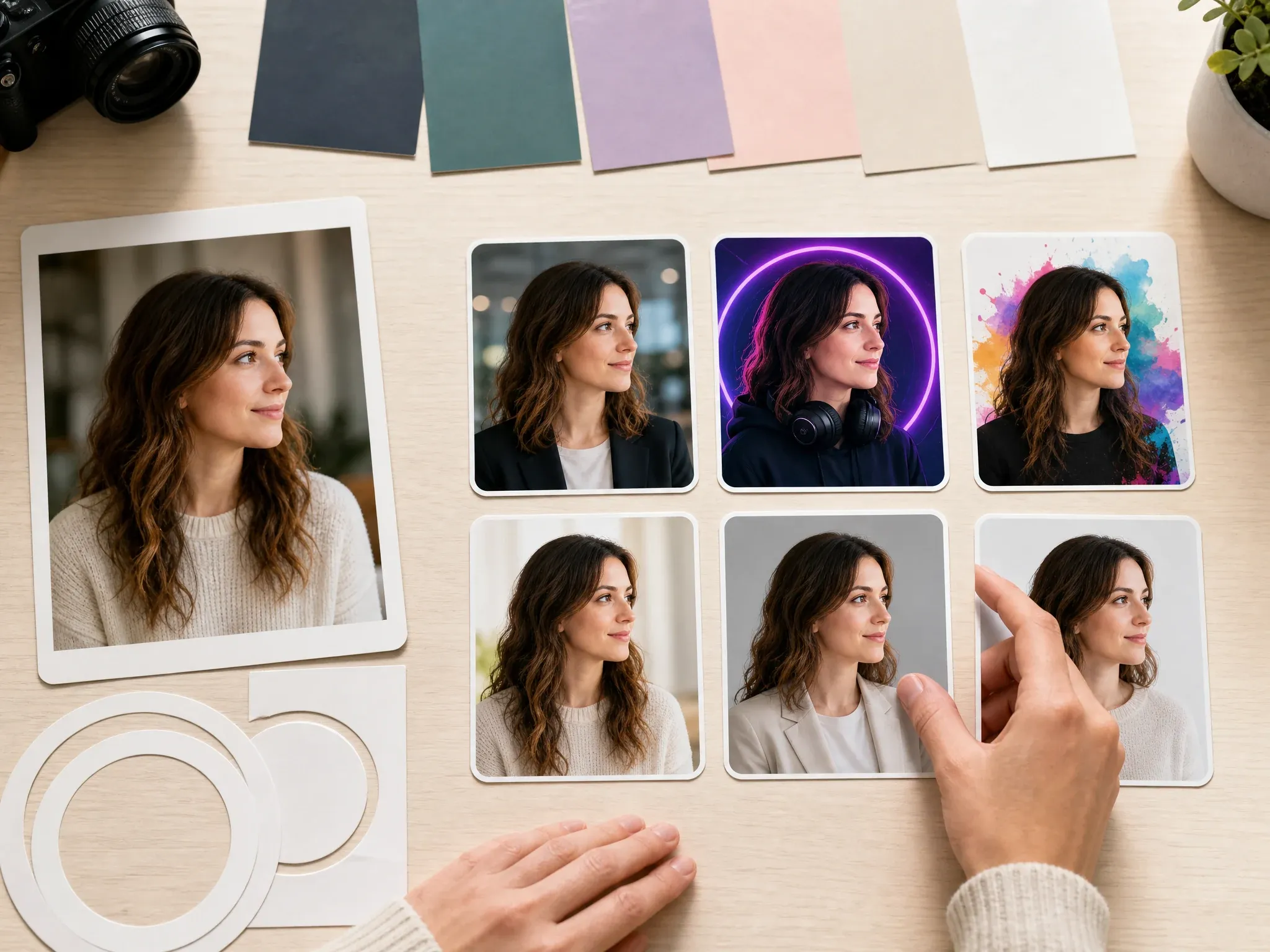
Use this when the portrait needs a full profile refresh, not only a transparent or white-background cutout.
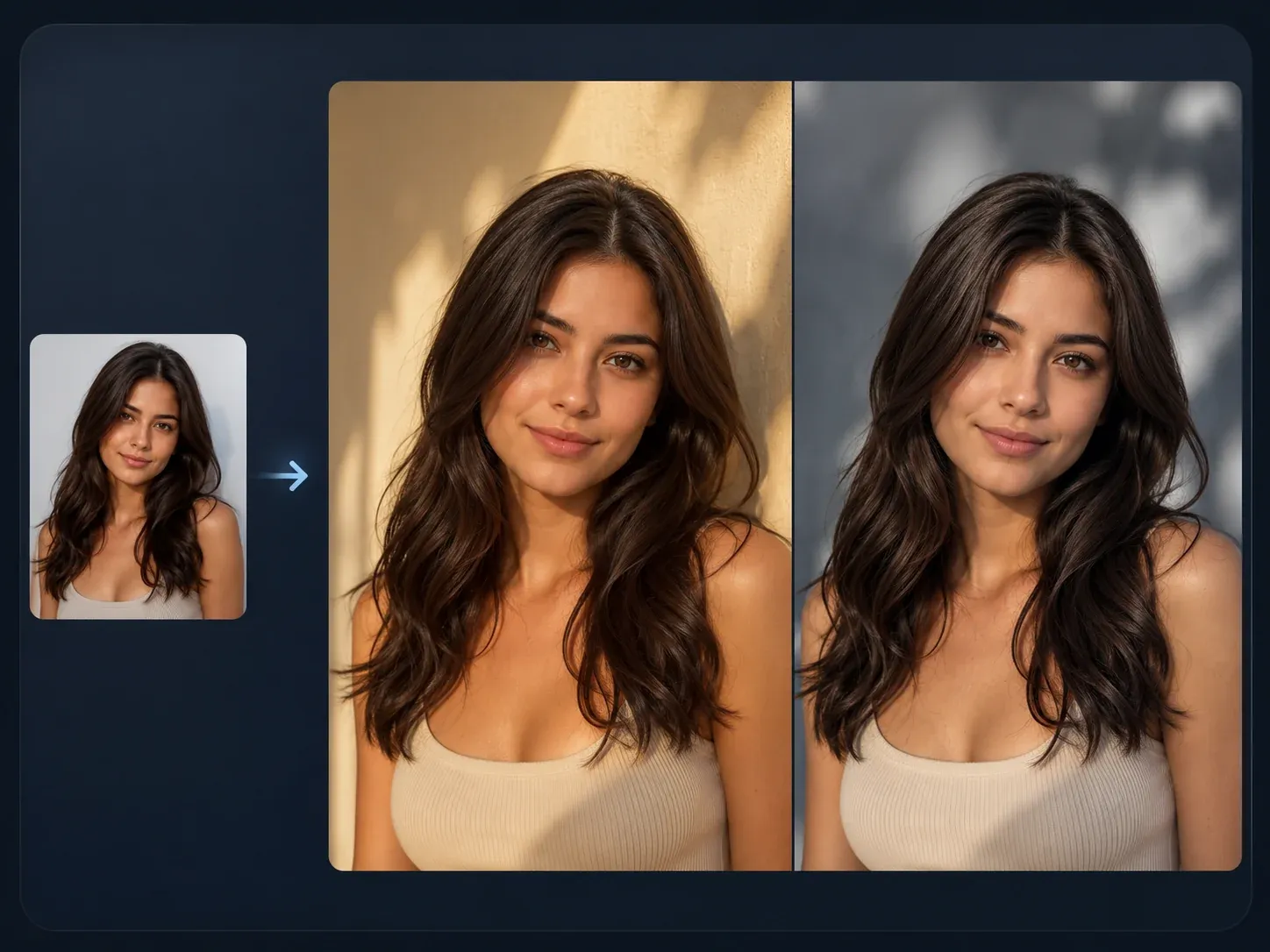
Create broader source-guided variants after the cutout gives you a clean subject to build from.
Direct answers about free use, no sign-up, no watermark, transparent PNG, white backgrounds, product photos, profiles, logos, privacy, edge quality, batch, API, and video limits.
A background remover takes an uploaded image and removes the area around the main subject. The result is useful as a transparent PNG cutout, white-background product photo, or clean subject layer for another design.
Yes. You can start using the background remover online for free. If heavier use reaches account or quota rules, FaceAI shows the current limit in the product flow.
No app download is needed, and you can start the browser workflow without sign-up. If guest usage reaches a product limit, the page will show the next step in the flow.
No. After the result appears, use the workbench download control to save the cutout without a watermark.
Yes. Choose transparent PNG when you need a cutout for product layouts, profile designs, stickers, thumbnails, presentations, or social graphics.
Yes. Choose the white-background output when you need a cleaner product photo for ecommerce drafts, catalog previews, profile images, or marketplace layouts.
Use common image formats such as JPG, PNG, or WebP with a clear subject. Sharp, well-lit photos usually produce cleaner cutouts than dark screenshots or blurry images.
Yes. It is useful for ecommerce listings, Amazon and Shopify drafts, creator posts, thumbnails, logos, stickers, profile photos, and clean design layers when you have rights to the source image.
Use a photo with one clear subject, visible edges, normal lighting, and enough space around the subject. Avoid heavy clutter, strong blur, tiny screenshots, and subjects that blend into the background.
Complex edges can need another try or a quick editor pass. Hair, fur, glass, veils, reflective products, transparent packaging, and fine spokes are harder than simple product or portrait edges.
Background remover creates a cutout, transparent PNG, or plain background. AI background changer replaces the scene behind the subject with a new color, prompt, lifestyle setting, or reference-inspired background.
No. This page is for still-image background removal. It does not claim video background removal or same-page video background editing.
This public page is built for one-image background removal in the workbench. It does not publicly claim batch upload or API access.
FaceAI uses secure upload handling for the generation flow. Use photos you are comfortable processing through an online tool, and avoid sensitive images or photos you do not have permission to use.
You can use generated cutouts when you own or have permission for the source photo. Avoid protected brands, fake endorsements, public figures, readable logos, and misleading product claims.
It is a strong first-pass workflow for clean cutouts and simple product drafts. Final catalog, print, packaging, or campaign work may still need human review, retouching, and licensing checks.
Upload a product photo, portrait, logo, object, or social image, create a transparent PNG or white-background cutout, then download or continue editing the result.