
Target
Ours
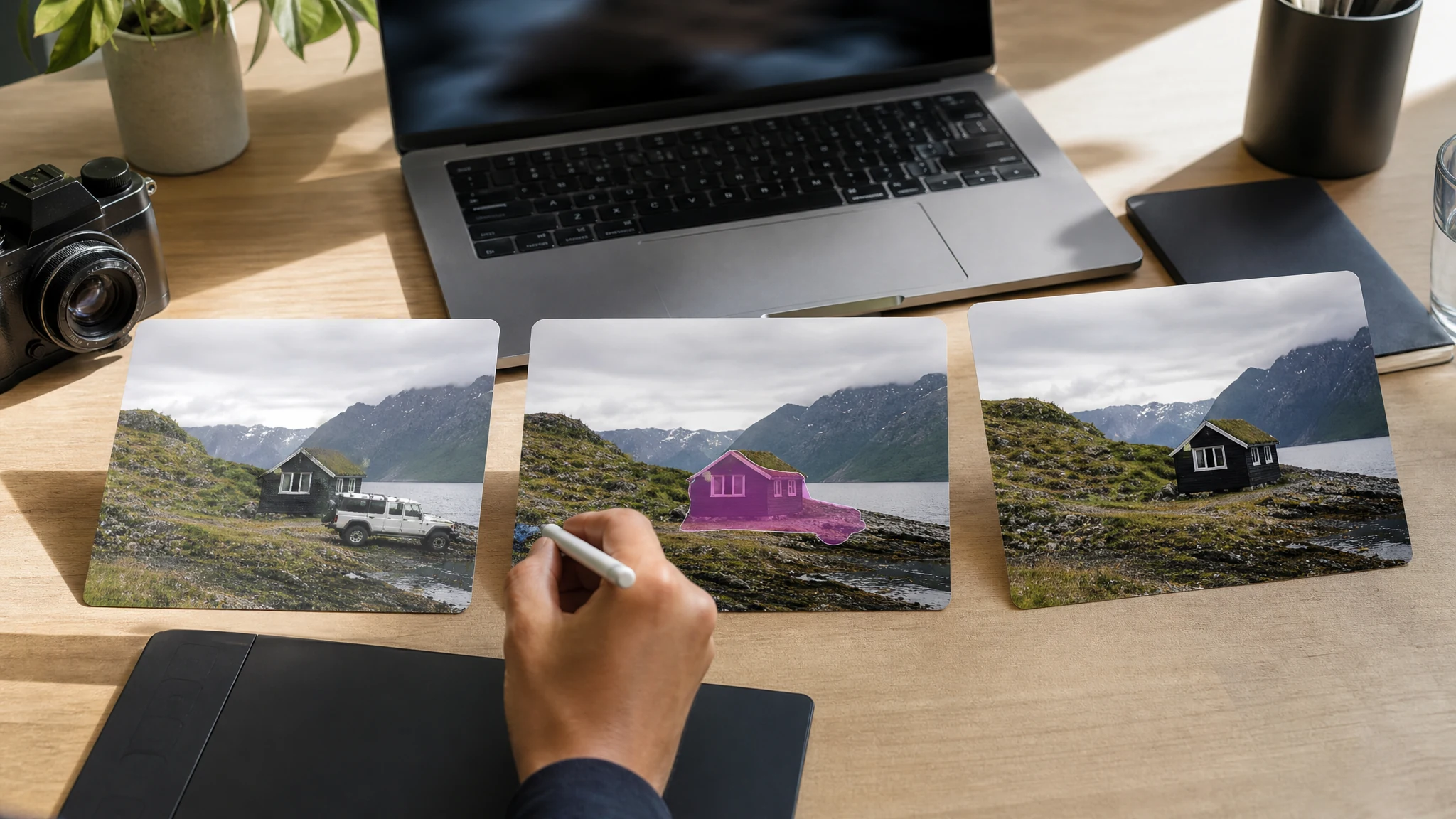
Paint a mask over one unwanted object or area inside the existing photo.
Other cleanup workflows
Background removers delete the whole background; manual editors can handle complex multi-area retouching.
Upload one image, brush over the unwanted object, person, sign, wire, or clutter, and let Face AI rebuild the marked area with a natural-looking fill. The workflow is mask-first, so you stay in control of what gets removed.
Trusted by 12,000,000+ users worldwide.
Keep the workflow precise: upload a clear image, brush the unwanted area, then inspect the rebuilt background before downloading.
Choose a JPG, PNG, or WebP image with enough surrounding background detail for the model to reconstruct the masked area.
Paint the unwanted object, person, wire, sign, or clutter. Include the whole object and a small edge margin.
Generate the cleanup, preview the cleaned result, then download or share after checking edges and context.
Use Face AI for focused cleanup where the unwanted area is clear and the surrounding scene gives the model enough context to rebuild naturally.
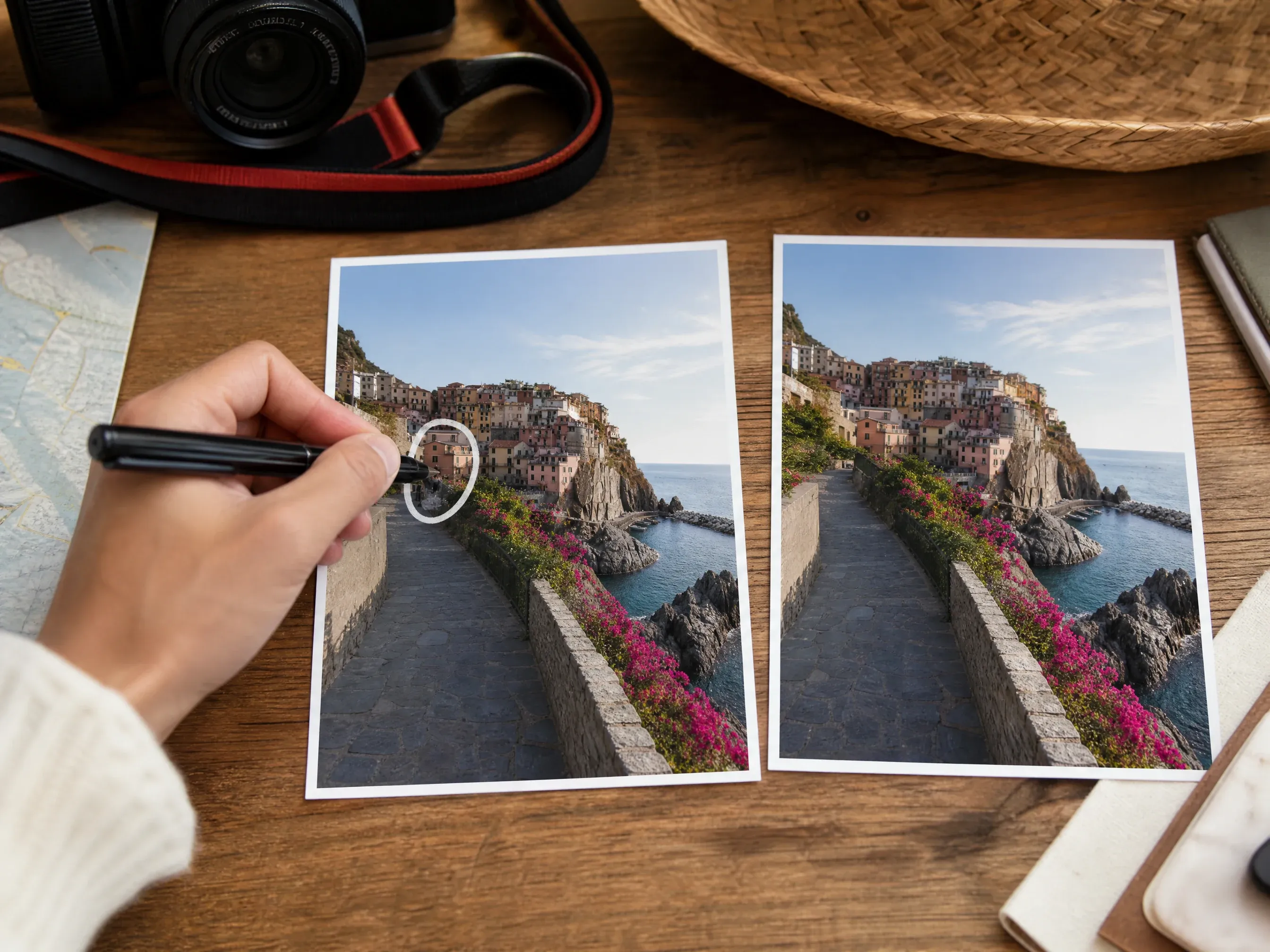
Remove strangers, trash cans, signs, poles, or small visual distractions from travel and social photos.
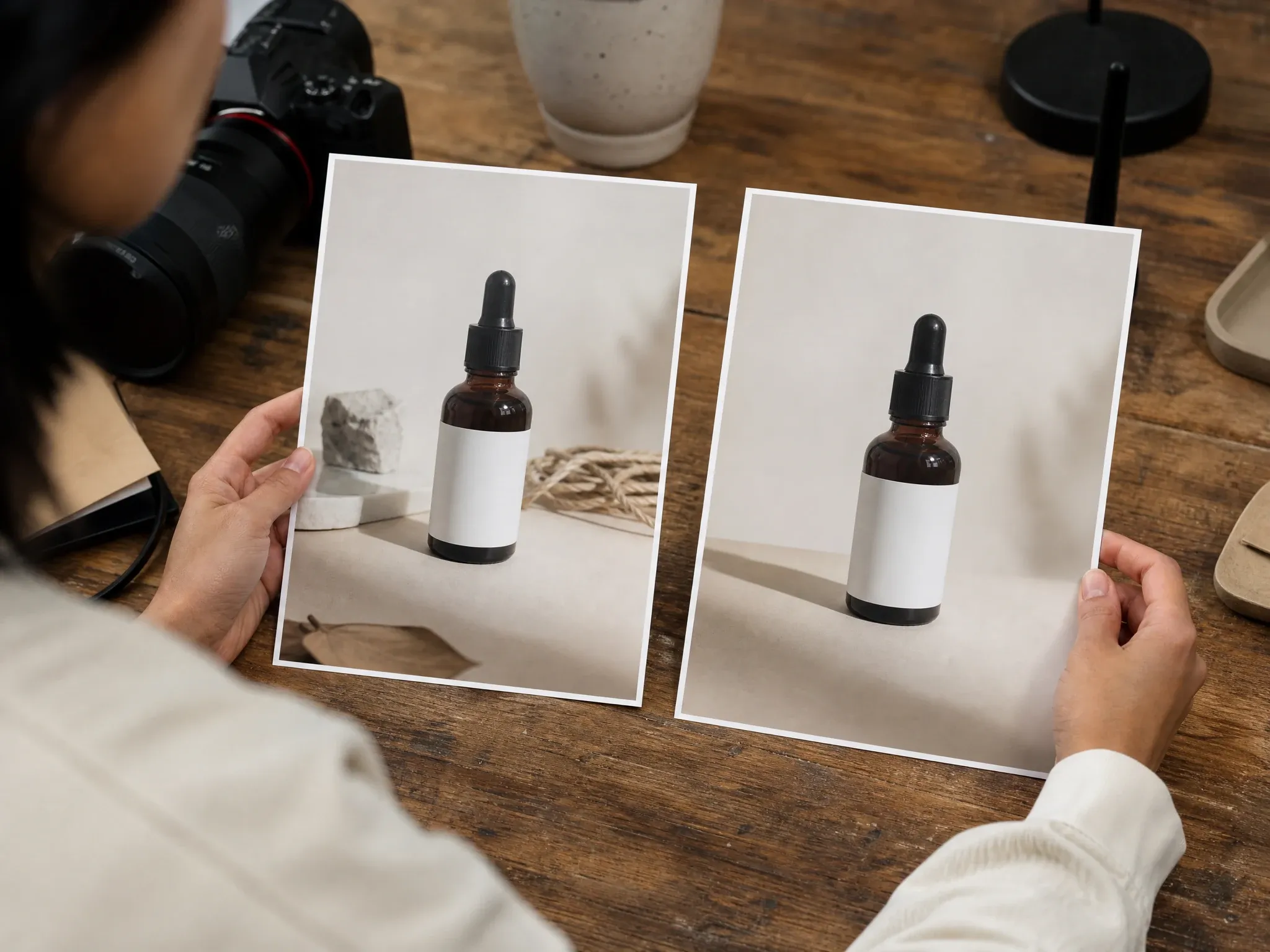
Clean simple props, cables, stickers, or tabletop clutter around a product while keeping the main item visible.
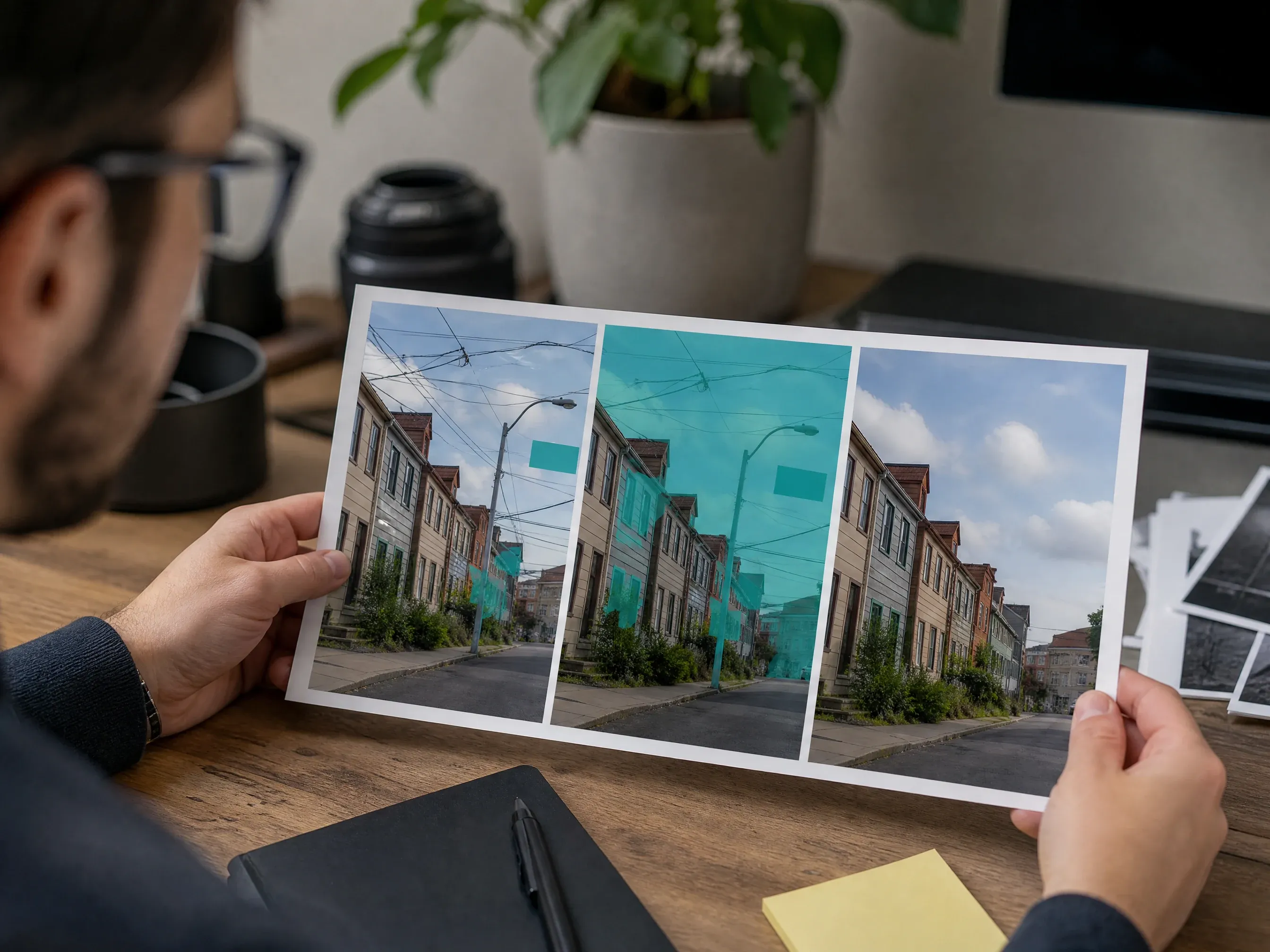
Brush over small overlays, dates, power lines, or sign clutter, then review the rebuilt area carefully.
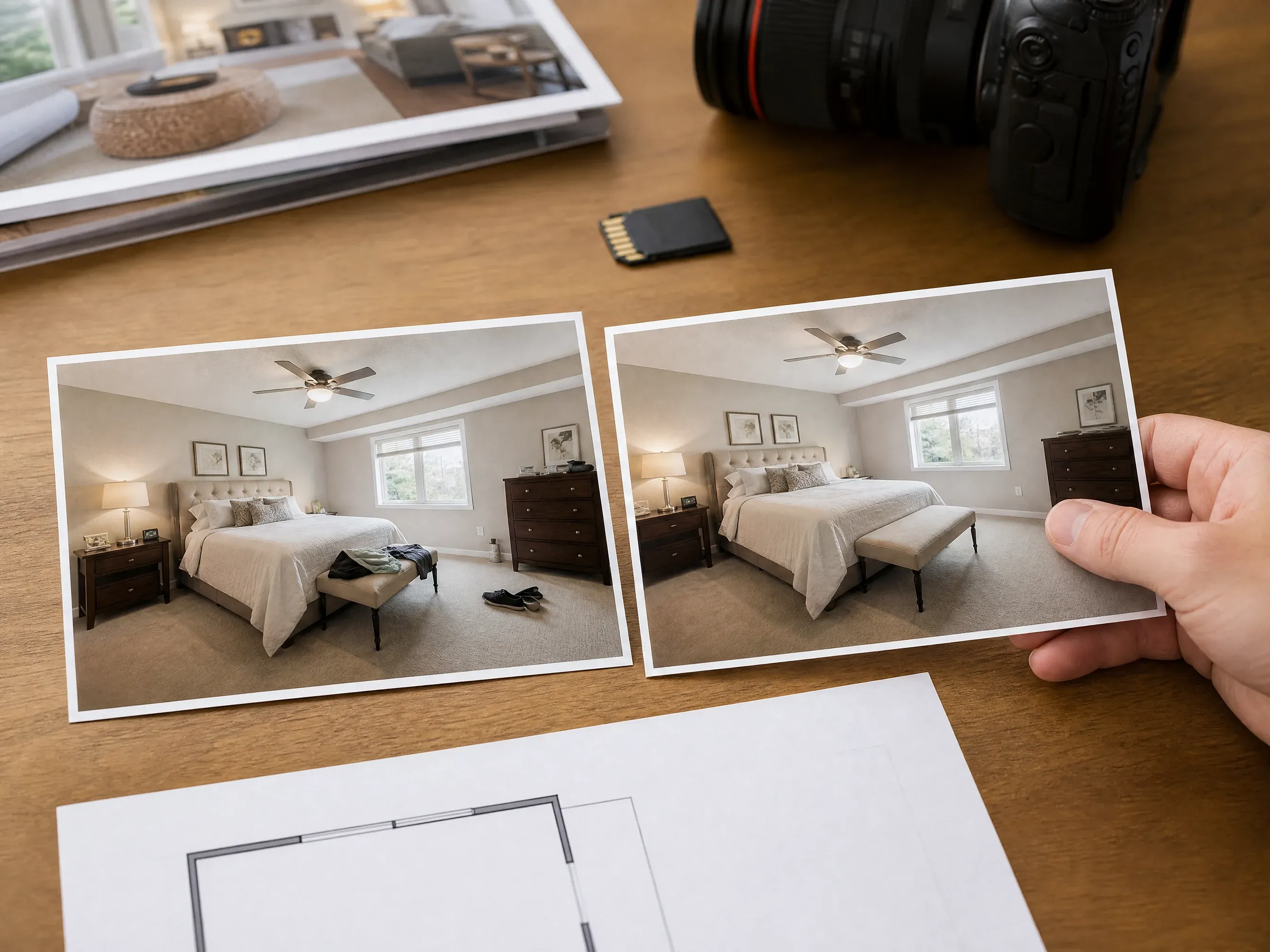
Remove small personal items or room clutter from real-estate and interior photos before a listing review.
An AI object remover uses inpainting to erase a marked area and synthesize replacement pixels from nearby colors, texture, lighting, and perspective.
You decide the target by painting a mask. Face AI uses the source image and mask to clean only the area you selected.
The model fills the selected area based on the surrounding scene, so simple backgrounds usually work better than complex edges.
Do not use it to remove private information, rights-sensitive marks, or watermarks you do not have permission to edit.
Face AI keeps the workflow direct: one image, one user-painted mask, clear result review, and honest limits around cleanup quality.
The page keeps object-removal results separate from broader editing experiments, so recent cleanups are easier to review and download.
Paint, erase, move, zoom, undo, redo, and clear the source-size mask without turning a simple cleanup job into a heavy image editor.
The cleanup flow uses your source image plus painted mask to rebuild the selected area while leaving the rest of the photo alone.
The copy avoids automatic detection, batch cleanup, legal clearance, no-watermark, and pixel-perfect retouch promises.
Good masking matters. Give the model a clean target and enough surrounding image context to rebuild the area naturally.
Cover the complete distraction, including shadows or edges that should disappear with it.
Do not mask more than needed. The model uses nearby unmasked pixels to infer texture and lighting.
Be careful with faces, private information, copyrighted marks, and watermarks you do not control.
If one edge still looks rough, download or reuse the result and mask only the remaining artifact.
Choose the right cleanup workflow. Object removal keeps the scene and removes one marked distraction; other tools solve different photo problems.
| Criteria | Face AIOurs Face AI object-removal workflow | Other cleanup workflows |
|---|---|---|
| Target | Paint a mask over one unwanted object or area inside the existing photo. | Background removers delete the whole background; manual editors can handle complex multi-area retouching. |
| Best use | Photobombers, clutter, signs, wires, small props, product-photo distractions, and simple room cleanup. | Manual retouching is stronger for high-stakes brand imagery, hair edges, reflections, or exact product preservation. |
| Controls | Upload, brush/eraser sizing, move, zoom, undo/redo, clear mask, before/after preview, retry, history, share, and download. | Pro editors may expose layers, feathering, clone tools, lasso selections, and batch workflows. |
| Expectation | Best-effort AI reconstruction based on source pixels around the masked area. | Some pages imply automatic object detection or perfect watermark removal that still needs human review. |
| Next step | Enhance, background change, or use the broader AI Image Editor if the result needs more edits. | One-shot cleanup flows can hide whether a second quality pass is needed. |
Paint a mask over one unwanted object or area inside the existing photo.
Background removers delete the whole background; manual editors can handle complex multi-area retouching.
Photobombers, clutter, signs, wires, small props, product-photo distractions, and simple room cleanup.
Manual retouching is stronger for high-stakes brand imagery, hair edges, reflections, or exact product preservation.
Upload, brush/eraser sizing, move, zoom, undo/redo, clear mask, before/after preview, retry, history, share, and download.
Pro editors may expose layers, feathering, clone tools, lasso selections, and batch workflows.
Best-effort AI reconstruction based on source pixels around the masked area.
Some pages imply automatic object detection or perfect watermark removal that still needs human review.
Enhance, background change, or use the broader AI Image Editor if the result needs more edits.
One-shot cleanup flows can hide whether a second quality pass is needed.
These comments focus on normal cleanup workflows: mask the distraction, review the filled background, then download or continue editing.
"The brush mask keeps the workflow honest. I mark one distraction, check the fill, then download only when the product still looks natural."

Camila Lopez
Influencer Partnerships Lead
"For small clutter in lifestyle photos, the mask-first flow is faster than opening a full desktop editor. The page is clear about best-effort cleanup."

Sofia Martinez
Head of Brand Social
"I use it for signs, trash cans, and background strangers in vacation photos. Brushing the full object plus the edge margin makes a big difference."

Anya Ramos
Influencer Partnerships Director
"Focused history and download names make object-removal jobs easy to separate from broader image-editor experiments."

Putri Handayani
KOL Marketing Manager
"It is useful for quick one-photo cleanup when the unwanted prop is simple and the background has enough surrounding texture."

Linh Nguyen
Head of Creator Relations
"The Brush and Prompt choices make the cleanup target clear, and the review guidance helps me inspect edges, repeated textures, and sensitive marks before download."

Nhi Pham
Influencer Marketing Manager
"The brush mask keeps the workflow honest. I mark one distraction, check the fill, then download only when the product still looks natural."
Camila Lopez
Influencer Partnerships Lead
"For small clutter in lifestyle photos, the mask-first flow is faster than opening a full desktop editor. The page is clear about best-effort cleanup."
Sofia Martinez
Head of Brand Social
"I use it for signs, trash cans, and background strangers in vacation photos. Brushing the full object plus the edge margin makes a big difference."
Anya Ramos
Influencer Partnerships Director
"Focused history and download names make object-removal jobs easy to separate from broader image-editor experiments."
Putri Handayani
KOL Marketing Manager
"It is useful for quick one-photo cleanup when the unwanted prop is simple and the background has enough surrounding texture."
Linh Nguyen
Head of Creator Relations
"The Brush and Prompt choices make the cleanup target clear, and the review guidance helps me inspect edges, repeated textures, and sensitive marks before download."
Nhi Pham
Influencer Marketing Manager
"The mask canvas feels direct: upload, paint, generate, compare. No extra mode maze when the job is simply removing one unwanted area."

Sebastian Cruz
Viral Content Manager
"The brush mask keeps the workflow honest. I mark one distraction, check the fill, then download only when the product still looks natural."
Camila Lopez
Influencer Partnerships Lead
"For small clutter in lifestyle photos, the mask-first flow is faster than opening a full desktop editor. The page is clear about best-effort cleanup."
Sofia Martinez
Head of Brand Social
"I use it for signs, trash cans, and background strangers in vacation photos. Brushing the full object plus the edge margin makes a big difference."
Anya Ramos
Influencer Partnerships Director
"Focused history and download names make object-removal jobs easy to separate from broader image-editor experiments."
Putri Handayani
KOL Marketing Manager
"It is useful for quick one-photo cleanup when the unwanted prop is simple and the background has enough surrounding texture."
Linh Nguyen
Head of Creator Relations
"The Brush and Prompt choices make the cleanup target clear, and the review guidance helps me inspect edges, repeated textures, and sensitive marks before download."
Nhi Pham
Influencer Marketing Manager
"The mask canvas feels direct: upload, paint, generate, compare. No extra mode maze when the job is simply removing one unwanted area."
Sebastian Cruz
Viral Content Manager
"For campaign drafts, I like having a focused object-remover page instead of hiding this workflow inside a generic editor."

Talia Hassan
Community-Led Growth Manager
"It helps clean small distractions before a creative review, while still making us inspect corners, reflections, and subject edges."

Kai Nakamura
Global Creative Director
"The responsible-use copy matters. We avoid private information and rights-sensitive marks, then use the tool for normal cleanup."

Nina Volkov
Visual Design Director
"A dedicated cleanup flow and clear result labels make review easier than a renamed generic image-edit session."

Rafael Santos
VP of Creative
"The tool is practical for one source image and one mask. If a scene needs complex retouching, we move it to a manual editor instead."

Priya Chen
Creative Strategy Lead
"The page explains Brush and Prompt mode clearly, which makes the cleanup target and review steps easy to understand."

Devon Park
Interactive Creative Director
"Users understand the brush step quickly. The result actions are where they expect them: preview, share, download, and recent history."

Mia Torres
Design Director
"For campaign drafts, I like having a focused object-remover page instead of hiding this workflow inside a generic editor."
Talia Hassan
Community-Led Growth Manager
"It helps clean small distractions before a creative review, while still making us inspect corners, reflections, and subject edges."
Kai Nakamura
Global Creative Director
"The responsible-use copy matters. We avoid private information and rights-sensitive marks, then use the tool for normal cleanup."
Nina Volkov
Visual Design Director
"A dedicated cleanup flow and clear result labels make review easier than a renamed generic image-edit session."
Rafael Santos
VP of Creative
"The tool is practical for one source image and one mask. If a scene needs complex retouching, we move it to a manual editor instead."
Priya Chen
Creative Strategy Lead
"The page explains Brush and Prompt mode clearly, which makes the cleanup target and review steps easy to understand."
Devon Park
Interactive Creative Director
"Users understand the brush step quickly. The result actions are where they expect them: preview, share, download, and recent history."
Mia Torres
Design Director
Move to the adjacent Face AI tool that matches the next real problem: broader editing, background removal, background change, or enhancement.
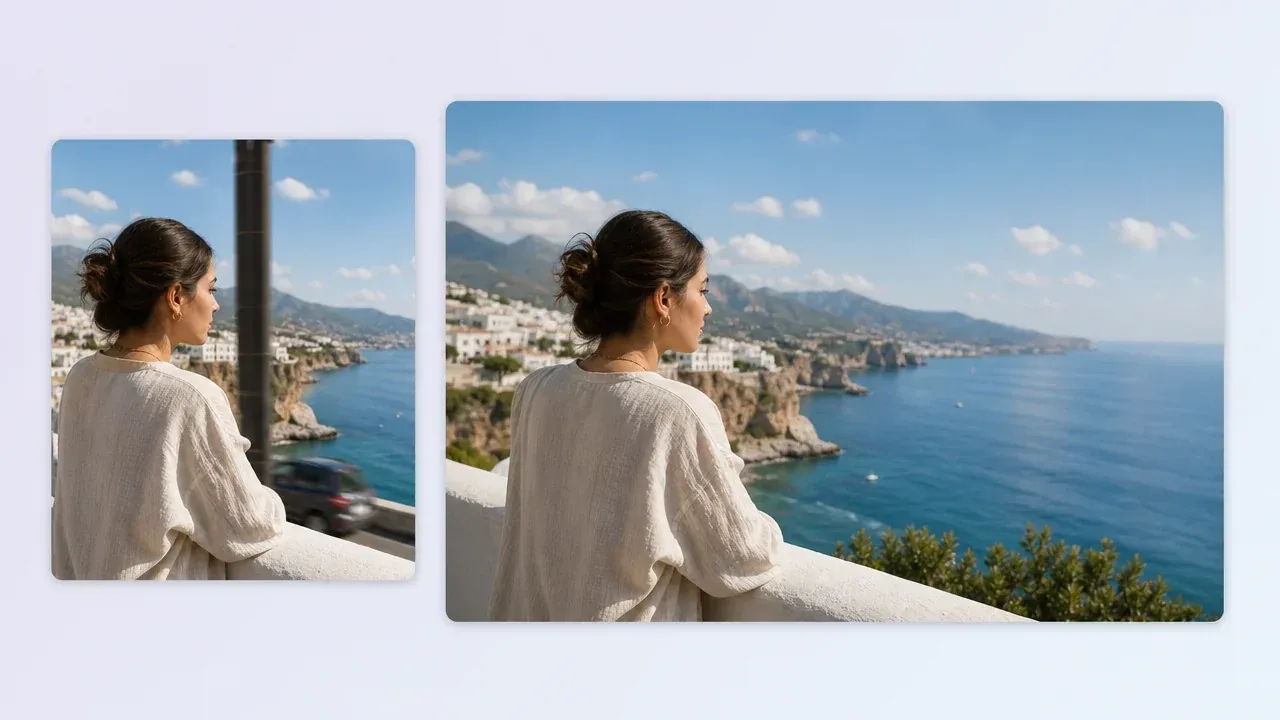
Use the broader editor when the photo needs relighting, background replacement, or portrait polish beyond one mask.
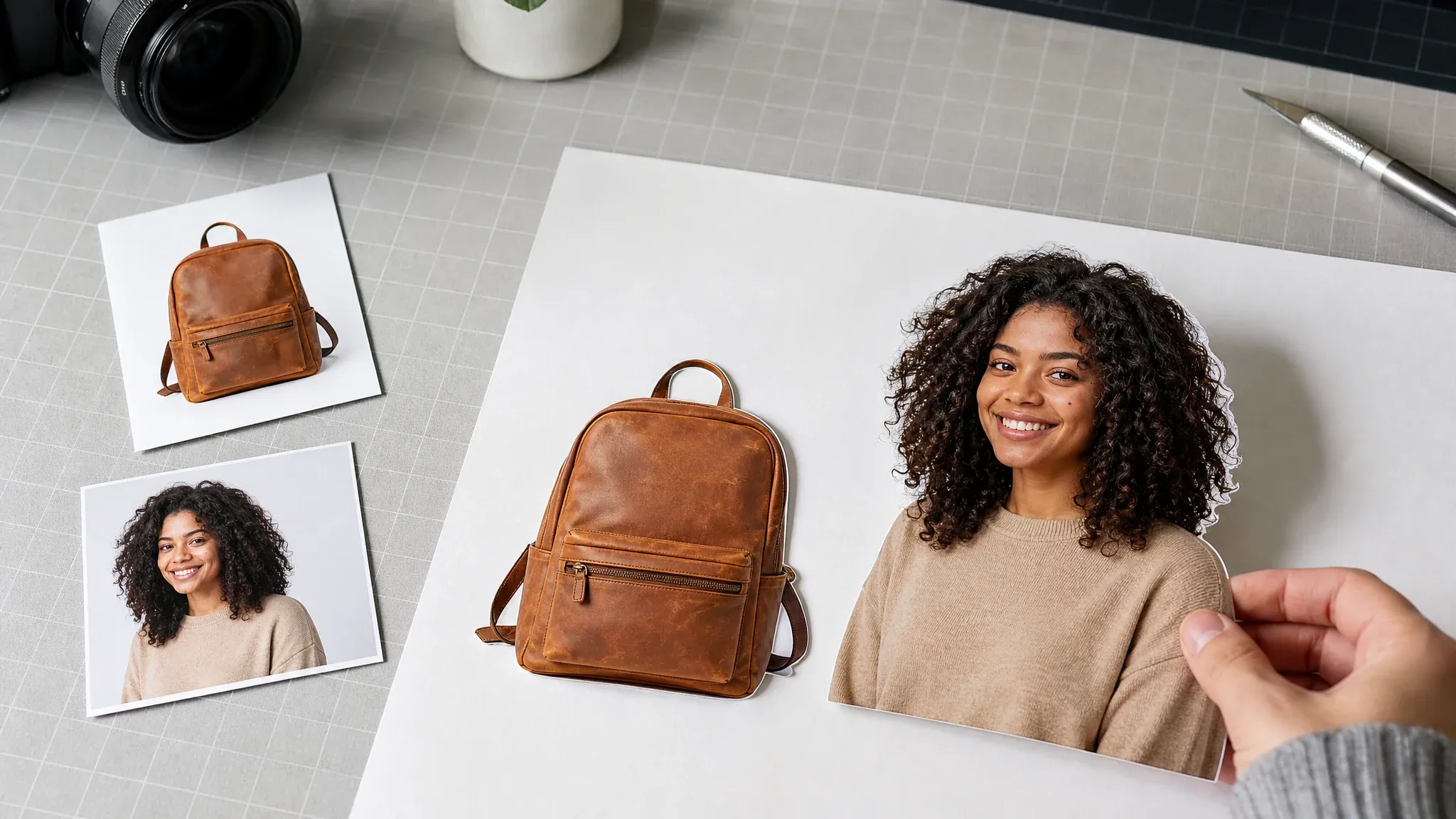
Remove the whole background when the subject needs a clean cutout instead of an in-scene object cleanup.
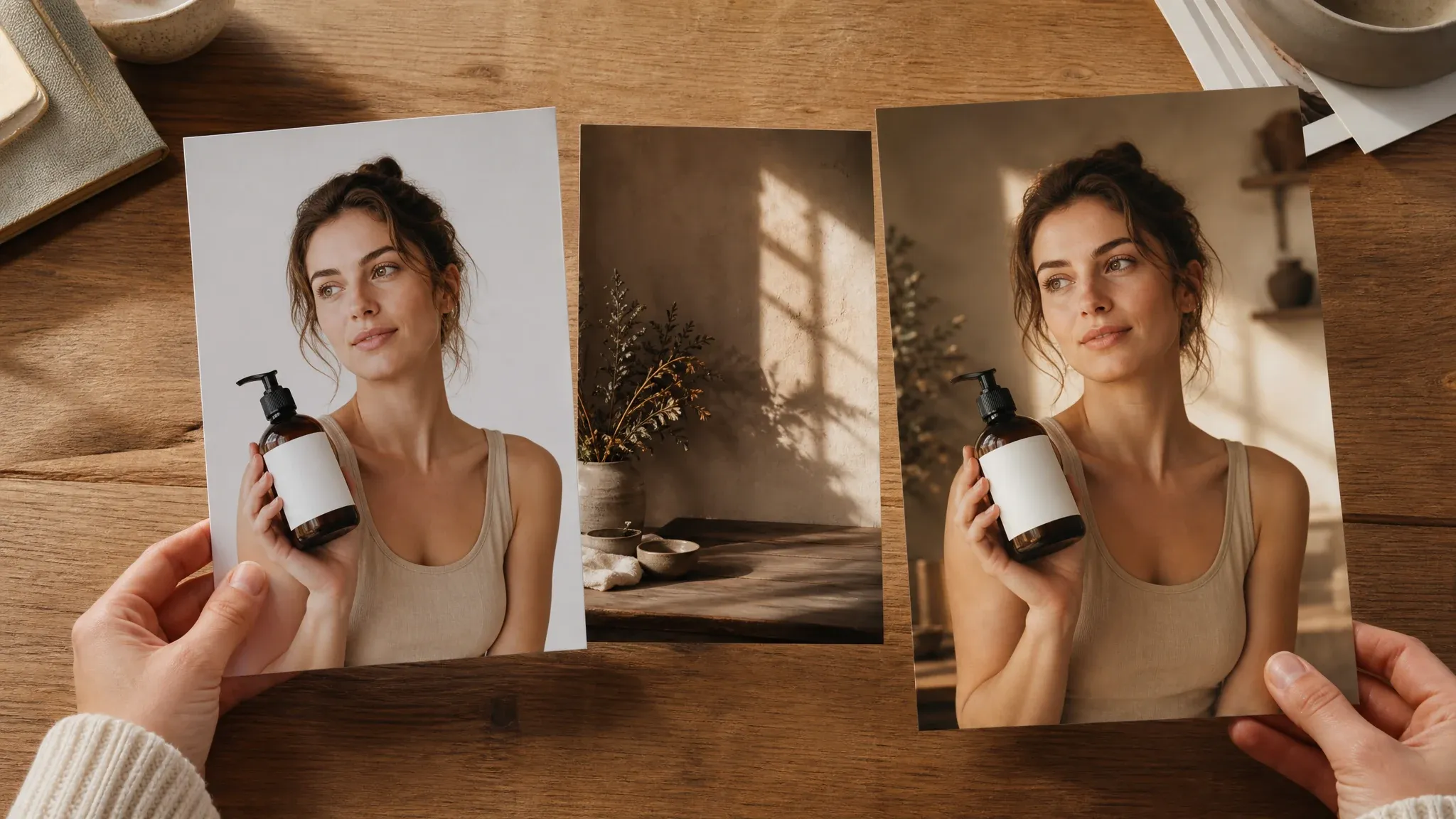
Change the environment after cleanup when the scene itself needs a new setting or campaign backdrop.
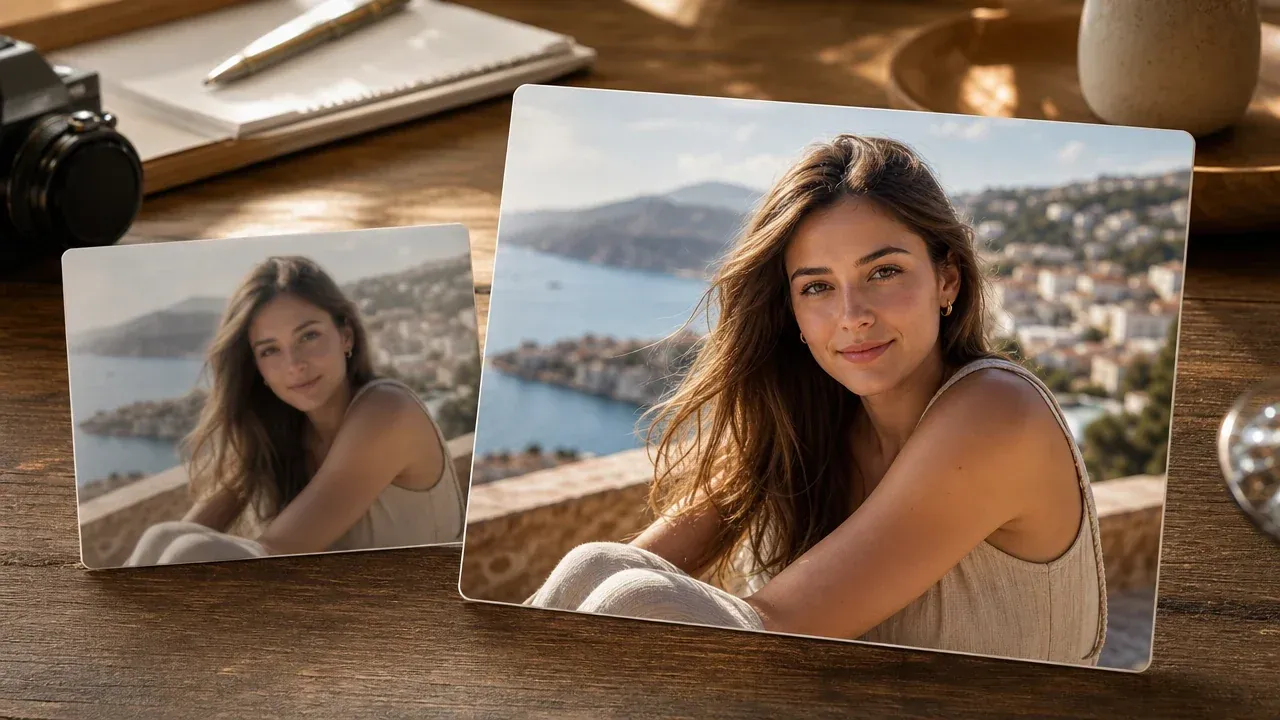
Enhance the final image when the object removal result is useful but needs sharper detail or better clarity.
Direct answers about brush masking, image formats, best uses, limits, safety, result quality, and next steps.
Upload one photo, paint a mask over the unwanted area, and Face AI rebuilds the selected area based on the surrounding pixels.
Not always. In Brush mode, paint over the full object or area. In Prompt mode, describe the unwanted object clearly instead.
Use JPG, PNG, or WebP images. For best results, choose a clear source with enough background detail around the object.
Object removal is best effort. Simple backgrounds, small distractions, and clear edges usually work better than complex textures, faces, reflections, or large missing areas.
Only use object removal on images and marks you have rights to edit. Face AI does not provide legal clearance or guarantee clean watermark, logo, or text removal.
You can mask one focused area for each cleanup. For several separate distractions, review the first result before deciding whether a second pass is appropriate.
Yes. Once the result appears, use the download and share actions, and keep the original photo if you may need to compare or re-edit later.
Try a tighter mask, include the full object shadow, or run a second pass on the remaining artifact. Complex edits may still need a manual editor.
Yes. Background removal cuts out the subject or deletes the full background. Object removal keeps the scene and removes only the masked area.
Paint a focused mask, generate a cleaned result, and review the rebuilt area before downloading or sharing.