
Starting point
Ours
Choose one MP4, MOV, or WebM clip and convert the source video in the browser.
Other workflows
Editors usually require a project, timeline, export preset, and more setup.
Choose an MP4, MOV, or WebM clip, trim the best moment, choose FPS, resolution, and speed, then convert the source video in your browser and export a looping GIF for chat, docs, social previews, product notes, or launch updates.
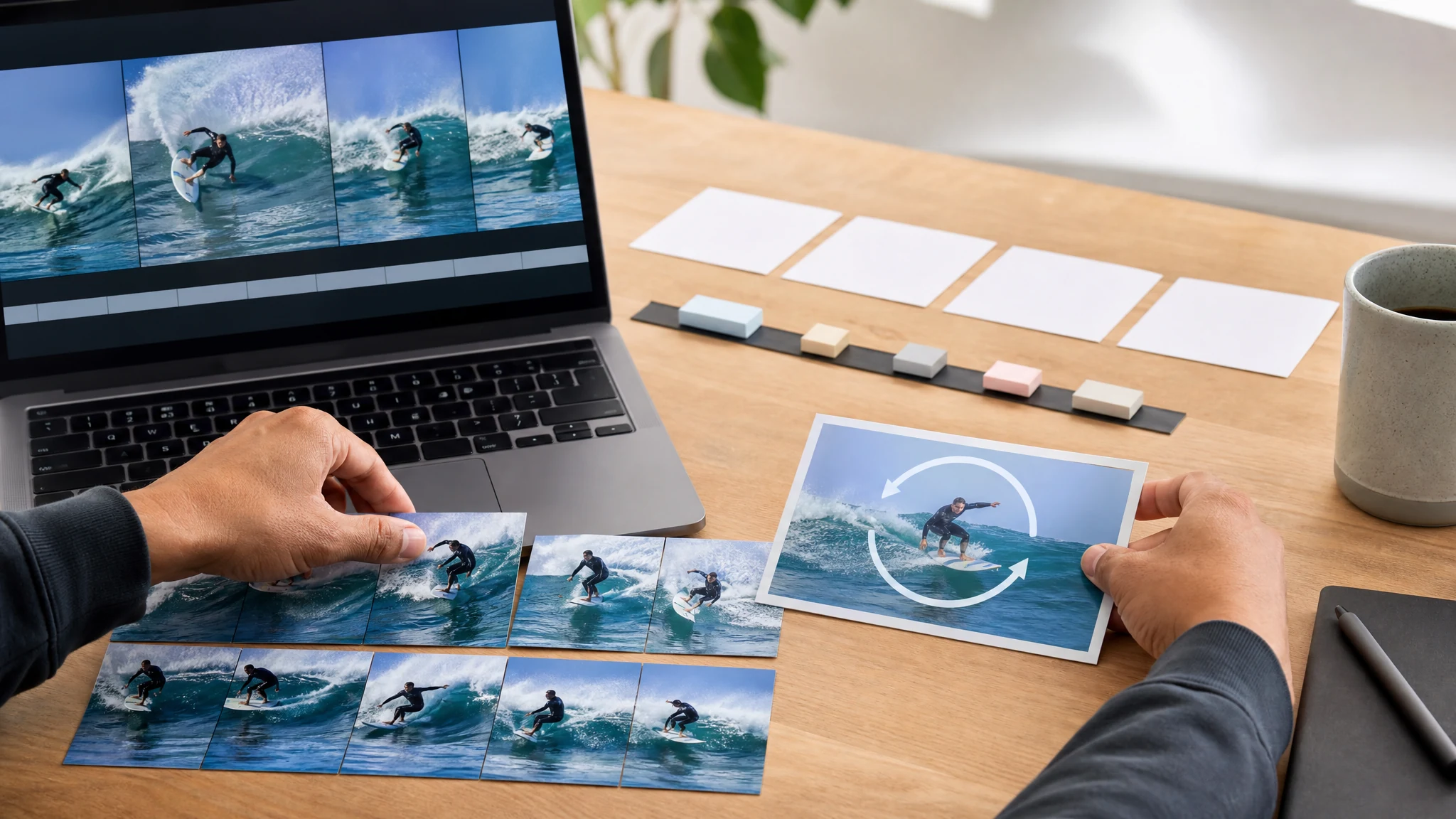
Trusted by 12,000,000+ users worldwide. Built for browser-side source conversion, short GIF export, and practical downloads, not captions, overlays, batch conversion, or WebP export.
Keep the first export focused: choose one MP4, MOV, or WebM clip, trim the useful moment, then choose practical FPS, resolution, and speed settings.
Use MP4, MOV, or WebM. Short source clips work best because GIF files grow quickly.
Select the useful segment, then choose FPS, resolution, and speed based on where the GIF will be shared.
Generate the looping GIF, review the result, and download it for docs, chat, email, social previews, or product notes.
Use it when a short loop communicates better than a full video file, especially in docs, chat, support, social posts, and product updates.

Turn a short screen recording or product demo moment into a lightweight GIF for changelogs, docs, and release notes.

Convert quick how-to clips into GIFs that can be pasted into tickets, Slack, Discord, team chat, or onboarding notes.

Export a tiny motion preview for posts or storyboards when a full video upload is heavier than needed.
Trim a funny or expressive moment into a looping GIF that works in comments, chats, and community posts.
Use a short low-FPS GIF when a static screenshot is not enough but a full embedded video is too heavy.

Place a GIF in a moodboard or client note so reviewers can understand motion without opening a video player.
A video to GIF converter turns a short video segment into a looping animated GIF. This Face AI version focuses on browser-side source conversion, trim, FPS, resolution, speed, preview, and download for one clip.
Trim the useful moment instead of converting a long video into an oversized GIF.
Choose smoother motion, output width, and playback speed depending on where the GIF will be used.
The result is a GIF file, not a captioned video, vector animation, or batch editor export.
The page opens directly on the converter workspace and keeps controls focused on the average job: one clip in, one local GIF out, with file-size tradeoffs visible before conversion.
Start from upload and trim controls without setting up a project timeline.
The finished GIF stays in the current browser session, ready to download without sending the source video to Face AI for conversion.
FPS, resolution, and speed controls make the size-versus-smoothness tradeoff visible before conversion.
Use a full editor for captions, overlays, batch conversion, frame-perfect cuts, and production video work.
Use Face AI for fast GIF conversion. Use a full editor when you need timeline editing, text overlays, or batch production.
| Criteria | Face AIOurs Face AI video to GIF workflow | Other workflows |
|---|---|---|
| Starting point | Choose one MP4, MOV, or WebM clip and convert the source video in the browser. | Editors usually require a project, timeline, export preset, and more setup. |
| Free online focus | Start from a focused converter workflow with visible FPS, resolution, and speed choices. | Large editors often start free but move advanced editing, watermark removal, storage, or brand tools into account and paid flows. |
| Controls | Trim range, FPS, resolution, speed, result preview, and GIF download. | Editors may add captions, overlays, crop, filters, audio, aspect ratios, WebP export, and batch queues. |
| Privacy boundary | The source video is converted in the browser. The exported GIF is previewed and downloaded from the current session. | Some browser-only competitors keep files entirely on device, while cloud converters may promise deletion windows or account storage. |
| Best use | Docs, chat, support, product loops, reaction clips, and social preview GIFs. | Production video work, branded motion graphics, or precise frame-by-frame editing. |
| Output truth | Looping GIF file for lightweight sharing, not WebP, captions, or a full video package. | MP4, WebM, GIF, MOV, captions, thumbnails, and mixed media packages. |
Choose one MP4, MOV, or WebM clip and convert the source video in the browser.
Editors usually require a project, timeline, export preset, and more setup.
Start from a focused converter workflow with visible FPS, resolution, and speed choices.
Large editors often start free but move advanced editing, watermark removal, storage, or brand tools into account and paid flows.
Trim range, FPS, resolution, speed, result preview, and GIF download.
Editors may add captions, overlays, crop, filters, audio, aspect ratios, WebP export, and batch queues.
The source video is converted in the browser. The exported GIF is previewed and downloaded from the current session.
Some browser-only competitors keep files entirely on device, while cloud converters may promise deletion windows or account storage.
Docs, chat, support, product loops, reaction clips, and social preview GIFs.
Production video work, branded motion graphics, or precise frame-by-frame editing.
Looping GIF file for lightweight sharing, not WebP, captions, or a full video package.
MP4, WebM, GIF, MOV, captions, thumbnails, and mixed media packages.
These comments focus on the practical loop: choose a clip, trim, tune size, convert locally, then preview and download the GIF result.
"A five-second product loop often explains more than a full video. The trim, FPS, resolution, and speed controls keep the GIF focused enough for launch notes."

Kai Nakamura
Global Creative Director
"The page is useful because it does not pretend to be a full video editor. I upload one clip, choose the short moment, and export a GIF for review."

Nina Volkov
Visual Design Director
"For creative reviews, a GIF is easier to drop into a board than a video player. Browser-side conversion keeps the handoff lightweight."

Rafael Santos
VP of Creative
"I use it when a client needs to see motion, not a full edit. MP4, MOV, and WebM support covers the source clips we usually receive."

Priya Chen
Creative Strategy Lead
"The practical controls are exactly the ones I need: trim, FPS, resolution, speed, preview, and download. Captions and overlays belong in an editor."

Devon Park
Interactive Creative Director
"Docs pages read better with a tiny loop beside the instructions. Lower FPS and a shorter clip keep the file small enough for the article."

Sophia Wagner
Editorial Director
"A five-second product loop often explains more than a full video. The trim, FPS, resolution, and speed controls keep the GIF focused enough for launch notes."
Kai Nakamura
Global Creative Director
"The page is useful because it does not pretend to be a full video editor. I upload one clip, choose the short moment, and export a GIF for review."
Nina Volkov
Visual Design Director
"For creative reviews, a GIF is easier to drop into a board than a video player. Browser-side conversion keeps the handoff lightweight."
Rafael Santos
VP of Creative
"I use it when a client needs to see motion, not a full edit. MP4, MOV, and WebM support covers the source clips we usually receive."
Priya Chen
Creative Strategy Lead
"The practical controls are exactly the ones I need: trim, FPS, resolution, speed, preview, and download. Captions and overlays belong in an editor."
Devon Park
Interactive Creative Director
"Docs pages read better with a tiny loop beside the instructions. Lower FPS and a shorter clip keep the file small enough for the article."
Sophia Wagner
Editorial Director
"The copy is honest about GIF tradeoffs. It tells users to shorten the clip instead of promising a perfect long animation."

Astrid Nielsen
Head of Thought Leadership
"A five-second product loop often explains more than a full video. The trim, FPS, resolution, and speed controls keep the GIF focused enough for launch notes."
Kai Nakamura
Global Creative Director
"The page is useful because it does not pretend to be a full video editor. I upload one clip, choose the short moment, and export a GIF for review."
Nina Volkov
Visual Design Director
"For creative reviews, a GIF is easier to drop into a board than a video player. Browser-side conversion keeps the handoff lightweight."
Rafael Santos
VP of Creative
"I use it when a client needs to see motion, not a full edit. MP4, MOV, and WebM support covers the source clips we usually receive."
Priya Chen
Creative Strategy Lead
"The practical controls are exactly the ones I need: trim, FPS, resolution, speed, preview, and download. Captions and overlays belong in an editor."
Devon Park
Interactive Creative Director
"Docs pages read better with a tiny loop beside the instructions. Lower FPS and a shorter clip keep the file small enough for the article."
Sophia Wagner
Editorial Director
"The copy is honest about GIF tradeoffs. It tells users to shorten the clip instead of promising a perfect long animation."
Astrid Nielsen
Head of Thought Leadership
"Our education team can turn a quick screen recording into a support GIF and keep the original video for longer walkthroughs."

Charlotte Beaumont
Director of Content Operations
"The social preset language is useful for campaign work. It gives the team a quick motion asset without opening a timeline editor."

Yifan Zheng
Demand Generation Lead
"I like having a simple converter for partner announcements. A short GIF travels better in chat and email than a heavier video attachment."

Sakura Ito
Partner Marketing Lead
"For customer updates, the result is easy to reuse: one product moment, one looping GIF, and a clear file-size tradeoff."

Ren Sato
Customer Marketing Director
"The tool keeps brand teams realistic. It creates a GIF, not subtitles, crop presets, WebP variants, or a whole motion graphics package."

Anisha Patel
Brand Director
"I used it for a community post where the full clip was too much. A trimmed GIF made the update easier to scan on mobile."

Jordan Kim
Growth Lead
"The best part is the narrow promise. Convert the approved clip, download the GIF, and use a dedicated editor when the job needs polish."

Pooja Mehta
VP of Brand Experience
"Our education team can turn a quick screen recording into a support GIF and keep the original video for longer walkthroughs."
Charlotte Beaumont
Director of Content Operations
"The social preset language is useful for campaign work. It gives the team a quick motion asset without opening a timeline editor."
Yifan Zheng
Demand Generation Lead
"I like having a simple converter for partner announcements. A short GIF travels better in chat and email than a heavier video attachment."
Sakura Ito
Partner Marketing Lead
"For customer updates, the result is easy to reuse: one product moment, one looping GIF, and a clear file-size tradeoff."
Ren Sato
Customer Marketing Director
"The tool keeps brand teams realistic. It creates a GIF, not subtitles, crop presets, WebP variants, or a whole motion graphics package."
Anisha Patel
Brand Director
"I used it for a community post where the full clip was too much. A trimmed GIF made the update easier to scan on mobile."
Jordan Kim
Growth Lead
"The best part is the narrow promise. Convert the approved clip, download the GIF, and use a dedicated editor when the job needs polish."
Pooja Mehta
VP of Brand Experience
Choose the next tool based on the real blocker: create motion, enhance the source, animate a still, or swap a video face before exporting a short loop.

Clean a soft clip before converting it if the source video is too blurry for a GIF.

Create a short clip first when the motion idea does not exist yet, then export the best moment as a GIF.

Animate one still image before clipping the final motion into a shareable GIF.

Swap a face in video first when identity is the creative job, then convert a short approved moment to GIF.
Answers about MP4/MOV/WebM source files, browser-side conversion, FPS, resolution, speed, file size, GIF output, privacy, and when to use a full editor instead.
Use MP4, MOV, or WebM. The current file picker accepts one source video for browser-side conversion.
Yes, the page starts from a free online converter workflow and converts the selected source clip in the browser. Very large clips can still be slow because GIF encoding is heavy.
There is no product-enforced duration cap in this local flow. Shorter clips still convert faster and usually create smaller, more shareable GIFs.
Yes. The browser conversion returns a GIF result for preview and download in the current session.
Use 10 or 12 FPS for most social and docs use. Lower FPS makes smaller files; higher FPS looks smoother but can be larger.
Resolution changes the GIF width. Speed changes playback pace. Lower FPS and smaller width usually produce smaller GIFs.
Not in this simple converter. Add captions, stickers, crop, resize, and overlays in a video editor before converting the clip.
No. This page is scoped to GIF output. Use another converter or editor if you need WebP, MP4, thumbnails, or a mixed media package.
The source video is converted in your browser instead of being uploaded for conversion. Keep the tab open until conversion finishes, then download the GIF before clearing or leaving the page.
No. GIF is an image format and does not carry audio. Only the visual frames from the selected clip appear in the result.
GIF files grow quickly with duration, width, color detail, and FPS. Trim shorter, lower FPS, or choose a smaller resolution.
Only choose videos you own or have permission to process. Avoid sensitive, private, or copyrighted material without permission.
Choose one MP4, MOV, or WebM clip, trim the useful moment, choose FPS, resolution, and speed, then convert it in your browser and export a looping GIF.