
Starting point
Ours
Write a prompt for a new still avatar or profile picture.
Adjacent workflows
Upload-photo avatar tools start from a selfie or source image.
Create a profile-ready avatar from a prompt for social bios, gaming communities, creator channels, team pages, and personal brands. Choose a square profile crop, pick a visual style, generate the first avatar, then download or refine the keeper in FaceAI. No sign-up. No watermark. No app download.
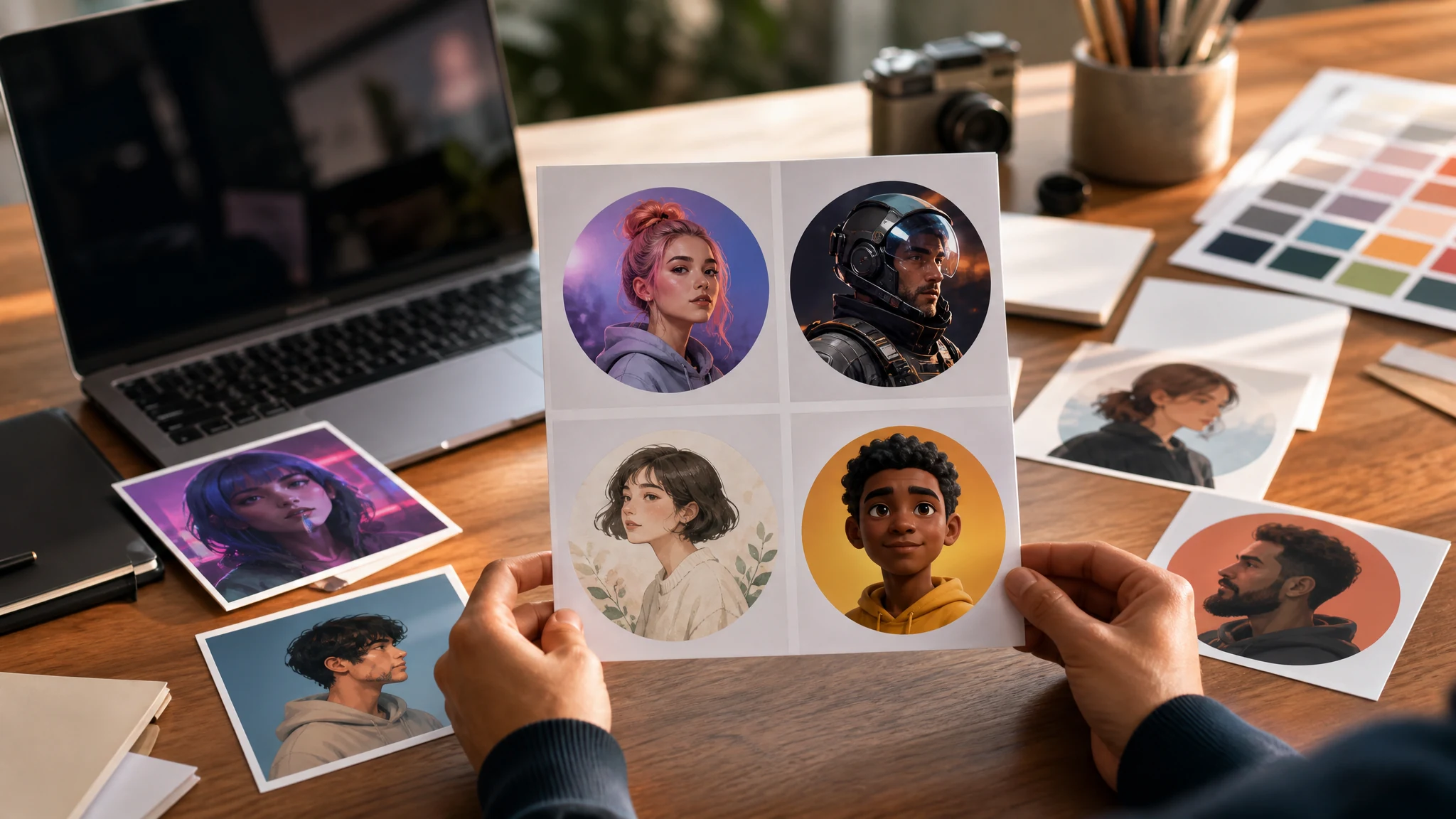
Trusted by 12,000,000+ users worldwide.
Treat the prompt like a profile-picture brief. The clearest avatars start with the final use, then add face crop, expression, style, and background.
Describe one original avatar, the profile channel, face angle, expression, clothing, background, and style.
Use the square crop for most profile pictures, then compare the newest result with local history before changing too much.
Download the keeper, or continue with image-to-image, editor, or upscaler when the avatar is close but not final.
Avatar search results mix several tools together. Use this page when you want a new still profile avatar from text, then switch workflows when the starting point or output changes.
Use this page when the avatar does not exist yet. Write the profile use, face crop, expression, outfit, background, and style, then generate a still image.
If you already have a source photo or keeper result, use AI Image to Image for a reference-guided version instead of relying on prompt memory.
Use a video or talking-photo workflow only after you have a portrait that should speak, move, or become a clip. This page creates still profile images.
Use the page for practical avatar jobs: social profiles, creator brands, gaming communities, original illustrated icons, and profile-image workflow handoffs.
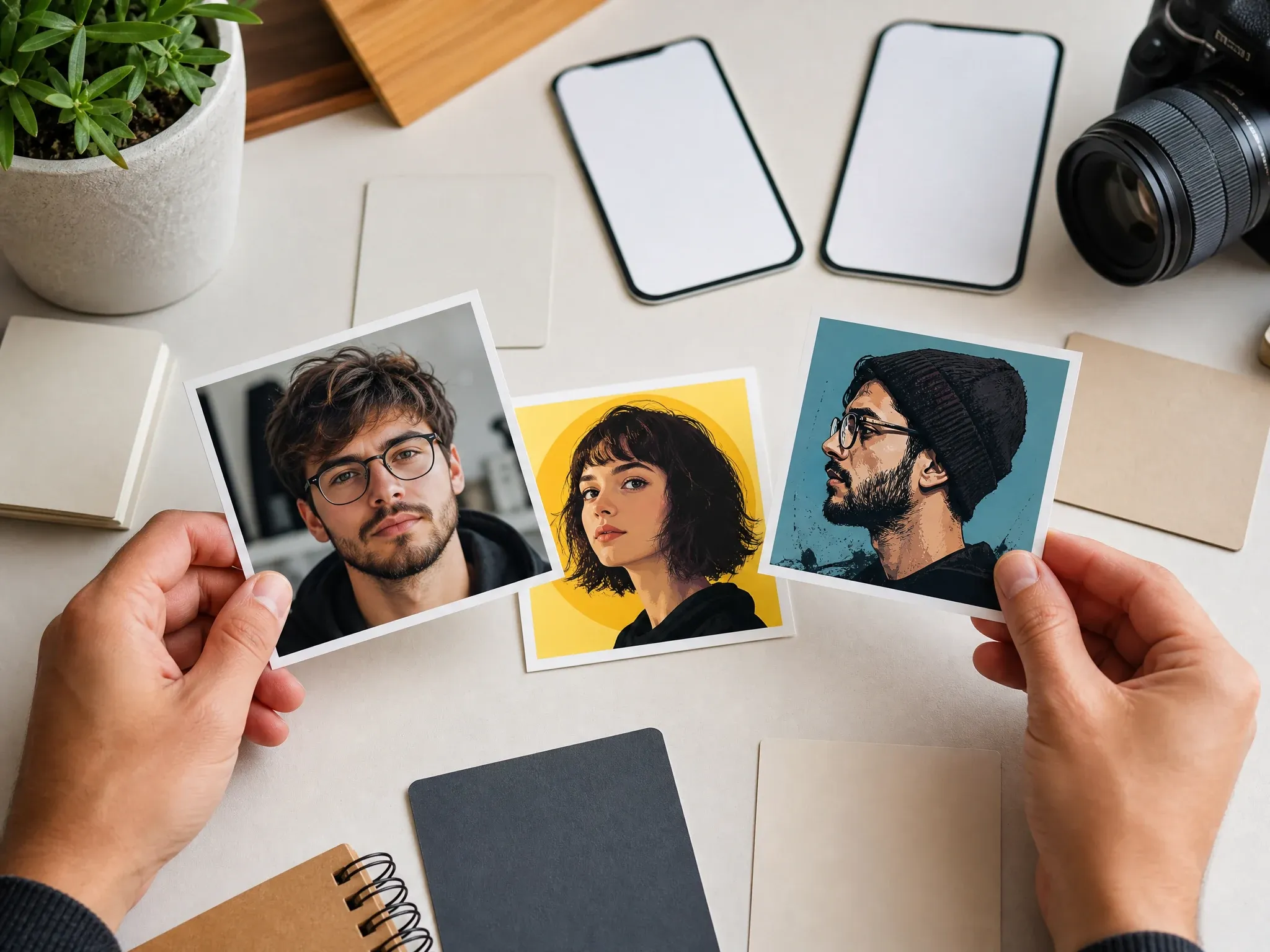
Generate a square avatar for TikTok, Instagram, Discord, Twitch, YouTube, newsletters, and personal bios without starting from a stock portrait.
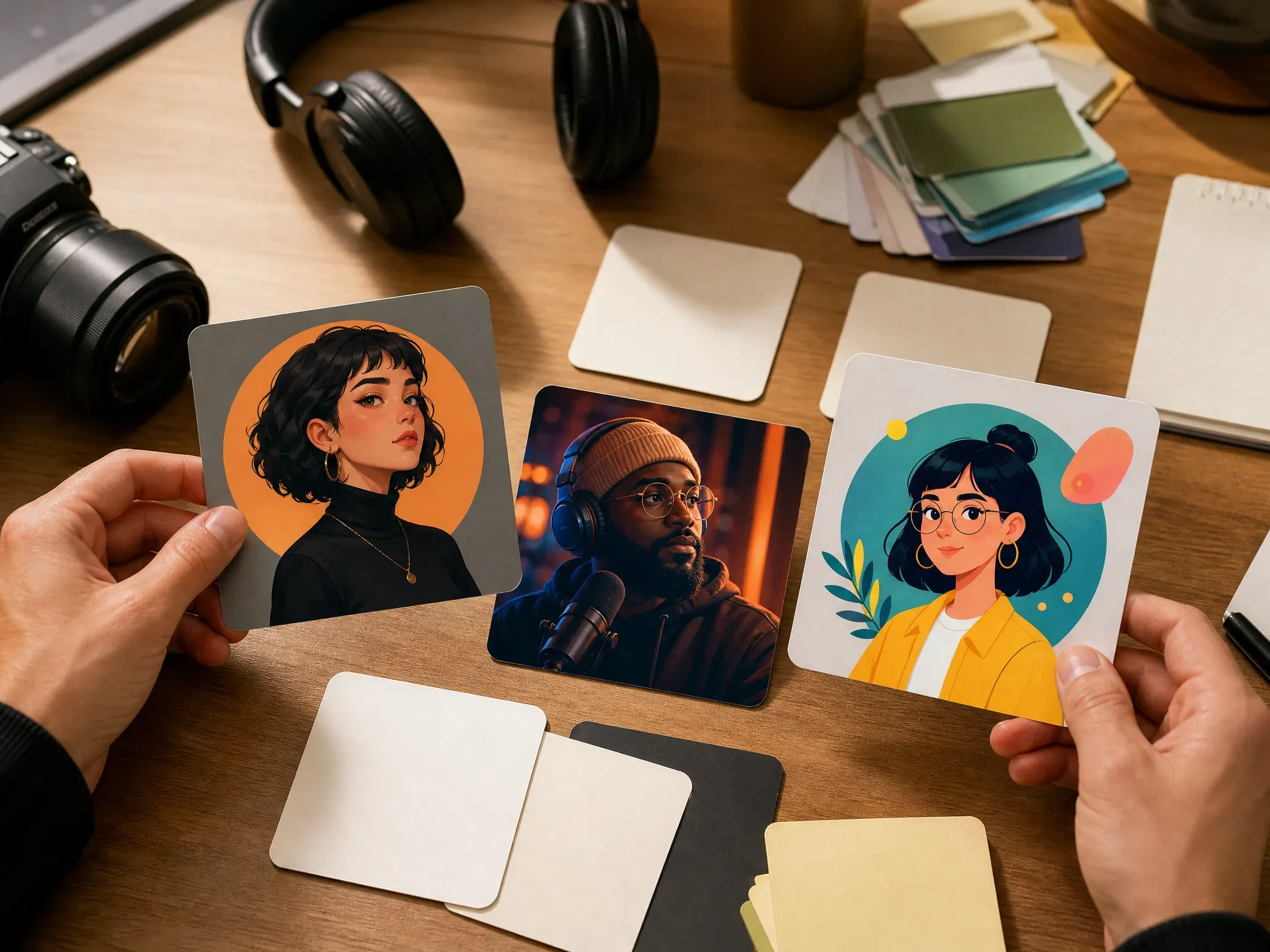
Explore realistic, cinematic, illustrated, or 3D profile directions before committing to a channel kit, thumbnail system, or public profile image.
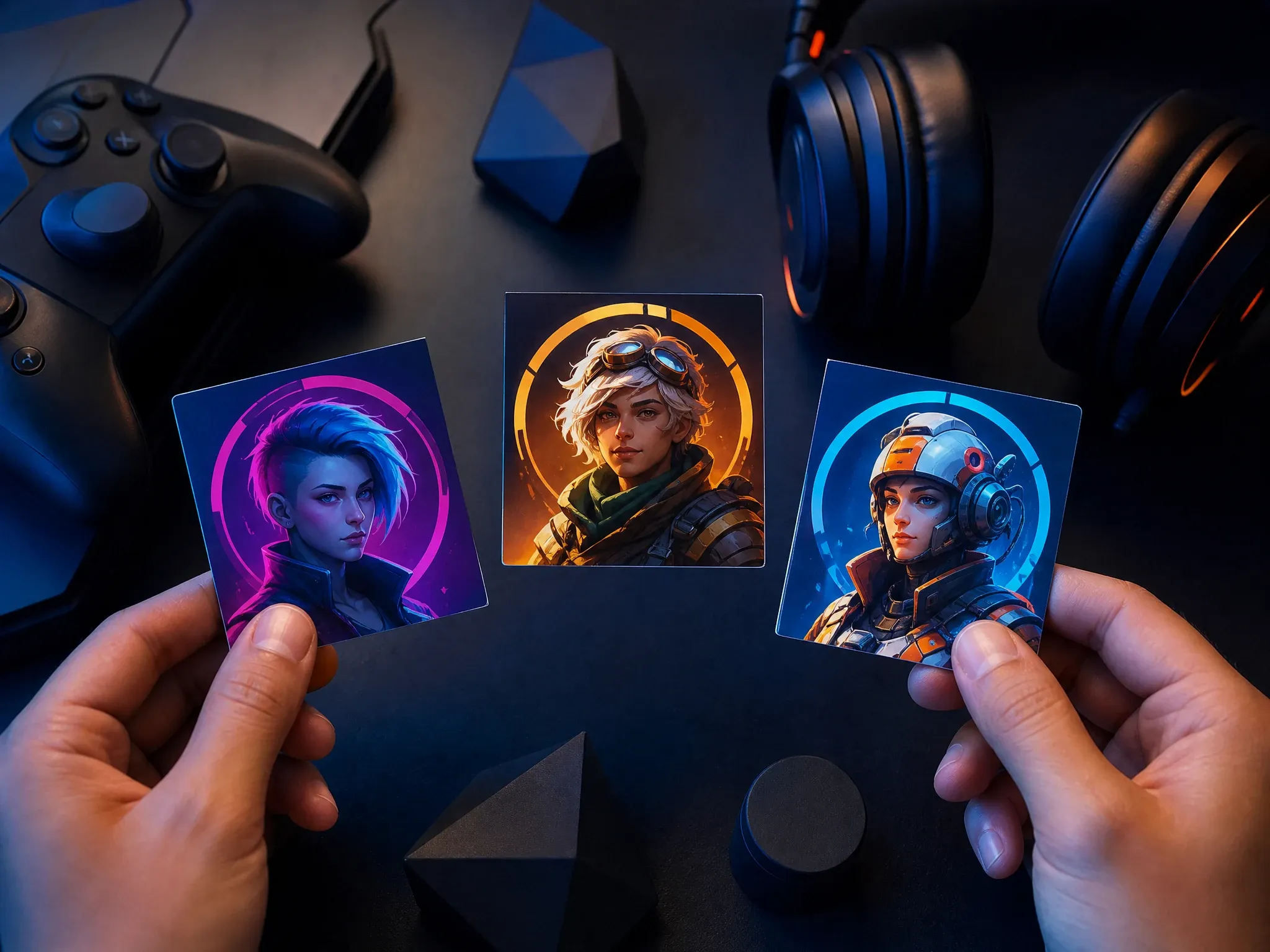
Create original gaming avatars, guild profile images, community icons, and role-inspired portraits without copying protected characters or logos.
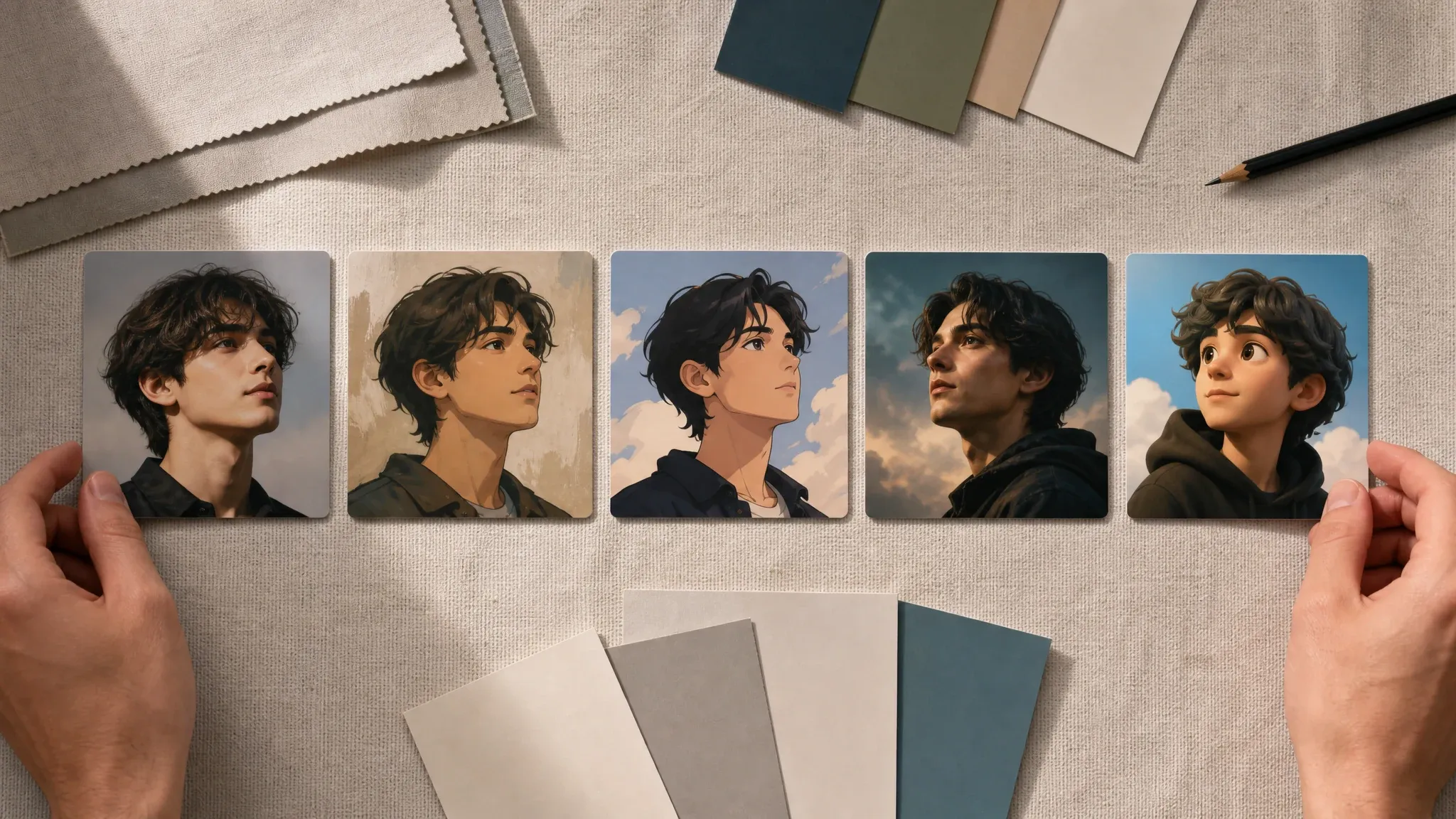
Try photo, illustration, anime-inspired, cinematic, and 3D directions from the same identity brief, then keep the style that fits the profile.
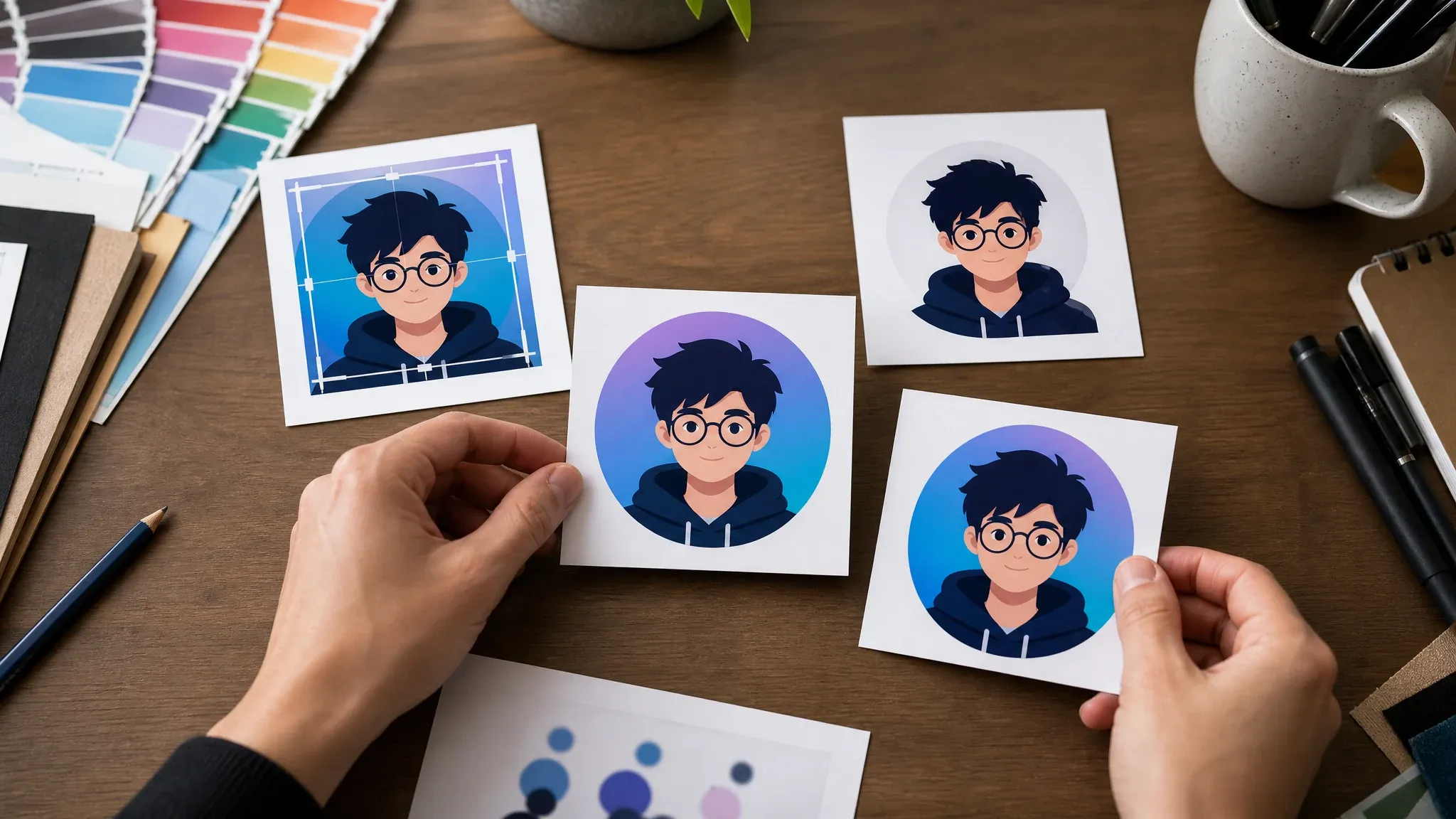
When one avatar is close, move it into image-to-image for a tighter variant, editor for cleanup, or upscaler for a sharper profile export.
An AI avatar generator creates a new profile-style image from a prompt. You describe the identity, expression, style, and background, then the model returns a still avatar image you can review and refine.
Start from text when the avatar does not exist yet and you need a visual direction for a profile, channel, or community image.
Use 1:1 for most social profiles, then switch to portrait or story ratios when a bio page or channel layout needs more space.
This page creates profile pictures and avatar portraits. It does not create talking avatars, live avatars, 3D rigs, voice, or animation.
The workspace comes first, so you can test an avatar prompt immediately. The rest of the page helps you choose a style, crop, and next workflow without mixing avatar jobs together.
You can write the avatar prompt before reading the full page. People open an avatar generator to create first.
Start from social, gaming, creator, cartoon, anime-inspired, cinematic, and 3D avatar examples, then rewrite the identity details.
Avatar identity can drift after a small prompt edit. History helps you keep the version that looked closest to the brief.
Use image-to-image for closer variants, editor for focused cleanup, and upscaler for a sharper profile image export.
Strong avatar prompts are specific without becoming crowded. One identity, one crop, one expression, one background, and one style usually give a cleaner first pass.
Say social profile, Discord avatar, creator bio, gaming icon, founder profile, or channel portrait so the composition fits the destination.
Add face angle, expression, hair, clothing, accessory, background, lighting, and style. Those details steer the avatar more than broad mood words.
Create original avatars. Do not ask for exact celebrities, public figures, copyrighted characters, logos, or branded costumes unless you have rights.
If you need a closer second version, move the best avatar into image-to-image and describe one change instead of rebuilding from memory.
Use this table to pick the right workflow. This page is strongest for still profile avatars created from prompts, not exact photo likeness, business headshots, video, voice, or character chat.
| Criteria | Face AIOurs FaceAI avatar profile workflow | Adjacent workflows |
|---|---|---|
| Starting point | Write a prompt for a new still avatar or profile picture. | Upload-photo avatar tools start from a selfie or source image. |
| Best use | Social profiles, creator bios, gaming icons, original profile portraits, and avatar style exploration. | Headshot tools focus on professional business photos and resumes. |
| Style control | Use prompt examples, style choices, and square profile ratios. | Character generators focus on broader story, NPC, mascot, or full-body concepts. |
| Reference needs | Generate from a prompt first, then use image-to-image when a keeper needs a closer variant. | From-photo tools should handle exact source-photo identity needs when that workflow is available. |
| Output boundary | Creates still avatar images and profile pictures. | Talking avatars, AI video avatars, voice, lip sync, live avatars, and 3D rigs are separate jobs. |
| Rights boundary | Create original avatars and avoid protected characters, celebrities, logos, and public-figure likeness requests. | Broad commercial-use claims still depend on prompt, subject, source material, and rights. |
| Next step | Continue into image-to-image, editor, or upscaler only after one avatar direction is worth keeping. | One-purpose tools often stop at download or blur profile, headshot, and video workflows together. |
Write a prompt for a new still avatar or profile picture.
Upload-photo avatar tools start from a selfie or source image.
Social profiles, creator bios, gaming icons, original profile portraits, and avatar style exploration.
Headshot tools focus on professional business photos and resumes.
Use prompt examples, style choices, and square profile ratios.
Character generators focus on broader story, NPC, mascot, or full-body concepts.
Generate from a prompt first, then use image-to-image when a keeper needs a closer variant.
From-photo tools should handle exact source-photo identity needs when that workflow is available.
Creates still avatar images and profile pictures.
Talking avatars, AI video avatars, voice, lip sync, live avatars, and 3D rigs are separate jobs.
Create original avatars and avoid protected characters, celebrities, logos, and public-figure likeness requests.
Broad commercial-use claims still depend on prompt, subject, source material, and rights.
Continue into image-to-image, editor, or upscaler only after one avatar direction is worth keeping.
One-purpose tools often stop at download or blur profile, headshot, and video workflows together.
These comments focus on the practical loop: write the avatar brief, compare results, keep the closest version, then refine only when the profile direction is worth saving.
"I use it when a profile image needs a clear personality before we decide whether to polish the final portrait."

Nina Volkov
Visual Design Director
"The square avatar examples are useful because they start close to the actual crop we need for social channels."

Kai Nakamura
Global Creative Director
"A good avatar prompt is short but specific: role, expression, wardrobe, background, and style. That beats a pile of vague mood words."

Mia Torres
Design Director
"We test creator identities with it before putting a designer on the final channel kit. It makes the review concrete fast."

Priya Chen
Creative Strategy Lead
"For community and gaming concepts, I want an original avatar direction without drifting into known characters. The prompt examples help with that."

Devon Park
Interactive Creative Director
"It is practical for thumbnails and bios. Generate the avatar, compare it in history, then only upscale or edit the version that is close."

Aaliyah Williams
Digital Marketing Director
"I use it when a profile image needs a clear personality before we decide whether to polish the final portrait."
Nina Volkov
Visual Design Director
"The square avatar examples are useful because they start close to the actual crop we need for social channels."
Kai Nakamura
Global Creative Director
"A good avatar prompt is short but specific: role, expression, wardrobe, background, and style. That beats a pile of vague mood words."
Mia Torres
Design Director
"We test creator identities with it before putting a designer on the final channel kit. It makes the review concrete fast."
Priya Chen
Creative Strategy Lead
"For community and gaming concepts, I want an original avatar direction without drifting into known characters. The prompt examples help with that."
Devon Park
Interactive Creative Director
"It is practical for thumbnails and bios. Generate the avatar, compare it in history, then only upscale or edit the version that is close."
Aaliyah Williams
Digital Marketing Director
"Our team uses it for profile concepts when stock portraits feel too generic and a photoshoot would be too early."

Astrid Nielsen
Head of Thought Leadership
"I use it when a profile image needs a clear personality before we decide whether to polish the final portrait."
Nina Volkov
Visual Design Director
"The square avatar examples are useful because they start close to the actual crop we need for social channels."
Kai Nakamura
Global Creative Director
"A good avatar prompt is short but specific: role, expression, wardrobe, background, and style. That beats a pile of vague mood words."
Mia Torres
Design Director
"We test creator identities with it before putting a designer on the final channel kit. It makes the review concrete fast."
Priya Chen
Creative Strategy Lead
"For community and gaming concepts, I want an original avatar direction without drifting into known characters. The prompt examples help with that."
Devon Park
Interactive Creative Director
"It is practical for thumbnails and bios. Generate the avatar, compare it in history, then only upscale or edit the version that is close."
Aaliyah Williams
Digital Marketing Director
"Our team uses it for profile concepts when stock portraits feel too generic and a photoshoot would be too early."
Astrid Nielsen
Head of Thought Leadership
"The best part is deciding a visual direction. The first image is not always final, but it gives the team something real to react to."

Rafael Santos
VP of Creative
"I like separating avatar work from character art. For this page, the face, crop, and profile use matter more than a full story world."

Marie Laurent
Storytelling & Brand Lead
"For creator launches, we can test realistic, illustration, and 3D avatar directions before committing to one look."

Jordan Kim
Growth Lead
"When the face changes too much, I keep the prompt stable and move the keeper into image-to-image. That workflow is more reliable than rewriting everything."

Sakura Ito
Partner Marketing Lead
"Naming the destination helps: Discord profile, YouTube avatar, creator bio, founder icon, or gaming community. The composition changes immediately."

Leo Fitzgerald
Associate Creative Director
"It saves time when the profile picture should feel original but not overproduced. We generate, inspect, then clean up only the strongest result."

Ren Sato
Customer Marketing Director
"The history panel is helpful because tiny prompt changes can shift the identity. I can keep the closest avatar while testing one variation at a time."

Ananya Iyer
Content Marketing Lead
"The best part is deciding a visual direction. The first image is not always final, but it gives the team something real to react to."
Rafael Santos
VP of Creative
"I like separating avatar work from character art. For this page, the face, crop, and profile use matter more than a full story world."
Marie Laurent
Storytelling & Brand Lead
"For creator launches, we can test realistic, illustration, and 3D avatar directions before committing to one look."
Jordan Kim
Growth Lead
"When the face changes too much, I keep the prompt stable and move the keeper into image-to-image. That workflow is more reliable than rewriting everything."
Sakura Ito
Partner Marketing Lead
"Naming the destination helps: Discord profile, YouTube avatar, creator bio, founder icon, or gaming community. The composition changes immediately."
Leo Fitzgerald
Associate Creative Director
"It saves time when the profile picture should feel original but not overproduced. We generate, inspect, then clean up only the strongest result."
Ren Sato
Customer Marketing Director
"The history panel is helpful because tiny prompt changes can shift the identity. I can keep the closest avatar while testing one variation at a time."
Ananya Iyer
Content Marketing Lead
Pick the next FaceAI tool based on the actual blocker: closer variants, cleanup, sharper export, broader character concepts, or non-avatar image generation.
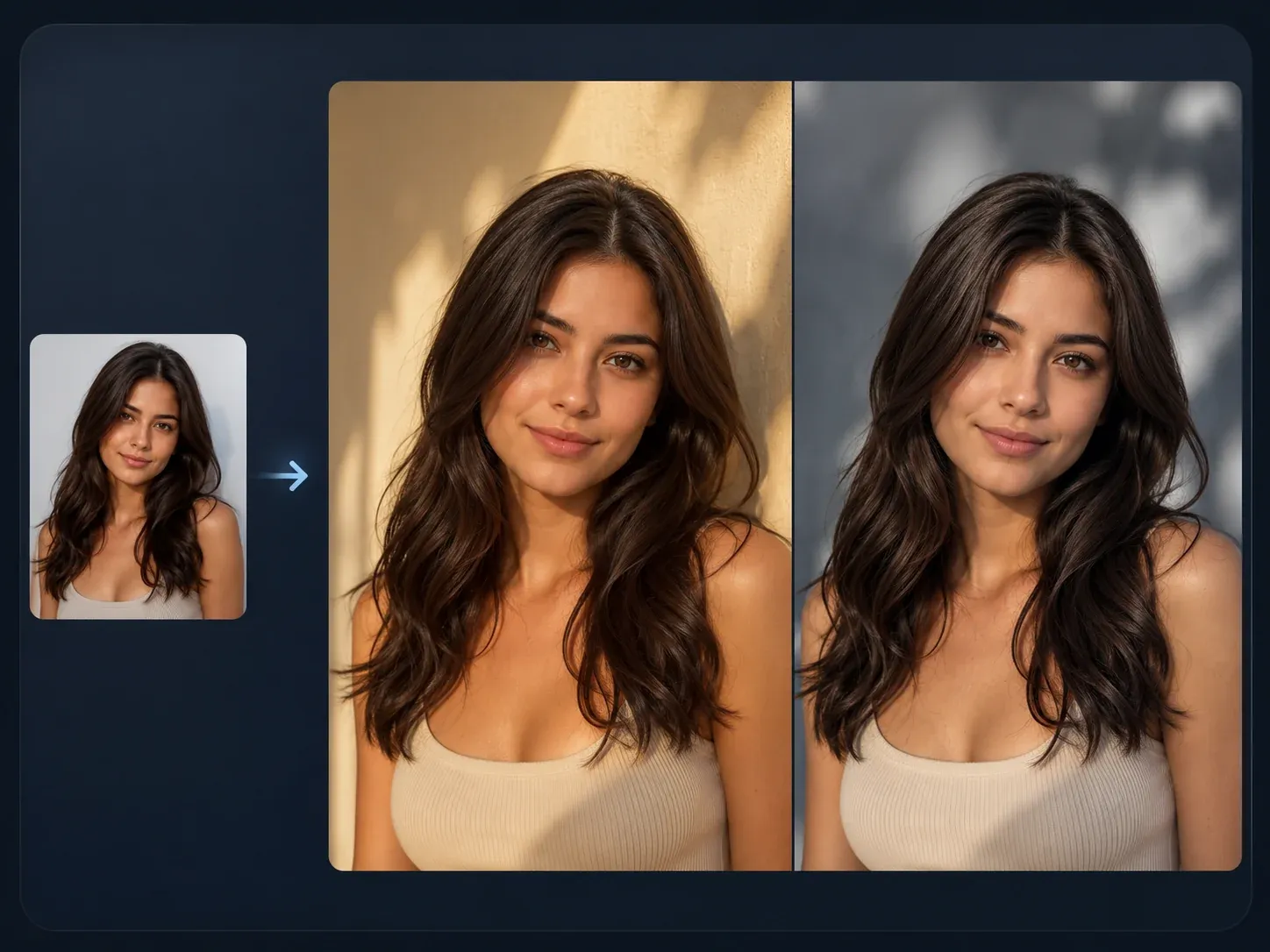
Use a generated avatar as a source when the next version needs a closer face, style, crop, or reference-guided variation.
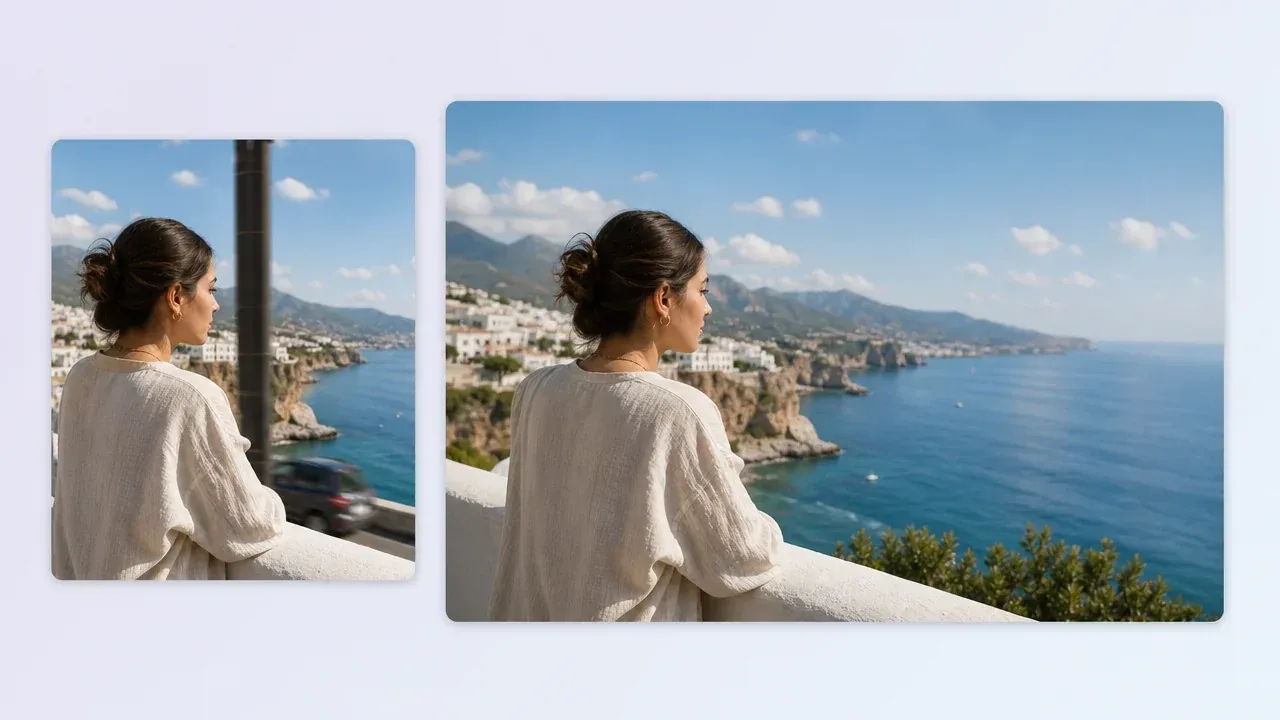
Fix a distracting background, edge, accessory, or portrait detail after the avatar direction is close enough to keep.
Sharpen the final avatar before using it in a profile, bio, creator kit, channel art, or presentation deck.
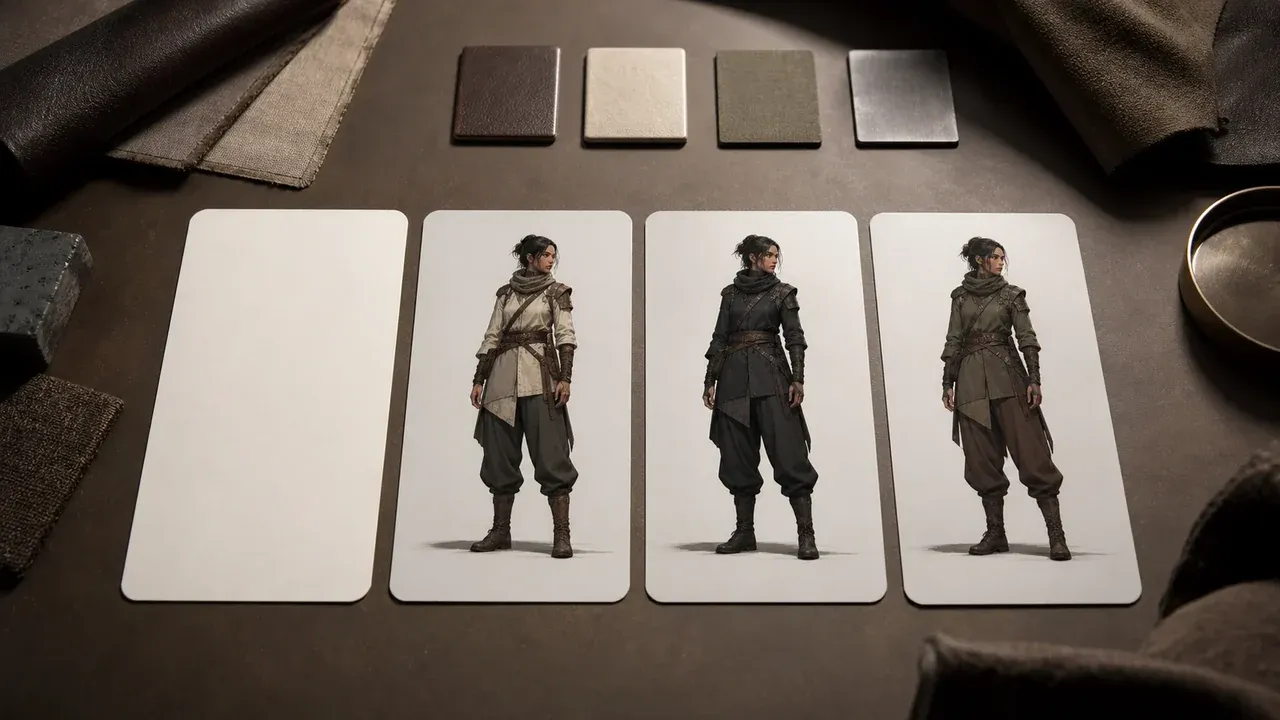
Switch to character generation when the brief needs a full-body concept, NPC, mascot, or story character instead of a profile avatar.
Use the broader generator when the next prompt is not an avatar and needs a product scene, cover image, thumbnail, or campaign draft.
Direct answers about prompts, profile-picture ratios, styles, from-photo boundaries, video avatars, rights, downloads, and when to use another FaceAI workflow.
An AI avatar generator creates a still profile-style image from a text prompt. You describe the identity, expression, style, and background, then review the generated avatar image.
Yes. You can open the online workspace and start from a prompt for free. If account or quota rules apply during heavier use, the product flow will show the current limit.
No. The avatar workbench runs in the browser. Write the prompt, generate the avatar, then use the result controls when the preview is ready.
Start with the profile use, then add face angle, expression, hair, clothing, background, lighting, and style. Keep one avatar identity in the prompt instead of several people.
Use 1:1 for most profile pictures, profile icons, Discord avatars, gaming communities, and creator bios. Use portrait or story ratios only when the destination needs more vertical space.
You can prompt realistic profile portraits, illustrated avatars, anime-inspired icons, cinematic creator portraits, 3D-style profile images, gaming avatars, and clean social profile pictures.
Do not use the tool to recreate protected characters, celebrities, public figures, logos, or branded costumes unless you have rights to use them. Create original avatar ideas instead.
No. This page starts from a prompt. If you already have a source image and want a closer reference-guided variant, use AI Image to Image. Exact personal-photo likeness needs a dedicated from-photo workflow.
Not as a guarantee. Repeat the same traits in the prompt, save the closest result, and use source-guided follow-up tools when you need a more consistent second version.
No. This page creates still avatar images and profile pictures. Use a talking or video workflow only after you have a portrait or still image that should become a speaking or moving clip.
Change fewer details per run, keep the same age, expression, hair, clothing, background, and camera angle, then move the best result into image-to-image for tighter variants.
You can create a profile-style avatar for LinkedIn, personal sites, bios, and team pages. If the goal is a professional business headshot, use a headshot-specific workflow instead.
Yes. After the generated image appears in the result panel, use the download control. Keep the page open until the final preview is ready.
You are responsible for rights around the prompt, subject, style references, and any source material you reuse. Avoid protected IP, public figures, logos, and characters you do not own.
Use AI Image to Image for a closer variant, AI Image Editor for focused cleanup, and AI Image Upscaler when the avatar direction is ready but the export needs more sharpness.
Write one clear avatar brief, generate a profile-ready direction, then refine only the version that is close enough to keep.