

AI Wedding Photo Generator
AI Wedding Photo Generator Your Wedding Portraits
Turn a couple photo or two individual portraits into wedding portraits with FaceAI. Choose a look you love and create photos for your invitations, wedding website or anniversary keepsakes, without arranging a photoshoot.
Find Your Wedding Portrait Style
How to Use the AI Wedding Photo Generator
Build your wedding photoshoot around the pictures you already have. Choose a visual direction, add a photo of each partner, and generate a selection of portraits in the same workbench. You can start with a few favorites and review the results before creating more.
Choose your wedding portrait style
Browse the themes and open the examples inside a photo pack. Compare the framing, mood and clothing, then select 1–20 templates for your photoshoot. Choose only the compositions you want, whether you are testing one portrait or building a coordinated collection.
Upload one couple photo or two portraits
Use a shared photo where both faces are clear, or upload one solo portrait per partner in two-portrait mode. Choose the available model and image ratio to suit your plans. The workbench shows the total cost for your selection before you start generation.
Generate your wedding photos and save favorites
Review each finished portrait for both partners’ likeness, expressions, hands and clothing. Download a favorite on its own or save all successful photos in the set. If an item fails, use its retry option when available; you can find your wedding results again in the page history and Projects.
What Can You Create with the AI Wedding Photo Generator?
Wedding portraits can tell your story before the ceremony, mark a milestone afterwards or give a personal touch to the things you share with guests. Use the generator as a marriage photo maker for engagement announcements, small ceremonies or vow renewals, explore a photographer style you like, then choose the finished photos that fit your plans.
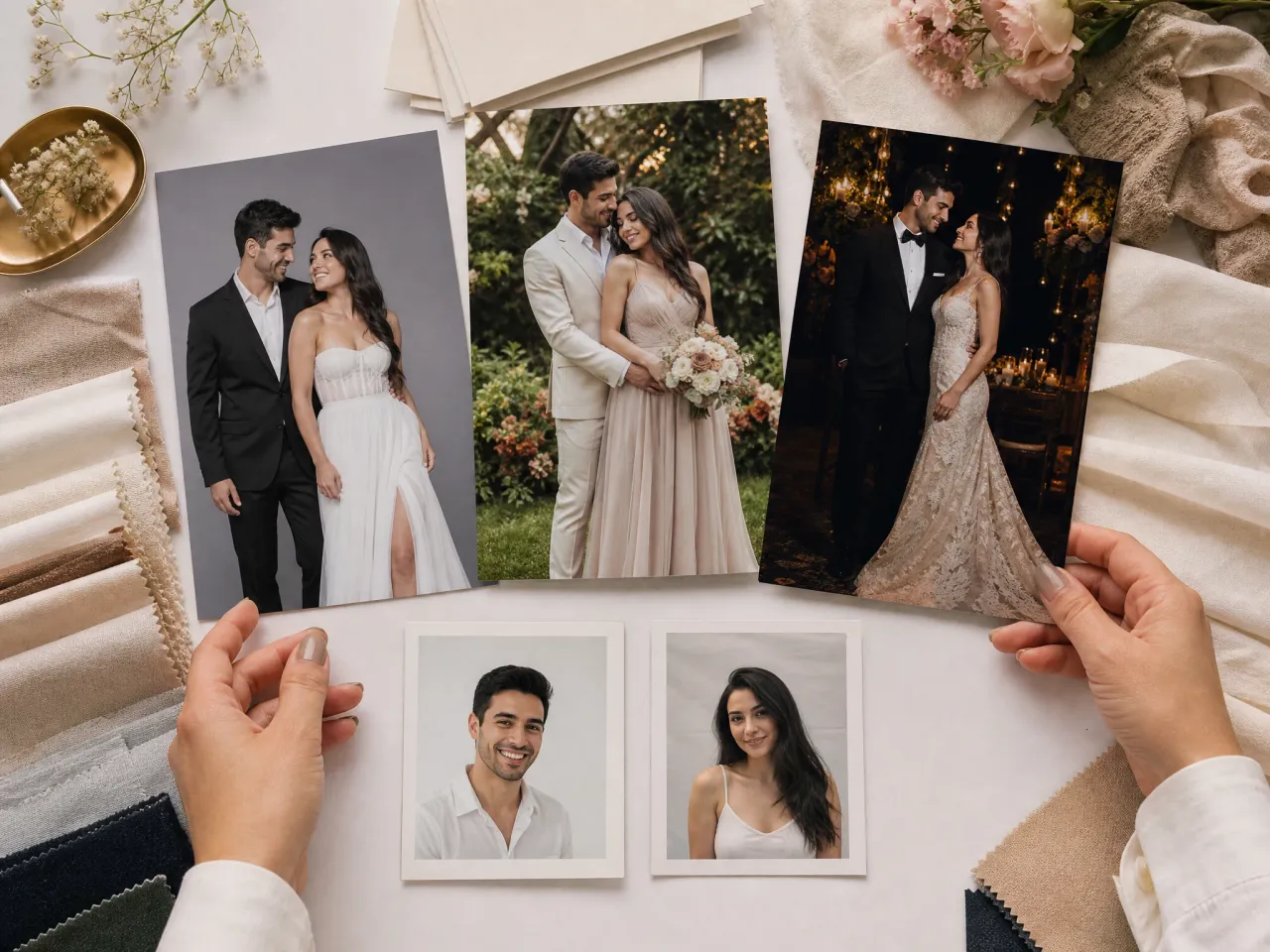
Prewedding photoshoot inspiration
Explore how different poses, outfits and portrait settings look together before planning your wedding shoot. Select examples close to the mood you have in mind and use the generated portraits as a visual reference when discussing your ideas with your partner or photographer.
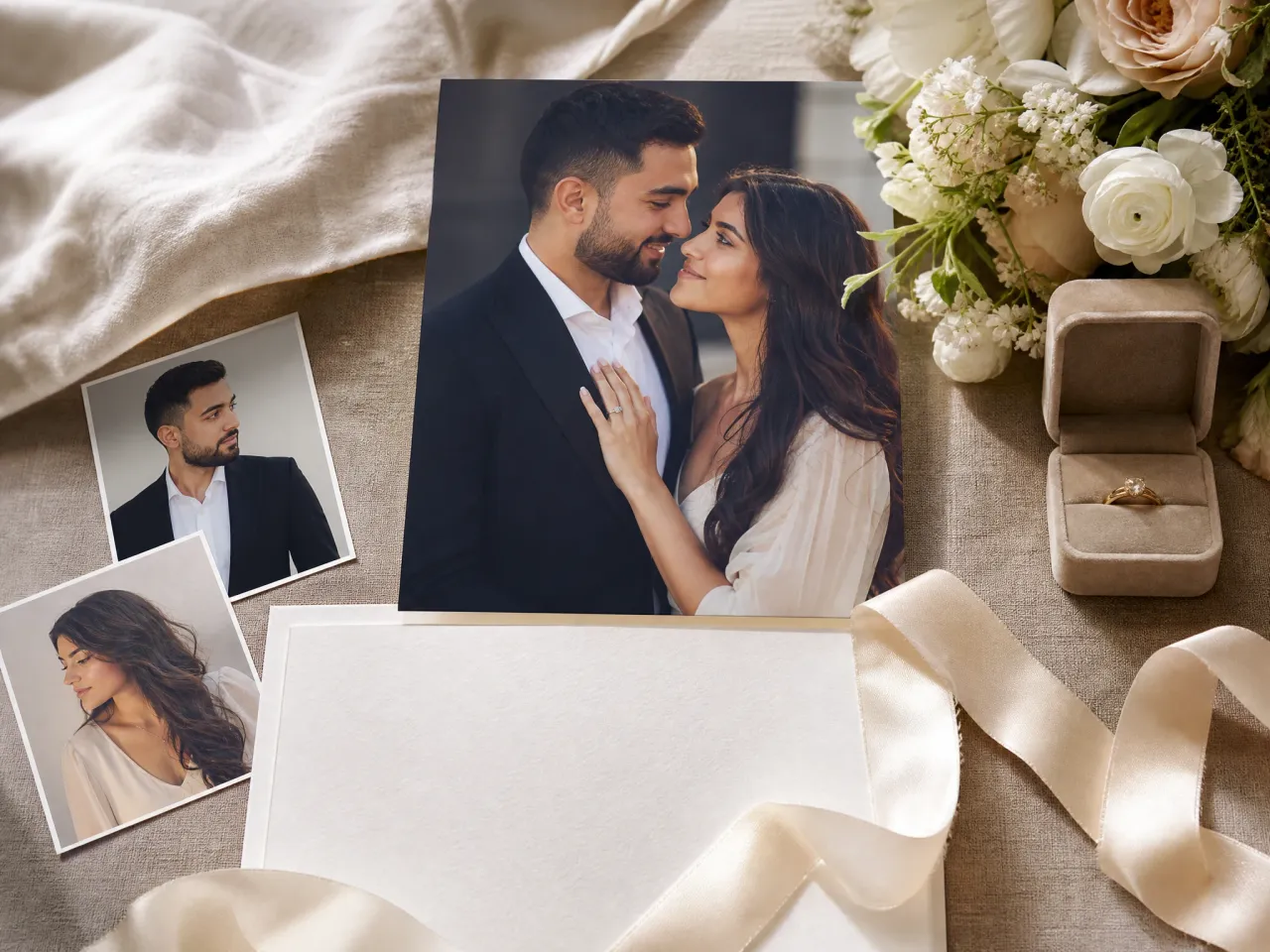
Anniversary portraits and shared memories
Celebrate your first anniversary, a vow renewal or another date that matters to you. Create a fresh pair of wedding inspired portraits from recent photos, then choose favorites for a personal album, a framed gift or a message to your partner.
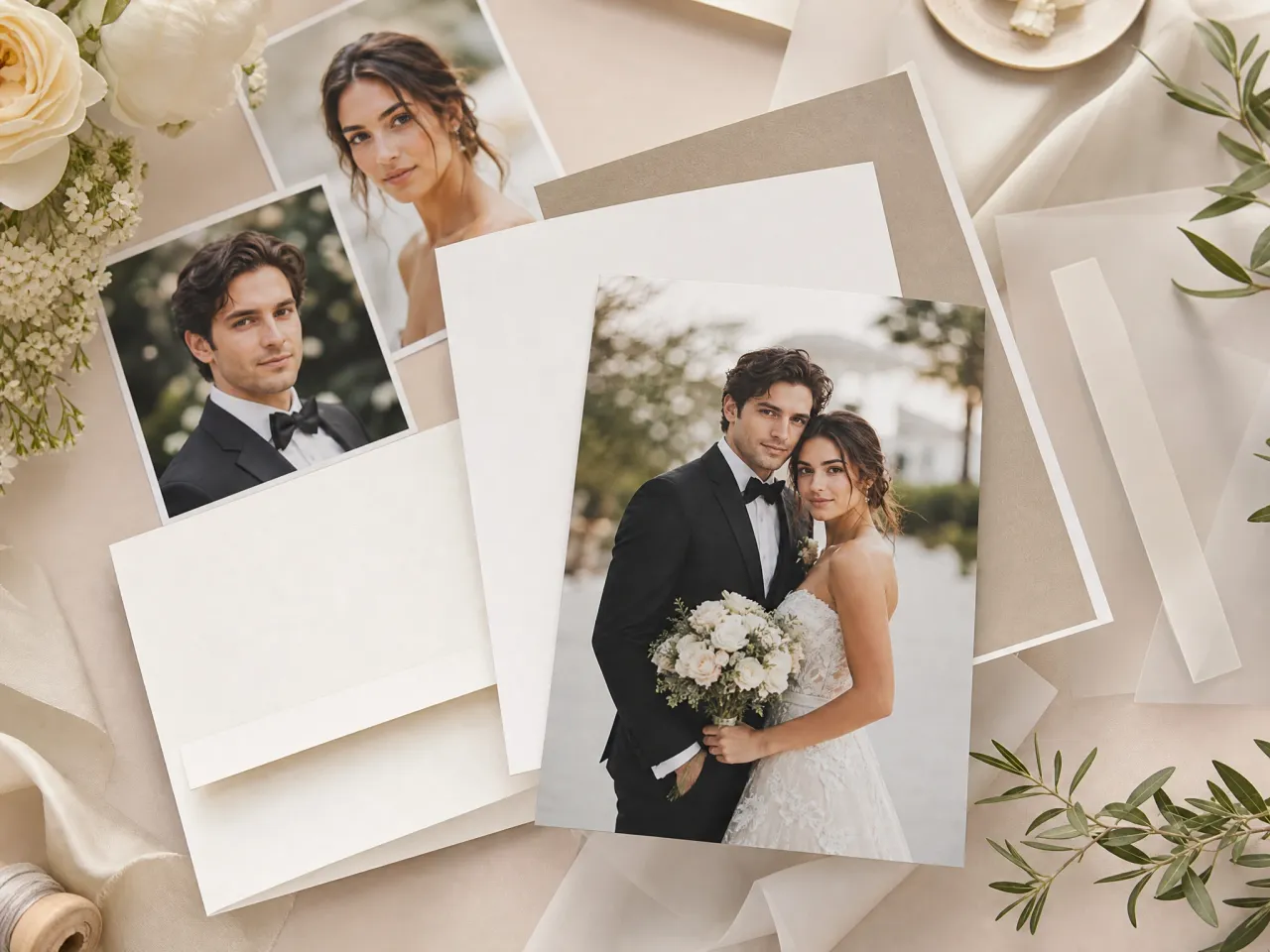
Save-the-date and invitation portraits
Make the two of you the focus of your save-the-date or digital wedding invitation. Choose a composition that leaves room for the design you have planned, download the portrait, and add your names, date and event details in your invitation editor.
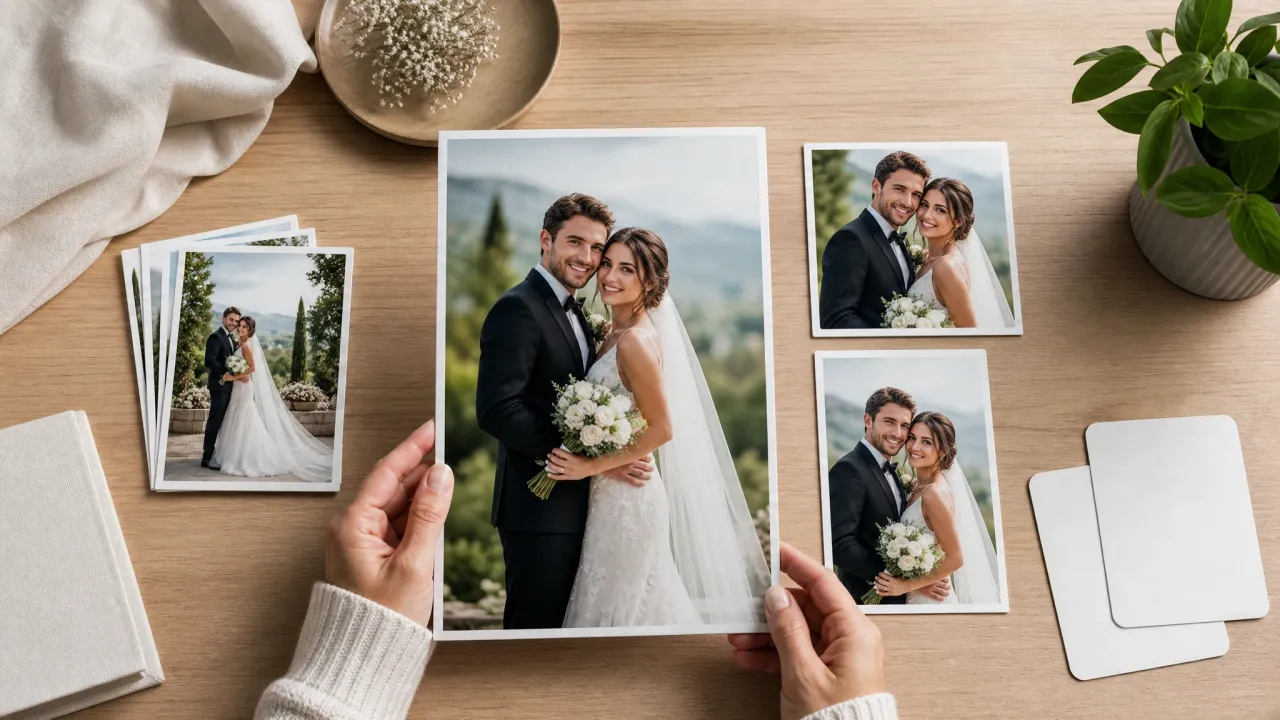
Wedding website and announcement images
Create a shared portrait for a wedding website, engagement announcement or social post. Compare close portraits with wider compositions and choose an image ratio that suits the placement. Check both faces and the final crop before you add the photo to your page.
What Is an AI Wedding Photo Generator?
An AI Wedding Photo Generator creates wedding inspired portraits using photos of the two of you and a chosen visual reference. FaceAI combines your source photos with the styling and composition of the templates you select, so you can explore a photoshoot look without arranging a new shoot for every idea. A photo pack is simply the themed collection that helps you find and select those references.
Your photos provide the starting point
Start with one photo of both partners or two separate solo portraits. The source images guide the faces in the generated scene, making it possible to create a shared wedding portrait even when you do not already have a suitable photo together.
Templates shape the photoshoot
Each example gives you a visible reference for the setting, outfits, pose and framing. Open a theme and select the compositions you like instead of describing an entire scene from scratch. Available looks follow the examples currently shown in the gallery.
Selected portraits become one collection
Choose a single template or a set of up to 20 and review the generated images together. Each portrait has its own result, download and sharing controls, so you can keep the best images for an album, an announcement or a personal keepsake.
Why Choose FaceAI’s AI Wedding Photo Generator?
Explore your wedding portrait ideas with visible examples and a clear path from upload to finished photos. The generator brings theme selection, both photo modes, the current quote and your results into one place, so you can spend more time choosing a look that feels like you.
Choose a look you can see
Compare examples before you generate. Their lighting, outfits and composition help you decide which direction fits your wedding plans, without having to write a detailed photoshoot prompt or guess what a style name means.
Bring both partners into the picture
A favorite couple photo and two individual portraits are both supported starting points. Choose the upload mode that matches the photos you have, including when you and your partner took your portraits in different places.
Create the selection you want
Pick individual templates within a theme to create a small trial or a larger set of portraits. Review the total cost for your chosen model, settings and photo count before you begin, then keep the successful results you like most.
Keep your favorite photos within reach
Review the set in one place and download successful portraits individually or together. Wedding page history helps you return to these results, while Projects brings your photo collections together when you are ready to continue working on them.
How to Get Better Results with the AI Wedding Photo Generator
The portraits you upload and the references you choose both shape the finished photo. Start with clear pictures, look closely at the example compositions, and take a moment to review the small details in each result before choosing the images you want to share or print.
Give both faces a clear starting point
Choose recent photos with visible eyes, even lighting and some space around the head and shoulders. Avoid sunglasses, heavy filters and crops that cut into the face. When using two portraits, choose pictures with a similar angle and level of detail so both partners have a useful reference.
Match the reference to your plans
Look beyond the background when choosing a template: compare the distance between the partners, the pose, clothing and amount of space around them. A close portrait may suit an announcement, while a wider frame may be easier to place in an invitation layout. Choose the image ratio with that use in mind.
Review the details in your favorite results
Zoom in on both faces, hands, rings, clothing edges and the area where the partners meet. AI can change small features, so choose the portraits that keep a likeness you are happy with. For a printed keepsake, check the downloaded file at the size you intend to use.
AI Wedding Photo Generator FAQ
Find answers about creating wedding portraits from your own photos, choosing templates, checking the cost and saving your results. These details help you plan your first set and decide how to use the photos you keep.
FaceAI uses your source photos and the portrait templates you select to generate wedding inspired images. It can also work as a marriage photo maker for engagement announcements, small ceremonies and vow renewals. Open a themed photo pack, choose the compositions you like, upload your photos and review the total quote. The generator creates a result for each selected template, which you can review before downloading your favorites.
Yes. Choose two-portrait mode and upload one clear solo photo of each partner, or use one shared photo where both of you already appear together. Separate portraits are useful when you do not have a recent couple photo. For either mode, choose pictures with clear faces, visible eyes and even lighting.
You can select 1–20 templates for one generation, so you can try a single portrait or create a coordinated set. Open the theme to see its individual examples and choose the ones you want. Each image has its own status, and the collection shows which photos are ready to review and download.
The total depends on the model, settings and number of templates you choose. The workbench displays the current quote before you generate, along with the available quota choices for your account. Review that total after changing your selection so you know the cost of the set you are about to create.
If a selected photo fails, use its retry control when offered. You can keep the successful photos while retrying the failed item in the same collection. If a finished photo needs a different look, try a clearer source portrait or another composition for a new generation, then compare the results.
Your source photos guide the faces, but generated portraits can change small details in expressions, features, hands and clothing. Use clear reference photos and review both partners closely before sharing or printing. The images are creative wedding portraits; photography of your actual ceremony preserves the moments that happen on the day.
Return to the wedding page history to find the collections created with this tool, or open Projects to see photo collections across FaceAI. Access follows the account or guest session used when generating.
Yes. Download any successful portrait on its own, or use Download all to save the successful images from the open collection. Your browser may request permission for multiple downloads. Check the downloaded file and its crop before using it in an album, invitation or printed keepsake.
You can download a portrait and place it in your invitation, save-the-date, wedding website or announcement design. Add names, dates and other wording in your chosen design editor. Each successful photo also has an individual sharing action when you want to share that image directly.
Tools to Try After the AI Wedding Photo Generator
Keep developing the portraits you like. Explore other couple scenes, refine an image or prepare a larger version using the related FaceAI tools. Choose the next step based on where you want to use your wedding photo and which details you want to adjust.
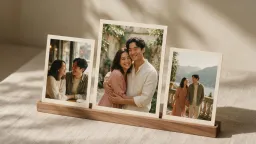
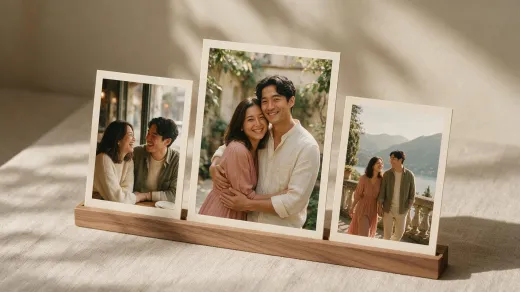
AI Couple Photo
Create more shared portraits for dates, travel, anniversaries and everyday memories. Browse the couple photo themes when you want a relaxed companion image for your wedding collection or a different direction for your next milestone.
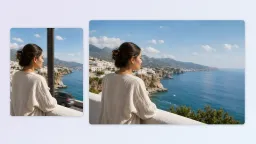
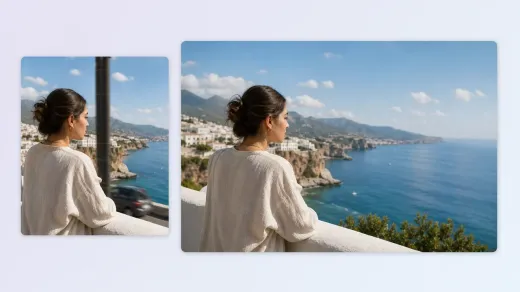
AI Image Editor
Continue refining a favorite wedding portrait with image editing. Try changes to the background or details that matter to your design, then review the updated result before placing it in an announcement, album or invitation.
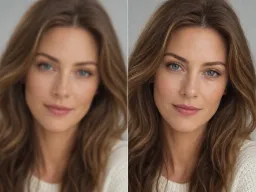
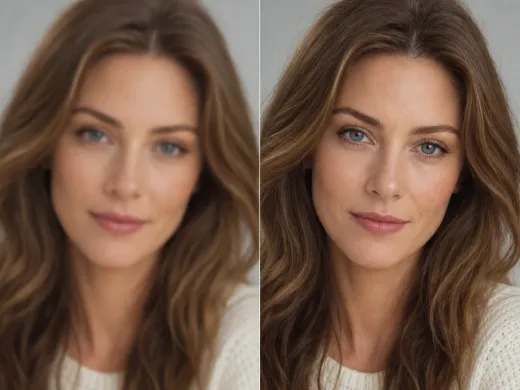
AI Image Upscaler
Explore a larger version of a portrait when you need more room for a design or display. Check the enlarged faces, clothing and edges at your intended size before choosing the file for a personal print or other finished project.
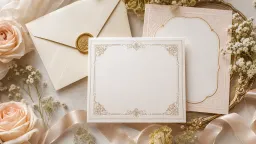
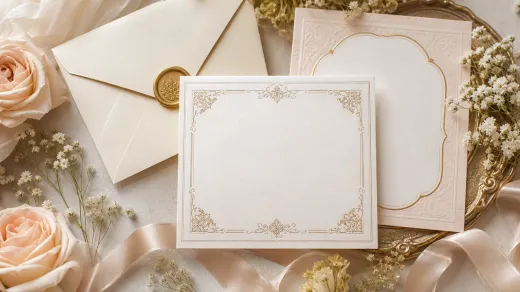
Free AI Wedding Card & Invitation Generator
Create free AI wedding cards and invitation images online from structured invitation text.
Create Your Portraits with the AI Wedding Photo Generator
Bring your wedding photo ideas to life with the pictures you already have. Choose your favorite compositions, upload one couple photo or two solo portraits, and create a set to review together. Your next invitation image, anniversary portrait or shared keepsake can start here.