
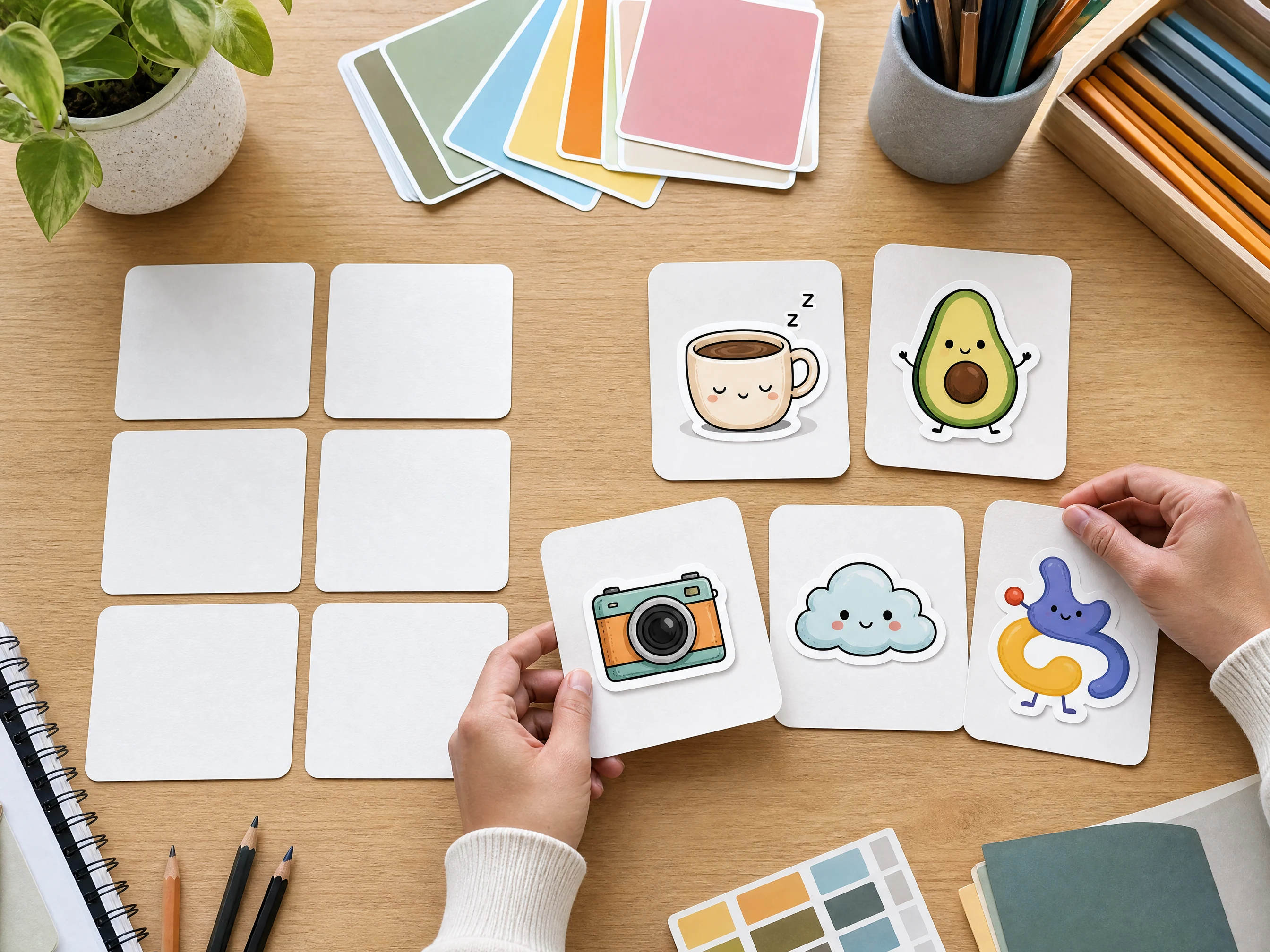
AI Sticker Generator for Custom Stickers from Text or Photos
Create sticker-style images from a prompt or a photo. Describe a character, upload a portrait, pick a sticker style, choose a clean edge look, then download a custom sticker design for chats, profiles, creator posts, mockups, or idea boards. Free online. No app install.
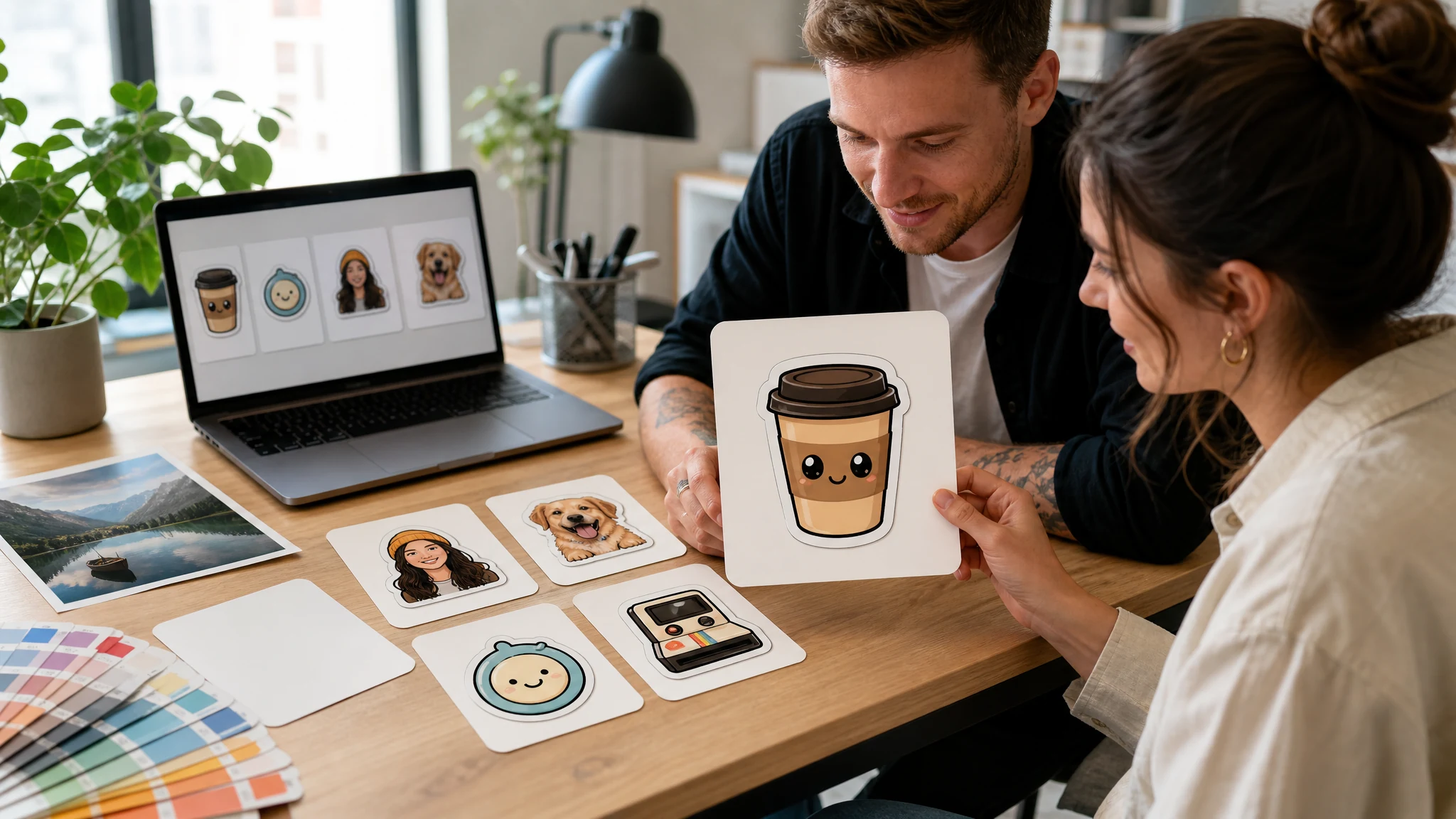
Trusted by 12,000,000+ users worldwide.
How to Use the AI Sticker Generator in 3 Steps
Keep the first run focused: choose text or photo mode, pick the style, then compare the result before trying another edge or use-case preset.
Choose text or photo mode
Describe your sticker from scratch, or upload one clear source photo you own or have permission to use.
Pick a sticker style
Choose kawaii, emoji, chibi, minimal, retro, mascot, or logo-badge direction, then set the edge look and use case.
Generate and download
Preview the sticker-style result, compare it in local history, then download your favorite version or try another preset.
What Can You Create with an AI Sticker Maker?
Use the sticker generator for social reactions, profile stickers, pet stickers, mascot ideas, creator packs, brand-safe mockups, and quick merch concepts.
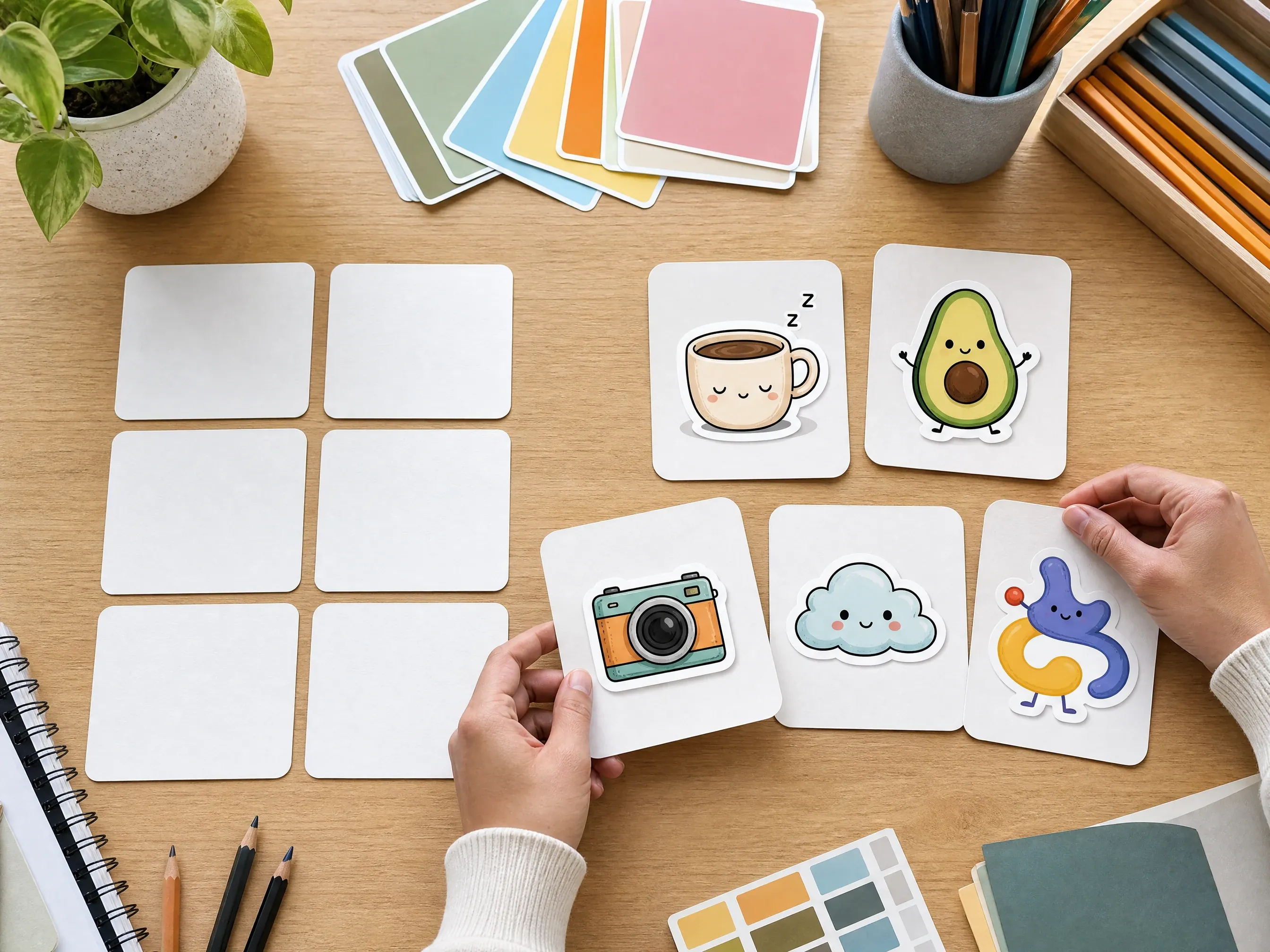
Text-to-sticker ideas
Turn a short idea like a sleepy coffee cup, happy avocado, or retro camera into a sticker-style image without opening a design app.
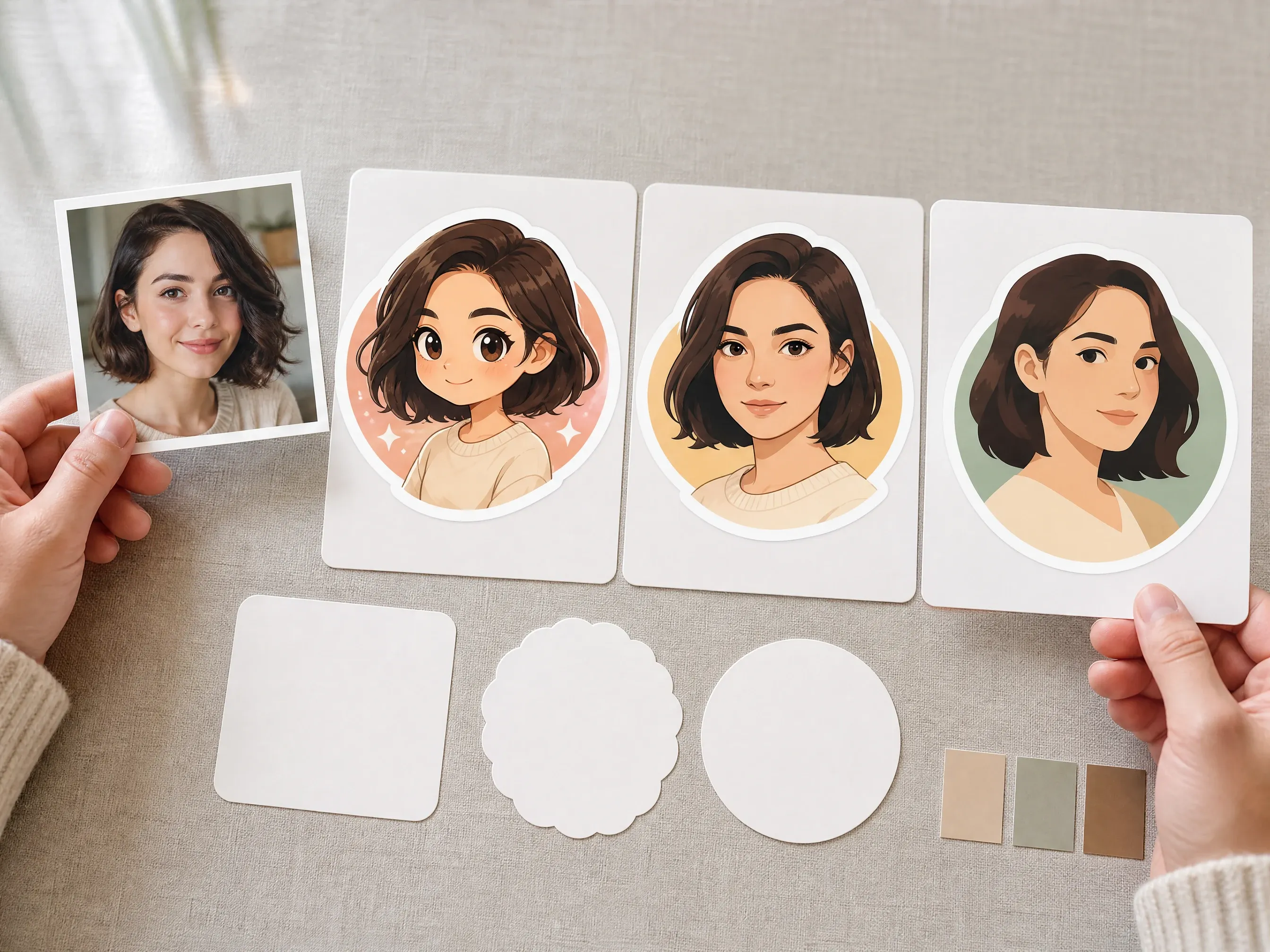
Photo-to-sticker portraits
Upload a clear portrait and create a playful profile or chat sticker look while keeping the subject recognizable as a creative edit.
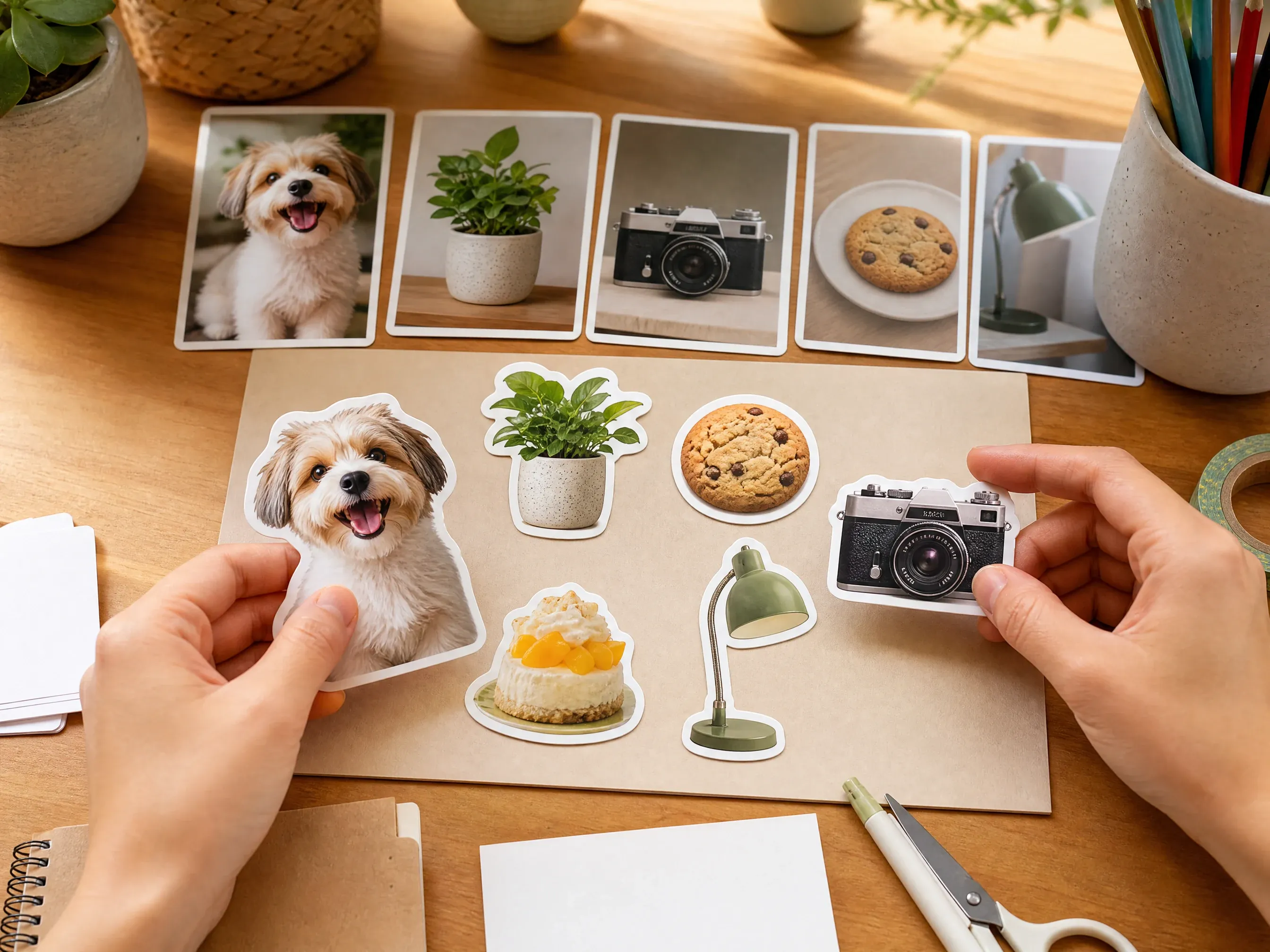
Pet and object stickers
Turn pets, food, products, desk objects, or hobby items into sticker-style images for posts, thumbnails, and personal projects.
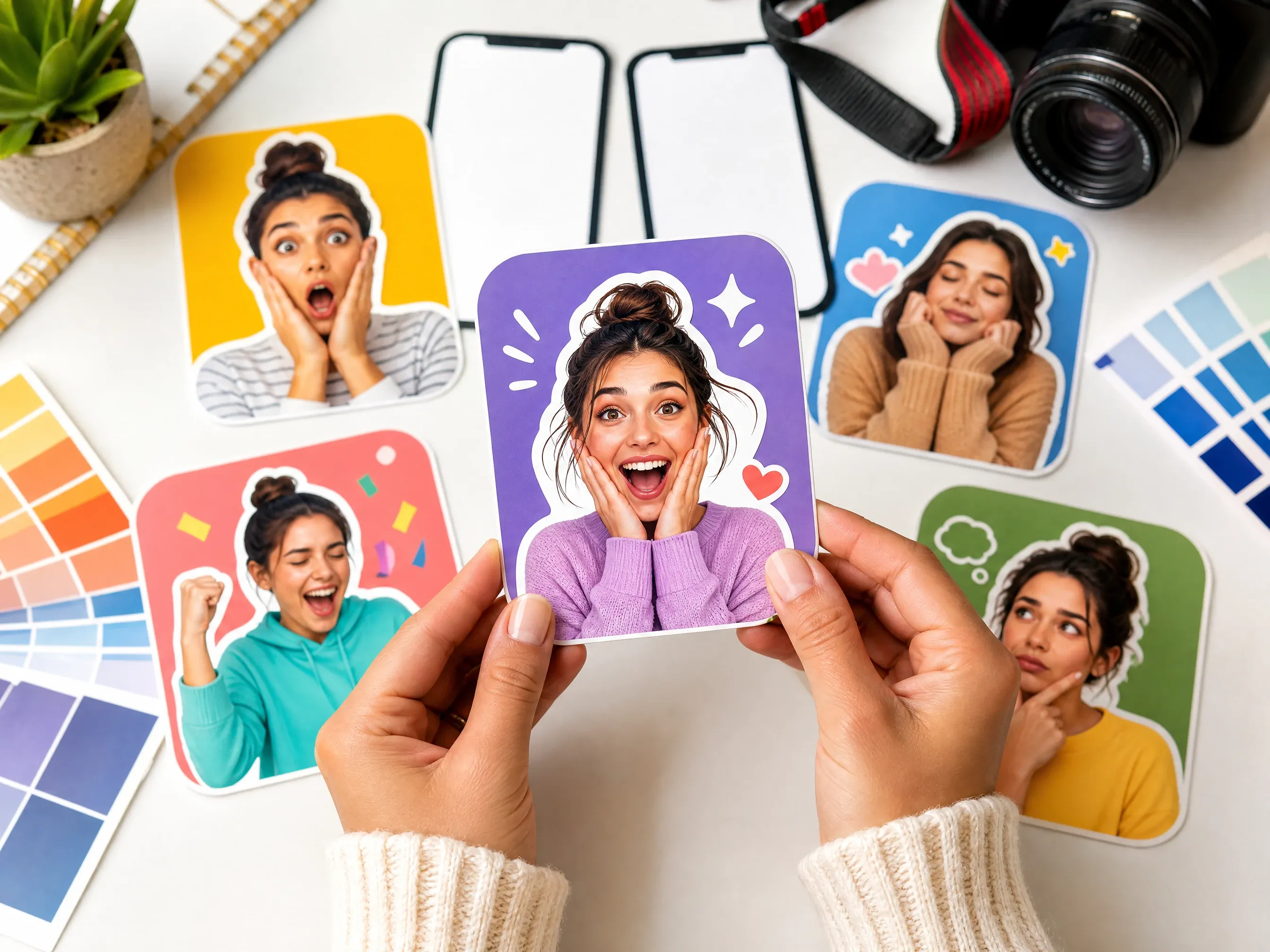
Creator reaction stickers
Generate expressive sticker concepts for content creators, community replies, stream panels, and social media reactions.
What Is an AI Sticker Generator?
An AI sticker generator turns a text prompt or uploaded image into a sticker-style design with a clear subject, playful style, and clean edge direction.
Text to sticker
Describe a subject, mood, color, style, and edge look to create a new sticker-style image from scratch.
Photo to sticker
Upload one clear source image when the result should keep a portrait, pet, object, product, or artwork cue.
Style and edge direction
Choose a style preset, edge intent, output intent, ratio, and resolution so the result has a real sticker brief.
Why Use Face AI for Custom AI Stickers?
The page starts with the workbench and keeps the controls focused on sticker outcomes: mode, style, edge, use case, preview, download, history, and next edit.
Tool-first workflow
The create area appears first, so you can start from text or photo without reading a long article first.
Sticker-specific presets
Kawaii, emoji, logo badge, chibi, minimal, retro, and mascot directions make the prompt easier to control.
Text and photo starts
Use prompt-only when you have a fresh idea, or use photo mode when the source subject matters.
Honest output boundaries
The page explains that true alpha, cut paths, sticker packs, chat export, and printing need separate review or tooling.
Tips for Better AI Sticker Results
Sticker generation works best when the subject is simple, the prompt names the visual style, and the result avoids tiny lettering or crowded details.
Use one clear subject
Single pets, faces, objects, mascots, or food items usually read better than busy group scenes.
Name the style
Say kawaii, emoji, chibi, minimal, retro, mascot, or logo badge instead of asking for a generic sticker.
Keep text out
AI image text can be distorted. Add exact names, slogans, labels, and logo marks manually after export.
Review before printing
Generated sticker-style images still need manual checks for alpha, cut path, bleed, scale, and rights before production.
Face AI Sticker Generator vs. Print Sticker Shops and Generic Image Prompts
Use Face AI when you want a fast online sticker-style design workflow. Use print shops or manual design apps when you need exact cut paths, physical production, or editable vector files.
| Criteria | Face AIOurs Face AI sticker workflow | Other workflows |
|---|---|---|
| Starting point | Prompt-first and photo-first sticker ideas in one workbench. | Print shops usually start from finished artwork; generic prompt tools leave sticker structure to the prompt alone. |
| Controls | Mode, style, edge intent, output intent, aspect ratio, resolution, examples, history, download, and share. | Dedicated sticker platforms may offer transparent PNG, pack creation, cut paths, or physical shipping when those chains are built. |
| Output truth | Creates sticker-style images for review, chats, profiles, thumbnails, mockups, and creative concepts. | Production workflows are better for vector files, alpha verification, bleed, trim, and physical printing. |
| Best use | Social stickers, profile ideas, pet stickers, mascot concepts, thumbnails, and quick mockups. | Manual design tools are better when exact type, brand marks, color specs, and dimensions must be controlled. |
| Friction | Browser-based creation with local history, download, and a clean next-step path. | Design apps give more control but take longer for the first idea. |
| Limit | No guaranteed alpha channel, vector cut path, six-pack consistency, physical shipping, or one-click WhatsApp/Telegram export. | Specialized services may support those features with account setup or print-order flows. |
Starting point
Prompt-first and photo-first sticker ideas in one workbench.
Print shops usually start from finished artwork; generic prompt tools leave sticker structure to the prompt alone.
Controls
Mode, style, edge intent, output intent, aspect ratio, resolution, examples, history, download, and share.
Dedicated sticker platforms may offer transparent PNG, pack creation, cut paths, or physical shipping when those chains are built.
Output truth
Creates sticker-style images for review, chats, profiles, thumbnails, mockups, and creative concepts.
Production workflows are better for vector files, alpha verification, bleed, trim, and physical printing.
Best use
Social stickers, profile ideas, pet stickers, mascot concepts, thumbnails, and quick mockups.
Manual design tools are better when exact type, brand marks, color specs, and dimensions must be controlled.
Friction
Browser-based creation with local history, download, and a clean next-step path.
Design apps give more control but take longer for the first idea.
Limit
No guaranteed alpha channel, vector cut path, six-pack consistency, physical shipping, or one-click WhatsApp/Telegram export.
Specialized services may support those features with account setup or print-order flows.
How Creators Use the AI Sticker Generator
These comments focus on the practical loop: choose mode, style, edge, and use case, generate, compare history, then download or refine.
"The page starts with the sticker decision: text or photo, style, edge look, and use case. It is not just a generic prompt box."

Rose de Guzman
Creator Marketing Lead
"I use it for quick reaction sticker ideas before a campaign goes to design. The history makes kawaii, emoji, and retro directions easy to compare."

Luna Hernandez
Community Manager
"The logo badge and mascot presets are useful concept starters, and the rights guidance keeps the team away from real brand marks and copyrighted characters."

Mia Torres
Design Director
"Photo mode is strongest when the source has one clean subject. The prompt reminders about no tiny text and no real cut path are exactly the boundary we need."

Kai Nakamura
Global Creative Director
"For social posts, profile stickers, and community replies, the output intent selector helps non-design teammates brief the right format quickly."

Priya Chen
Creative Strategy Lead
"The first run is fast because the examples are sticker-specific: pet, coffee cup, creator reaction, mascot, and object stickers all start differently."

Rahul Gupta
VP of Demand Generation
"The page starts with the sticker decision: text or photo, style, edge look, and use case. It is not just a generic prompt box."
Rose de Guzman
Creator Marketing Lead
"I use it for quick reaction sticker ideas before a campaign goes to design. The history makes kawaii, emoji, and retro directions easy to compare."
Luna Hernandez
Community Manager
"The logo badge and mascot presets are useful concept starters, and the rights guidance keeps the team away from real brand marks and copyrighted characters."
Mia Torres
Design Director
"Photo mode is strongest when the source has one clean subject. The prompt reminders about no tiny text and no real cut path are exactly the boundary we need."
Kai Nakamura
Global Creative Director
"For social posts, profile stickers, and community replies, the output intent selector helps non-design teammates brief the right format quickly."
Priya Chen
Creative Strategy Lead
"The first run is fast because the examples are sticker-specific: pet, coffee cup, creator reaction, mascot, and object stickers all start differently."
Rahul Gupta
VP of Demand Generation
"I like that the page is honest about transparent PNG and print prep. We use the result as a sticker-style visual, then check production needs separately."

Astrid Nielsen
Head of Thought Leadership
"The page starts with the sticker decision: text or photo, style, edge look, and use case. It is not just a generic prompt box."
Rose de Guzman
Creator Marketing Lead
"I use it for quick reaction sticker ideas before a campaign goes to design. The history makes kawaii, emoji, and retro directions easy to compare."
Luna Hernandez
Community Manager
"The logo badge and mascot presets are useful concept starters, and the rights guidance keeps the team away from real brand marks and copyrighted characters."
Mia Torres
Design Director
"Photo mode is strongest when the source has one clean subject. The prompt reminders about no tiny text and no real cut path are exactly the boundary we need."
Kai Nakamura
Global Creative Director
"For social posts, profile stickers, and community replies, the output intent selector helps non-design teammates brief the right format quickly."
Priya Chen
Creative Strategy Lead
"The first run is fast because the examples are sticker-specific: pet, coffee cup, creator reaction, mascot, and object stickers all start differently."
Rahul Gupta
VP of Demand Generation
"I like that the page is honest about transparent PNG and print prep. We use the result as a sticker-style visual, then check production needs separately."
Astrid Nielsen
Head of Thought Leadership
"The clean edge, soft shadow, no-border, and auto edge choices give enough direction without pretending there is vector cut-path tooling."

Rafael Santos
VP of Creative
"The workflow is useful for creator reactions and profile stickers because it keeps the subject simple and avoids fake platform export promises."

Ananya Iyer
Content Marketing Lead
"The examples help the team avoid overloaded prompts. One subject, one style, one edge look, no readable text usually gives the cleanest result."

Charlotte Beaumont
Director of Content Operations
"History plus download is enough for our first pass. If we need a transparent layer, we move the keeper into background remover after generation."

Yifan Zheng
Demand Generation Lead
"The safety copy matters for uploaded portraits. We only use photos we own or have permission to edit."

Linh Nguyen
Head of Creator Relations
"It is better than a plain image generator because style, edge, output intent, ratio, examples, and limits all match sticker creation."

Zeke Williams
Senior Art Director
"I use the merch mockup intent as a mood-board step, not a print-ready claim. That makes the result useful without overpromising."

Zara Davis
Social Media Director
"The clean edge, soft shadow, no-border, and auto edge choices give enough direction without pretending there is vector cut-path tooling."
Rafael Santos
VP of Creative
"The workflow is useful for creator reactions and profile stickers because it keeps the subject simple and avoids fake platform export promises."
Ananya Iyer
Content Marketing Lead
"The examples help the team avoid overloaded prompts. One subject, one style, one edge look, no readable text usually gives the cleanest result."
Charlotte Beaumont
Director of Content Operations
"History plus download is enough for our first pass. If we need a transparent layer, we move the keeper into background remover after generation."
Yifan Zheng
Demand Generation Lead
"The safety copy matters for uploaded portraits. We only use photos we own or have permission to edit."
Linh Nguyen
Head of Creator Relations
"It is better than a plain image generator because style, edge, output intent, ratio, examples, and limits all match sticker creation."
Zeke Williams
Senior Art Director
"I use the merch mockup intent as a mood-board step, not a print-ready claim. That makes the result useful without overpromising."
Zara Davis
Social Media Director
What Should You Try After a Sticker Result?
Choose the next Face AI tool based on the blocker: more prompt exploration, source-guided variants, transparent cutout cleanup, artifact cleanup, or campaign layout.
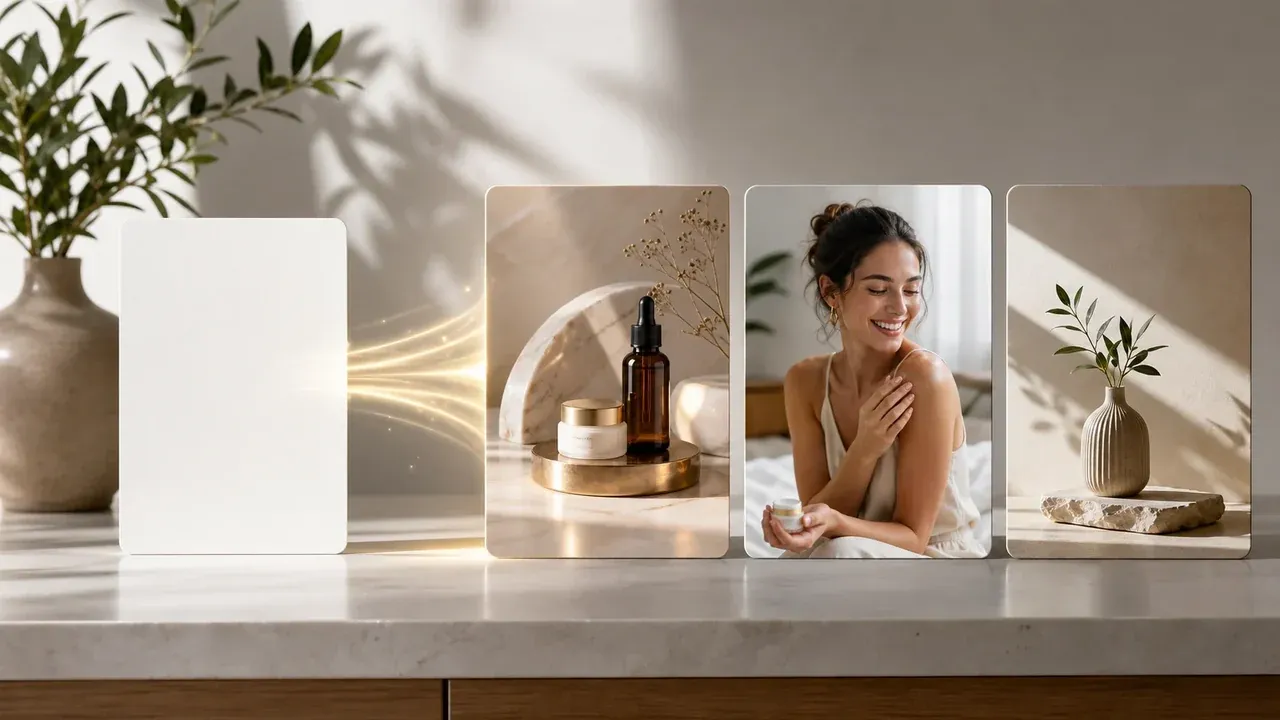
AI Image Generator
Start from a prompt-only sticker concept when you do not need a source photo.
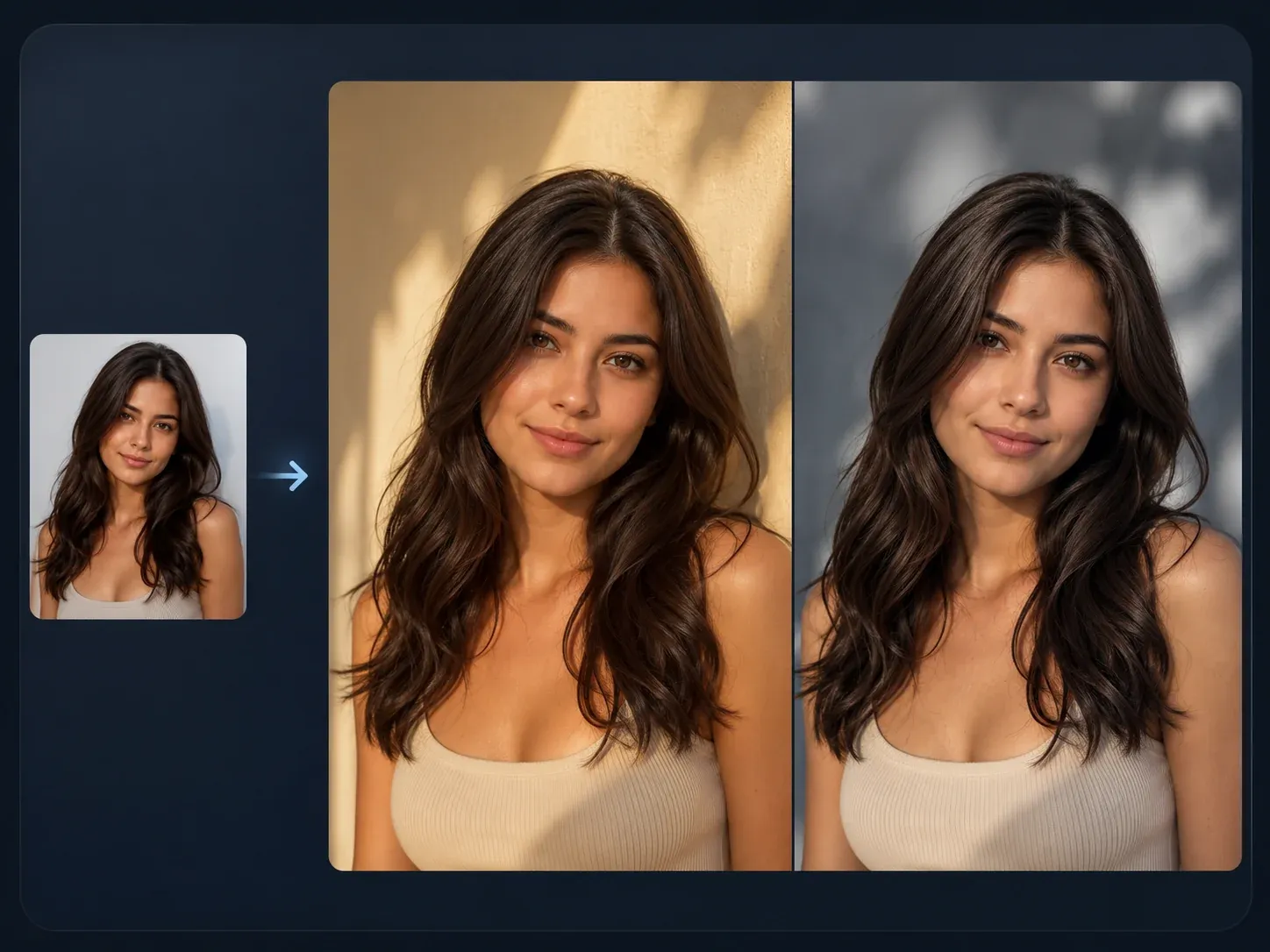
AI Image to Image
Use source-guided editing when a sticker idea needs a stronger reference image.
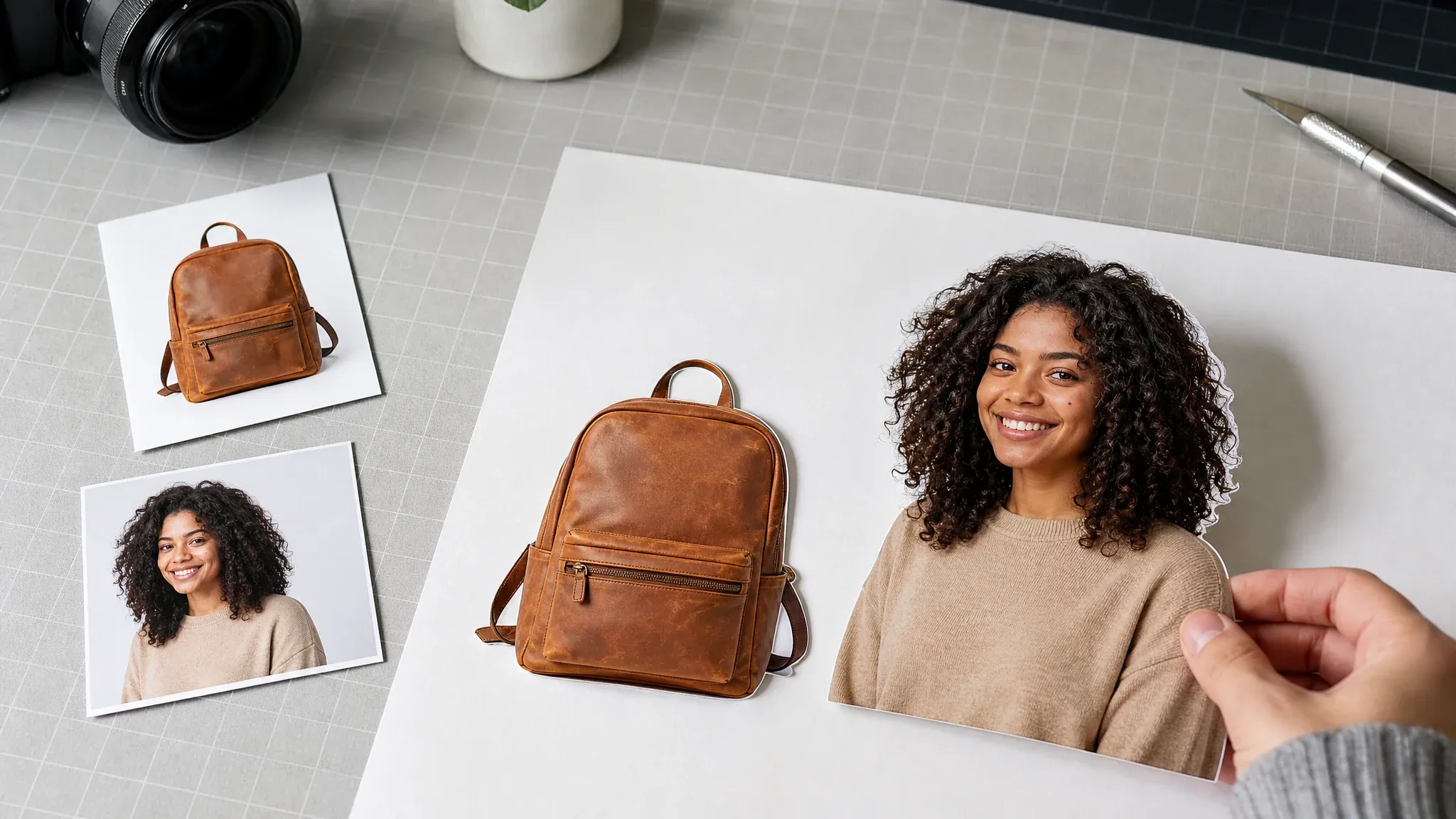
Background Remover
Try a transparency cleanup after generation when you need a separate design layer.
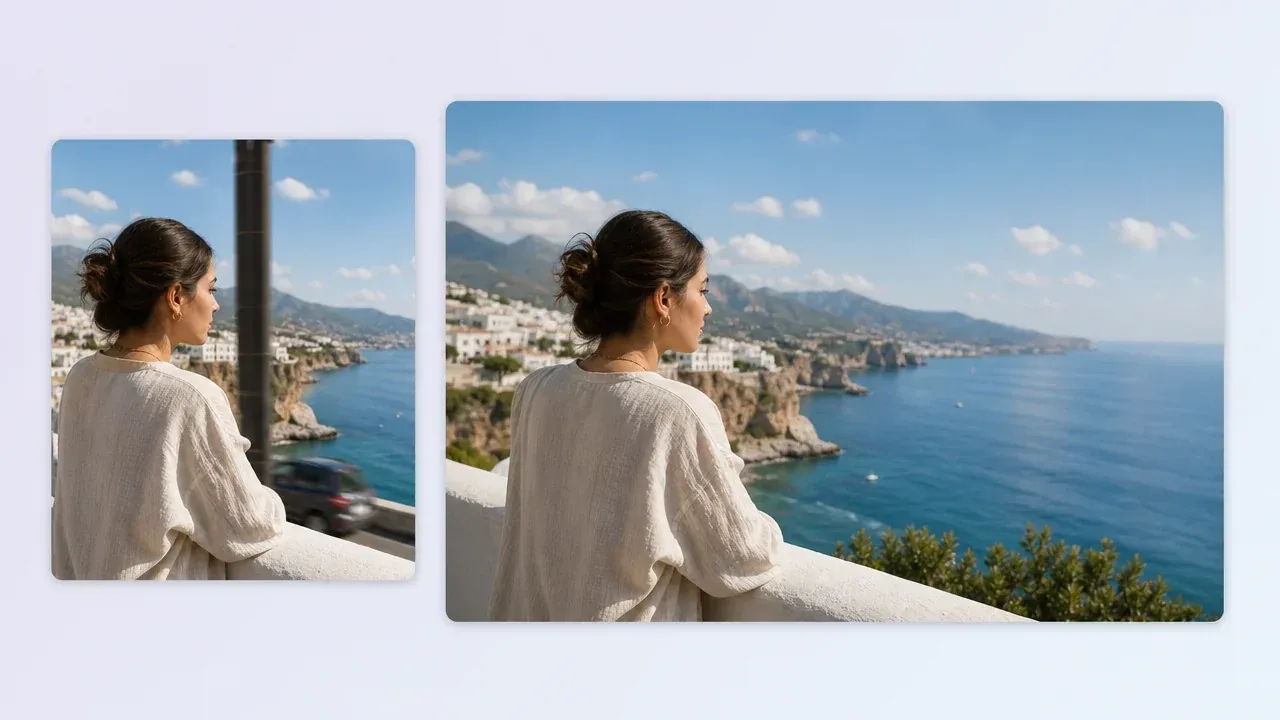
AI Image Editor
Clean distracting details, edges, or artifacts before using a keeper sticker concept.
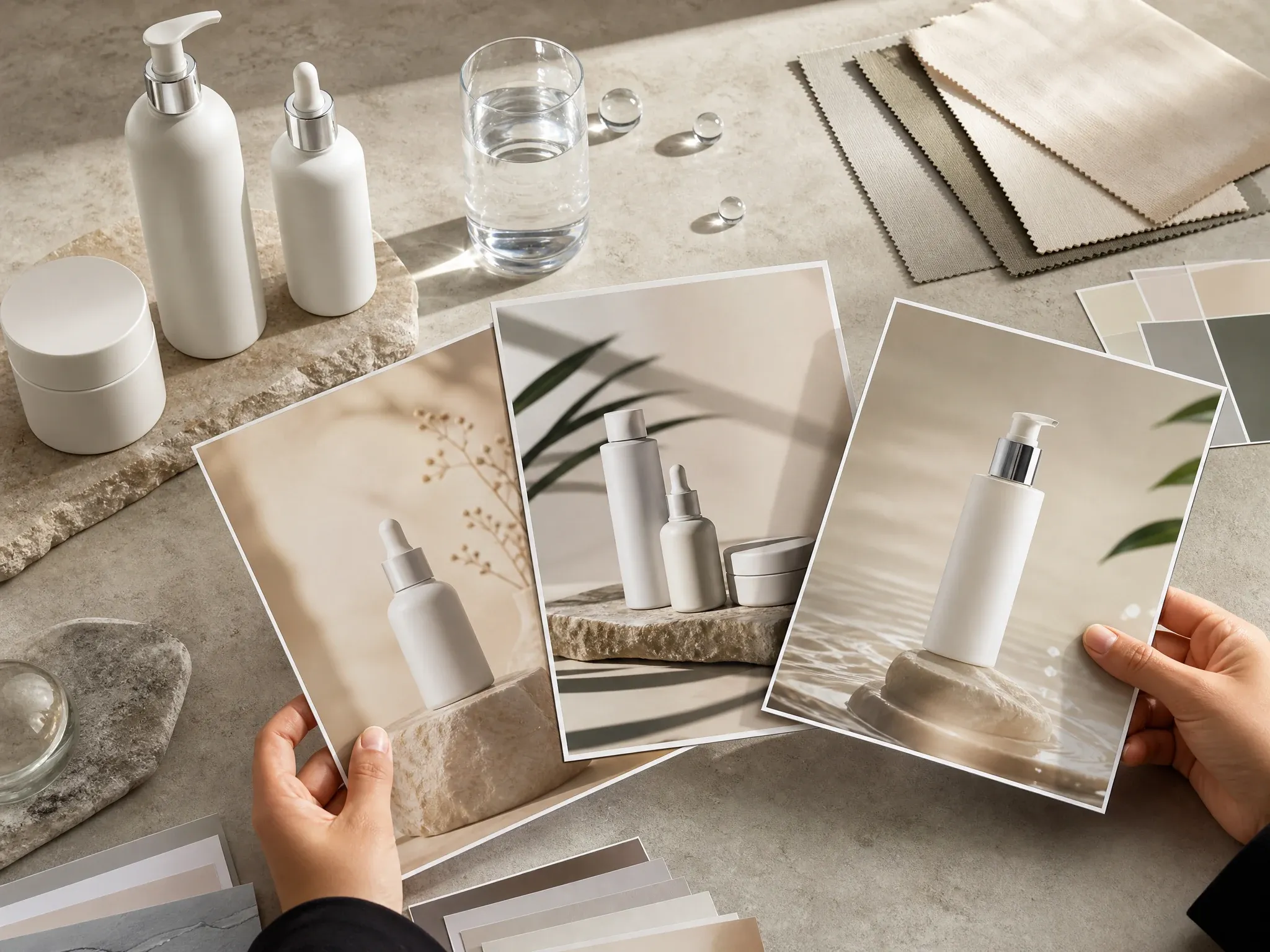
AI Poster Generator
Move from a sticker concept into campaign art when the idea needs a larger visual layout.
AI Sticker Generator FAQ
Direct answers about text prompts, photo uploads, sticker styles, transparent backgrounds, print readiness, packs, platform use, rights, and better source photos.
It is an online tool that turns a prompt or source image into a sticker-style design with a clear subject, playful style, and clean edge direction.
Yes. Use photo mode with one clear portrait, pet, object, product, or artwork image you own or have permission to edit.
Yes. Use text mode, describe one subject, choose a style and edge look, then generate a sticker-style image from the prompt.
Yes. Start from kawaii, emoji, logo badge, chibi, minimal, retro, or mascot direction, then add prompt details if needed.
The generator creates sticker-style image output. If you need a separate transparent layer, run the result through Background Remover and inspect the edges before use.
Treat the result as a visual concept. Production printing still needs manual checks for alpha, cut path, bleed, dimensions, color, material, and rights.
Generate several results and curate them into a pack. Expression and character consistency can vary between generations, so review the stickers together before use.
Download the image and import it manually wherever a platform supports custom stickers. Check the platform size and transparency requirements first.
Avoid real logos, celebrities, school IDs, copyrighted characters, trademarked marks, and images you do not have permission to process.
Yes. Open the online workbench and create sticker images with the current free 1K output.
AI image generation can distort small letters. Keep generated stickers text-free, then add exact names, slogans, and labels in a deterministic editor.
Use one clear subject with good lighting, visible edges, and simple background. Avoid blur, busy group scenes, tiny screenshots, protected logos, and sensitive images.
Create Your First AI Sticker Online
Describe a sticker idea or upload one source photo, choose a style, and generate a custom sticker-style image in the browser.