
Starting point
Ours
Upload one old scan or family photo and choose a 2x or 4x clarity pass.
Other restoration workflows
Full restoration products may combine colorization, inpainting, manual brush tools, and professional retouching.
Upload an old scan, faded portrait, or family archive photo and run a careful 2x or 4x clarity pass before sharing, saving, or sending the file into another edit. This page is built for old-photo enhancement and review, not guaranteed scratch repair, colorization, or professional print restoration.
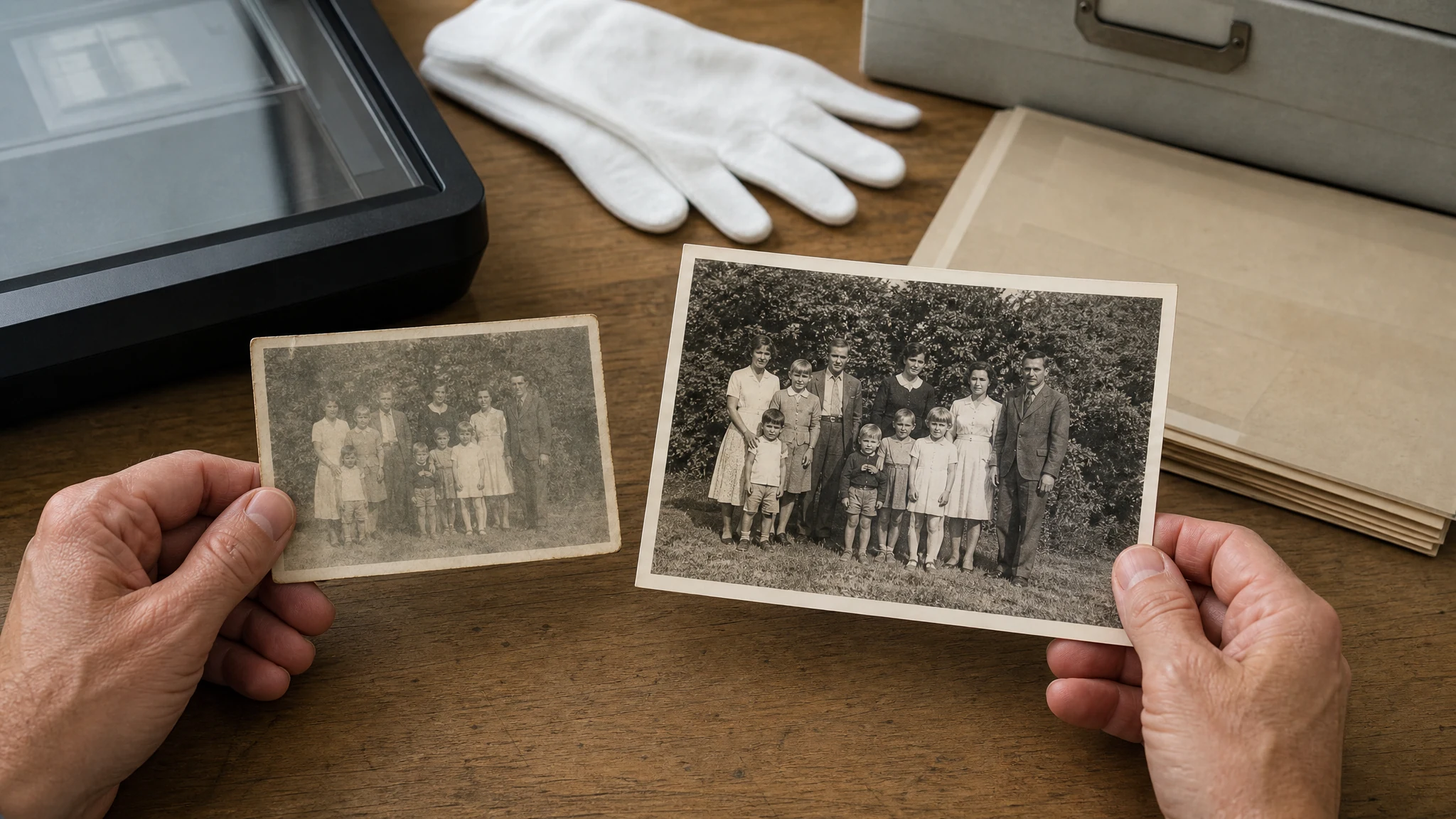
Trusted by 12,000,000+ users worldwide.
Keep the workflow simple: prepare the clearest source, choose a scale, then review the enhanced copy before using it.
Scan or photograph the old print flat in even light. Crop album borders, avoid glare, and use the highest-resolution source available.
Use 2x for a safer clarity pass. Try 4x only when the image is readable enough for a larger family, archive, or social review copy.
Check faces, clothing, background detail, and original tones. Download the result or move to another Face AI tool if a focused edit is still needed.
Use this old-photo restoration page for clarity-first jobs: family archives, faded portraits, social sharing, memory drafts, and pre-edit review.
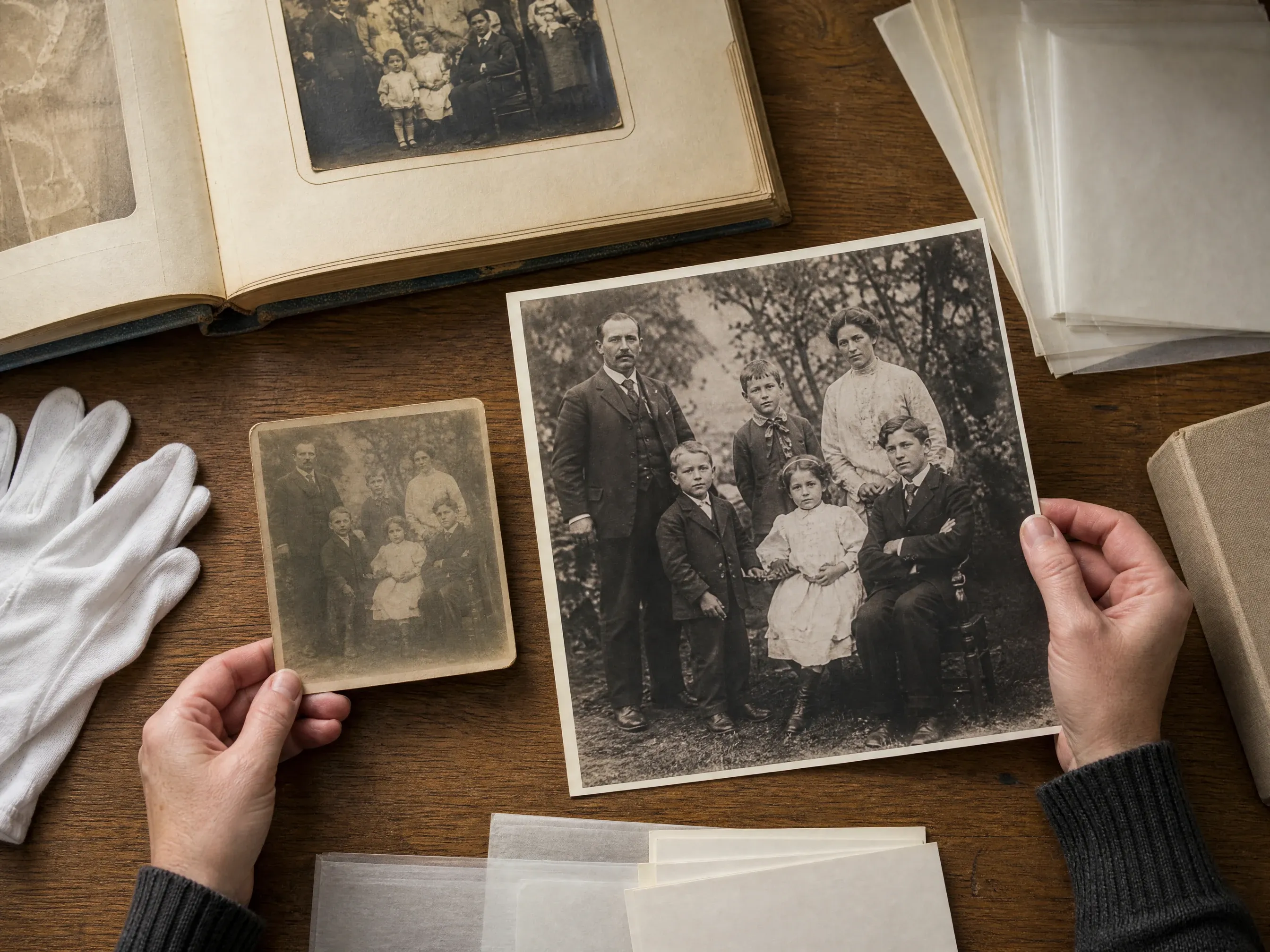
Create a clearer digital copy of album photos, genealogy scans, and inherited prints before sharing them with relatives.
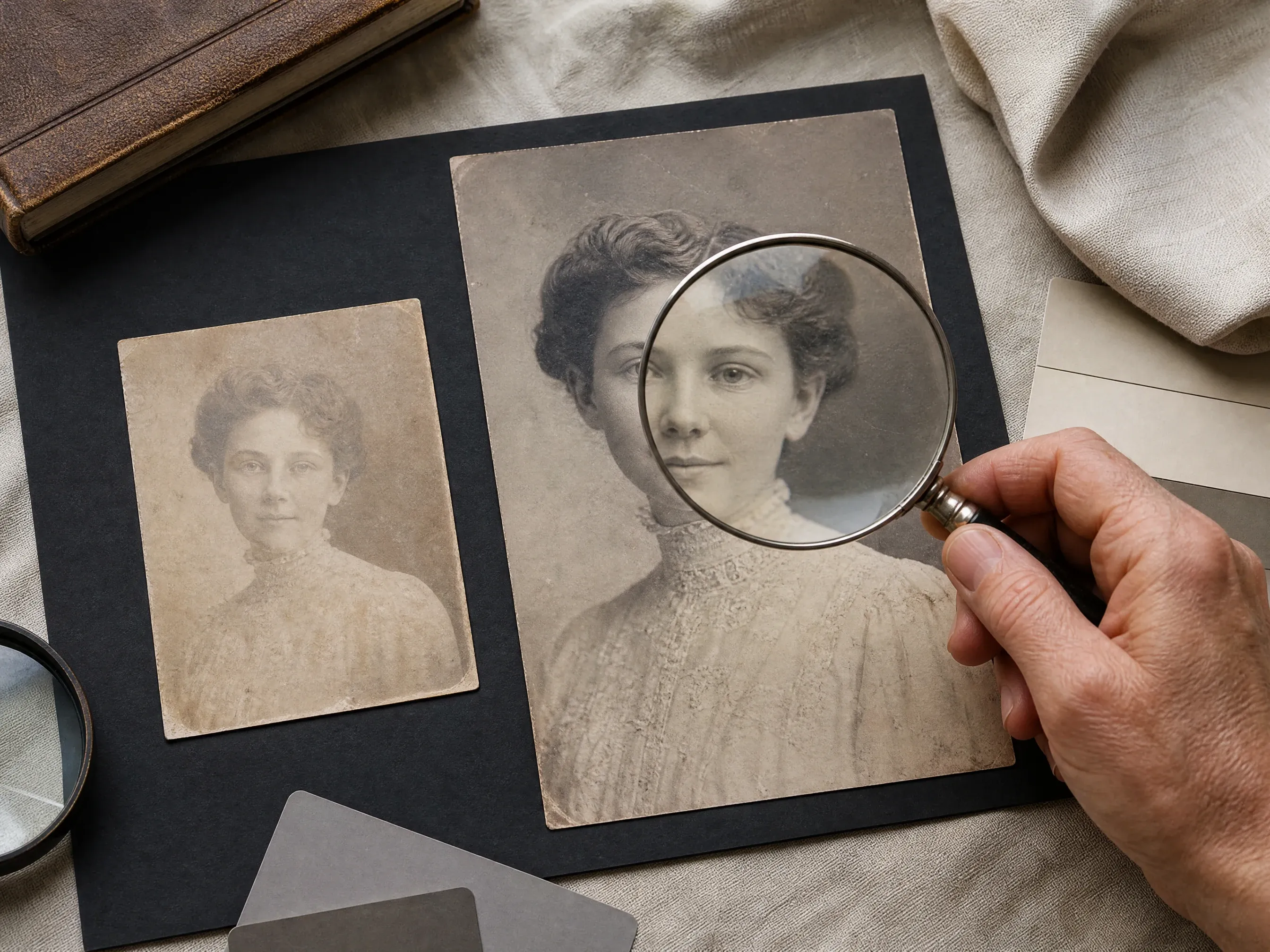
Improve visible face detail and readability in old portraits while keeping the original black-and-white or sepia feeling.
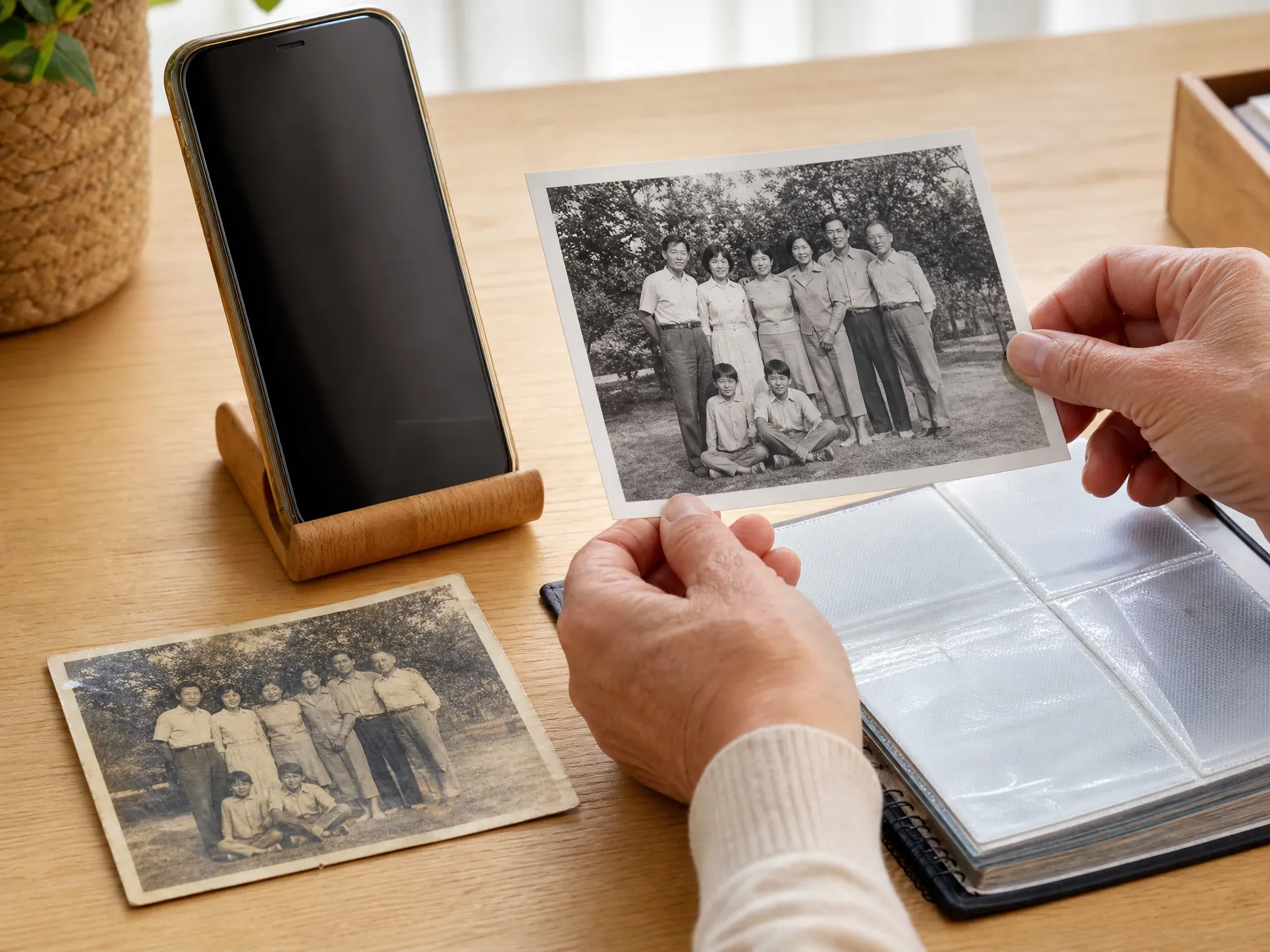
Make a meaningful old photo easier to view on phones, family chats, social posts, and private albums.
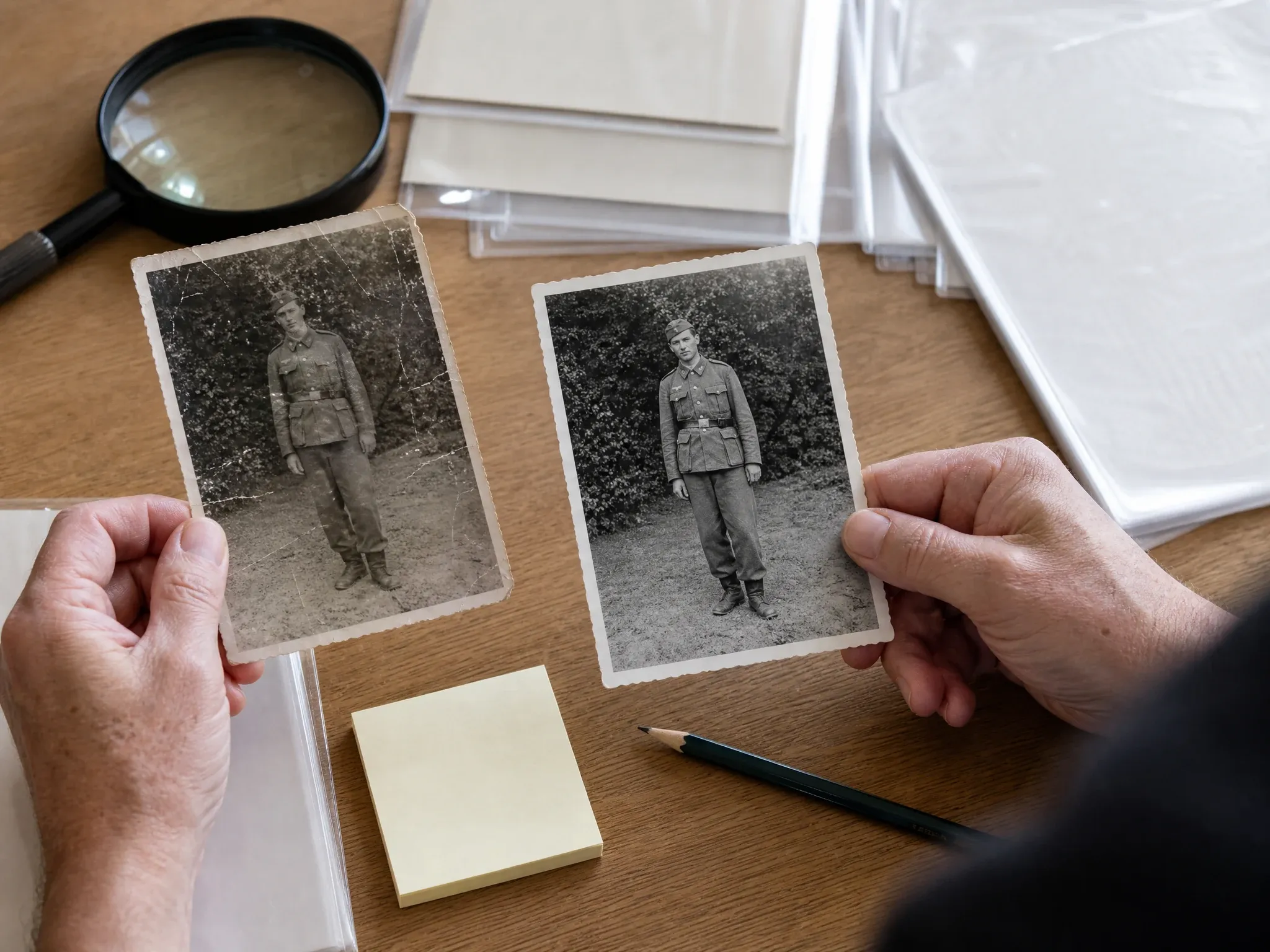
Prepare a clearer draft before deciding whether the photo needs manual retouching, a focused edit, or a professional service.
On this page, AI old photo restoration means a clarity-first enhancement pass for old scans and family photos. It improves readable detail and resolution where the source gives enough information.
The workflow can make a usable old photo easier to view, but it does not guarantee torn-paper reconstruction, missing-area repair, or stain removal.
Black-and-white and sepia photos remain in their original tone. Colorization is a separate capability and is not claimed here.
For memorial, genealogy, and family archive work, inspect the result carefully and keep the original file as the source of truth.
Face AI keeps the old-photo workspace first and pairs practical source guidance with a focused clarity-and-detail workflow.
The page tells you how to prepare a scan and choose a scale before you spend time reading long copy.
A simple clarity scale is easier to judge than a hidden one-click filter. Compare results in history before keeping the file.
Scratch repair, colorization, brush masking, inpainting, and print-ready guarantees stay out of the public promise.
Use photo enhancer, image editor, image-to-image, or upscaler next depending on what still blocks the photo.
The source photo matters. A careful scan or phone capture usually beats a damaged, glossy, or tiny screenshot.
Lay the print on a flat surface, use even daylight, hold the phone parallel, and avoid shadows across faces.
Crop album pages, plastic sleeves, table edges, and bright reflections so the model focuses on the photo itself.
A lighter pass is easier to inspect. Move to 4x only if the enhanced detail still looks natural.
Review eyes, hair, mouths, clothing, background, and original tones before sharing or sending the image to a print shop.
Choose the workflow that matches the real problem. This page is for clarity-first enhancement of old photos; more damaged images may need a different tool or human retouching.
| Criteria | Face AIOurs Face AI old-photo enhancement | Other restoration workflows |
|---|---|---|
| Starting point | Upload one old scan or family photo and choose a 2x or 4x clarity pass. | Full restoration products may combine colorization, inpainting, manual brush tools, and professional retouching. |
| Best use | Faded but readable portraits, archive scans, album photos, and clearer family sharing copies. | Severe scratches, torn corners, heavy stains, mold, water damage, or missing areas need a repair-specific workflow. |
| Controls | Source upload, clarity scale, history, preview, download, share, and quality guidance. | Manual editors expose masks, brushes, layers, color decisions, and targeted repair controls. |
| Color promise | Keeps the original black-and-white, sepia, or faded color tone as the reference. | Colorizer pages intentionally invent likely colors and need separate review for accuracy. |
| Print boundary | Can create a clearer file for review, but does not guarantee DPI, professional memorial output, or restoration-service quality. | Specialist services may include proofing, print sizing, revisions, and human quality control. |
| Next step | Use another Face AI tool or a manual service when the clearer copy reveals a specific remaining issue. | One-shot pages sometimes hide whether the result was enhanced, colorized, or manually repaired. |
Upload one old scan or family photo and choose a 2x or 4x clarity pass.
Full restoration products may combine colorization, inpainting, manual brush tools, and professional retouching.
Faded but readable portraits, archive scans, album photos, and clearer family sharing copies.
Severe scratches, torn corners, heavy stains, mold, water damage, or missing areas need a repair-specific workflow.
Source upload, clarity scale, history, preview, download, share, and quality guidance.
Manual editors expose masks, brushes, layers, color decisions, and targeted repair controls.
Keeps the original black-and-white, sepia, or faded color tone as the reference.
Colorizer pages intentionally invent likely colors and need separate review for accuracy.
Can create a clearer file for review, but does not guarantee DPI, professional memorial output, or restoration-service quality.
Specialist services may include proofing, print sizing, revisions, and human quality control.
Use another Face AI tool or a manual service when the clearer copy reveals a specific remaining issue.
One-shot pages sometimes hide whether the result was enhanced, colorized, or manually repaired.
These comments focus on the real loop: prepare the scan, choose 2x or 4x, inspect the result, then download or continue editing.
"The page is strongest when the promise is clear: make an old scan easier to view and share, then inspect the result before printing or posting."

Emma Johansson
Head of Content Strategy
"I used the 2x pass for a faded family snapshot. It did not pretend to rebuild torn corners, but the faces were easier to review."

Darius Brown
SEO & Content Lead
"The source-photo tips are useful: scan flat, avoid glare, crop the album border, and start with the highest-resolution file you can find."

Elena Kowalski
Senior Content Strategist
"This works as an old-photo clarity workflow, not a magic repair booth. That boundary keeps the team from overusing the output."

Kai Nakamura
Global Creative Director
"For family albums and social posts, a quick clarity pass is often enough before we decide whether a photo needs manual retouching."

Priya Chen
Creative Strategy Lead
"I like having history and download on the same page. We can compare a 2x and 4x result without losing track of the source."

Aaliyah Williams
Digital Marketing Director
"The page is strongest when the promise is clear: make an old scan easier to view and share, then inspect the result before printing or posting."
Emma Johansson
Head of Content Strategy
"I used the 2x pass for a faded family snapshot. It did not pretend to rebuild torn corners, but the faces were easier to review."
Darius Brown
SEO & Content Lead
"The source-photo tips are useful: scan flat, avoid glare, crop the album border, and start with the highest-resolution file you can find."
Elena Kowalski
Senior Content Strategist
"This works as an old-photo clarity workflow, not a magic repair booth. That boundary keeps the team from overusing the output."
Kai Nakamura
Global Creative Director
"For family albums and social posts, a quick clarity pass is often enough before we decide whether a photo needs manual retouching."
Priya Chen
Creative Strategy Lead
"I like having history and download on the same page. We can compare a 2x and 4x result without losing track of the source."
Aaliyah Williams
Digital Marketing Director
"The copy is careful around memorial use. It helps prepare a clearer draft without promising professional restoration or print certainty."

Astrid Nielsen
Head of Thought Leadership
"The page is strongest when the promise is clear: make an old scan easier to view and share, then inspect the result before printing or posting."
Emma Johansson
Head of Content Strategy
"I used the 2x pass for a faded family snapshot. It did not pretend to rebuild torn corners, but the faces were easier to review."
Darius Brown
SEO & Content Lead
"The source-photo tips are useful: scan flat, avoid glare, crop the album border, and start with the highest-resolution file you can find."
Elena Kowalski
Senior Content Strategist
"This works as an old-photo clarity workflow, not a magic repair booth. That boundary keeps the team from overusing the output."
Kai Nakamura
Global Creative Director
"For family albums and social posts, a quick clarity pass is often enough before we decide whether a photo needs manual retouching."
Priya Chen
Creative Strategy Lead
"I like having history and download on the same page. We can compare a 2x and 4x result without losing track of the source."
Aaliyah Williams
Digital Marketing Director
"The copy is careful around memorial use. It helps prepare a clearer draft without promising professional restoration or print certainty."
Astrid Nielsen
Head of Thought Leadership
"The old-photo page feels different from the generic enhancer because the guidance, examples, and limits are all about scans and family archives."

Rafael Santos
VP of Creative
"The best results came from clean scans and phone captures with even light. Glare and tiny faces still needed a better source."

Ananya Iyer
Content Marketing Lead
"It is practical for genealogy notes, album sharing, and first-pass cleanup before a human editor decides what still needs attention."

Charlotte Beaumont
Director of Content Operations
"We keep the original tones and use the result as a clearer digital copy. Colorization and manual repair stay outside this workflow."

Yifan Zheng
Demand Generation Lead
"The 4x pass is helpful when the source is already readable. If the photo is heavily damaged, we treat the result as a draft only."

Sophia Wagner
Editorial Director
"The page gives relatives a practical first pass: upload the scan, compare the clearer copy, and keep the original file for archive notes."

Ingrid Lund
Blog & SEO Director
"It is useful because the result is framed as a review copy. We still send severe damage or missing details to a dedicated restoration workflow."

Zara Davis
Social Media Director
"The old-photo page feels different from the generic enhancer because the guidance, examples, and limits are all about scans and family archives."
Rafael Santos
VP of Creative
"The best results came from clean scans and phone captures with even light. Glare and tiny faces still needed a better source."
Ananya Iyer
Content Marketing Lead
"It is practical for genealogy notes, album sharing, and first-pass cleanup before a human editor decides what still needs attention."
Charlotte Beaumont
Director of Content Operations
"We keep the original tones and use the result as a clearer digital copy. Colorization and manual repair stay outside this workflow."
Yifan Zheng
Demand Generation Lead
"The 4x pass is helpful when the source is already readable. If the photo is heavily damaged, we treat the result as a draft only."
Sophia Wagner
Editorial Director
"The page gives relatives a practical first pass: upload the scan, compare the clearer copy, and keep the original file for archive notes."
Ingrid Lund
Blog & SEO Director
"It is useful because the result is framed as a review copy. We still send severe damage or missing details to a dedicated restoration workflow."
Zara Davis
Social Media Director
Choose the next Face AI tool based on what the photo still needs: broader enhancement, resolution, focused editing, creative variation, or portrait retouching.

Use the broader photo enhancer when the source is not specifically an old scan or family archive image.
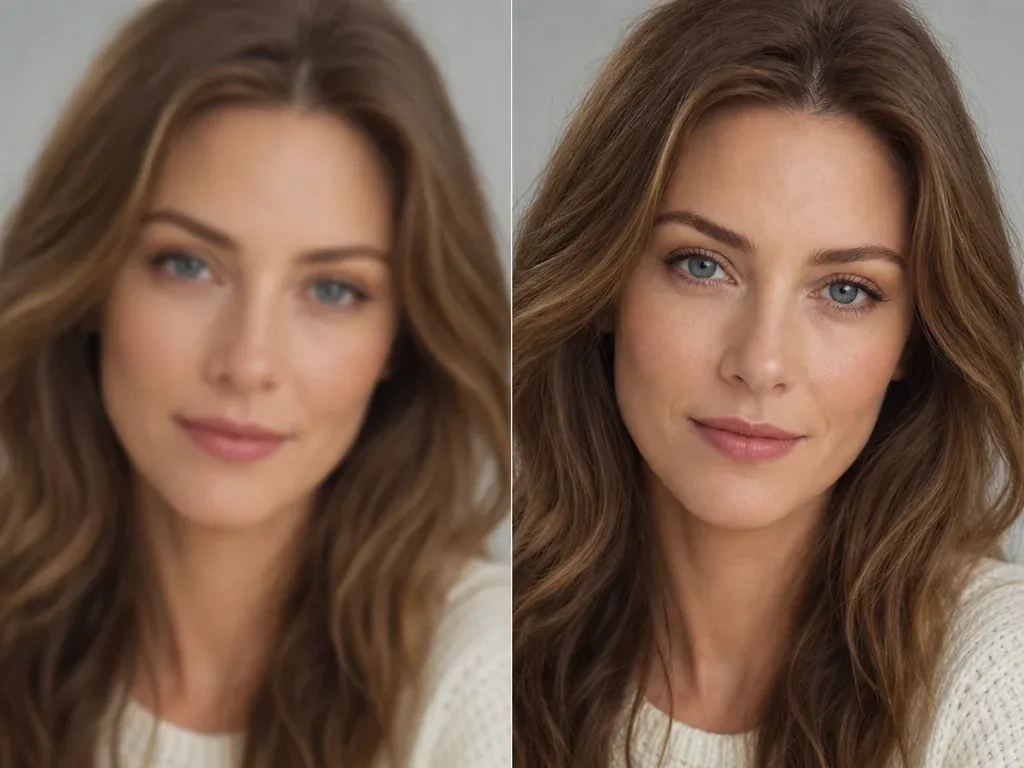
Use the upscaler when the main job is resolution and scale for a modern image or generated draft.
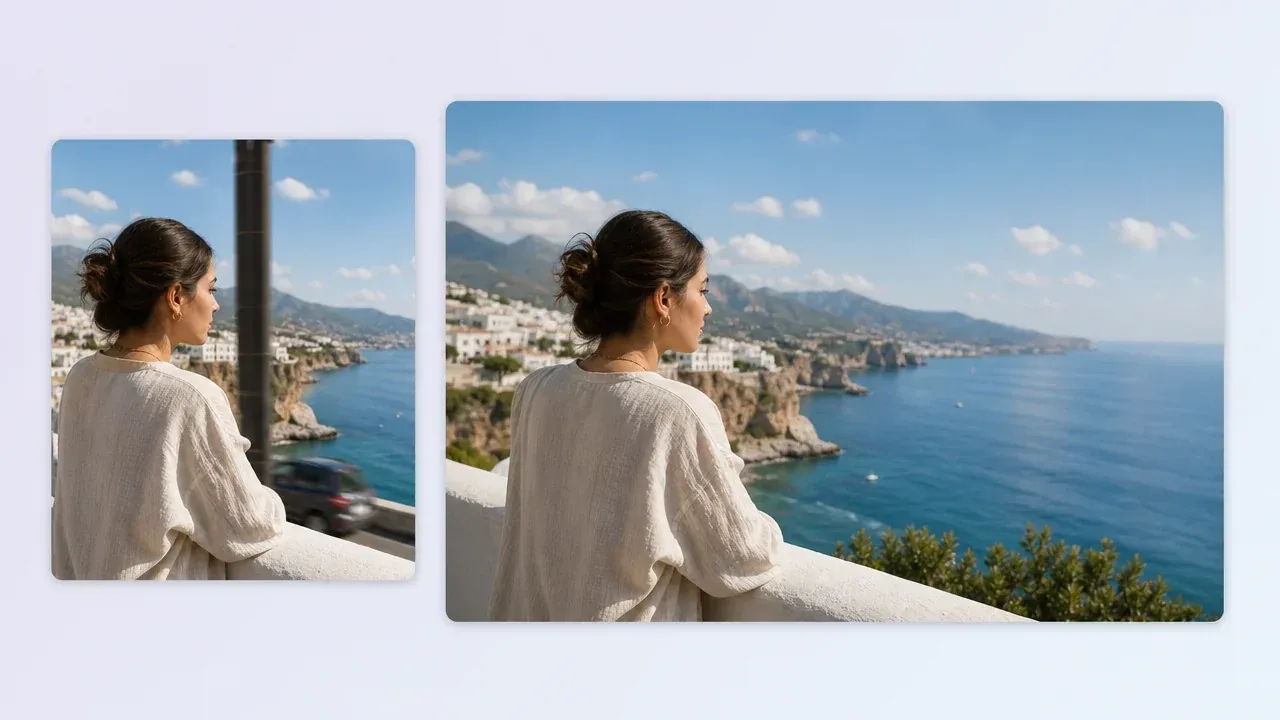
Move to the editor when one visible issue still needs a focused manual-style edit after enhancement.
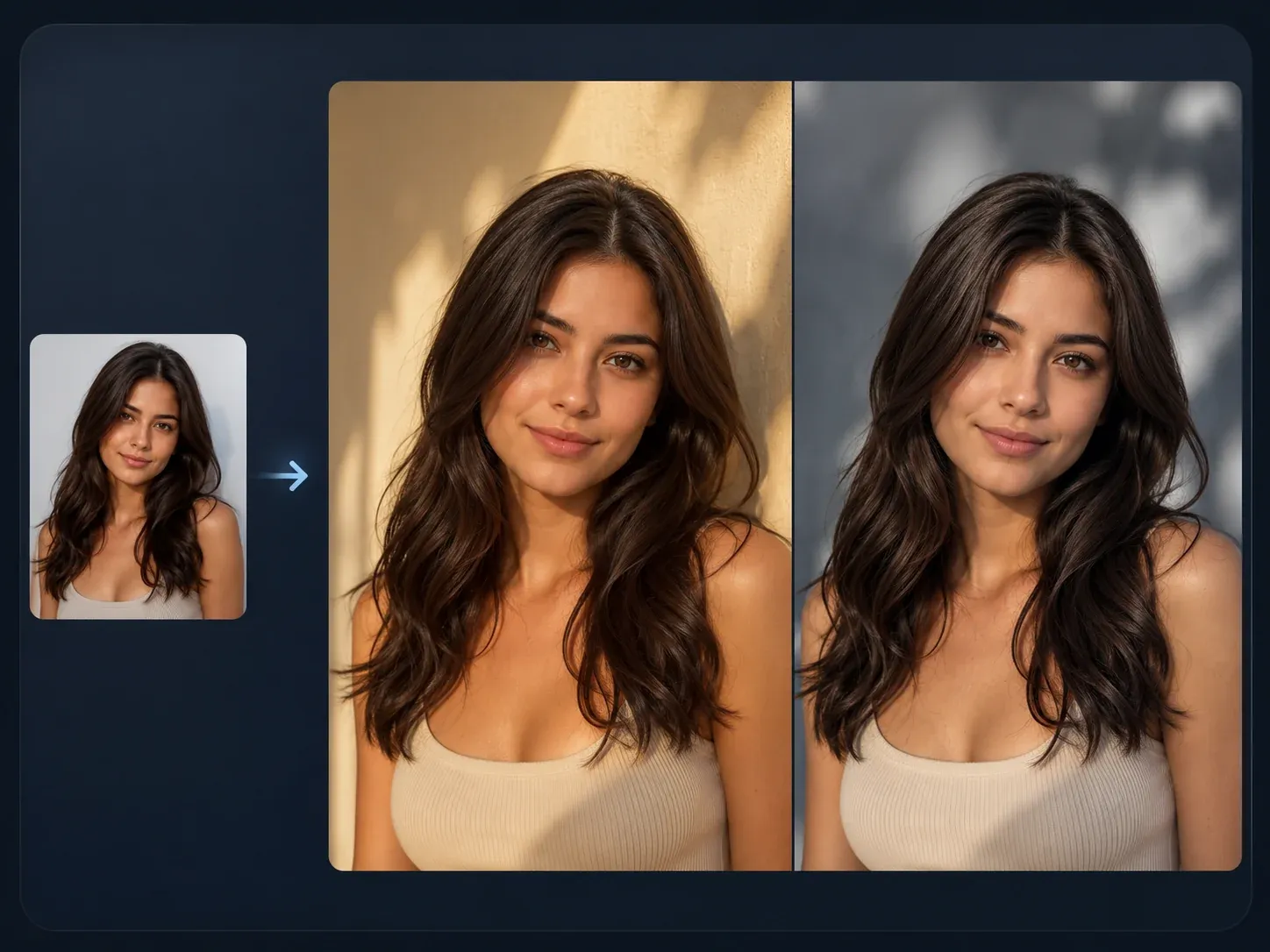
Create a respectful creative variation only after preserving a clean digital copy of the original photo.
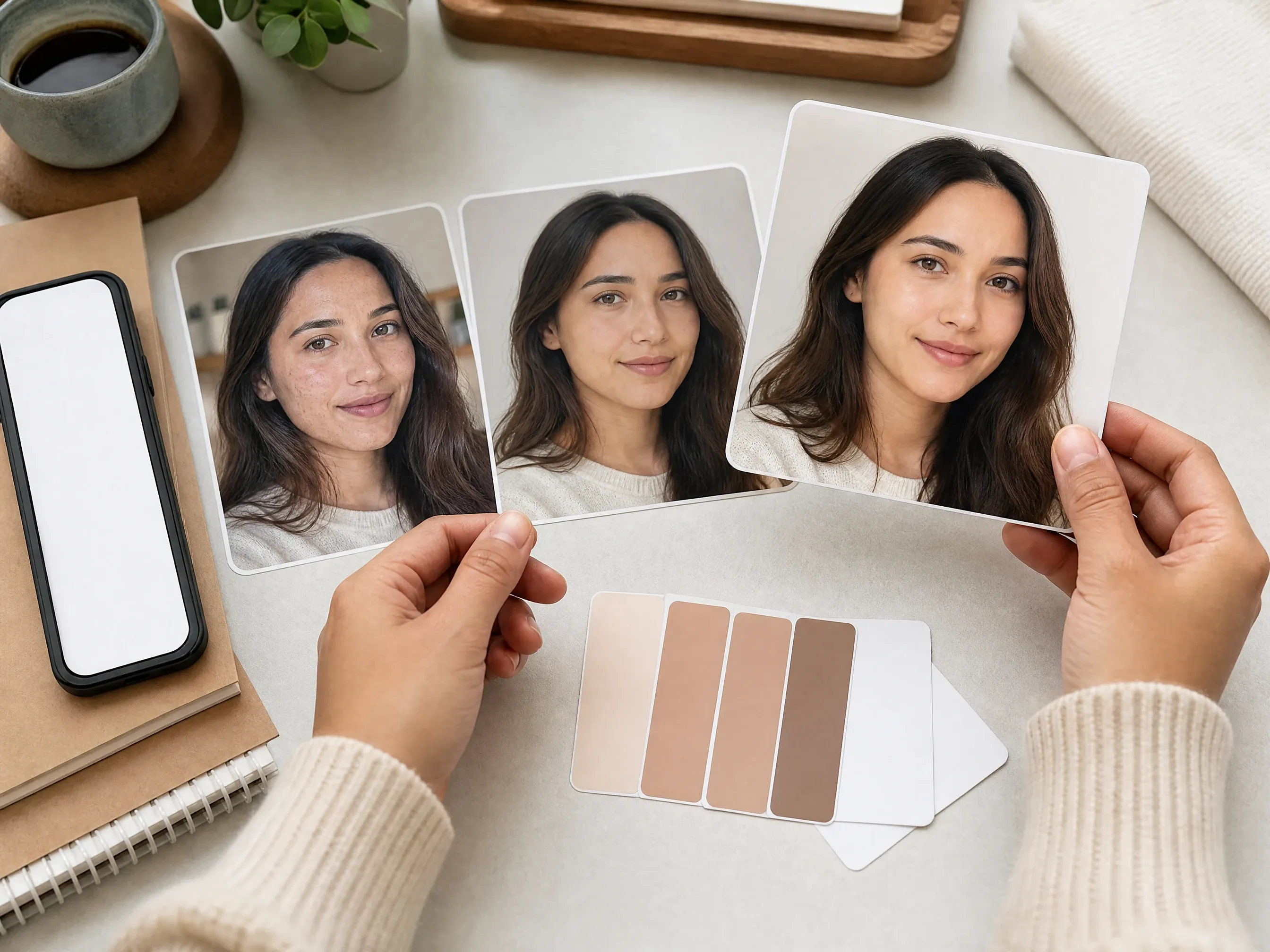
Use a portrait retouch page for modern face cleanup; keep old-photo damage claims out of this workflow.
Direct answers about old-photo enhancement, source scans, 2x and 4x scale, colorization limits, scratch repair limits, sharing, and next steps.
It enhances an old scan or family photo so the image is clearer and easier to review, share, or continue editing. The workflow focuses on clarity and detail recovery while keeping the original photo recognizable.
Upload one old photo, choose 2x or 4x, start the enhancement, then inspect the result in the browser before downloading.
Use the highest-resolution scan or phone capture you have. Keep the photo flat, evenly lit, glare-free, and cropped to the actual image.
Do not treat this page as a guaranteed damage-repair tool. It can improve clarity on usable sources, but heavy scratches, tears, stains, mold, and missing areas need a dedicated repair or manual editing workflow.
No colorization is claimed here. This workflow keeps the original tone as the reference and focuses on clarity and resolution.
Start with 2x for safer old-photo enhancement. Try 4x when the source is clean enough and you need a larger review copy.
Yes, as a clarity-first draft for personal review, family sharing, or archive work. Review the result carefully and avoid treating it as guaranteed professional restoration.
You can download the result and decide how to use it, but this page does not guarantee DPI, print size, color accuracy, or memorial-service readiness.
Yes. Use photos you own or have permission to process, especially when other people, private family records, or protected material are visible.
Start with the best scan you have, choose 2x or 4x, then inspect and download the enhanced old photo before sharing or continuing the edit.