
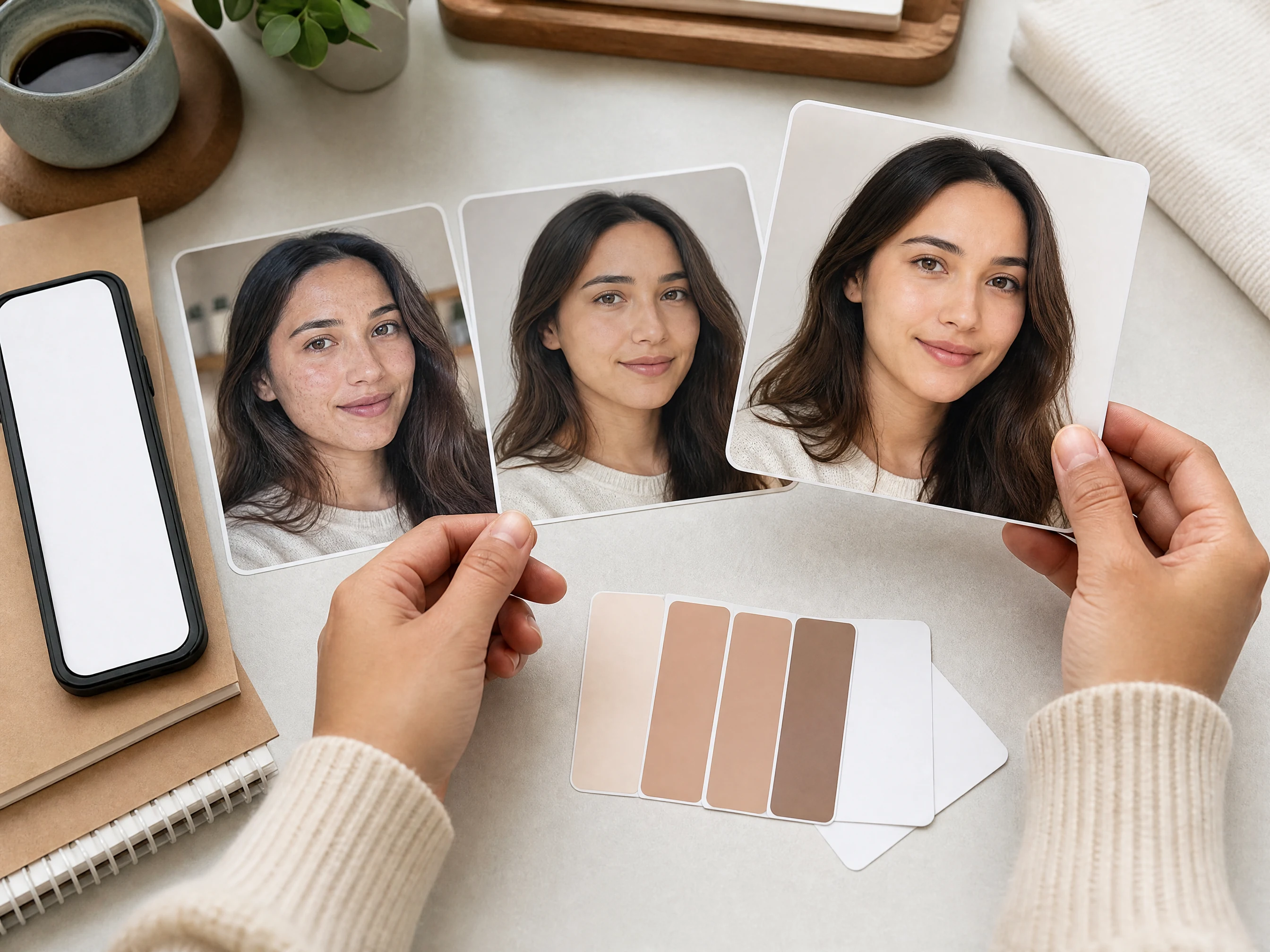
AI Blemish Remover for Natural Portrait Cleanup
Upload one portrait and reduce visible acne, pimples, dark spots, freckles, redness, and small skin distractions with a focused AI cleanup pass. Choose the cleanup goal first, add an optional note, then review whether the face still looks natural before downloading or refining. Free online.
Trusted by 12,000,000+ users worldwide.
How to Remove Blemishes from a Photo Online
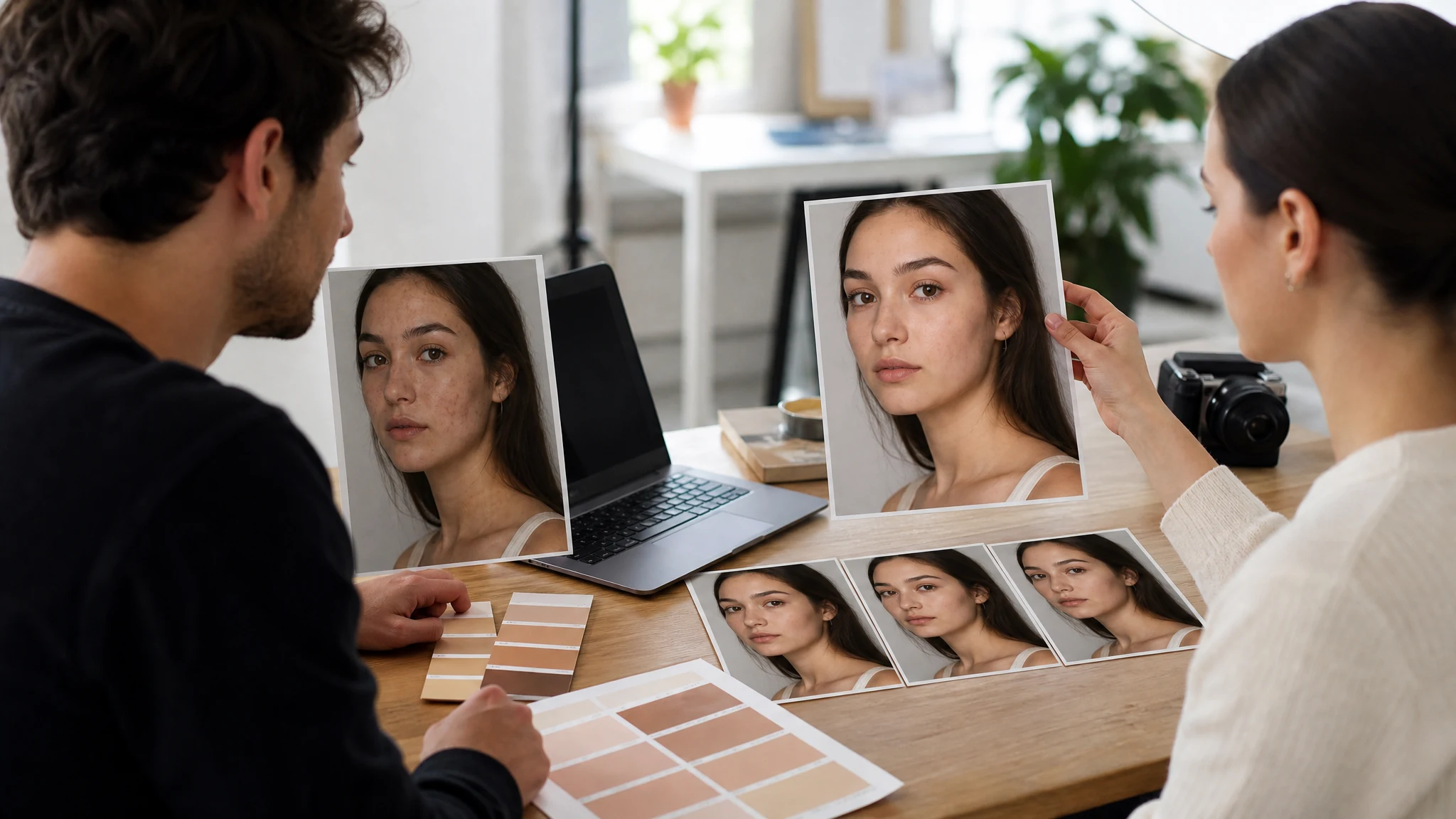
Keep the pass focused: upload one clear portrait, choose the cleanup goal, then inspect whether the skin still looks real.
Upload one portrait
Use a selfie, headshot, profile photo, creator portrait, or social image with a readable face and enough skin detail for a natural cleanup.
Choose a blemish mode
Pick acne and pimples, dark spots, freckles and small marks, or subtle skin polish before adding any optional note.
Generate, review, continue
Download the natural result, try another cleanup mode, or move the portrait into image editor, upscaler, or background changer for the next fix.
Blemish Cleanup Use Cases for Portraits and Profiles
Use the AI blemish remover for temporary skin distractions on selfies, headshots, creator portraits, social posts, dating photos, and professional profile images.
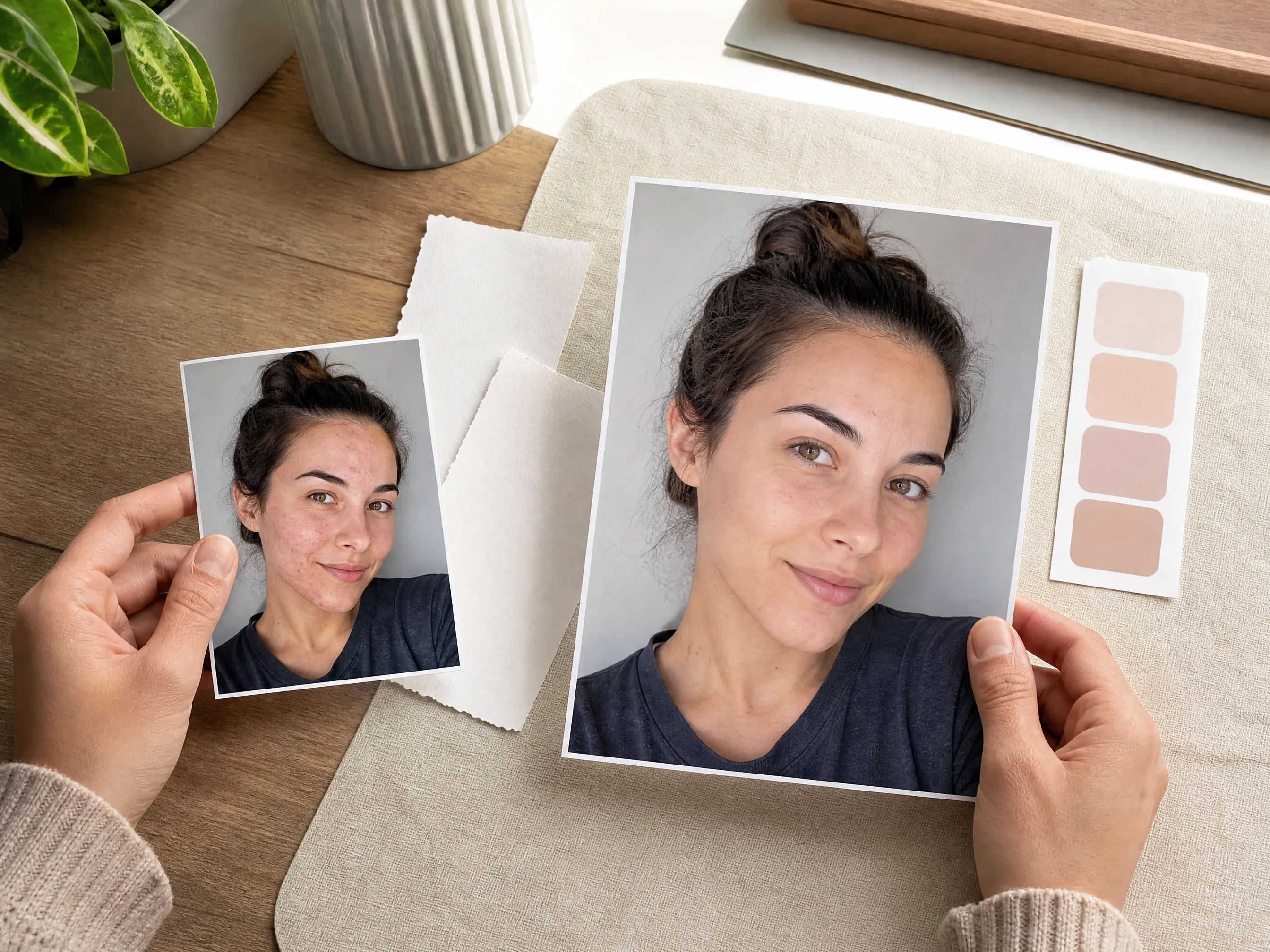
Remove acne and pimples from selfies
Reduce temporary breakouts and small red spots before sharing a selfie, story, dating photo, or profile update.
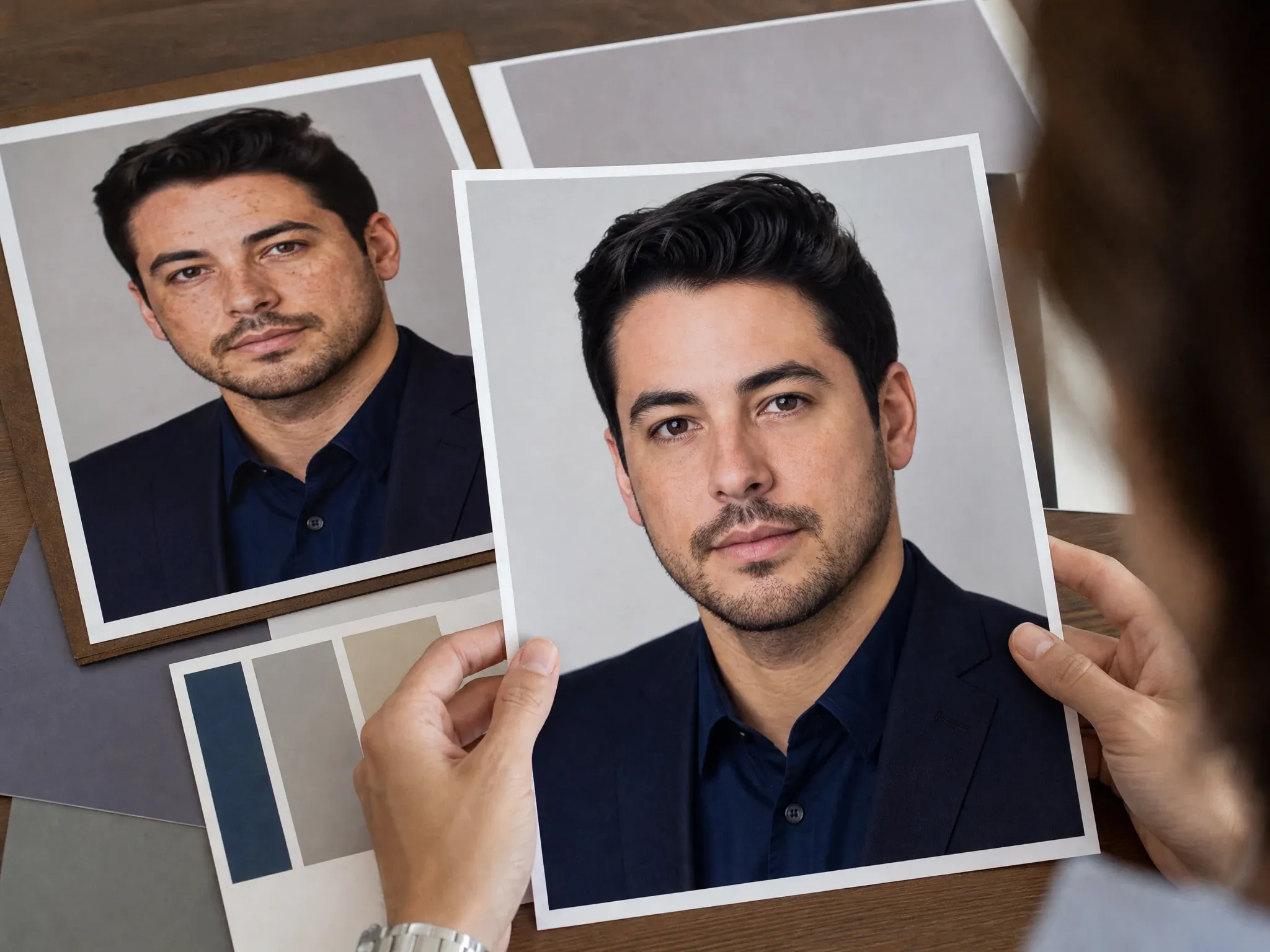
Soften dark spots in headshots
Clean small marks and uneven tone in a resume, LinkedIn, author, or company portrait while keeping the person recognizable.
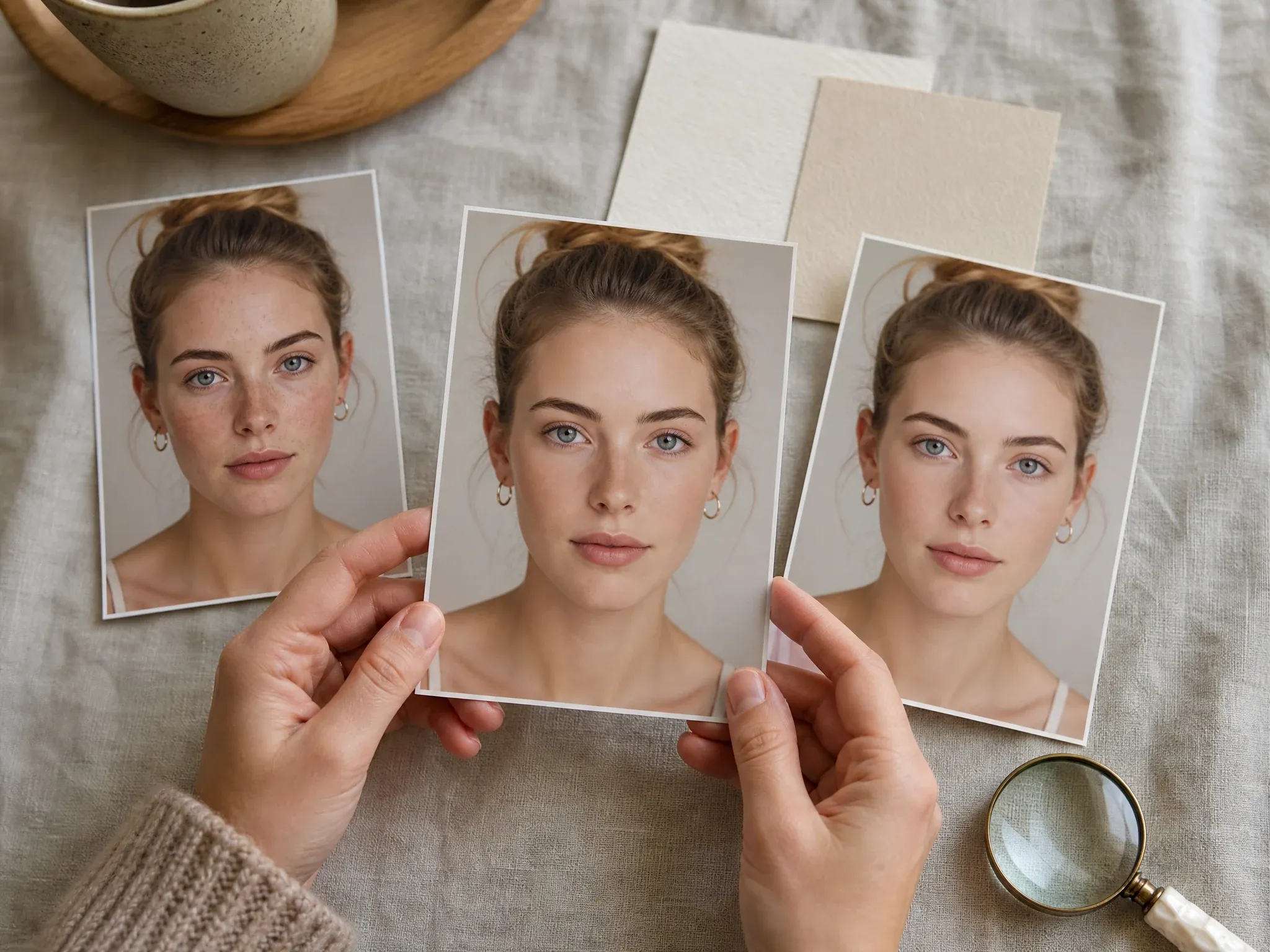
Lightly reduce freckles or tiny marks
Use a lighter pass when the photo needs less distraction but should still keep natural character and face texture.
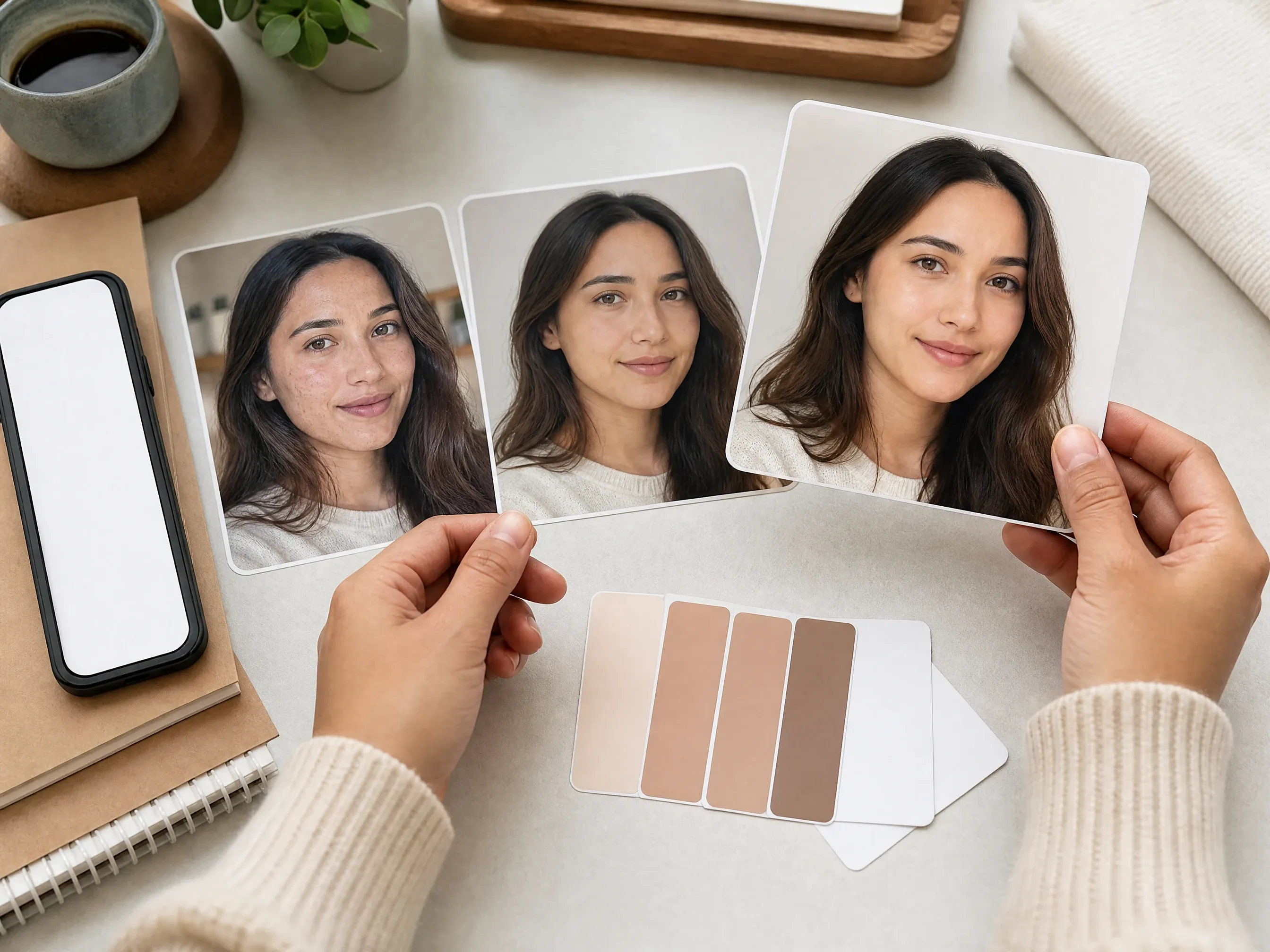
Polish portraits for social posts
Create a cleaner profile image without changing face shape, expression, hair, or background mood.
What Is an AI Blemish Remover?
An AI blemish remover starts from an uploaded portrait and applies a focused image-editing pass to reduce visible acne, pimples, dark spots, freckles, redness, or small skin marks.
Portrait-first cleanup
The source photo anchors the face, expression, lighting, crop, and background so the edit can stay close to the original.
Mode-guided retouching
Separate cleanup modes keep acne, dark spots, freckles, and subtle polish from becoming one vague beauty-filter prompt.
Natural result review
The best outcome is less distracting skin with visible texture, not a face that looks rebuilt or over-smoothed.
Why Use Face AI for Blemish Removal?
Face AI keeps the real workflow visible: upload one portrait, choose a cleanup mode, add a focus note, generate, compare history, download, share, and continue into broader editing only when needed.
More than prompt plus upload
The function area includes portrait upload, cleanup modes, optional note, ratio, examples, history, download, share, and follow-up tools.
Market-standard blemish language
The page covers acne, pimples, dark spots, freckles, redness, small marks, profile photos, headshots, and social portraits without overclaiming pro retouch parity.
Limits are visible
This is not a brush-based exact spot healer, skin analysis tool, multi-photo retouch suite, or full retouching replacement.
Built for iteration
Natural skin review often needs comparison. History helps you keep the lighter pass when a stronger cleanup feels too smooth.
How to Get Natural Blemish Removal Results
A clear source portrait and a narrow cleanup request usually matter more than a long prompt.
Use good light and visible texture
Bright, sharp portraits help the model understand skin detail. Heavy blur, harsh shadows, and tiny screenshots are less predictable.
Pick one cleanup goal
Start with acne, dark spots, freckles, or subtle polish. Stacking too many beauty requests can make skin look artificial.
Protect identity and character
Use the note to keep face shape, freckles, pores, makeup, facial hair, expression, lighting, and crop close to the source.
Inspect before publishing
Review texture, eyes, mouth, hairline, hands, background edges, and any important facial detail before using the image publicly.
AI Blemish Remover vs. Beauty Filters, Manual Retouching, and Pro Editors
Choose the workflow that matches the job. Face AI is for quick natural cleanup from one portrait, not deterministic manual skin retouching.
| Criteria | Face AIOurs Face AI blemish cleanup workflow | Other workflows |
|---|---|---|
| Starting point | Upload one portrait and choose a cleanup mode before generating. | Beauty filters often apply a broad effect; manual editors require mask, brush, and clone work. |
| Best use | Selfies, headshots, profile photos, creator portraits, dating photos, and social posts with temporary blemishes. | Studio editors are better when every pore, area, and retouch level must be controlled exactly. |
| Control | Acne, dark spots, freckles, subtle polish, optional focus note, ratio, history, download, and share. | Brush tools can target exact areas but take more manual work and review. |
| Output boundary | Natural-looking creative cleanup that still needs human review. | Professional retouch suites can support multi-photo workflows, detailed zones, and repeatable adjustment levels when those controls are required. |
| Rights and sensitive photos | Use portraits you have permission to process and avoid uploading sensitive images. | Some services add stronger policy claims; always check the product terms before sensitive work. |
| Next step | Move the cleaned portrait into image editor, upscaler, headshot generation, or background changer when another issue remains. | Single-purpose pages may stop at one download with fewer follow-up options. |
Starting point
Upload one portrait and choose a cleanup mode before generating.
Beauty filters often apply a broad effect; manual editors require mask, brush, and clone work.
Best use
Selfies, headshots, profile photos, creator portraits, dating photos, and social posts with temporary blemishes.
Studio editors are better when every pore, area, and retouch level must be controlled exactly.
Control
Acne, dark spots, freckles, subtle polish, optional focus note, ratio, history, download, and share.
Brush tools can target exact areas but take more manual work and review.
Output boundary
Natural-looking creative cleanup that still needs human review.
Professional retouch suites can support multi-photo workflows, detailed zones, and repeatable adjustment levels when those controls are required.
Rights and sensitive photos
Use portraits you have permission to process and avoid uploading sensitive images.
Some services add stronger policy claims; always check the product terms before sensitive work.
Next step
Move the cleaned portrait into image editor, upscaler, headshot generation, or background changer when another issue remains.
Single-purpose pages may stop at one download with fewer follow-up options.
Check the Cleaned Portrait Before You Use It
Blemish removal is useful only if the person still looks like themselves. Review the final image before posting, applying, pitching, or publishing.
Skin texture
Look for pores, natural transitions, and realistic tone. If the skin looks plastic, try a lighter mode or shorter note.
Face identity
Check eyes, mouth, jaw, expression, facial hair, makeup, and face shape for unwanted drift.
Use rights
Confirm you can use the source portrait and final image, especially for work, dating, ads, or public profiles.
How People Use the AI Blemish Remover
These comments focus on the practical loop: choose a cleanup mode, keep the retouch natural, compare history, then download or refine.
"The mode picker helps. Acne cleanup, dark spots, freckles, and subtle polish are different jobs, and the result is easier to review when the request starts narrow."

Kai Nakamura
Global Creative Director
"I use it for profile refreshes when the portrait is already good. It works best when the note says what should stay natural, not just make my skin perfect."

Nina Volkov
Visual Design Director
"The page is honest about limits. We can soften visible distractions, then still review texture, face shape, and lighting before using the image."

Rafael Santos
VP of Creative
"Natural skin texture is the key. The cleanup should make the photo less distracting without turning the person into a plastic beauty filter."

Priya Chen
Creative Strategy Lead
"For creator thumbnails and author photos, the history panel is useful because small prompt changes can make the retouch feel more or less natural."

Devon Park
Interactive Creative Director
"I like starting with dark spot cleanup for professional headshots and subtle polish for social portraits. Different modes keep the brief clean."

Mia Torres
Design Director
"The mode picker helps. Acne cleanup, dark spots, freckles, and subtle polish are different jobs, and the result is easier to review when the request starts narrow."
Kai Nakamura
Global Creative Director
"I use it for profile refreshes when the portrait is already good. It works best when the note says what should stay natural, not just make my skin perfect."
Nina Volkov
Visual Design Director
"The page is honest about limits. We can soften visible distractions, then still review texture, face shape, and lighting before using the image."
Rafael Santos
VP of Creative
"Natural skin texture is the key. The cleanup should make the photo less distracting without turning the person into a plastic beauty filter."
Priya Chen
Creative Strategy Lead
"For creator thumbnails and author photos, the history panel is useful because small prompt changes can make the retouch feel more or less natural."
Devon Park
Interactive Creative Director
"I like starting with dark spot cleanup for professional headshots and subtle polish for social portraits. Different modes keep the brief clean."
Mia Torres
Design Director
"The best results came from bright portraits with readable skin detail. Low-light screenshots and heavy blur still need manual review after generation."

Zeke Williams
Senior Art Director
"The mode picker helps. Acne cleanup, dark spots, freckles, and subtle polish are different jobs, and the result is easier to review when the request starts narrow."
Kai Nakamura
Global Creative Director
"I use it for profile refreshes when the portrait is already good. It works best when the note says what should stay natural, not just make my skin perfect."
Nina Volkov
Visual Design Director
"The page is honest about limits. We can soften visible distractions, then still review texture, face shape, and lighting before using the image."
Rafael Santos
VP of Creative
"Natural skin texture is the key. The cleanup should make the photo less distracting without turning the person into a plastic beauty filter."
Priya Chen
Creative Strategy Lead
"For creator thumbnails and author photos, the history panel is useful because small prompt changes can make the retouch feel more or less natural."
Devon Park
Interactive Creative Director
"I like starting with dark spot cleanup for professional headshots and subtle polish for social portraits. Different modes keep the brief clean."
Mia Torres
Design Director
"The best results came from bright portraits with readable skin detail. Low-light screenshots and heavy blur still need manual review after generation."
Zeke Williams
Senior Art Director
"We use it as a lightweight cleanup pass, not a skin diagnosis tool. That boundary makes the output easier to approve."

Marie Laurent
Storytelling & Brand Lead
"The prompt examples help non-design teammates say reduce cheek acne or soften a few spots without asking the model to rebuild the whole face."

Astrid Nielsen
Head of Thought Leadership
"For profile and social images, it is faster than opening a full editor when the only blocker is a few temporary blemishes."

Charlotte Beaumont
Director of Content Operations
"The related tools make sense. If the cleanup is close but soft, we can upscale; if the background is distracting, we can move to the image editor."

Yifan Zheng
Demand Generation Lead
"It is more useful than a blank prompt box because the page explains the cleanup choices and what to inspect before keeping the result."

Jordan Kim
Growth Lead
"For ad and profile assets, I like that the retouch starts with a specific skin issue. It keeps the result useful without making every face look filtered."

Aaliyah Williams
Digital Marketing Director
"The strongest pass is usually the lighter one. We compare history, keep the natural version, and only upscale after the face still looks like the source portrait."

Jieun Park
Growth Marketing Lead
"We use it as a lightweight cleanup pass, not a skin diagnosis tool. That boundary makes the output easier to approve."
Marie Laurent
Storytelling & Brand Lead
"The prompt examples help non-design teammates say reduce cheek acne or soften a few spots without asking the model to rebuild the whole face."
Astrid Nielsen
Head of Thought Leadership
"For profile and social images, it is faster than opening a full editor when the only blocker is a few temporary blemishes."
Charlotte Beaumont
Director of Content Operations
"The related tools make sense. If the cleanup is close but soft, we can upscale; if the background is distracting, we can move to the image editor."
Yifan Zheng
Demand Generation Lead
"It is more useful than a blank prompt box because the page explains the cleanup choices and what to inspect before keeping the result."
Jordan Kim
Growth Lead
"For ad and profile assets, I like that the retouch starts with a specific skin issue. It keeps the result useful without making every face look filtered."
Aaliyah Williams
Digital Marketing Director
"The strongest pass is usually the lighter one. We compare history, keep the natural version, and only upscale after the face still looks like the source portrait."
Jieun Park
Growth Marketing Lead
What Should You Try After Blemish Removal?
Pick the next Face AI tool based on what still blocks the image: broader editing, sharper export, a new headshot direction, cleaner background, or a full source-guided restyle.
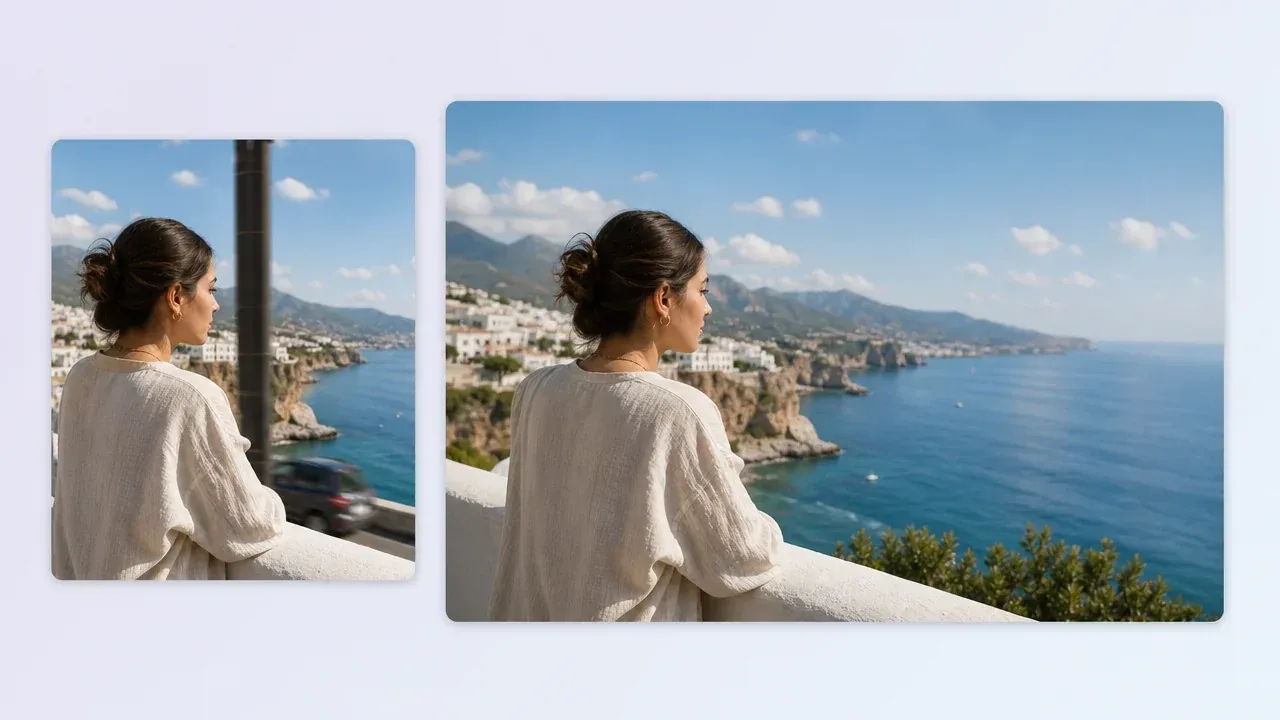
AI Image Editor
Use the broader editor when the portrait also needs object cleanup, background replacement, or a different local fix.
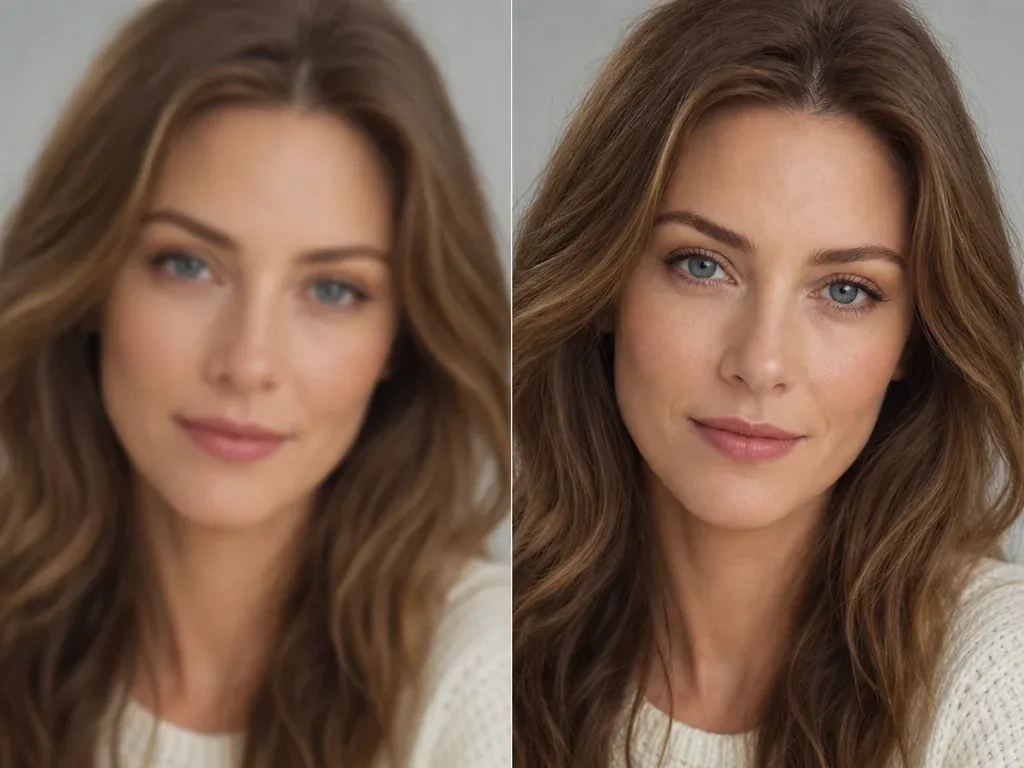
AI Image Upscaler
Sharpen the selected portrait after cleanup when the face looks natural but the export needs more clarity.

AI Headshot Generator
Create a new professional portrait direction when the source selfie is not strong enough to retouch.
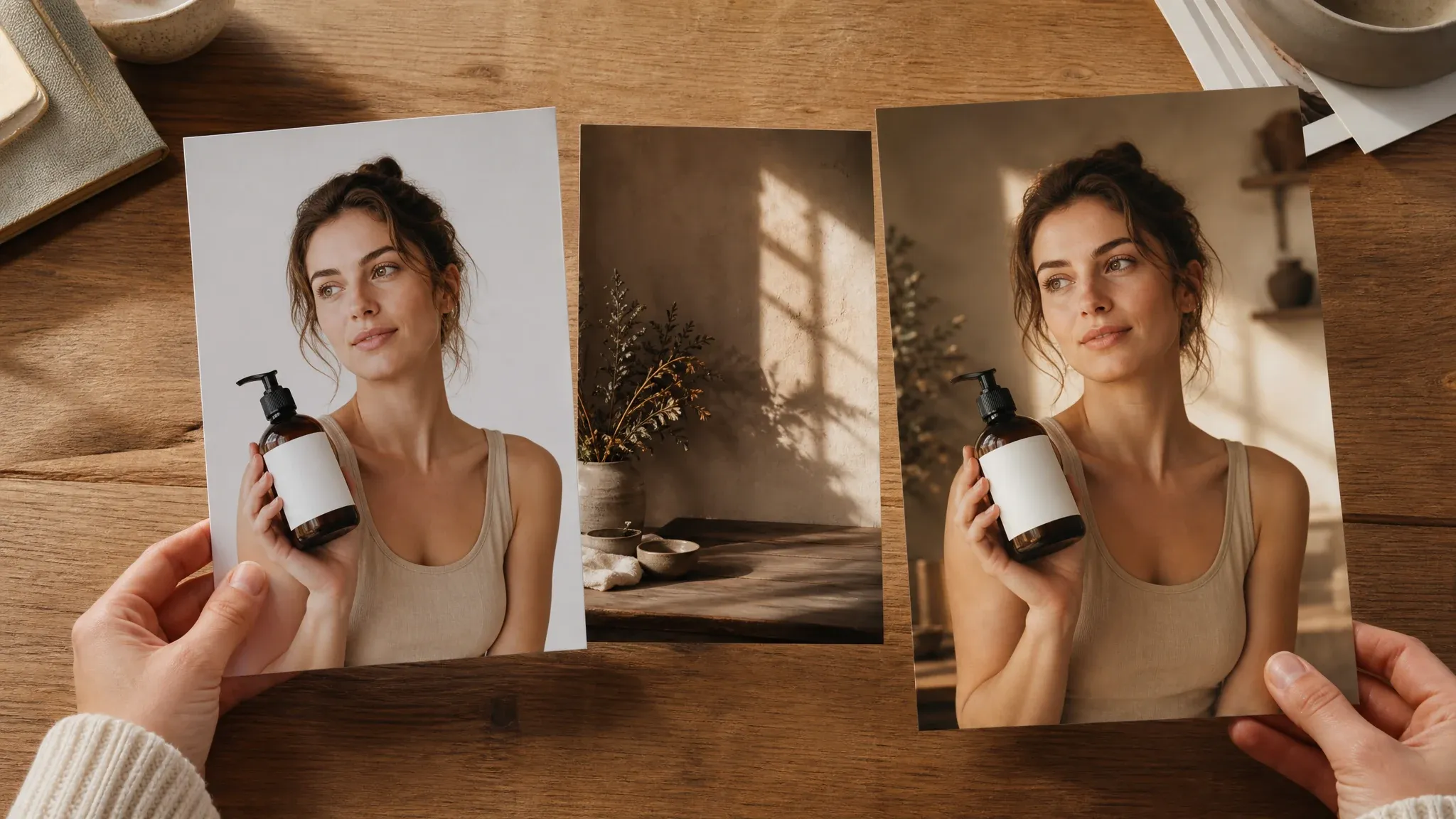
AI Background Changer
Keep the cleaned face, then move the portrait into a cleaner scene when the original background is distracting.
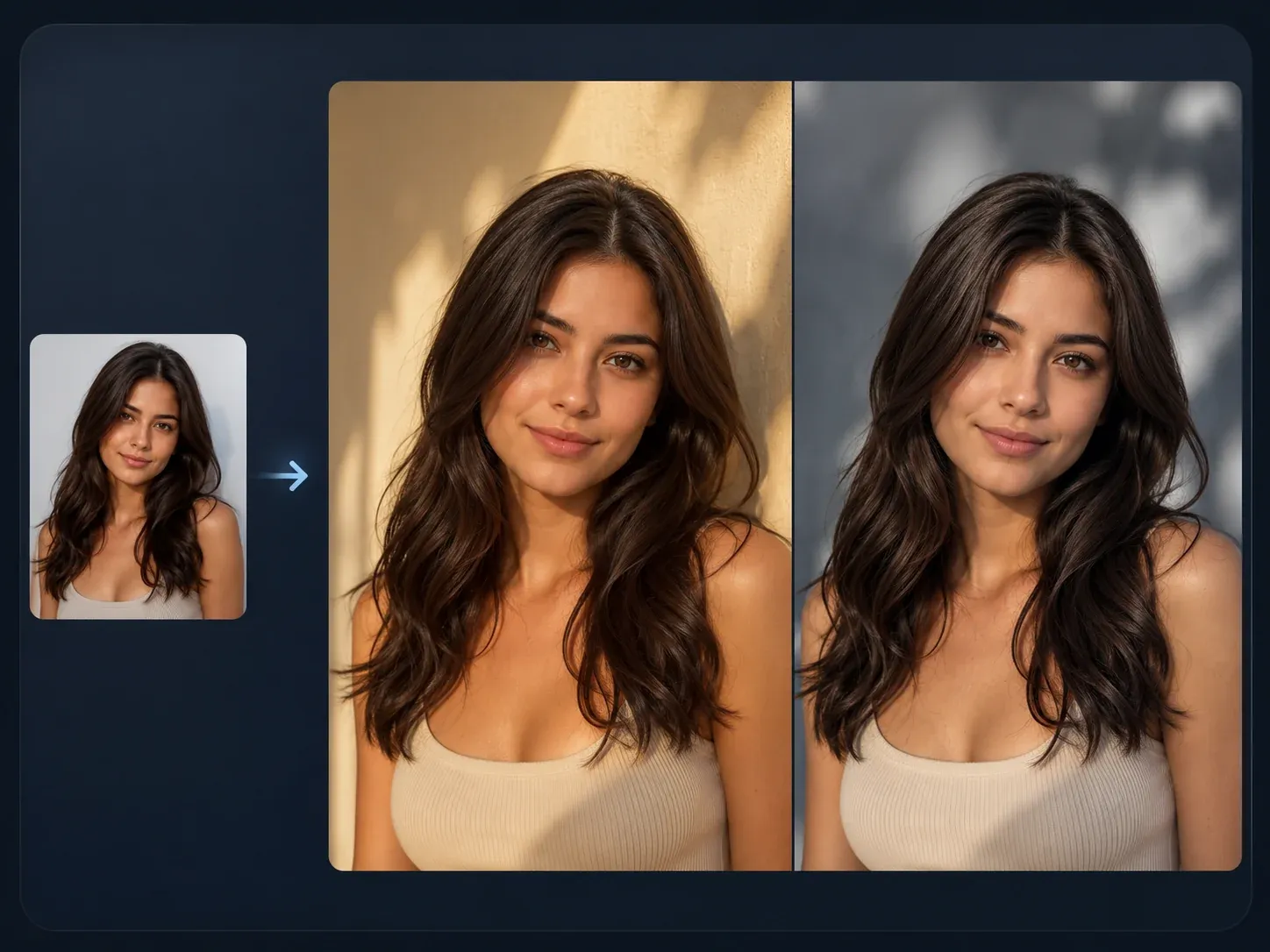
AI Image to Image
Use source-guided variation when you want a broader portrait restyle instead of only reducing blemishes.
AI Blemish Remover FAQ
Direct answers about acne cleanup, dark spots, freckles, source photos, exact targeting, natural skin texture, downloads, rights, and next-step editing.
It is an online portrait cleanup tool that reduces visible acne, pimples, dark spots, freckles, redness, and small temporary skin distractions from an uploaded photo.
Yes. Open the workbench and use the current free 1K cleanup output.
Use a clear selfie, headshot, profile portrait, creator image, or social photo with visible skin detail and good lighting. Very blurry, tiny, or dark images are less predictable.
Yes. Choose the acne and pimples mode, then use the optional note to describe what should be reduced and what should stay natural.
Yes. The dark spot mode is designed for small uneven marks, mild redness, and darker distractions while keeping makeup, facial hair, lighting, and face shape stable.
It can lightly soften freckles or tiny marks, but the best results often keep natural character. If specific freckles are part of their look, say that in the note.
Not as a deterministic brush tool. This workflow applies a prompt-guided cleanup pass across the portrait. For exact manual area control, use a dedicated editor with masking or brush controls.
That is the intended direction, especially when you choose subtle cleanup and write a note like keep pores visible. Still review the result because source quality and blemish severity affect the output.
No. It is useful for quick portrait cleanup, but professional retouching is still better for multi-photo workflows, exact zones, repeatable adjustment levels, and detailed client delivery.
Yes. When the edited image is ready, use the download control in the workbench and keep the tab open until processing finishes.
You are responsible for the rights to the source photo, the person in the image, and the final use. Do not process or publish portraits you are not allowed to use.
Try a lighter mode or shorter note, compare the history, then move the keeper into AI Image Editor for another local fix or AI Image Upscaler for sharper export.
Clean Up a Portrait with AI Blemish Remover
Upload one clear portrait, choose the blemish cleanup mode, preserve natural texture, and review the final image before download.