
Starting point
Ours
Upload one portrait, choose older, younger, or custom mode, then pick a life-stage preset.
Other workflows
Prompt-only tools can work, but they make users describe the whole age transformation from scratch.
Upload one clear portrait and create an older-self, younger-self, or custom age progression preview online. Choose the direction, pick a life-stage preset, set subtle, balanced, or strong strength, then review whether identity, pose, lighting, and background still feel believable before download. Free online.
Trusted by 12,000,000+ users worldwide.
Keep the workflow focused: upload one clear portrait, choose the age direction, then review whether the person still looks believable.
Use a clear single-person selfie, headshot, profile image, family photo crop, or character portrait with good light and visible facial features.
Pick the age direction, choose child, teen, young adult, middle age, elderly, or custom note, then set subtle, balanced, or strong strength.
Check identity, expression, hair, skin, eyes, pose, lighting, background, and realism before downloading, sharing, or refining.
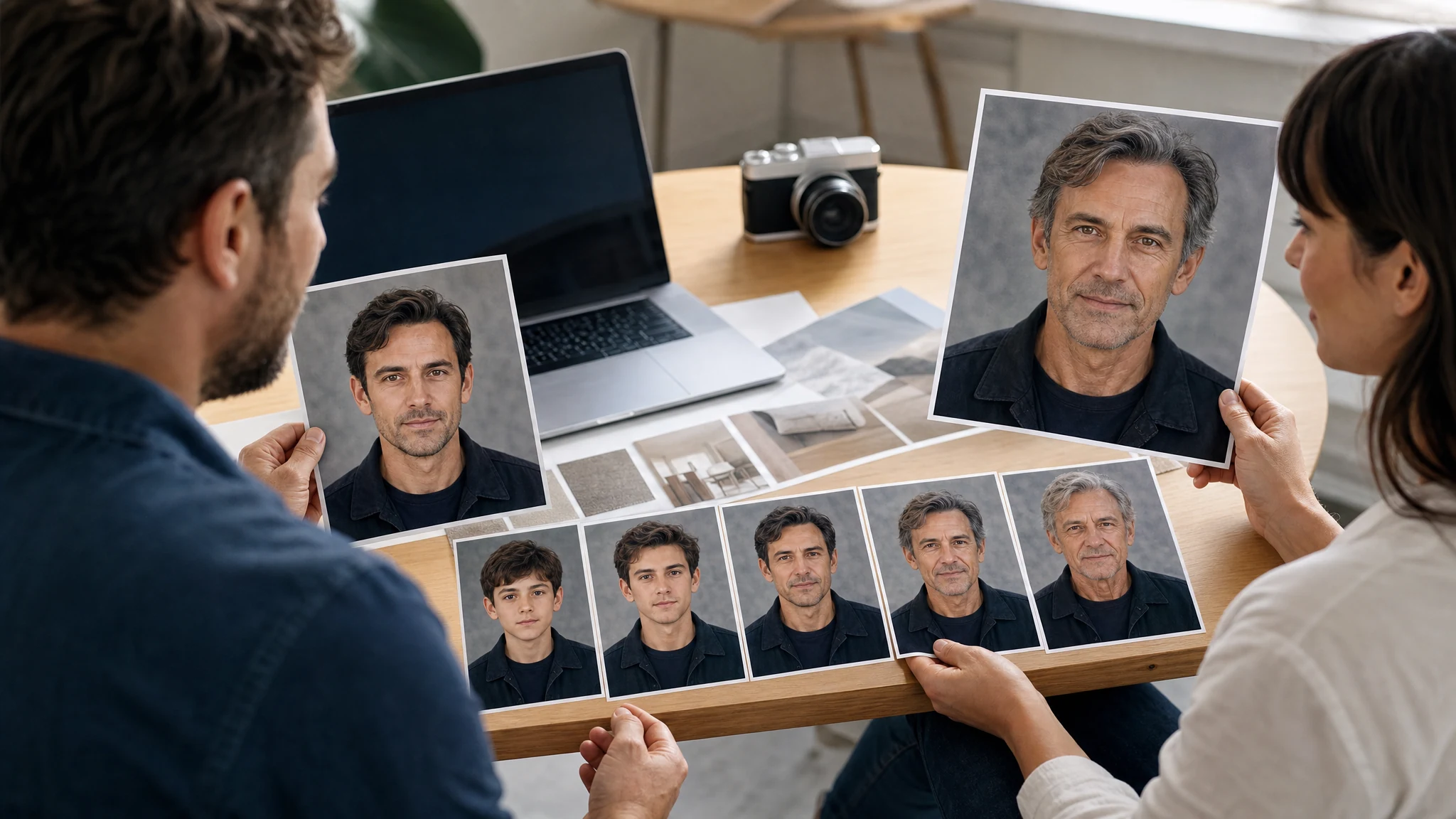
Use the AI age filter for future-self portraits, younger-self previews, family keepsakes, character timelines, social posts, and creative concepts.
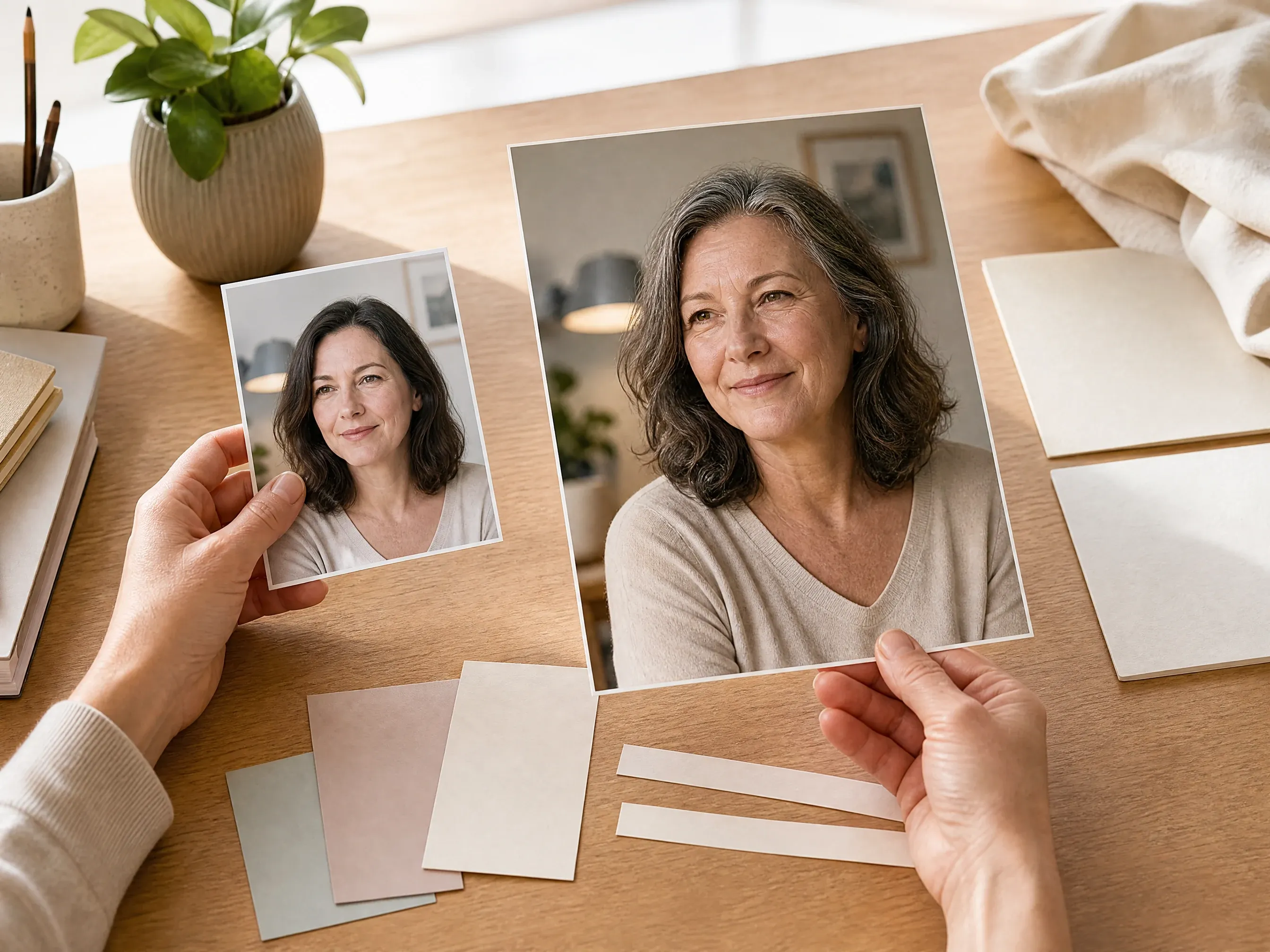
Create an older version of a portrait for entertainment, social trends, campaign concepts, or personal curiosity.
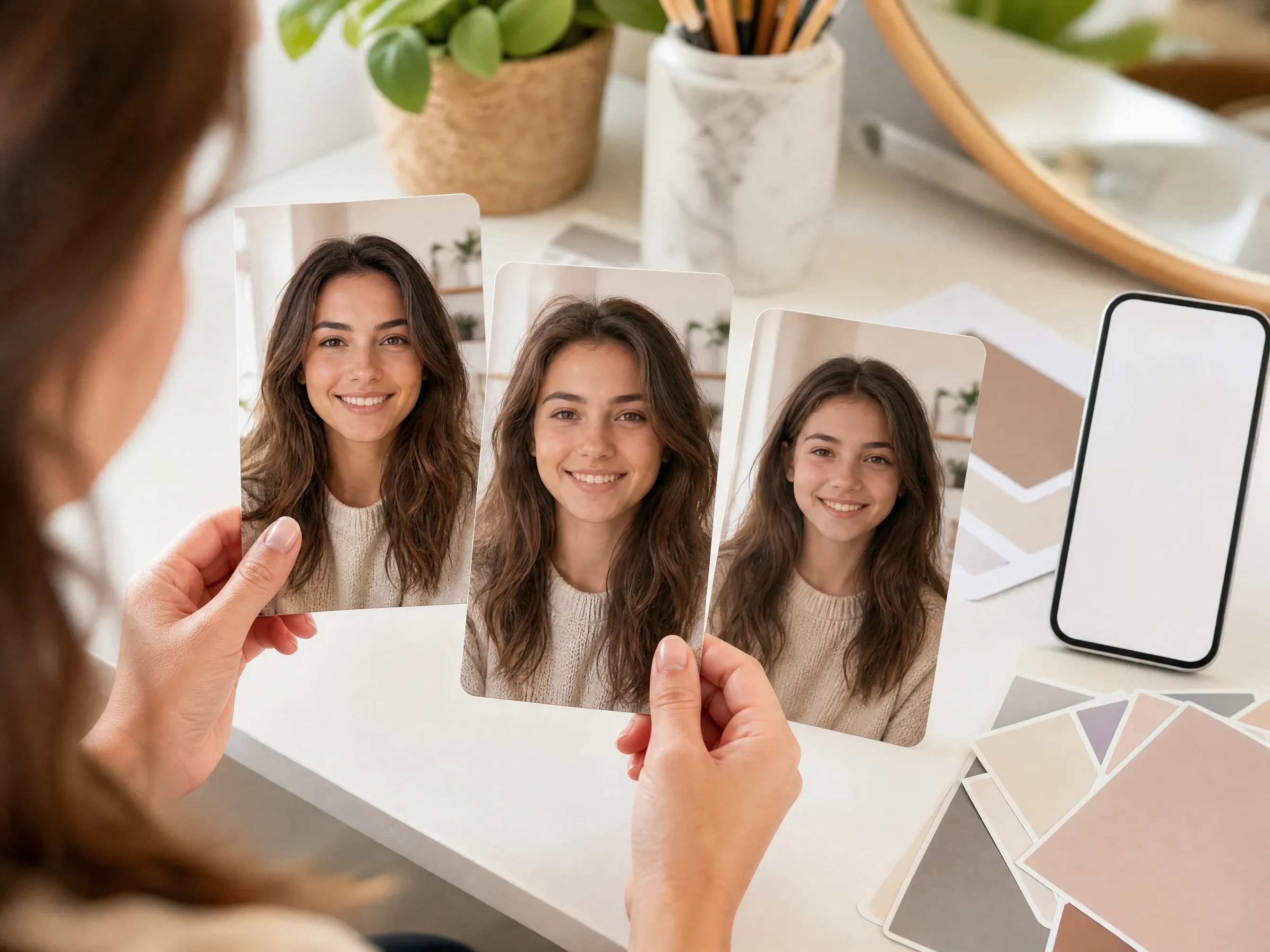
Try a younger adult or teen direction for throwback posts, storyboards, or playful profile experiments.
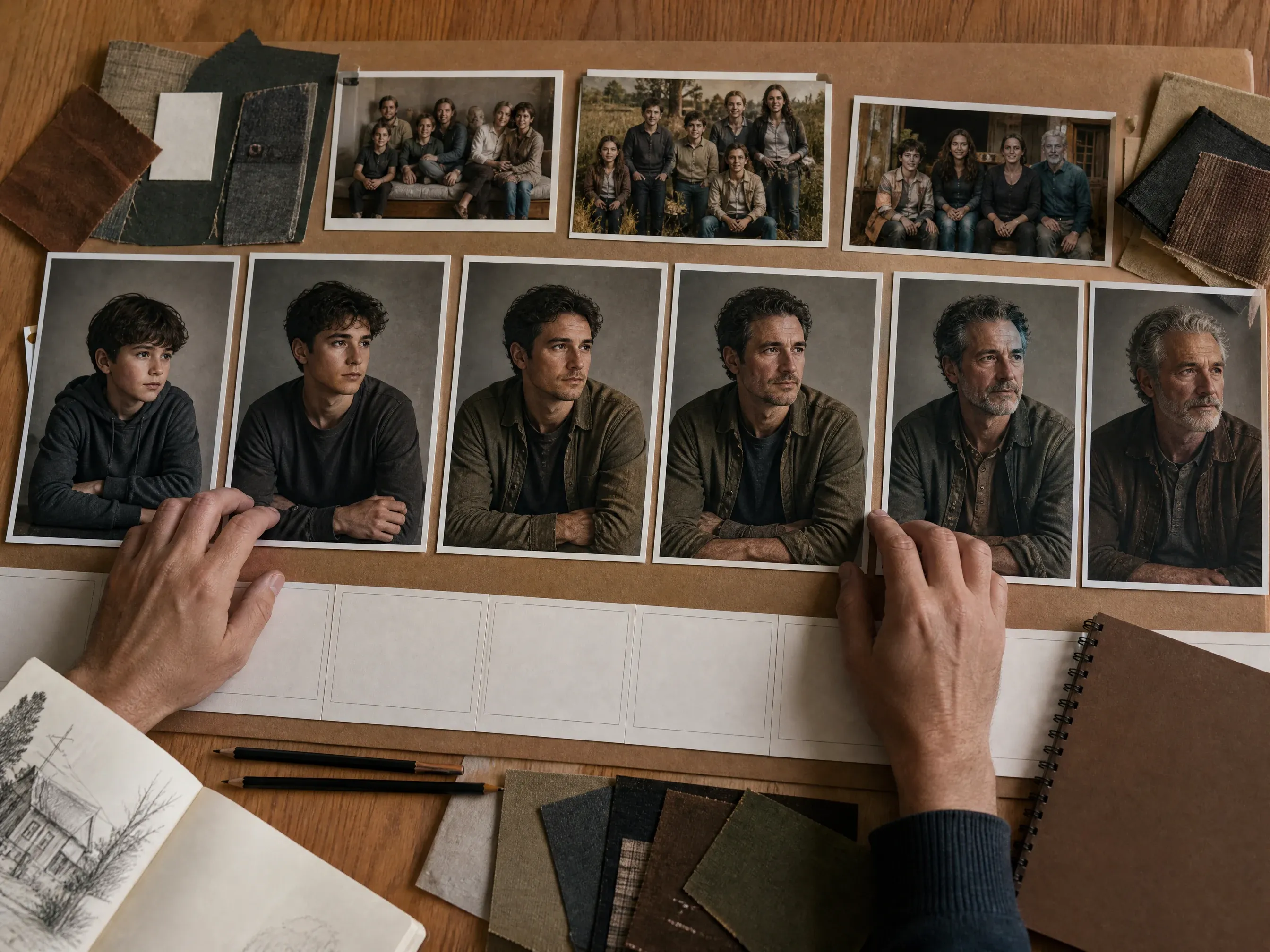
Create child, teen, adult, middle-age, and senior variations for fiction, film, games, and creator mood boards.
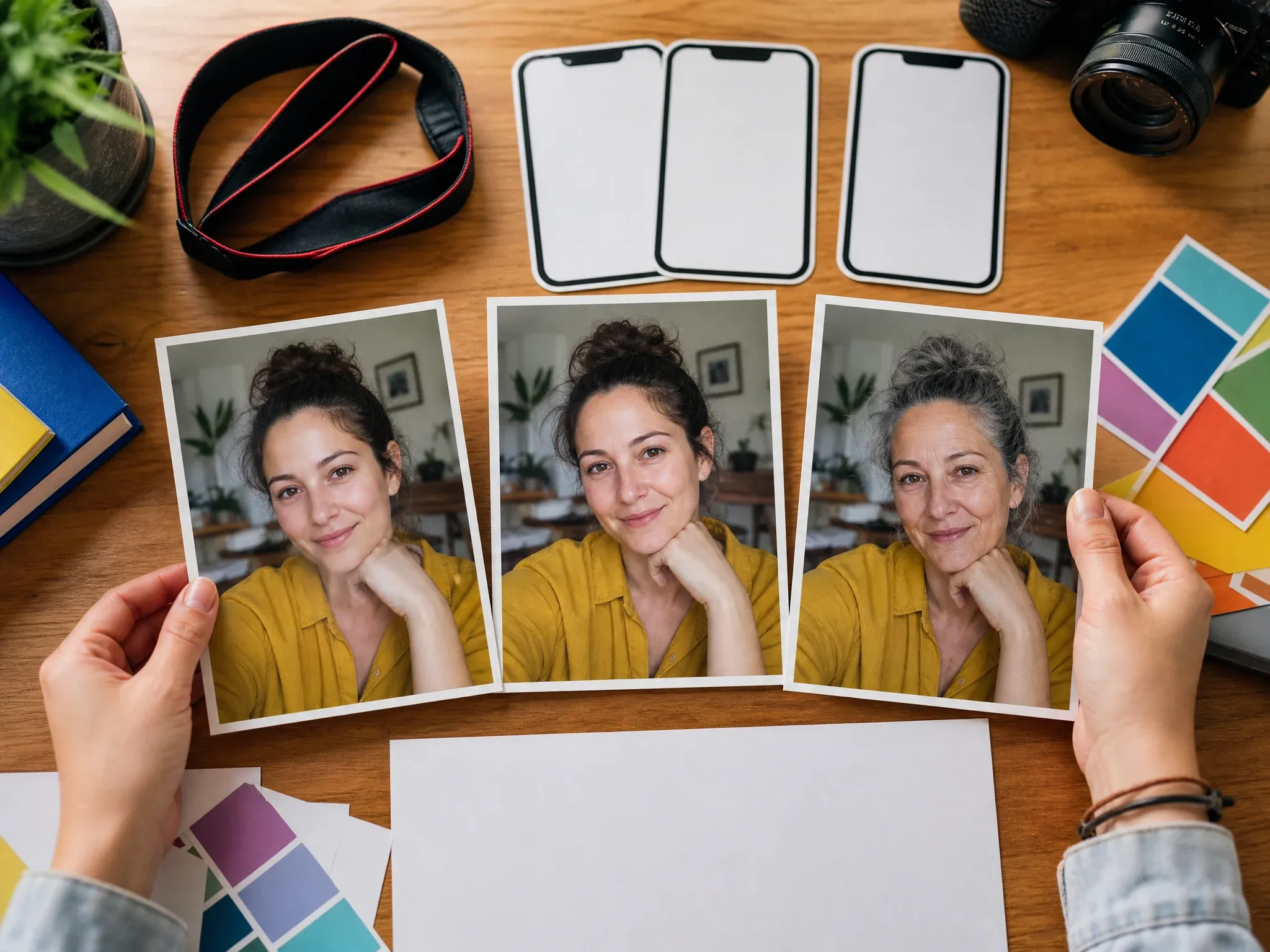
Compare source, older, and younger looks for TikTok, Instagram, thumbnails, and conversation-starting posts.
An AI age filter starts from your uploaded portrait and generates an older, younger, or custom life-stage version so you can visualize age progression or de-aging as a creative image edit.
The source image anchors the face, crop, pose, lighting, clothing, and background so the output stays tied to the original portrait.
Choose older, younger, or custom, then start from child, teen, young adult, middle age, elderly, or your own age note.
Age edits are convincing only when identity cues, eyes, mouth, hairline, skin texture, and background still feel believable.
Face AI keeps the age filter workflow practical: upload one portrait, pick the direction and preset, add a short note, generate, compare history, download, share, and continue into focused editing when needed.
The function area includes portrait upload, older/younger/custom mode, life-stage presets, strength, ratio, examples, history, download, share, and next-step tools.
Future self, younger self, child or teen timeline, middle-age preview, elderly concept, and social before-and-after flows are all visible.
Use the result as a creative age visualization rather than a scientific prediction. Year-by-year accuracy and perfectly identical facial details can vary between generations.
When the age result is close, continue into wrinkle remover, blemish remover, hair color changer, image-to-image, or upscaler instead of starting over.
A clear source portrait and a narrow age request usually matter more than a long prompt.
Avoid group photos, sunglasses, heavy filters, extreme side angles, covered faces, tiny screenshots, and strong blur.
Start with older or younger, then choose the nearest life stage. Mixing too many age cues can make the face inconsistent.
Use the note to keep face shape, eyes, smile, pose, clothing, lighting, hair style, and background stable where possible.
Use the result for entertainment, story, social, or creative planning, not as a scientific prediction of real aging.
Choose the workflow that matches the job. Face AI is for fast creative older or younger portraits from one source image, not exact biometric forecasting.
| Criteria | Face AIOurs Face AI age filter workflow | Other workflows |
|---|---|---|
| Starting point | Upload one portrait, choose older, younger, or custom mode, then pick a life-stage preset. | Prompt-only tools can work, but they make users describe the whole age transformation from scratch. |
| Best use | Future self, younger self, family keepsakes, social trends, character timelines, and creative concepts. | Mobile filter apps can be faster for playful selfies but often hide the prompt, history, or editing path. |
| Control | Direction, preset, strength, optional note, ratio, resolution, examples, history, download, and share. | Manual editors are better when exact wrinkles, hair, masks, or age cues must be controlled pixel by pixel. |
| Output boundary | Creative still-image visualization that should be reviewed before publishing. | Some pages imply exact age control, identity matching, or scientific future prediction without proving it. |
| Privacy and rights | Use portraits you have permission to process and avoid sensitive, misleading, or public-figure age edits. | Terms, storage, and deletion claims vary by service and should be checked before sensitive uploads. |
| Next step | Move the keeper into wrinkle remover, blemish remover, hair color changer, image-to-image, or upscaler when another issue remains. | Single-purpose age filters often stop at one result with fewer refinement paths. |
Upload one portrait, choose older, younger, or custom mode, then pick a life-stage preset.
Prompt-only tools can work, but they make users describe the whole age transformation from scratch.
Future self, younger self, family keepsakes, social trends, character timelines, and creative concepts.
Mobile filter apps can be faster for playful selfies but often hide the prompt, history, or editing path.
Direction, preset, strength, optional note, ratio, resolution, examples, history, download, and share.
Manual editors are better when exact wrinkles, hair, masks, or age cues must be controlled pixel by pixel.
Creative still-image visualization that should be reviewed before publishing.
Some pages imply exact age control, identity matching, or scientific future prediction without proving it.
Use portraits you have permission to process and avoid sensitive, misleading, or public-figure age edits.
Terms, storage, and deletion claims vary by service and should be checked before sensitive uploads.
Move the keeper into wrinkle remover, blemish remover, hair color changer, image-to-image, or upscaler when another issue remains.
Single-purpose age filters often stop at one result with fewer refinement paths.
Age edits are useful only when the person still feels recognizable and the image still looks like a real portrait.
Check eyes, mouth, smile, face shape, hairline, and expression for unwanted drift.
Look for believable skin, hair, face volume, texture, and lighting instead of a flat filter or plastic retouch.
Confirm you can use the source portrait and final image, especially for public posts, work, ads, or family photos.
These comments focus on the practical loop: choose an age direction, keep the portrait believable, compare history, then download or refine.
"The useful part is the age edit workflow: choose older, younger, or custom, then review whether the portrait still feels like the same person."

Kai Nakamura
Global Creative Director
"We use older-self and younger-self results for early social concepts. The page is clear that it is a creative portrait preview, not a scientific prediction."

Nina Volkov
Visual Design Director
"The results are most useful as creative age directions. Exact years, genetics, and fine identity details can vary, so every portrait still needs a visual review."

Rafael Santos
VP of Creative
"The presets help non-design teammates brief the job quickly: child, teen, young adult, middle age, elderly, or a custom note."

Priya Chen
Creative Strategy Lead
"History comparison is useful because a subtle age pass and a strong age pass can feel like totally different stories from the same portrait."

Devon Park
Interactive Creative Director
"Clear front-facing portraits work best. Group photos, sunglasses, tiny screenshots, and heavy filters made the age result less predictable."

Mia Torres
Design Director
"The useful part is the age edit workflow: choose older, younger, or custom, then review whether the portrait still feels like the same person."
Kai Nakamura
Global Creative Director
"We use older-self and younger-self results for early social concepts. The page is clear that it is a creative portrait preview, not a scientific prediction."
Nina Volkov
Visual Design Director
"The results are most useful as creative age directions. Exact years, genetics, and fine identity details can vary, so every portrait still needs a visual review."
Rafael Santos
VP of Creative
"The presets help non-design teammates brief the job quickly: child, teen, young adult, middle age, elderly, or a custom note."
Priya Chen
Creative Strategy Lead
"History comparison is useful because a subtle age pass and a strong age pass can feel like totally different stories from the same portrait."
Devon Park
Interactive Creative Director
"Clear front-facing portraits work best. Group photos, sunglasses, tiny screenshots, and heavy filters made the age result less predictable."
Mia Torres
Design Director
"For character timelines, the custom note helps us keep pose, expression, lighting, and background stable while changing the life stage."

Zeke Williams
Senior Art Director
"The useful part is the age edit workflow: choose older, younger, or custom, then review whether the portrait still feels like the same person."
Kai Nakamura
Global Creative Director
"We use older-self and younger-self results for early social concepts. The page is clear that it is a creative portrait preview, not a scientific prediction."
Nina Volkov
Visual Design Director
"The results are most useful as creative age directions. Exact years, genetics, and fine identity details can vary, so every portrait still needs a visual review."
Rafael Santos
VP of Creative
"The presets help non-design teammates brief the job quickly: child, teen, young adult, middle age, elderly, or a custom note."
Priya Chen
Creative Strategy Lead
"History comparison is useful because a subtle age pass and a strong age pass can feel like totally different stories from the same portrait."
Devon Park
Interactive Creative Director
"Clear front-facing portraits work best. Group photos, sunglasses, tiny screenshots, and heavy filters made the age result less predictable."
Mia Torres
Design Director
"For character timelines, the custom note helps us keep pose, expression, lighting, and background stable while changing the life stage."
Zeke Williams
Senior Art Director
"I like that the page treats future-self images as story visuals. It asks us to check identity, hairline, skin texture, and background before download."

Marie Laurent
Storytelling & Brand Lead
"The FAQ is clear about the important limit: real aging depends on genetics, lifestyle, health, and time, so the result is a creative visualization."

Astrid Nielsen
Head of Thought Leadership
"For profile and creator content, the subtle setting is often enough. It looks more like a believable age direction than a joke filter."

Charlotte Beaumont
Director of Content Operations
"If the result is close but soft, the next step into upscaling makes sense. If skin details need cleanup, the related retouch tools are nearby."

Yifan Zheng
Demand Generation Lead
"The creator use case is practical: upload one portrait, compare older and younger versions, then decide if the image is safe to share."

Jordan Kim
Growth Lead
"The life-stage presets make it easy to explore older and younger looks while keeping the result clearly framed as a creative portrait effect."

Aaliyah Williams
Digital Marketing Director
"The best results came from a simple source portrait and one age direction. Long prompts mattered less than a clean face, light, and review step."

Jieun Park
Growth Marketing Lead
"I like that the page treats future-self images as story visuals. It asks us to check identity, hairline, skin texture, and background before download."
Marie Laurent
Storytelling & Brand Lead
"The FAQ is clear about the important limit: real aging depends on genetics, lifestyle, health, and time, so the result is a creative visualization."
Astrid Nielsen
Head of Thought Leadership
"For profile and creator content, the subtle setting is often enough. It looks more like a believable age direction than a joke filter."
Charlotte Beaumont
Director of Content Operations
"If the result is close but soft, the next step into upscaling makes sense. If skin details need cleanup, the related retouch tools are nearby."
Yifan Zheng
Demand Generation Lead
"The creator use case is practical: upload one portrait, compare older and younger versions, then decide if the image is safe to share."
Jordan Kim
Growth Lead
"The life-stage presets make it easy to explore older and younger looks while keeping the result clearly framed as a creative portrait effect."
Aaliyah Williams
Digital Marketing Director
"The best results came from a simple source portrait and one age direction. Long prompts mattered less than a clean face, light, and review step."
Jieun Park
Growth Marketing Lead
Pick the next Face AI tool based on what still blocks the image: wrinkle detail, skin cleanup, hair color, broader source editing, or sharper export.
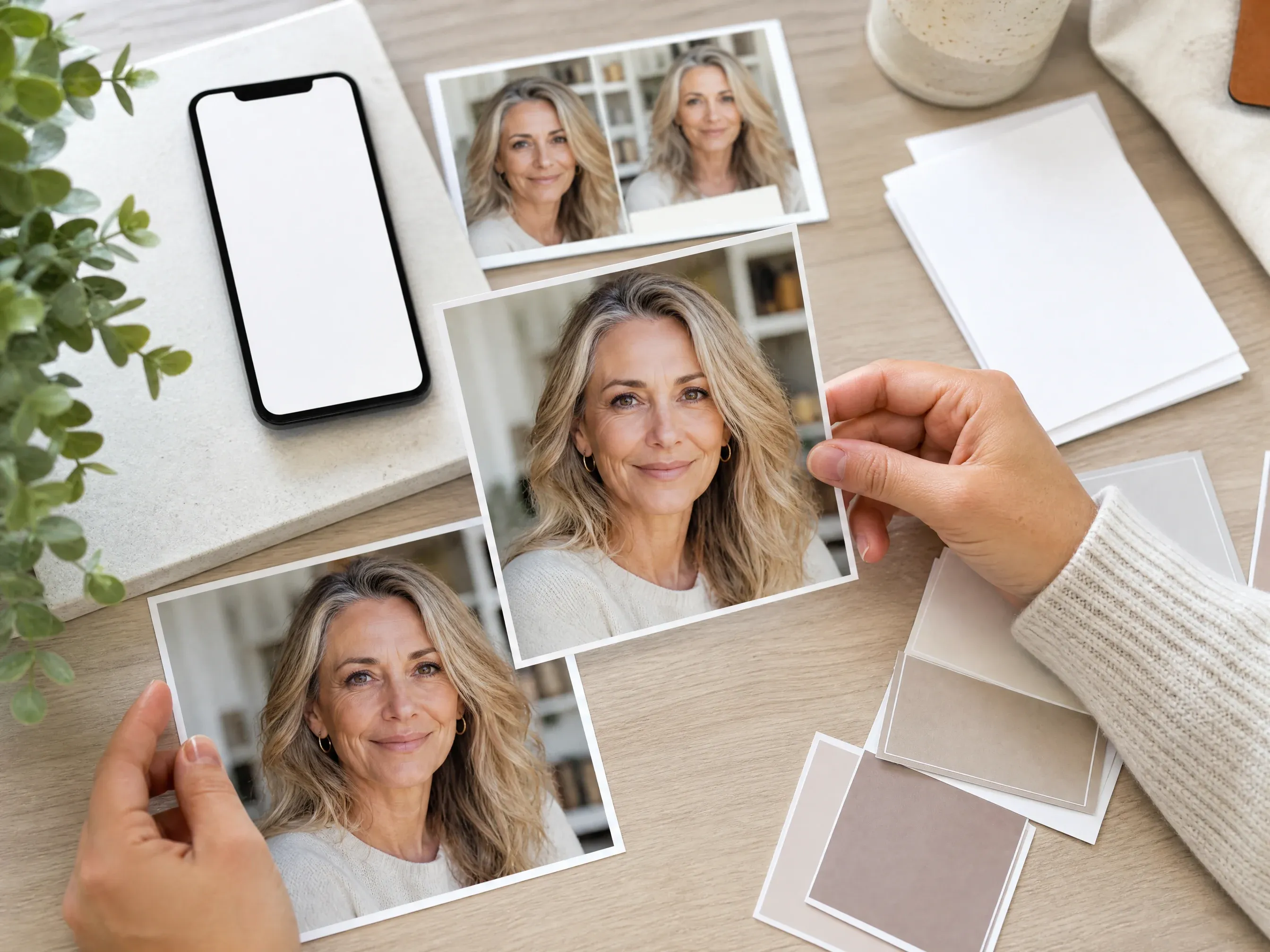
Use a focused wrinkle pass when the age result is close but fine lines need a more natural retouch.
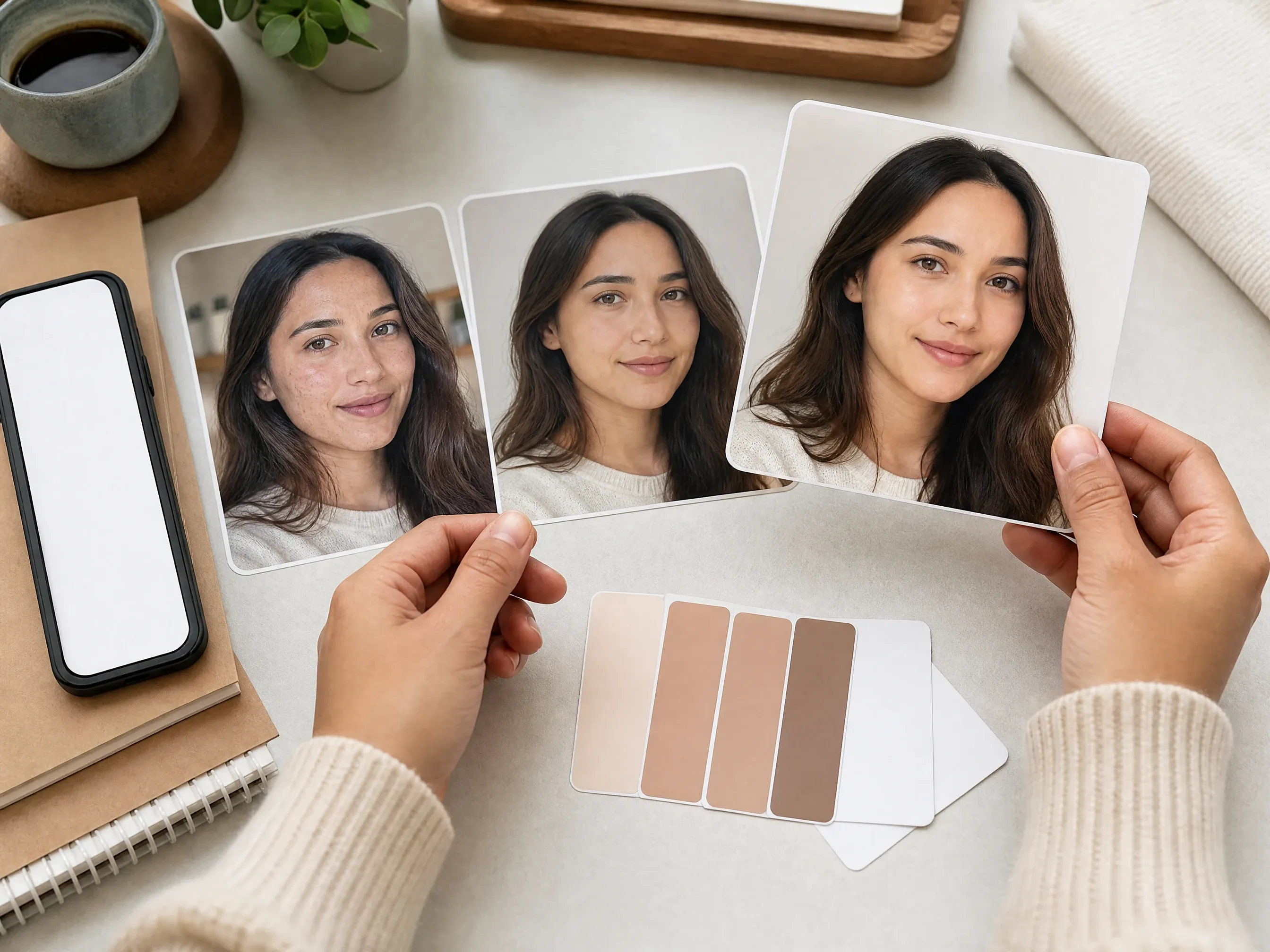
Clean temporary marks or skin distractions after choosing the age direction you want to keep.
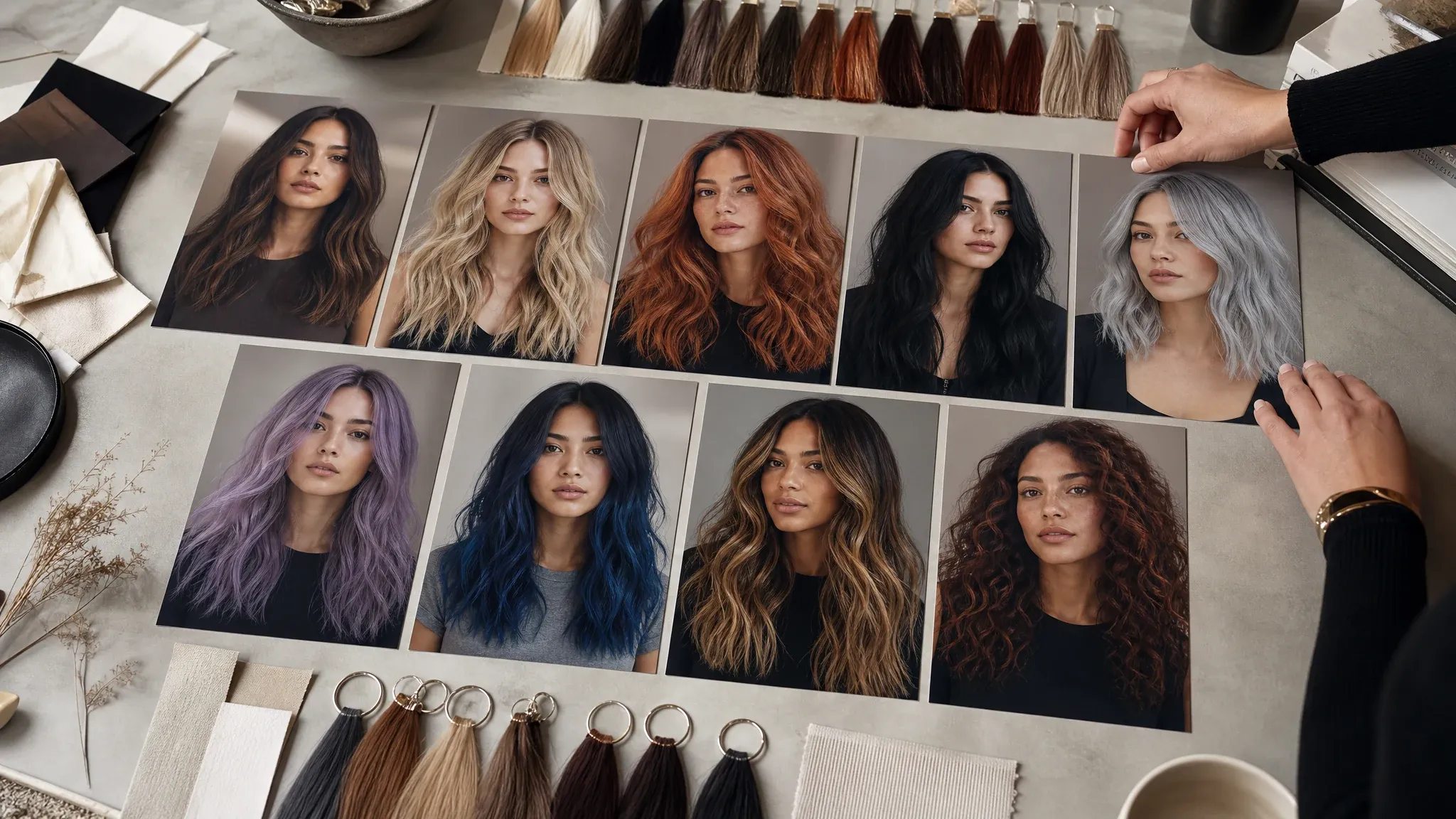
Try gray hair, a younger shade, or a character timeline color after the age edit looks right.
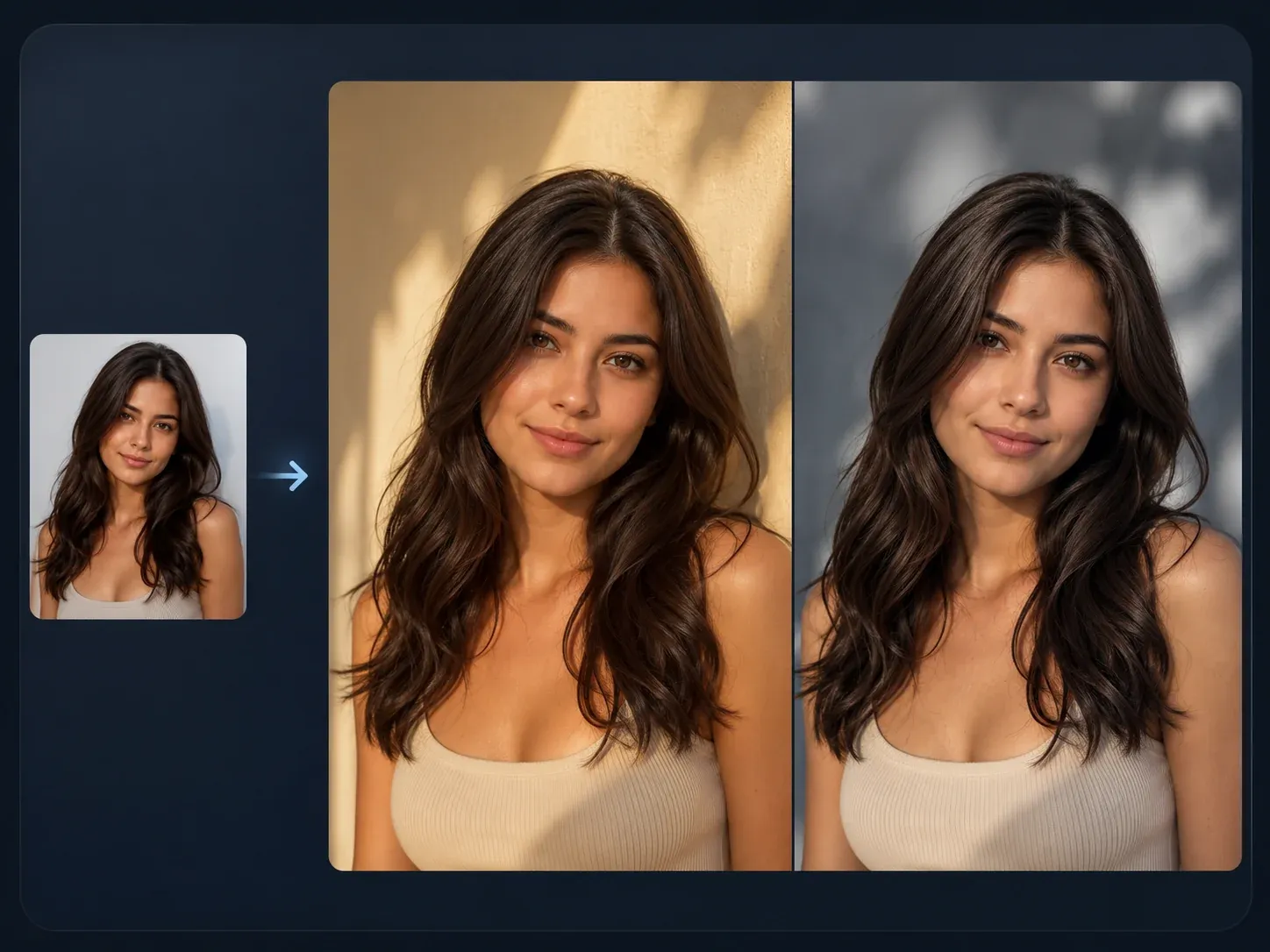
Move into broader source-guided editing when the idea needs more than an age progression pass.
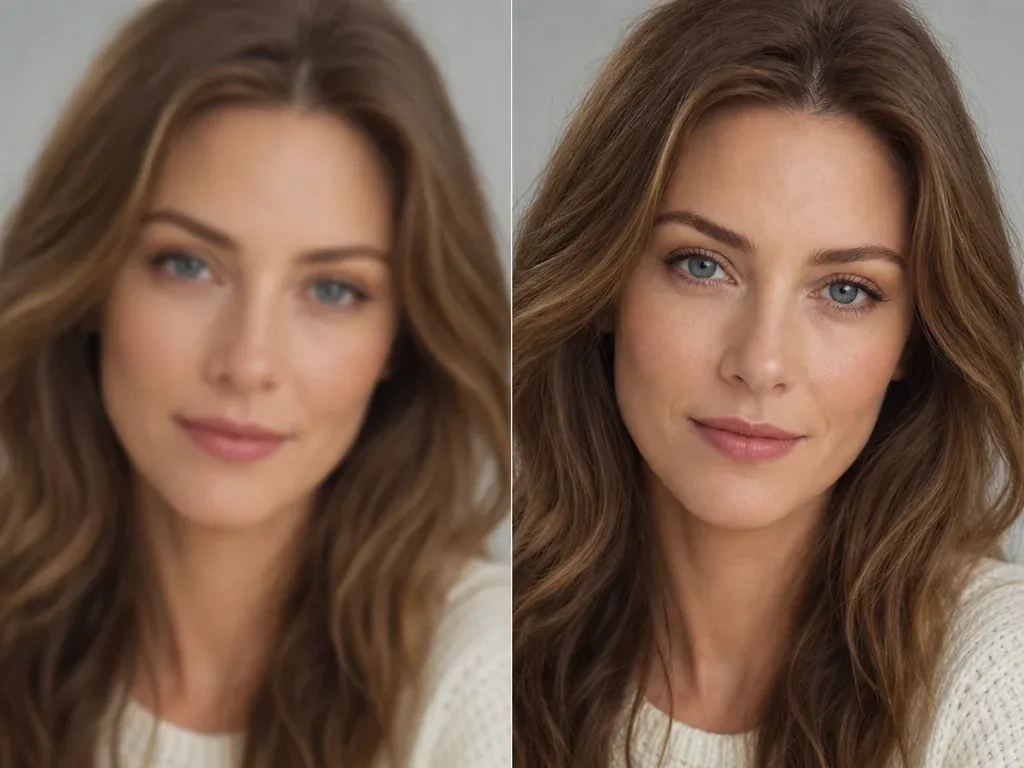
Sharpen the selected age filter result before saving it for a profile, story, or social post.
Direct answers about older and younger portraits, presets, exact age limits, source photos, downloads, privacy, rights, and next-step editing.
It is an online portrait tool that creates an older, younger, or custom life-stage version from one uploaded photo. Use it for entertainment, creative planning, and visual timelines.
Yes. Upload one portrait, choose older or younger mode, pick a preset, generate, then review the result before downloading or sharing.
Use a clear single-person portrait with visible eyes, face shape, hairline, and normal lighting. Group photos, covered faces, sunglasses, heavy blur, or tiny screenshots are less reliable.
Choose a life-stage preset and add a custom note for the look you want. The result is a creative interpretation, so a precise year-by-year age cannot be guaranteed.
You can start from child, teen, young adult, middle age, elderly, or a custom age note, then choose subtle, balanced, or strong strength.
The workflow asks the model to preserve recognizable facial cues, face shape, expression, pose, lighting, and background where possible. Review the result because fine identity details can still vary.
No. AI age filtering is a creative visualization. Real aging depends on genetics, lifestyle, health, lighting, and time, so treat the result as entertainment or concept art.
No. Use one clear portrait. Group-photo editing needs a face picker, so this workflow is designed for one person at a time.
Avoid public figures, fake endorsements, impersonation, protected brands, and misleading identity claims. Use portraits you have permission to process.
Yes. When the generated image is ready, use the download control in the workbench and keep the tab open until processing finishes.
Yes, use the workbench share flow when available. Review the portrait first, especially if another person appears in the source photo.
Try a different strength or shorter note, compare history, then move the keeper into wrinkle remover, blemish remover, image editor, or upscaler for focused refinement.
Upload a clear portrait, choose older or younger, preserve identity cues, and review the final image before download.