
Starting point
Unser
Upload one photo that already has the subject, crop, and direction you want to keep.
Other approaches
Basic resizing can enlarge the file but usually makes pixelation more visible.
Upload a soft portrait, product shot, old scan, social image, or AI draft and run a cleaner 2x or 4x clarity pass before download. Use it when the photo is worth keeping but the export looks too small, fuzzy, or flat. No sign-up. No watermark.
Trusted by 12,000,000+ users worldwide.
Choose a source worth saving, pick the scale, then inspect the clearer result before publishing or sending it to another FaceAI tool.
Choose a portrait, product shot, old scan, social image, or AI draft with one clear subject and enough real detail for the model to read.
Start with 2x for web, thumbnails, and review decks. Try 4x when the source is clean and you need a larger export.
Compare the enhanced photo, download it, or move to editor, image-to-image, video, or talking photo when the asset needs another pass.
Use the enhancer for five practical jobs: profile clarity, product detail, old-photo sharing, social/design exports, and sharpening AI-generated drafts before the next creative step.
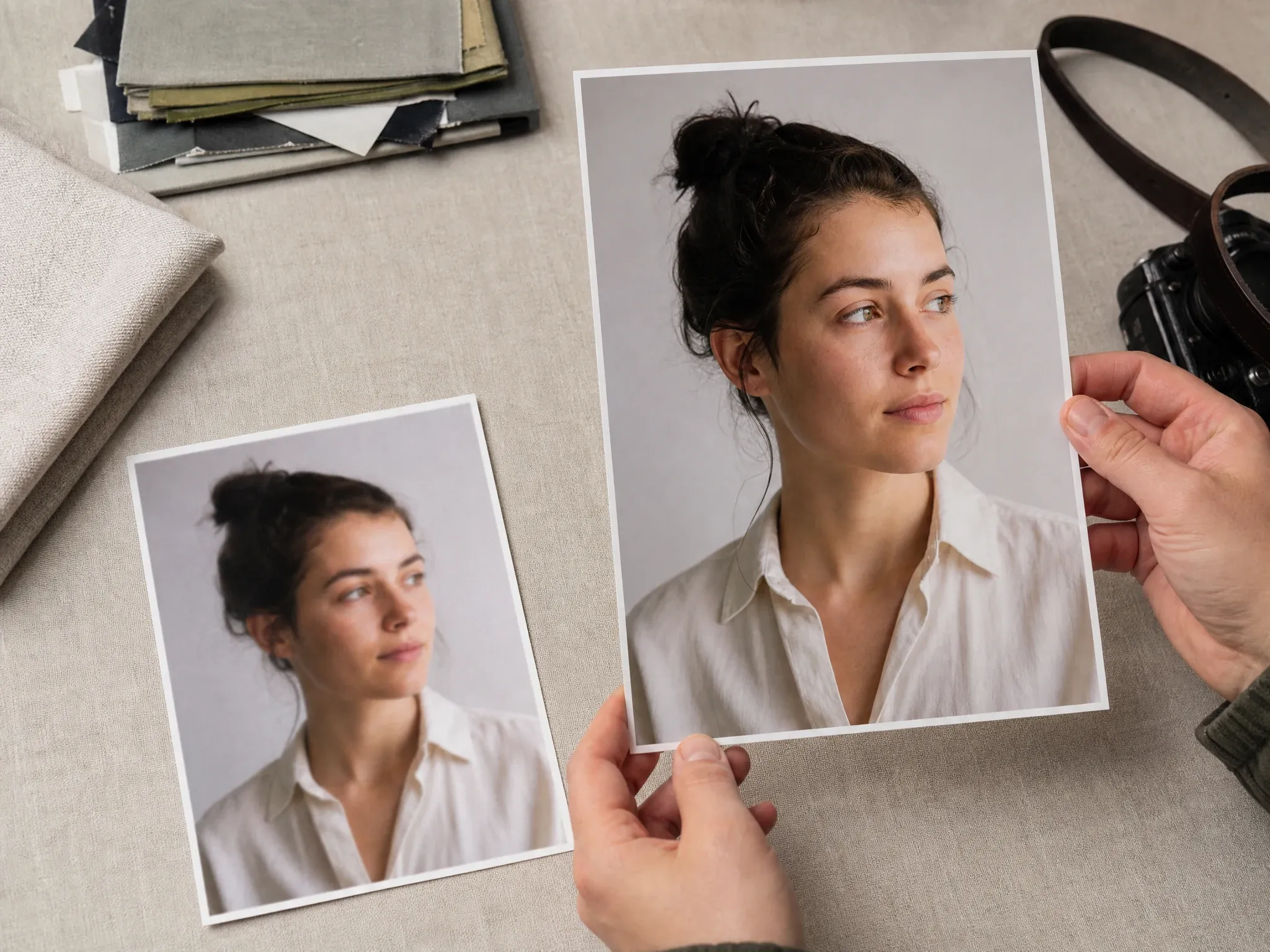
Make portrait thumbnails, creator bios, and profile images cleaner before publishing. Still inspect eyes, hair, teeth, and identity-sensitive details after enhancement.
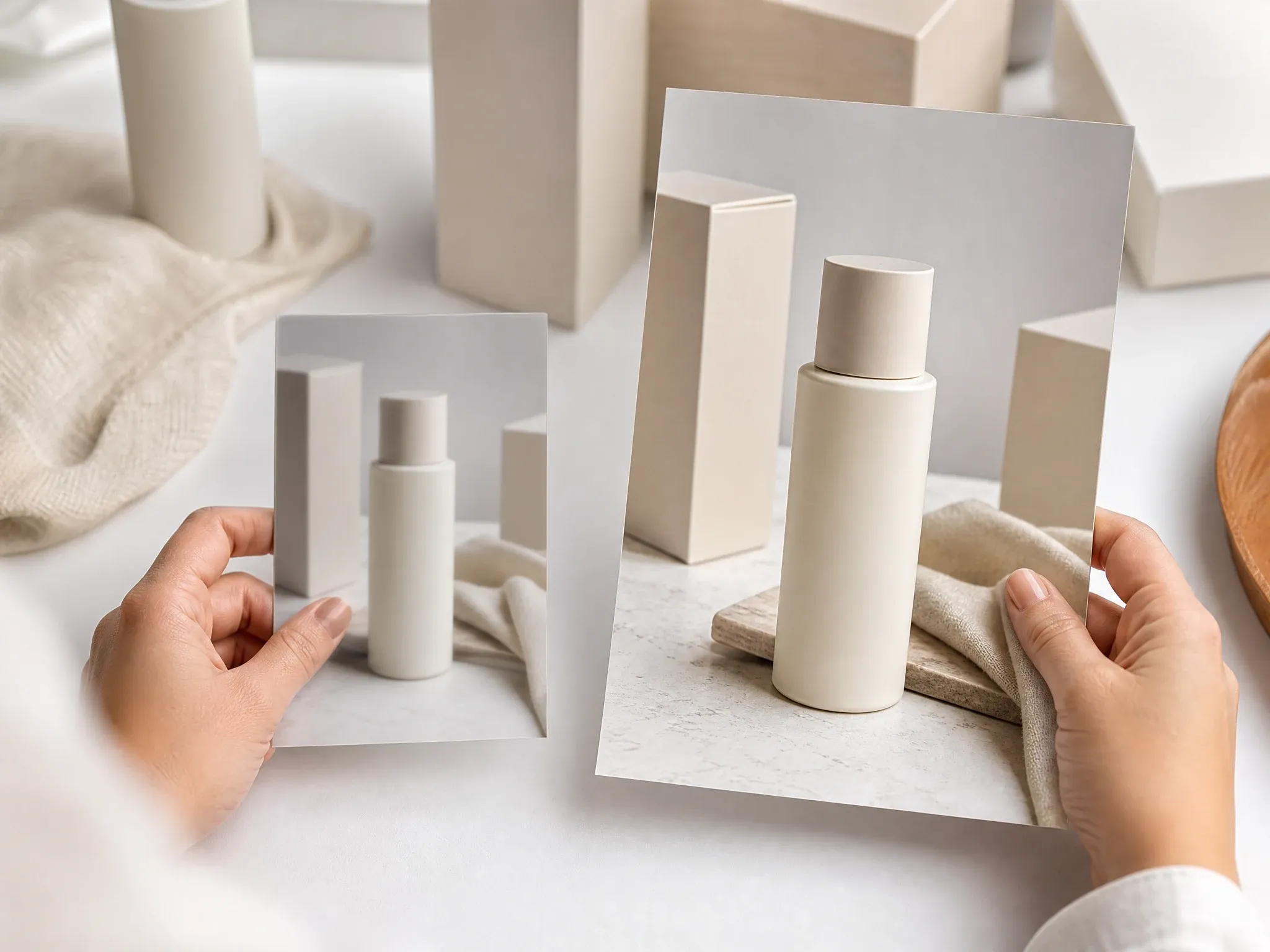
Improve small supplier shots, soft pack images, and ecommerce drafts so edges and materials are easier to review before listing or editing.
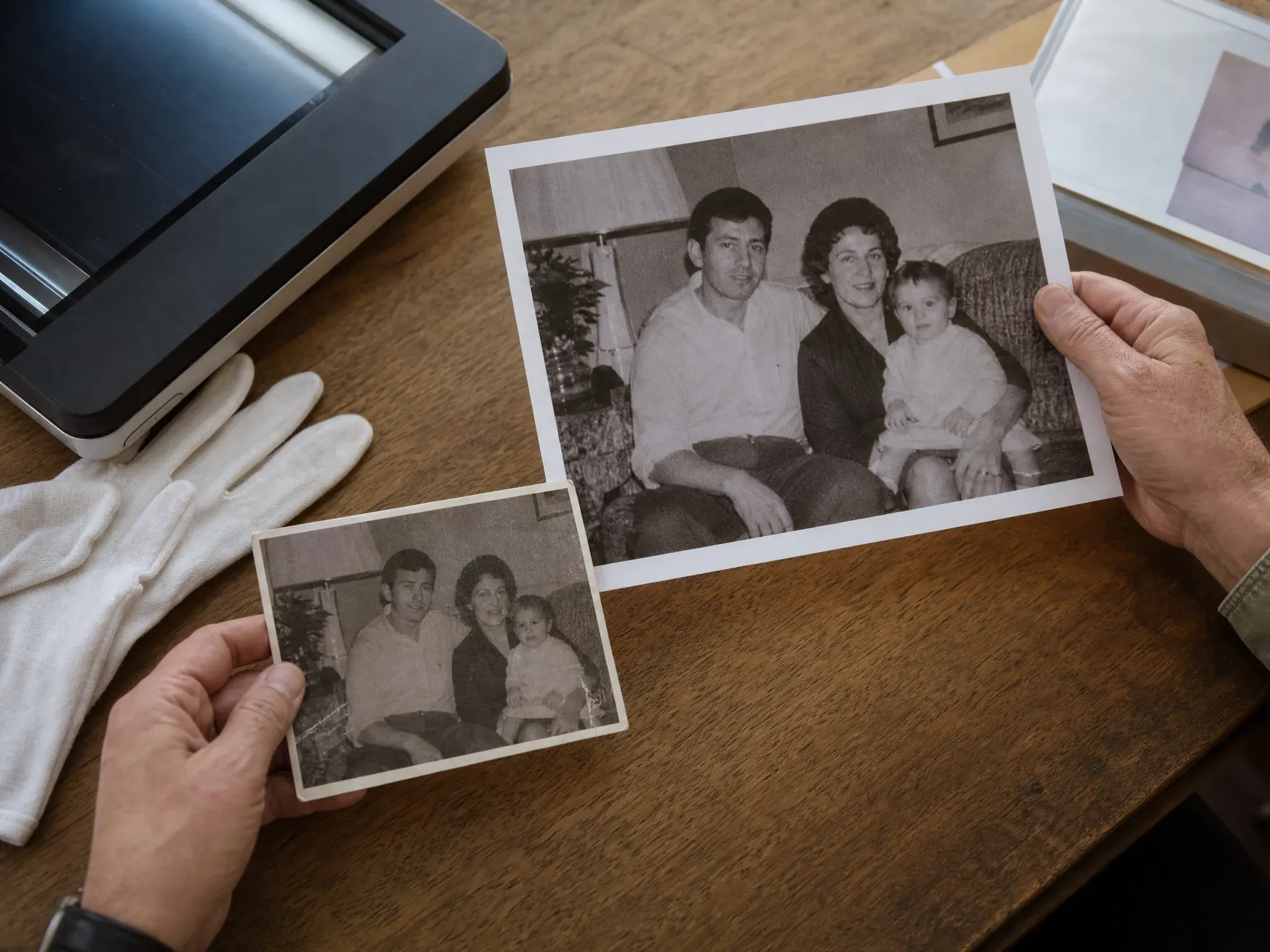
Prepare archive photos for sharing or display. Use the clearest scan you have and check faces, clothing, and background details after the clarity pass.
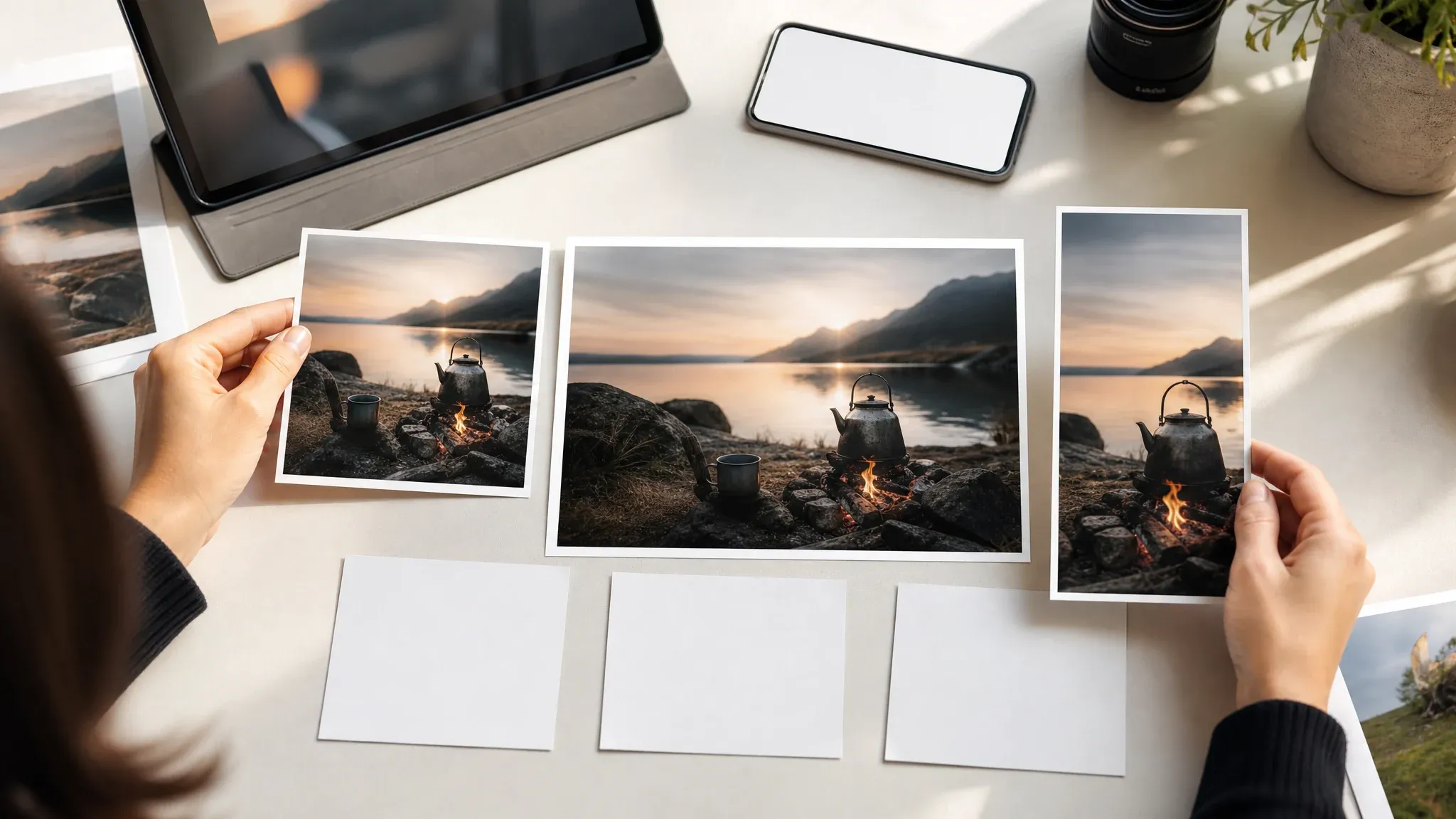
Turn a small approved visual into a cleaner image for thumbnails, slide decks, blog covers, and campaign layouts before adding final typography elsewhere.
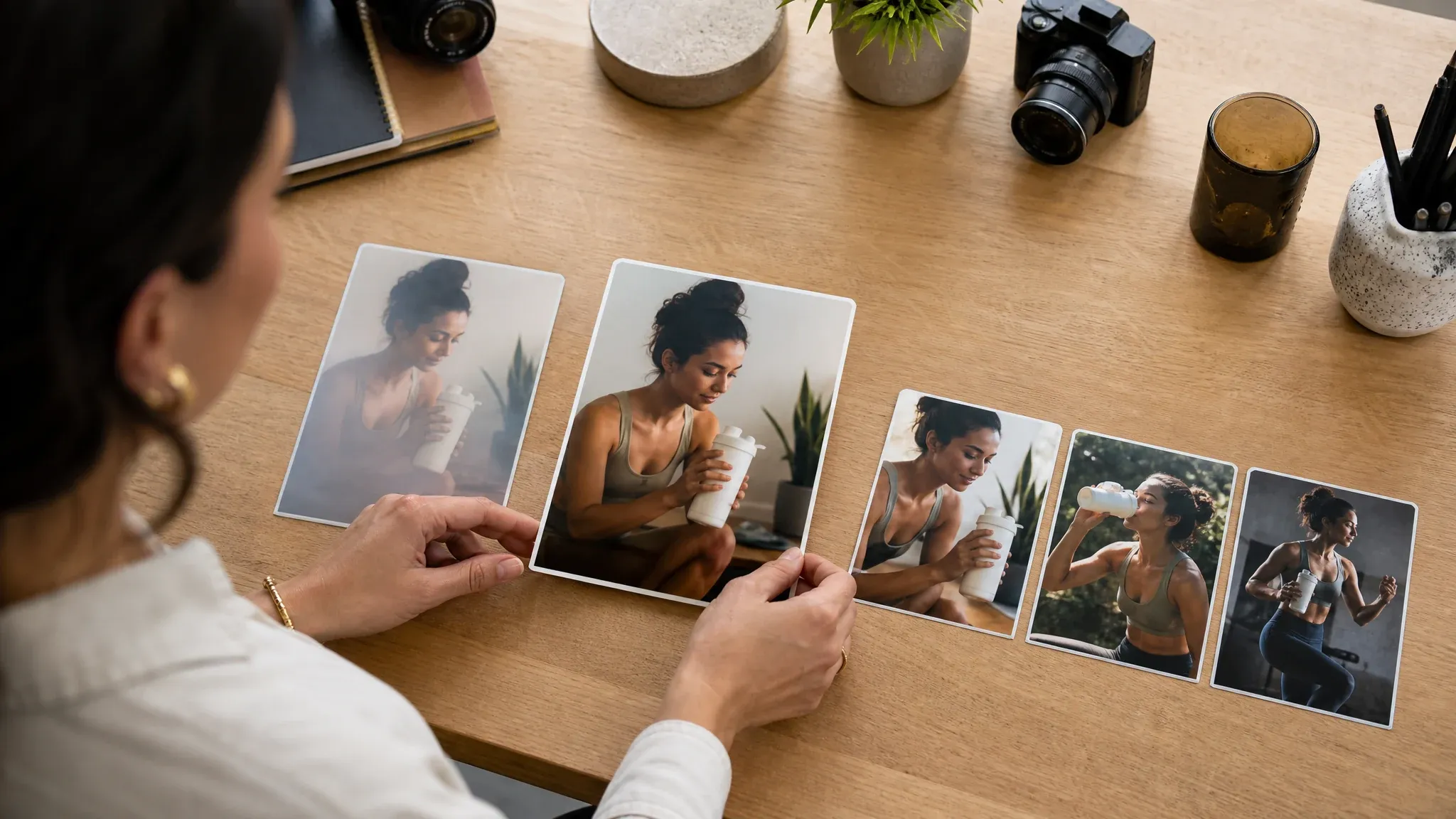
When the generated image has the right mood but a soft finish, enhance it before the editor, image-to-image, video generator, or talking photo handoff.
An AI photo enhancer improves a source photo by increasing resolution and rebuilding sharper-looking detail where the image gives enough information. It is stronger than basic resizing because it uses image context instead of only stretching pixels.
The tool can make soft photos easier to review, share, or continue editing when the source still contains readable structure.
Enhancement is a clarity step, not a full restyle. The crop and main subject should stay familiar while the output becomes easier to use.
If the subject, pose, background, or product angle is wrong, fix that first. Enhance after the direction is already close.
The page keeps the actual photo enhancer first, then gives you the next creative choices around it. That matters when enhancement is one step in a larger workflow.
You can upload and test the photo before reading the whole page. People came to enhance an image, so the workspace comes first.
Generated, edited, source-guided, portrait, and product assets can all move through enhancement when the frame is right but the export is soft.
The workbench keeps the decision direct: 2x for a safer clarity pass, 4x when the source is clean enough for larger use.
Extreme blur, tiny text, exact logos, and identity-sensitive faces still need human review. That honesty prevents bad publishes.
Enhancement works best with a usable source photo. Start with the sharpest file you have, then use FaceAI for a cleaner, clearer export.
Try the enhancerA small sharp photo is better than a large blurry one. Avoid screenshots with heavy compression when you have the original file.
A lighter pass is easier to inspect. If it looks natural, try 4x for a bigger export.
Faces, hands, product labels, logos, jewelry, teeth, and dense textures can change subtly after enhancement.
If the clearer result exposes a bad background, stray object, or lighting issue, move it into AI Image Editor for one focused fix.
Use this table to pick the right workflow. Photo enhancement is best when the image is already close and the main issue is softness or low resolution.
| Kriterium | Face AIUnser Photo clarity workflow | Other approaches |
|---|---|---|
| Starting point | Upload one photo that already has the subject, crop, and direction you want to keep. | Basic resizing can enlarge the file but usually makes pixelation more visible. |
| Best use | Portraits, product shots, old scans, social images, presentation visuals, and AI drafts that need a sharper finish. | Manual photo editing is better when the problem is skin cleanup, background repair, or removing a specific distraction. |
| Scale control | Choose a practical 2x or 4x pass in the workbench. | Some tools promote very high multipliers that may create artifacts on weak sources. |
| Photo vs. upscaler page | This page frames the workflow around real photo use cases. | A broad upscaler page focuses more on resolution as a capability. |
| Exact text and identity | Needs inspection after processing; add critical typography or brand marks in a controlled design tool. | Many pages make quality sound absolute even when tiny details can drift. |
| Next step | Move the clearer image to editor, image-to-image, video generator, or talking photo when the brief continues. | One-shot enhancers often stop at download without guiding the next creative move. |
| Rights boundary | You still need rights to the source photo, products, people, logos, and any protected material inside it. | Broad commercial-use claims can hide the source-rights problem. |
Upload one photo that already has the subject, crop, and direction you want to keep.
Basic resizing can enlarge the file but usually makes pixelation more visible.
Portraits, product shots, old scans, social images, presentation visuals, and AI drafts that need a sharper finish.
Manual photo editing is better when the problem is skin cleanup, background repair, or removing a specific distraction.
Choose a practical 2x or 4x pass in the workbench.
Some tools promote very high multipliers that may create artifacts on weak sources.
This page frames the workflow around real photo use cases.
A broad upscaler page focuses more on resolution as a capability.
Needs inspection after processing; add critical typography or brand marks in a controlled design tool.
Many pages make quality sound absolute even when tiny details can drift.
Move the clearer image to editor, image-to-image, video generator, or talking photo when the brief continues.
One-shot enhancers often stop at download without guiding the next creative move.
You still need rights to the source photo, products, people, logos, and any protected material inside it.
Broad commercial-use claims can hide the source-rights problem.
These comments focus on the actual loop: upload a source worth keeping, choose a scale, inspect hard details, then download or send the photo to the next FaceAI tool.
"I use this when a product photo is good enough to keep but too soft for a listing review."

Mei Chen
E-commerce Director
"Supplier images often arrive small and flat. A clarity pass makes it easier to decide whether the shot can ship or needs a reshoot."

Soyeon Kim
VP of Online Retail
"The best results come from photos that are soft but still readable. It is not a miracle fix for motion blur, and that boundary matters."

James Whitfield
Creative Director
"We use it after the image direction is approved. First make the concept right, then sharpen the file for the review deck."

Sneha Krishnan
Head of Product Marketing
"A slightly fuzzy portrait thumbnail can look much cleaner after one pass, but I still inspect eyes and hair before posting."

Zara Davis
Social Media Director
"Old scans are easier to share after enhancement. I still check faces by eye, but the bigger preview helps a lot."

Emma Johansson
Head of Content Strategy
"I use this when a product photo is good enough to keep but too soft for a listing review."
Mei Chen
E-commerce Director
"Supplier images often arrive small and flat. A clarity pass makes it easier to decide whether the shot can ship or needs a reshoot."
Soyeon Kim
VP of Online Retail
"The best results come from photos that are soft but still readable. It is not a miracle fix for motion blur, and that boundary matters."
James Whitfield
Creative Director
"We use it after the image direction is approved. First make the concept right, then sharpen the file for the review deck."
Sneha Krishnan
Head of Product Marketing
"A slightly fuzzy portrait thumbnail can look much cleaner after one pass, but I still inspect eyes and hair before posting."
Zara Davis
Social Media Director
"Old scans are easier to share after enhancement. I still check faces by eye, but the bigger preview helps a lot."
Emma Johansson
Head of Content Strategy
"Generate or edit first, then enhance only when the frame is worth keeping. That workflow saves a lot of wasted exports."

Marcus Johnson
Performance Marketing Manager
"I use this when a product photo is good enough to keep but too soft for a listing review."
Mei Chen
E-commerce Director
"Supplier images often arrive small and flat. A clarity pass makes it easier to decide whether the shot can ship or needs a reshoot."
Soyeon Kim
VP of Online Retail
"The best results come from photos that are soft but still readable. It is not a miracle fix for motion blur, and that boundary matters."
James Whitfield
Creative Director
"We use it after the image direction is approved. First make the concept right, then sharpen the file for the review deck."
Sneha Krishnan
Head of Product Marketing
"A slightly fuzzy portrait thumbnail can look much cleaner after one pass, but I still inspect eyes and hair before posting."
Zara Davis
Social Media Director
"Old scans are easier to share after enhancement. I still check faces by eye, but the bigger preview helps a lot."
Emma Johansson
Head of Content Strategy
"Generate or edit first, then enhance only when the frame is worth keeping. That workflow saves a lot of wasted exports."
Marcus Johnson
Performance Marketing Manager
"Product edges matter. I start with 2x, inspect the pack outline, and only push harder when the source photo can handle it."

Kwesi Mensah
E-commerce Director
"The process is practical: upload, choose the scale, compare the result, and keep moving."

Priya Sharma
Product Marketing Manager
"We used to drop soft draft images into decks and apologize for them. Now the photo gets a quick clarity pass first."

Elena Kowalski
Senior Content Strategist
"Portraits look cleaner after enhancement, but I still check teeth, hands, and tiny jewelry before publishing."

Camila Lopez
Influencer Partnerships Lead
"I like that it does not pretend every bad photo can be rebuilt. It makes a usable source more usable."

Anisha Patel
Brand Director
"Helpful for blog covers and presentation visuals where the original export is too small for a big screen."

Sophia Wagner
Editorial Director
"AI drafts often have the right mood but a soft finish. Enhancing gives the approved direction a sharper final pass."

Junhyuk Choi
Campaign Optimization Lead
"Product edges matter. I start with 2x, inspect the pack outline, and only push harder when the source photo can handle it."
Kwesi Mensah
E-commerce Director
"The process is practical: upload, choose the scale, compare the result, and keep moving."
Priya Sharma
Product Marketing Manager
"We used to drop soft draft images into decks and apologize for them. Now the photo gets a quick clarity pass first."
Elena Kowalski
Senior Content Strategist
"Portraits look cleaner after enhancement, but I still check teeth, hands, and tiny jewelry before publishing."
Camila Lopez
Influencer Partnerships Lead
"I like that it does not pretend every bad photo can be rebuilt. It makes a usable source more usable."
Anisha Patel
Brand Director
"Helpful for blog covers and presentation visuals where the original export is too small for a big screen."
Sophia Wagner
Editorial Director
"AI drafts often have the right mood but a soft finish. Enhancing gives the approved direction a sharper final pass."
Junhyuk Choi
Campaign Optimization Lead
Pick the next tool based on what the image still needs: more resolution, a focused edit, a broader restyle, a new image, or motion.
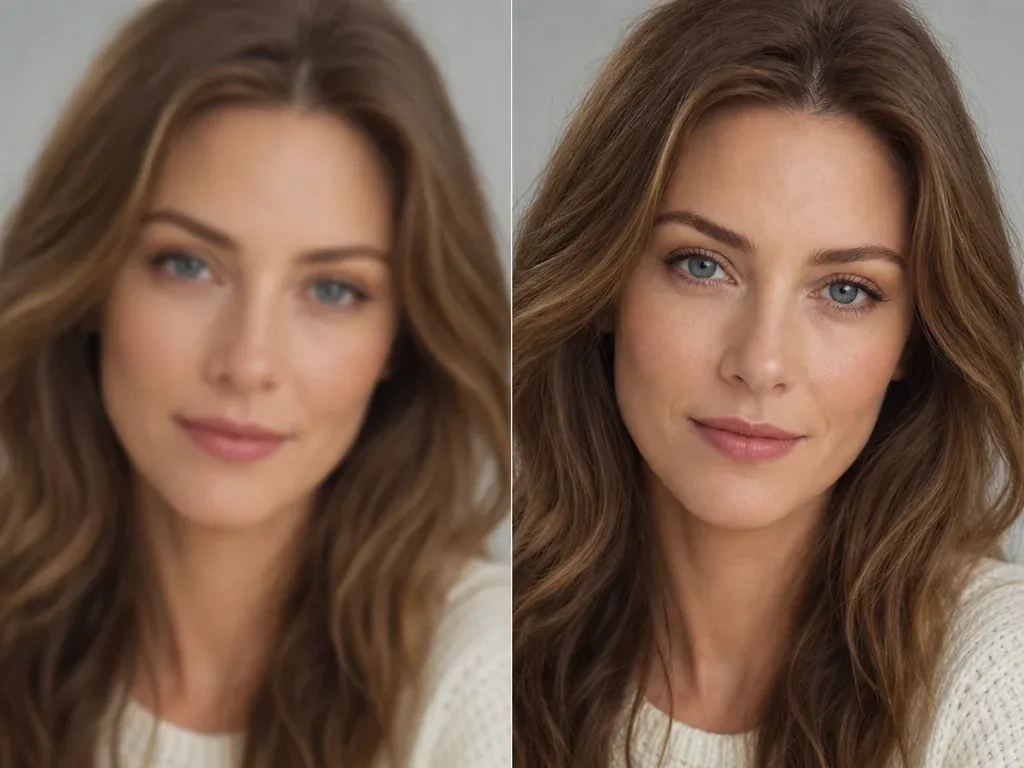
Use the broader upscaler page when the main job is resolution and scale, not photo-specific workflow guidance.
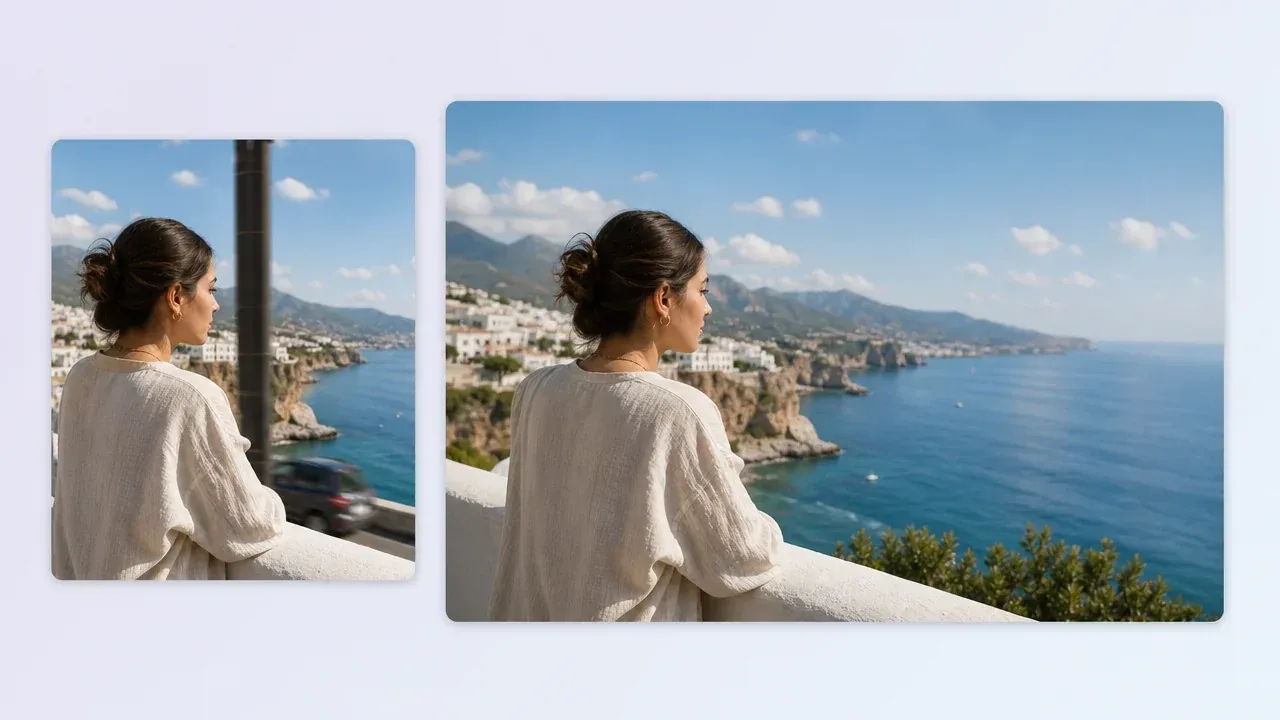
Fix a background, object, light issue, or portrait detail after enhancement reveals what still needs work.
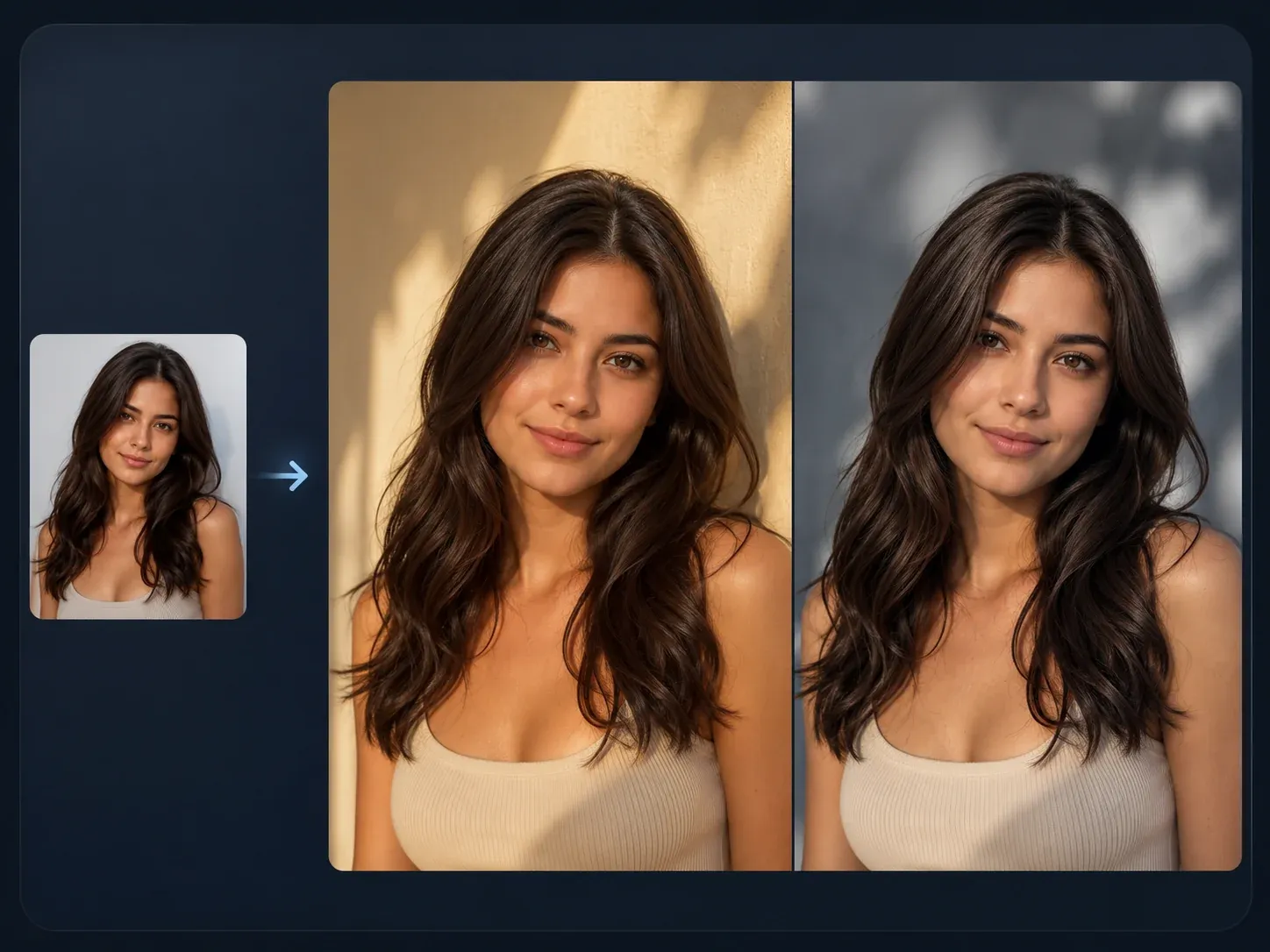
Restyle the enhanced photo when the source is clear enough but the scene, finish, or campaign mood needs to change.

Start from text when you do not have a photo worth enhancing yet, then enhance the best draft after review.
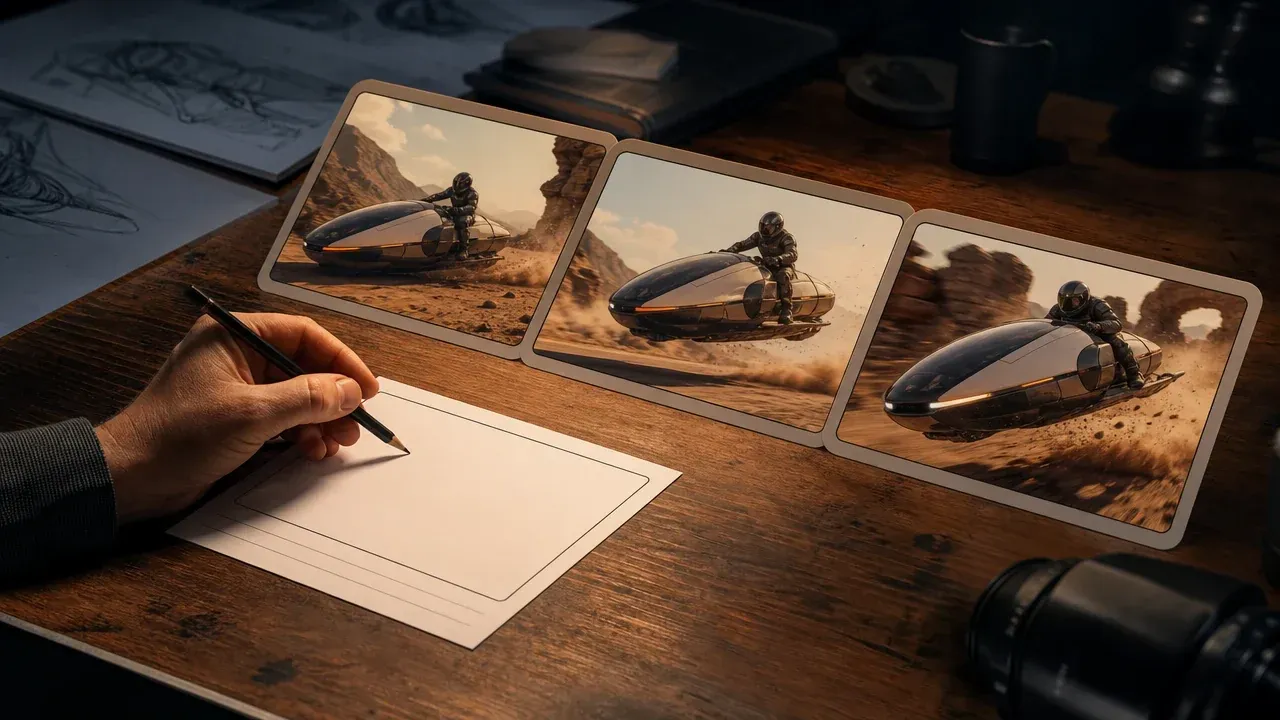
Turn a clearer approved still into a short motion concept when the image is ready for a video test.
Direct answers about source photos, scale choice, output quality, rights, publishing, and when to switch to another FaceAI tool.
An AI photo enhancer improves a source photo by increasing resolution and making visible details look clearer. It is useful when the photo is already worth keeping but looks too soft, small, or compressed.
Upload one photo, choose the clarity scale, start the enhancement task, then keep the page open until the result preview and download controls appear.
Start with 2x when you need a safer clarity pass for web, thumbnails, or review. Use 4x when the source is clean and you need a larger export.
It uses the same upscaling capability, but this page is written for photo workflows: portraits, product shots, old scans, social images, and soft visual drafts.
Use a small but readable photo with one clear subject, visible edges, and limited compression. Extremely blurry, tiny, or heavily compressed photos give the model less real detail to work from.
It can improve some soft or compressed photos, especially when the subject is still readable. Very heavy motion blur, crushed shadows, or tiny faces may need a new source photo.
Not every time. Enhancement can alter tiny details, so inspect identity-sensitive faces, product labels, logos, and readable text before publishing.
The model builds from the source. A cleaner input gives it better edges, texture, and structure to preserve; a weak input forces more guessing.
Yes, product photos are a strong use case when the pack, object shape, and lighting are already usable. Check labels, edges, reflections, and materials after the result appears.
Yes. Enhancement can make a portrait easier to use in thumbnails, profile pages, and talking-photo workflows, but you should inspect eyes, hair, teeth, hands, and facial identity before sharing.
You are responsible for rights to the source photo, people, products, logos, and protected material inside it. Do not publish or sell media you do not have permission to use.
Download the clearer photo if it is ready. If one detail is wrong, use AI Image Editor. If the style needs to change, use AI Image to Image. If the still is approved, try video or talking photo next.
Upload the photo worth keeping, choose 2x or 4x, and make the next review copy clearer before you publish or keep editing.