
Free AI Image to Image Online for Controlled Photo Restyles
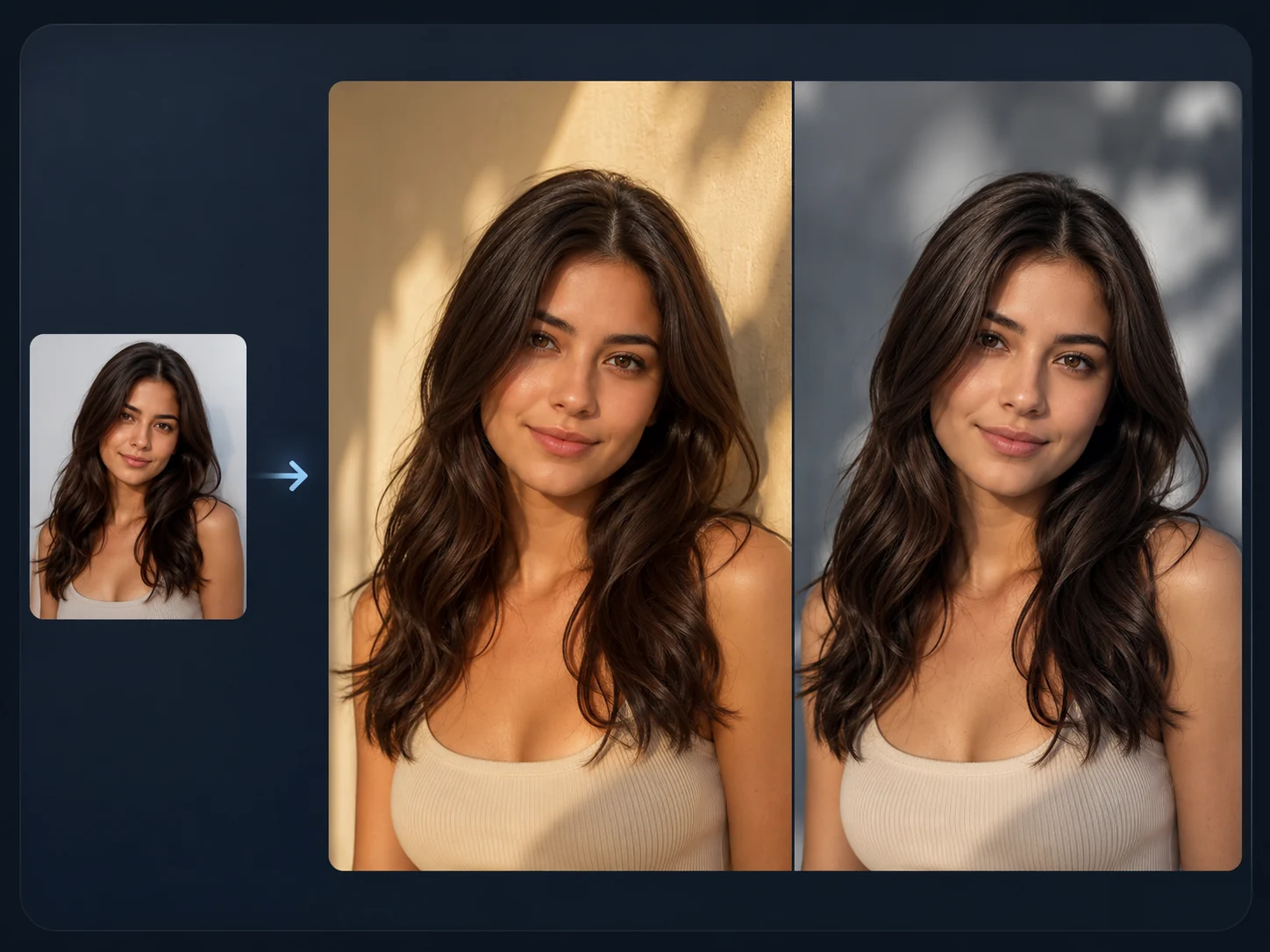
Upload a source image, describe what should stay, then change the style, background, lighting, or campaign direction online. Use it when the first frame is close and a text-only prompt would drift too far. No sign-up. No watermark.
Trusted by 12,000,000+ users worldwide.
How to Use AI Image to Image in 3 Steps
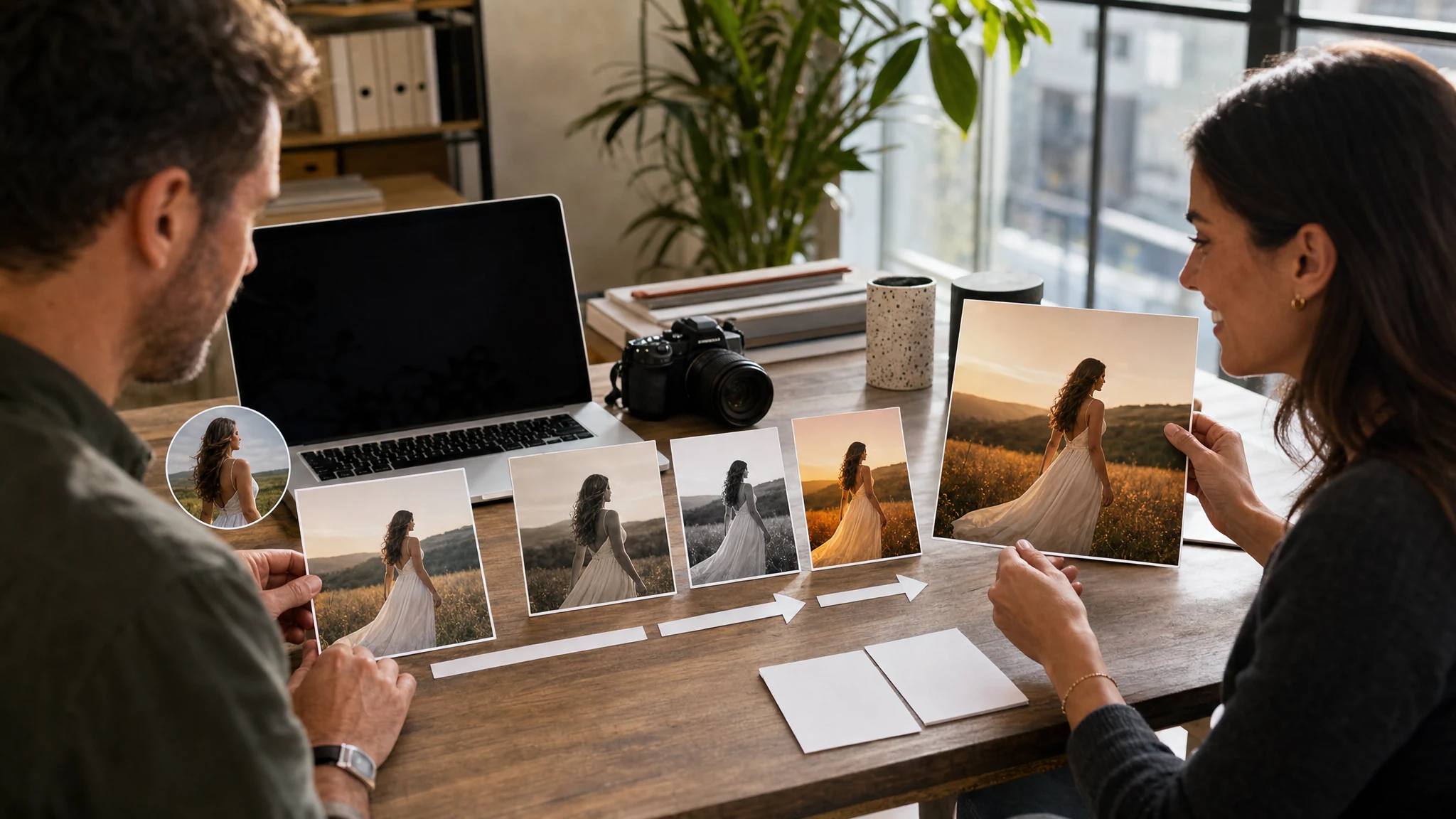
Keep the process tight: choose a useful source, protect the important details, then compare the newest result against local history.
Upload the source image
Pick a product photo, portrait, poster, render, or draft that already contains the structure you want to keep.
Write stay-change instructions
Name protected details first: pose, crop, product shape, label hierarchy, or scene layout. Then describe the new style, background, light, or finish.
Generate, compare, continue
Review the newest result first, compare it with local history, then download it or send it to editing, upscaling, or video.
AI Image to Image Use Cases Built Around Real Source Photos
Use image-to-image when the source frame already works and the job is controlled variation, not a blank-canvas prompt.
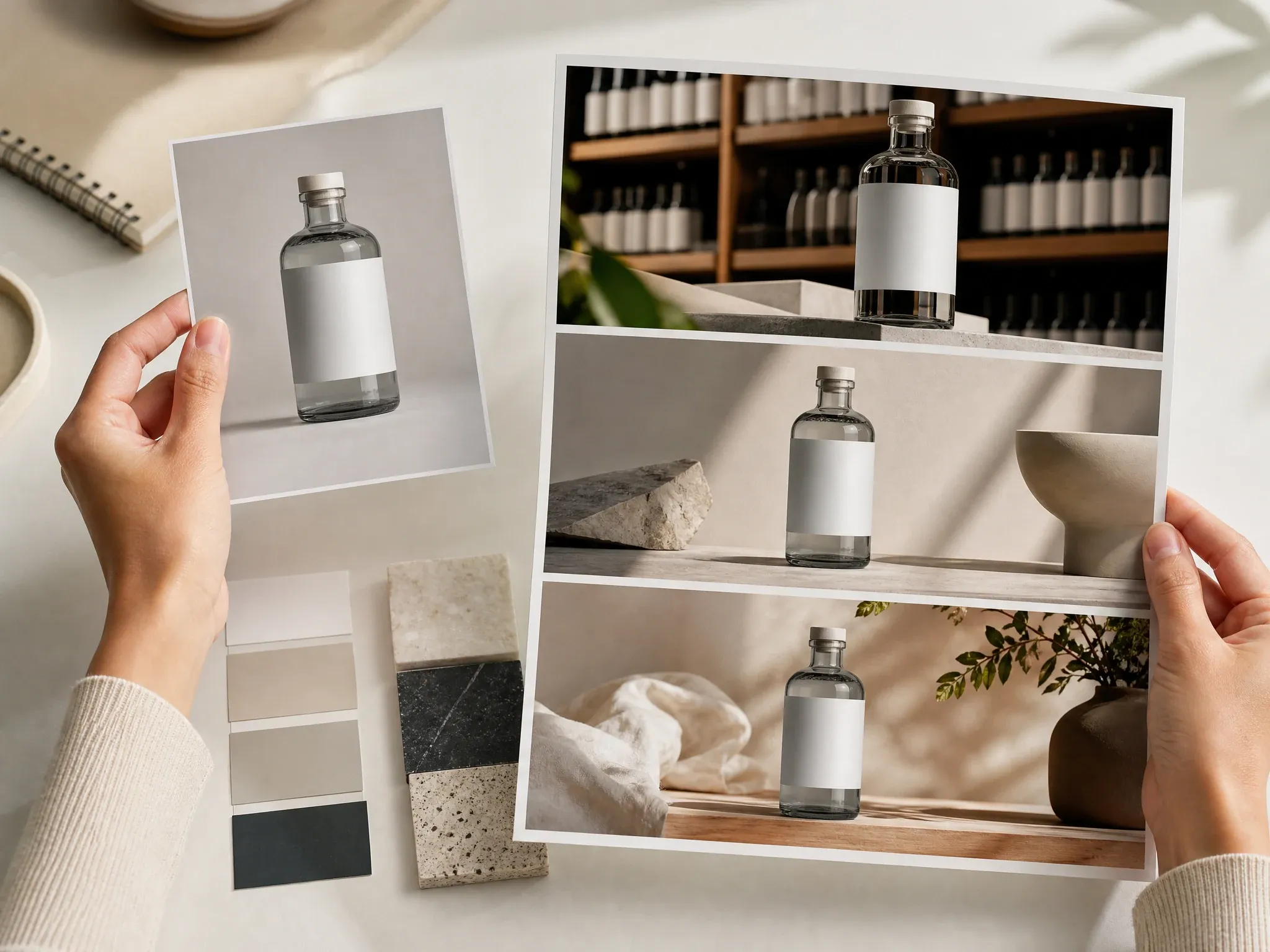
Product restyles from one approved shot
Keep the bottle, pack, or hero angle stable while testing catalog, retail, studio, or lifestyle campaign directions from the same base image.
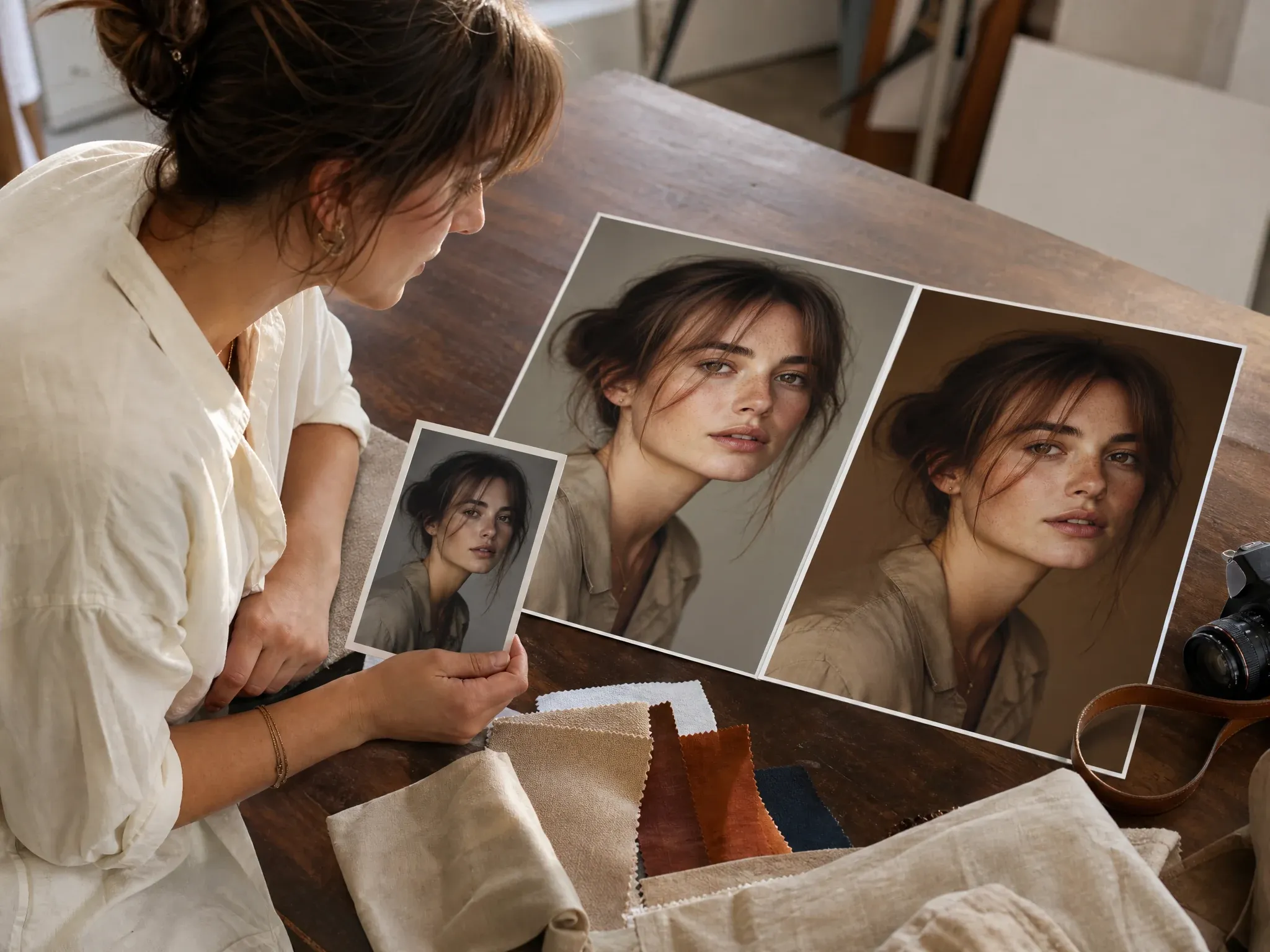
Portrait to poster variants
Start with an approved portrait and explore cleaner poster directions while keeping the crop, pose, and face angle close enough for review.
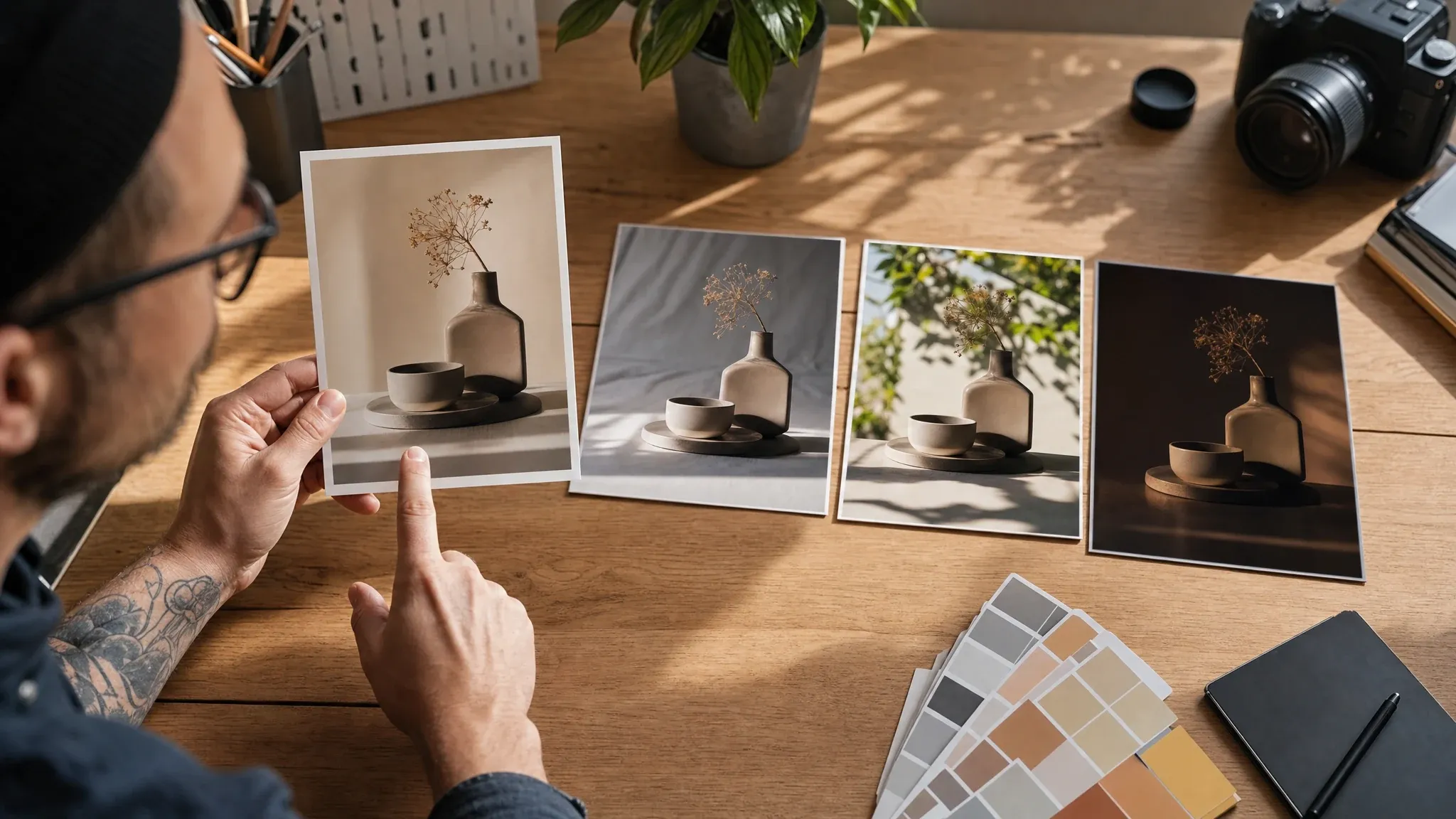
Background, lighting, and mood changes
Protect the main composition, then move the subject into a new studio, daylight, or darker campaign setting without rebuilding the whole prompt.
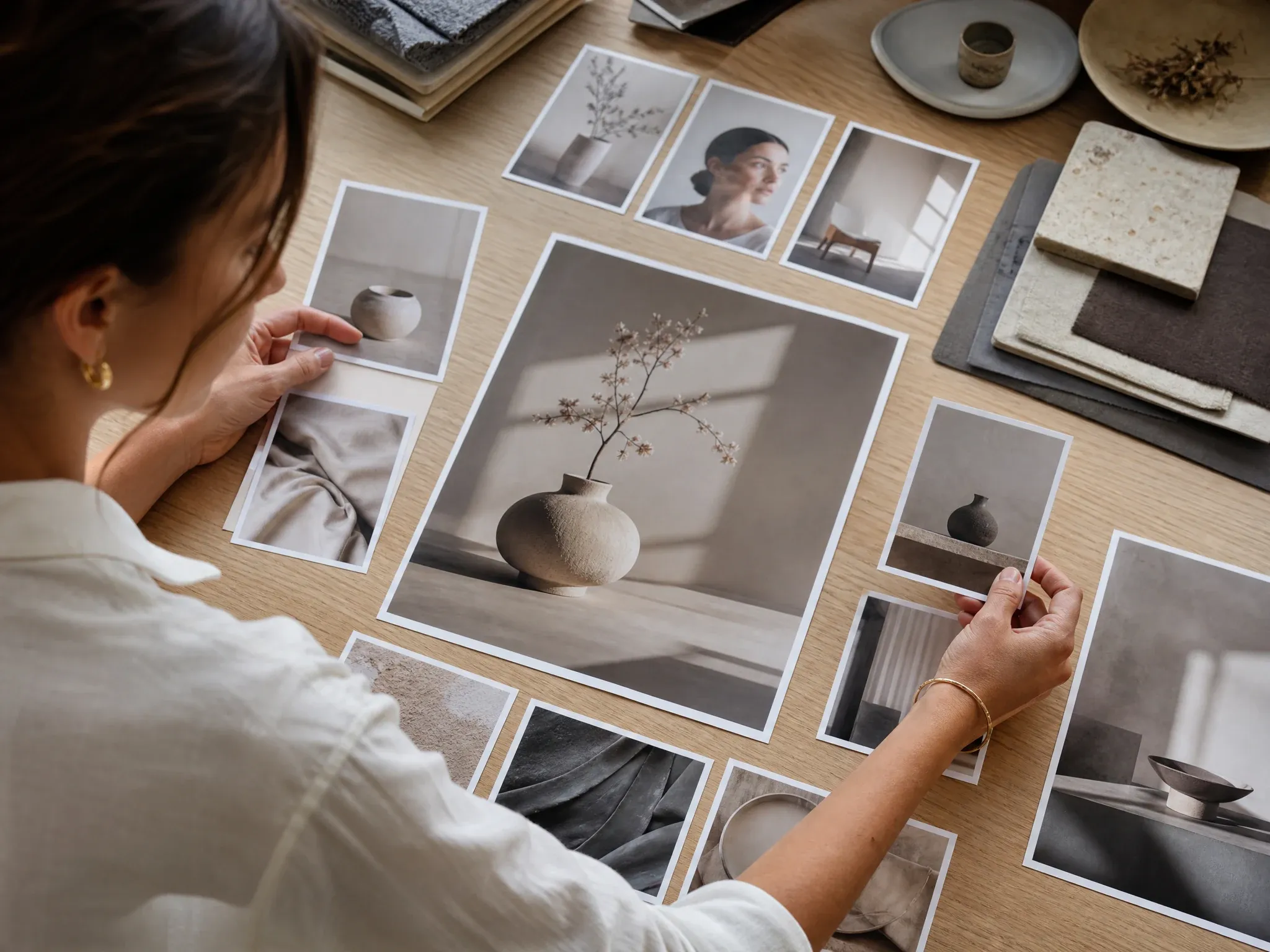
Reference-set consistency
Use multiple reference images when the visual direction depends on product materials, portrait tone, color palette, or a moodboard the team already approved.
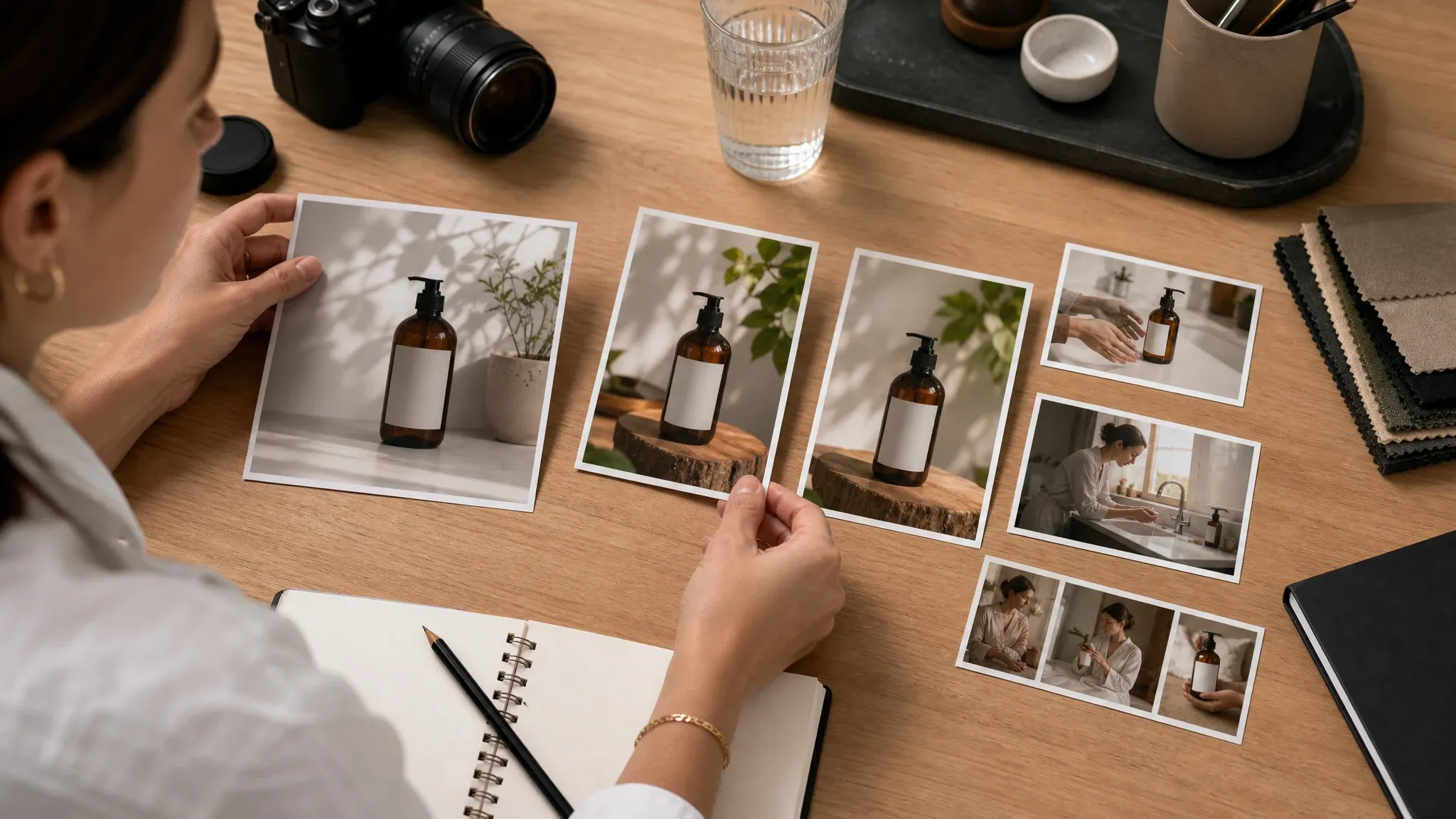
Text-to-image draft refinement
When the first generated draft is close, upload it here and change one creative variable at a time before cleanup, upscale, or motion work.
What Is an AI Image to Image Generator?
An AI image to image generator starts from an existing picture and creates a changed version from your prompt. It is useful when composition, pose, or product shape matters more than pure invention.
Source-guided creation
The uploaded image gives the model a visual anchor, so the new result has a clearer starting point than a text-only prompt.
Prompted transformation
The prompt tells the model what to change: background, lighting, surface finish, campaign mood, poster treatment, or overall polish.
Not exact duplication
It can keep the overall frame closer, but exact faces, tiny labels, logos, and product details can still move on difficult inputs.
Why Use FaceAI for AI Image to Image Workflows?
The page is built for practical source-guided work: upload references first, write clear stay-change instructions, then keep the result inside the same FaceAI creative chain.
Useful when the frame is already close
Start from a product shot, portrait, draft, or mockup that has the right structure instead of asking a blank prompt to guess it again.
Multiple references in one task
The workbench supports up to 14 uploaded images, which helps when the brief depends on a source image plus material, mood, or pose references.
Local history for comparison
Recent generations stay in the workspace, so you can compare variants without losing the version that was closest to the brief.
Natural next steps
Move from generator to image-to-image, then to editor, upscaler, video, or talking-photo workflows when the asset needs another pass.
How to Get a Closer Image-to-Image Result
Better inputs make better controlled changes. The strongest prompts protect the important details before asking for a new style.
Try image to imageUse a clean source
One clear subject, readable edges, and a composition worth keeping give the model a stronger anchor.
Say what must stay first
Write protected details before the change request: keep the pose, keep the crop, keep the bottle shape, keep the label hierarchy.
Change fewer things per run
A background swap plus a lighting change is easier to review than a new style, new pose, new product finish, and new scene at once.
Switch tools when needed
Use AI Image Editor for one targeted fix, and use the upscaler only after you already like the generated direction.
AI Image to Image vs. Text-Only Generation and Basic Editors
This workflow sits between blank generation and pinpoint editing. It gives more source control than text-only generation, but it is not a guarantee of exact preservation.
| Kriterium | Face AIUnser Source-guided variant workflow | Other approaches |
|---|---|---|
| Starting point | Upload a source image or reference set before prompting the change. | Text-only tools start from description and can ignore the layout you already like. |
| Best use | Restyles, campaign variants, portrait treatments, draft refinement, and scene direction changes. | Basic editors are better for one small object or background fix. |
| Control style | Write protected details first, then ask for the visual change. | Many tools promote style words but do not explain how to reduce source drift. |
| Reference handling | Use up to 14 images when one source is not enough context for the brief. | Single-image flows may lose material, mood, or pose cues. |
| Review workflow | Compare new results against local history before choosing the next pass. | One-shot pages often push download before variant review. |
| Honest limit | Exact identity, labels, logos, and tiny product details are not guaranteed on every input. | Some pages imply stronger consistency than image models can reliably deliver. |
Starting point
Upload a source image or reference set before prompting the change.
Text-only tools start from description and can ignore the layout you already like.
Best use
Restyles, campaign variants, portrait treatments, draft refinement, and scene direction changes.
Basic editors are better for one small object or background fix.
Control style
Write protected details first, then ask for the visual change.
Many tools promote style words but do not explain how to reduce source drift.
Reference handling
Use up to 14 images when one source is not enough context for the brief.
Single-image flows may lose material, mood, or pose cues.
Review workflow
Compare new results against local history before choosing the next pass.
One-shot pages often push download before variant review.
Honest limit
Exact identity, labels, logos, and tiny product details are not guaranteed on every input.
Some pages imply stronger consistency than image models can reliably deliver.
How Teams Use AI Image to Image After the First Draft
These comments focus on the real review loop: source image, protected details, controlled variants, and the next production pass.
"This is the handoff I use after a product shot is approved but still looks too plain for campaign use."

Alice Cooper
Retail Marketing Director
"We already have the frame. What we need is three retail looks from it without re-shooting the same item. Image-to-image is good at that middle step."

Brendan Murphy
Shopper Marketing Lead
"The result stays useful when the prompt is explicit about what must remain stable and what can change."

Priya Sharma
Product Marketing Manager
"For merchandising mockups, I want the bottle, angle, and shelf logic to stay put. I only ask the model to move the styling."

Margherita Conti
Visual Merchandising Lead
"Better than starting from a blank prompt when the layout is already working."

Henrik Strand
Trade Marketing Manager
"We use it for seasonal variants on the same hero asset. One source image, a tighter brief, then new moods without rebuilding the composition."

Elise Fontaine
Retail Brand Strategist
"This is the handoff I use after a product shot is approved but still looks too plain for campaign use."
Alice Cooper
Retail Marketing Director
"We already have the frame. What we need is three retail looks from it without re-shooting the same item. Image-to-image is good at that middle step."
Brendan Murphy
Shopper Marketing Lead
"The result stays useful when the prompt is explicit about what must remain stable and what can change."
Priya Sharma
Product Marketing Manager
"For merchandising mockups, I want the bottle, angle, and shelf logic to stay put. I only ask the model to move the styling."
Margherita Conti
Visual Merchandising Lead
"Better than starting from a blank prompt when the layout is already working."
Henrik Strand
Trade Marketing Manager
"We use it for seasonal variants on the same hero asset. One source image, a tighter brief, then new moods without rebuilding the composition."
Elise Fontaine
Retail Brand Strategist
"Pack shots stay believable when the references are clean and the prompt protects the product structure. That matters more than flashy style labels."

Viktor Novak
Category Marketing Manager
"This is the handoff I use after a product shot is approved but still looks too plain for campaign use."
Alice Cooper
Retail Marketing Director
"We already have the frame. What we need is three retail looks from it without re-shooting the same item. Image-to-image is good at that middle step."
Brendan Murphy
Shopper Marketing Lead
"The result stays useful when the prompt is explicit about what must remain stable and what can change."
Priya Sharma
Product Marketing Manager
"For merchandising mockups, I want the bottle, angle, and shelf logic to stay put. I only ask the model to move the styling."
Margherita Conti
Visual Merchandising Lead
"Better than starting from a blank prompt when the layout is already working."
Henrik Strand
Trade Marketing Manager
"We use it for seasonal variants on the same hero asset. One source image, a tighter brief, then new moods without rebuilding the composition."
Elise Fontaine
Retail Brand Strategist
"Pack shots stay believable when the references are clean and the prompt protects the product structure. That matters more than flashy style labels."
Viktor Novak
Category Marketing Manager
"I tried forcing the same result with prompt-only generation and it kept wandering. Uploading the source first made the review cycle much faster."

Sneha Krishnan
Head of Product Marketing
"Useful for controlled restyles, not for guessing from zero."

Hao Chen
VP of Product Marketing
"The prompt works best when I say what must stay. Pose, crop, product shape first. Style second."

Jihye Kim
Marketing Campaigns Lead
"Good for partner campaigns where the base asset is fixed but the look still changes by channel."

Annika Svensson
Head of Retail Partnerships
"We use it after the team agrees on one hero image but still wants multiple customer-facing versions. The safest flow is simple: upload the approved frame, keep the composition notes explicit, and change one creative variable at a time. That keeps the review comments focused instead of reopening the whole concept."

Ren Sato
Customer Marketing Director
"I had more success once I stopped asking for total reinvention. When the prompt says keep the composition and only shift the environment or finish, the output stays much closer to something a brand team can actually approve. That is the difference between a fun demo and a usable asset."

Sakura Ito
Partner Marketing Lead
"It gives content teams variant coverage without turning every request into a new shoot."

Mengmeng Xu
Content & SEO Lead
"I tried forcing the same result with prompt-only generation and it kept wandering. Uploading the source first made the review cycle much faster."
Sneha Krishnan
Head of Product Marketing
"Useful for controlled restyles, not for guessing from zero."
Hao Chen
VP of Product Marketing
"The prompt works best when I say what must stay. Pose, crop, product shape first. Style second."
Jihye Kim
Marketing Campaigns Lead
"Good for partner campaigns where the base asset is fixed but the look still changes by channel."
Annika Svensson
Head of Retail Partnerships
"We use it after the team agrees on one hero image but still wants multiple customer-facing versions. The safest flow is simple: upload the approved frame, keep the composition notes explicit, and change one creative variable at a time. That keeps the review comments focused instead of reopening the whole concept."
Ren Sato
Customer Marketing Director
"I had more success once I stopped asking for total reinvention. When the prompt says keep the composition and only shift the environment or finish, the output stays much closer to something a brand team can actually approve. That is the difference between a fun demo and a usable asset."
Sakura Ito
Partner Marketing Lead
"It gives content teams variant coverage without turning every request into a new shoot."
Mengmeng Xu
Content & SEO Lead
What Should You Try After AI Image to Image?
Choose the next tool based on what the result still needs: a new source, a targeted edit, a sharper export, motion, or a speaking portrait.
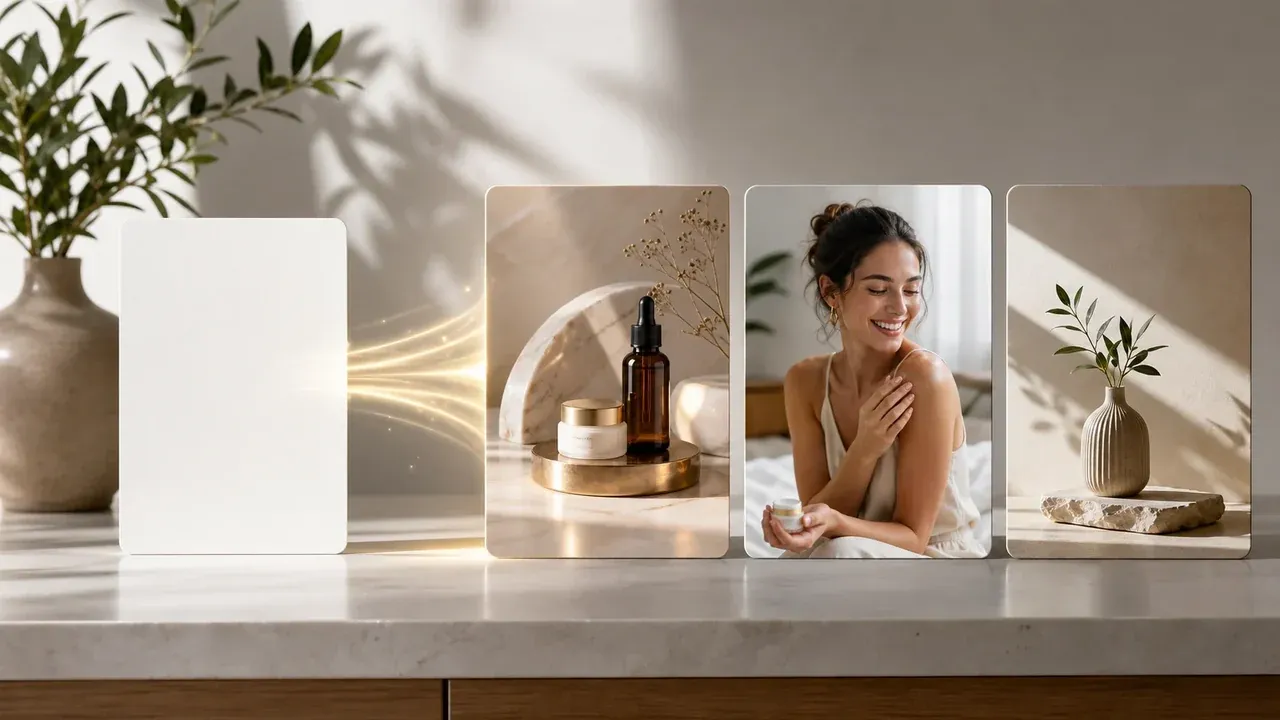
AI Image Generator
Start from text when you do not have a usable source image yet, then bring the draft here for source-guided variants.
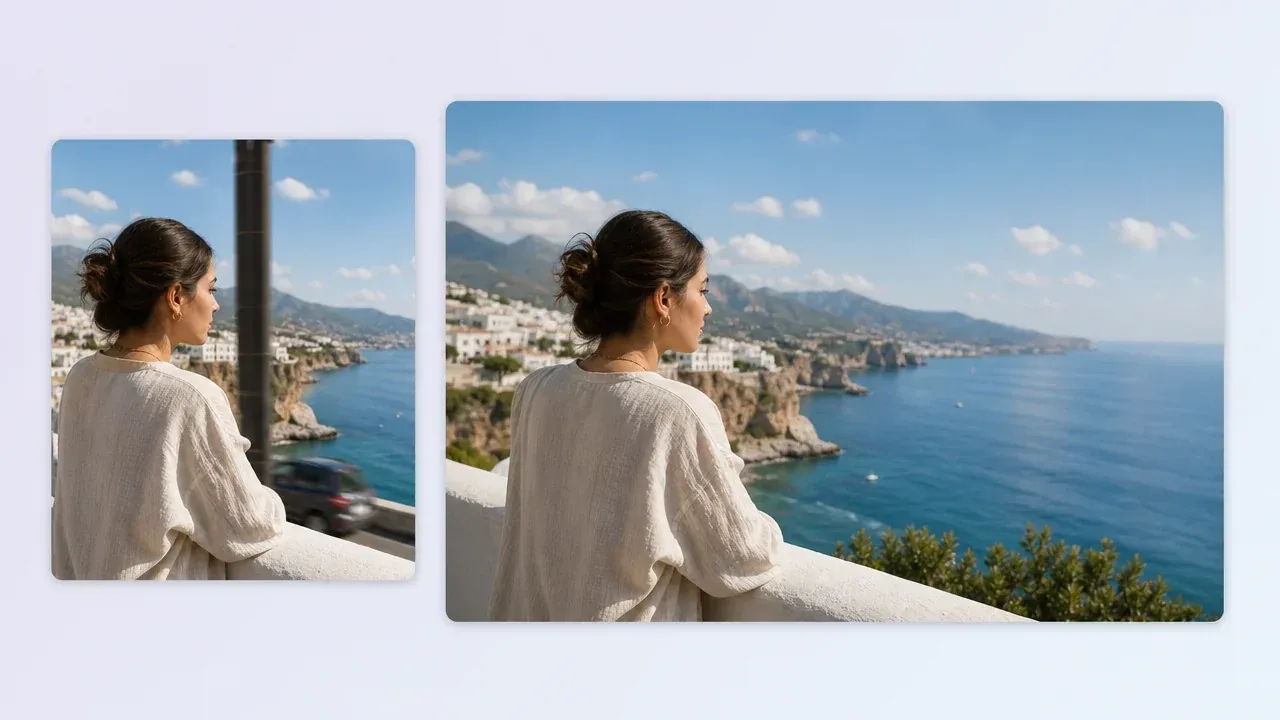
AI Image Editor
Use guided editing when only one object, background, or detail needs a targeted fix after the new version is close.
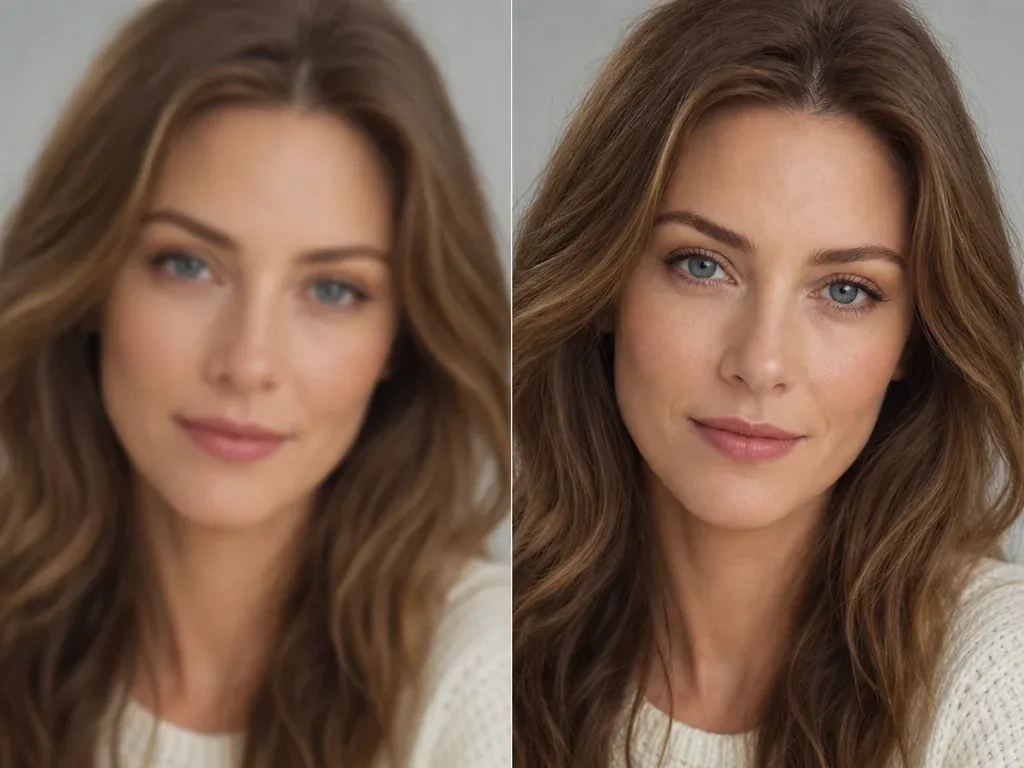
AI Image Upscaler
Send the approved variant to upscaling when the concept is ready but the export needs a sharper production pass.
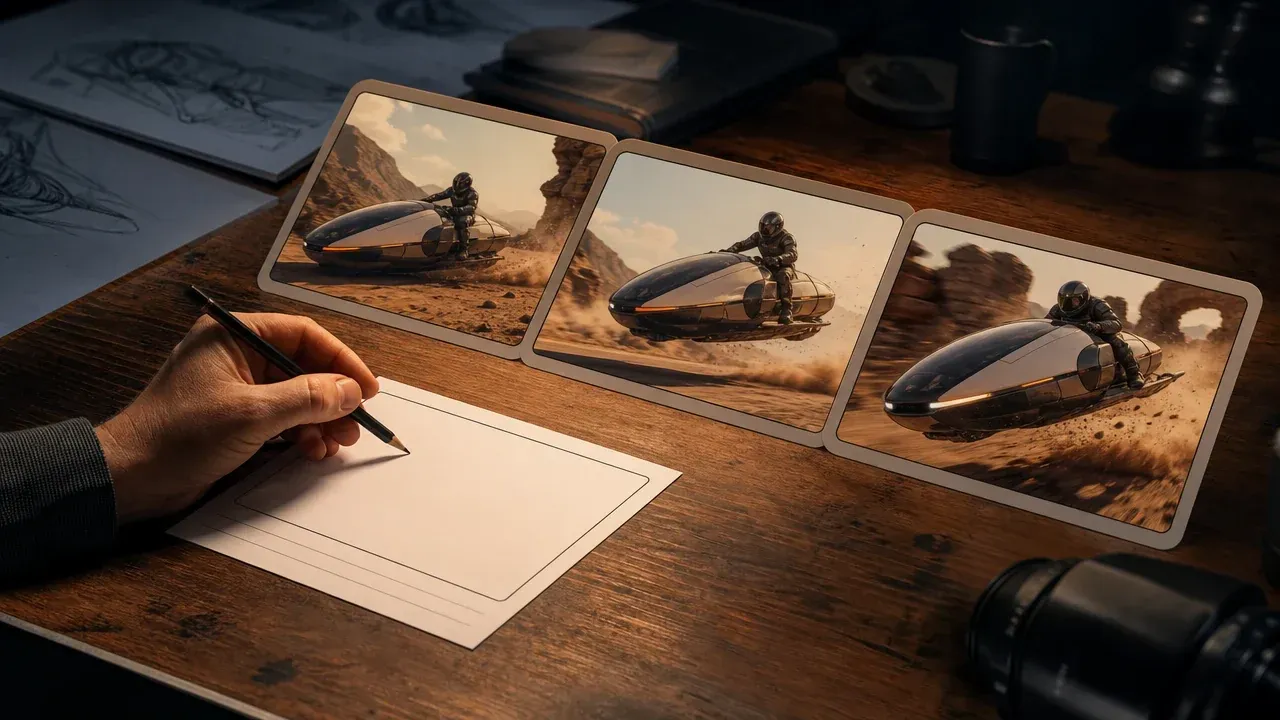
AI Video Generator
Turn a finished image direction into motion when the still frame is ready for a short campaign sequence.
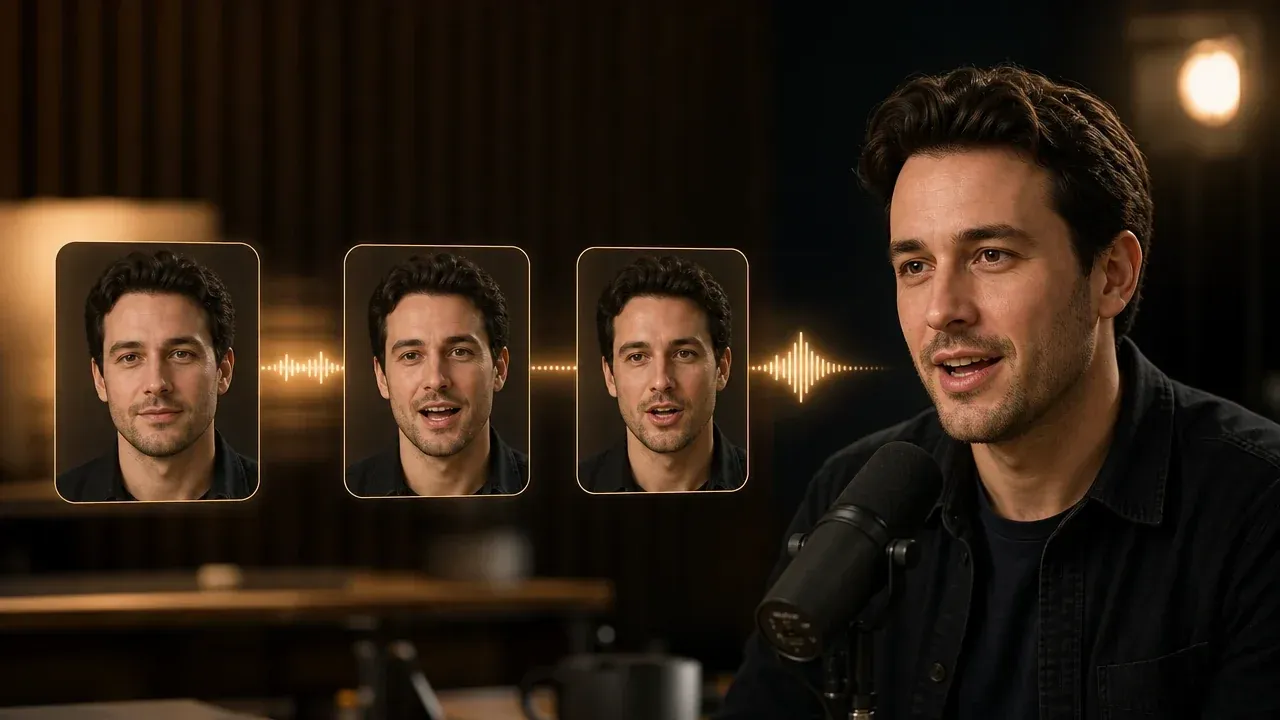
Talking Photo
Use portrait variants as a starting point when the next step is a speaking avatar or product explainer host.
AI Image to Image Questions, Answered
Direct answers about source images, prompt control, multiple references, output drift, rights, and when to use another FaceAI tool.
AI image to image starts from an existing image and generates a changed version from your instruction. It is useful when the original layout, pose, or product structure is already close to what you need.
Text-to-image starts from a written prompt only. Image-to-image starts with a visual reference, so it gives the model more context about composition, subject shape, lighting direction, or mood.
Yes. This workflow begins with at least one uploaded image. If you only have a written idea, start with the AI Image Generator and bring the draft here once it is close.
Use a clean source, then write protected details first. For example: keep the pose and crop, keep the bottle shape, change the background to a warm studio scene.
Yes. The current workbench supports up to 14 uploaded reference images in one image-to-image task. Multiple references add context, but they do not guarantee exact consistency.
Use AI Image Editor when only one object, background, or detail needs a targeted change. Use image-to-image when the whole image needs a new version guided by the source.
Not every time. It can preserve the overall structure, but exact identity, logos, small labels, and tiny product details can drift, especially when the prompt asks for a strong style change.
Use clear photos with one main subject, readable edges, and a composition worth keeping. Very blurry images, busy crowds, tiny subjects, or dense text make the result less predictable.
Ask for fewer changes, protect the important details in the first sentence, and try a cleaner source or a smaller style shift. If one part is wrong, move the result into the editor instead of regenerating the whole image.
Yes, when you have rights to the source photo and the product content. It works well for product restyles, campaign variants, background changes, and review drafts, but you should still inspect labels and product details before publishing.
You are responsible for the rights to the source image, products, people, logos, and any protected material inside the image. Do not use source content you are not allowed to modify.
The workspace uploads the references, creates the image-to-image task, and prepares the final file before showing download and share controls. Keep the page open until the result panel updates.
Start Your AI Image to Image Restyle
Upload the source frame, protect the details that matter, and generate a new direction without starting over from a blank prompt.