
Starting point
Unser
One clear portrait plus typed text, uploaded audio, recording, or voice clone.
Other approaches
Avatar suites may ask for style setup, multiple looks, or broader studio controls before the first result.
Portraet hochladen
Sprache hinzufuegen
Schreibe den Text, den das Portraet sagen soll.
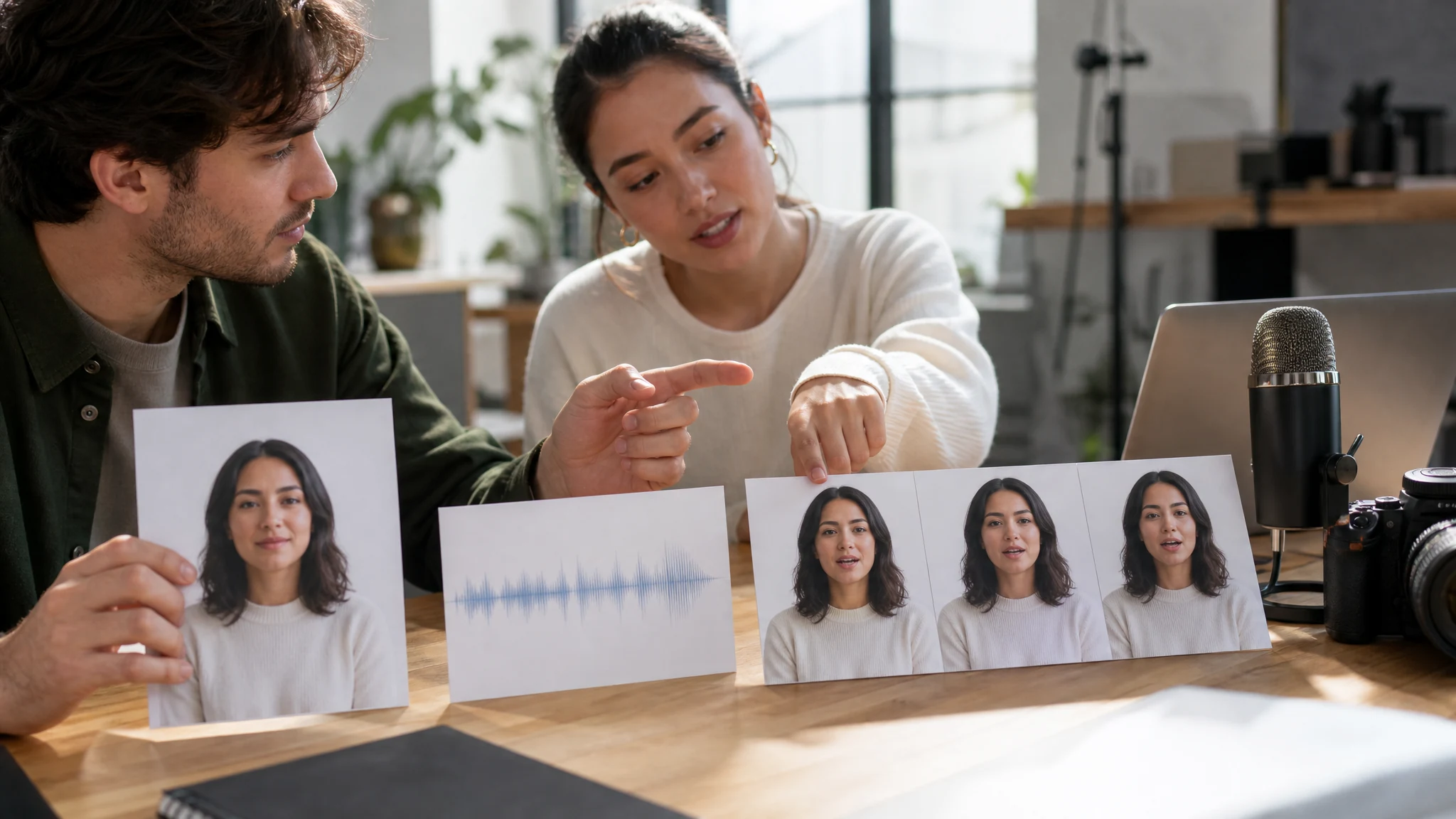
Use the free AI talking photo generator when one portrait has the right face, mood, or character, but the message needs voice and motion. Upload the portrait, type a short script or add audio, and create a talking photo clip before filming anything larger.
Trusted by 12,000,000+ users worldwide.
Keep the first pass simple: one face, one voice input, one short line. Judge the mouth movement before turning the idea into a longer asset.
Choose a front-facing photo with open eyes, even lighting, and a mouth the model can read cleanly.
Type a script for text-to-speech, upload audio, record a line, or create a voice clone when the voice identity matters.
Review the newest speaking clip against local history, then download it or move the idea into another FaceAI video workflow.
Use talking photo for five practical jobs: creator hooks, product explainers, UGC mockups, script/audio timing tests, and reaction clips. Each starts with one still image that needs a voice layer.
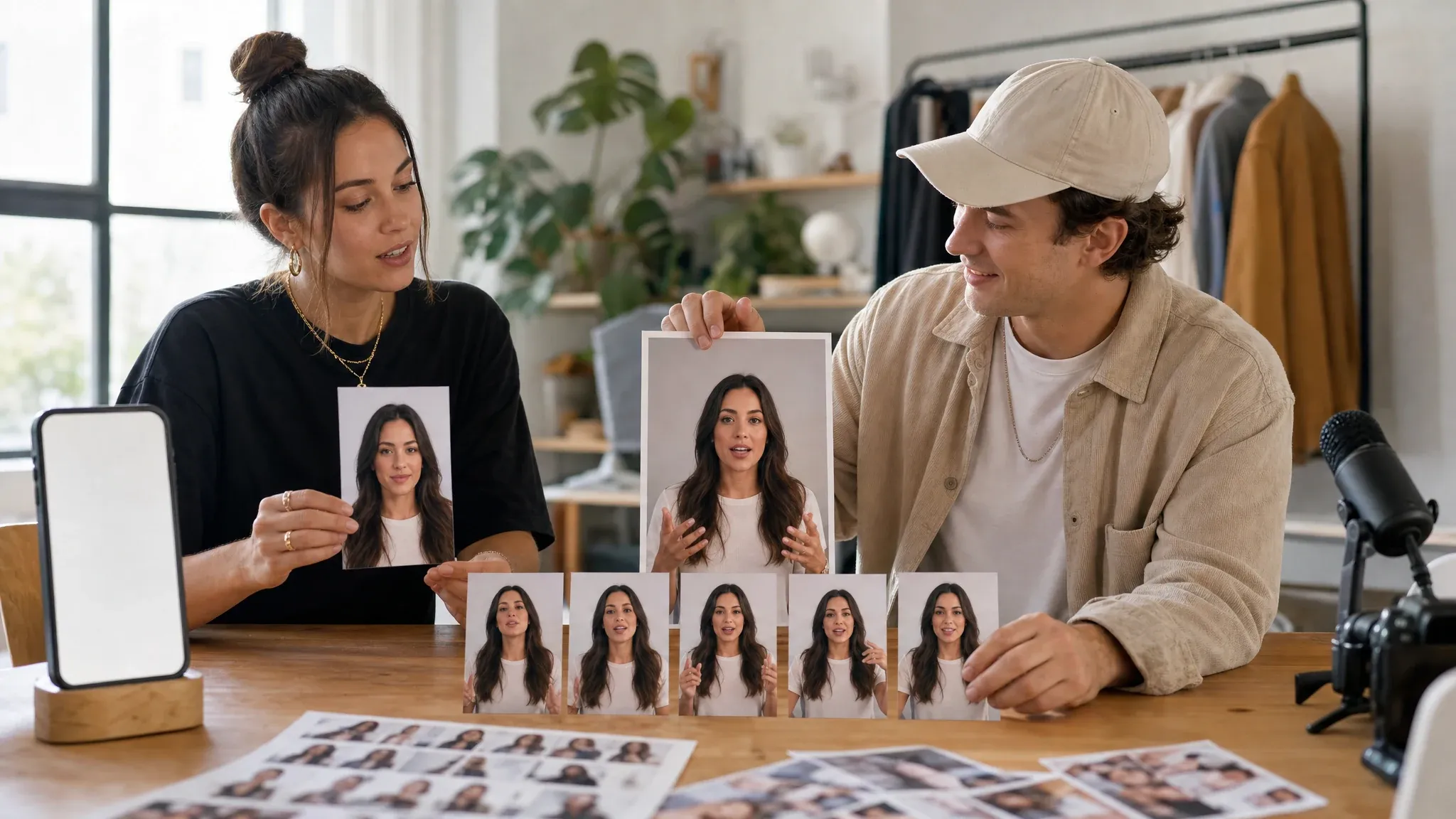
Turn an approved creator headshot into a short speaking hook for Reels, Shorts, story ads, or campaign review. The job is not a full shoot; it is seeing whether the face can carry the opening line.
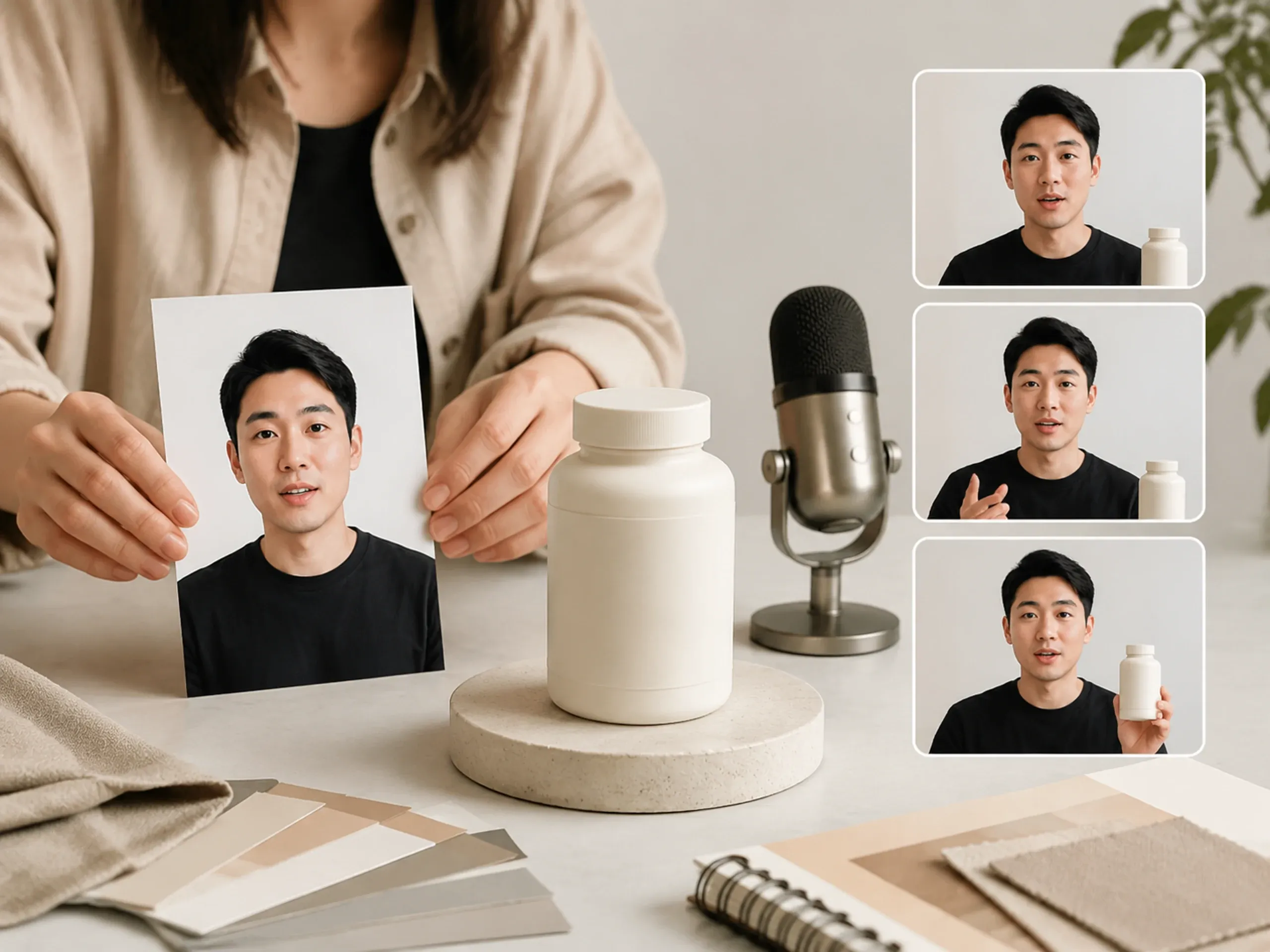
Pair a founder, host, or presenter portrait with a blank product setup and a short line. Useful when a product update needs a face before the team books production.
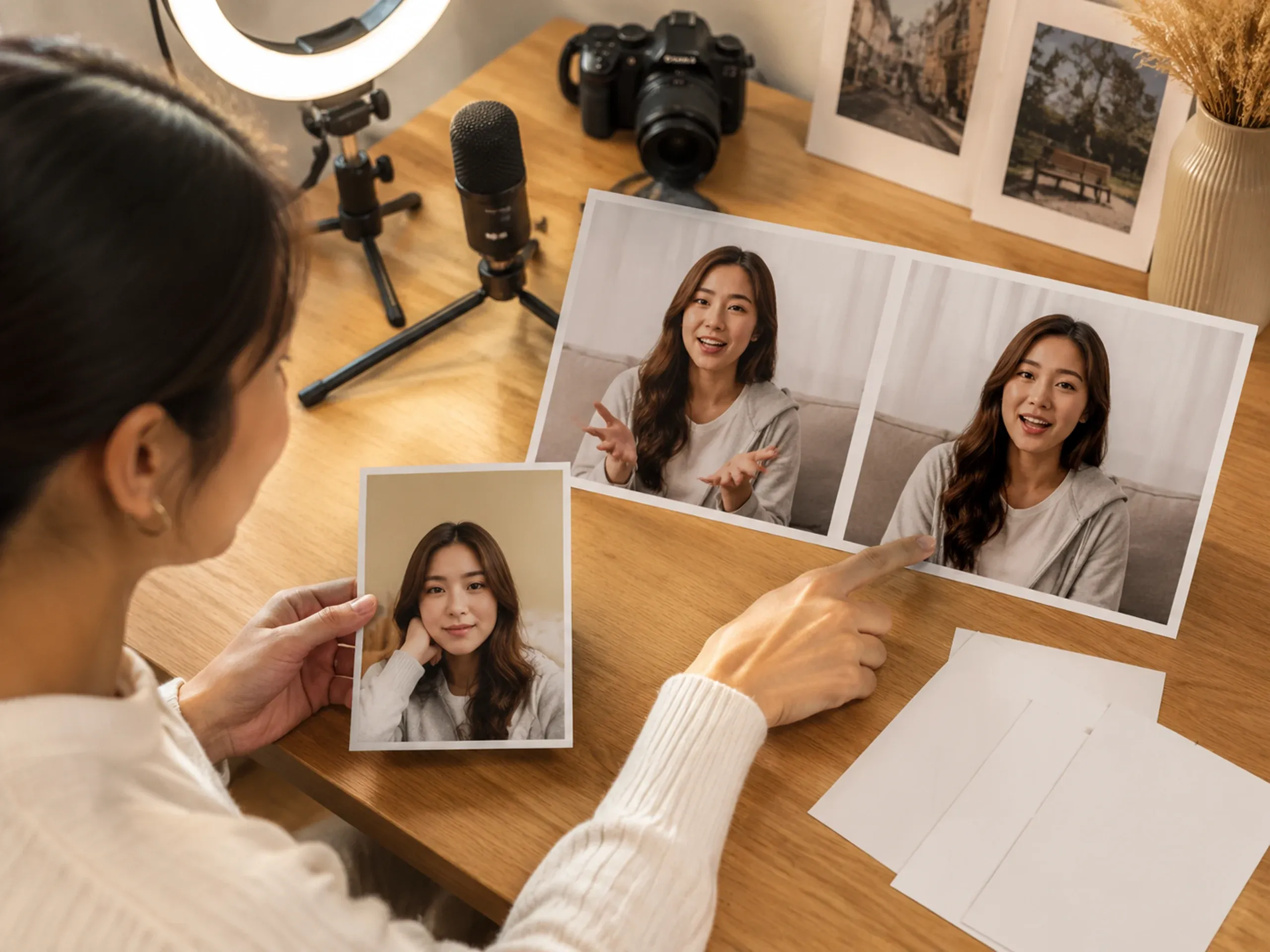
Test a creator-style script on a still portrait before asking someone to record a full sequence. If the wording feels awkward on the talking photo, fix the script early.
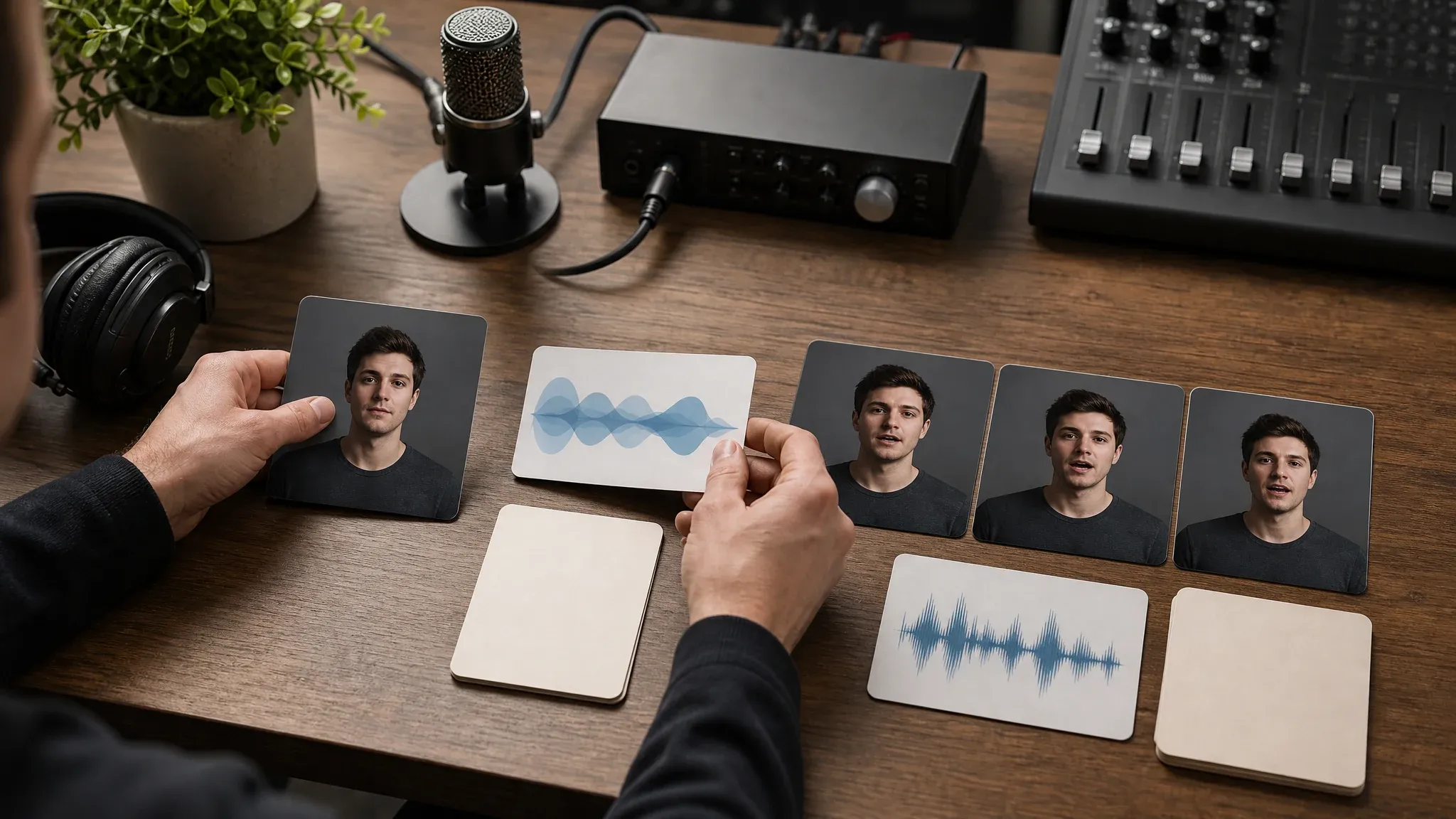
Use text-to-speech for fast copy testing, then switch to uploaded or recorded audio when delivery matters. The visual review makes timing issues easier to spot.
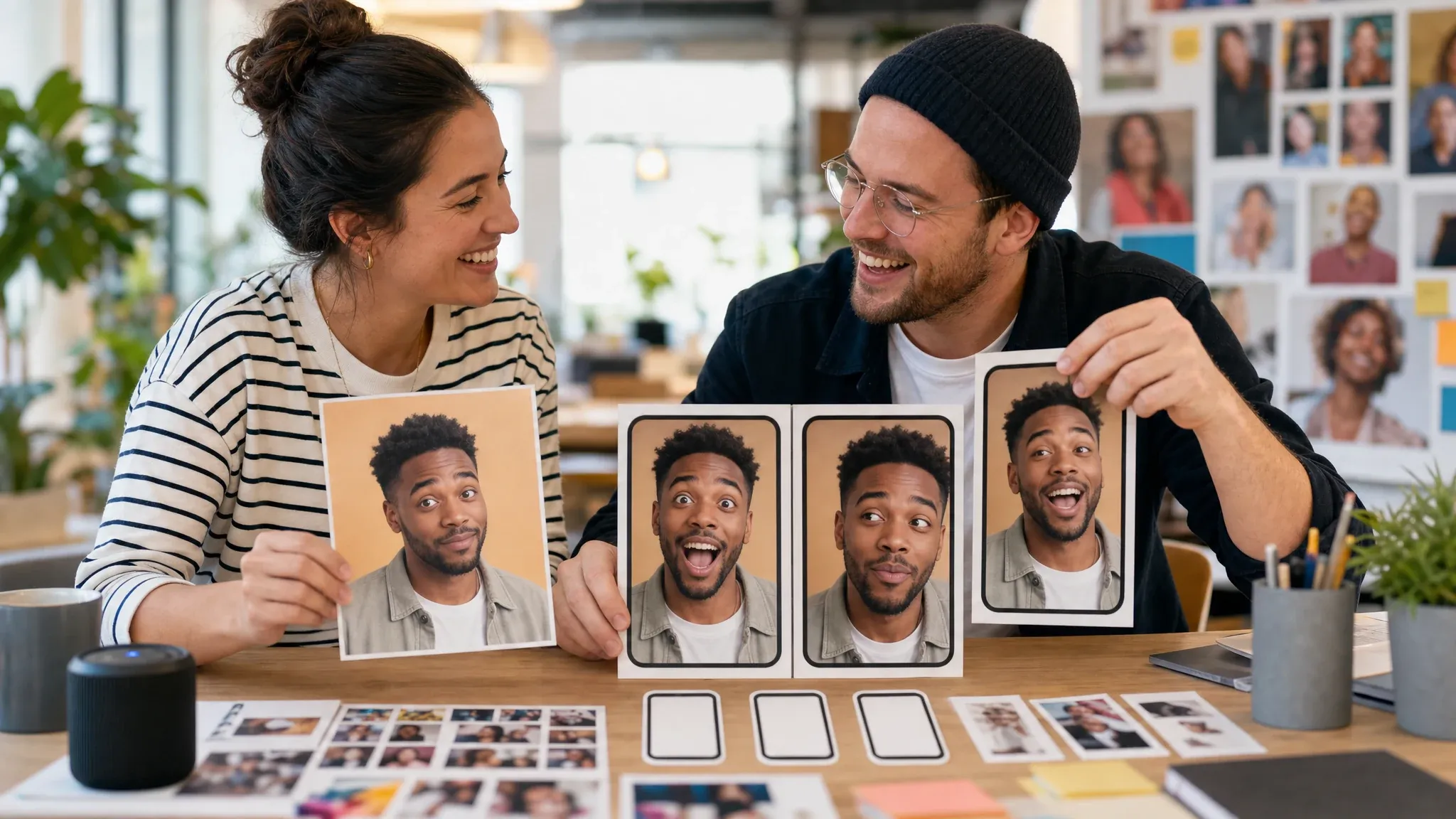
Make a still portrait react with a voice line when the post needs personality. Keep it text-free in the generator, then add captions later if the channel needs them.
An AI talking photo generator turns a still face photo into a short video where the portrait appears to speak from a script or audio track.
Start with one portrait instead of filming a presenter from scratch.
Use typed text for speed, or audio/recording when the exact voice delivery matters.
Give a social, brand, or creator team something to react to before a bigger shoot.
The page keeps the working tool first, then explains how to choose the right portrait, voice input, and follow-up workflow.
You can upload the face and test a line before reading the full page. That fits high-intent visitors who came here to create.
Text-to-speech, audio upload, recording, and voice clone options sit in one tool flow instead of sending you across unrelated pages.
A speaking portrait can take a few tries. Local history makes it easier to compare the mouth, expression, and timing without losing the last good attempt.
A still portrait can feel cold. Once it speaks, the team reacts faster because the message has a face, a voice, and a little momentum.
Input quality matters more here than in a static image tool. Start with a strong portrait and a short line, then extend only after the first result feels right.
Try the talking photo generatorChoose a front-facing portrait with the mouth visible. Side angles, covered lips, cropped chins, and group shots are harder to animate cleanly.
A short first read tells you whether the portrait and voice match. Long monologues hide problems until late in the review.
Text-to-speech is fast for copy tests. Uploaded or recorded audio is better when pauses, delivery, or brand voice are already decided.
Check mouth shape, teeth, eyes, lighting, and identity comfort before the clip leaves the draft stage.
Use this table to choose the right workflow. FaceAI is strongest when one still portrait needs a short speaking pass, not when you need a full timeline or avatar studio.
| Kriterium | Face AIUnser FaceAI talking photo workflow | Other approaches |
|---|---|---|
| Starting point | One clear portrait plus typed text, uploaded audio, recording, or voice clone. | Avatar suites may ask for style setup, multiple looks, or broader studio controls before the first result. |
| Best use | Creator hooks, product explainers, UGC mockups, reaction clips, and quick message tests. | Full video production is better for long scripts, multi-scene edits, camera blocking, music, captions, and manual cuts. |
| Photo requirements | Clear front-facing face, visible mouth, good lighting, and rights to use the subject. | Many pages mention quality in FAQ but hide the practical mouth and angle limits. |
| Voice path | TTS, audio upload, recording, and voice clone options remain in one shared workbench. | Some tools split TTS, dubbing, voice cloning, and lip sync into separate flows. |
| Review loop | Local history and result actions help compare attempts before download or share. | Generic demo pages may show examples but not a clear repeatable review loop. |
| Known limitation | Hidden lips, side angles, low-detail photos, and long first scripts can make the mouth feel less natural. | The same limits apply to any talking-photo workflow, even when demos show only perfect examples. |
| Rights boundary | You need permission for the face, voice, audio, and message you upload or generate. | Broad commercial copy still depends on the actual subject, source material, and license. |
One clear portrait plus typed text, uploaded audio, recording, or voice clone.
Avatar suites may ask for style setup, multiple looks, or broader studio controls before the first result.
Creator hooks, product explainers, UGC mockups, reaction clips, and quick message tests.
Full video production is better for long scripts, multi-scene edits, camera blocking, music, captions, and manual cuts.
Clear front-facing face, visible mouth, good lighting, and rights to use the subject.
Many pages mention quality in FAQ but hide the practical mouth and angle limits.
TTS, audio upload, recording, and voice clone options remain in one shared workbench.
Some tools split TTS, dubbing, voice cloning, and lip sync into separate flows.
Local history and result actions help compare attempts before download or share.
Generic demo pages may show examples but not a clear repeatable review loop.
Hidden lips, side angles, low-detail photos, and long first scripts can make the mouth feel less natural.
The same limits apply to any talking-photo workflow, even when demos show only perfect examples.
You need permission for the face, voice, audio, and message you upload or generate.
Broad commercial copy still depends on the actual subject, source material, and license.
These comments focus on the practical loop: choose a portrait, test a line, compare the speaking result, and decide whether the idea deserves more production work.
"Good for turning an approved creator portrait into a quick speaking asset. The still finally feels like a message instead of a file in a folder."

Camila Lopez
Influencer Partnerships Lead
"We use it after the still image is locked. One short script is enough to see whether the character can carry a paid social hook."

Sofia Martinez
Head of Brand Social
"I expected the mouth to drift on beauty close-ups. It held up better once we kept the portrait front-facing and the first read short."

Anya Ramos
Influencer Partnerships Director
"Clean portrait in. Short line out. That is the workflow."

Linh Nguyen
Head of Creator Relations
"It is useful for KOL mockups when the script is still changing. I can test delivery on a still image before we brief a full creator shoot."

Putri Handayani
KOL Marketing Manager
"The photo matters more than the voice settings. Mouth visibility is everything."

Siti Nurhaliza
Influencer Campaign Lead
"Good for turning an approved creator portrait into a quick speaking asset. The still finally feels like a message instead of a file in a folder."
Camila Lopez
Influencer Partnerships Lead
"We use it after the still image is locked. One short script is enough to see whether the character can carry a paid social hook."
Sofia Martinez
Head of Brand Social
"I expected the mouth to drift on beauty close-ups. It held up better once we kept the portrait front-facing and the first read short."
Anya Ramos
Influencer Partnerships Director
"Clean portrait in. Short line out. That is the workflow."
Linh Nguyen
Head of Creator Relations
"It is useful for KOL mockups when the script is still changing. I can test delivery on a still image before we brief a full creator shoot."
Putri Handayani
KOL Marketing Manager
"The photo matters more than the voice settings. Mouth visibility is everything."
Siti Nurhaliza
Influencer Campaign Lead
"We start with text-to-speech for copy testing, then switch to uploaded audio when the timing is approved. That keeps early revisions cheap."

Nhi Pham
Influencer Marketing Manager
"Good for turning an approved creator portrait into a quick speaking asset. The still finally feels like a message instead of a file in a folder."
Camila Lopez
Influencer Partnerships Lead
"We use it after the still image is locked. One short script is enough to see whether the character can carry a paid social hook."
Sofia Martinez
Head of Brand Social
"I expected the mouth to drift on beauty close-ups. It held up better once we kept the portrait front-facing and the first read short."
Anya Ramos
Influencer Partnerships Director
"Clean portrait in. Short line out. That is the workflow."
Linh Nguyen
Head of Creator Relations
"It is useful for KOL mockups when the script is still changing. I can test delivery on a still image before we brief a full creator shoot."
Putri Handayani
KOL Marketing Manager
"The photo matters more than the voice settings. Mouth visibility is everything."
Siti Nurhaliza
Influencer Campaign Lead
"We start with text-to-speech for copy testing, then switch to uploaded audio when the timing is approved. That keeps early revisions cheap."
Nhi Pham
Influencer Marketing Manager
"Helpful for promo clips that need a face but not a filming day."

Gabriela Diaz
Digital Content Director
"For story ads, I need a face, a line, and a reason to keep watching. This gives us that first proof before production gets expensive."

Isabella Rodriguez
Social Media Director
"Works best when the portrait already looks camera-ready."

Rose de Guzman
Creator Marketing Lead
"We use it for ambassador intros and launch snippets. One good still photo can cover more channels once it has a voice layer."

Mia Reyes
Brand Ambassadors Manager
"What surprised me is how much easier review becomes when the team sees the script on a talking portrait instead of reading it in a document. We catch awkward phrasing faster. Then we decide whether the concept deserves a full creator video."

Kanya Siriwan
KOL Strategy Director
"Most quick avatar tools feel like a novelty after one test. This one became more useful when we treated it as a draft step for hooks and reaction clips. Keep the line short, keep the photo clear, and it gives a social team something real to judge."

Sebastian Cruz
Viral Content Manager
"Useful when the community post needs a face and a voice on the same day."

Talia Hassan
Community-Led Growth Manager
"Helpful for promo clips that need a face but not a filming day."
Gabriela Diaz
Digital Content Director
"For story ads, I need a face, a line, and a reason to keep watching. This gives us that first proof before production gets expensive."
Isabella Rodriguez
Social Media Director
"Works best when the portrait already looks camera-ready."
Rose de Guzman
Creator Marketing Lead
"We use it for ambassador intros and launch snippets. One good still photo can cover more channels once it has a voice layer."
Mia Reyes
Brand Ambassadors Manager
"What surprised me is how much easier review becomes when the team sees the script on a talking portrait instead of reading it in a document. We catch awkward phrasing faster. Then we decide whether the concept deserves a full creator video."
Kanya Siriwan
KOL Strategy Director
"Most quick avatar tools feel like a novelty after one test. This one became more useful when we treated it as a draft step for hooks and reaction clips. Keep the line short, keep the photo clear, and it gives a social team something real to judge."
Sebastian Cruz
Viral Content Manager
"Useful when the community post needs a face and a voice on the same day."
Talia Hassan
Community-Led Growth Manager
Choose the next FaceAI tool based on what the speaking clip needs: a broader scene, a cleaner video pass, a different face, a new portrait, a focused edit, or an identity concept.
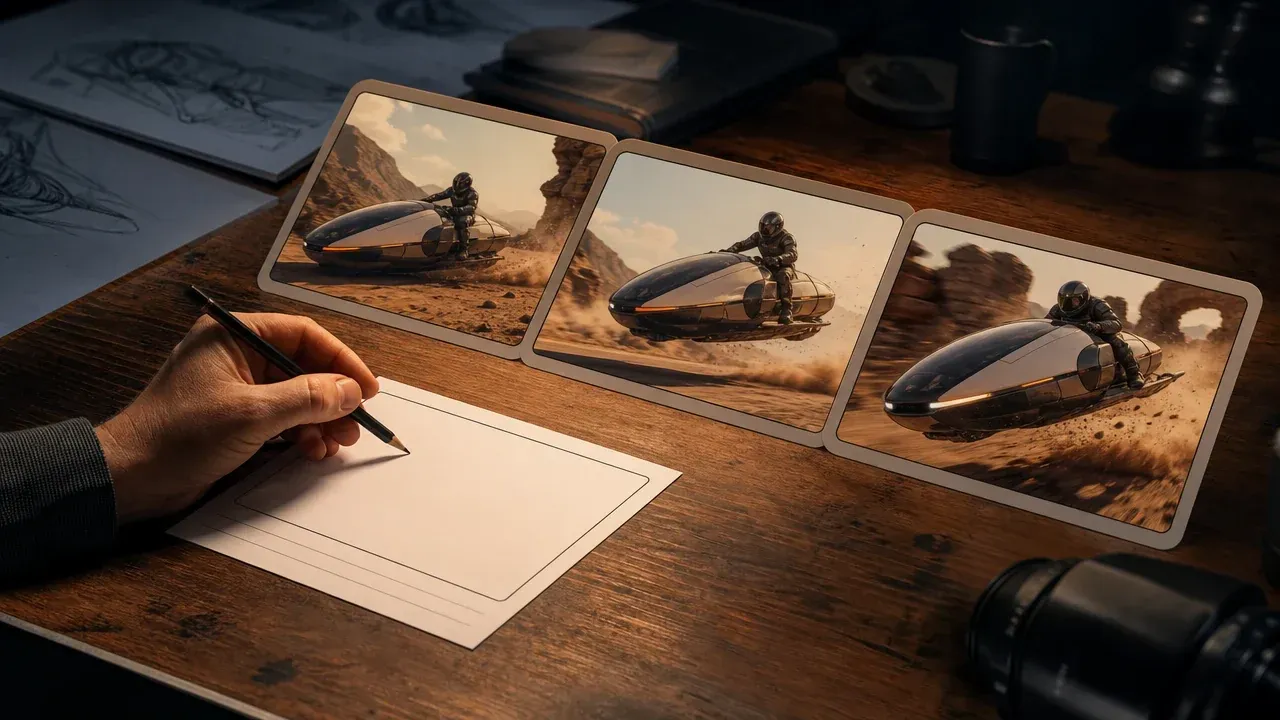
Use it when the speaking portrait becomes a broader scene idea that needs text-to-video or image-to-video motion.
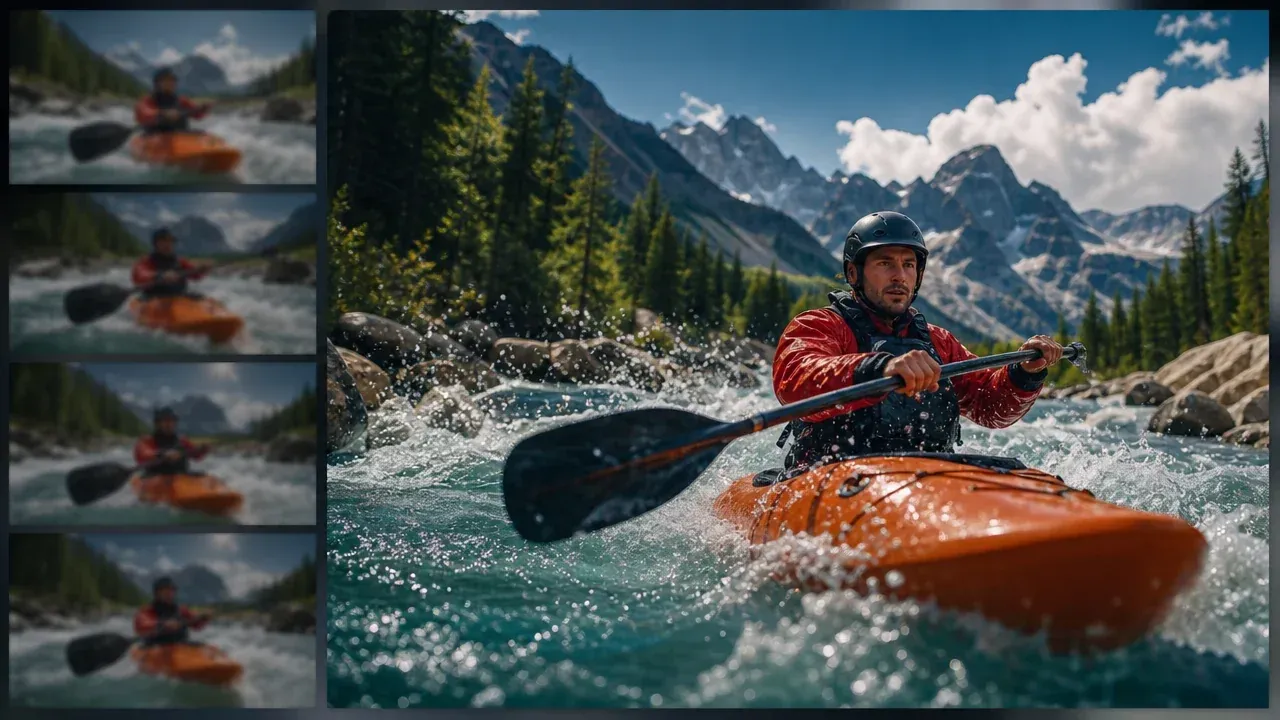
Use it after a talking photo clip is worth keeping but the video needs a cleaner pass before sharing.
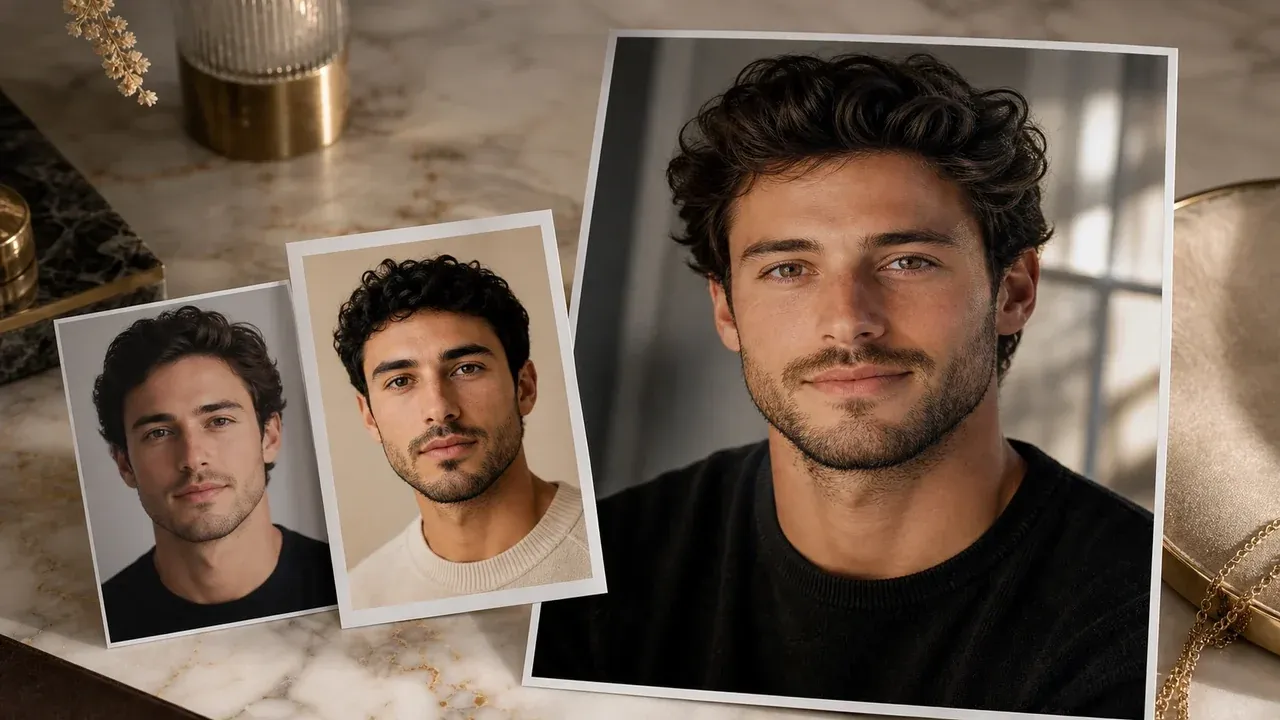
Use face swap first when the portrait needs a different character before it becomes a talking photo.
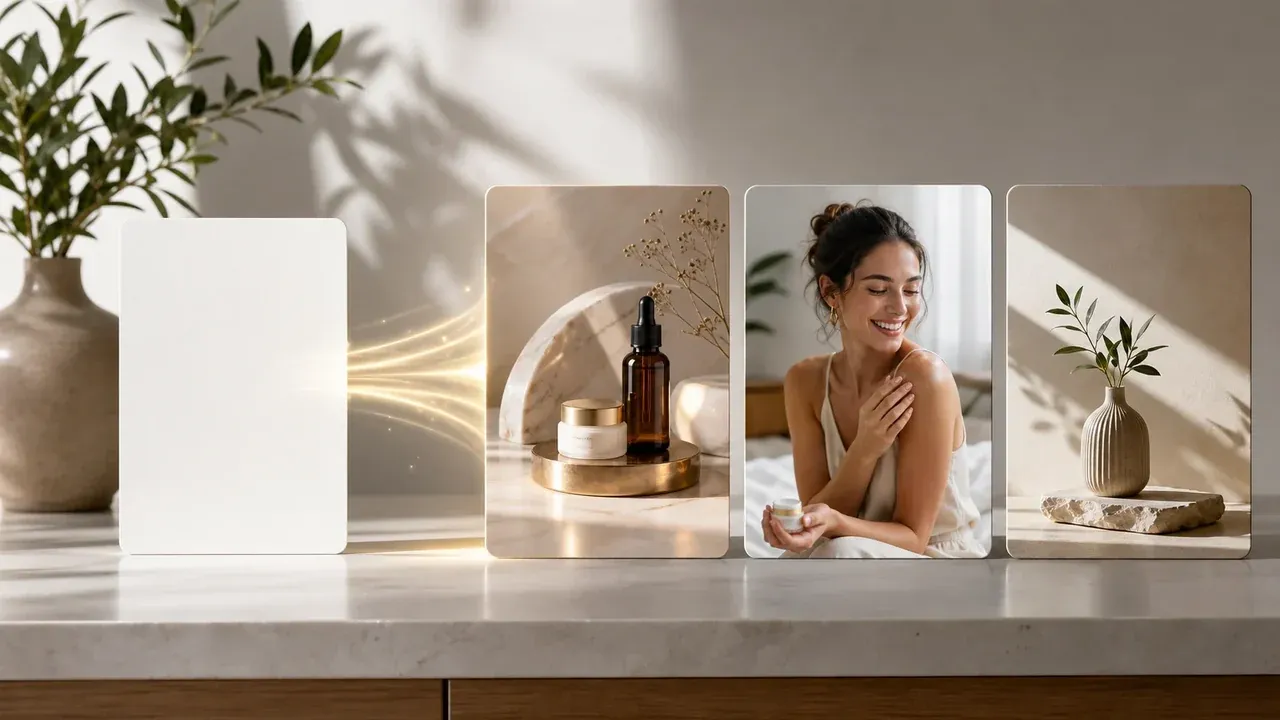
Create a clean portrait concept first when you do not already have an approved face image.
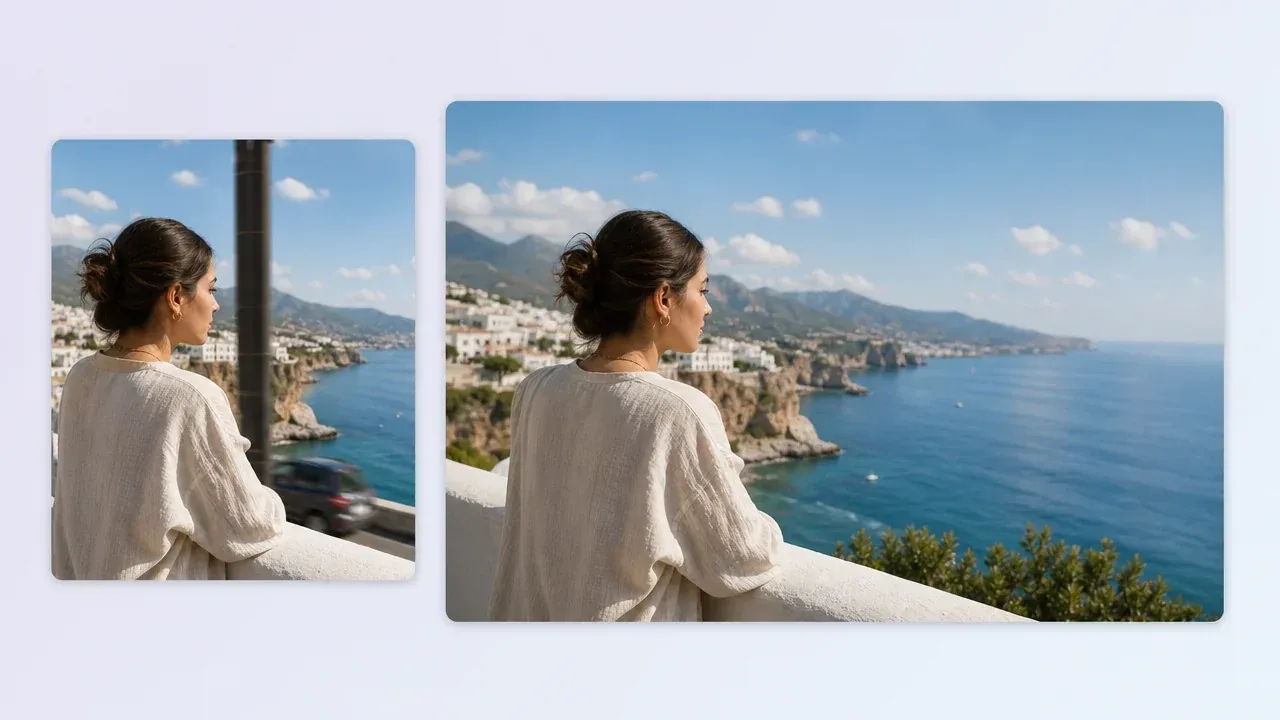
Clean distracting portrait details before animation when the face is right but the photo needs one focused fix.
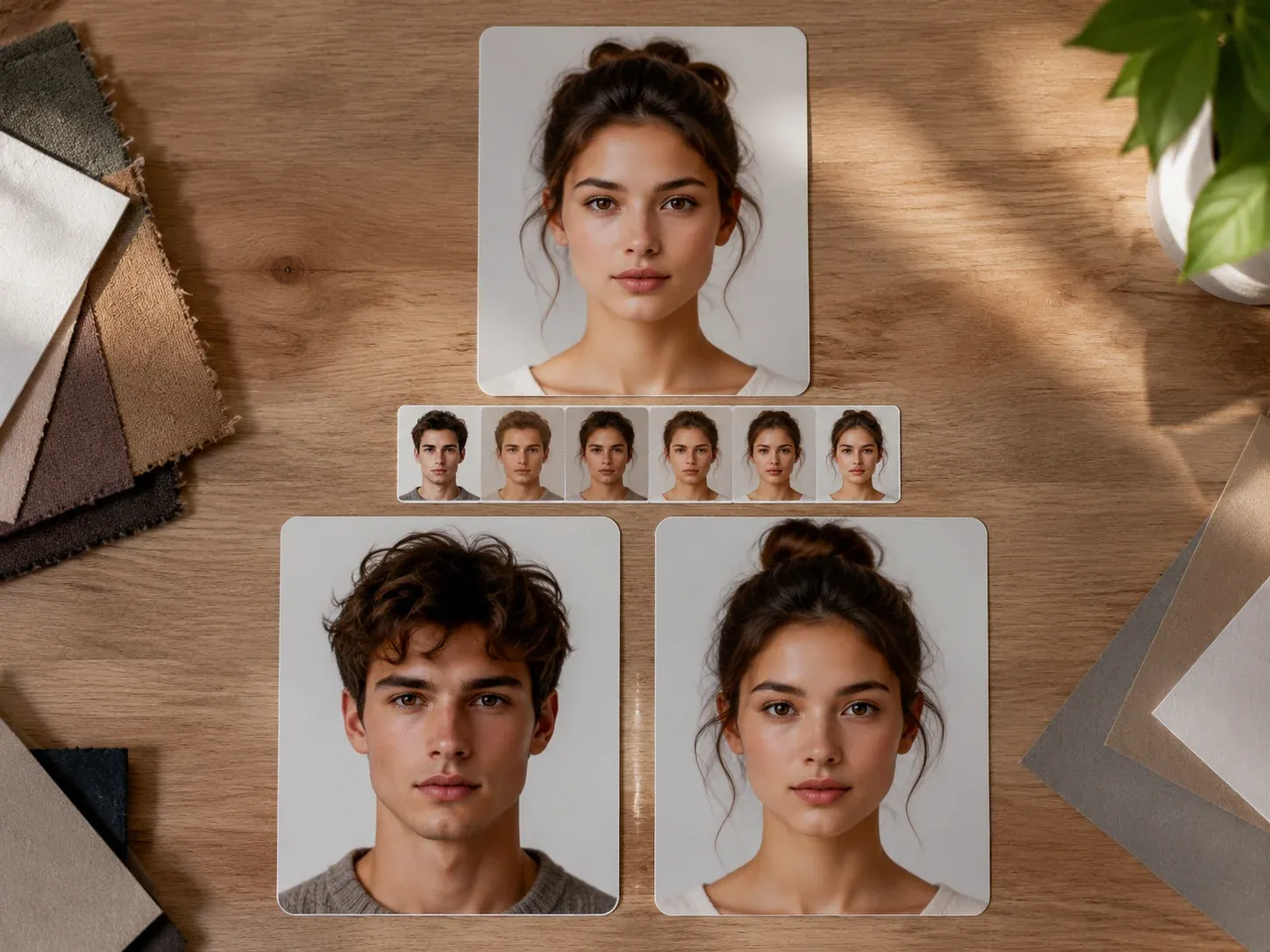
Blend or test character identity first when the speaking face is still in concept stage.
Direct answers about how talking photos work, which portraits and voice inputs help, where quality can break, and what rights you need before sharing.
An AI talking photo generator turns one still face image into a short speaking video. You provide the portrait and either a script or audio, then the tool creates the animated talking result.
Upload one clear portrait, add text or audio, then generate the clip. If the first output feels stiff, shorten the script or replace the source photo with a cleaner front-facing shot.
Not exactly. A talking photo usually starts from one existing image. An AI avatar workflow may involve generated presenters, style packs, reusable avatars, or a larger studio setup.
Common jobs include creator hooks, product explainers, ambassador intros, UGC script tests, community reactions, greetings, and short face-led messages.
Use one front-facing portrait with a visible mouth, open eyes, and even lighting. Group shots, cropped chins, heavy shadows, and side angles make mouth motion less reliable.
Yes. Type a short script and choose a text-to-speech voice when you are still testing the message or do not have recorded audio ready.
Yes. Uploaded audio is the better choice when you already have the exact pacing, tone, or performance you want the portrait to follow.
The shared Talking Photo workbench includes recording and voice clone options. Use them only with voices you have permission to use.
The usual causes are hidden lips, poor lighting, low-resolution source photos, strong side angles, or a script that is too long for the portrait. Clean input matters more here than in a static image tool.
Start with one short line. A compact first pass makes it easier to judge lip sync, voice fit, and whether the portrait can carry the message.
Do not rely on the talking photo generation step for exact typography, captions, or brand marks. Generate the speaking clip first, then add precise text later in an editor if the channel needs it.
This page is written around realistic human portraits because that is the current FaceAI talking photo workflow. Non-human or heavily stylized images may be less predictable.
You can use approved portraits, scripts, and audio in marketing workflows, but you still need the right to use the source face, voice, and message. Do not upload people or audio you are not allowed to use.
Use it for entertainment with consent and good judgment. A talking portrait can be funny or emotional, but it still uses a face and voice, so permission matters.
Use AI Video Enhancer if the clip needs a cleaner video pass, AI Video Generator if the idea becomes a broader scene, or Face Swap if the character needs a different face first.
The shared workbench keeps local history for recent attempts in your browser, so you can compare results and download the version that works best.
Upload one clear portrait, add text or audio, and make the first speaking clip real enough to judge.