
Startpunkt
Unser
Wähle einen MP4-, MOV- oder WebM-Clip und konvertiere das Quellvideo im Browser.
Andere Workflows
Editoren verlangen meist ein Projekt, eine Timeline, Export-Presets und mehr Setup.
Wähle einen MP4-, MOV- oder WebM-Clip, schneide den besten Moment, lege FPS, Auflösung und Tempo fest, dann konvertiere das Video direkt im Browser und exportiere ein Endlos-GIF für Chat, Dokumente, Social-Vorschauen, Produktnotizen oder Launch-Updates.
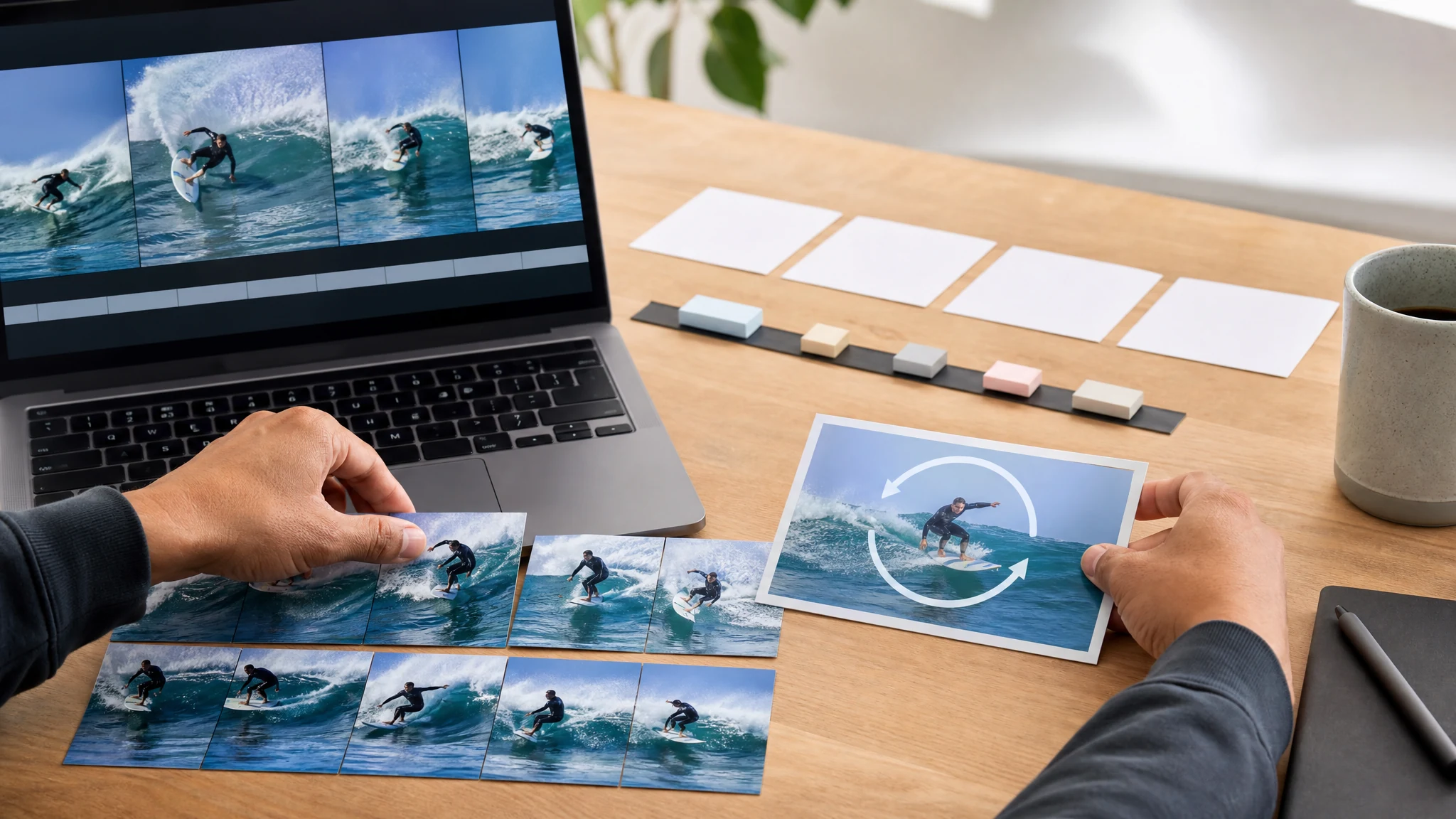
Vertraut von über 12.000.000 Nutzern weltweit. Entwickelt für die Konvertierung im Browser, kurze GIF-Exporte und praktisches Herunterladen – nicht für Untertitel, Overlays, Batch-Konvertierung oder WebP-Export.
Halte den ersten Export fokussiert: wähle einen MP4-, MOV- oder WebM-Clip, schneide die passende Stelle und lege praktische FPS-, Auflösungs- und Tempo-Einstellungen fest.
Nutze MP4, MOV oder WebM. Kurze Quellclips funktionieren am besten, weil GIF-Dateien schnell groß werden.
Wähle das passende Segment, dann FPS, Auflösung und Tempo je nachdem, wo das GIF geteilt wird.
Erzeuge das Endlos-GIF, prüfe das Ergebnis und lade es für Dokumente, Chat, E-Mail, Social-Vorschauen oder Produktnotizen herunter.
Nutze ihn, wenn ein kurzer Loop mehr sagt als eine komplette Videodatei – besonders in Dokumenten, Chat, Support, Social-Posts und Produkt-Updates.
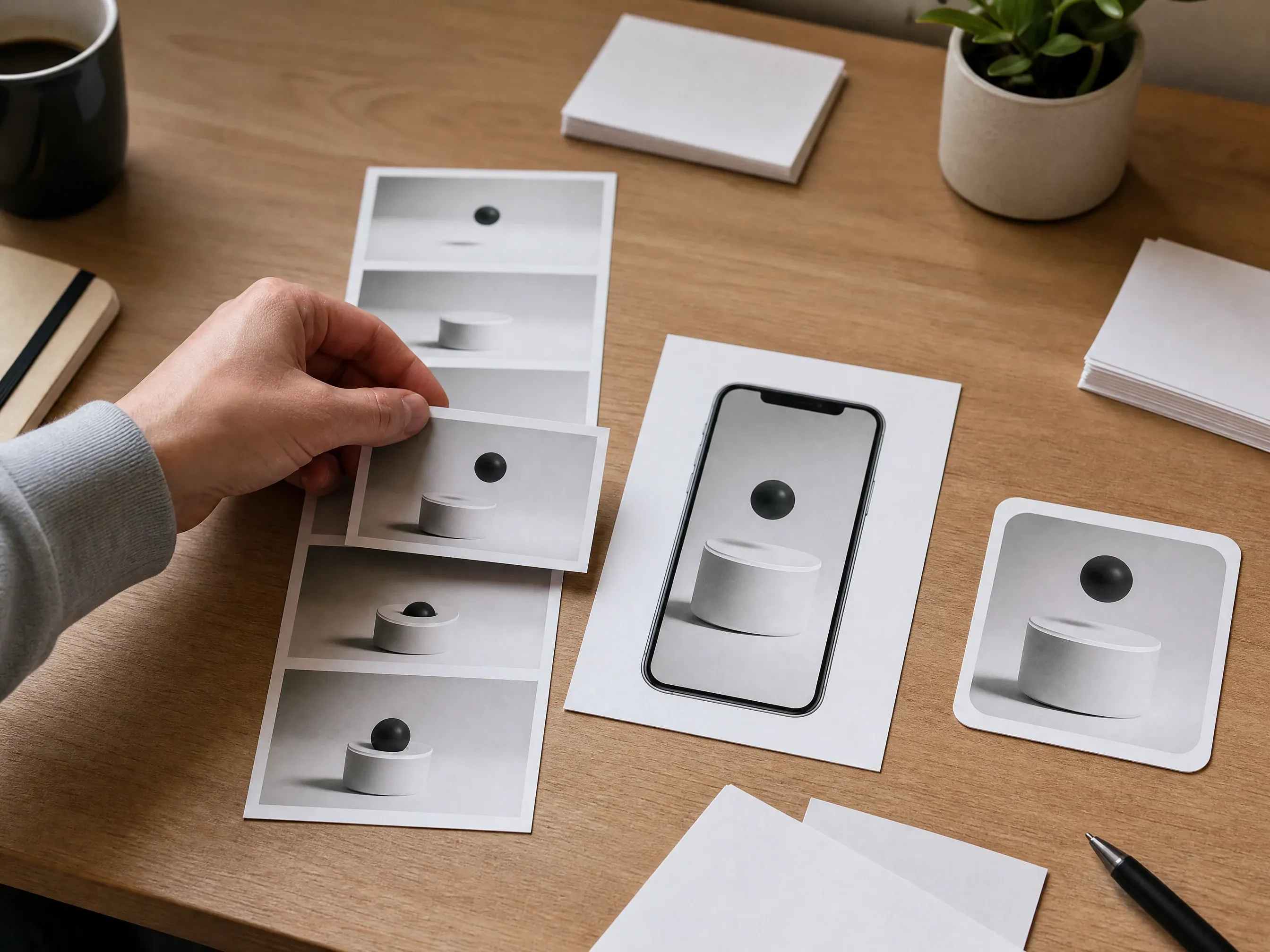
Verwandle einen kurzen Screen-Recording- oder Produktdemo-Moment in ein leichtes GIF für Changelogs, Dokumente und Release-Notes.
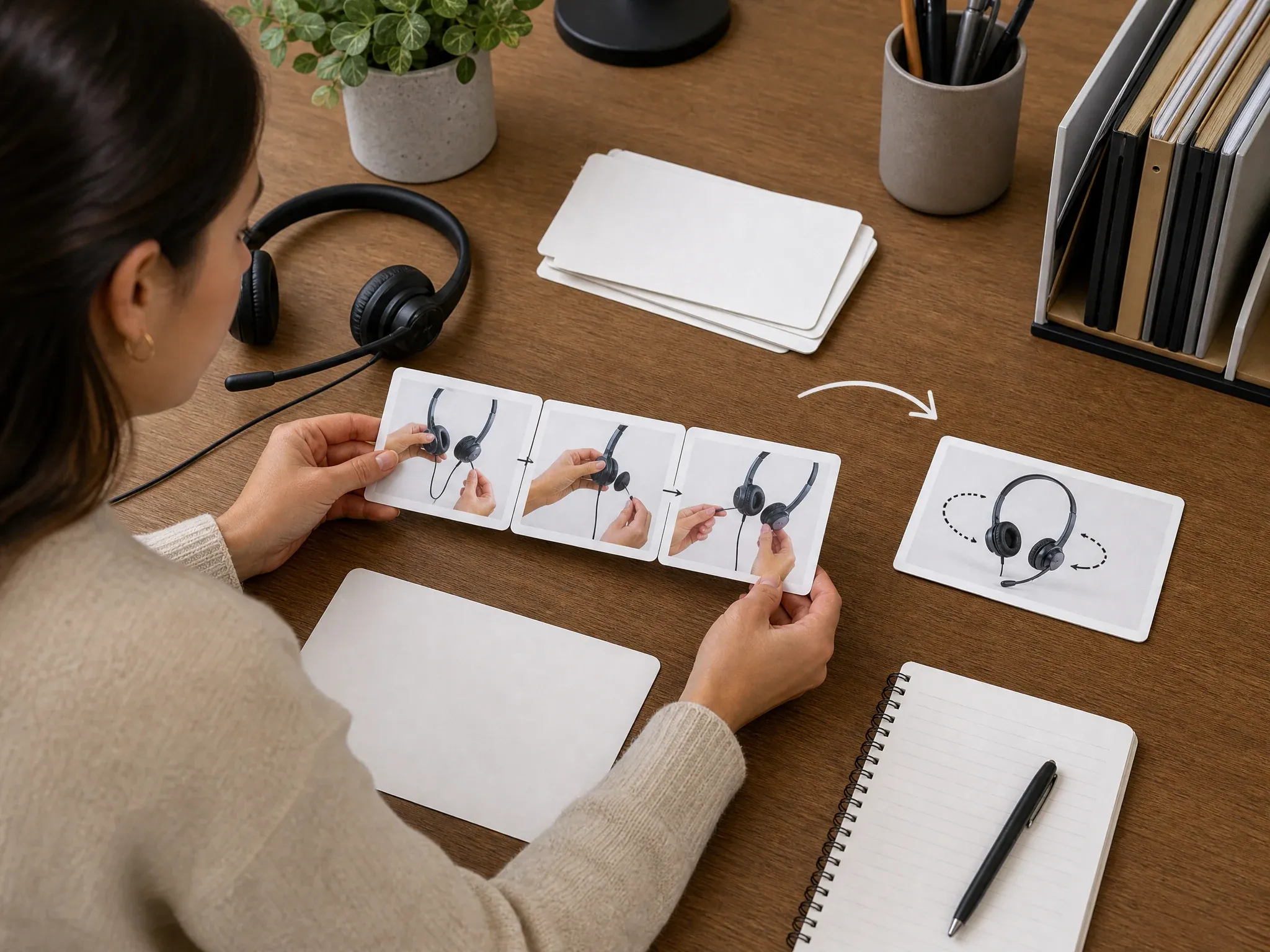
Konvertiere schnelle How-to-Clips in GIFs, die du direkt in Tickets, Slack, Discord, Team-Chat oder Onboarding-Notizen einfügen kannst.
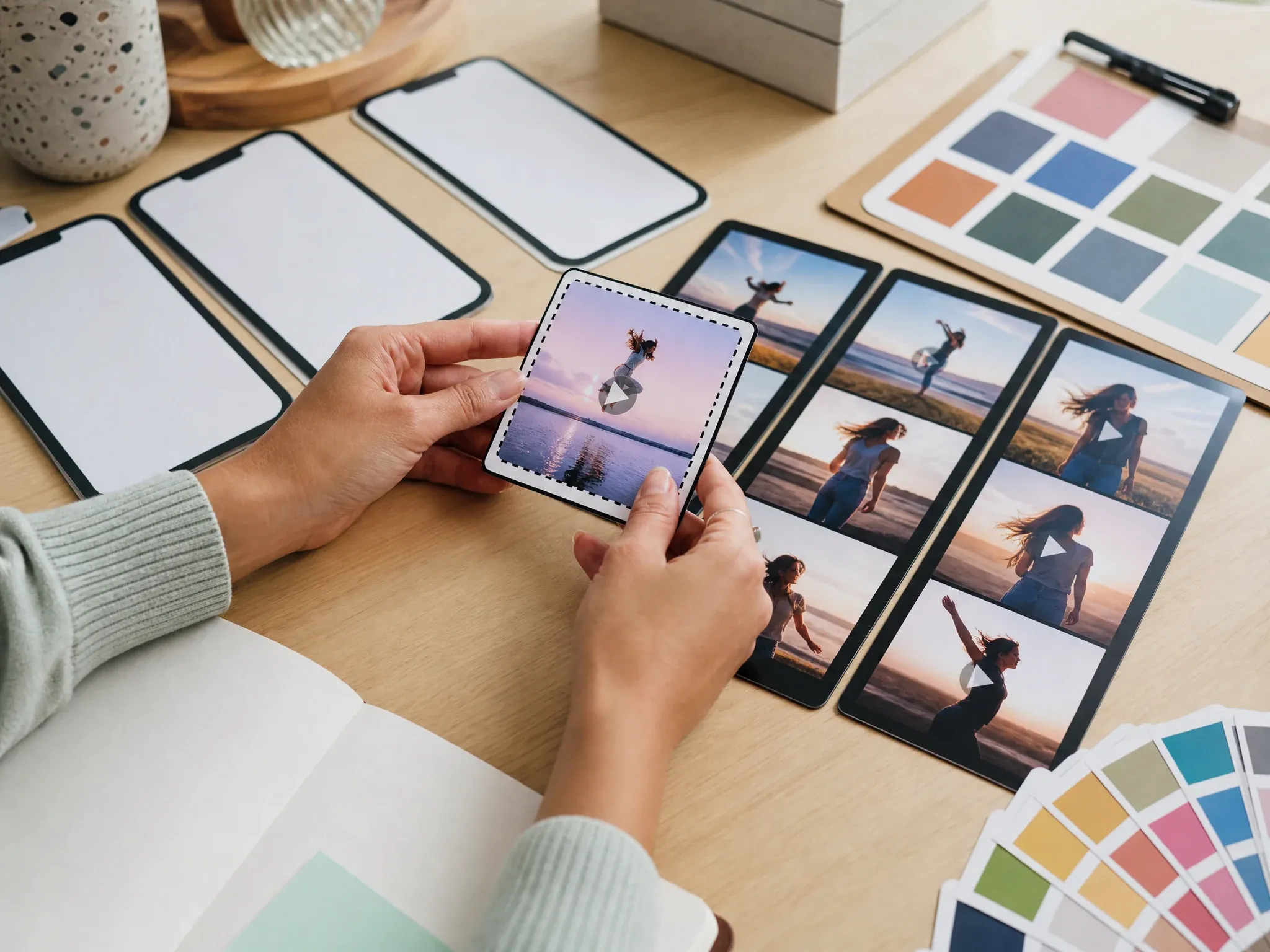
Exportiere eine winzige Motion-Vorschau für Posts oder Storyboards, wenn ein kompletter Video-Upload zu schwer ist.
Schneide einen lustigen oder ausdrucksstarken Moment in ein Endlos-GIF für Kommentare, Chats und Community-Posts.
Nutze ein kurzes GIF mit niedriger FPS, wenn ein statischer Screenshot nicht reicht, ein eingebettetes Video aber zu schwer ist.
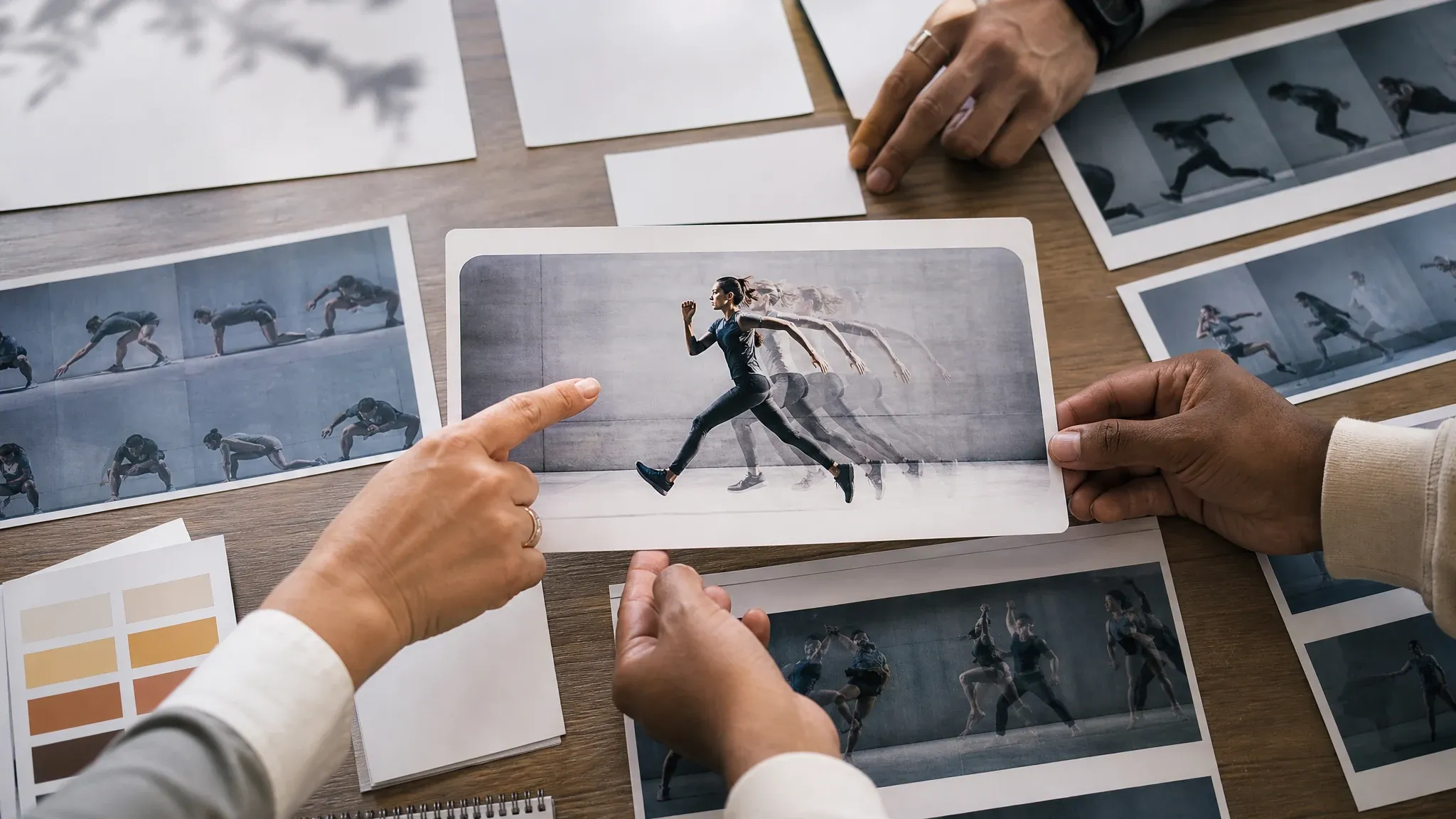
Setze ein GIF in ein Moodboard oder eine Kundennote, damit Reviewer Bewegung sehen, ohne einen Video-Player zu öffnen.
Ein Video-zu-GIF-Konverter wandelt einen kurzen Videoabschnitt in ein Endlos-Animation-GIF um. Diese Face AI-Version fokussiert sich auf Konvertierung im Browser, Zuschnitt, FPS, Auflösung, Tempo, Vorschau und Download für einen einzelnen Clip.
Schneide die passende Stelle, statt ein langes Video in ein überdimensioniertes GIF zu verwandeln.
Wähle flüssigere Bewegung, Ausgabebreite und Wiedergabetempo je nach Verwendungszweck.
Das Ergebnis ist eine GIF-Datei – kein untertitelter Film, keine Vektor-Animation und kein Batch-Editor-Export.
Die Seite öffnet direkt den Konverter-Workspace und hält die Steuerung auf den typischen Job fokussiert: ein Clip rein, ein lokales GIF raus, mit sichtbarem Dateigrößen-Tradeoff vor der Konvertierung.
Starte bei Upload und Zuschnitt, ohne erst eine Projekt-Timeline einzurichten.
Das fertige GIF bleibt in der aktuellen Browser-Sitzung und kann direkt heruntergeladen werden, ohne das Quellvideo an Face AI zu senden.
FPS-, Auflösungs- und Tempo-Regler machen den Tradeoff zwischen Größe und Flüssigkeit vor der Konvertierung sichtbar.
Für Untertitel, Overlays, Batch-Konvertierung, frame-genaue Schnitte und Produktions-Videos nutze einen vollen Editor.
Nutze Face AI für schnelle GIF-Konvertierung. Einen vollen Editor, wenn du Timeline-Editing, Text-Overlays oder Batch-Produktion brauchst.
| Kriterium | Face AIUnser Face AI Video-zu-GIF-Workflow | Andere Workflows |
|---|---|---|
| Startpunkt | Wähle einen MP4-, MOV- oder WebM-Clip und konvertiere das Quellvideo im Browser. | Editoren verlangen meist ein Projekt, eine Timeline, Export-Presets und mehr Setup. |
| Kostenloser Online-Fokus | Starte mit einem fokussierten Konverter-Workflow mit sichtbaren FPS-, Auflösungs- und Tempo-Optionen. | Große Editoren starten oft kostenlos, verlagern fortgeschrittene Bearbeitung, Wasserzeichen-Entfernung, Speicher oder Brand-Tools aber in Konto- und Bezahl-Flows. |
| Steuerung | Schnittbereich, FPS, Auflösung, Tempo, Ergebnis-Vorschau und GIF-Download. | Editoren bieten oft Untertitel, Overlays, Zuschnitt, Filter, Audio, Seitenverhältnisse, WebP-Export und Batch-Warteschlangen. |
| Privatsphäre-Grenze | Das Quellvideo wird im Browser konvertiert. Das exportierte GIF wird in der aktuellen Sitzung angesehen und heruntergeladen. | Manche Browser-only-Konkurrenten lassen Dateien komplett auf dem Gerät, Cloud-Konverter versprechen Löschfenster oder Kontospeicher. |
| Beste Nutzung | Dokumente, Chat, Support, Produkt-Loops, Reaction-Clips und Social-Vorschau-GIFs. | Produktions-Videos, Marken-Motion-Design oder präzise Frame-für-Frame-Bearbeitung. |
| Ehrliche Ausgabe | Endlos-GIF-Datei zum leichten Teilen – kein WebP, keine Untertitel, kein komplettes Video-Paket. | MP4, WebM, GIF, MOV, Untertitel, Thumbnails und Mixed-Media-Pakete. |
Wähle einen MP4-, MOV- oder WebM-Clip und konvertiere das Quellvideo im Browser.
Editoren verlangen meist ein Projekt, eine Timeline, Export-Presets und mehr Setup.
Starte mit einem fokussierten Konverter-Workflow mit sichtbaren FPS-, Auflösungs- und Tempo-Optionen.
Große Editoren starten oft kostenlos, verlagern fortgeschrittene Bearbeitung, Wasserzeichen-Entfernung, Speicher oder Brand-Tools aber in Konto- und Bezahl-Flows.
Schnittbereich, FPS, Auflösung, Tempo, Ergebnis-Vorschau und GIF-Download.
Editoren bieten oft Untertitel, Overlays, Zuschnitt, Filter, Audio, Seitenverhältnisse, WebP-Export und Batch-Warteschlangen.
Das Quellvideo wird im Browser konvertiert. Das exportierte GIF wird in der aktuellen Sitzung angesehen und heruntergeladen.
Manche Browser-only-Konkurrenten lassen Dateien komplett auf dem Gerät, Cloud-Konverter versprechen Löschfenster oder Kontospeicher.
Dokumente, Chat, Support, Produkt-Loops, Reaction-Clips und Social-Vorschau-GIFs.
Produktions-Videos, Marken-Motion-Design oder präzise Frame-für-Frame-Bearbeitung.
Endlos-GIF-Datei zum leichten Teilen – kein WebP, keine Untertitel, kein komplettes Video-Paket.
MP4, WebM, GIF, MOV, Untertitel, Thumbnails und Mixed-Media-Pakete.
Diese Kommentare fokussieren den praktischen Loop: Clip wählen, schneiden, Größe tunen, lokal konvertieren, dann Vorschau und Download des GIF-Ergebnisses.
"Ein fünf Sekunden langer Produkt-Loop erklärt oft mehr als ein komplettes Video. Die Steuerung für Zuschnitt, FPS, Auflösung und Tempo hält das GIF fokussiert genug für Release-Notes."
Kai Nakamura
Globaler Kreativdirektor
"Die Seite ist nützlich, weil sie sich nicht als vollwertiger Video-Editor ausgibt. Ich lade einen Clip hoch, wähle den kurzen Moment und exportiere ein GIF für die Review."
Nina Volkov
Leiterin visuelles Design
"Für kreative Reviews lässt sich ein GIF leichter auf ein Board legen als ein Video-Player. Die Konvertierung im Browser hält die Übergabe leichtgewichtig."
Rafael Santos
VP Kreativ
"Ich nutze es, wenn ein Kunde Bewegung sehen will statt eines kompletten Schnitts. MP4-, MOV- und WebM-Support deckt die Quellclips ab, die wir gewöhnlich erhalten."
Priya Chen
Leiterin Kreativstrategie
"Die praktischen Regler sind genau die, die ich brauche: Zuschnitt, FPS, Auflösung, Tempo, Vorschau und Download. Untertitel und Overlays gehören in einen Editor."
Devon Park
Kreativdirektor für interaktive Medien
"Doku-Seiten lesen sich besser mit einem kleinen Loop neben den Anleitungen. Niedrigere FPS und ein kürzerer Clip halten die Datei klein genug für den Artikel."
Sophia Wagner
Redaktionsleiterin
"Ein fünf Sekunden langer Produkt-Loop erklärt oft mehr als ein komplettes Video. Die Steuerung für Zuschnitt, FPS, Auflösung und Tempo hält das GIF fokussiert genug für Release-Notes."
Kai Nakamura
Globaler Kreativdirektor
"Die Seite ist nützlich, weil sie sich nicht als vollwertiger Video-Editor ausgibt. Ich lade einen Clip hoch, wähle den kurzen Moment und exportiere ein GIF für die Review."
Nina Volkov
Leiterin visuelles Design
"Für kreative Reviews lässt sich ein GIF leichter auf ein Board legen als ein Video-Player. Die Konvertierung im Browser hält die Übergabe leichtgewichtig."
Rafael Santos
VP Kreativ
"Ich nutze es, wenn ein Kunde Bewegung sehen will statt eines kompletten Schnitts. MP4-, MOV- und WebM-Support deckt die Quellclips ab, die wir gewöhnlich erhalten."
Priya Chen
Leiterin Kreativstrategie
"Die praktischen Regler sind genau die, die ich brauche: Zuschnitt, FPS, Auflösung, Tempo, Vorschau und Download. Untertitel und Overlays gehören in einen Editor."
Devon Park
Kreativdirektor für interaktive Medien
"Doku-Seiten lesen sich besser mit einem kleinen Loop neben den Anleitungen. Niedrigere FPS und ein kürzerer Clip halten die Datei klein genug für den Artikel."
Sophia Wagner
Redaktionsleiterin
"Die Texte sind ehrlich über die GIF-Nachteile. Sie raten Nutzern, den Clip zu kürzen, statt eine perfekte lange Animation zu versprechen."
Astrid Nielsen
Leiterin Thought Leadership
"Ein fünf Sekunden langer Produkt-Loop erklärt oft mehr als ein komplettes Video. Die Steuerung für Zuschnitt, FPS, Auflösung und Tempo hält das GIF fokussiert genug für Release-Notes."
Kai Nakamura
Globaler Kreativdirektor
"Die Seite ist nützlich, weil sie sich nicht als vollwertiger Video-Editor ausgibt. Ich lade einen Clip hoch, wähle den kurzen Moment und exportiere ein GIF für die Review."
Nina Volkov
Leiterin visuelles Design
"Für kreative Reviews lässt sich ein GIF leichter auf ein Board legen als ein Video-Player. Die Konvertierung im Browser hält die Übergabe leichtgewichtig."
Rafael Santos
VP Kreativ
"Ich nutze es, wenn ein Kunde Bewegung sehen will statt eines kompletten Schnitts. MP4-, MOV- und WebM-Support deckt die Quellclips ab, die wir gewöhnlich erhalten."
Priya Chen
Leiterin Kreativstrategie
"Die praktischen Regler sind genau die, die ich brauche: Zuschnitt, FPS, Auflösung, Tempo, Vorschau und Download. Untertitel und Overlays gehören in einen Editor."
Devon Park
Kreativdirektor für interaktive Medien
"Doku-Seiten lesen sich besser mit einem kleinen Loop neben den Anleitungen. Niedrigere FPS und ein kürzerer Clip halten die Datei klein genug für den Artikel."
Sophia Wagner
Redaktionsleiterin
"Die Texte sind ehrlich über die GIF-Nachteile. Sie raten Nutzern, den Clip zu kürzen, statt eine perfekte lange Animation zu versprechen."
Astrid Nielsen
Leiterin Thought Leadership
"Unser Education-Team kann eine schnelle Bildschirmaufnahme in ein Support-GIF verwandeln und das Originalvideo für längere Walkthroughs behalten."
Charlotte Beaumont
Direktorin Content-Operations
"Die Social-Preset-Sprache ist nützlich für Kampagnenarbeit. Sie gibt dem Team schnell ein Bewegungs-Asset, ohne eine Timeline-Editor zu öffnen."
Yifan Zheng
Leiter Demand Generation
"Ich mag es, einen einfachen Konverter für Partner-Ankündigungen zu haben. Ein kurzes GIF reist in Chat und E-Mail besser als ein schwerer Video-Anhang."
Sakura Ito
Leiter des Partnermarketings
"Für Kunden-Updates ist das Ergebnis leicht wiederverwendbar: ein Produktmoment, ein Endlos-GIF und eine klare Dateigrößen-Abwägung."
Ren Sato
Direktor für Kundenmarketing
"Das Tool hält Markenteams realistisch. Es erzeugt ein GIF, keine Untertitel, Crop-Presets, WebP-Varianten oder ein ganzes Motion-Graphics-Paket."
Anisha Patel
Markendirektorin
"Ich habe es für einen Community-Post genutzt, bei dem der volle Clip zu viel war. Ein zugeschnittenes GIF machte das Update auf dem Handy leichter scannbar."
Jordan Kim
Wachstumsleitung
"Das Beste ist das schmale Versprechen. Konvertiere den genehmigten Clip, lade das GIF herunter und nutze einen eigenen Editor, wenn die Arbeit Feinschliff braucht."
Pooja Mehta
Personal Stylist
"Unser Education-Team kann eine schnelle Bildschirmaufnahme in ein Support-GIF verwandeln und das Originalvideo für längere Walkthroughs behalten."
Charlotte Beaumont
Direktorin Content-Operations
"Die Social-Preset-Sprache ist nützlich für Kampagnenarbeit. Sie gibt dem Team schnell ein Bewegungs-Asset, ohne eine Timeline-Editor zu öffnen."
Yifan Zheng
Leiter Demand Generation
"Ich mag es, einen einfachen Konverter für Partner-Ankündigungen zu haben. Ein kurzes GIF reist in Chat und E-Mail besser als ein schwerer Video-Anhang."
Sakura Ito
Leiter des Partnermarketings
"Für Kunden-Updates ist das Ergebnis leicht wiederverwendbar: ein Produktmoment, ein Endlos-GIF und eine klare Dateigrößen-Abwägung."
Ren Sato
Direktor für Kundenmarketing
"Das Tool hält Markenteams realistisch. Es erzeugt ein GIF, keine Untertitel, Crop-Presets, WebP-Varianten oder ein ganzes Motion-Graphics-Paket."
Anisha Patel
Markendirektorin
"Ich habe es für einen Community-Post genutzt, bei dem der volle Clip zu viel war. Ein zugeschnittenes GIF machte das Update auf dem Handy leichter scannbar."
Jordan Kim
Wachstumsleitung
"Das Beste ist das schmale Versprechen. Konvertiere den genehmigten Clip, lade das GIF herunter und nutze einen eigenen Editor, wenn die Arbeit Feinschliff braucht."
Pooja Mehta
Personal Stylist
Wähle das nächste Tool anhand des echten Problems: Bewegung erzeugen, das Quellvideo verbessern, ein Standbild animieren oder ein Gesicht tauschen, bevor du den kurzen Loop exportierst.

Bereinige einen weichen Clip vor der Konvertierung, wenn das Quellvideo für ein GIF zu unscharf ist.
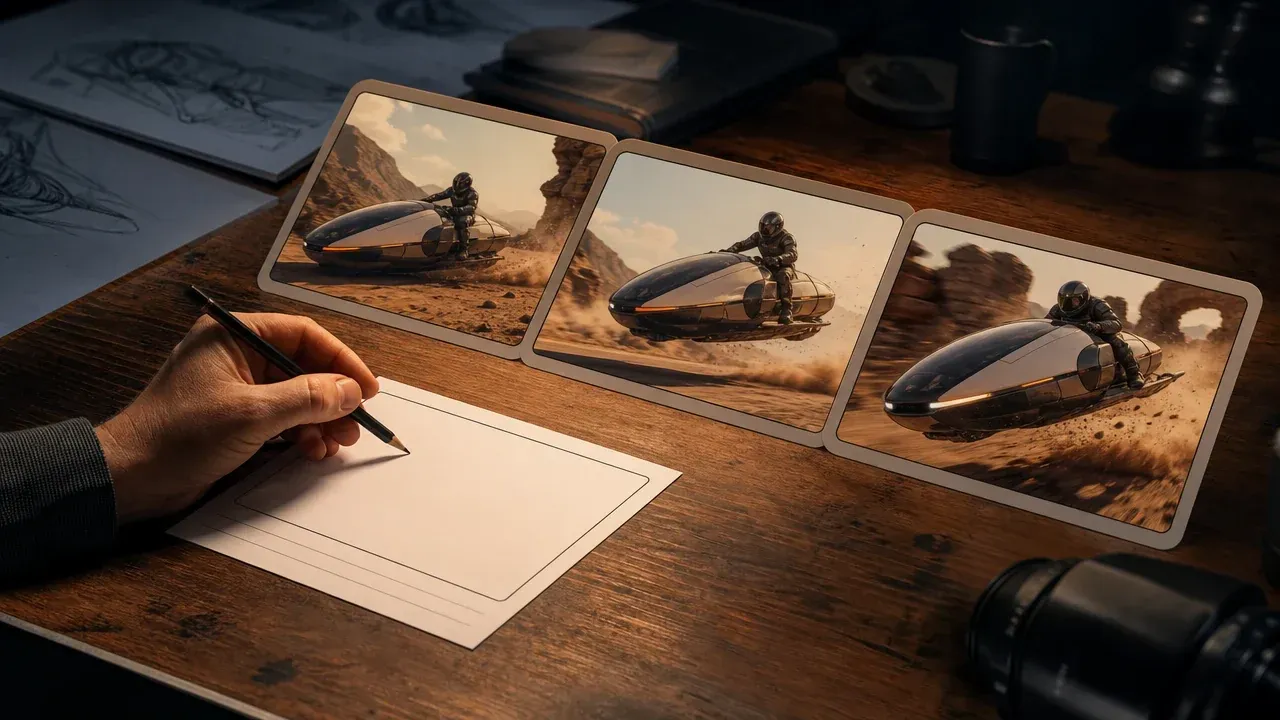
Erzeuge zuerst einen kurzen Clip, wenn die Bewegungs-Idee noch nicht existiert, und exportiere den besten Moment als GIF.

Animiere zuerst ein Standbild und schneide die finale Bewegung dann in ein sharebares GIF.

Tausche zuerst ein Gesicht im Video, wenn Identität die kreative Aufgabe ist, und wandle den genehmigten Moment in ein GIF um.
Antworten zu MP4/MOV/WebM-Quelldateien, Konvertierung im Browser, FPS, Auflösung, Tempo, Dateigröße, GIF-Ausgabe, Privatsphäre und wann ein voller Editor besser ist.
Nutze MP4, MOV oder WebM. Die Dateiauswahl akzeptiert ein Quellvideo für die Konvertierung im Browser.
Ja, die Seite startet mit einem kostenlosen Online-Konverter-Workflow und konvertiert den gewählten Quellclip im Browser. Sehr große Clips können weiterhin langsam sein, weil GIF-Encoding rechenintensiv ist.
Es gibt keine Produkt-Längenbegrenzung in diesem lokalen Flow. Kürzere Clips konvertieren schneller und ergeben meist kleinere, besser teilbare GIFs.
Ja. Die Browser-Konvertierung liefert ein GIF-Ergebnis zur Vorschau und zum Download in der aktuellen Sitzung.
Nutze für die meisten Social- und Doku-Fälle 10 oder 12 FPS. Niedrigere FPS machen kleinere Dateien; höhere FPS wirken flüssiger, können aber größer sein.
Auflösung ändert die GIF-Breite. Tempo ändert die Wiedergabegeschwindigkeit. Niedrigere FPS und geringere Breite ergeben meist kleinere GIFs.
Nicht in diesem einfachen Konverter. Füge Untertitel, Sticker, Zuschnitt, Größenänderung und Overlays in einem Video-Editor hinzu, bevor du den Clip konvertierst.
Nein. Diese Seite ist auf GIF-Ausgabe beschränkt. Nutze einen anderen Konverter oder Editor, wenn du WebP, MP4, Thumbnails oder ein Mixed-Media-Paket brauchst.
Das Quellvideo wird in deinem Browser konvertiert, statt für die Konvertierung hochgeladen zu werden. Halte den Tab offen, bis die Konvertierung fertig ist, und lade das GIF herunter, bevor du den Tab schließt oder die Seite verlässt.
Nein. GIF ist ein Bildformat und trägt kein Audio. Nur die visuellen Frames des gewählten Clips erscheinen im Ergebnis.
GIF-Dateien wachsen schnell mit Dauer, Breite, Farbdetails und FPS. Schneide kürzer, verwende niedrigere FPS oder eine kleinere Auflösung.
Wähle nur Videos, die dir gehören oder die du verarbeiten darfst. Vermeide sensible, private oder urheberrechtlich geschützte Inhalte ohne Erlaubnis.
Wähle einen MP4-, MOV- oder WebM-Clip, schneide die passende Stelle, lege FPS, Auflösung und Tempo fest und konvertiere ihn im Browser zu einem Endlos-GIF.


