
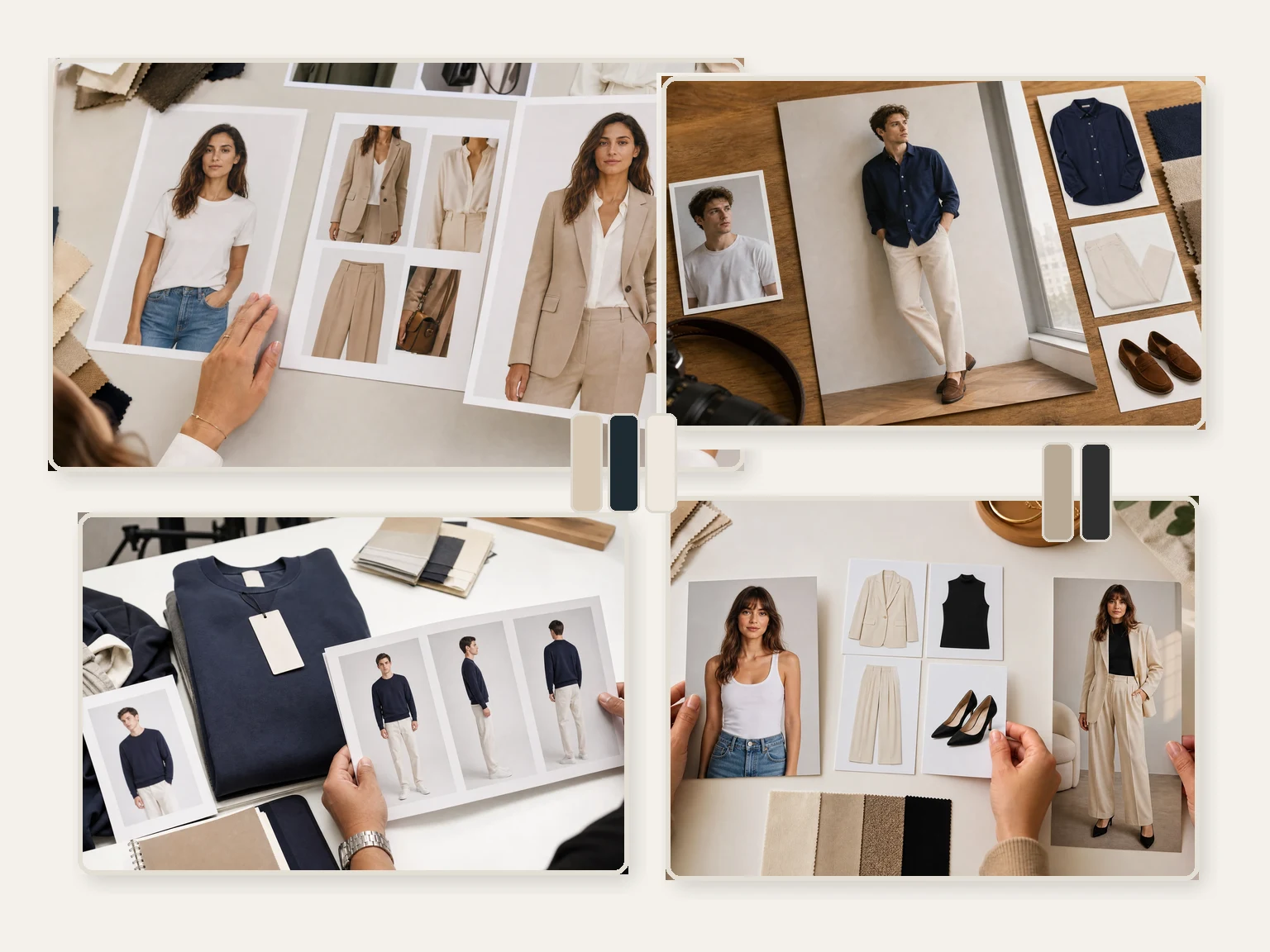
Free AI Clothes Changer Online for Realistic Outfit Swaps
Upload a person photo, add one or more outfit references, choose the clothing goal, and create a new outfit look in the browser. Try business suits, dresses, streetwear, ecommerce product looks, event outfits, costumes, uniforms, and color ideas without starting from a blank prompt. Free online. No login. No watermark on downloads.
Trusted by 12,000,000+ users worldwide.
How to Change Clothes in a Photo with AI
The fastest path is person photo first, outfit reference second, short instruction third, then generate and inspect the result.
Upload the person photo
Use one clear photo with a visible outfit area, normal lighting, and enough body detail for the clothing change.
Add outfit references
Upload the garment, full outfit, color, fabric, or accessory references you want the result to follow.
Generate and refine
Choose the outfit goal, add a short note, download the keeper, or send it to editor or upscaler when it is close.
Outfit Photos You Can Create with an AI Clothes Changer
Use the AI clothes changer for personal styling, ecommerce catalog previews, social content, event looks, costumes, uniforms, and color or fabric ideas.
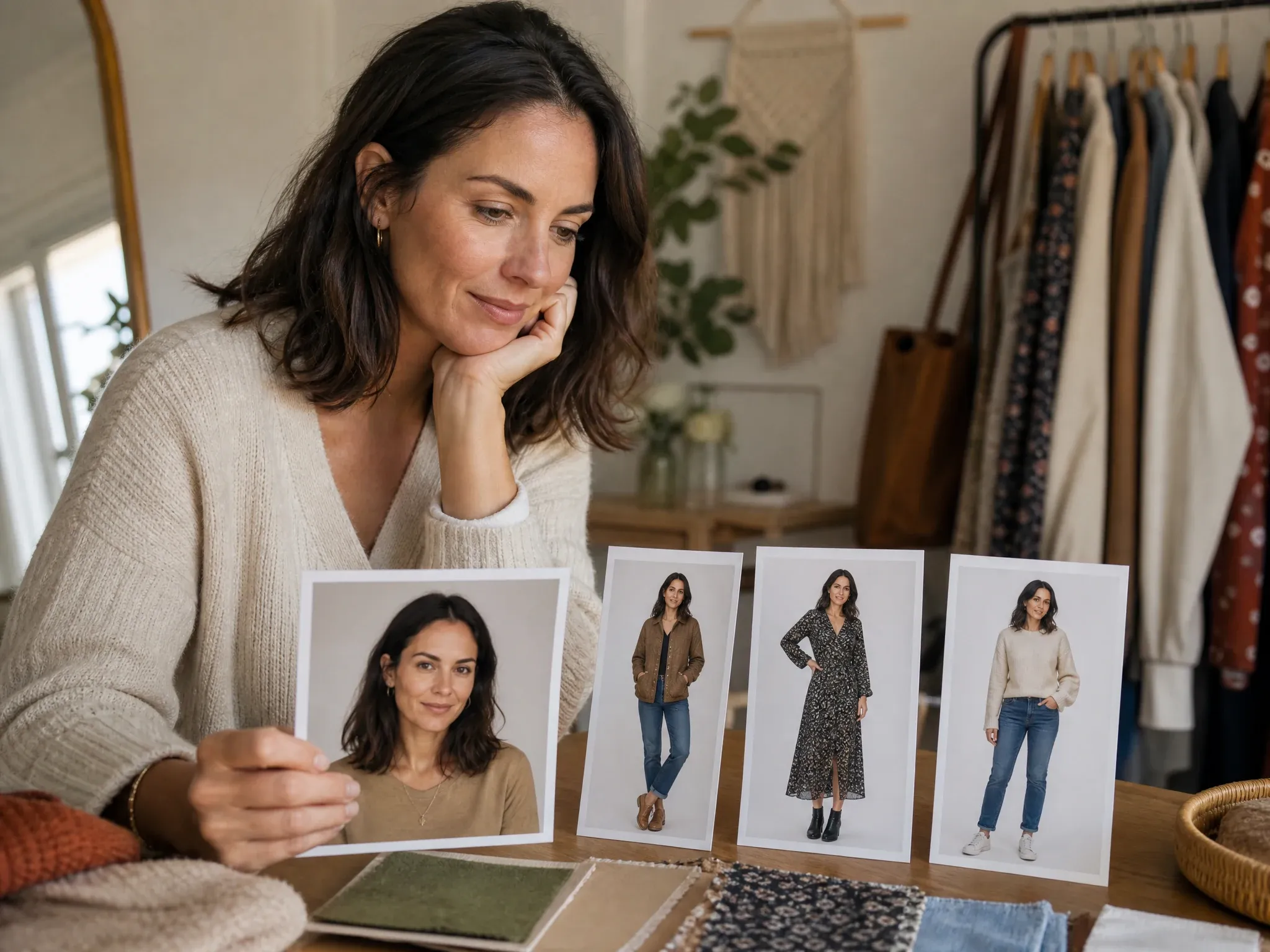
Personal outfit ideas
Try a jacket, dress, shirt, or full look on your own photo before buying, packing, posting, or booking a shoot.
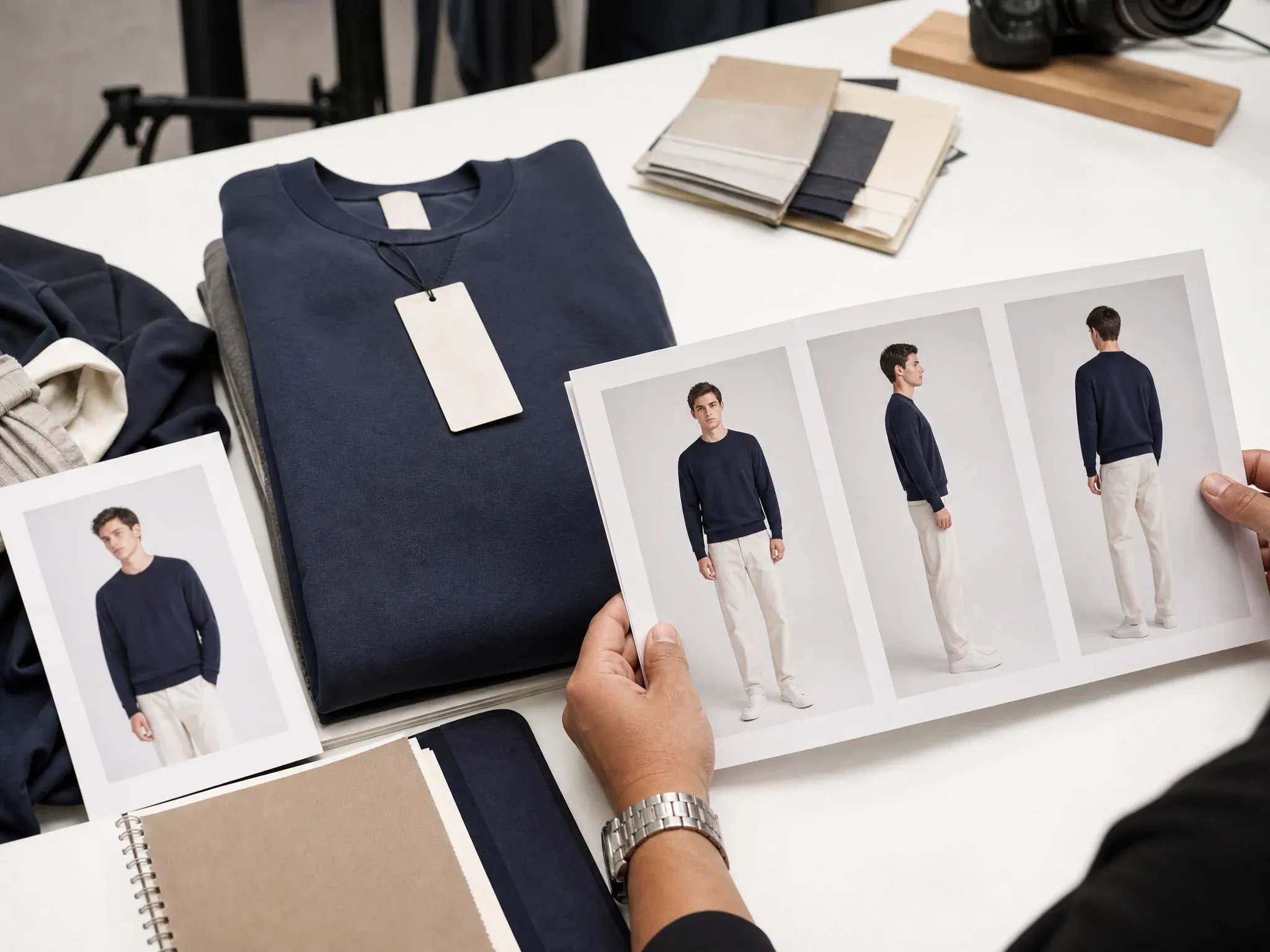
Ecommerce catalog previews
Preview product styling on a model-style image before deciding which garment direction deserves real photography.
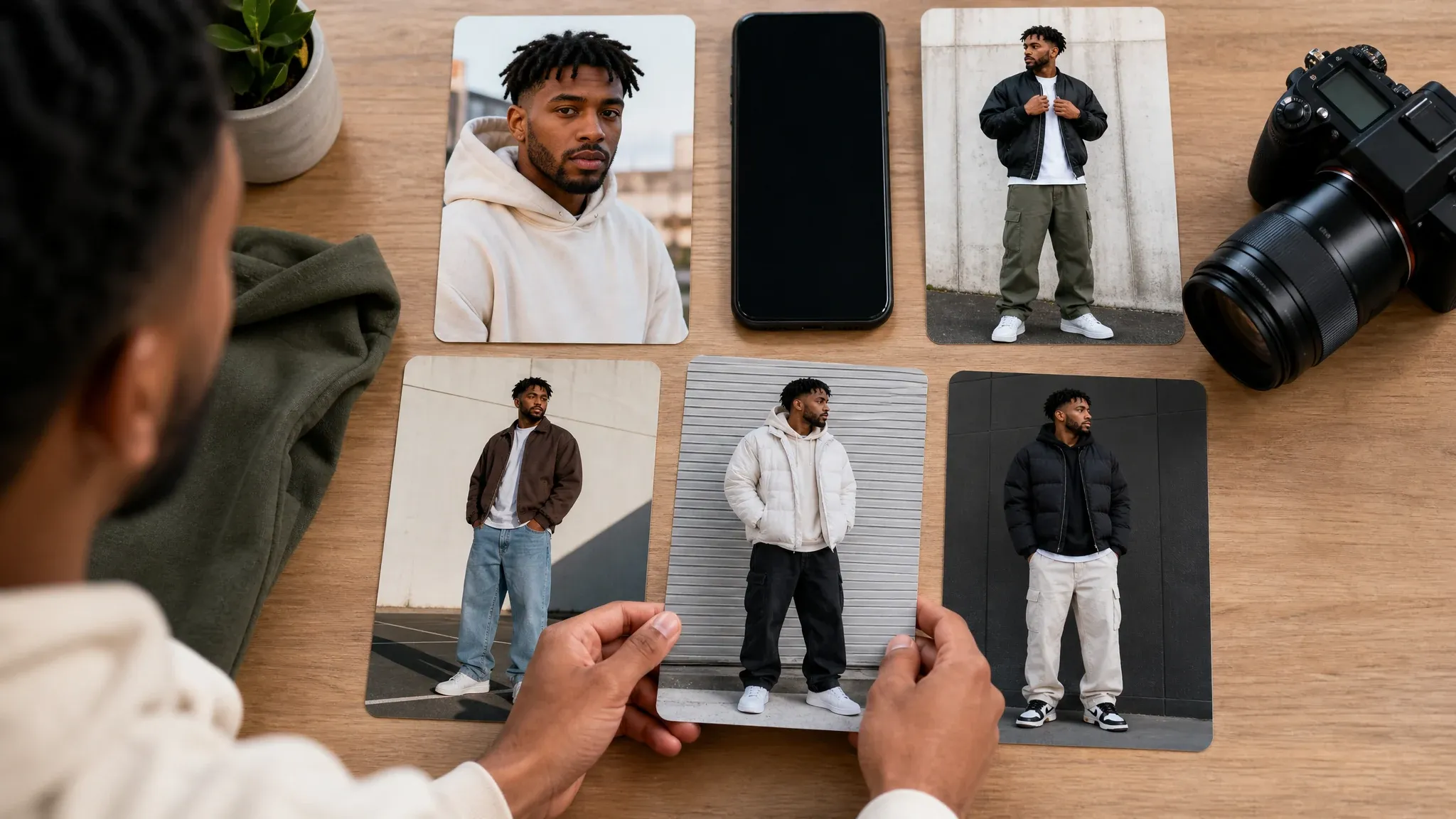
Creator and social posts
Make outfit variants for TikTok covers, Instagram posts, thumbnails, profile photos, and campaign drafts.
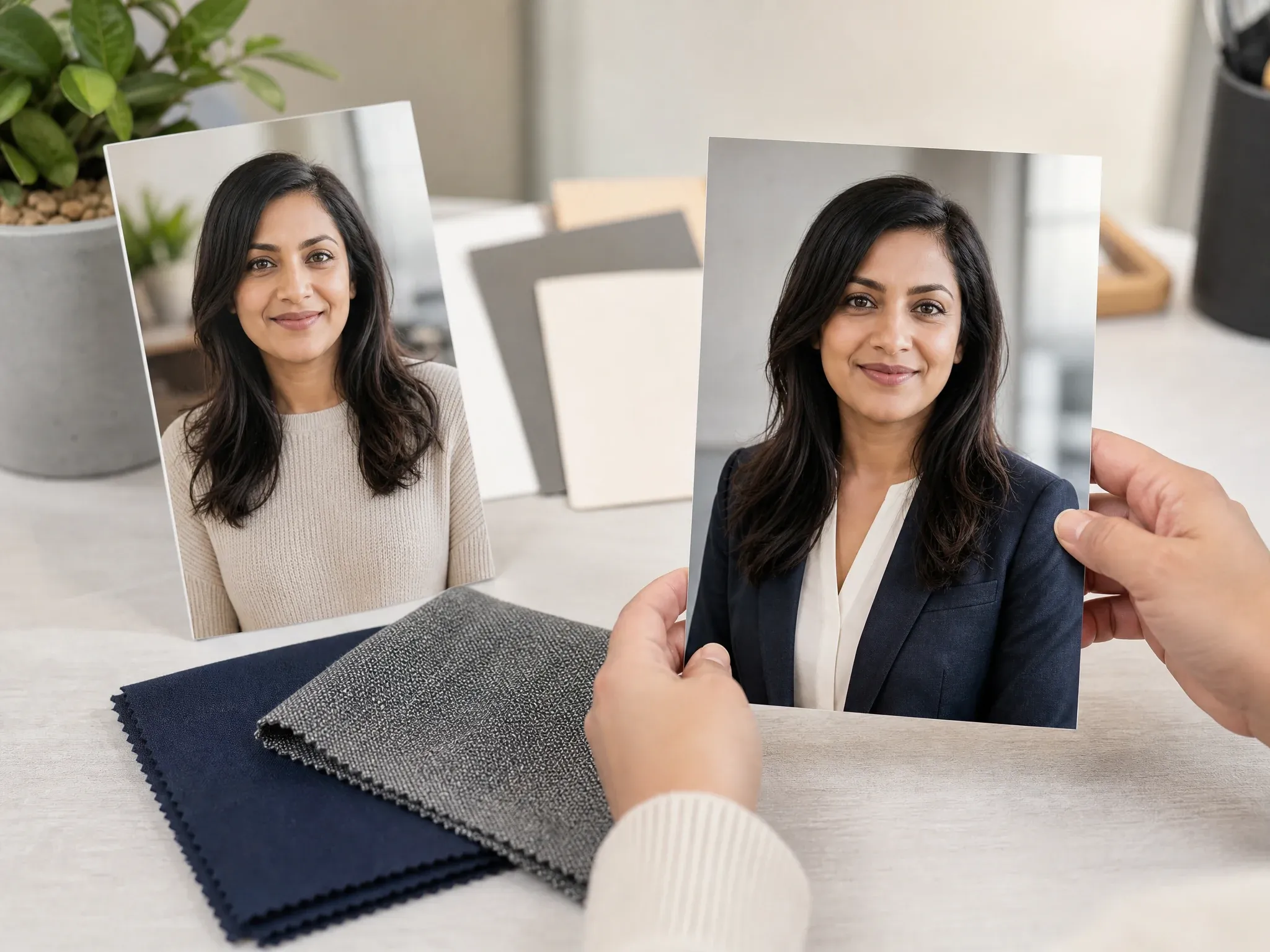
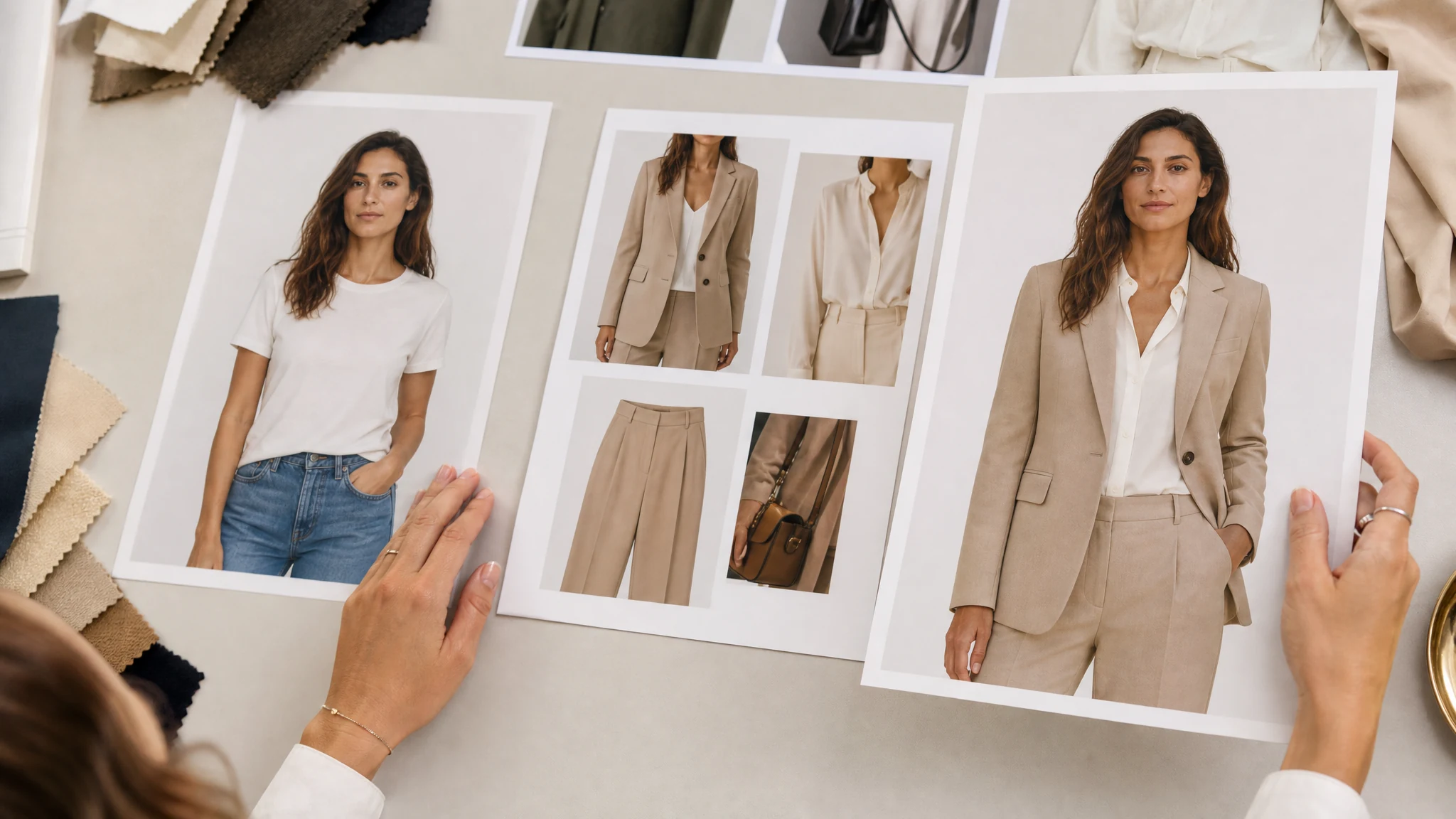
Business suit upgrades
Test a blazer, suit, interview outfit, or profile-ready look before moving into business photo or headshot workflows.
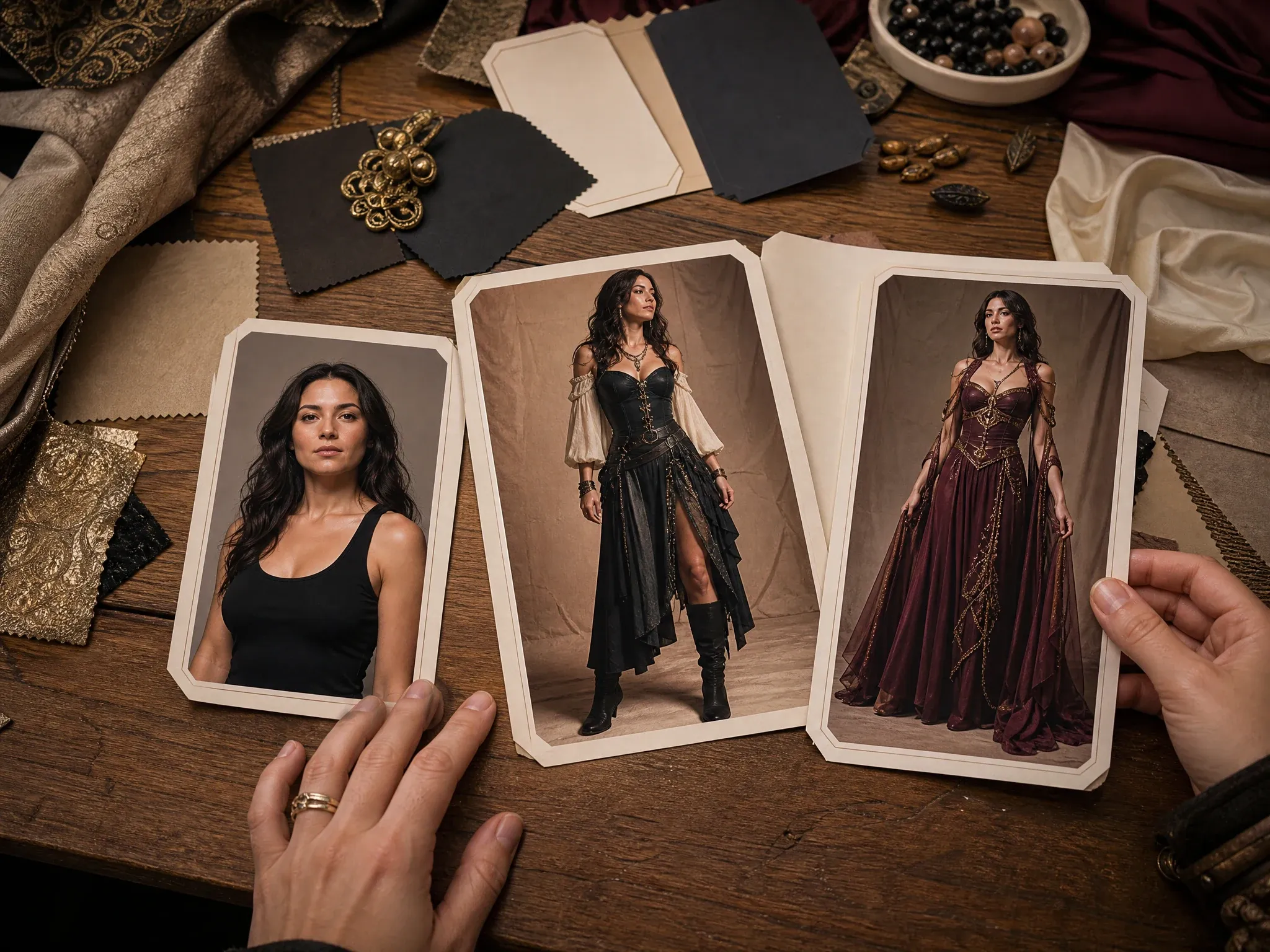
Events and costumes
Explore wedding guest looks, party outfits, cosplay concepts, travel looks, and seasonal costume ideas.
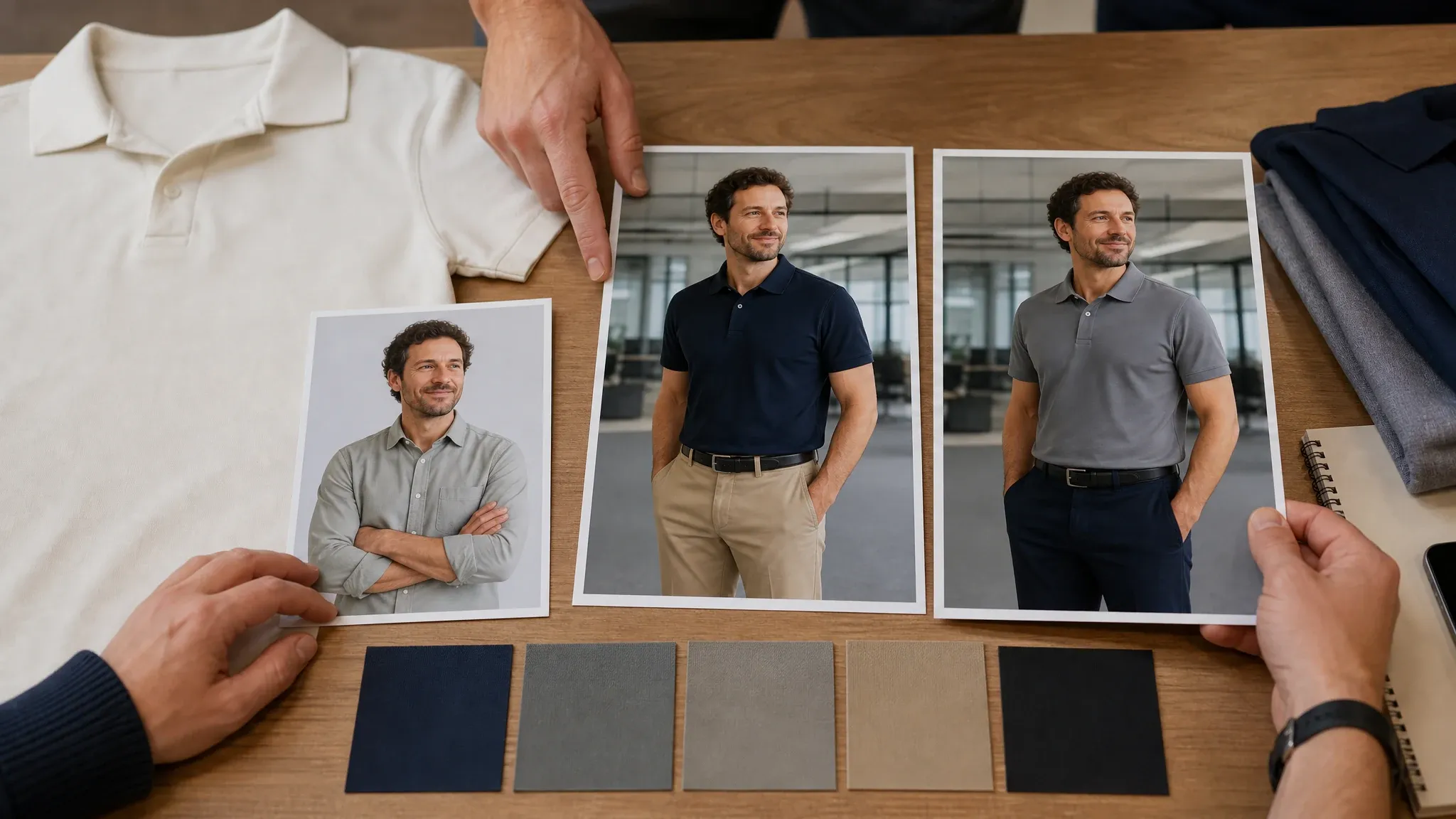
Uniform and team looks
Preview staff uniforms, team shirts, creator merch, and coordinated outfit directions before ordering or shooting.
What Is an AI Clothes Changer?
An AI clothes changer lets you restyle a photo with a new outfit direction, garment reference, or short styling note. Use it when the person photo works but the look needs a different shirt, dress, suit, streetwear fit, costume, uniform, or catalog-ready mood.
Start from your person photo
Keep the useful pose, face, light, and setting while testing a new clothing direction on the same image.
Guide the look with references
Add a garment or full-outfit image so the result has a clear target for color, fabric, cut, and overall style.
Use notes for styling priorities
Tell FaceAI what matters most: fit, occasion, color, crop, fabric, or details that should stay close to the original photo.
Why Use FaceAI for AI Clothes Changing?
FaceAI keeps the clothes changer built around the decision users actually need to make: does this outfit work on this person photo, and what should I do with the result next?
Reference-led outfit swaps
Upload the person and the clothing direction together, so the result follows a real visual target instead of a vague style sentence.
Free online workflow
Try outfit ideas in the browser with no app install. History, share, and no-watermark download controls stay in the same workspace.
Ready-made styling paths
Full outfit, top, dress, business suit, streetwear, ecommerce, costume, uniform, and custom directions help you start with a concrete goal.
Useful next steps
Send a close result to image editor, image-to-image, business photo, headshot, or upscaler instead of starting again from a blank page.
How to Get Better Outfit Swap Results
A good outfit preview starts with readable photos. Give FaceAI a clear person image, a clear clothing target, and one styling priority at a time.
Use a clear person photo
Single-person photos with visible shoulders, normal light, and enough body detail make the clothing change easier to judge.
Show the garment clearly
Flat-lay or on-model references work better when the cut, color, sleeves, waistline, and fabric are visible.
Change one goal at a time
Try the outfit first. Then adjust color, crop, background cleanup, or sharpness only after the styling direction is close.
Check the fashion details
Review hands, collars, hems, logos, buttons, fabric edges, and shadows before using the image in a listing, post, or campaign draft.
AI Clothes Changer vs. Prompt Editors, Outfit Apps, and Photoshoots
Pick the workflow that matches the job. Outfit previews are fastest when you can guide the look with a real person photo and a real clothing reference.
| Kriterium | Face AIUnser FaceAI clothes changer workflow | Other options |
|---|---|---|
| Starting point | Upload a person photo, add outfit references, choose the clothing goal, and write one short styling note. | Prompt-only editors often ask you to describe fit, fabric, cut, and color from scratch. |
| Best use | Personal outfit ideas, ecommerce previews, creator posts, business outfits, event looks, costumes, uniforms, and mood boards. | Photoshoots are strongest for final production, but slower when you need quick styling directions. |
| Control | Start from full outfit, top, dress, business suit, streetwear, ecommerce model, costume, uniform, or custom styling. | Generic apps may offer filters or a blank prompt without outfit-specific starting points. |
| Friction | Free online workflow with browser upload, generation, history, share, and no-watermark download controls. | Some outfit tools push app installs, login gates, paid exports, or watermarked previews before you can judge the look. |
| Next step | Move the keeper into editor, image-to-image, business photo, headshot, or upscaler when the outfit direction is close. | Single-purpose try-on apps often stop at one preview and leave cleanup or profile use to another workflow. |
| Quality check | Review collars, hands, hems, logos, fabric edges, shadows, and fit before using the image in a listing, post, or campaign draft. | Broad image tools can make every source photo sound equally easy, even when clothing previews need clean visual references. |
Starting point
Upload a person photo, add outfit references, choose the clothing goal, and write one short styling note.
Prompt-only editors often ask you to describe fit, fabric, cut, and color from scratch.
Best use
Personal outfit ideas, ecommerce previews, creator posts, business outfits, event looks, costumes, uniforms, and mood boards.
Photoshoots are strongest for final production, but slower when you need quick styling directions.
Control
Start from full outfit, top, dress, business suit, streetwear, ecommerce model, costume, uniform, or custom styling.
Generic apps may offer filters or a blank prompt without outfit-specific starting points.
Friction
Free online workflow with browser upload, generation, history, share, and no-watermark download controls.
Some outfit tools push app installs, login gates, paid exports, or watermarked previews before you can judge the look.
Next step
Move the keeper into editor, image-to-image, business photo, headshot, or upscaler when the outfit direction is close.
Single-purpose try-on apps often stop at one preview and leave cleanup or profile use to another workflow.
Quality check
Review collars, hands, hems, logos, fabric edges, shadows, and fit before using the image in a listing, post, or campaign draft.
Broad image tools can make every source photo sound equally easy, even when clothing previews need clean visual references.
How People Use the AI Clothes Changer
Creators, retailers, and marketing teams use the same loop: upload the person photo, add the outfit direction, compare results, then download or refine the keeper.
"The flow feels natural: upload the model photo, add the jacket or dress reference, then use the note for fit and color. We get a useful styling preview fast."

Mei Chen
E-commerce Director
"For product planning, I can test outfit directions before a shoot is booked. Clean garment photos make the preview easier for the team to judge."

Yuki Tanaka
Head of Marketplace Operations
"Business suits, streetwear, dresses, and costume ideas are already framed as use cases. That saves us from writing a long fashion brief every time."

Soyeon Kim
VP of Online Retail
"We use it for campaign cover ideas when the person and setting already work, but the outfit needs a different mood."

Wenjing Li
Chief Marketing Officer
"No-watermark downloads make the first review loop simple. I save the strongest option, compare it with the original, then decide which looks deserve real production time."

Hana Yamamoto
Customer Experience Director
"A straight photo with visible shoulders gives the cleanest preview. When arms hide the shirt, I swap in a clearer source and get a better result."

Jieun Park
Growth Marketing Lead
"The flow feels natural: upload the model photo, add the jacket or dress reference, then use the note for fit and color. We get a useful styling preview fast."
Mei Chen
E-commerce Director
"For product planning, I can test outfit directions before a shoot is booked. Clean garment photos make the preview easier for the team to judge."
Yuki Tanaka
Head of Marketplace Operations
"Business suits, streetwear, dresses, and costume ideas are already framed as use cases. That saves us from writing a long fashion brief every time."
Soyeon Kim
VP of Online Retail
"We use it for campaign cover ideas when the person and setting already work, but the outfit needs a different mood."
Wenjing Li
Chief Marketing Officer
"No-watermark downloads make the first review loop simple. I save the strongest option, compare it with the original, then decide which looks deserve real production time."
Hana Yamamoto
Customer Experience Director
"A straight photo with visible shoulders gives the cleanest preview. When arms hide the shirt, I swap in a clearer source and get a better result."
Jieun Park
Growth Marketing Lead
"It is easy to teach: person photo, outfit reference, short note, generate, compare. That keeps our styling reviews moving."

Lingling Zhao
Digital Commerce Manager
"The flow feels natural: upload the model photo, add the jacket or dress reference, then use the note for fit and color. We get a useful styling preview fast."
Mei Chen
E-commerce Director
"For product planning, I can test outfit directions before a shoot is booked. Clean garment photos make the preview easier for the team to judge."
Yuki Tanaka
Head of Marketplace Operations
"Business suits, streetwear, dresses, and costume ideas are already framed as use cases. That saves us from writing a long fashion brief every time."
Soyeon Kim
VP of Online Retail
"We use it for campaign cover ideas when the person and setting already work, but the outfit needs a different mood."
Wenjing Li
Chief Marketing Officer
"No-watermark downloads make the first review loop simple. I save the strongest option, compare it with the original, then decide which looks deserve real production time."
Hana Yamamoto
Customer Experience Director
"A straight photo with visible shoulders gives the cleanest preview. When arms hide the shirt, I swap in a clearer source and get a better result."
Jieun Park
Growth Marketing Lead
"It is easy to teach: person photo, outfit reference, short note, generate, compare. That keeps our styling reviews moving."
Lingling Zhao
Digital Commerce Manager
"History is useful when we compare hoodie, blazer, dress, and uniform directions from the same base photo."

Mika Suzuki
Performance Marketing Director
"For TikTok covers and profile posts, I choose 4:5 or 9:16 first. The right outfit reference matters more than a clever prompt."

Xiaofang Wang
Senior Marketing Strategist
"It helps us preview colorways, styling, and model looks before committing budget to a set day."

Alice Cooper
Retail Marketing Director
"For event looks and costumes, a clear front photo makes the fabric placement easier to evaluate."

Margherita Conti
Visual Merchandising Lead
"Uniform concepts are quick: upload the team member photo, add the shirt reference, choose uniform, then pick the cleanest version."

Ritu Agarwal
E-commerce Marketing Lead
"Changing one idea at a time works best for us. Outfit first, then color or crop if the direction is worth keeping."

Neha Malhotra
Head of DTC Operations
"We use it for fast ad visuals: same person, different outfit mood, then send the keeper into editor or upscaler when it is close."

Katerina Popov
Loyalty Program Director
"History is useful when we compare hoodie, blazer, dress, and uniform directions from the same base photo."
Mika Suzuki
Performance Marketing Director
"For TikTok covers and profile posts, I choose 4:5 or 9:16 first. The right outfit reference matters more than a clever prompt."
Xiaofang Wang
Senior Marketing Strategist
"It helps us preview colorways, styling, and model looks before committing budget to a set day."
Alice Cooper
Retail Marketing Director
"For event looks and costumes, a clear front photo makes the fabric placement easier to evaluate."
Margherita Conti
Visual Merchandising Lead
"Uniform concepts are quick: upload the team member photo, add the shirt reference, choose uniform, then pick the cleanest version."
Ritu Agarwal
E-commerce Marketing Lead
"Changing one idea at a time works best for us. Outfit first, then color or crop if the direction is worth keeping."
Neha Malhotra
Head of DTC Operations
"We use it for fast ad visuals: same person, different outfit mood, then send the keeper into editor or upscaler when it is close."
Katerina Popov
Loyalty Program Director
What Should You Try After Changing Clothes?
Keep the strongest outfit result moving. Use the next tool for variations, cleanup, business portraits, headshots, or sharper exports.
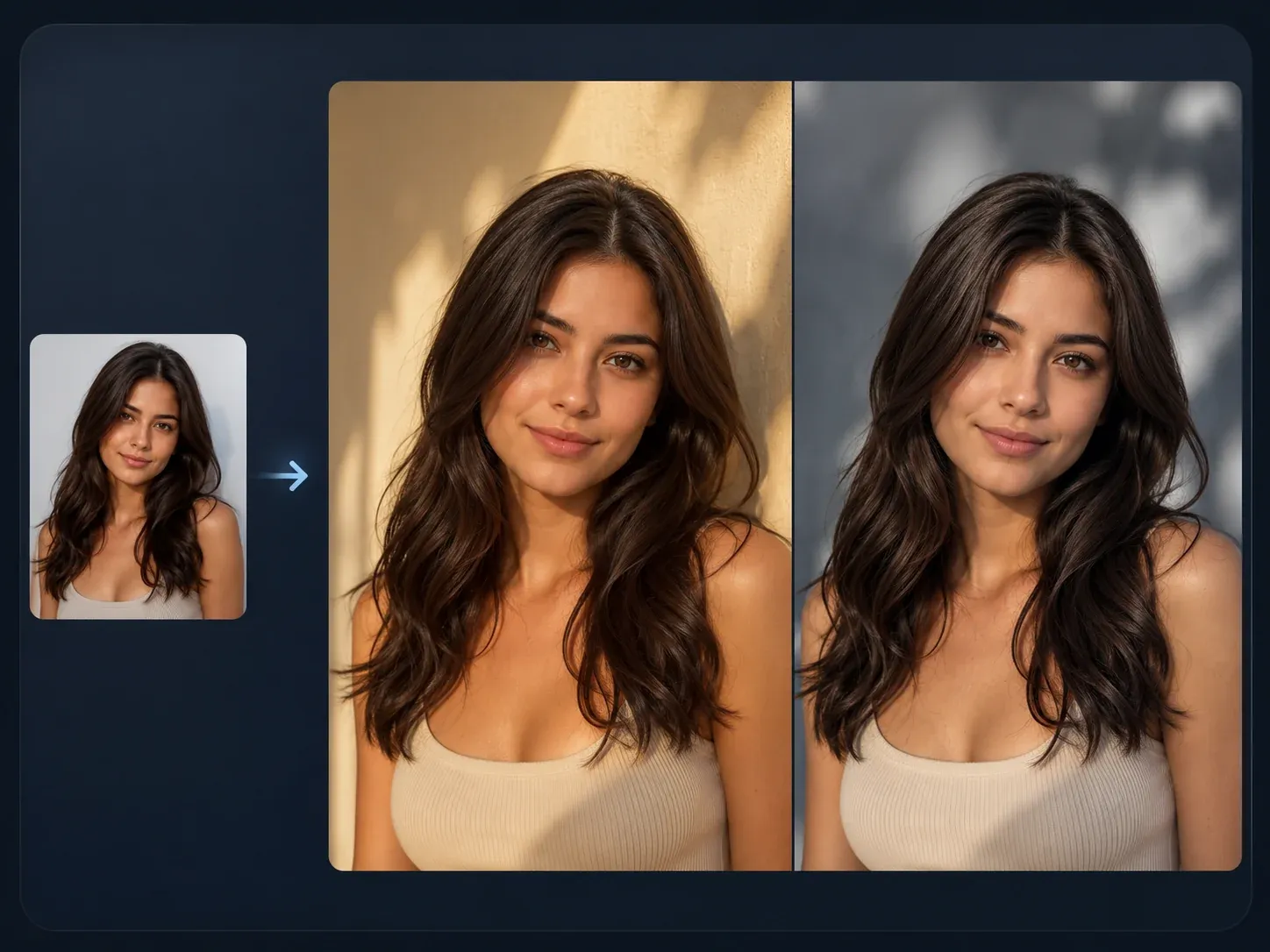
AI Image to Image
Turn the best outfit preview into new controlled variations when the pose, crop, and styling direction are already close.
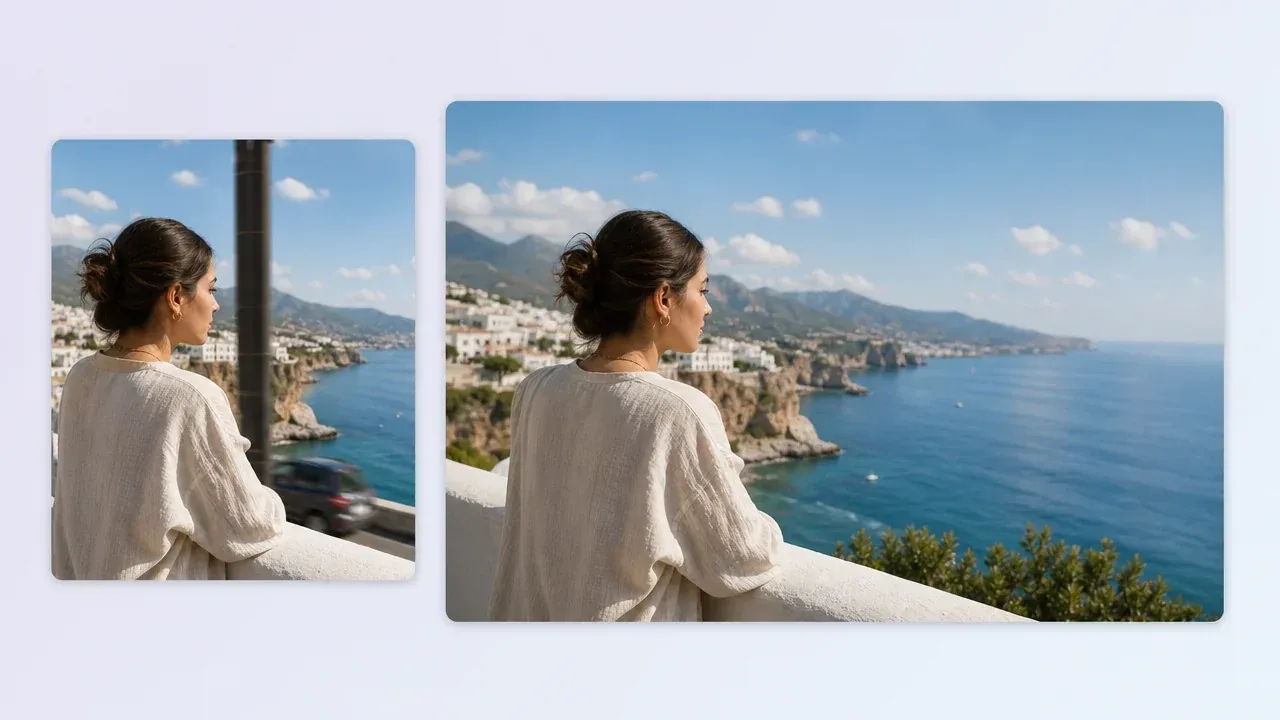
AI Image Editor
Polish a keeper by cleaning a sleeve edge, collar, prop, background distraction, or small visual flaw before sharing.
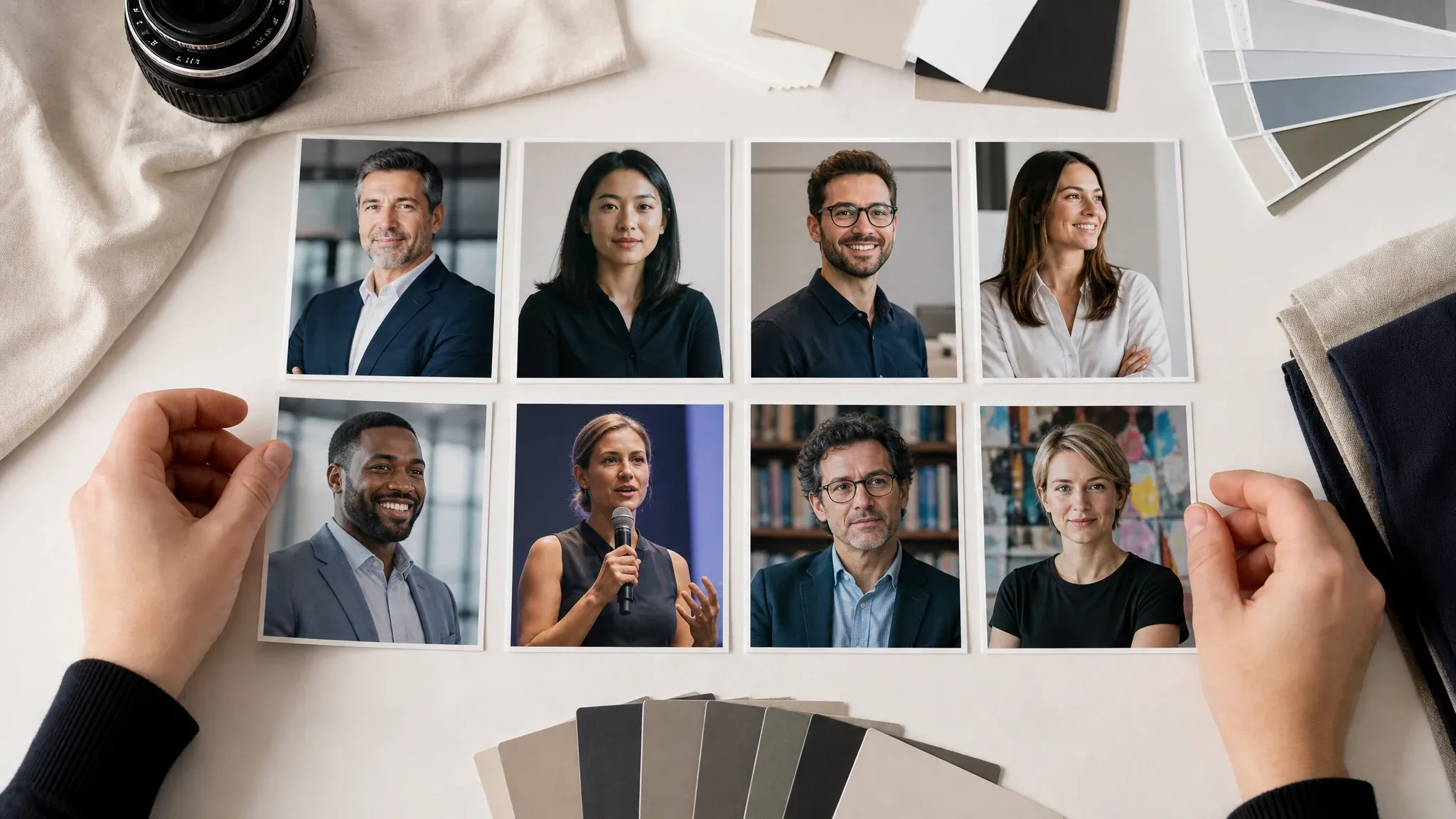
AI Business Photo Generator
Use this after choosing a blazer, suit, or profile-ready outfit direction for a stronger business portrait.

AI Headshot Generator
Create a tighter professional crop when the outfit is right and the next step is a formal headshot.
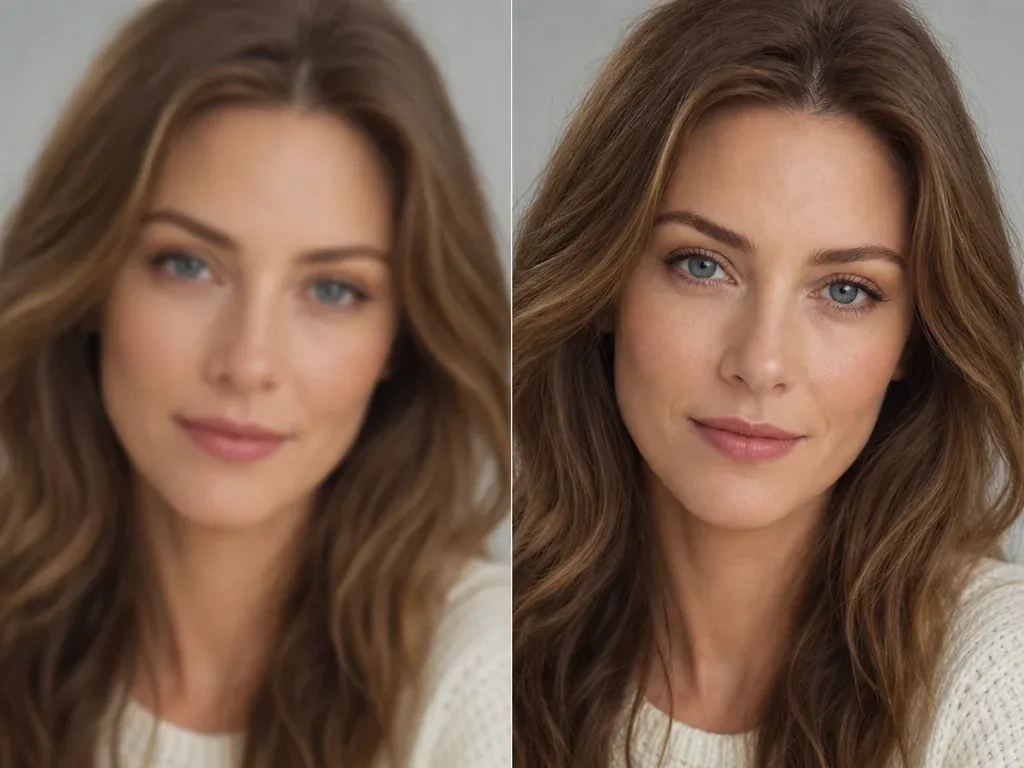
AI Image Upscaler
Sharpen the selected outfit preview before using it in a catalog draft, social post, profile image, or mood board.
AI Clothes Changer FAQ
Direct answers about free use, no login, person and clothes photos, prompt guidance, color edits, ecommerce use, privacy, downloads, and realistic outfit previews.
It is an online tool that restyles the clothes in a photo. Upload the person, add the outfit direction, and create previews for personal styling, catalog looks, social posts, business photos, event outfits, costumes, uniforms, and color ideas.
Yes. You can start with the AI clothes changer online for free. The workbench shows the current usage status if your session reaches an account or quota step.
No app download is needed, and the browser workflow is built for low-friction outfit try-on. If guest use reaches a product limit, FaceAI shows the next step in the flow.
The main workflow starts with a person photo and one or more garment, outfit, color, fabric, or accessory references. That gives the clothes changer a clearer styling target.
A prompt is useful for fit, color, occasion, crop, or what should stay unchanged. A clear outfit reference usually makes the clothing direction easier to judge.
Shirts, jackets, dresses, suits, streetwear, uniforms, costumes, and full outfits work well when the reference shows cut, color, sleeves, waistline, and fabric.
Yes. Name the color or fabric direction in the outfit note, keep the person photo clear, and avoid mixing several unrelated styling changes in one run.
The best results keep the useful face, pose, lighting, and background cues while changing the outfit. Clear photos and readable clothing references make that easier.
Yes. It is useful for product styling ideas, catalog concepts, ad drafts, and model-look previews when you own or have permission for the source and garment images. Use final product photography when exact catalog accuracy is required.
Use the visible workbench controls for 1K or 2K image generation, outfit references, ratio, history, share, and download. Start with clear photos, then inspect clothing edges before publishing.
Yes. After the generated image appears, use the download control in the workbench. Keep the tab open until the final image is ready.
FaceAI uses secure upload handling for the generation flow. Use photos you are comfortable processing through an online tool, and only upload images you have permission to use.
You can use generated images when you own or have permission for the person photo and clothing references. Avoid protected brands, fake endorsements, public figures, readable logos, and misleading product claims.
Use it as a visual styling preview, not a size chart. It helps you compare outfit mood, color, cut, and scene direction before shopping, posting, or planning a shoot.
Change Clothes in Your Photo with AI
Upload the person photo, add the outfit reference, choose the clothing goal, then generate a ready-to-review AI clothes changer result.