
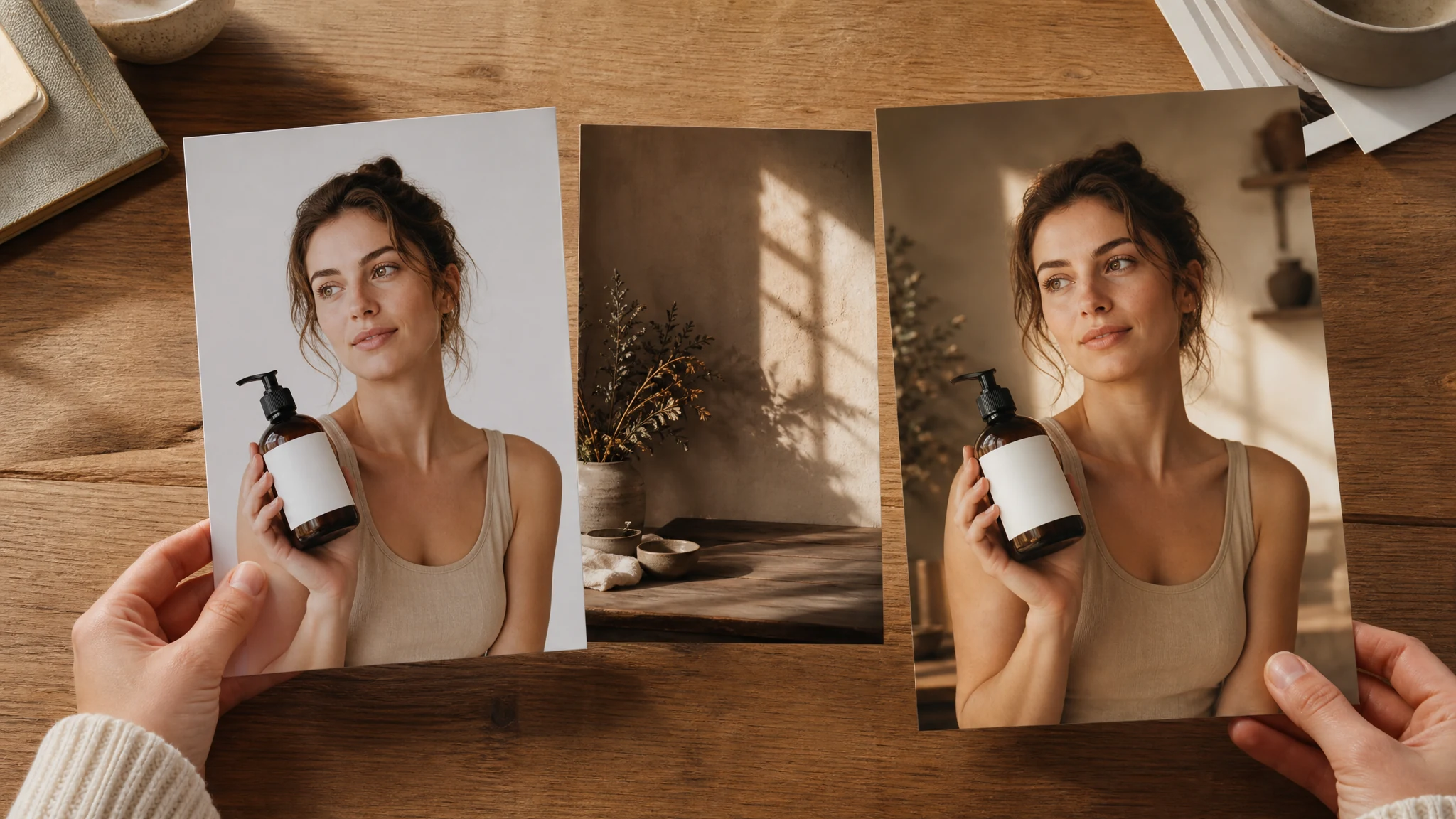
AI Background Changer for Product, Profile, and Social Photos
Replace the background in product photos, profile images, creator posts, and marketing visuals with AI scenes, solid colors, studio looks, lifestyle settings, or your own reference direction. Start free online, no login to begin, and download finished images without a watermark.
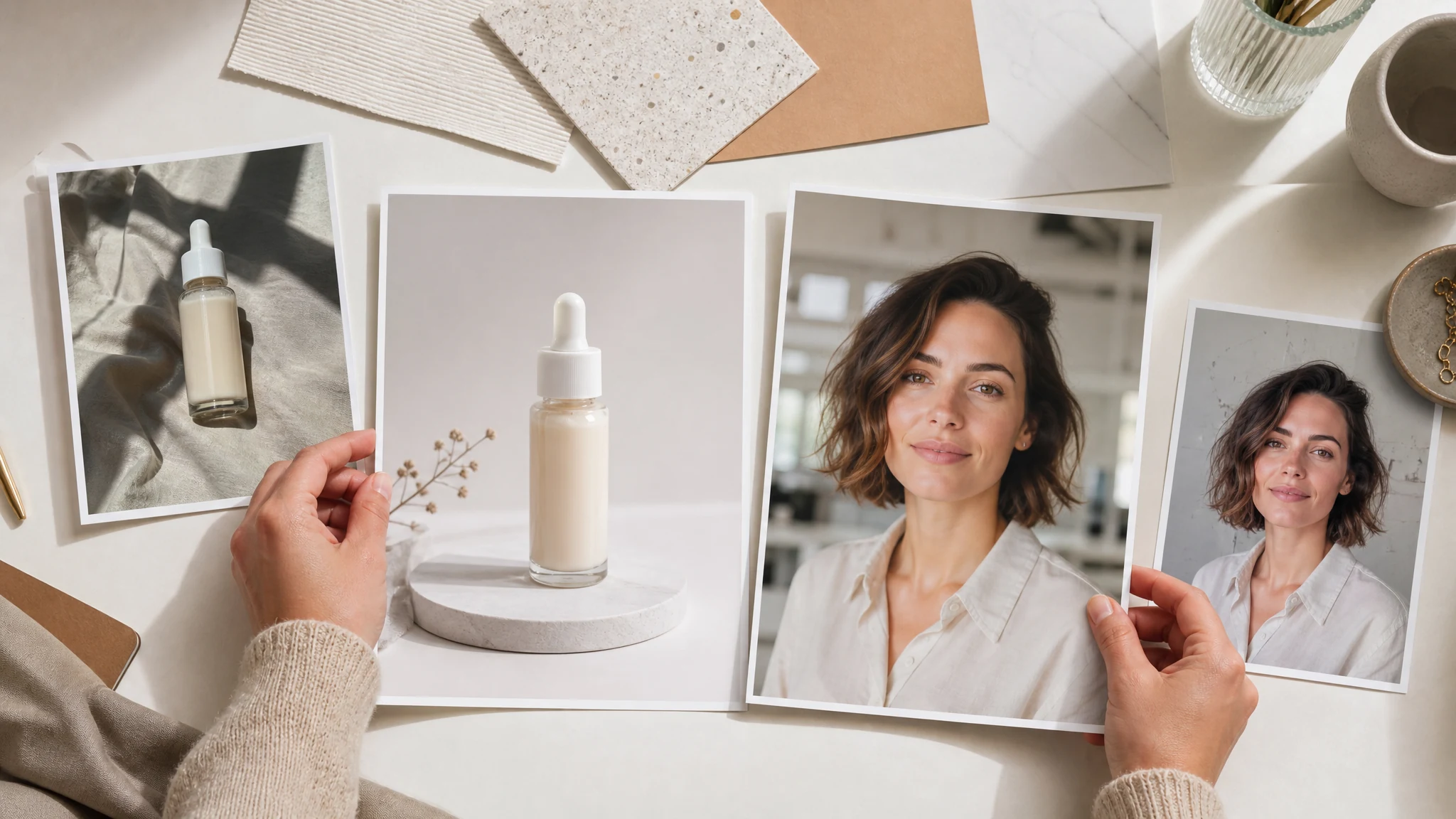
Trusted by 12,000,000+ users worldwide.
How to Change a Photo Background with AI
The fastest path is source image first, background direction second, short prompt third, then generate and inspect the result.
Upload the source photo
Use a product, portrait, pet, or object image with a clear subject, visible edges, and enough space around the crop.
Choose the background
Pick a studio, color, product scene, office, garden, social, or custom prompt. Add a reference background when you want mood or lighting direction.
Download or refine
Save the keeper, compare history, or send the result to image editor, image-to-image, background remover, or upscaler for the next pass.
Photos You Can Upgrade with an AI Background Changer
Use the AI background changer for ecommerce product photos, profile and LinkedIn images, marketing creative, social posts, lifestyle product scenes, and cleaner personal photos.
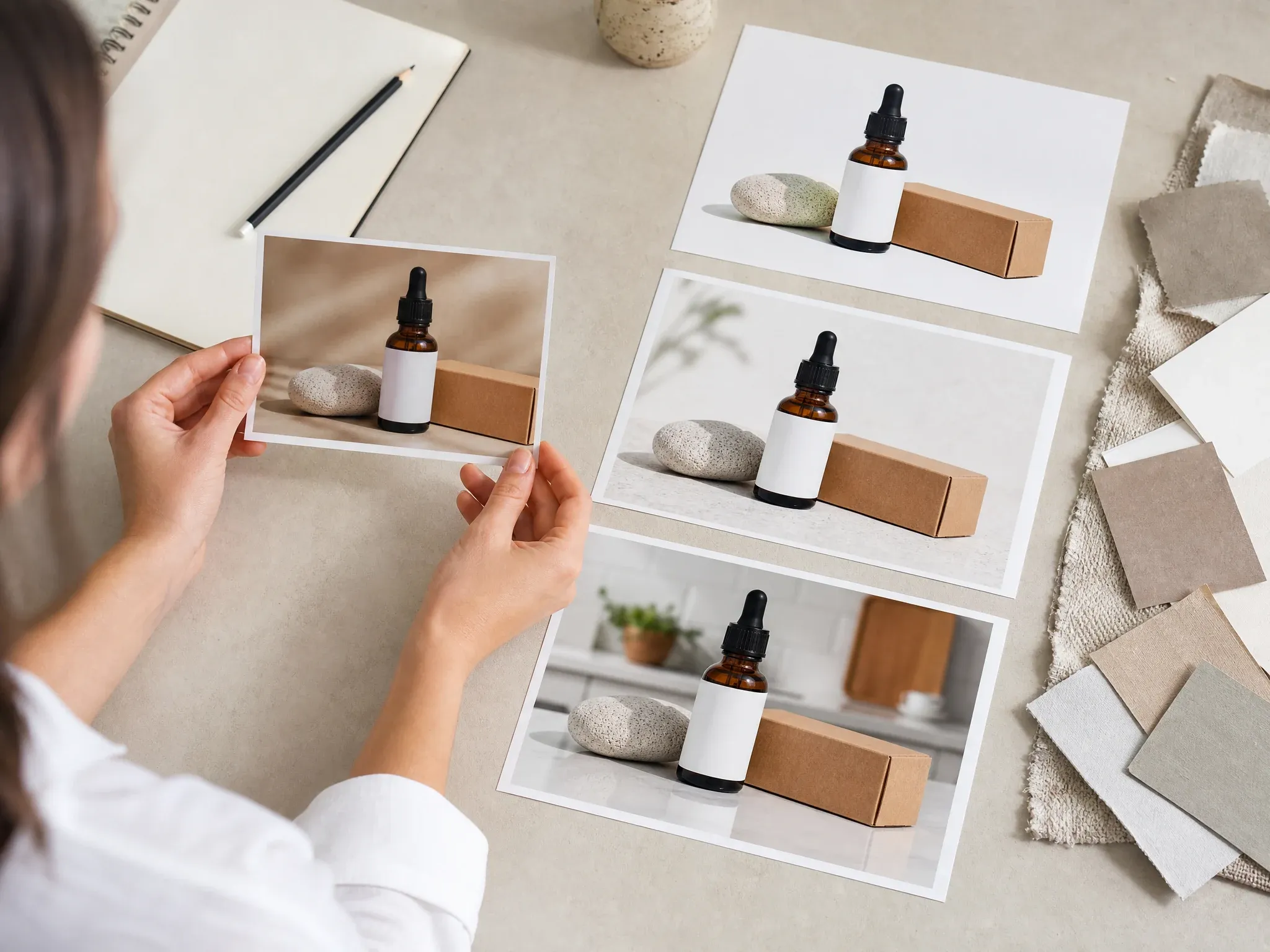
Ecommerce product photos
Replace busy shelves, dim rooms, or inconsistent surfaces with white studio, tabletop, kitchen counter, texture, or lifestyle backgrounds.
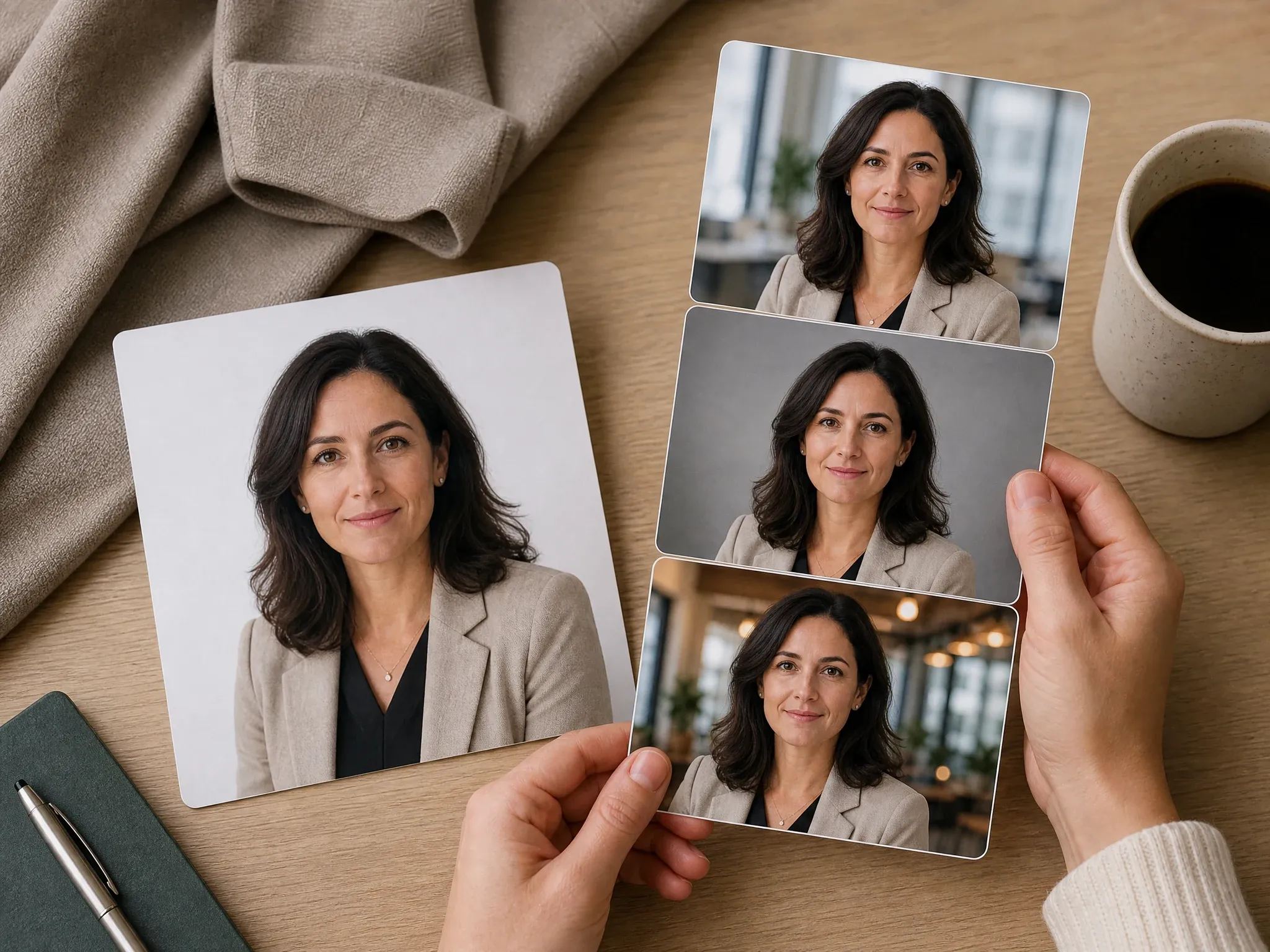
Profile and LinkedIn photos
Clean up a portrait with a soft studio, office, cafe, garden, or living-room background while keeping the face and crop as the focus.
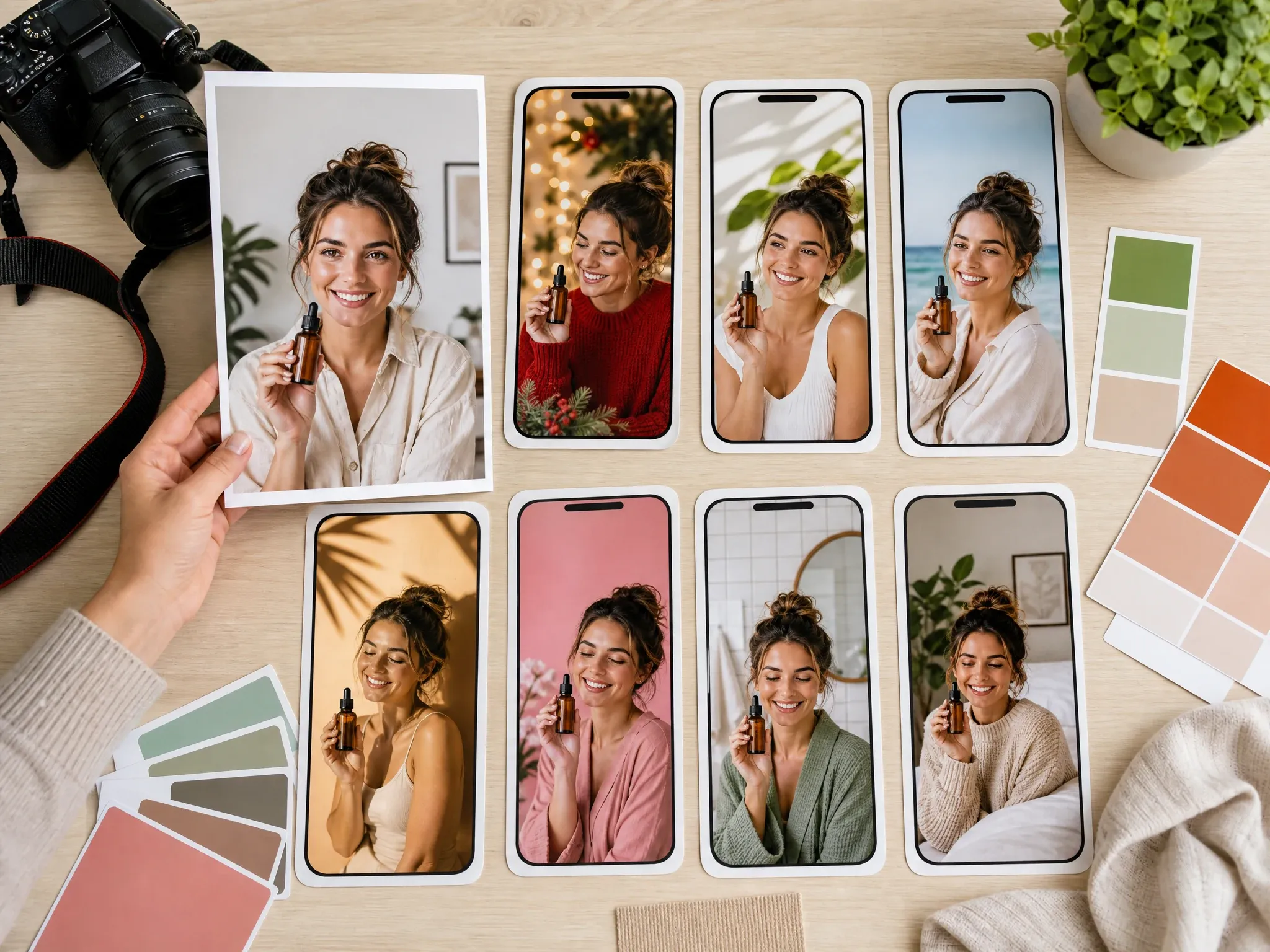
Marketing and social visuals
Make ad drafts, thumbnails, creator posts, seasonal visuals, and campaign variants from one source image.
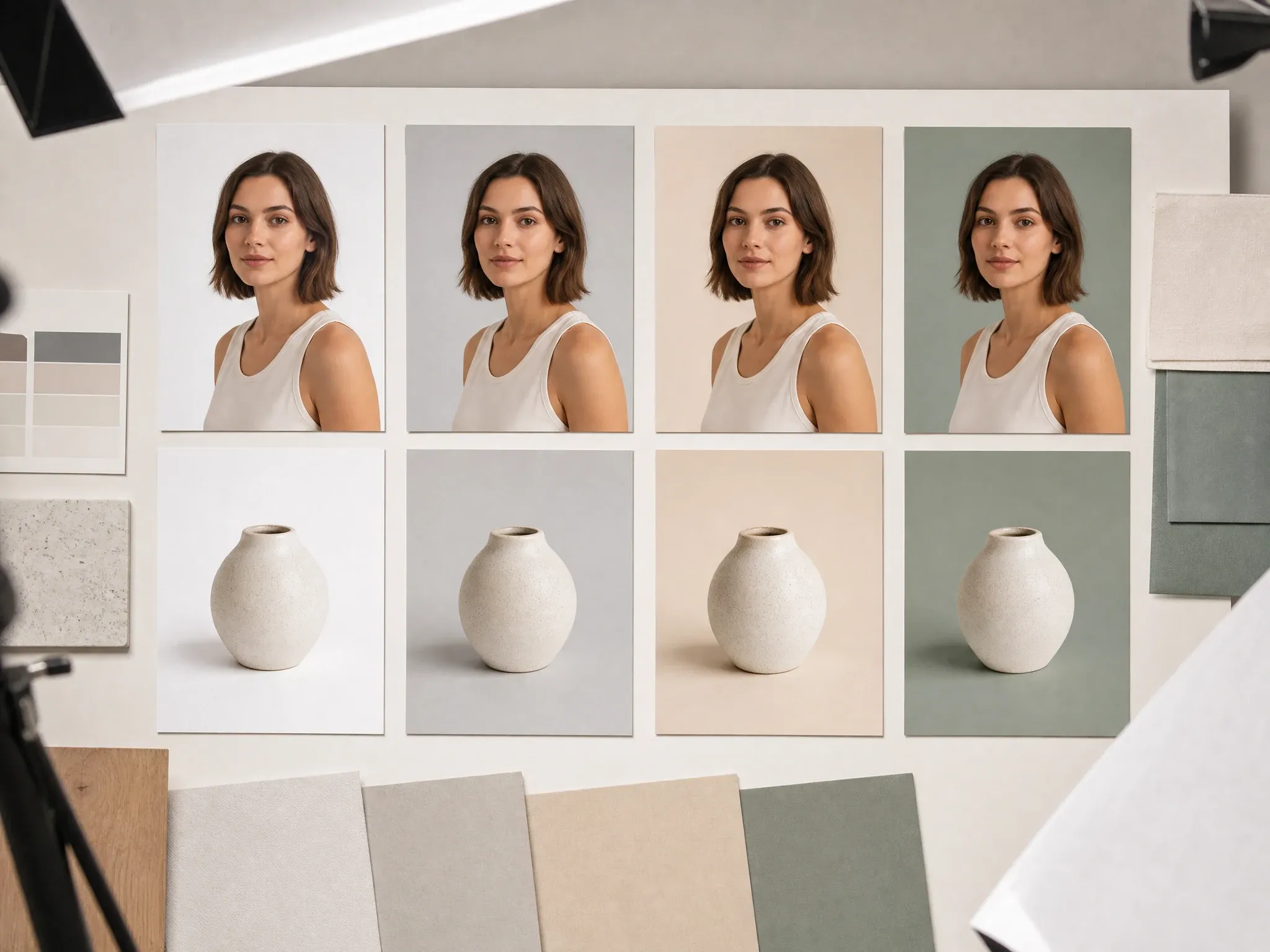
Clean color and studio looks
Use solid color, white studio, neutral gray, soft beige, or simple light backgrounds when the subject needs to stand out.
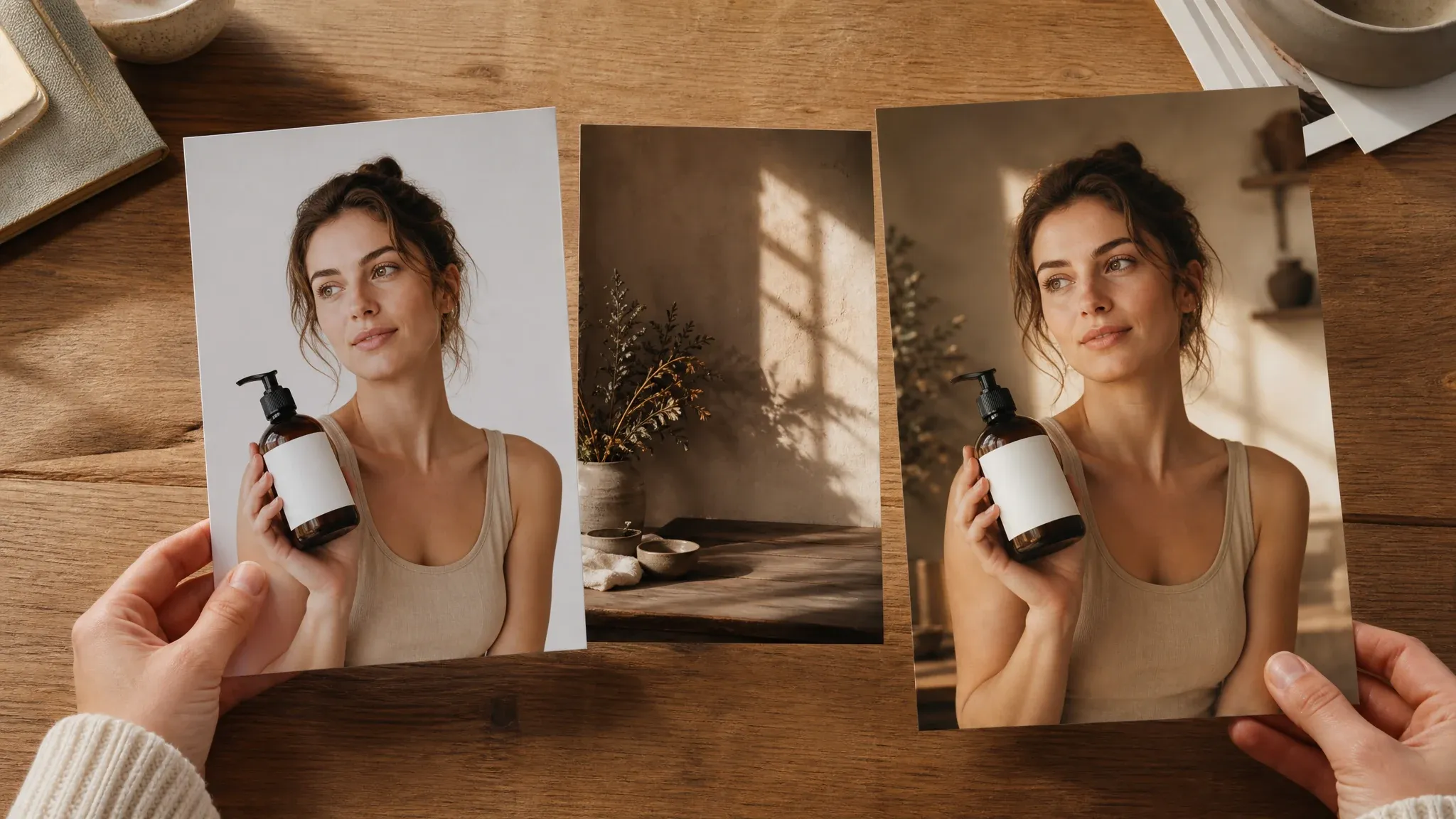
Reference-guided backgrounds
Upload a second image to guide mood, material, color, and lighting direction when words are not enough.
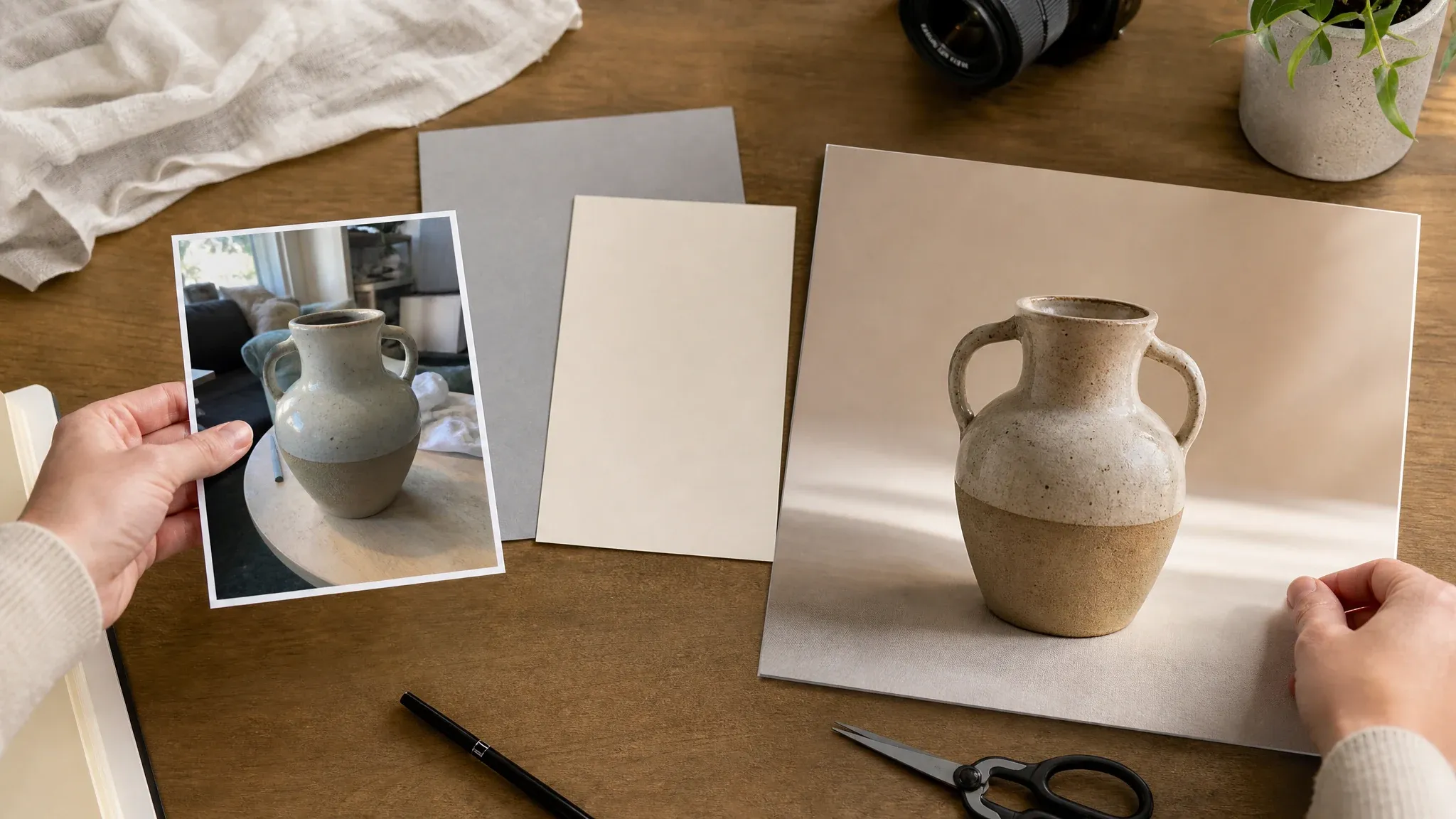
Quick workflow cleanup
Turn a usable but messy photo into a cleaner draft before final editing, upscaling, sharing, or listing.
What Is an AI Background Changer?
An AI background changer detects the main subject in a photo and creates a new scene behind it. It is different from a background remover: remover tools make cutouts, while a background changer replaces the scene with a color, prompt, studio setup, lifestyle setting, or reference-inspired background.
Photo-first replacement
Start from a real product, portrait, pet, or object photo so the subject stays the anchor of the result.
Prompt, color, scene, or reference
Choose a ready-made direction or describe the background in terms of setting, surface, light, mood, and use case.
Built for usable drafts
Create cleaner product images, profile backgrounds, social visuals, and marketing options without manually cutting out the subject.
Why Use FaceAI to Change Photo Backgrounds?
FaceAI keeps the workflow focused on the job searchers actually want: upload the photo, choose a commercial background direction, generate, compare history, download without a watermark, and continue editing only when needed.
Free online workflow
Change backgrounds in the browser with no app install. Guest use, quota feedback, history, share, and download stay in one place.
Commercial presets
Studio white, solid color, tabletop, kitchen, premium texture, office, garden, beach, and social backgrounds help you start faster.
Reference-aware direction
A second background image can guide mood, surface, color, and lighting without claiming exact pixel-level composition.
Clear next steps
Use background remover for transparent cutouts, image editor for cleanup, image-to-image for variants, or upscaler for sharper export.
How to Get More Realistic Background Replacement
AI background changes work best when the subject is sharp and the new scene matches the original photo direction. Give the model one clear background job at a time.
Use a clear subject
Avoid blurry screenshots, tiny products, strong motion blur, heavy clutter, and subjects partly hidden by the background.
Match lighting and perspective
Ask for soft window light, studio light, tabletop view, or office background that fits the original camera angle.
Keep complex edges simple
Hair, fur, glass, transparent packaging, and reflective products can need another try. Simple backgrounds make edge artifacts less visible.
Inspect shadows before publishing
Look for floating feet, missing contact shadows, halos, warped product labels, and mismatched color temperature before using the result.
AI Background Changer vs. Background Remover, Design Apps, and Photoshoots
Use the workflow that matches the job. Background replacement is about a new scene behind the same subject, not only a transparent cutout.
| 对比项 | Face AI我们 FaceAI background changer workflow | Other options |
|---|---|---|
| Starting point | Upload one source image, choose a background direction, add a short prompt or reference, then generate a still image. | Background removers usually stop at transparent, white, or simple cutout outputs. |
| Best use | Product listings, profile images, LinkedIn photos, creator posts, thumbnails, ad drafts, and social campaign visuals. | Design apps are better for full layouts, brand templates, typography, and multi-layer compositions. |
| Control | Choose studio, solid color, product surface, lifestyle scene, office, outdoor, social, or custom prompt directions. | Generic editors may expose a blank text box without ecommerce, profile, or social background presets. |
| Friction | Free online workflow with browser upload, generation, history, share, and no-watermark download controls. | Some tools push app installs, login gates, paid exports, or watermarked previews before you can judge a result. |
| Follow-up | Move the keeper into image editor, background remover, image-to-image, or upscaler when small cleanup or sharper export is needed. | Photoshoots are stronger for final catalog precision, but slower when you only need first-pass visual direction. |
| Honest limit | This is still-image background replacement. It does not claim video background change, hand-painted masking, or flawless hair, fur, glass, and shadow handling. | Some pages overpromise exact speed, edge accuracy, premium export levels, or exact compositing from every source photo. |
Starting point
Upload one source image, choose a background direction, add a short prompt or reference, then generate a still image.
Background removers usually stop at transparent, white, or simple cutout outputs.
Best use
Product listings, profile images, LinkedIn photos, creator posts, thumbnails, ad drafts, and social campaign visuals.
Design apps are better for full layouts, brand templates, typography, and multi-layer compositions.
Control
Choose studio, solid color, product surface, lifestyle scene, office, outdoor, social, or custom prompt directions.
Generic editors may expose a blank text box without ecommerce, profile, or social background presets.
Friction
Free online workflow with browser upload, generation, history, share, and no-watermark download controls.
Some tools push app installs, login gates, paid exports, or watermarked previews before you can judge a result.
Follow-up
Move the keeper into image editor, background remover, image-to-image, or upscaler when small cleanup or sharper export is needed.
Photoshoots are stronger for final catalog precision, but slower when you only need first-pass visual direction.
Honest limit
This is still-image background replacement. It does not claim video background change, hand-painted masking, or flawless hair, fur, glass, and shadow handling.
Some pages overpromise exact speed, edge accuracy, premium export levels, or exact compositing from every source photo.
How People Use the AI Background Changer
These comments focus on the real loop: upload a source photo, choose the background, generate, inspect edges and shadows, then download or refine.
"I used it to turn cluttered product photos into cleaner white and tabletop scenes. The prompt presets save time when I need catalog drafts fast."

James Whitfield
Creative Director
"The best part is testing several ad backgrounds from one source image. Studio white, cafe window, and social campaign scenes give us different angles without a reshoot."

Lars Andersson
Art Director
"For profile photos, I like the neutral office and soft studio choices. It gives clients a cleaner LinkedIn direction without pretending it is a full headshot session."

Marco Rossi
Head of Strategy
"The source photo still matters. Sharp product edges and good light produced much better results than dim phone screenshots."

Pierre Dubois
Account Director
"No-watermark download is useful for first-pass posts. I still inspect shadows and edges, but the background ideas are much faster than starting in a design app."

Oliver Bennett
Brand Strategy Lead
"Reference background upload works best as mood and lighting direction. I expect a guided scene match, which makes the workflow easier to judge."

Erik Lindqvist
Executive Creative Director
"I used it to turn cluttered product photos into cleaner white and tabletop scenes. The prompt presets save time when I need catalog drafts fast."
James Whitfield
Creative Director
"The best part is testing several ad backgrounds from one source image. Studio white, cafe window, and social campaign scenes give us different angles without a reshoot."
Lars Andersson
Art Director
"For profile photos, I like the neutral office and soft studio choices. It gives clients a cleaner LinkedIn direction without pretending it is a full headshot session."
Marco Rossi
Head of Strategy
"The source photo still matters. Sharp product edges and good light produced much better results than dim phone screenshots."
Pierre Dubois
Account Director
"No-watermark download is useful for first-pass posts. I still inspect shadows and edges, but the background ideas are much faster than starting in a design app."
Oliver Bennett
Brand Strategy Lead
"Reference background upload works best as mood and lighting direction. I expect a guided scene match, which makes the workflow easier to judge."
Erik Lindqvist
Executive Creative Director
"The scene categories are practical: product studio, premium texture, home, garden, and marketing social. It feels built for real photo decisions."

Thomas Berg
Director of Innovation
"I used it to turn cluttered product photos into cleaner white and tabletop scenes. The prompt presets save time when I need catalog drafts fast."
James Whitfield
Creative Director
"The best part is testing several ad backgrounds from one source image. Studio white, cafe window, and social campaign scenes give us different angles without a reshoot."
Lars Andersson
Art Director
"For profile photos, I like the neutral office and soft studio choices. It gives clients a cleaner LinkedIn direction without pretending it is a full headshot session."
Marco Rossi
Head of Strategy
"The source photo still matters. Sharp product edges and good light produced much better results than dim phone screenshots."
Pierre Dubois
Account Director
"No-watermark download is useful for first-pass posts. I still inspect shadows and edges, but the background ideas are much faster than starting in a design app."
Oliver Bennett
Brand Strategy Lead
"Reference background upload works best as mood and lighting direction. I expect a guided scene match, which makes the workflow easier to judge."
Erik Lindqvist
Executive Creative Director
"The scene categories are practical: product studio, premium texture, home, garden, and marketing social. It feels built for real photo decisions."
Thomas Berg
Director of Innovation
"I can make a clean hero-test image, a LinkedIn portrait background, and a seasonal ad variation from the same original photo."

Luca Moretti
VP of Creative Services
"For thumbnails and profile updates, I keep the ratio vertical and ask for a simple background. Overloaded prompts usually look less natural."

Marcus Johnson
Performance Marketing Manager
"It is a strong way to preview surfaces, shadows, and scene direction before deciding which shot needs final production work."

Imani Carter
Head of Paid Media
"Kitchen counter and botanical tabletop backgrounds helped my handmade product photos look more consistent for listings."

Zara Davis
Social Media Director
"The office and studio backgrounds are useful when a portrait has a messy room behind it. I use the output as a cleaner profile draft."

Aisha Jackson
Client Success Director
"The workflow keeps background replacement separate from transparent cutouts. That distinction helps the team choose the right tool."

Amara Okafor
Founder & CEO
"I like that the page gives practical edge and shadow tips while still making the next step obvious: upload, choose a background, generate."

Samuel Adeyemi
Growth Marketing Lead
"I can make a clean hero-test image, a LinkedIn portrait background, and a seasonal ad variation from the same original photo."
Luca Moretti
VP of Creative Services
"For thumbnails and profile updates, I keep the ratio vertical and ask for a simple background. Overloaded prompts usually look less natural."
Marcus Johnson
Performance Marketing Manager
"It is a strong way to preview surfaces, shadows, and scene direction before deciding which shot needs final production work."
Imani Carter
Head of Paid Media
"Kitchen counter and botanical tabletop backgrounds helped my handmade product photos look more consistent for listings."
Zara Davis
Social Media Director
"The office and studio backgrounds are useful when a portrait has a messy room behind it. I use the output as a cleaner profile draft."
Aisha Jackson
Client Success Director
"The workflow keeps background replacement separate from transparent cutouts. That distinction helps the team choose the right tool."
Amara Okafor
Founder & CEO
"I like that the page gives practical edge and shadow tips while still making the next step obvious: upload, choose a background, generate."
Samuel Adeyemi
Growth Marketing Lead
What Should You Try After Changing a Background?
Choose the next FaceAI tool based on the blocker: transparent cutout, cleanup, broader variants, profile refresh, or sharper final export.
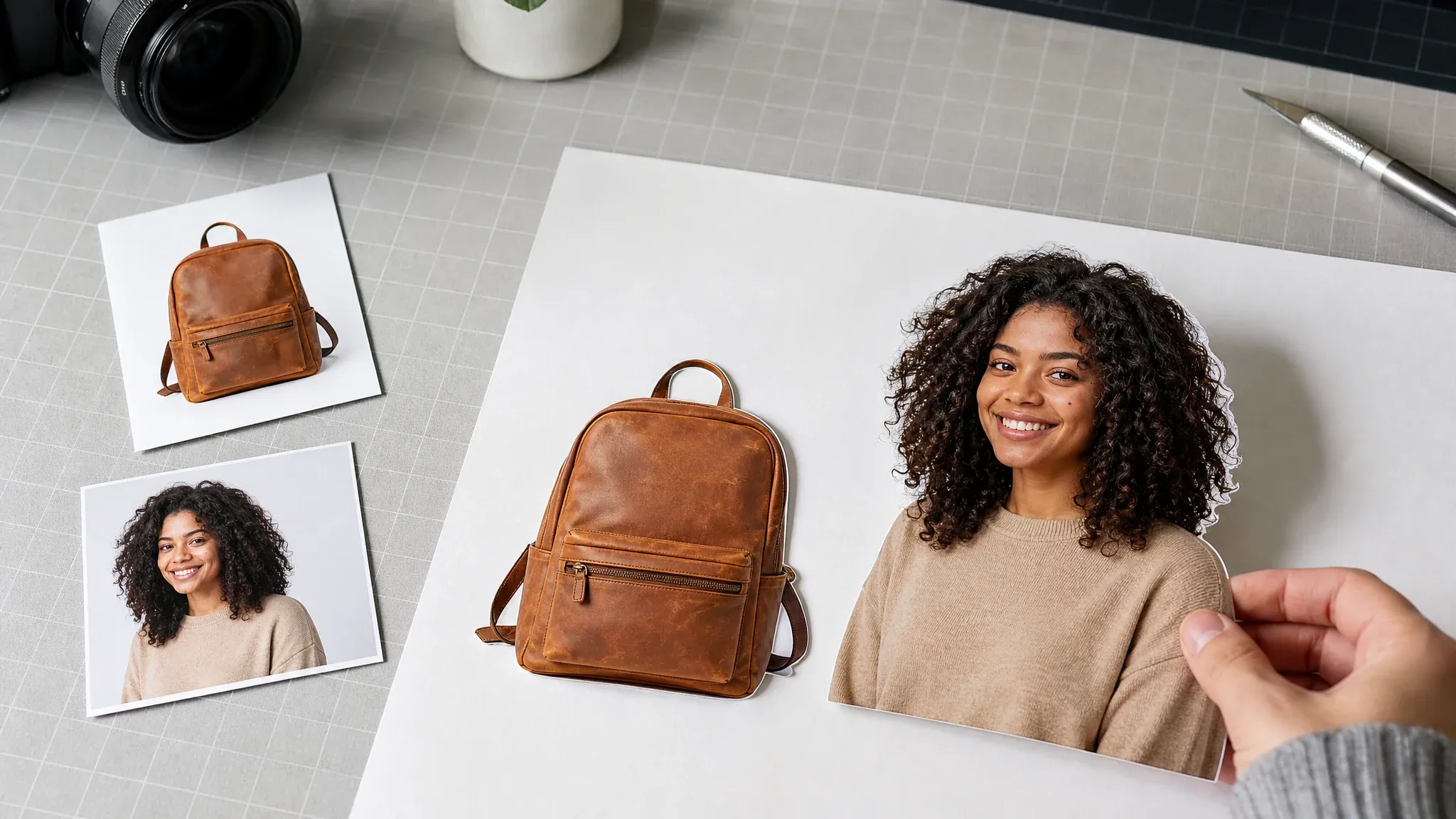
Background Remover
Use this when you need a transparent or white cutout instead of replacing the whole scene behind the subject.
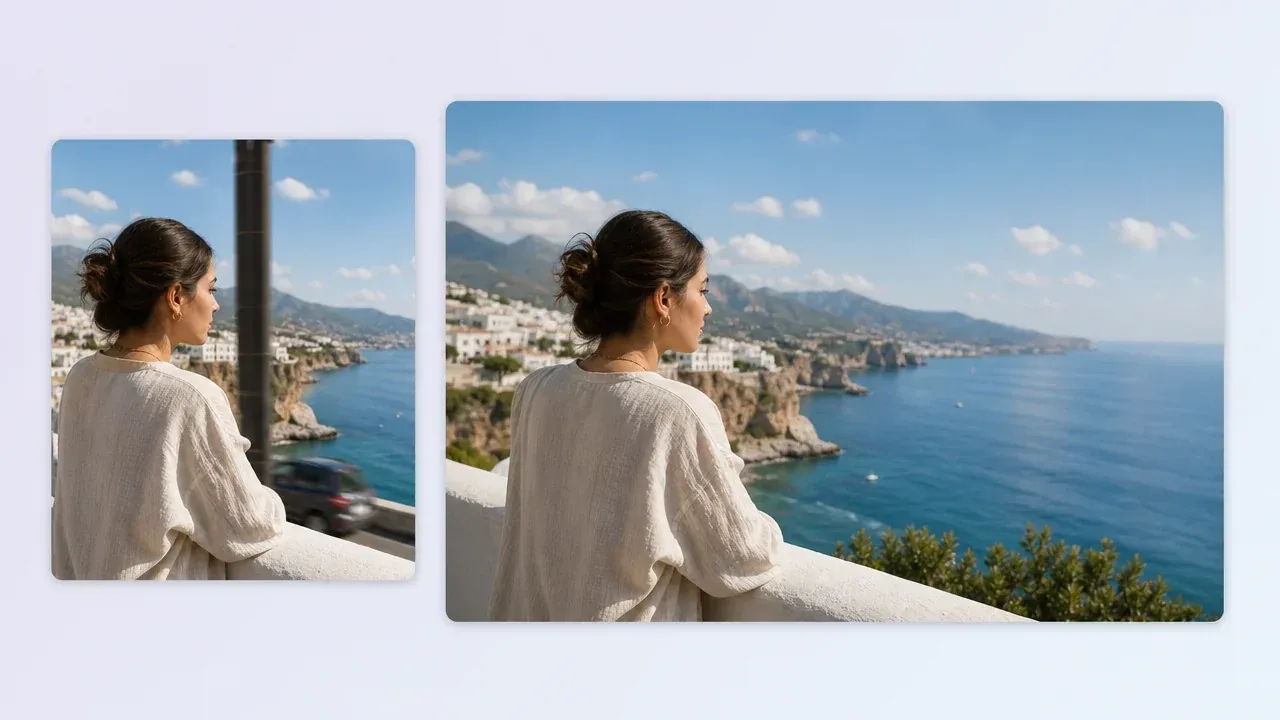
AI Image Editor
Clean up a keeper after background replacement: edge halos, small objects, product corners, or tiny distractions.
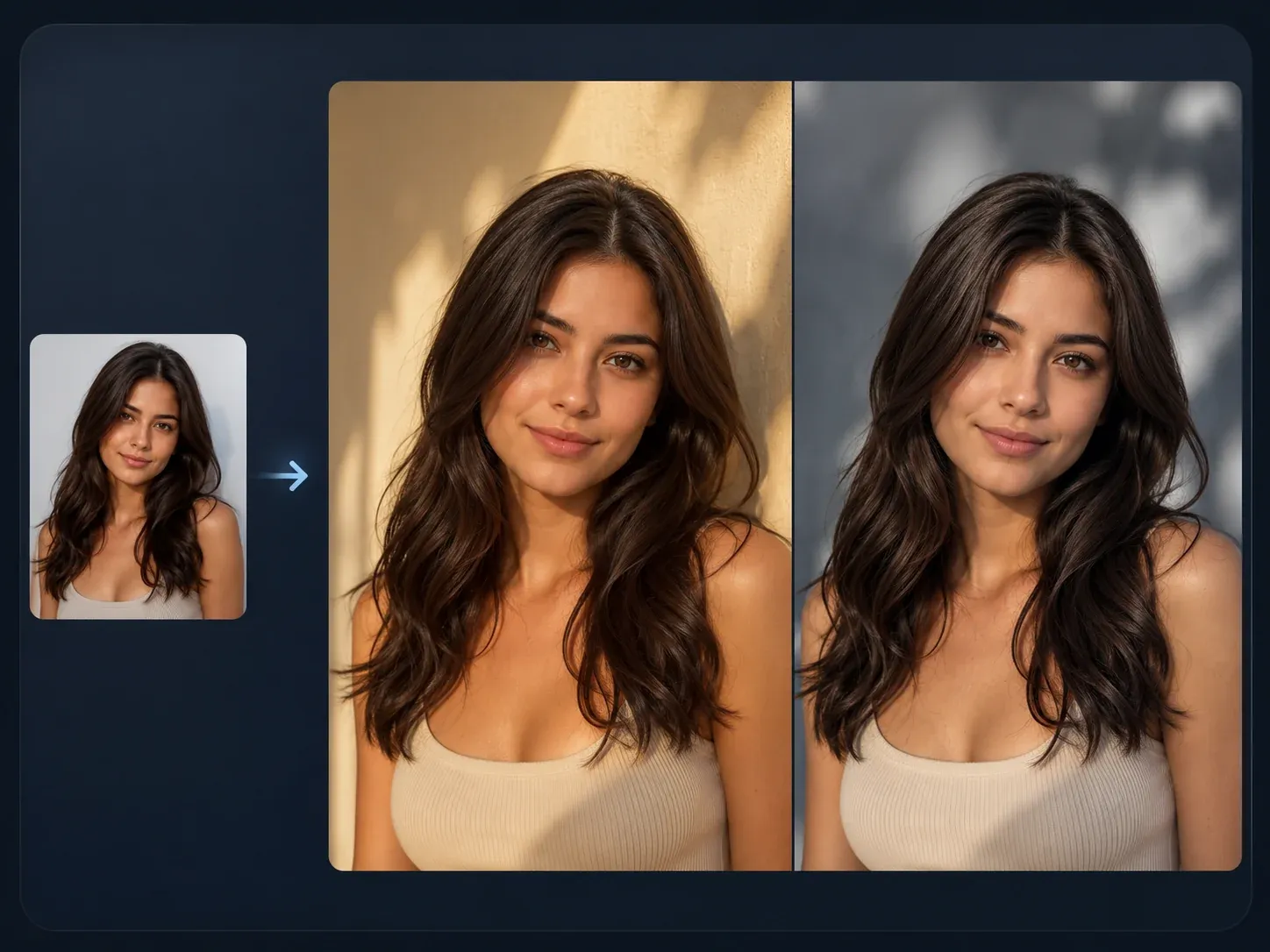
AI Image to Image
Create broader source-guided variants after you choose the best background direction.

AI Headshot Generator
Use this when the portrait needs a full professional profile refresh, not only a cleaner background.
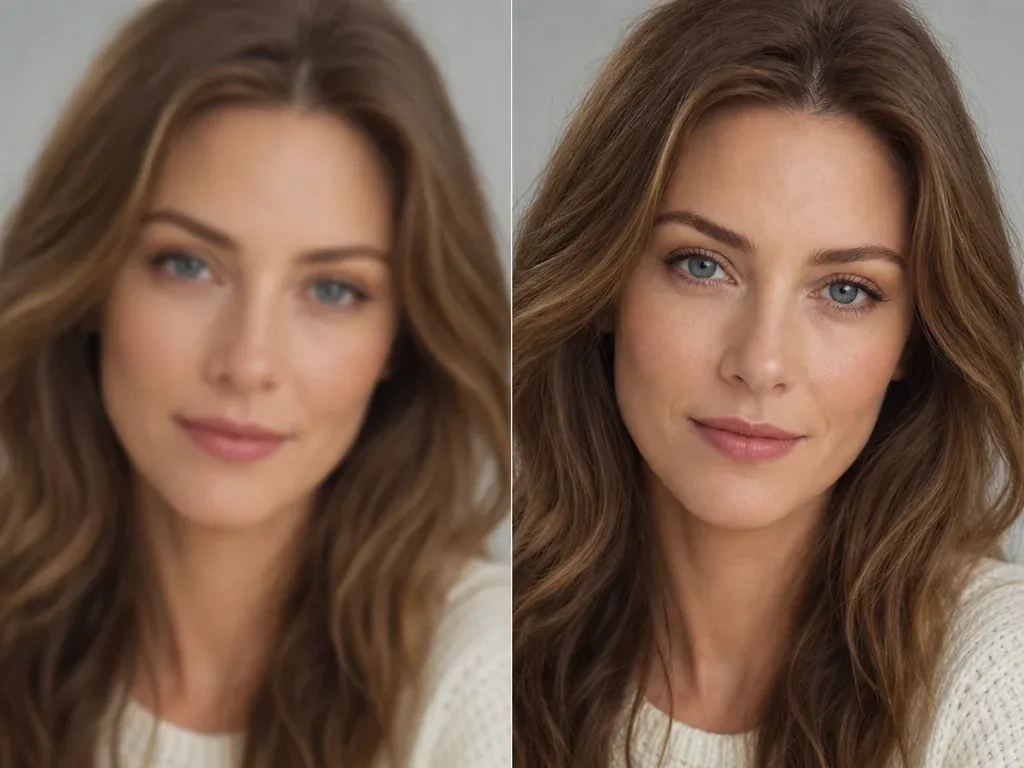
AI Image Upscaler
Sharpen the final image before using it in a product listing, profile page, ad draft, or social post.
AI Background Changer FAQ
Direct answers about free use, no login, no watermark, prompt backgrounds, background color, reference images, product photos, LinkedIn, privacy, quality limits, and video boundaries.
It is an online tool that replaces the scene behind a subject in a photo. Upload a product photo, portrait, pet, or object image, choose a background direction, and generate a new still image.
Yes. You can start using the AI background changer online for free. If heavier use reaches account or quota rules, FaceAI shows the current limit in the product flow.
No app download is needed, and the browser workflow is built for low-friction use. If guest usage reaches a product limit, the page will show the next step in the flow.
Yes. After the generated image appears, use the download control in the workbench. Keep the tab open until the final image is ready.
Yes. Choose a solid color or describe a clean color background in the prompt. Simple color backgrounds are often best for product images, profile pictures, and marketplace drafts.
Yes. Describe the setting, surface, lighting, color, and use case. For example, ask for a white studio, marble countertop, soft office, garden, beach, cafe window, or social campaign background.
You can upload a reference background to guide mood, material, color, lighting, or scene direction. Treat it as visual direction, not an exact compositing instruction.
A background remover creates a cutout, transparent PNG, or plain background. A background changer replaces the scene behind the subject with a new color, prompt, scene, or reference-inspired background.
Use sharp, well-lit images with a clear subject boundary and enough space around the crop. Product photos, portraits, pets, and simple object images usually work better than blurry screenshots or cluttered group photos.
Complex edges can need another try. Hair, fur, glass, veils, reflective packaging, and motion blur are harder, so inspect the result before publishing.
Yes. It is useful for ecommerce product drafts, LinkedIn and profile images, creator posts, thumbnails, ad concepts, seasonal visuals, and social campaign backgrounds when you have rights to the source image.
No. This page is for still-image background replacement. It does not claim video background replacement or same-page video background editing.
FaceAI uses secure upload handling for the generation flow. Use photos you are comfortable processing through an online tool, and avoid sensitive images or photos you do not have permission to use.
You can use generated images when you own or have permission for the source photo and reference materials. Avoid protected brands, fake endorsements, public figures, readable logos, and misleading product claims.
It is a strong first-pass workflow for cleaner backgrounds and visual direction. Final catalog, print, or campaign work may still need human review, retouching, licensing checks, or a real photoshoot.
Change the Background in Your Photo Now
Upload a product photo, portrait, or social image, choose a prompt, color, scene, or reference direction, generate an AI background changer result, then download or refine the keeper.