
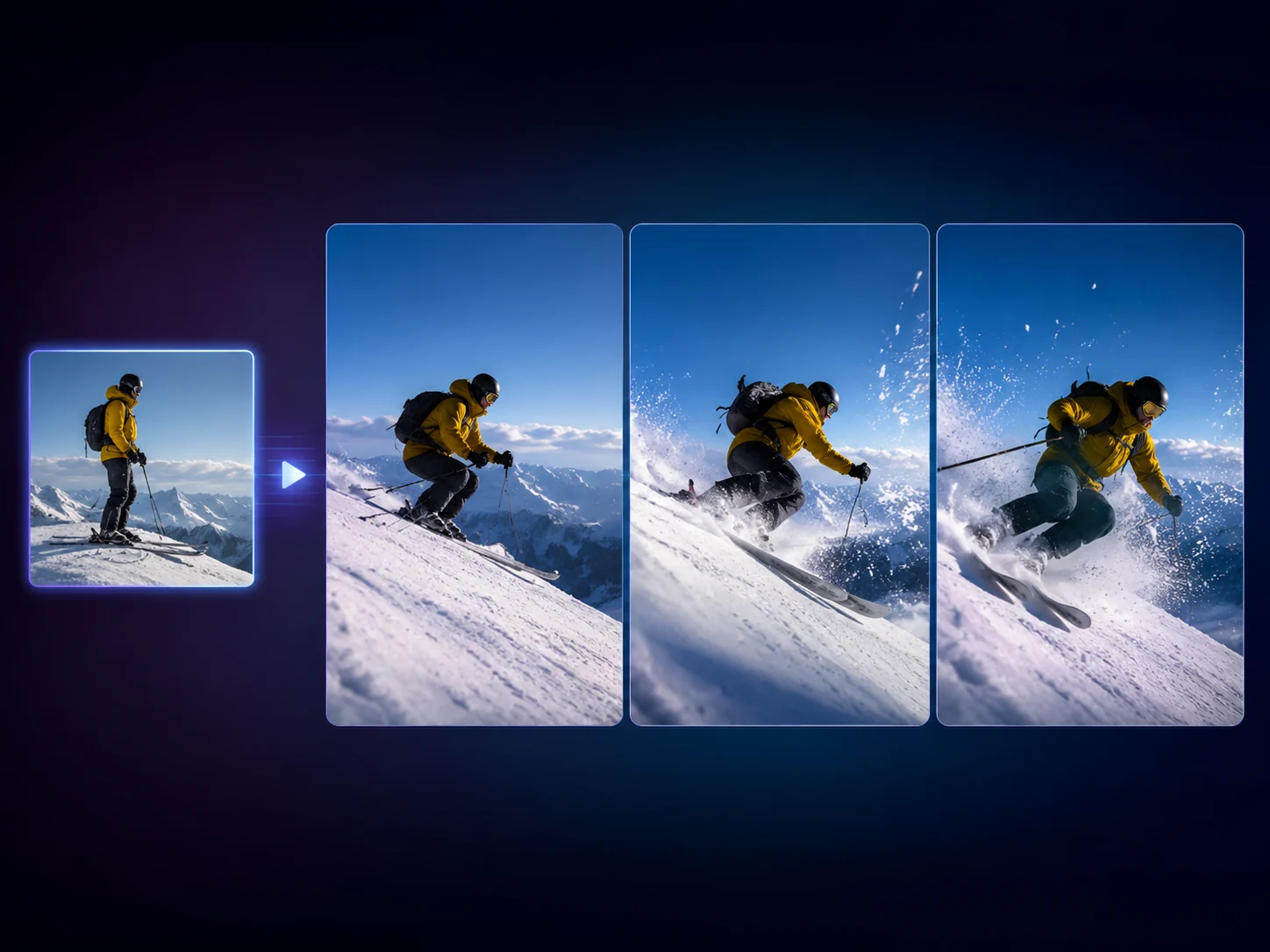
Free AI Image to Video Generator Online for One Photo
Upload one still image, describe the camera move or subject motion, and generate a short video concept from that frame. Use it for product shots, social hooks, portrait intros, and storyboard tests when the image is approved but the scene needs movement. No login required.
Trusted by 12,000,000+ users worldwide.
How to Turn an Image into a Video in 3 Steps
Keep the first run simple: upload one still, write one motion prompt, then inspect the short clip before publishing or editing further.
Upload one still image
Choose a clear product shot, portrait, campaign frame, or storyboard image with one main subject and enough room for movement.
Write the motion prompt
Name the action, camera move, lighting, and parts of the image that should stay stable. Short shot notes usually work better than a long mood list.
Generate and inspect
Review the video result, compare attempts in history, then download it or move the source or clip into the next FaceAI workflow.
What Can You Create with an AI Image to Video Generator?
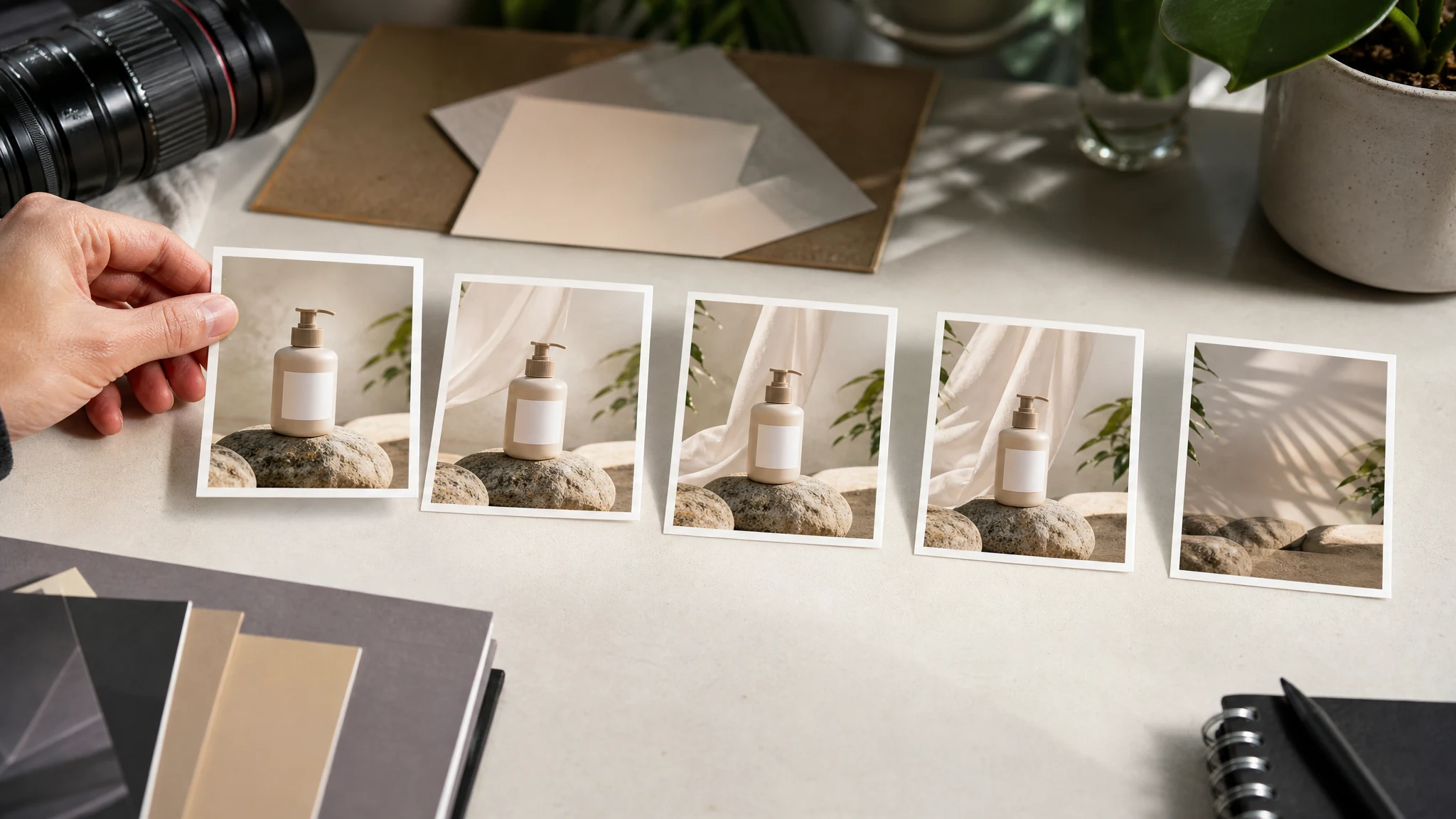
Use the page for five practical jobs: approved still animation, product and ad motion tests, social hooks, portrait intro motion, and storyboard or B-roll references.
Animate one approved still
Turn a finished image direction into a short motion concept. This is useful when the frame already works and the only question is how it moves.
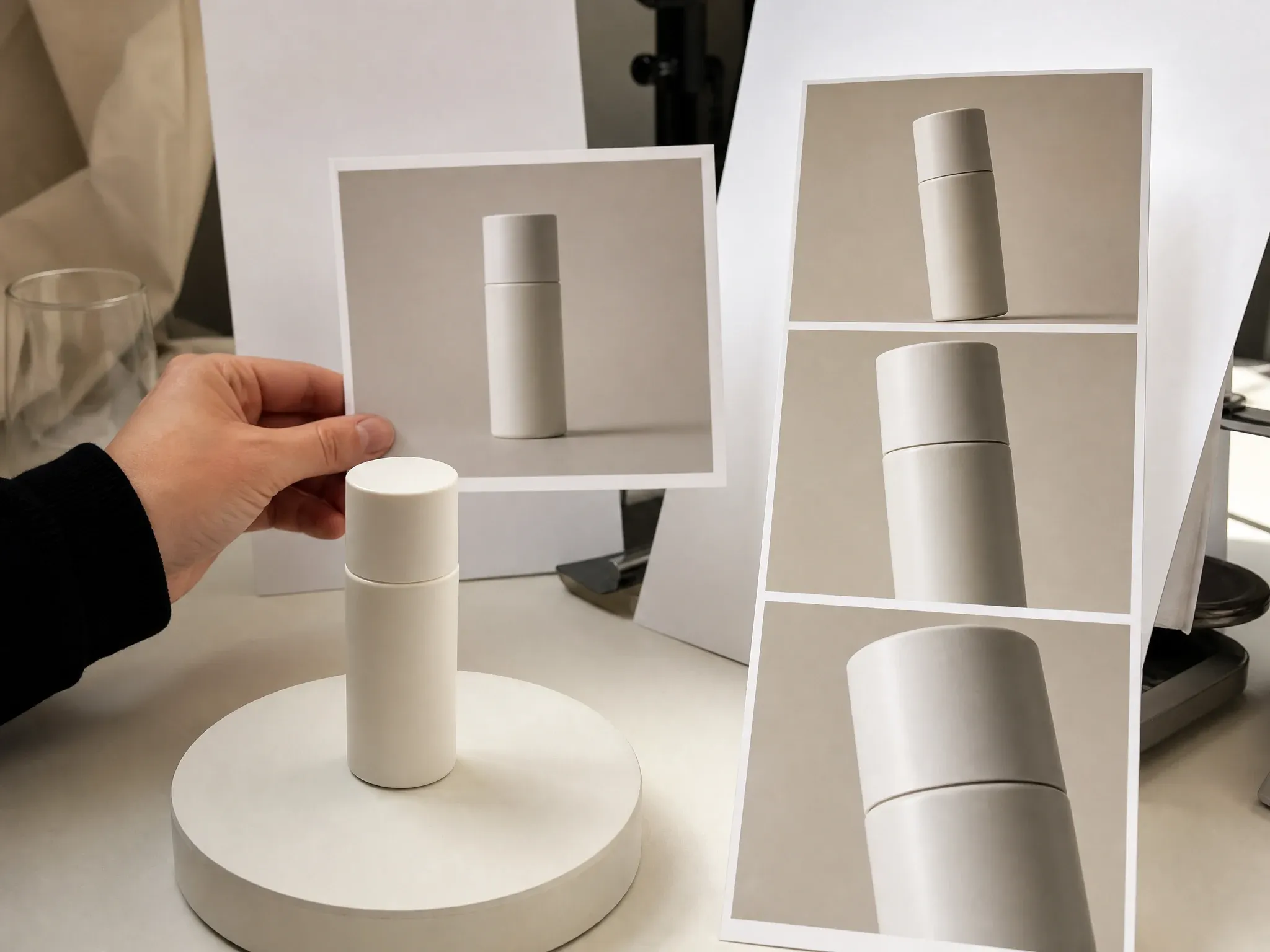
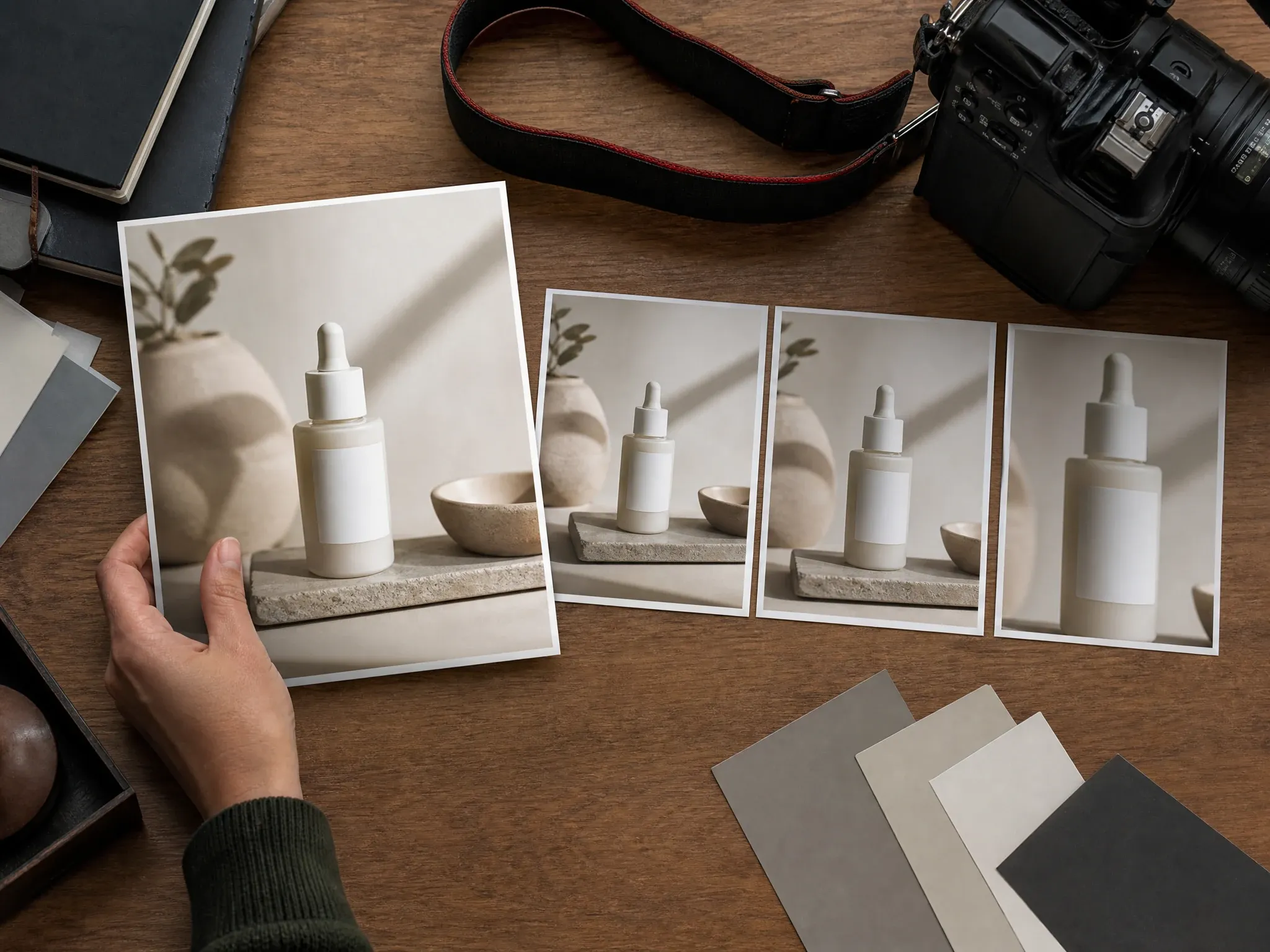
Product and ad motion tests
Start from a clean product shot, ask for a camera push, rotation, hand movement, or light shift, then judge the motion before building a full ad.
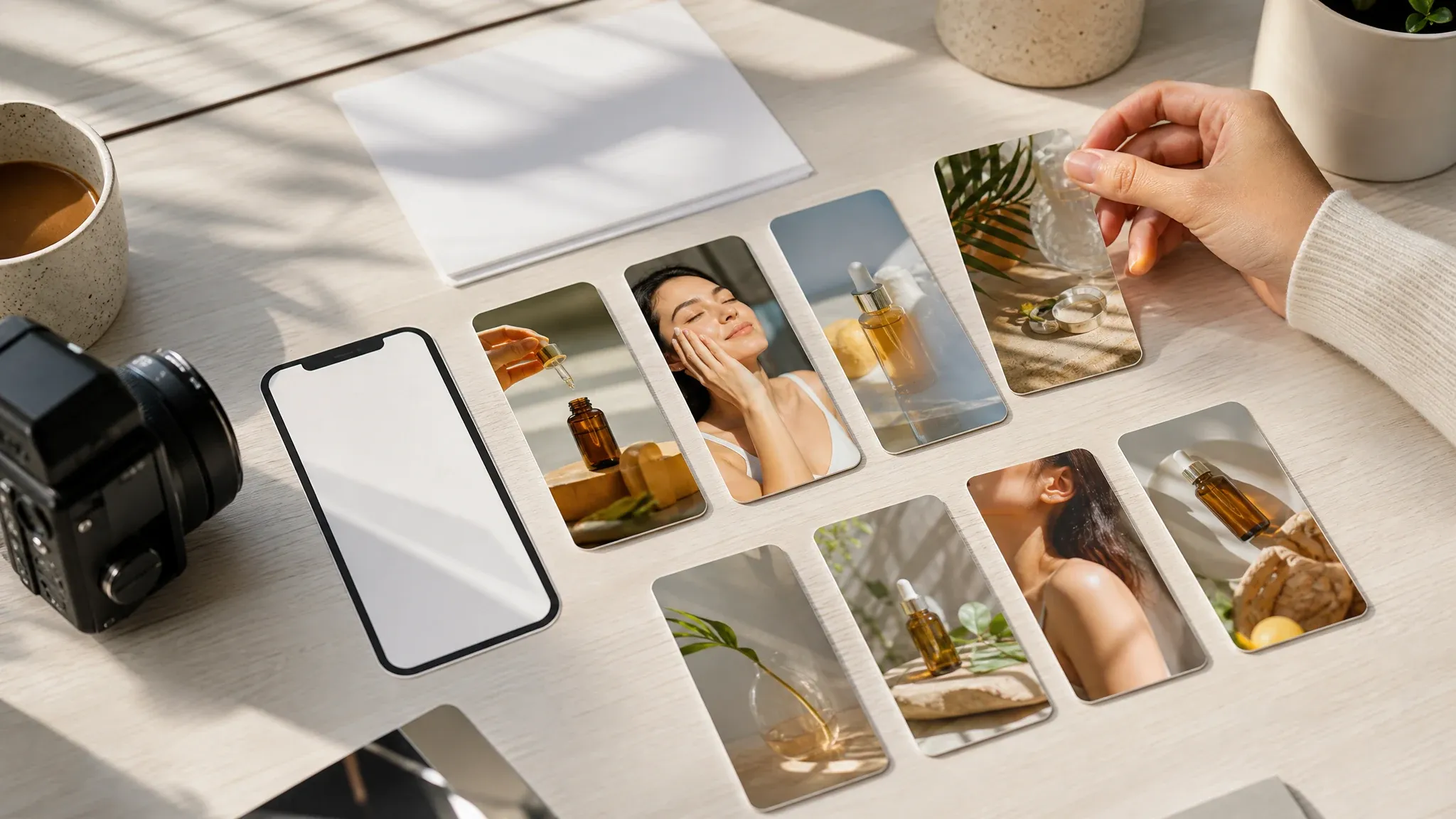
Social hooks from existing visuals
Use a still from a creator brief, launch board, or campaign concept and test whether it has enough movement for reels, stories, or short ads.
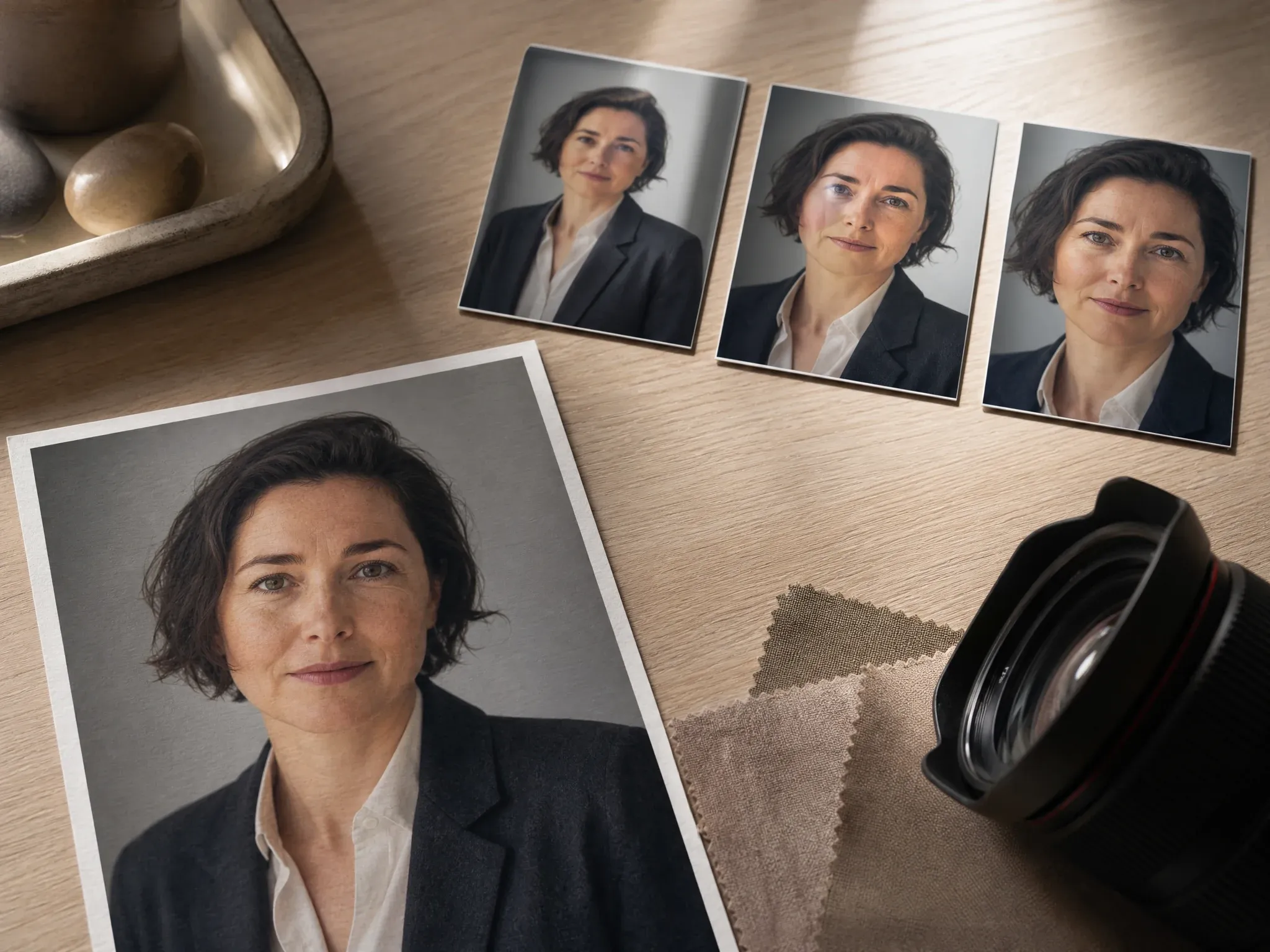
Portrait intro motion
Create a short visual intro from a profile image or creator portrait. Keep the motion narrow; use a talking workflow when the job needs speech or lip sync.
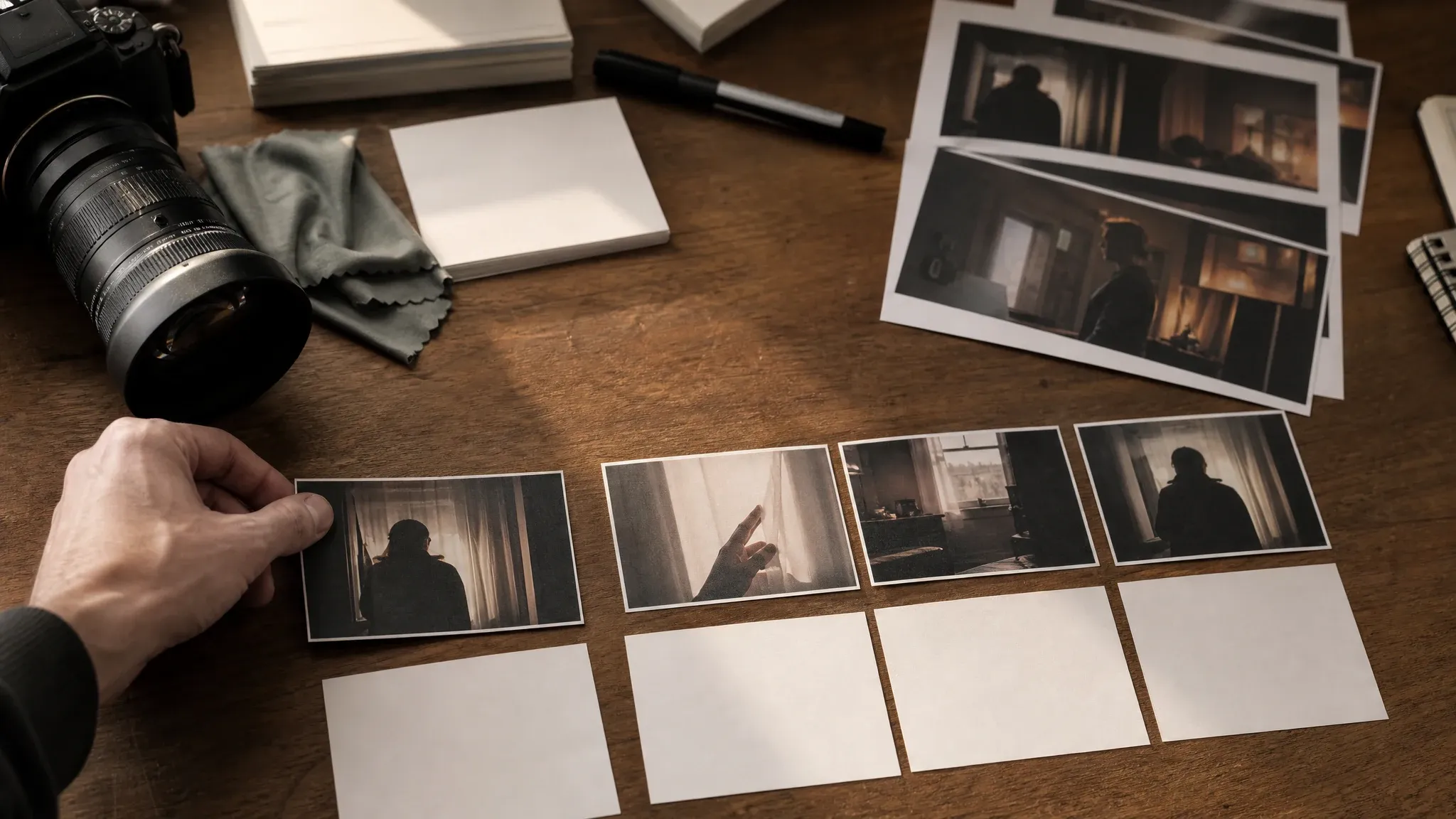
Storyboard and B-roll references
Give editors and stakeholders a moving reference before production. The goal is motion direction, not final timeline editing.
What Is an AI Image to Video Generator?
An AI image to video generator takes one uploaded still image and creates a short moving clip from your motion prompt. The source image gives the model a visual anchor; the prompt tells it how the scene should move.
One image as the anchor
Use it when the composition, subject, product angle, or portrait crop already works and should guide the video.
Motion prompt as direction
Describe the camera, action, light, and pacing. The prompt should be clear enough for someone to film the shot.
Short clip for review
Use the result to judge movement before enhancement, editing, captions, audio, or production work.
Why Use FaceAI for Image to Video?
The page keeps the image-to-video workspace first, then gives you practical guidance for source images, motion prompts, and next steps.
Workbench before the article
Upload and test the image before reading the whole page. The user came to make motion, so the tool comes first.
I2V-first setup
The page opens in image-to-video mode, with one source image and one prompt as the main decisions.
Built for the creative chain
If the still is not ready, send it to editor, image-to-image, or upscaler first. If the clip works, enhance the video next.
Honest about hard details
Faces, hands, product edges, logos, tiny text, and exact identity cues still need human review after generation.
How to Get Better Image to Video Results
The source image and motion prompt do most of the work. A clear frame plus a direct shot note beats a vague style pile.
Try image to videoUse a clean source frame
Pick one readable subject with stable composition, good lighting, and enough background space for the requested movement.
Ask for one main motion
A slow camera push, gentle product rotation, light change, or small subject action is easier to judge than five competing movements.
Name what should stay stable
Mention the product, person, pose, camera angle, or mood you want the model to preserve.
Inspect before publishing
Check faces, fingers, product outlines, jewelry, logos, labels, and any small text before the clip leaves review.
AI Image to Video vs. Text-to-Video, Editors, and Animation Apps
Use this table to pick the right workflow. Image-to-video is strongest when a still image is already approved and motion is the missing piece.
| 对比项 | Face AI我们 FaceAI image-to-video workflow | Other approaches |
|---|---|---|
| Starting point | Upload one source image and write a motion prompt. | Text-to-video starts from words only, while full editors start from footage and timeline work. |
| Best use | Approved stills, product shots, social hooks, portrait intros, storyboards, and B-roll references. | Full video suites are better for captions, audio, manual cuts, scenes, scripts, and long-form editing. |
| Control focus | Keep the source image as the visual anchor and describe how it should move. | Text-only generation can drift when the composition or product angle is already fixed. |
| First-run friction | Open the page, upload the still, write the motion, and generate without a login wall for the first test. | Many tools route users through editor setup, account gates, or broad model galleries before the first clip. |
| Speech and audio | This page creates visual motion from one image. Use a talking or audio workflow when speech, voiceover, or lip sync is the real job. | Some platforms bundle audio claims into image-to-video, which can blur the actual task. |
| Quality check | Inspect identity, product geometry, logos, readable text, and motion before publishing the clip. | Video generators can drift, so polished pages still need a final review pass. |
| Next step | Enhance the clip, edit the source image, restyle the still, or upscale the frame depending on what breaks first. | Single-purpose animation pages often stop at download without guiding the next creative step. |
Starting point
Upload one source image and write a motion prompt.
Text-to-video starts from words only, while full editors start from footage and timeline work.
Best use
Approved stills, product shots, social hooks, portrait intros, storyboards, and B-roll references.
Full video suites are better for captions, audio, manual cuts, scenes, scripts, and long-form editing.
Control focus
Keep the source image as the visual anchor and describe how it should move.
Text-only generation can drift when the composition or product angle is already fixed.
First-run friction
Open the page, upload the still, write the motion, and generate without a login wall for the first test.
Many tools route users through editor setup, account gates, or broad model galleries before the first clip.
Speech and audio
This page creates visual motion from one image. Use a talking or audio workflow when speech, voiceover, or lip sync is the real job.
Some platforms bundle audio claims into image-to-video, which can blur the actual task.
Quality check
Inspect identity, product geometry, logos, readable text, and motion before publishing the clip.
Video generators can drift, so polished pages still need a final review pass.
Next step
Enhance the clip, edit the source image, restyle the still, or upscale the frame depending on what breaks first.
Single-purpose animation pages often stop at download without guiding the next creative step.
How Creators Use Image to Video in Real Workflows
These comments focus on the actual loop: choose a source still, write shot notes, inspect the generated clip, and decide whether it deserves another pass.
"Image-to-video is where I start after one still frame is approved. The prompt only has to explain the motion, not rebuild the whole scene."

Seungwoo Park
Growth Marketing Manager
"I use it for quick social hooks. Upload the product shot, ask for a slow push or hand movement, then decide if the idea is worth editing."

Zara Davis
Social Media Director
"Product motion tests are easier when the image is already locked. I still check edges and labels, but the first moving version helps the launch board."

Tariq Al-Qahtani
E-commerce Brand Director
"The best prompts read like shot notes: subject, camera move, action, light. A vague mood prompt gave me less control."

Priya Chen
Creative Strategy Lead
"For pitch boards, a still image can feel dead. A short motion draft gets people to react without waiting for a full edit."

Leo Fitzgerald
Associate Creative Director
"I like that this page does not pretend to be a full editor. It turns one image into motion, then I move the clip to the next tool if it works."

Aaliyah Williams
Digital Marketing Director
"Image-to-video is where I start after one still frame is approved. The prompt only has to explain the motion, not rebuild the whole scene."
Seungwoo Park
Growth Marketing Manager
"I use it for quick social hooks. Upload the product shot, ask for a slow push or hand movement, then decide if the idea is worth editing."
Zara Davis
Social Media Director
"Product motion tests are easier when the image is already locked. I still check edges and labels, but the first moving version helps the launch board."
Tariq Al-Qahtani
E-commerce Brand Director
"The best prompts read like shot notes: subject, camera move, action, light. A vague mood prompt gave me less control."
Priya Chen
Creative Strategy Lead
"For pitch boards, a still image can feel dead. A short motion draft gets people to react without waiting for a full edit."
Leo Fitzgerald
Associate Creative Director
"I like that this page does not pretend to be a full editor. It turns one image into motion, then I move the clip to the next tool if it works."
Aaliyah Williams
Digital Marketing Director
"We use it on clean product photos after the image direction passes review. If the pack angle is wrong, I fix the still first."

Mei Chen
E-commerce Director
"Image-to-video is where I start after one still frame is approved. The prompt only has to explain the motion, not rebuild the whole scene."
Seungwoo Park
Growth Marketing Manager
"I use it for quick social hooks. Upload the product shot, ask for a slow push or hand movement, then decide if the idea is worth editing."
Zara Davis
Social Media Director
"Product motion tests are easier when the image is already locked. I still check edges and labels, but the first moving version helps the launch board."
Tariq Al-Qahtani
E-commerce Brand Director
"The best prompts read like shot notes: subject, camera move, action, light. A vague mood prompt gave me less control."
Priya Chen
Creative Strategy Lead
"For pitch boards, a still image can feel dead. A short motion draft gets people to react without waiting for a full edit."
Leo Fitzgerald
Associate Creative Director
"I like that this page does not pretend to be a full editor. It turns one image into motion, then I move the clip to the next tool if it works."
Aaliyah Williams
Digital Marketing Director
"We use it on clean product photos after the image direction passes review. If the pack angle is wrong, I fix the still first."
Mei Chen
E-commerce Director
"The source image matters. One clear frame gives the motion prompt something to follow, especially for product and lifestyle scenes."

Marco Rossi
Head of Strategy
"Portrait intro clips work when I keep the request narrow: slight camera push, natural light, tiny expression change. I do not ask it to lip sync."

Sofia Martinez
Head of Brand Social
"For ads, it is a fast way to test if the visual has movement potential before we spend time on copy, captions, or final cuts."

Marcus Johnson
Performance Marketing Manager
"Storyboard work is where it helps most. One approved image becomes a motion reference the editor can judge."

Sophia Wagner
Editorial Director
"I inspect product edges after every render. The clip can be useful, but exact packaging still belongs in a controlled design pass."

Kwesi Mensah
E-commerce Director
"The no-login first run lowers the friction. Someone can test an approved creator still and share the direction with the team."

Anya Ramos
Influencer Partnerships Director
"Some image animation tools sell too much. This one fits the real middle step: start from one still, make a short clip, then decide what deserves more work."

Thomas Berg
Director of Innovation
"The source image matters. One clear frame gives the motion prompt something to follow, especially for product and lifestyle scenes."
Marco Rossi
Head of Strategy
"Portrait intro clips work when I keep the request narrow: slight camera push, natural light, tiny expression change. I do not ask it to lip sync."
Sofia Martinez
Head of Brand Social
"For ads, it is a fast way to test if the visual has movement potential before we spend time on copy, captions, or final cuts."
Marcus Johnson
Performance Marketing Manager
"Storyboard work is where it helps most. One approved image becomes a motion reference the editor can judge."
Sophia Wagner
Editorial Director
"I inspect product edges after every render. The clip can be useful, but exact packaging still belongs in a controlled design pass."
Kwesi Mensah
E-commerce Director
"The no-login first run lowers the friction. Someone can test an approved creator still and share the direction with the team."
Anya Ramos
Influencer Partnerships Director
"Some image animation tools sell too much. This one fits the real middle step: start from one still, make a short clip, then decide what deserves more work."
Thomas Berg
Director of Innovation
What Should You Try Before or After Image to Video?
Choose the next FaceAI tool based on the real blocker: broader video generation, video cleanup, source-image repair, controlled restyle, or sharper still export.
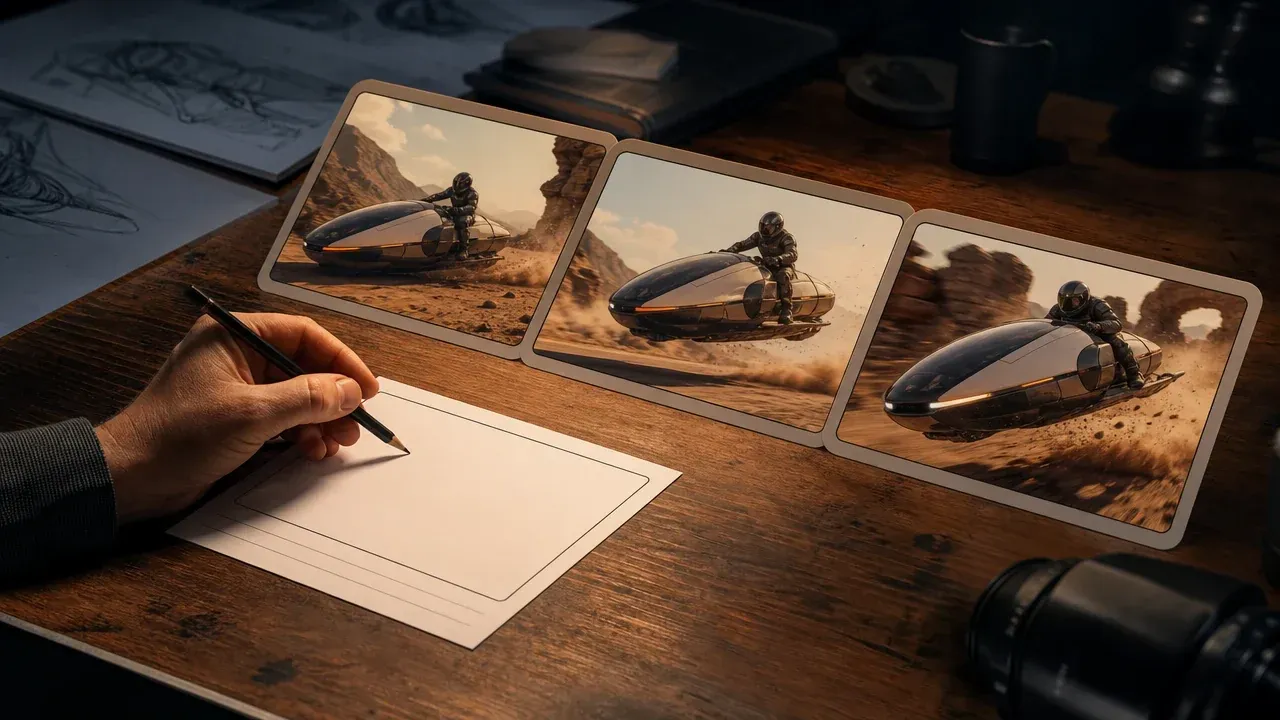
AI Video Generator
Use the broader video generator when you want text-to-video or a mixed text/image starting point instead of an image-first page.
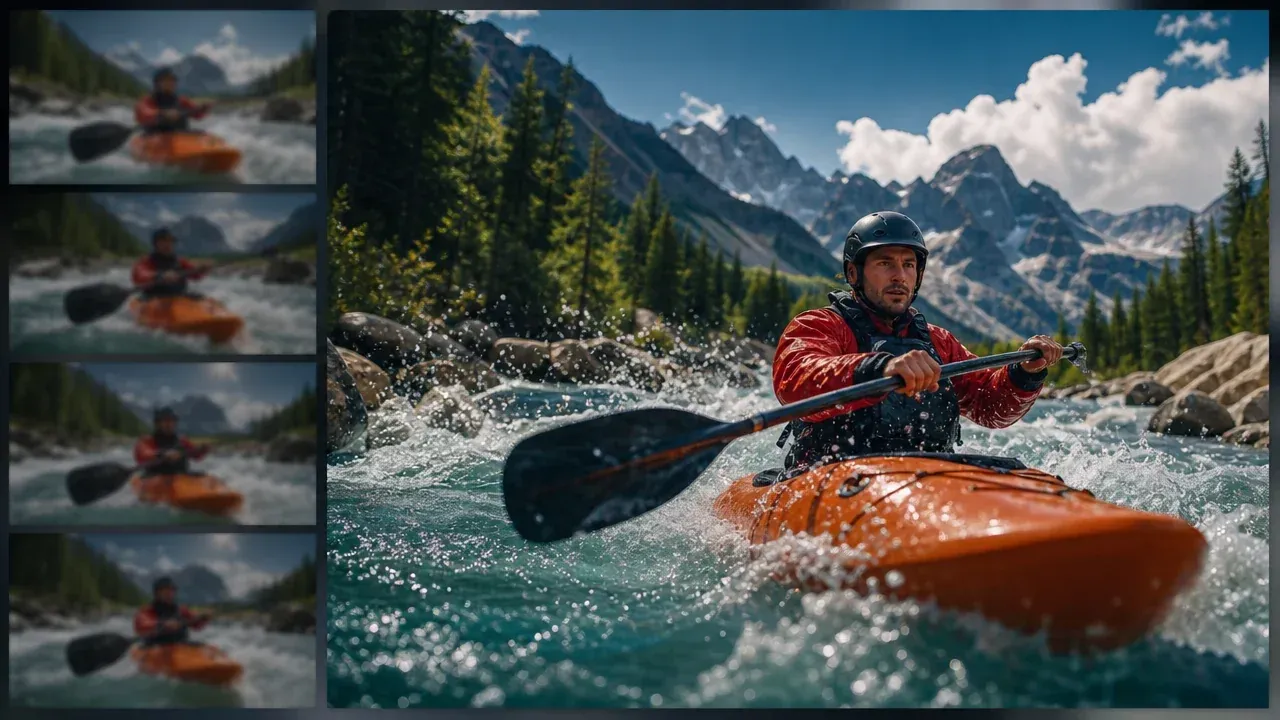
AI Video Enhancer
Use it after the generated clip has the right motion but needs a cleaner video-quality pass before sharing or review.
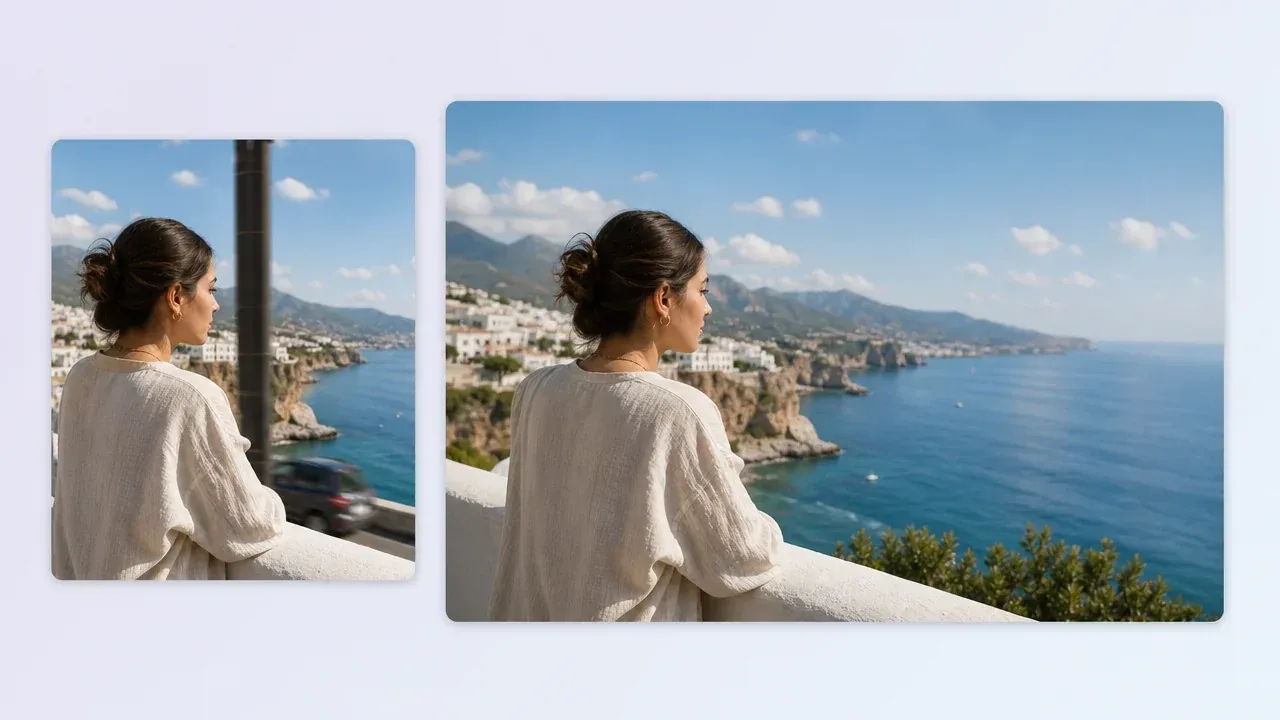
AI Image Editor
Fix one distracting object, weak background, or portrait detail before turning the still into motion.
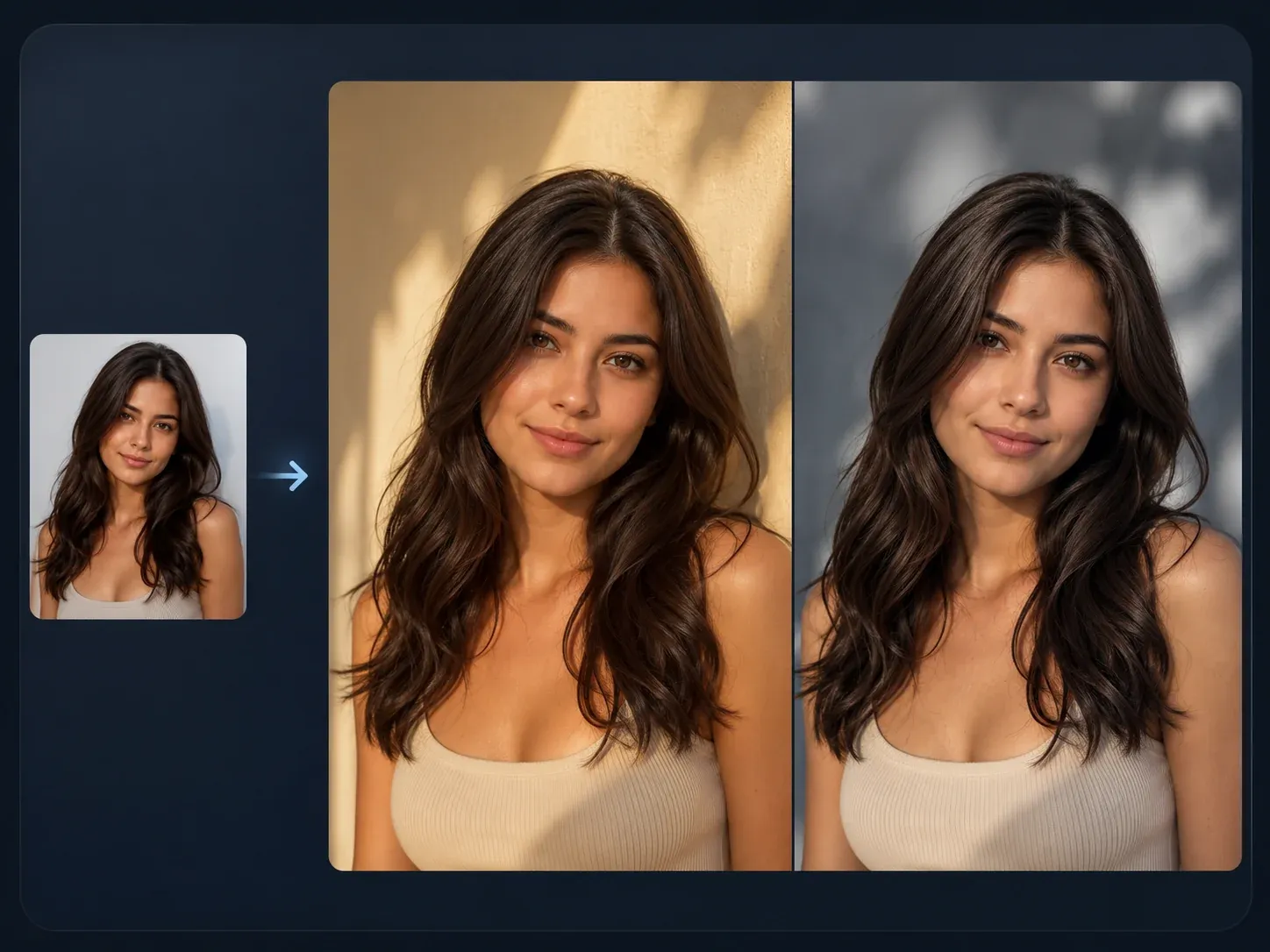
AI Image to Image
Restyle the source image first when the composition is close but the mood, background, or campaign direction is not ready for motion.
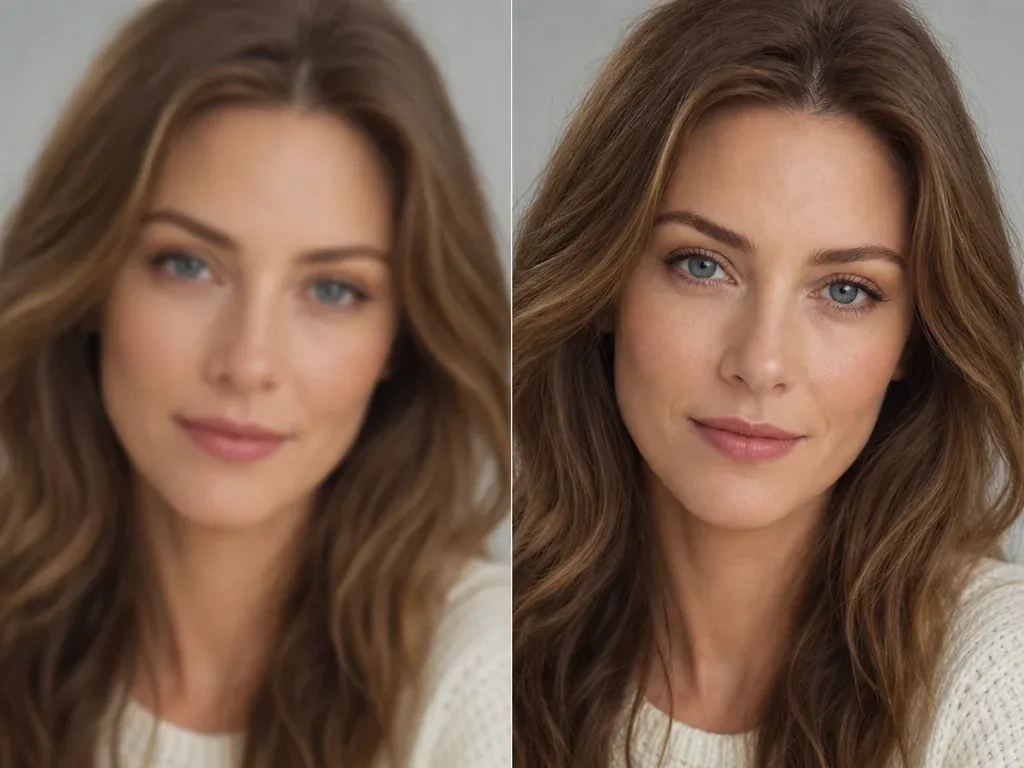
AI Image Upscaler
Sharpen the still frame before animation when the approved source image is useful but too small or soft.
AI Image to Video Generator Questions, Answered
Direct answers about source images, motion prompts, output quality, rights, speech/audio boundaries, and when to use another FaceAI tool.
An AI image to video generator turns one uploaded still image into a short moving clip. The image anchors the scene, and your prompt describes the motion.
Yes. This page opens in image-to-video mode for users who already have one source image. Use the broader AI Video Generator when you want text-to-video or both starting points on one page.
Yes. This page is built for image-to-video, so start with one source image. If you only have a written idea, use the AI Video Generator instead.
Yes. You can start from the online workspace and test an image-to-video generation without a login wall on the first run.
Use one clear still with a readable subject, stable composition, and enough space for movement. Busy collages, tiny subjects, and low-detail screenshots are harder to animate cleanly.
Write shot notes: subject, action, camera move, lighting, and what should stay stable. For example, ask for a slow camera push, subtle product rotation, or gentle hair movement.
Do not assume exact preservation. Review faces, hands, product edges, labels, logos, and small text before publishing or sending the clip to a client.
The model has to infer movement between frames. A clear source image and one main motion request reduce drift, but video generation still needs human review.
Yes, if you have the right to use them. Product photos work best when the object shape and lighting are already usable and the motion request is narrow.
No. This page creates visual motion from a still image. Use a talking-photo or audio workflow when the job needs speech, voiceover, or lip sync.
You are responsible for rights to the source image, people, products, logos, and protected material inside the clip. Do not upload or publish media you do not have permission to use.
If the motion works but the clip is soft, use AI Video Enhancer. If the still image was not ready, fix it with AI Image Editor, AI Image to Image, or AI Image Upscaler before animating again.
Start with the AI Image to Video Generator
Upload one source image, write a clear motion prompt, and create the first short video version before you edit, enhance, or publish.