起点
我们
选择一个 MP4、MOV 或 WebM 视频,在浏览器中直接转换源视频。
其他工作流
编辑器通常需要先建项目、时间轴、导出预设和更多设置。
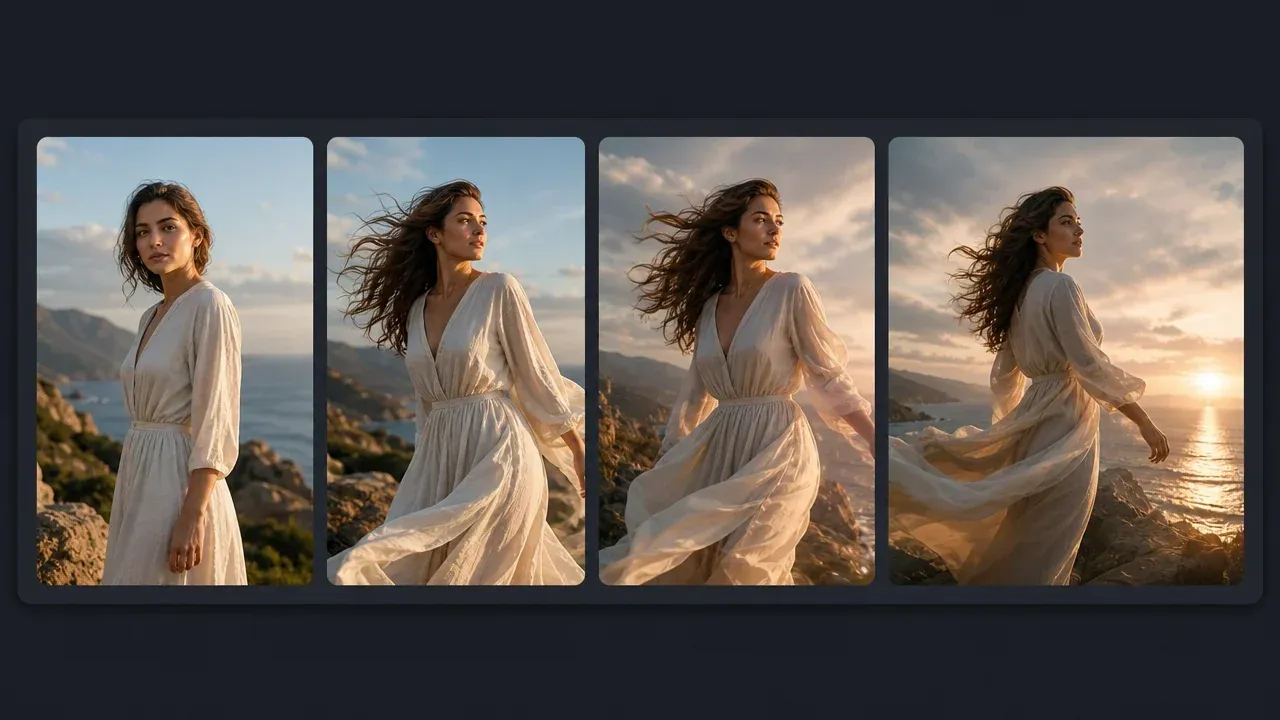
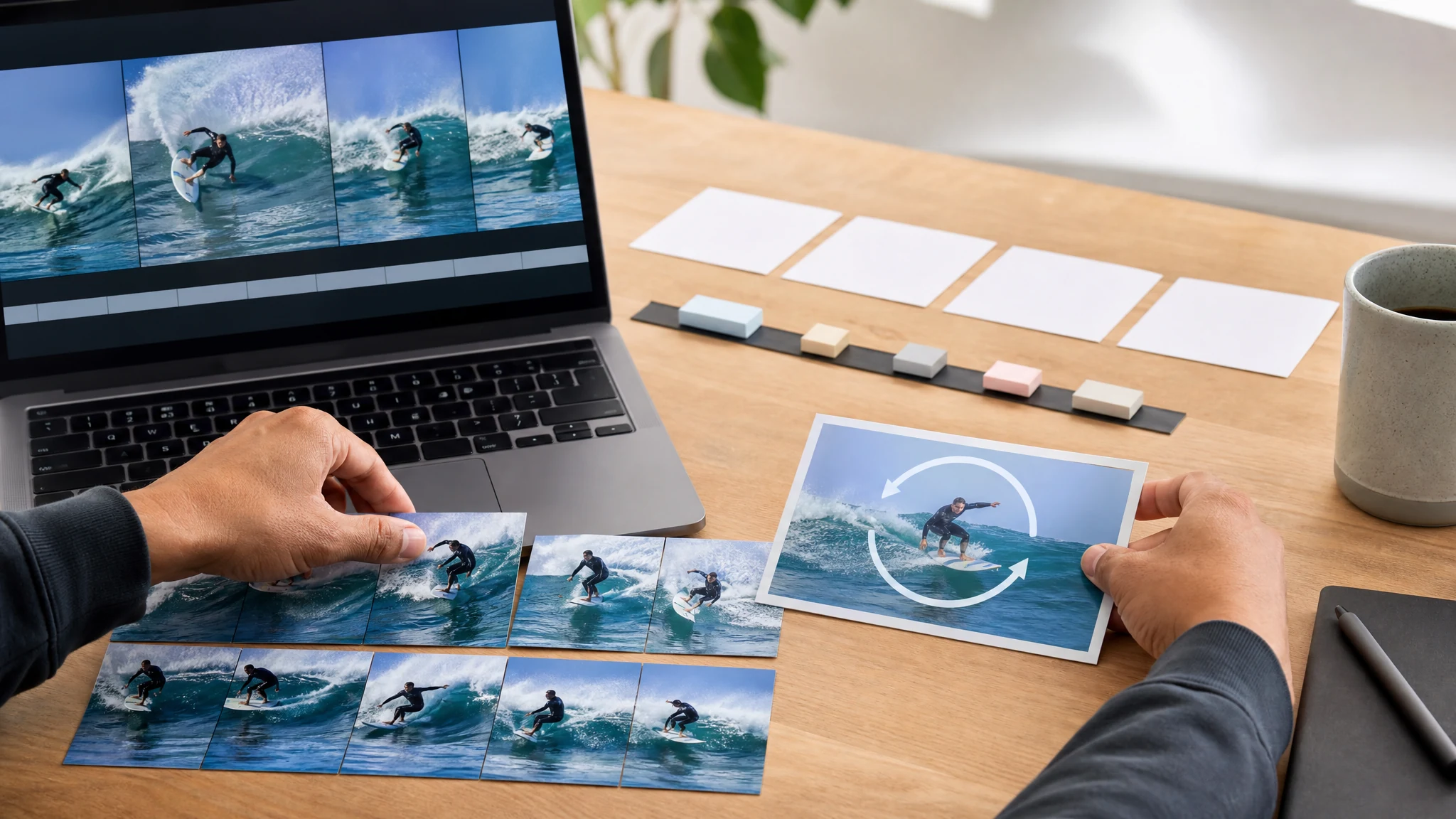
选择一段 MP4、MOV 或 WebM 视频,截取最精彩的瞬间,再调整 FPS、分辨率和速度,即可在浏览器里完成转换并导出循环 GIF,用于聊天、文档、社交预览、产品说明或发布更新。
全球超过 12,000,000 位用户信赖。专注浏览器端源视频转换、短 GIF 导出与实用下载,不含字幕、贴纸叠加、批量转换或 WebP 导出。
让第一次导出保持聚焦:选择一个 MP4、MOV 或 WebM 视频,截取有用的片段,再选择实用的 FPS、分辨率和速度设置。
支持 MP4、MOV 或 WebM。短片源效果最好,因为 GIF 文件体积增长很快。
选中有用的片段,再根据 GIF 的分享场景选择 FPS、分辨率和速度。
生成循环 GIF,检查结果,然后下载用于文档、聊天、邮件、社交预览或产品说明。
当短循环比完整视频文件更能传达信息时使用它,尤其是在文档、聊天、客服、社交帖子和产品更新中。
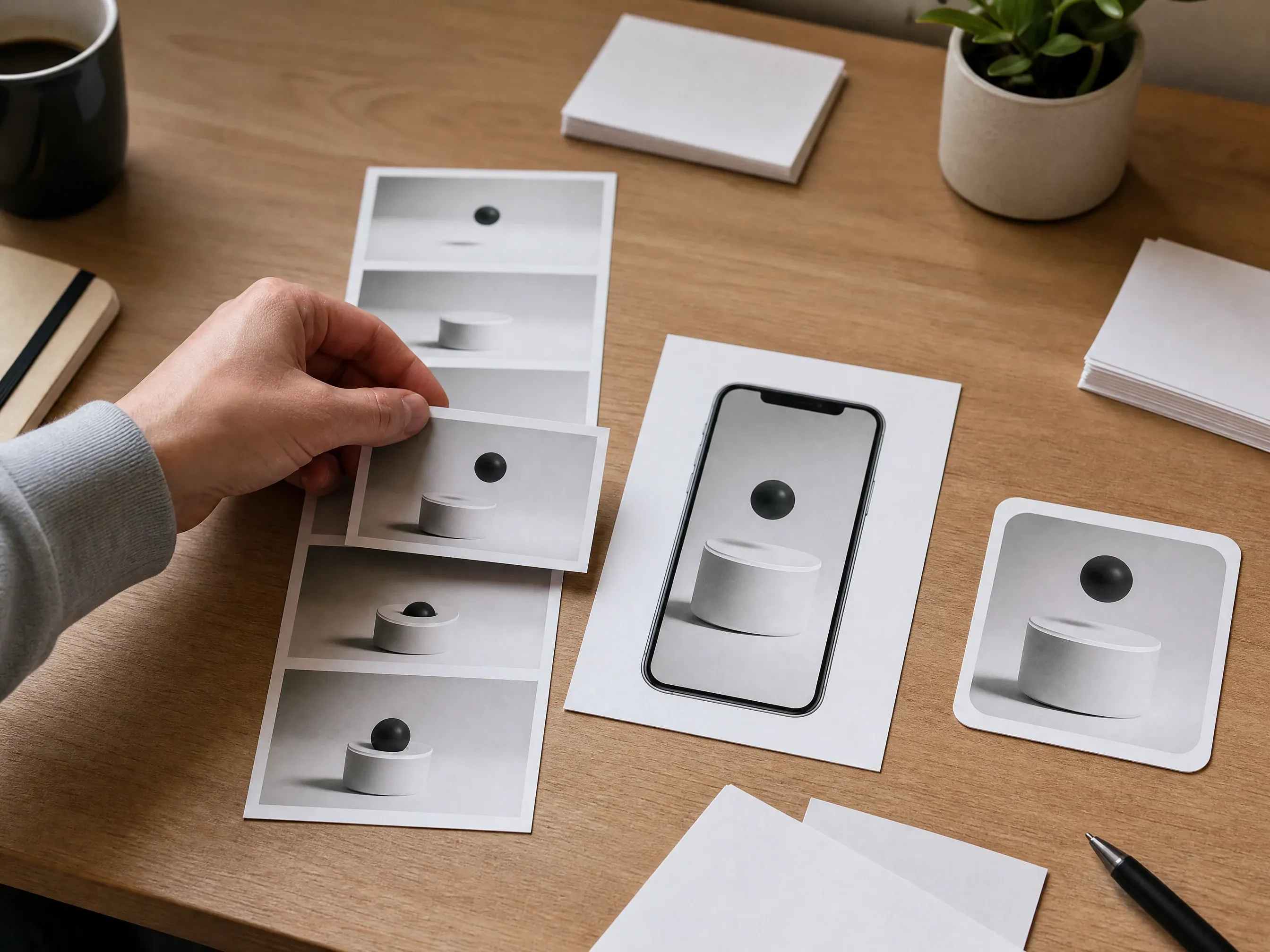
将简短的屏幕录制或产品演示片段转为轻量 GIF,用于更新日志、文档和发布说明。
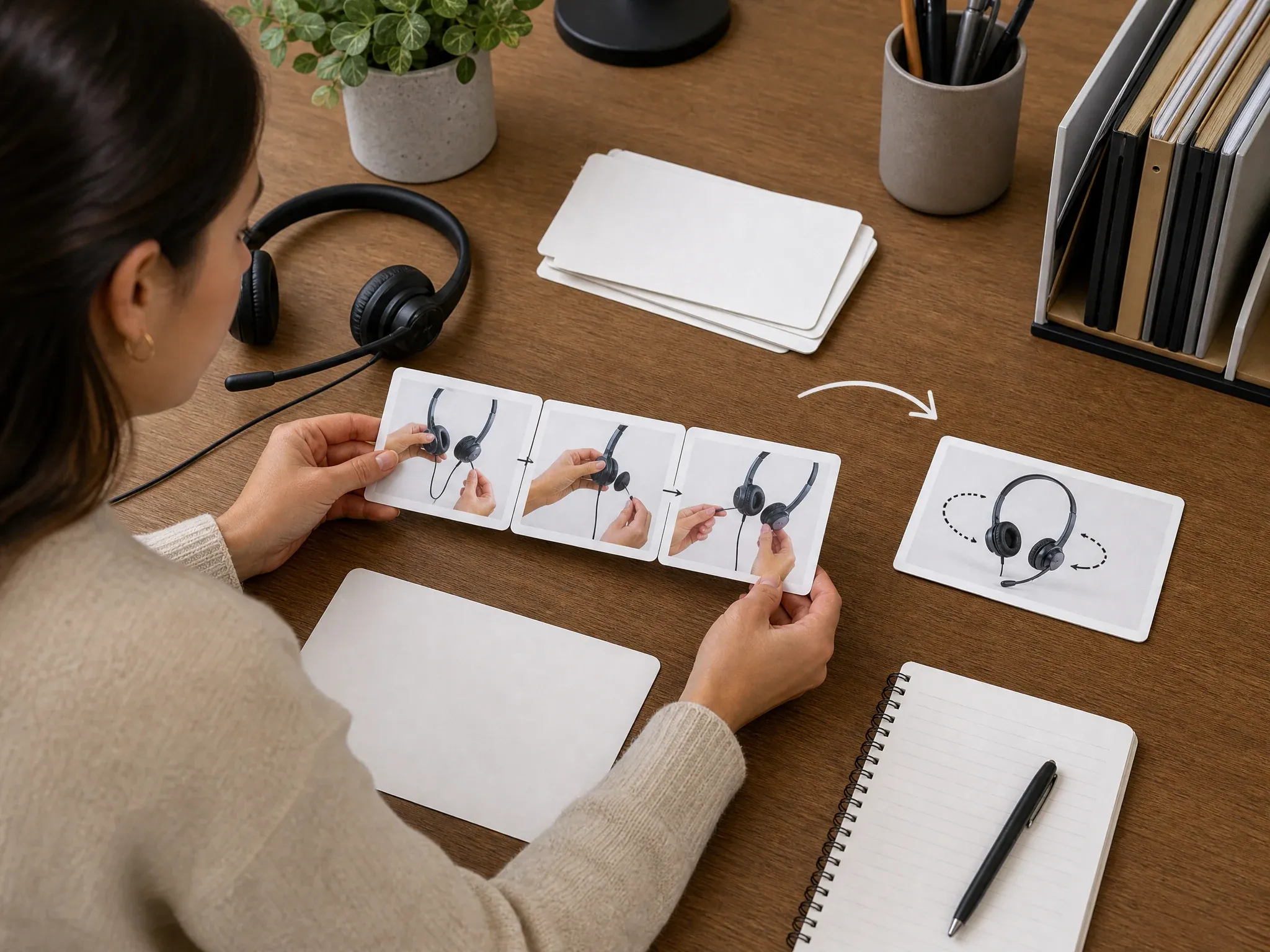
把简单的操作教学视频转成 GIF,可以直接粘到工单、Slack、Discord、团队聊天或入门指南中。
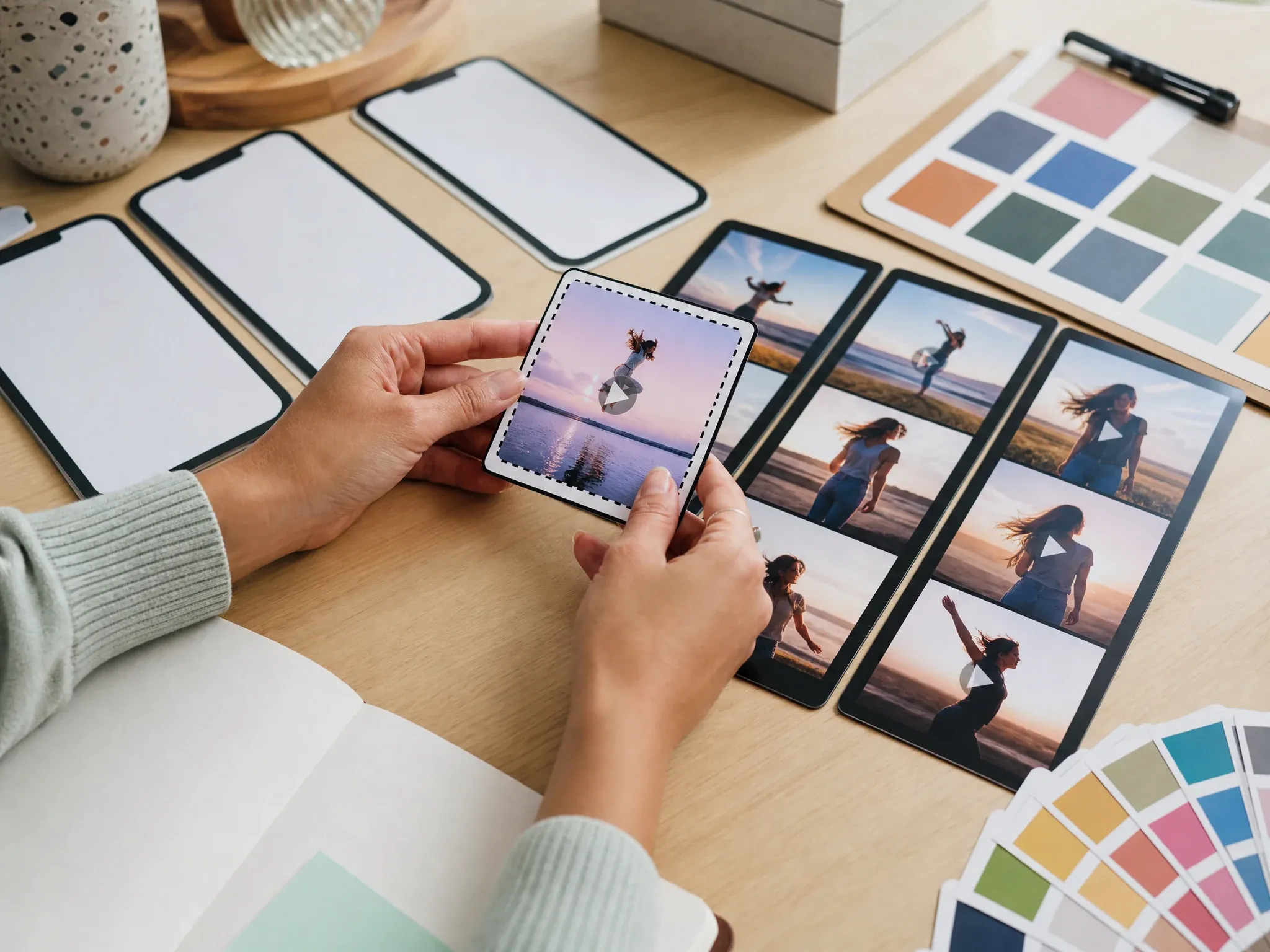
当完整视频上传显得过重时,为帖子或分镜脚本导出一个微型动态预览。
把有趣或有表现力的瞬间剪成循环 GIF,适用于评论、聊天和社区帖子。
当静态截图不够、完整内嵌视频又太重时,使用低 FPS 的短 GIF。
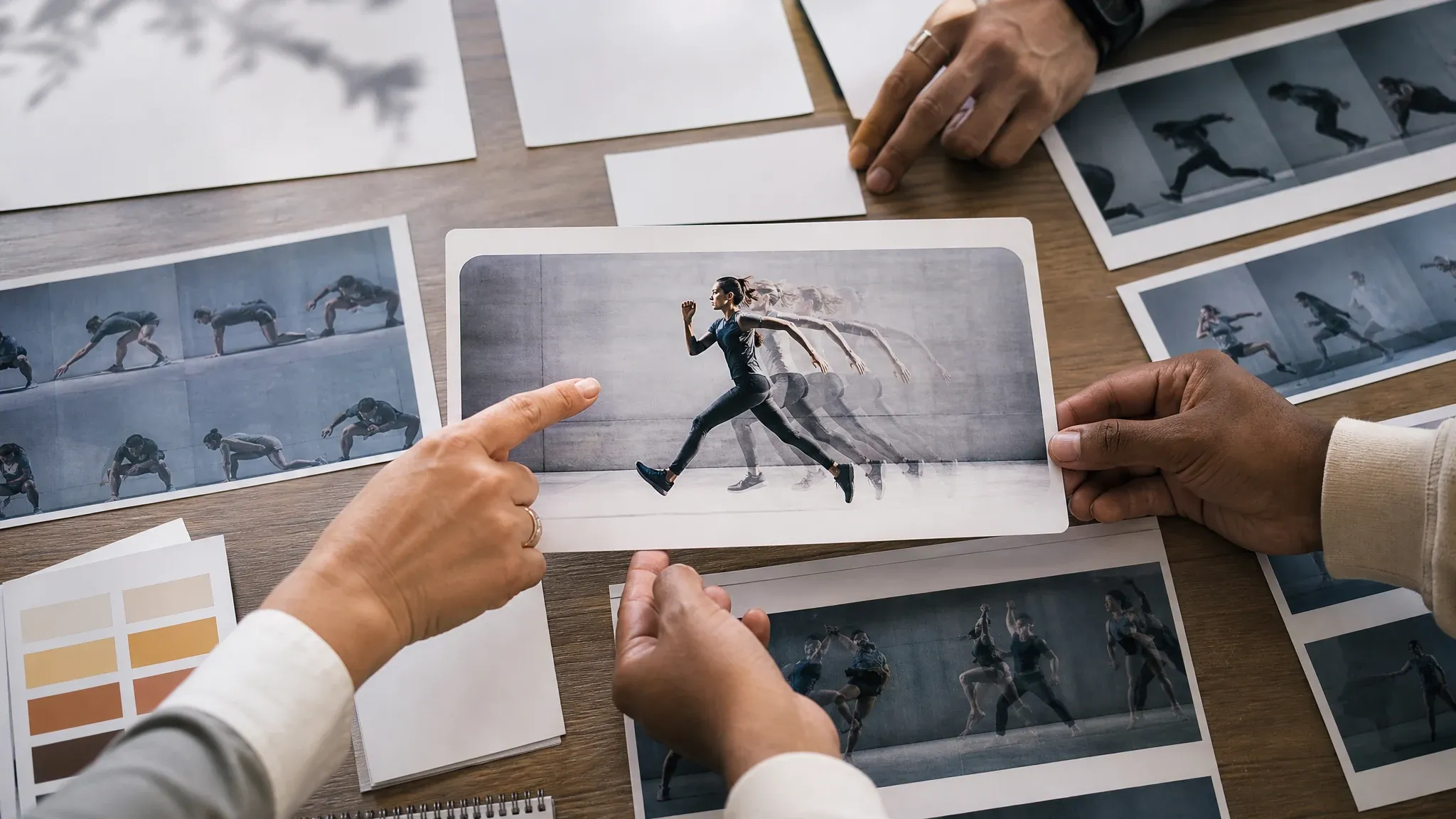
把 GIF 放进情绪板或客户备注中,评审者无需打开视频播放器就能理解动态效果。
视频转 GIF 转换器能把一段短视频变成循环播放的动画 GIF。Face AI 的这个版本聚焦浏览器端源视频转换、截取、FPS、分辨率、速度、预览和单个视频的下载。
截取有用的瞬间,而不是把长视频转成体积过大的 GIF。
根据 GIF 的使用场景选择更流畅的动态、输出宽度和播放速度。
结果是 GIF 文件,不是带字幕的视频、矢量动画或批量编辑器导出。
页面直接打开转换工作区,控件聚焦于最常见的需求:一次输入一个视频,本地输出一个 GIF,并在转换前就能看到文件大小与质量的取舍。
从上传和截取控件开始,无需创建项目时间轴。
生成的 GIF 保存在当前浏览器会话中,无需把源视频发送给 Face AI 转换即可直接下载。
FPS、分辨率和速度控件让“大小与流畅度”的取舍在转换前一目了然。
字幕、贴纸叠加、批量转换、逐帧精确剪辑和成片视频制作请使用完整编辑器。
快速转 GIF 用 Face AI。需要时间轴剪辑、文字叠加或批量制作时,再用完整编辑器。
| 对比项 | Face AI我们 Face AI 视频转 GIF 工作流 | 其他工作流 |
|---|---|---|
| 起点 | 选择一个 MP4、MOV 或 WebM 视频,在浏览器中直接转换源视频。 | 编辑器通常需要先建项目、时间轴、导出预设和更多设置。 |
| 免费在线重点 | 从聚焦的转换工作流开始,FPS、分辨率和速度选择清晰可见。 | 大型编辑器往往免费起步,但会把高级编辑、去水印、存储或品牌工具放进账户与付费流程。 |
| 控件 | 截取范围、FPS、分辨率、速度、结果预览和 GIF 下载。 | 编辑器可能加入字幕、叠加、裁剪、滤镜、音频、宽高比、WebP 导出和批量队列。 |
| 隐私边界 | 源视频在浏览器中转换。导出的 GIF 在当前会话中预览并下载。 | 一些纯浏览器竞品会把文件完全留在设备上,而云端转换器可能承诺删除期限或账户存储。 |
| 最佳用途 | 文档、聊天、客服、产品演示循环、反应片段和社交预览 GIF。 | 成片视频制作、品牌动效或逐帧精确编辑。 |
| 输出本质 | 轻量分享用的循环 GIF 文件,不是 WebP、字幕或完整视频包。 | MP4、WebM、GIF、MOV、字幕、缩略图与混合媒体包。 |
选择一个 MP4、MOV 或 WebM 视频,在浏览器中直接转换源视频。
编辑器通常需要先建项目、时间轴、导出预设和更多设置。
从聚焦的转换工作流开始,FPS、分辨率和速度选择清晰可见。
大型编辑器往往免费起步,但会把高级编辑、去水印、存储或品牌工具放进账户与付费流程。
截取范围、FPS、分辨率、速度、结果预览和 GIF 下载。
编辑器可能加入字幕、叠加、裁剪、滤镜、音频、宽高比、WebP 导出和批量队列。
源视频在浏览器中转换。导出的 GIF 在当前会话中预览并下载。
一些纯浏览器竞品会把文件完全留在设备上,而云端转换器可能承诺删除期限或账户存储。
文档、聊天、客服、产品演示循环、反应片段和社交预览 GIF。
成片视频制作、品牌动效或逐帧精确编辑。
轻量分享用的循环 GIF 文件,不是 WebP、字幕或完整视频包。
MP4、WebM、GIF、MOV、字幕、缩略图与混合媒体包。
这些评价聚焦于一个实用流程:选择视频、截取、调整大小、本地转换,然后预览并下载 GIF 结果。
"五秒的产品演示循环往往比完整视频更能说明问题。裁剪、FPS、分辨率和速度控制能让 GIF 保持足够聚焦,适合放进发布说明。"

Kai Nakamura
Global Creative Director
"这个页面很有用,因为它不装成全功能视频编辑器。我上传一个视频、选个短片段,就能导出一个 GIF 供评审。"

Nina Volkov
Visual Design Director
"做创意评审时,把 GIF 贴到看板上比嵌入视频播放器更方便。浏览器端转换让交接变得很轻。"

Rafael Santos
VP of Creative
"当客户需要看到动态而不是完整成片时,我会用它。MP4、MOV 和 WebM 的支持覆盖了我们平时收到的源视频。"

Priya Chen
Creative Strategy Lead
"这些实用的控制正是我需要的:裁剪、FPS、分辨率、速度、预览和下载。字幕和叠加效果应该交给编辑器。"

Devon Park
Interactive Creative Director
"在说明旁边放一个小循环,文档页读起来会好很多。更低的 FPS 和更短的视频能让文件小到适合放进文章。"

Sophia Wagner
Editorial Director
"五秒的产品演示循环往往比完整视频更能说明问题。裁剪、FPS、分辨率和速度控制能让 GIF 保持足够聚焦,适合放进发布说明。"
Kai Nakamura
Global Creative Director
"这个页面很有用,因为它不装成全功能视频编辑器。我上传一个视频、选个短片段,就能导出一个 GIF 供评审。"
Nina Volkov
Visual Design Director
"做创意评审时,把 GIF 贴到看板上比嵌入视频播放器更方便。浏览器端转换让交接变得很轻。"
Rafael Santos
VP of Creative
"当客户需要看到动态而不是完整成片时,我会用它。MP4、MOV 和 WebM 的支持覆盖了我们平时收到的源视频。"
Priya Chen
Creative Strategy Lead
"这些实用的控制正是我需要的:裁剪、FPS、分辨率、速度、预览和下载。字幕和叠加效果应该交给编辑器。"
Devon Park
Interactive Creative Director
"在说明旁边放一个小循环,文档页读起来会好很多。更低的 FPS 和更短的视频能让文件小到适合放进文章。"
Sophia Wagner
Editorial Director
"文案对 GIF 的取舍说得很实在。它告诉用户缩短片段,而不是承诺完美的长动画。"

Astrid Nielsen
Head of Thought Leadership
"五秒的产品演示循环往往比完整视频更能说明问题。裁剪、FPS、分辨率和速度控制能让 GIF 保持足够聚焦,适合放进发布说明。"
Kai Nakamura
Global Creative Director
"这个页面很有用,因为它不装成全功能视频编辑器。我上传一个视频、选个短片段,就能导出一个 GIF 供评审。"
Nina Volkov
Visual Design Director
"做创意评审时,把 GIF 贴到看板上比嵌入视频播放器更方便。浏览器端转换让交接变得很轻。"
Rafael Santos
VP of Creative
"当客户需要看到动态而不是完整成片时,我会用它。MP4、MOV 和 WebM 的支持覆盖了我们平时收到的源视频。"
Priya Chen
Creative Strategy Lead
"这些实用的控制正是我需要的:裁剪、FPS、分辨率、速度、预览和下载。字幕和叠加效果应该交给编辑器。"
Devon Park
Interactive Creative Director
"在说明旁边放一个小循环,文档页读起来会好很多。更低的 FPS 和更短的视频能让文件小到适合放进文章。"
Sophia Wagner
Editorial Director
"文案对 GIF 的取舍说得很实在。它告诉用户缩短片段,而不是承诺完美的长动画。"
Astrid Nielsen
Head of Thought Leadership
"我们的培训团队可以把快速的屏幕录制变成支持 GIF,同时保留原始视频用于更长的演示。"

Charlotte Beaumont
Director of Content Operations
"社媒预设的说法对营销活动很有用。团队不用打开时间轴编辑器,就能快速拿到动态素材。"

Yifan Zheng
Demand Generation Lead
"我喜欢它有这样一个简单的转换器处理合作伙伴公告。短 GIF 在聊天和邮件里比沉重的视频附件更好传播。"

Sakura Ito
Partner Marketing Lead
"做客户更新时,结果很容易复用:一个产品瞬间、一个循环 GIF、一个清晰的文件大小取舍。"

Ren Sato
Customer Marketing Director
"这个工具让品牌团队保持务实。它只生成 GIF,而不是字幕、裁切预设、WebP 变体或一整套动态图形方案。"

Anisha Patel
Brand Director
"我用它做过一个社区帖子,完整视频太长。裁过的 GIF 让更新在手机上更容易扫读。"

Jordan Kim
Growth Lead
"最好的地方在于承诺很克制。转换已获批的视频、下载 GIF,需要精修时再用专门的编辑器。"

Pooja Mehta
VP of Brand Experience
"我们的培训团队可以把快速的屏幕录制变成支持 GIF,同时保留原始视频用于更长的演示。"
Charlotte Beaumont
Director of Content Operations
"社媒预设的说法对营销活动很有用。团队不用打开时间轴编辑器,就能快速拿到动态素材。"
Yifan Zheng
Demand Generation Lead
"我喜欢它有这样一个简单的转换器处理合作伙伴公告。短 GIF 在聊天和邮件里比沉重的视频附件更好传播。"
Sakura Ito
Partner Marketing Lead
"做客户更新时,结果很容易复用:一个产品瞬间、一个循环 GIF、一个清晰的文件大小取舍。"
Ren Sato
Customer Marketing Director
"这个工具让品牌团队保持务实。它只生成 GIF,而不是字幕、裁切预设、WebP 变体或一整套动态图形方案。"
Anisha Patel
Brand Director
"我用它做过一个社区帖子,完整视频太长。裁过的 GIF 让更新在手机上更容易扫读。"
Jordan Kim
Growth Lead
"最好的地方在于承诺很克制。转换已获批的视频、下载 GIF,需要精修时再用专门的编辑器。"
Pooja Mehta
VP of Brand Experience
根据真正的瓶颈选择下一步工具:先创建动态、增强源视频、让图片动起来,或在导出短循环前更换视频中的人脸。
关于 MP4/MOV/WebM 源文件、浏览器端转换、FPS、分辨率、速度、文件大小、GIF 输出、隐私,以及何时改用完整编辑器的解答。
支持 MP4、MOV 或 WebM。当前文件选择器接受一个源视频,用于浏览器端转换。
是的,页面直接提供免费在线转换流程,并在浏览器中转换所选源视频。非常大的视频仍然可能较慢,因为 GIF 编码本身很耗时。
本地流程没有时长上限。更短的片段转换更快,通常也能产生更小、更适合分享的 GIF。
会。浏览器转换返回 GIF 结果,可在当前会话中预览和下载。
大多数社交和文档场景使用 10 或 12 FPS。更低的 FPS 生成更小的文件;更高的 FPS 更流畅但体积也更大。
分辨率改变 GIF 的宽度,速度改变播放节奏。更低的 FPS 和更小的宽度通常能得到更小的 GIF。
这个简洁的转换器不支持。请在转换前用视频编辑器添加字幕、贴纸、裁剪、缩放和叠加效果。
不能。本页面仅用于 GIF 输出。需要 WebP、MP4、缩略图或混合媒体包时,请使用其他转换器或编辑器。
源视频在浏览器中转换,而不是上传后转换。请保持标签页打开直到转换完成,在清除或离开页面之前下载 GIF。
不会。GIF 是图像格式,不包含音频。结果中只有所选片段的画面帧。
GIF 文件会随时长、宽度、色彩细节和 FPS 快速膨胀。可以截取更短的片段、降低 FPS 或选择更小的分辨率。
只能转换你自己拥有或获准处理的视频。未经许可请避开敏感、私密或受版权保护的内容。
选择一个 MP4、MOV 或 WebM 视频,截取有用的片段,选择 FPS、分辨率和速度,然后在浏览器中转换并导出循环 GIF。