
Starting point
Ours
Upload one portrait, choose a hairstyle preset, add a short note, then generate a realistic still-image preview.
Other options
Prompt-only editors can work, but they often make you describe the whole haircut from scratch.
Upload a selfie and try hairstyles on your photo before the salon. Preview bobs, pixie cuts, bangs, long waves, top buns, braids, curls, fades, buzzcuts, crew cuts, and custom haircut ideas in the browser. Free online. No login to start. No watermark on downloads.
Trusted by 12,000,000+ users worldwide.
The fastest path is photo first, hairstyle preset second, short note third, then generate and compare the result.
Use a single-person selfie with visible hairline, normal lighting, and enough space around the head and shoulders.
Pick bob, pixie, bangs, long waves, shag, bun, braids, fade, crewcut, or custom prompt before adding details.
Save the keeper, compare versions in history, or send the result to editor, profile picture, headshot, or upscaler for the next pass.
Use the AI hairstyle changer for salon decisions, barber references, women style changes, stylist-ready mood boards, and profile or social refreshes.
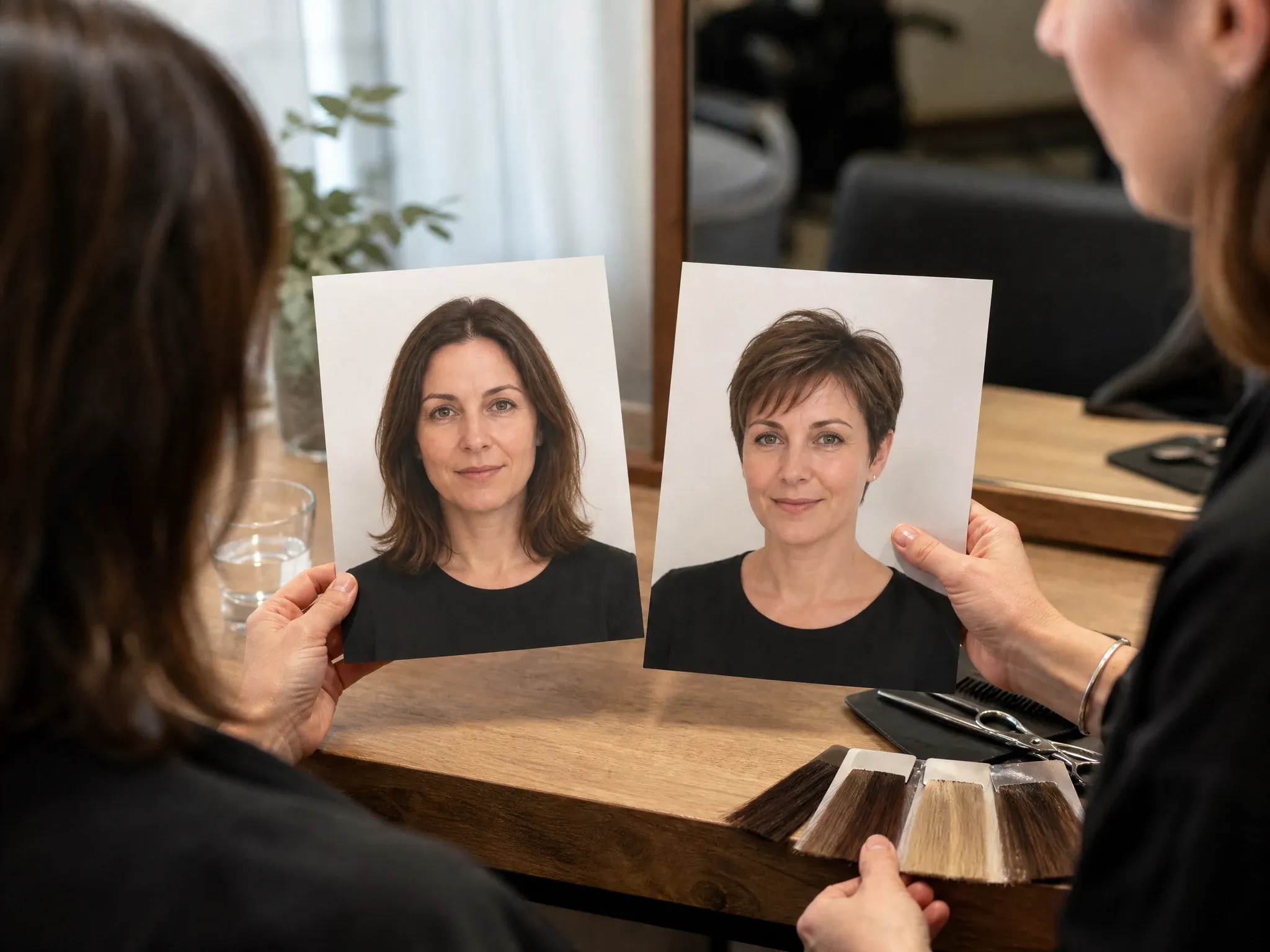
Try a haircut on your own photo before booking a stylist, cutting bangs, going shorter, or changing the shape around your face.
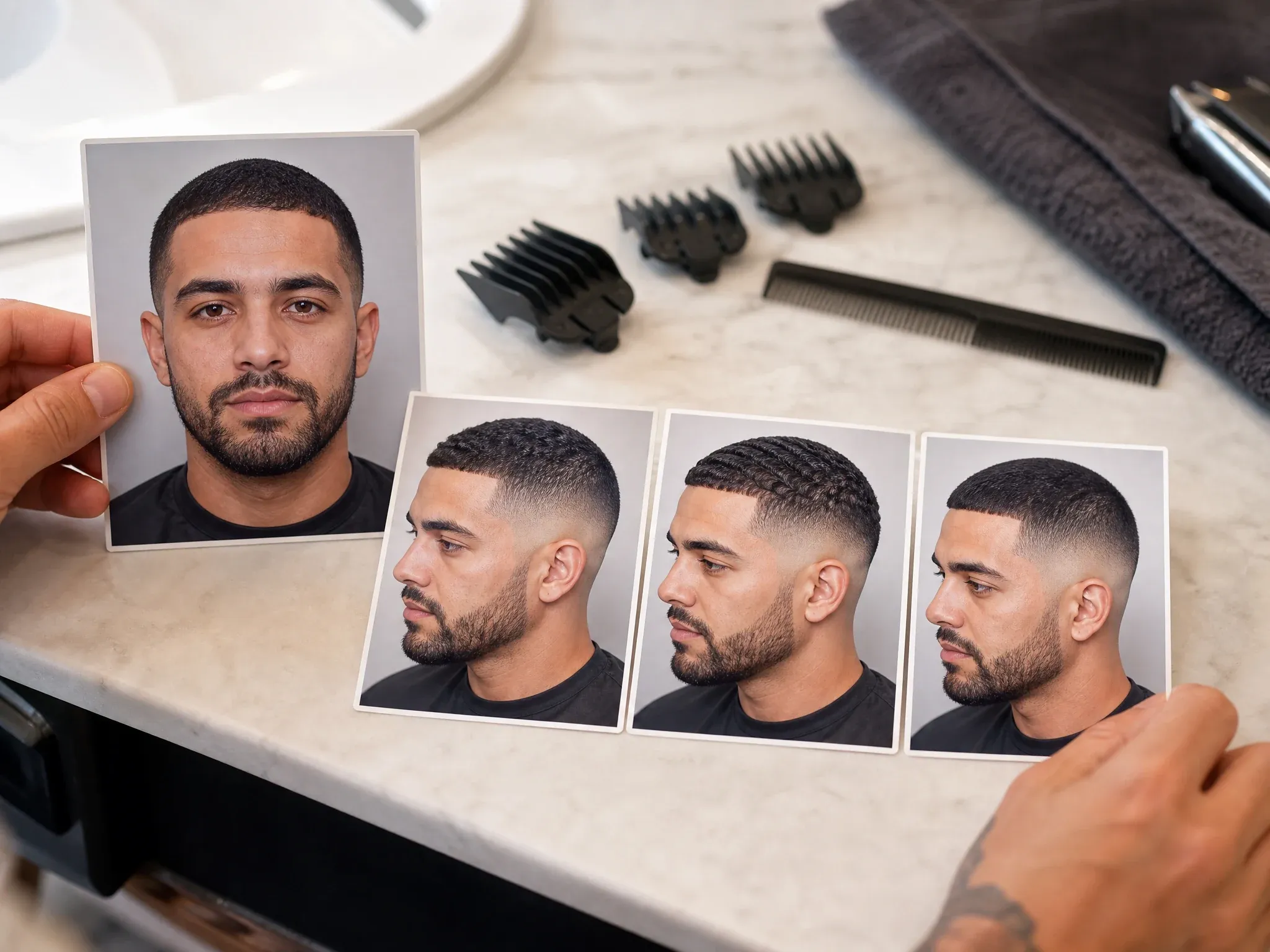
Preview fades, buzzcuts, crewcuts, soft bowl cuts, textured waves, and cleaner profile-photo hair before visiting a barber.
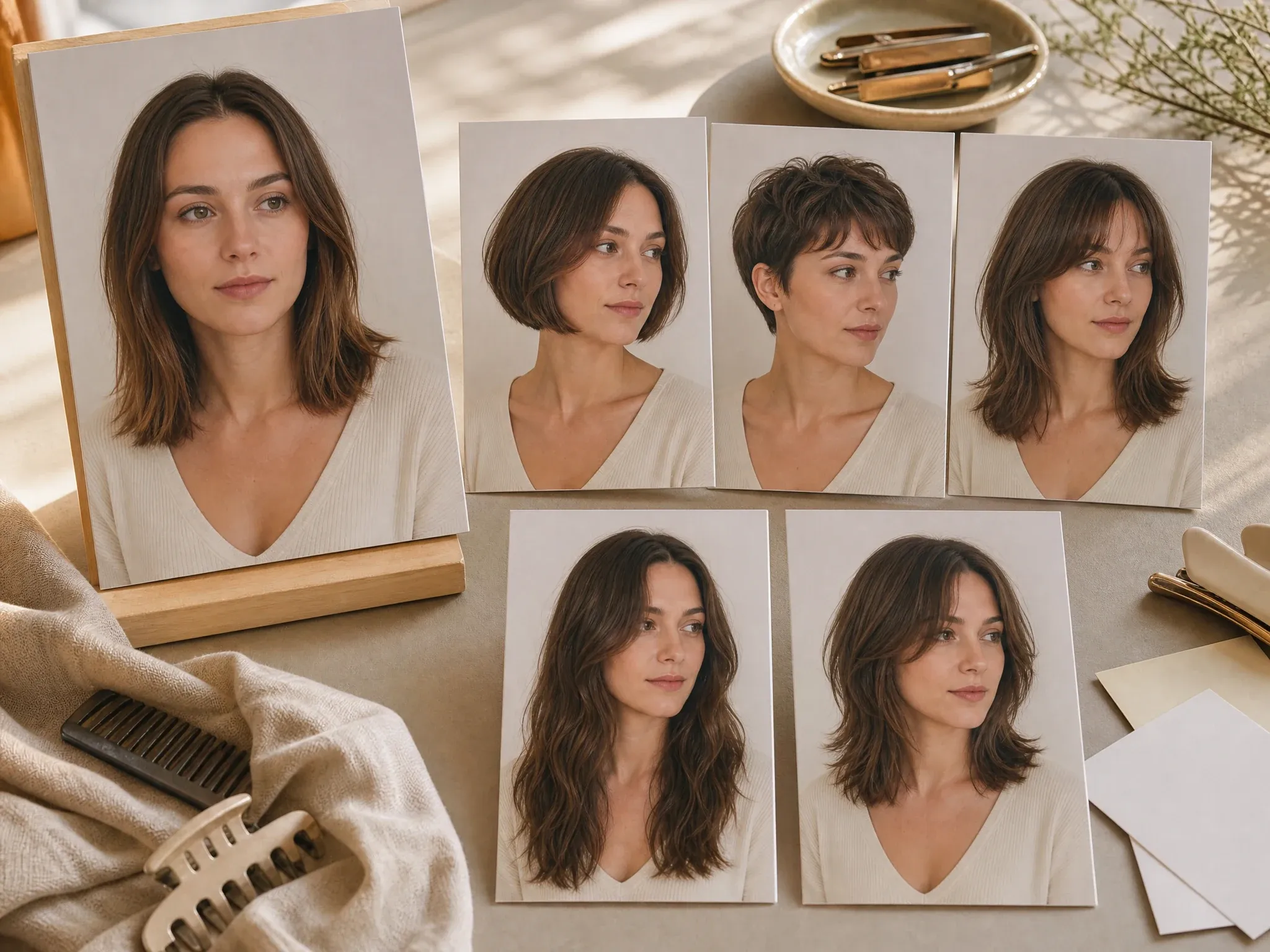
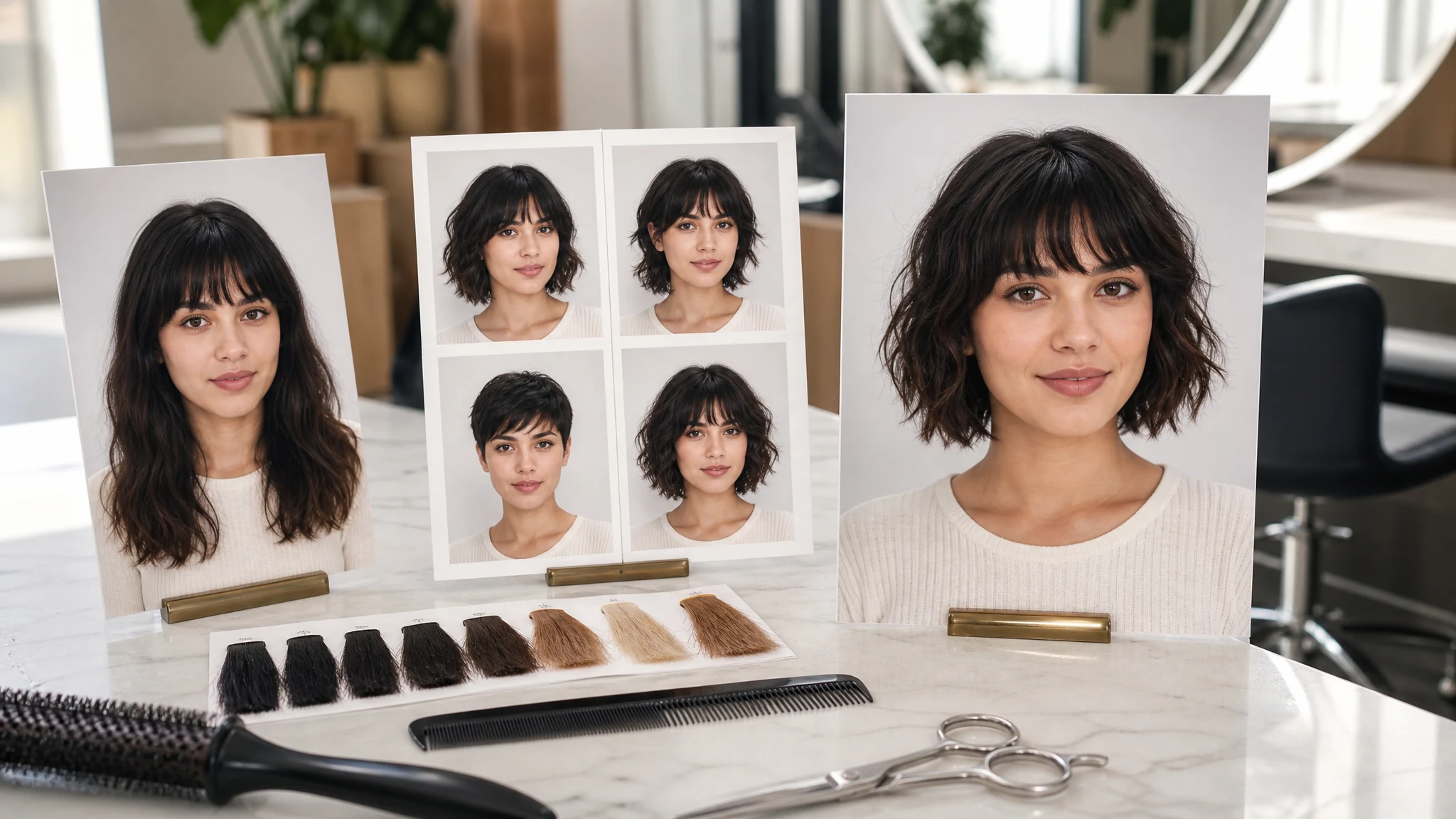
Compare bobs, pixie cuts, bangs, long waves, top buns, braids, curls, and layered cuts without guessing from a catalog photo.
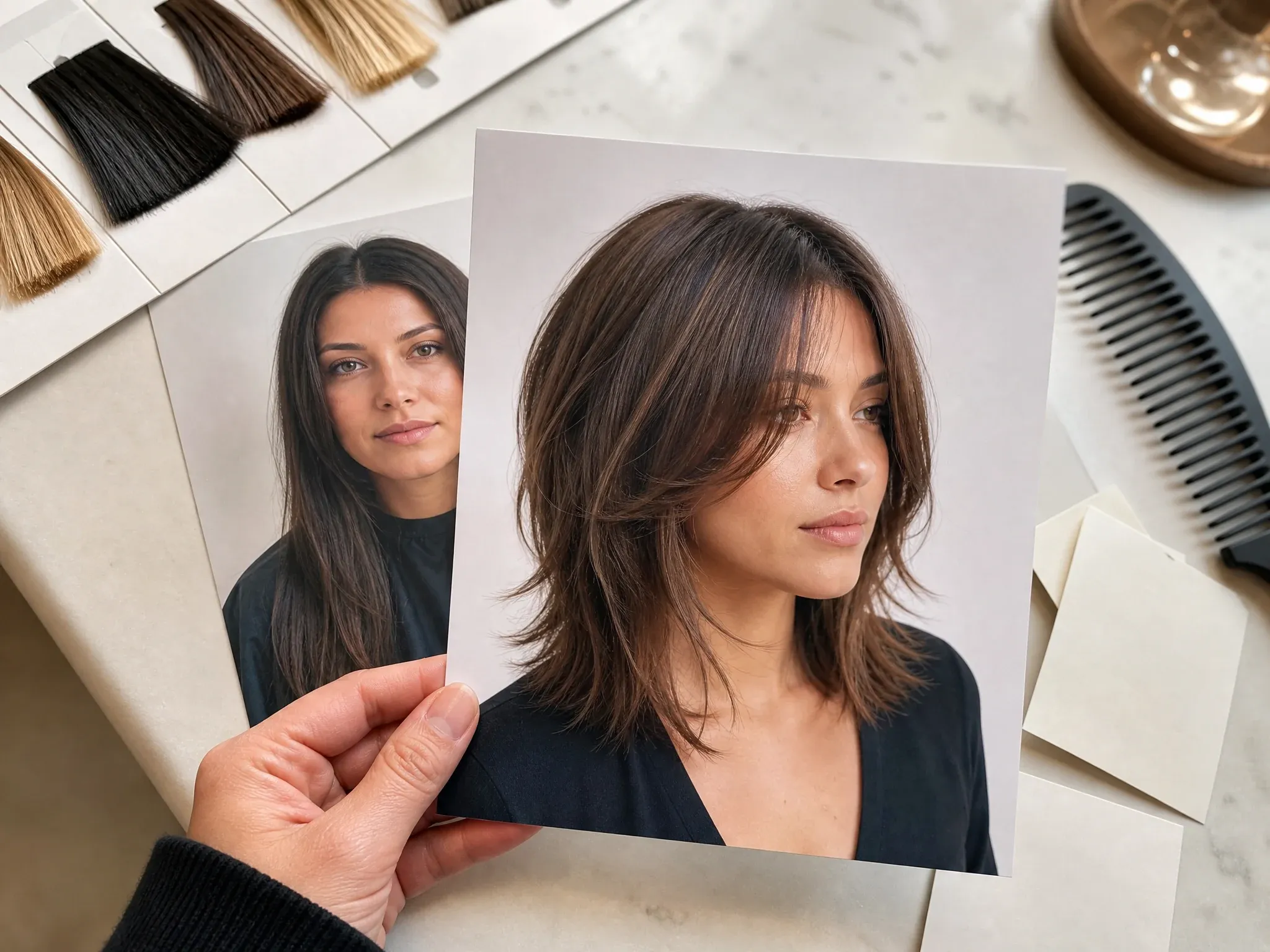
Save a realistic haircut reference that shows your face, hairline, and crop so the salon conversation starts clearer.
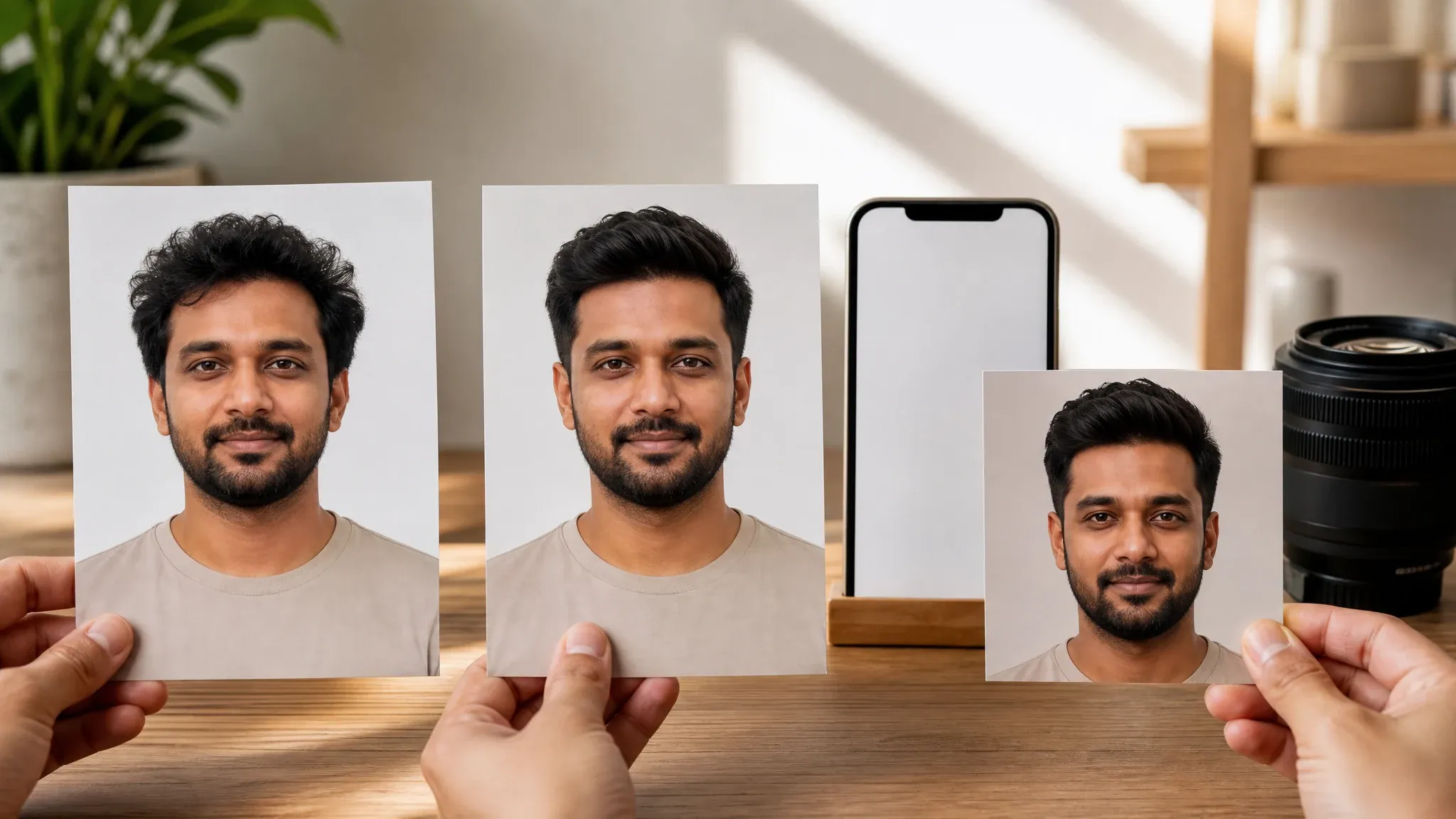
Test a new hairstyle before updating LinkedIn, Instagram, TikTok, dating apps, creator bios, thumbnails, or headshots.
An AI hairstyle changer edits the hair region in your uploaded photo so you can preview a haircut or hairstyle before committing in real life. It is built for visual try-on: you keep the same face and portrait context, then test a new cut, length, texture, parting, or shape.
Start with your own picture so the preview can use your face, hairline, head angle, lighting, and crop as context.
Choose a known hairstyle direction first, then use the prompt for length, texture, parting, face-framing layers, or what should stay unchanged.
This page focuses on hairstyle and haircut preview. Hair color and video hairstyle changes belong in separate workflows unless they are explicitly available.
FaceAI keeps the workflow simple: upload your portrait, choose a hairstyle, add a short note, generate, compare history, download without a watermark, and keep editing only when the preview is close.
Try hairstyles in the browser without installing an app. The workbench keeps upload, generation, history, share, and download together.
Bobs, pixies, bangs, waves, buns, braids, curls, fades, buzzcuts, crewcuts, and custom prompts help you start faster.
The generation prompt asks to preserve face, skin tone, expression, pose, clothing, background, and lighting while changing the hair region.
When the hairstyle is close, move the result into image editor, profile picture, headshot, or upscaler instead of restarting from a blank tool.
The best hairstyle try-on results come from a portrait where the hairline is readable and the request is specific. Give the model one haircut job at a time.
Avoid hats, heavy bangs covering the forehead, dark shadows, and extreme side angles when you want a believable hairline.
Group photos, tiny screenshots, sunglasses, heavy filters, and public-figure requests make the result less useful or inappropriate.
Ask for the cut first. If you also want a color change, keep it short or use the dedicated hair-color workflow when available.
Use the result as a salon reference. It helps explain length, shape, and mood while leaving final cutting choices to the stylist.
Use the workflow that matches the decision. A haircut preview should be quick, visual, and honest about what a photo can prove.
| Criteria | Face AIOurs FaceAI hairstyle try-on workflow | Other options |
|---|---|---|
| Starting point | Upload one portrait, choose a hairstyle preset, add a short note, then generate a realistic still-image preview. | Prompt-only editors can work, but they often make you describe the whole haircut from scratch. |
| Best use | Before-salon decisions, barber references, women style changes, stylist mood boards, and profile-photo refreshes. | Salon catalogs show the hairstyle on someone else, so fit can be hard to judge on your own face. |
| Friction | Free online workflow with no app install, no login to start, browser history, share, and no-watermark download controls. | Some try-on apps push installs, sign-up gates, paid HD exports, or watermarked previews. |
| Control | Choose bobs, pixie cuts, bangs, waves, buns, braids, fades, crewcuts, custom prompts, ratio, and output resolution. | Generic apps may expose a filter grid without enough context for hairline, crop, or stylist reference use. |
| Follow-up | Send a keeper to image editor, profile picture, headshot, or upscaler when it is close. | Single-purpose hairstyle tools often stop at one preview and leave cleanup to another app. |
| Honest limit | This is a still-image hairstyle preview. It does not guarantee salon replication, face-shape diagnosis, hair density accuracy, or same-page video hair changes. | Some pages overpromise exact realism, 4K, AI recommendations, or video try-on without proving the workflow. |
Upload one portrait, choose a hairstyle preset, add a short note, then generate a realistic still-image preview.
Prompt-only editors can work, but they often make you describe the whole haircut from scratch.
Before-salon decisions, barber references, women style changes, stylist mood boards, and profile-photo refreshes.
Salon catalogs show the hairstyle on someone else, so fit can be hard to judge on your own face.
Free online workflow with no app install, no login to start, browser history, share, and no-watermark download controls.
Some try-on apps push installs, sign-up gates, paid HD exports, or watermarked previews.
Choose bobs, pixie cuts, bangs, waves, buns, braids, fades, crewcuts, custom prompts, ratio, and output resolution.
Generic apps may expose a filter grid without enough context for hairline, crop, or stylist reference use.
Send a keeper to image editor, profile picture, headshot, or upscaler when it is close.
Single-purpose hairstyle tools often stop at one preview and leave cleanup to another app.
This is a still-image hairstyle preview. It does not guarantee salon replication, face-shape diagnosis, hair density accuracy, or same-page video hair changes.
Some pages overpromise exact realism, 4K, AI recommendations, or video try-on without proving the workflow.
These comments focus on the real loop: upload a portrait, choose a hairstyle, generate, compare, then download or refine the haircut preview.
"I use it before booking a cut. Upload one clear selfie, choose bob or bangs, then compare the result with the style I was already considering."

Sofia Martinez
Head of Brand Social
"The barber presets help more than a blank prompt. Buzzcut, fade, crew cut, and textured waves are easier to brief from the menu."

Camila Lopez
Influencer Partnerships Lead
"For clients, I ask for a front-facing photo with the hairline visible. Hats, heavy filters, and side angles make the preview less useful."

Valentina Garcia
Content Strategy Manager
"I wanted a new profile look without actually cutting my hair first. Long waves versus curtain bangs was a quick side-by-side decision."

Luna Hernandez
Community Manager
"The no-watermark download is useful for a stylist reference. I save the result, add a note, and bring it to the appointment."

Daniela Flores
Brand Marketing Lead
"It works best when the prompt is short. I write the cut, keep the original color, preserve face and lighting, then generate."

Anya Ramos
Influencer Partnerships Director
"I use it before booking a cut. Upload one clear selfie, choose bob or bangs, then compare the result with the style I was already considering."
Sofia Martinez
Head of Brand Social
"The barber presets help more than a blank prompt. Buzzcut, fade, crew cut, and textured waves are easier to brief from the menu."
Camila Lopez
Influencer Partnerships Lead
"For clients, I ask for a front-facing photo with the hairline visible. Hats, heavy filters, and side angles make the preview less useful."
Valentina Garcia
Content Strategy Manager
"I wanted a new profile look without actually cutting my hair first. Long waves versus curtain bangs was a quick side-by-side decision."
Luna Hernandez
Community Manager
"The no-watermark download is useful for a stylist reference. I save the result, add a note, and bring it to the appointment."
Daniela Flores
Brand Marketing Lead
"It works best when the prompt is short. I write the cut, keep the original color, preserve face and lighting, then generate."
Anya Ramos
Influencer Partnerships Director
"The page separates haircut try-on from hair color. That keeps the decision focused instead of stuffing every hair idea into one prompt."

Putri Handayani
KOL Marketing Manager
"I use it before booking a cut. Upload one clear selfie, choose bob or bangs, then compare the result with the style I was already considering."
Sofia Martinez
Head of Brand Social
"The barber presets help more than a blank prompt. Buzzcut, fade, crew cut, and textured waves are easier to brief from the menu."
Camila Lopez
Influencer Partnerships Lead
"For clients, I ask for a front-facing photo with the hairline visible. Hats, heavy filters, and side angles make the preview less useful."
Valentina Garcia
Content Strategy Manager
"I wanted a new profile look without actually cutting my hair first. Long waves versus curtain bangs was a quick side-by-side decision."
Luna Hernandez
Community Manager
"The no-watermark download is useful for a stylist reference. I save the result, add a note, and bring it to the appointment."
Daniela Flores
Brand Marketing Lead
"It works best when the prompt is short. I write the cut, keep the original color, preserve face and lighting, then generate."
Anya Ramos
Influencer Partnerships Director
"The page separates haircut try-on from hair color. That keeps the decision focused instead of stuffing every hair idea into one prompt."
Putri Handayani
KOL Marketing Manager
"History makes the workflow practical. I can compare pixie, bob, shag, and top bun from the same source photo without losing the earlier result."

Linh Nguyen
Head of Creator Relations
"For Reels covers and profile photos, I keep the crop at 4:5 or 1:1. The style preview gives enough direction before I edit the final image."

Siti Nurhaliza
Influencer Campaign Lead
"It is a strong first filter before someone commits to a cut, especially when they are choosing between two very different lengths."

Mia Reyes
Brand Ambassadors Manager
"The practical detail is the hairline. If the forehead and ears are visible, the new hairstyle usually reads much more naturally."

Nhi Pham
Influencer Marketing Manager
"I used the men presets for a cleaner profile photo direction. Crew cut and soft bowl gave very different signals for the same face."

Rina Watanabe
Startup Marketing Lead
"The stylist-ready reference angle is what sold me. The output is easy to save, annotate, and bring into a mood board."

Jasmine Harris
Founder & CEO
"For ad concepts, we use it to test character looks fast: same person, different haircut, then move the keeper into editor or upscaler."

Kendra Clark
Founder & Creative Director
"History makes the workflow practical. I can compare pixie, bob, shag, and top bun from the same source photo without losing the earlier result."
Linh Nguyen
Head of Creator Relations
"For Reels covers and profile photos, I keep the crop at 4:5 or 1:1. The style preview gives enough direction before I edit the final image."
Siti Nurhaliza
Influencer Campaign Lead
"It is a strong first filter before someone commits to a cut, especially when they are choosing between two very different lengths."
Mia Reyes
Brand Ambassadors Manager
"The practical detail is the hairline. If the forehead and ears are visible, the new hairstyle usually reads much more naturally."
Nhi Pham
Influencer Marketing Manager
"I used the men presets for a cleaner profile photo direction. Crew cut and soft bowl gave very different signals for the same face."
Rina Watanabe
Startup Marketing Lead
"The stylist-ready reference angle is what sold me. The output is easy to save, annotate, and bring into a mood board."
Jasmine Harris
Founder & CEO
"For ad concepts, we use it to test character looks fast: same person, different haircut, then move the keeper into editor or upscaler."
Kendra Clark
Founder & Creative Director
Choose the next FaceAI tool based on the blocker: hair color, formal headshot, profile crop, cleanup, or sharper final export.
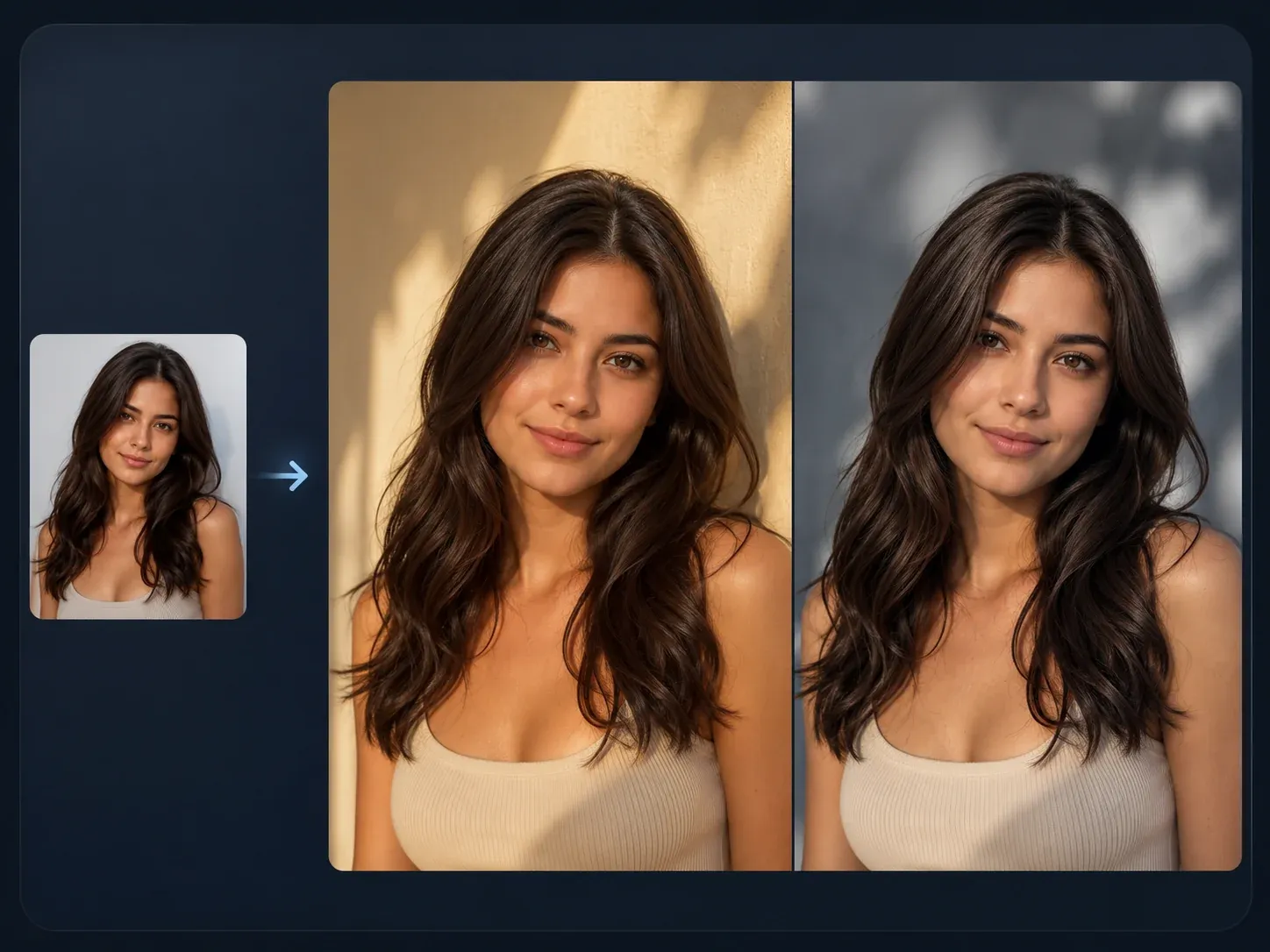
Use this for broader source-guided variants after you choose the haircut direction and want a controlled follow-up edit.

Turn the haircut preview into a cleaner professional profile crop when you need LinkedIn, resume, or company bio use.
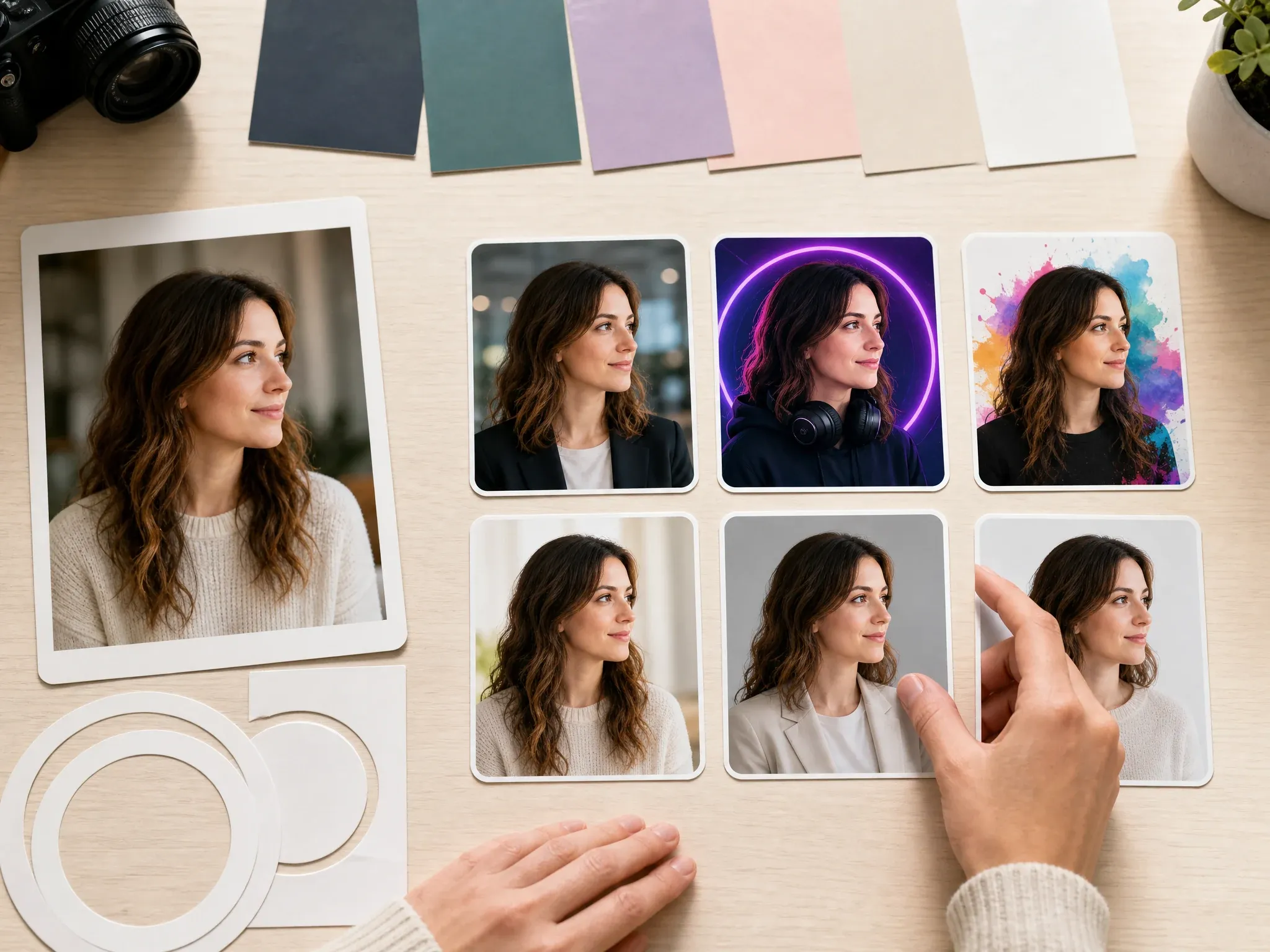
Make a square or portrait profile picture after you choose the haircut direction that fits your face.
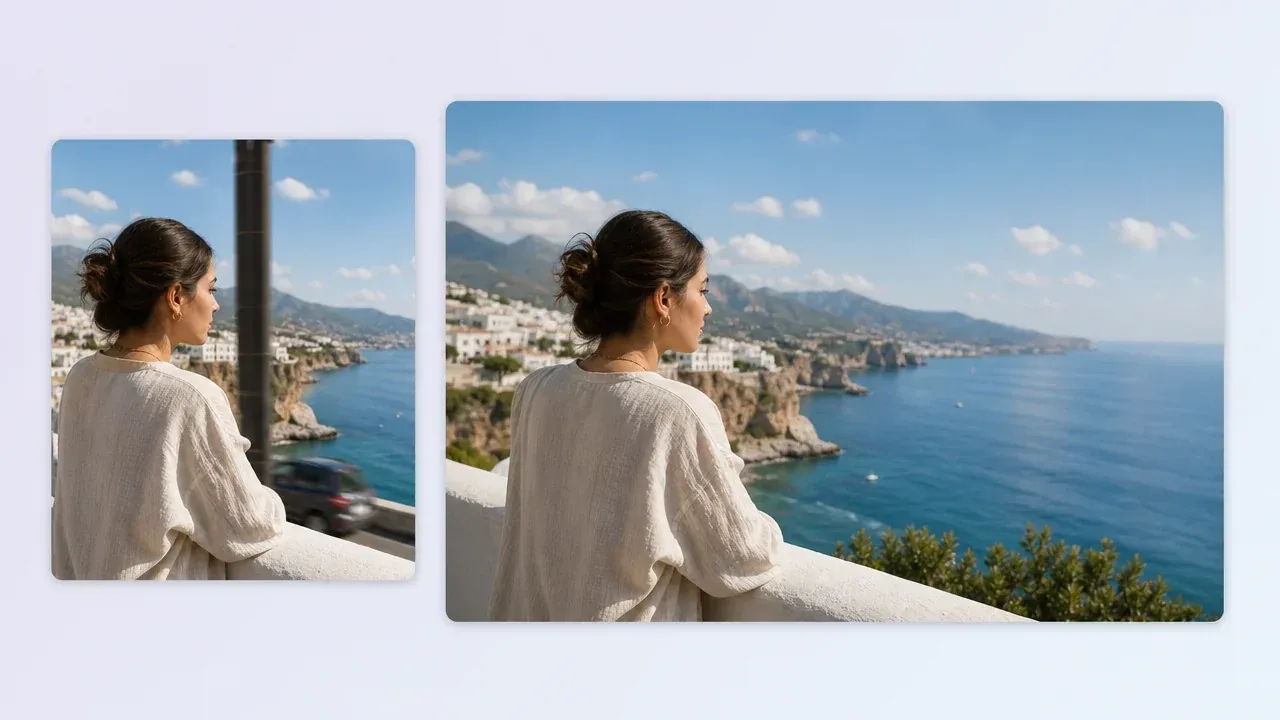
Clean up a nearly finished hairstyle result: flyaways, background clutter, collar edge, or small portrait artifacts.
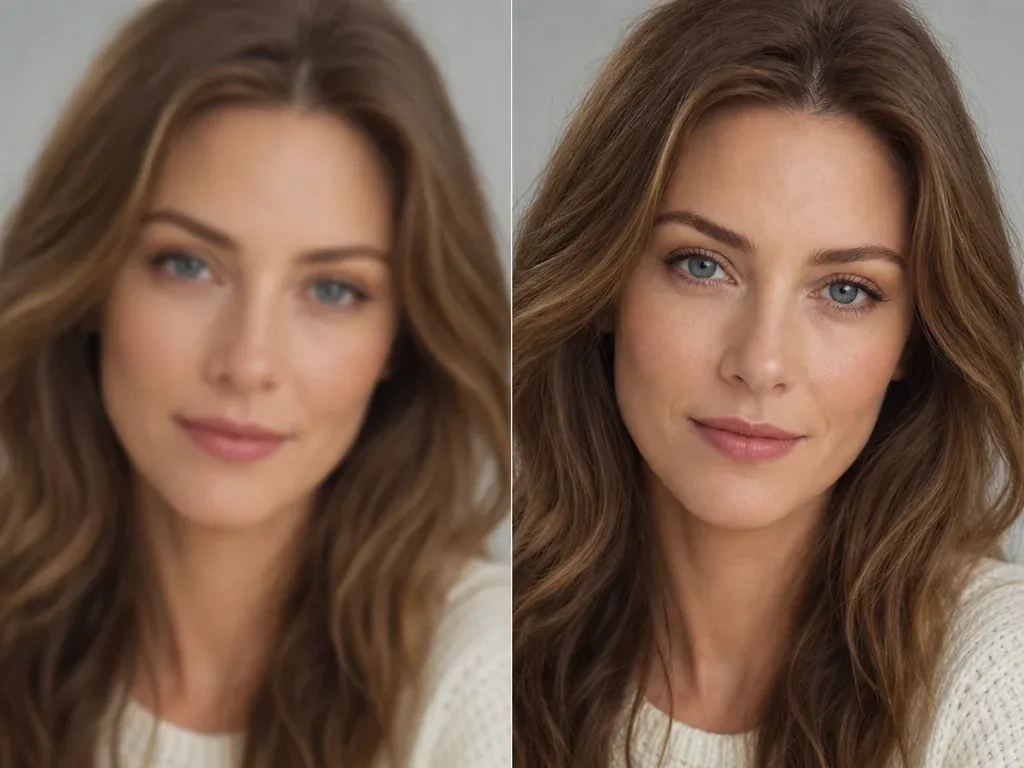
Sharpen the keeper before saving it for a stylist reference, mood board, profile photo, or social post.
Direct answers about free use, no login, hairstyle try-on, men styles, women styles, photo quality, hair color, privacy, downloads, stylist use, and video boundaries.
It is an online tool that lets you try hairstyles on your own photo. Upload a portrait, choose a haircut direction, add a short note if needed, and generate a realistic still-image preview.
Yes. You can start using the AI hairstyle changer online for free. If heavier use reaches account or quota rules, FaceAI shows the current limit in the product flow.
No app download is needed, and the browser workflow is built for low-friction try-on. If guest usage reaches a product limit, the page will show the next step in the flow.
You can start with bobs, pixie cuts, curtain bangs, long waves, shag or wolf cuts, top buns, braids, fades, crewcuts, and custom hairstyle prompts.
Yes. Men can preview barber-style directions such as fades, tapers, buzzcuts, crewcuts, soft bowl cuts, textured waves, and custom short hair prompts.
Use a clear single-person portrait with visible hairline, forehead, ears, normal lighting, and enough room around the head and shoulders. Avoid hats, group shots, heavy filters, and extreme side angles.
You can try it, but front-facing or slight-angle portraits usually work better. Strong side angles can hide the hairline and make the haircut less reliable.
The workflow is designed for realistic still-image previews, but exact salon replication is not guaranteed. Real hair density, texture, cowlicks, and cutting technique still matter.
You can mention a simple color note, but this page focuses on hairstyle and haircut try-on. A dedicated AI hair color changer is the cleaner workflow for color-first intent.
This page does not publicly claim same-page video hairstyle changes. Use it for still-image hairstyle try-on unless a dedicated video workflow is available.
Yes. After the generated image appears, use the download control in the workbench. Keep the tab open until the final image is ready.
FaceAI uses secure upload handling for the generation flow. Use photos you are comfortable processing through an online tool, and avoid sensitive images or photos you do not have permission to use.
Yes. Use the result as a visual reference for length, shape, bangs, layers, or barber direction so the salon conversation starts clearer.
You can use generated images when you own or have permission for the source photo. Avoid public figures, fake endorsements, protected brands, readable logos, and misleading identity claims.
Upload a portrait, choose the haircut direction, generate a realistic AI hairstyle changer preview, then download or refine the result.